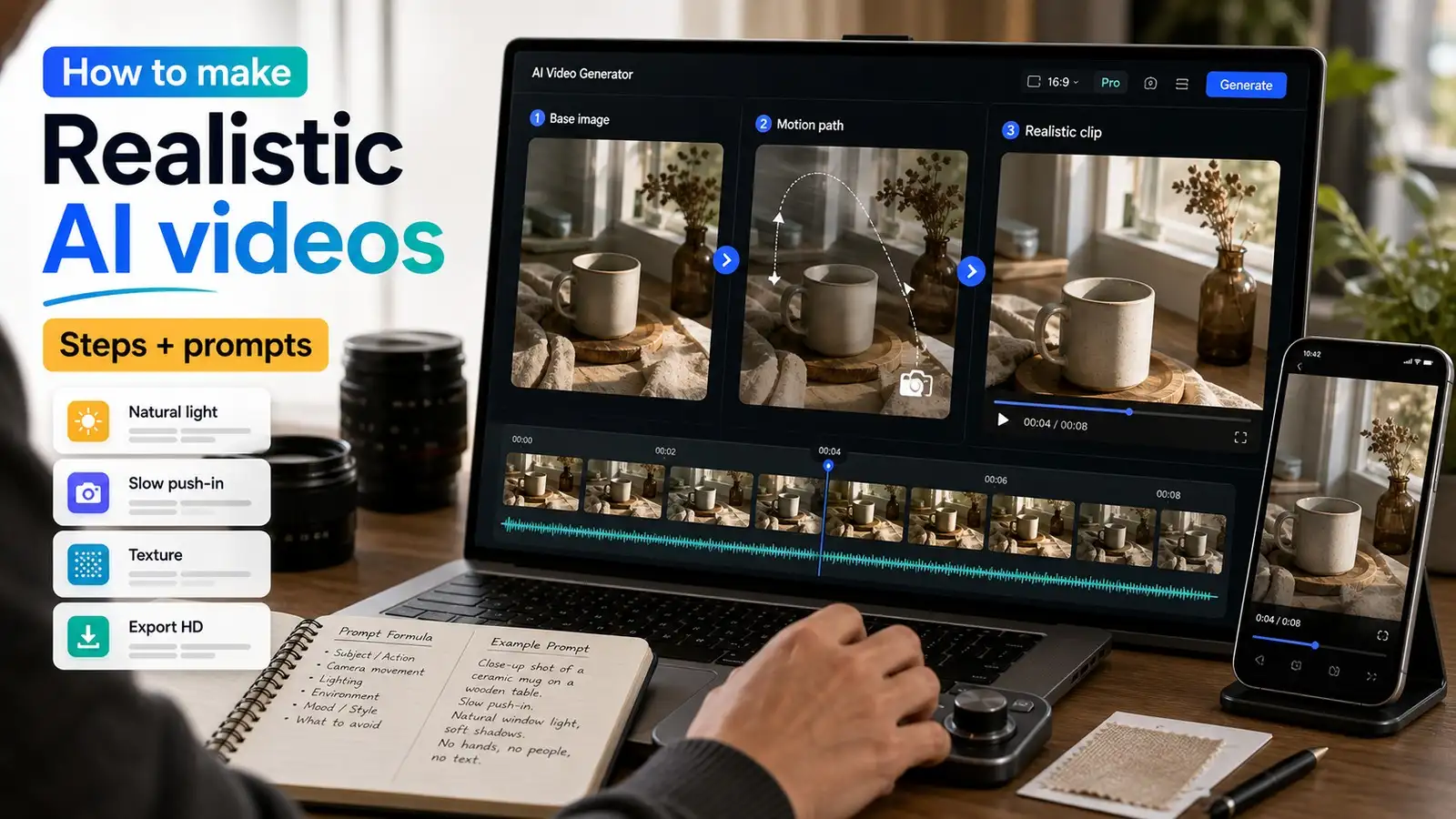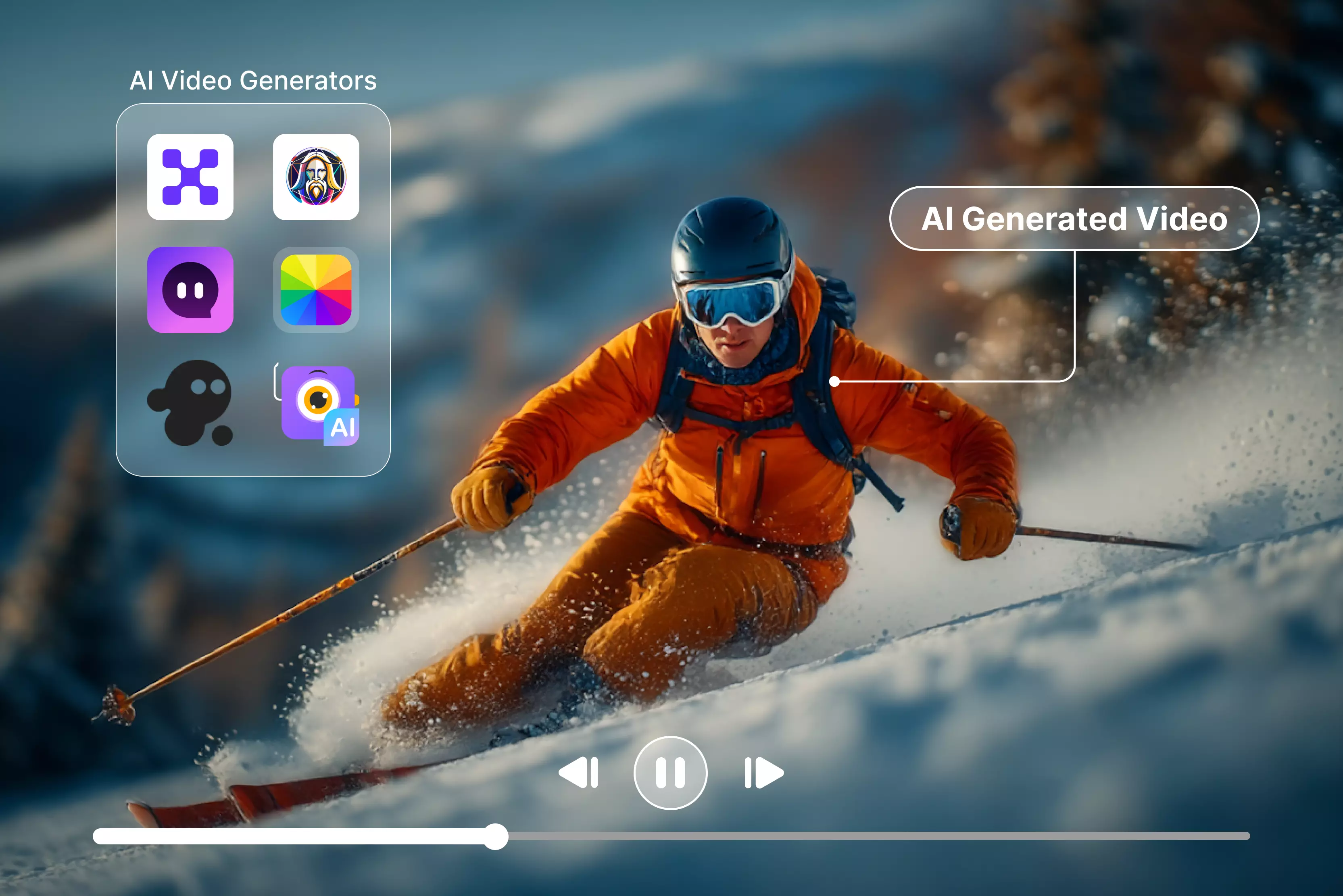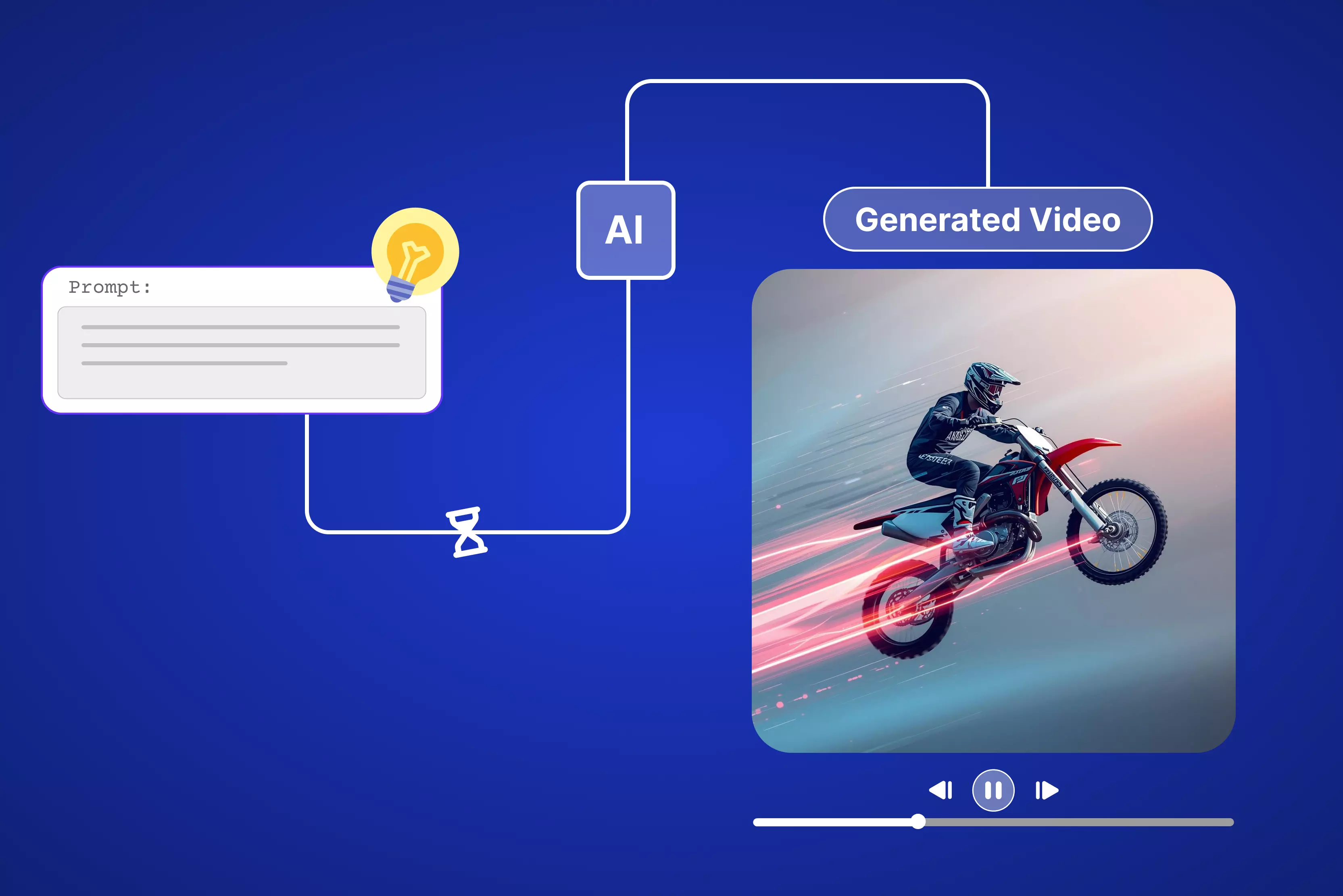


Videos hit the algorithm more than static images, as many content researchers on social media have found that they boost engagement over static images alone. But let's be real, shooting and editing clips wastes hours. AI images to video makers flip the script, turning single photos into smooth MP4s in less time.
I've been testing these for my Instagram video: upload a product shot, add a prompt like "slow pan right, sunset glow," and boom—you get a professional video from an image without spending long hours in Adobe Premiere Pro.
Best AI image to video makers like Pixelbin (my free daily driver), Leonardo.ai (cinematic video), and VEED (social-ready video) make it super simple. As a content creator, I have to juggle posts; these tools let me animate images into scroll-stopping videos that actually hit the social media platforms. In this guide, I will walk you through 12 AI tools that are proven to be the best image-to-video makers, along with comprehensive steps and many more details.
How do AI image-to-video makers actually work?
The first time I tested a tool at work, I uploaded a boring product shot from my latest work. Added a prompt: "Smooth pan across desk, morning light fades in." In under a minute, I got a 10-second video ready for social media.
AI image-to-video makers grab your static photo and basically dream up about transforming that into a motion video using neural networks trained on endless video footage.
They predict physics—hair moves naturally, steam rises from coffee, and shadows shift, something like this. Diffusion models fill in every frame between start and end, no After Effects or Premiere Pro keyframes needed.
Here's the magic breakdown:
- Motion Prediction: AI studies image edges, generates vector fields for natural movement (pans, zooms, subject walks)
- Frame Interpolation: Creates 24-60 in-between frames from your static input, ensuring buttery 30fps output
- Prompt Processing: "Slow dolly left, golden hour." I need camera path + lighting adjustments applied consistently
- Temporal Consistency: Advanced models like Kling's 3D space-time network prevent flickering morphing nightmares
What is the best AI image-to-video maker?
Tired of static images and want them to be generated in a video? I tested 12 top image-to-video AI generators—Pixelbin, Leonardo.ai, VEED, and many more. Keep reading to get more insights.
1. Pixelbin AI Video Generator

Sometimes you just need a quick video without diving into a full editor, and that’s exactly where Pixelbin’s AI Video Generator fits in. It lets you turn your ideas, product shots, or brand visuals into short, social‑ready clips in a way that feels natural, not technical.
Start with text or images and never leave your Pixelbin ecosystem for optimization and delivery. Avoid the tools-hopping nightmare. I used to ping-pong between Canva, CapCut, and Photoshop just for one decent reel.
Now everything can be done in Pixelbin: upload, optimize, and export the HD-quality video. Focus purely on your story while the AI editor handles cuts, transitions in the First/Last frame to video tool, and lighting fixes (if only mentioned to do so in the prompt).
Must known features
- Text‑to‑video and image‑to‑video generation are available for social posts, ads, and explainers.
- Generation modes tuned for marketing use cases like product demos and promos.
- Web‑based interface designed for non‑technical users and marketing teams.
- Controls for duration, aspect ratio, and resolution suitable for major platforms.
- Rapid rendering so you can iterate on creatives and test variations quickly.
- API‑friendly architecture for automating bulk or template‑based video creation.
How make a video from an image for free in Pixelbin?
Step 1: Head to AI Video Generator and select from the dropdown present under “Google Veo 3.1 fast” and choose “First/Last frame to video.”
Step 2: Pick your two images and upload the ones you want to generate into a video, add a prompt like how you want the video to be, and click on generate.
Step 3: Type in your prompt like you're directing a mini movie. For my housewarming party setup, I punched in: "Energetic balcony party lights pulsing to music beat, colorful LEDs twinkling, camera circling railing slowly, champagne glasses clinking in foreground, vibrant nightlife atmosphere." Make it descriptive because AI eats that up.
Step 4: Hit generate, and the AI crunches for a maximum of 10 seconds. Preview the before and after results, tweak if needed, then export. Click export, and the video drops to your downloads.
How make a video from an image with a paid plan in Pixelbin?
Step 1: Log in to your Pixelbin account and go to AI Video Generator. This page lists all supported video models (Kling 2.1 Master, Seedance 1.0 Fast/Lite/Pro, Sora 2, Veo 2/3/3.1 Fast/3 Fast, Wan 2.2/2.5)
Step 2: Select an image‑to‑video option; all the abovementioned options include the image-to-video feature. Upload one or two images (JPG/PNG preferred) as the starting or start/end frames.
Step 3: In the prompt box, describe: subject and action (what moves, what happens). Camera moves (slow pan, zoom in, orbit, handheld, etc.). Environment, lighting, mood, and style (cinematic, anime, realistic, product demo, etc.).
Step 4: Set technical parameters like:
- Duration: choose clip length (Pixelbin image to video flows commonly target short social clips up to 10 seconds of video).
- Aspect ratio/resolution: pick 9:16, 16:9, 1:1, and more, and a resolution such as 720p or 1080p, depending on the specific model you choose.
- Generate the video: Click the generate button, and get a premium plan because you will technically need 30 credits at least to run the above-mentioned steps through the models.
2. Luma AI Video Generator from Image
Ever stared at a photo and wished you could just move into it? Luma AI's image-to-video is a paid image to video generator. Drop your pic, pick a camera, move like slow pan or zoom, and suddenly it's alive with legit depth and buttery motion.
Feels more like directing a real shoot than slogging through Premiere. Includes keyframes, but you can also go without them for testing, just tell it the vibe ("orbit left, golden hour"), and the AI handles realistic physics, lighting shifts, everything. After opting for their subscription, you can create a video in either horizontal or vertical aspect, along with downloading the output.
Must known features
- Turns static images into dynamic, high‑quality videos in seconds.
- AI‑driven control over motion, style, and scene elements.
- Realistic camera moves with cinematic transitions and smooth parallax.
- Depth and perspective modeling for immersive, 3D‑like shots.
- Ideal for storytelling, marketing, gaming, VR, and product visualization.
- Intuitive “upload, customize, generate” workflow with no editing skills required.
- Dream Machine app on iOS for mobile‑first creation and sharing.
- API access so teams can automate image‑to‑video generation at scale.
3. Leonardo AI video generator
Leonardo.ai's video generator blew me away when I first tried turning a static image into a 4 to 10-second looping video. It packs a robust suite of AI tools tailored for image, video, and advanced editing workflows, as well as features from their app dashboard. These features stand out for practical use in content creation, upscaling, and real-time experimentation.
Perfect for creators who want cinematic quality testing without opting for a paid plan initially. I uploaded a dslr clicked image, added a prompt like how I want the video to come out, "gentle orbit left, golden hour lighting," and got a professional video in a few seconds in 1080p in 9:16 video dimensions.
Must known features
- 50+ ready-made presets pre-built for specific tasks such as product grids or holiday themes.
- Supports JPG, PNG, or WEBP images up to 5 MB.
- For Image-to-video conversion, just upload the start frame of the image and write a prompt to create a 4 to 10-second animated video directly after choosing the AI model.
- Supports export quality from 480p to 1080p for free.
- Access to different styles like vibe, lighting, and color theme is available under a few AI models.
- Provides AI models, some of which are
- Kling 2.6
- Hailuo 2.3
- Seedance 1.0 Pro
- Sora 2
- Motion
- LTX-2
- Veo 3.1 and more
- 150 free tokens available that reset in 15 hours.
4. OpenArt Image to Video
If you already enjoy experimenting with AI images, OpenArt’s image-to-video tool feels like a natural next step rather than a separate workflow. You have to sign up and upgrade to the paid plans, then take an illustration, character, or scene you like and simply ask the tool to bring it to life with motion.
OpenArt brings your images to life with the Image to Video tool that is powered by multiple AI models for seamless motion, depth, and storytelling. Perfect for social media clips, presentations, or personal projects, it transforms static photos into dynamic videos by adding the start and end frames.
From the dashboard, you can also pick “Text to Video, Elements to Video, Lip-Sync” and more, like “Replace Character” or “Extend Video”. Everything feels intuitive, with no steep learning curve, making pro-level animation in a few seconds.
Must known features
- Image‑to‑video generation is available directly on top of OpenArt’s image models.
- Duration adjustment available from 4 to 15 seconds for different AI models.
- Aspect ratio can be selected withinUltra wide to Vertical ratio.
- Supports export quality from 480p to 1080p under the paid version.
- Supports audio and voice addition.
- Supports the addition of negative prompts under a few AI models.
- Multiple video models aligned, some of them are:
- Kling 2.6
- Seedance 1.5 Pro
- Kling 01
- WAN-2.6
- Vidu Q2
- Veo3
- Sora 2
- LTX-2 and more
- Good fit for looping clips, shorts, and concept animations under subscriptions.
- Web‑based UI with creator‑friendly presets and default settings.
5. Pixlr AI Video Generator
Pixlr’s AI video generator tool feels like an extension of the quick edits, so that you can generate your images into a video by choosing any suitable AI model, as mentioned below. Simply add an image, make your usual adjustments by mentioning in the prompt so the image becomes a short, shareable video instead of just sharing a static visual.
The interface is beginner-friendly and will not overwhelm you with advanced timeline controls, which keeps things light and approachable. You can animate product shots or personal shots into professional clips in seconds. If you have a paid version, then you can add music, dynamic motion, special effects, and custom layouts.
Must known features
- Image‑to‑video conversion with free 50 tokens available only on sign-up.
- AI model options available, like
- Fast AI - 20 tokens
- Pro AI- 45 tokens
- Ultra AI- 80 tokens
- Templates optimized for social formats like TikTok videos, Instagram reels, and more.
- Web‑based, no installation needed.
- Supports export up to 4K resolution for free.
- Free download available.
- Beginner‑friendly controls for motion, speed, and transitions under the paid plan.
6. VEED Image to Video AI
VEED's Image-to-Video AI tool lets you upload any photo under any prebuilt template, along with an AI-generated prompt, and generate a short animated video in a minute, no skills required. It is built for the kind of everyday content like product explaining videos, social clips, and quick promos, with fewer steps and a subscription.
It feels less like learning a new tool and more like speeding up what you already do in editing, as it is free to test the tool, but generating the output requires a paid plan. That makes it easier to iterate on creatives with your team or clients, since you can adjust timing, text, and visuals without rebuilding a project from scratch.
Must known features
- AI image‑to‑video with templates for ads, explainers, and social clips, along with AI self-generated prompts for each of the templates.
- Supports different dimensions from portrait to landscape.
- Supports multiple shots till four images in one go.
- Supports download in HD and 4K versions only underthe paid plan.
- Duration adjustment available from 5 to 12 seconds for different AI models.
- AI video generation models available, some of them are:
- Kling 2.5 Turbo Pro
- Kling 2.6 Pro
- Google Veo 3.1
- Seedance 1 Lite
- Minimax Hailuo 2.3
- Wan v2.5
- Pixverse v4.5 and more
- Export profiles optimized for TikTok, Instagram, YouTube, and more under the paid version.
- Browser‑based, no‑software workflow suitable for agencies.
7. PixVerse
PixVerse made me a fan of it when I uploaded two pictures and picked the "AI Hug" effect among many more free effects, and the static pic turned into a boomerang video that racked up the highest number of likes on Instagram overnight.
Viral templates like “AI Kiss, Hug, Muscle, Fighting, and Jesus Hug” explode on TikTok/Instagram. Intuitive for creators/marketers/fun—upload photo, apply effects, create dynamic social content that grabs attention.
Felt tailor-made for my Reel experiments, promising quick photo-to-dynamic-video magic without the usual glitches. Signing up seemed like an easy way to test those trending effects for my video. The homepage was engaging, which got me excited to try using different templates.
Must known features
- Delivers higher video quality, smoother animation, and more realistic transformations than earlier versions.
- Create videos from simple text prompts and upload selfies, portraits, group photos, or any image for instant animation, along with downloading the output, including free credits.
- Ready-made effects like AI Hug, Comic hero in action, AI Fighting, and more are designed to spark engagement on TikTok, Instagram, and Facebook.
- Includes free aspects like:
- Choose a resolution between 360p and 540p
- Adjust clip duration upto 10s
- Multi-shot available
- Generates video with audio
- Choose an aspect ratio from 16:9 to 9:16
- Intuitive interface as it is to upload a photo, pick an effect, and let the AI handle the heavy lifting, no editing skills required.
- Trusted by millions of users worldwide, reinforcing stability, trend-driven templates, and continued model improvements.
8. EaseMate
EaseMate's free Image to Video Generator promises to turn any photo into high-quality, watermark-free clips in seconds—no skills, sign-up, or cost required. I dropped in a product mockup from my latest blog post, hit generate, and got a crisp, watermark-free up to 15-second clip with subtle zoom and glow effects.
All you have to do is upload an image online, and choose among multiple AI models handle the rest for effortless creation with full customization in quality and saturation. It is perfect for branding, social, or storytelling with striking results every time. The inbuilt AI models let you tweak styles (cinematic, fast-paced), and customization keeps outputs on-brand.
Must known features
- Generates watermark-free videos instantly without accounts or payments.
- Choose from various models for different motion styles and quality levels. Some are mentioned below
- Runway
- Veo 3 fast, 3.1, 3
- Seedaance Pro, Fast, Lite, 1.5 Pro
- Kling standard, pro, master, and many more
- Supports any photo; auto-creates polished clips with natural animations.
- Adjust export quality from 480p to 1080p.
- Adjust duration up to 15 seconds.
- Support prompt enhancement through AI.
- Professional clips ready for social media, branding, or content without extra editing.
- Provides a Chrome extension for quick edits.
- Unlimited use for quick tests and production—no usage limits.
9. Media.io AI image to video
Media.io's image-to-video AI hooked me when I needed quick slideshows from a tool's screenshots. I uploaded a JPG, picked zoom transitions or pan effects as a prompt, added stock music, and exported 1080p, ready for YouTube.
After using it, I liked the clean interface, which is best for beginners. Supports many AI models, lets you tweak frame rate/resolution/aspect ratio before download. No learning curve; just click on "Generate" and go.
Must known features
- Upload formats- JPG, JPEG, PNG, GIF, WebP, and HEIC images.
- Supports prompt generation based on a picture that will be uploaded to transform into a video.
- Optionally add audio to the generative video.
- AI video generation models available, some of them are:
- Kling
- Hailuo
- Runway
- Sora
- Google Veo and more
Includes free aspects like:
- Choose a resolution between 420p to 1080p.
- Adjust duration up to 15 seconds.
- Public visibility is available by choosing a zone.
10. Filmora
Filmora’s AI Image to Video maker feature is ideal if you like playing with trends but still want a proper editor behind the scenes. Starting with installing the software, you can drop in a photo, apply one of the AI effects, and instantly turn it into a short, attention‑grabbing clip that feels right at home on social media. The nice part is that you’re not stuck with whatever the AI gives you; you can fine‑tune timing, transitions, and audio on a full timeline afterward.
Filmora's AI Image to Video promises viral social videos using styles like Ghibli, AI Doll, AI Cat, AI Hug, AI Kiss, and many more from photos. Four modes available,e like Google's Veo 3.1/Sora 2 Image to Video, Start/End Frame to Video, Reference Image toVideod, and Preset Templates.
Must known features
- AI Image‑to‑Video that turns photos into up to 30‑second clips.
- Flexible editing with trimming, transitions, overlays, and music.
- Text‑prompt customization of AI effects for more specific looks.
- Cross‑platform support on desktop and mobile for seamless workflows.
- Export to multiple formats, including MP4, MOV, WEBM, GIF, and more.
- Extra AI tools: TTS, auto‑captions, and AI sound effects generation.
11. Fotor
Fotor’s AI Video Generator is the kind of tool you open when you just want to get a story or idea out of your head and into a video quickly, using presets like Hug, raised white wings, and many more that you can pick as per your liking. You can start with a reference image and let the suitable AI models assemble visuals and motion around it.
The interface is straightforward enough that you don’t feel like you’re learning video editing in the traditional sense. Instead, you spend your time refining prompts, trying different templates, and nudging the output closer to your brand or narrative, one short clip at a time.
Must known features
- Text‑to‑video: convert written prompts or scripts into full videos.
- Image‑to‑video: animate still images with guided prompts and motion.
- Ready-made templates like Ballet, Giant Tiger, Runway walk, and more are designed to spark engagement on TikTok, Instagram, and Facebook.
- Includes AI models, some of which are:
- Kling 2.1
- Kling 2.6
- Kling O1
- Veo 3
- Sora 2
- Seedance 1.0 Lite and more
- Supports prompt or choose your preset AI video template for marketing, education, storytelling, and more.
- Provides trending styles like Ghibli, minifigures, and a few more.
- Free credits available daily.
- Supports clip duration up to 12 seconds.
- The definition varied from 480p to 1080p, with watermark-free output.
- User‑friendly interface suitable for non‑editors and solo creators.
- Supports both text‑based and image‑based workflows in one place.
12. Keevx
Keevx AI video generator feels very different from classic image‑to‑video tools because it centers everything around a talking avatar. Ideal for ads, social, and training; supports different languages with lip-sync dubbing.
You pick or create an avatar, paste your text, and let the platform handle the voice, lip‑sync, and camera framing. This setup is especially useful when you need a lot of explainer or training content but don’t want to constantly record yourself.
What I liked the most was that you get a drag-and-drop feature as well as preloaded images while testing the tool. It’s like having a virtual presenter you can reuse across languages and campaigns.
Must known features
- Free credits are available for new users only after signing up.
- Generate studio‑quality avatar videos, voice cloning from scripts or topics, with templates included in premium plans.
- Supports link into AI video
- Natural lip‑sync and AI‑generated voices for realistic delivery.
- Video translation and dub into 170+ languages with synced lips.
- Modes for video translation, topic generation, and script reading.
- 720p and 1080p output optimized for clarity and engagement.
- Supports 4 video exports in one go.
- Generates voiceover and audio in the video.
- Adjust camera movement, shot type, and camera angle.
- Web interface tuned for marketers, educators, and creators.
- Scales easily for batch content, ads, and training videos.
Final thoughts
Thus, when it comes to image-to-video maker, start with Pixelbin/EaseMate/PixVerse free tiers for instant wins, upgrade to Leonardo.ai when cinematic matters. Always research on AI platforms how to write a prompt because practice makes perfect; beats vague tries every time.
Pixelbin owns my workflow: upload image, add motion/orbit, optimize/export to the same dashboard. No switching to other tools is needed; it exports 3x faster than Adobe Premiere. It's time to grab any tool's free credits today among those mentioned above. Turn that stale image into a 10-second scroller.
FAQs
EaseMate and PixVerse lead free tiers—no sign-up, watermark-free. Pixelbin excels in integrated workflows. Test all three for your needs.
Yes, Pixelbin, Filmora, and Leonardo.ai grant commercial rights on paid plans. Royalty-free; always check terms for client projects. Safe across board.
Kling AI 2.6 at 120s. Pixelbin hits 30s natively; Runway for extended chains. Pick based on project length.
Yes, PixVerse V4.5, Leonardo Motion 2.0, and Pixelbin all deliver lifelike sync. Great for spokespeople or tutorials.
RTX 3080+ (12GB VRAM), 32GB RAM. Pixelbin cloud avoids this; easier for most creators vs local setups.
Pixelbin $5/min, Kling $10, Runway $12. Free tiers like EaseMate average $1-2 effective.