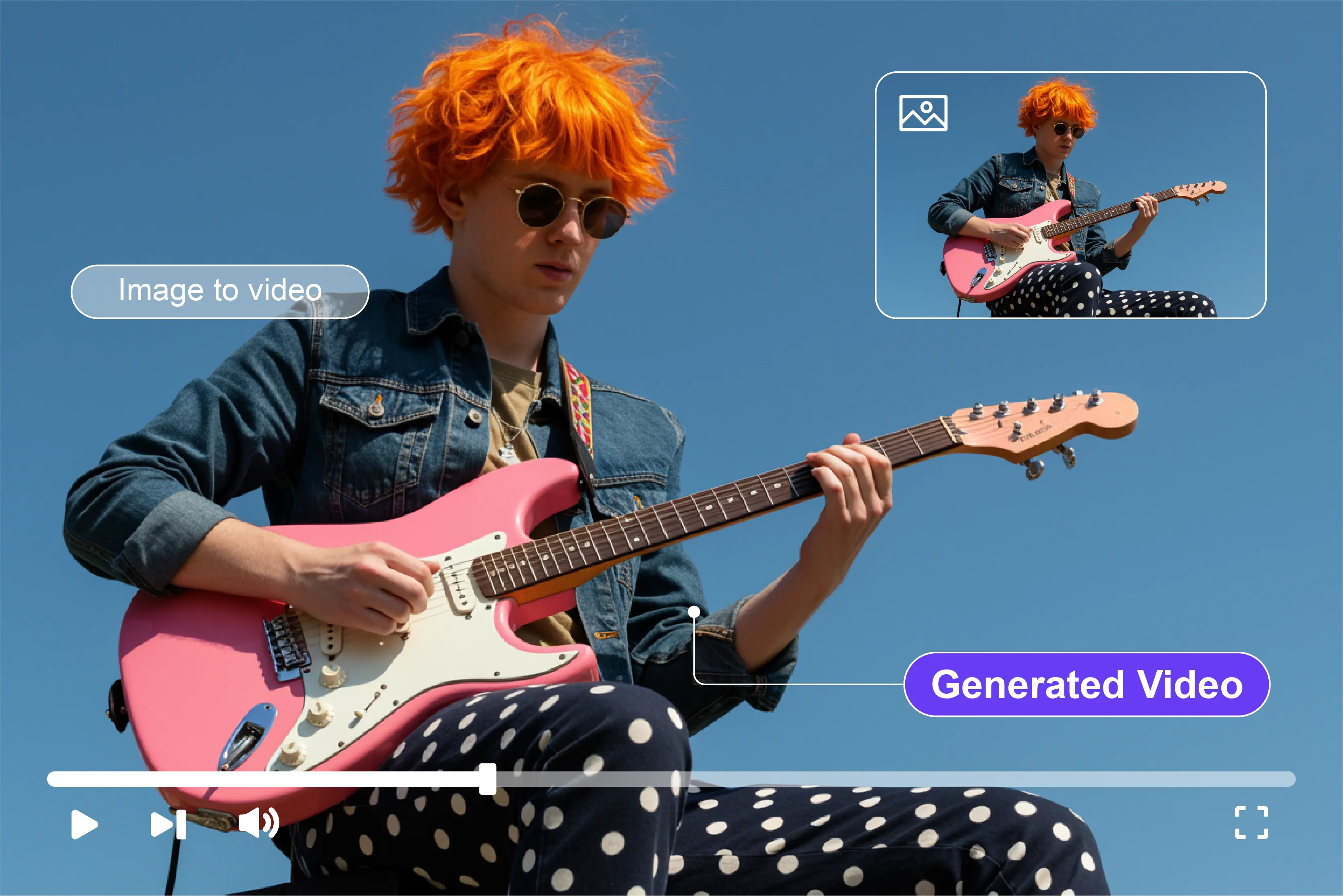


When you start looking at how to create a video from an image using AI, it feels a bit like you are looking for a hack in the best possible way. You’re picking something static—a photo, artwork, product shot—and asking an algorithm to imagine believable motion, camera movement, and transitions for you.
Instead of grappling with timelines and keyframes, you describe what you want, upload an image, and let the model handle the heavy lifting. In 2026, this isn’t just a gimmick for tech demos.
You can turn one image into short, scroll-stopping clips for Reels, TikTok, and YouTube Shorts, build quick product demos from catalog shots, or add motion to illustrations and storyboards without touching traditional animation software.
Multiple tools now offer free tiers and browser-based workflows, so you can experiment without buying a single plugin. In this guide, I will walk you through how AI tools generate images to video, how it compares to classic animation, and which free tools you can trust right now.
By the end, you’ll not only understand how to create a video from an image using AI, but you’ll also have a clear workflow you can repeat and improve with better prompts, better images, and better results.
How does AI image-to-video actually work?
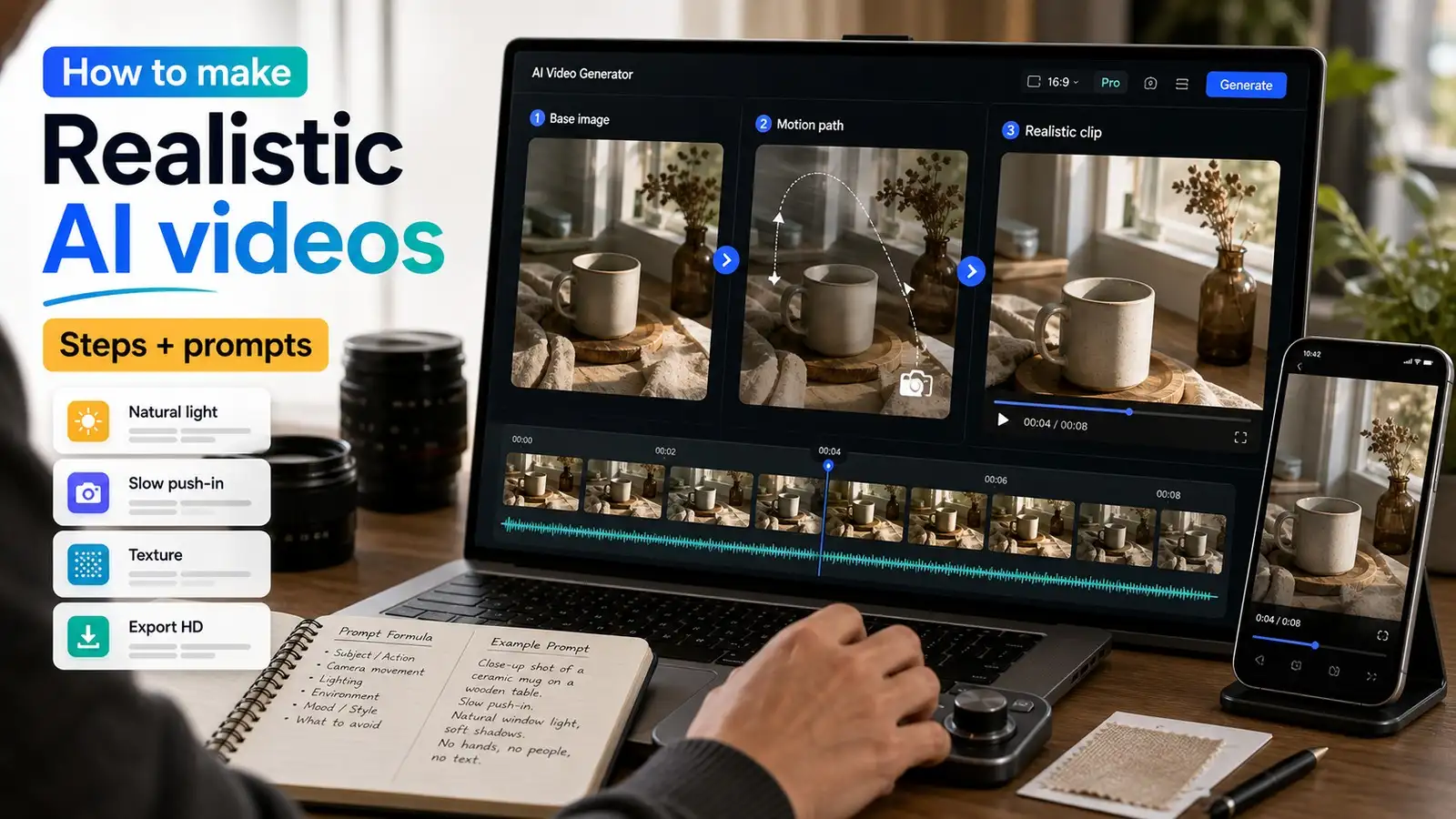
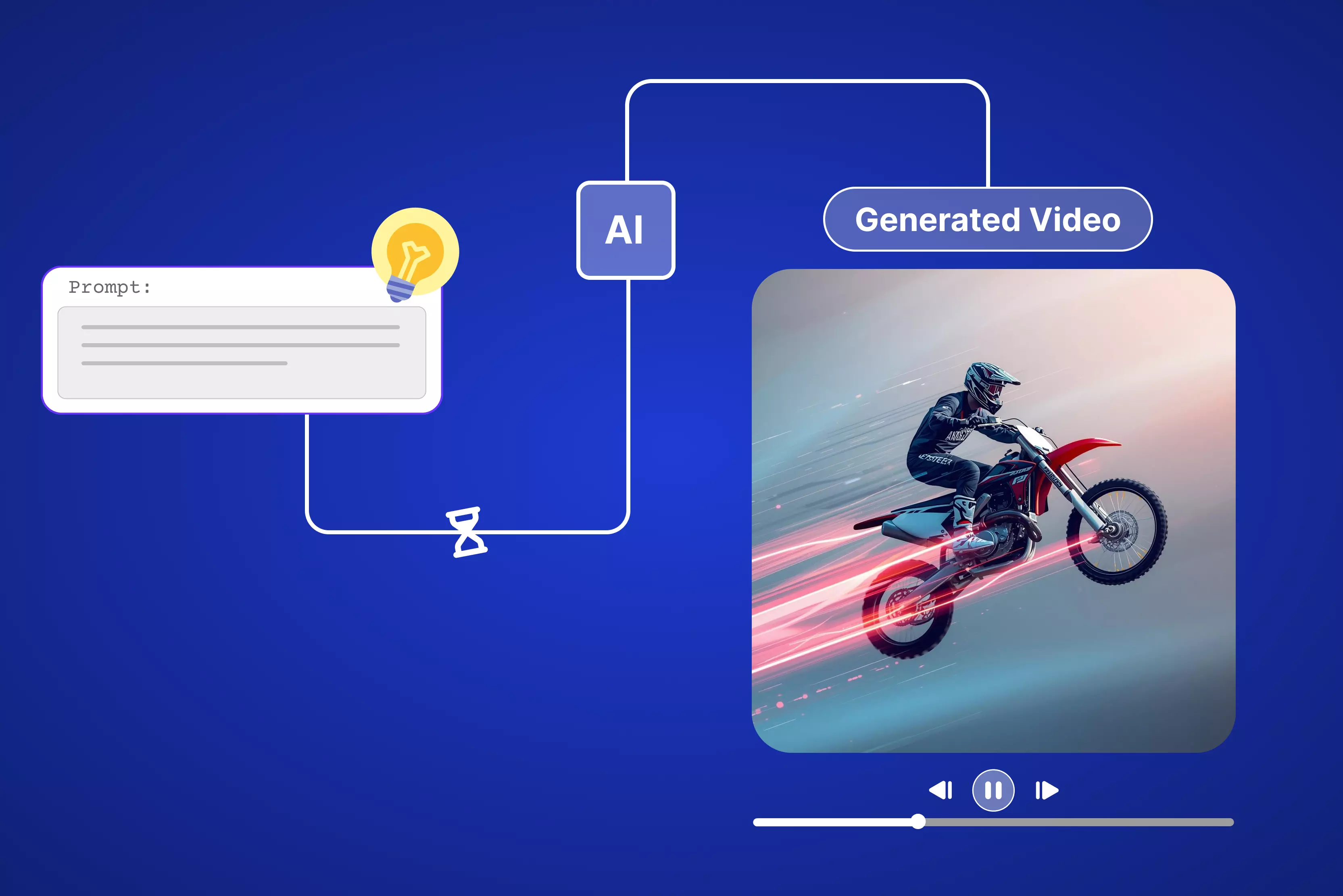
Think of AI image-to-video like handing a photo to a very talented digital artist and saying, “Can you make this come alive?” You upload a single image, add a short line like “slow zoom on the flower,” and a moment later, you get a short video.
The scene gently moves, the camera feels like it’s drifting, or leaves look like they’re catching a light breeze. Here’s the clearer version of what’s happening behind the scenes: the AI carefully examines your image, paying attention to colors, shapes, shadows, and lighting. It then creates a series of believable “next moments” that flow naturally together.
Think of it as the system guessing, “If this were a real scene and a camera was moving through it, what would the next few seconds look like?” You don’t need to understand the technical side to use it, but having a basic idea helps you choose stronger images and write clearer prompts.
General steps to generate an image from a video
- Upload a photo: Choose an image that’s clear and focused on one main subject (a person, product, or scene).
- AI studies every pixel: It picks up on edges, colors, lighting direction, and surface details.
- You add motion words: Simple instructions like “pan left,” “slow zoom,” or “gentle breeze.”
- AI imagines movement: It generates multiple frames each second, with small changes between them.
- Smoothing magic: Those frames are blended so the motion looks natural instead of jerky.
- Download your video: A short 5–10 second clip ready to share on Instagram or YouTube.
Image-to-video vs traditional animation
Look, when you first mess around with turning a photo into a video using AI, you might go, "Hold up—why not just fire up some regular editing app?" Fair point. You totally could. But man, doing it the old way is like starting a house from scratch every time—framing, wiring, the works.
You get total control, but it takes forever and costs a fortune in time and tools. AI image-to-video? It's like ordering takeout—you get something tasty fast, and it's usually good enough for dinner. I've tested both approaches, and the differences come down to three things that matter to real people making content.
With AI, you upload a photo, type "slow zoom on the coffee cup," hit generate, and boom—your 5-second clip is ready while you grab coffee. Traditional? You spend 30 minutes keyframing a camera move in After Effects, another 30 tweaking timing, then wait for the render. For quick Instagram Reels or simple product teasers, AI often makes more sense.
Why create videos from images using AI?
Look, I've been there—you've got a killer photo from your trip, a product shot that's begging for attention, or some artwork you spent hours on, but it's just sitting there as a static image. Nobody scrolls past a video, though.
That's the magic of AI image-to-video: it breathes life into what you already have without you needing to be a video wizard. Whether you're chasing likes on social or closing sales, turning stills into motion is one of the smartest shortcuts in content creation right now.
1. Social media reels
First up, social media. You know how Reels, YouTube Shorts, and TikTok reward motion—those smooth zooms, gentle pans, wind-swept backgrounds that keep eyes glued? AI lets you grab any photo (vacation sunset, outfit of the day, funny meme) and, in 30 seconds, it's a hypnotic 5-second clip. No camera, no editing suite, just upload and prompt "slow cinematic zoom with dreamy music vibe."
I've seen creators double engagement rates doing exactly this. Your beach pic becomes a mini-vacation escape; that coffee shot turns into a cozy morning ritual. The tools handle the transitions so smoothly that people think you shot it on location. It's a lazy genius for consistent posting without burnout.
- Perfect for daily content: Turn phone pics into polished Reels in under a minute.
- Algorithm loves motion: Videos get 2x -5x more views than static posts
- No gear needed: Use existing photos, add AI magic
- Music sync bonus: Most tools pair perfectly with trending audio
2. Product demos/E-commerce
E-commerce is where this shines for business folks. Videos can increase conversion rates significantly—often by 20–80%, depending on the category. Imagine your necklace slowly rotating under soft light, or a sneaker panning from angle to angle—AI does that from one photo. No 3D modeling, no studio shoot.
Prompt something like "gentle 360 spin on white background, luxury lighting," and boom—professional demo ready for Shopify or Instagram Shop. Small brands use this to compete with big players; customers see depth, texture, scale. I tested it with a watch photo—went from flat listing to "must-buy" in under a minute. Conversion gold.
- Boosts sales: Videos increase click-through 2-3x
- Shows details: Texture, reflections, scale impossible in stills
- Batch-friendly: Animate 10 products in 10 minutes
- Mobile optimized: Perfect aspect ratios for shoppable posts
3. Music visualizers
Musicians and DJs, this one's for you. Need a looping visualizer for Spotify Canvas or YouTube? Take album art, your logo, or a live shot, add "pulsing lights syncing to beat, cosmic background," and AI generates endless atmospheric motion. No After Effects timelines.
It catches the eye on autoplay lists, builds mood for ambient tracks, or adds energy to drops. Pair it with free audio-reactive tools in CapCut, and you've got pro visuals without hiring a motion designer. Seen indie artists skyrocket plays this way—simple, hypnotic, on-brand.
- Spotify Canvas essential: 3-second loops that mesmerize
- YouTube thumbnails: Animated previews boost click rates
- Live set backgrounds: Outputs are limited by tool constraints
- Brand consistency: Matches your album aesthetic perfectly
4. Storytelling/narrative clips
Writers, comic artists, storytellers—you've got character sketches or scene concepts. Suddenly, your static panel has drama. Perfect for teasers, book trailers, and pitch decks. Chain a few clips ("establishing shot → hero reveal → action beat") and you've got a 15-second story hook.
- Book trailers: Turn cover art into cinematic previews
- Comic panels: Animate key moments for social teasers
- Pitch decks: Visual storytelling for investors
- Patreon rewards: Exclusive animated story snippets
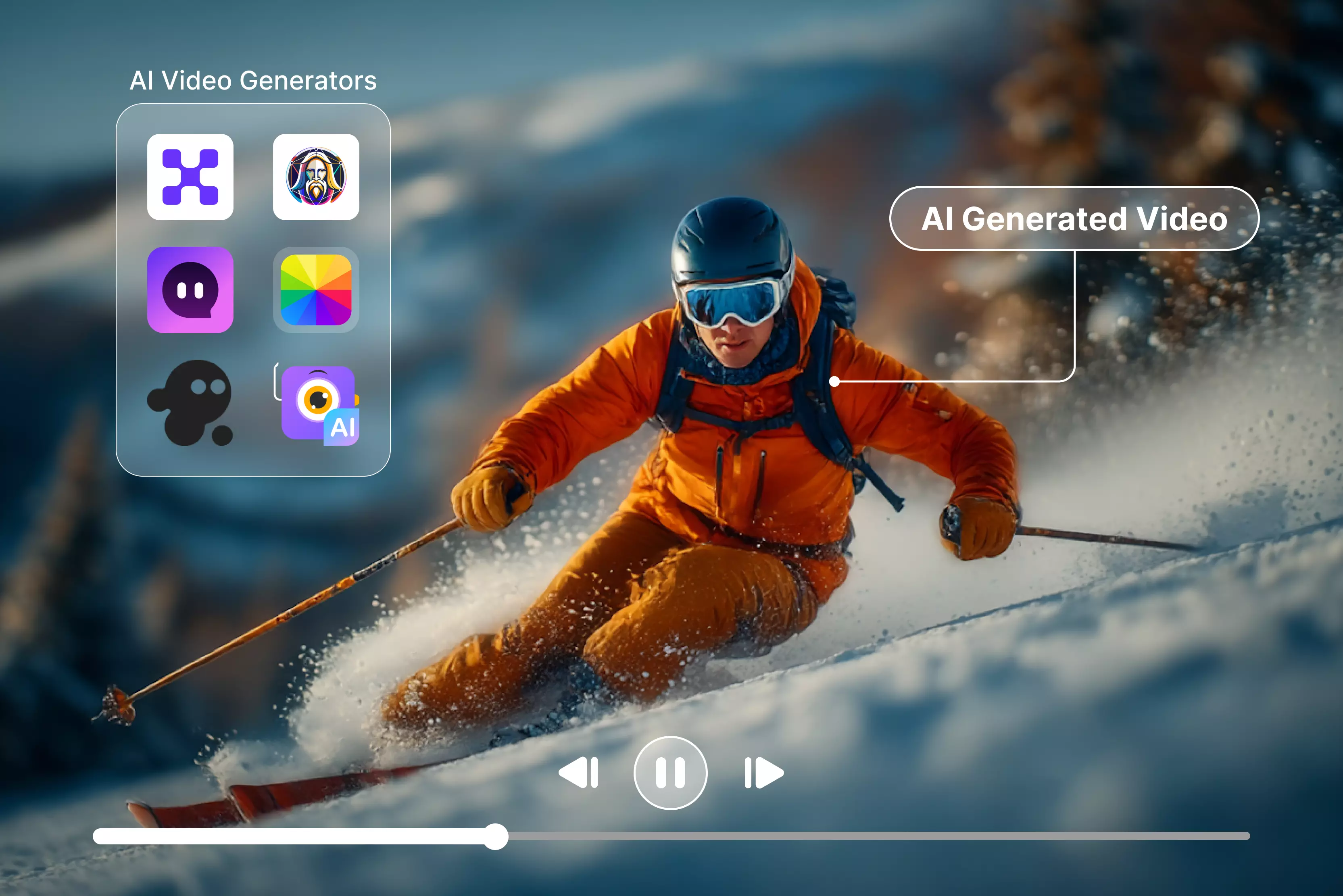
Top 6 tools to generate video from an image using AI for free
Turn static photos into dynamic videos instantly! These 6 free browser-based AI editors let you upload images and create smooth animations, Reels, and demos—no downloads, no credit cards needed.
1. Pixelbin AI Video Generator

Pixelbin AI Video Generator makes it simple to turn images into a quick, engaging video directly in your browser with an interesting AI prompt. It’s useful for social media creators and marketers who need fast results without installing software or dealing with complicated editing tools.
You can type something like “cozy coffee shop morning” or upload a product photo, and within moments, it produces a short video with movement, smooth transitions, and a finished look.
Everything is built for speed, which makes it a good fit for Reels, ads, or short promos when time matters. You don’t need editing experience — just an idea and a few clicks to get something ready to share.
Must known features
- Browser-based text-to-video and image-enhanced generation—no downloads needed.
- Creates short social-ready clips in seconds for Instagram Reels, TikTok, and YouTube Shorts.
- Supports common image formats (JPG, PNG, WEBP) as visual starting points.
- Simple prompt interface for describing scene, mood, and motion.
- Fast processing optimized for quick social media and marketing content.
- 3 free credits available for testing without signup requirements.
Step-by-Step guide
Step 1: Go to Pixelbin AI Video Generator and select from the dropdown present under “Google Veo 3.1 fast” and choose “First/Last frame to video.”
Step 2: After that, upload 2 images that you want to generate into a video and add a prompt like how you want the video to be and click on generate (like for my new year party I wanted my balcony decoration images generated into a video and my prompt was- “Energetic balcony party lights pulsing to music beat, colorful LEDs twinkling, camera circling railing slowly, champagne glasses clinking in foreground, vibrant nightlife atmosphere”)
Step 3: Wait for AI to process the video. Once done, you can click on export video, and you are done.
2. Luma AI video generator
Luma’s AI Video Generator from Image lets you turn still photos into short videos that feel cinematic, with natural motion and a real sense of depth. You upload an image, choose how the camera should move and the overall style, and the photo starts to feel alive without needing any editing experience.
It works well for showing products in a moving way, giving landscapes a polished look, or adding movement to portraits so they feel more engaging. The focus is on realistic animation and a subtle 3D effect that makes the result look professionally captured. You can use it on the web or through the iOS app, and it’s designed for creators who want strong results without spending a lot of time.
Must known features
- Converts single images into dynamic videos with realistic motion effects.
- Customizable motion controls, style settings, and camera movements.
- Creates immersive 3D-like depth and perspective from 2D photos.
- No editing experience required—just upload and generate.
- Cinematic transitions and natural animations for a professional look.
- iOS app integration plus web access for mobile/desktop workflows.
3. OpenArt Video creation
OpenArt i2V tool focuses on turning still images into animated videos using models such as WAN 2.2 and Veo2. You upload a photo, describe the kind of motion and style you want, and it generates video clips that keep the main subject looking consistent from frame to frame. It’s useful for creators working on short storytelling scenes, animated product visuals, or creative motion tests.
The tool puts a strong emphasis on realistic movement and fine visual details, which makes the results suitable for social media posts, presentations, or portfolio work. Since there are multiple tools available, you can select the quality level that best matches your goals and budget.
Must known features
- Multiple AI models (WAN 2.2, Veo2) for different quality/motion needs.
- Image-to-video with detailed prompt control for camera and action.
- Realistic motion simulations with strong subject consistency.
- Suitable for social content, vlogs, presentations, and music videos.
- High-quality outputs optimized for storytelling and visual appeal.
4. Pixlr Image-to-Video Generator
Pixlr’s Image-to-Video Generator turns images into short videos. You can use one photo or several. It lets you add text or music and apply movement without doing much editing yourself. Most of the work is handled by the platform, which makes it useful for quick social media posts.
The layout is simple and easy to understand. It doesn’t take much time to learn how it works. There are template styles that help while making short videos, such as Reels or YouTube Shorts.
You can still make changes to how the video looks, but you don’t need advanced software like Photoshop or special technical skills. It works well if you want decent results without spending too much time editing.
Must known features
- Converts images/sequences into animated videos with AI transitions.
- Built-in music library, text overlays, and layout customization.
- Templates for social media formats (Reels, Stories, Shorts).
- No downloads—works entirely in the browser on any device.
- Combines AI motion with manual editing controls.
5. Veed Image-to-Video AI
Veed’s image‑to‑video tool is handy when you just want to turn a few photos into a simple video without learning heavy software. You upload your images, drop them on a timeline, and arrange them in the order you like.
From there, you can add music, basic transitions, text, and subtitles inside the same browser window. It also lets you record or add a voiceover if you need to explain something on screen.
This setup works well for tutorials, quick social posts, and simple marketing clips when you need something clean and presentable, but don’t have the time to dig into Premiere or a similar editor.
Must known features
- AI-suggested transitions and timing for image sequences.
- Automatic subtitles, text-to-speech voiceovers, and music library.
- Drag-and-drop editor with templates for social formats.
- Upload multiple images for slideshow-style animated videos.
- Browser-based with no software installation required.
6. Fotor AI Video Generator
Fotor's AI video generator is easy and simple for turning photos into short animated clips. You upload a picture, type what kind of movement you want—like a slow zoom or gentle pan—and it spits out a video with some automatic cleanup. Things like fixing blurry spots, balancing colors, or sharpening details happen behind the scenes, so the result looks decent without extra work.
It's handy for product photos that need a little life, landscape shots for social posts, or even portraits to make them pop in ads. The motion between frames stays smooth enough for quick content, and since it's all browser-based, beginners can jump in without tutorials. Good for marketing stuff where you want polish fast, not perfection.
Must known features
- Image-to-video mode with text prompt guidance for motion.
- Automatic enhancements: noise reduction, blur removal, color correction.
- Adjustable resolution, duration, and visual style settings.
- Deep learning for smooth frame transitions and consistency.
- Suitable for social media, marketing, and promotional content.
Final thoughts
Hence, you can pick any free tool from this list, upload your image, add a simple prompt describing the motion, generate the clip, and then tweak with music or text right in the browser.
Practice different prompts—like "Slow pan across landscape" or "Zoom on product details"—to get smoother results each time; it makes a big difference after a few tries. Start experimenting today with these no-cost options to create Reels or ads without spending a minute.
For even better image handling before video generation, check out Pixelbin's AI video generator. It works best with the first and last frames and produces higher-quality animated clips every time.
FAQs
Yes, tools like Veed, Pixelbin, and all the above-mentioned tools offer free image-to-video generation with watermarks on basic plans—no sign-up needed to start.
No single "Best" exists, but Pixelbin AI video generator stands out in tests for smooth motion and free access.
Most free tools limit clips to 2-10 seconds, like 8 seconds on Pixelbin; longer videos up to 20 minutes are possible by chaining scenes in tools like Fotor and Veed.io.
Yes, start with at least 1080p sharp images without blur or noise for best results; low-resolution ones lead to pixelated videos even with AI upscaling.
Yes, tools like Veed and Luma let you specify pans, zooms, or tilts via prompts or sliders for custom motion paths. Also in Pixelbin, you can add prompts to control camera movement like “Slow pan across landscape.”
It depends on the tool—paid plans on platforms like Kling AI or Pixelbin often allow it, but check terms for free tiers as they usually restrict to non-commercial and may require attribution.