

If you're posting content anywhere online these days, you know videos are more in hype than static images—studies show they pull in a good amount of engagement on social feeds and ads. I mean, who scrolls post a quick clip but stops for a photo?
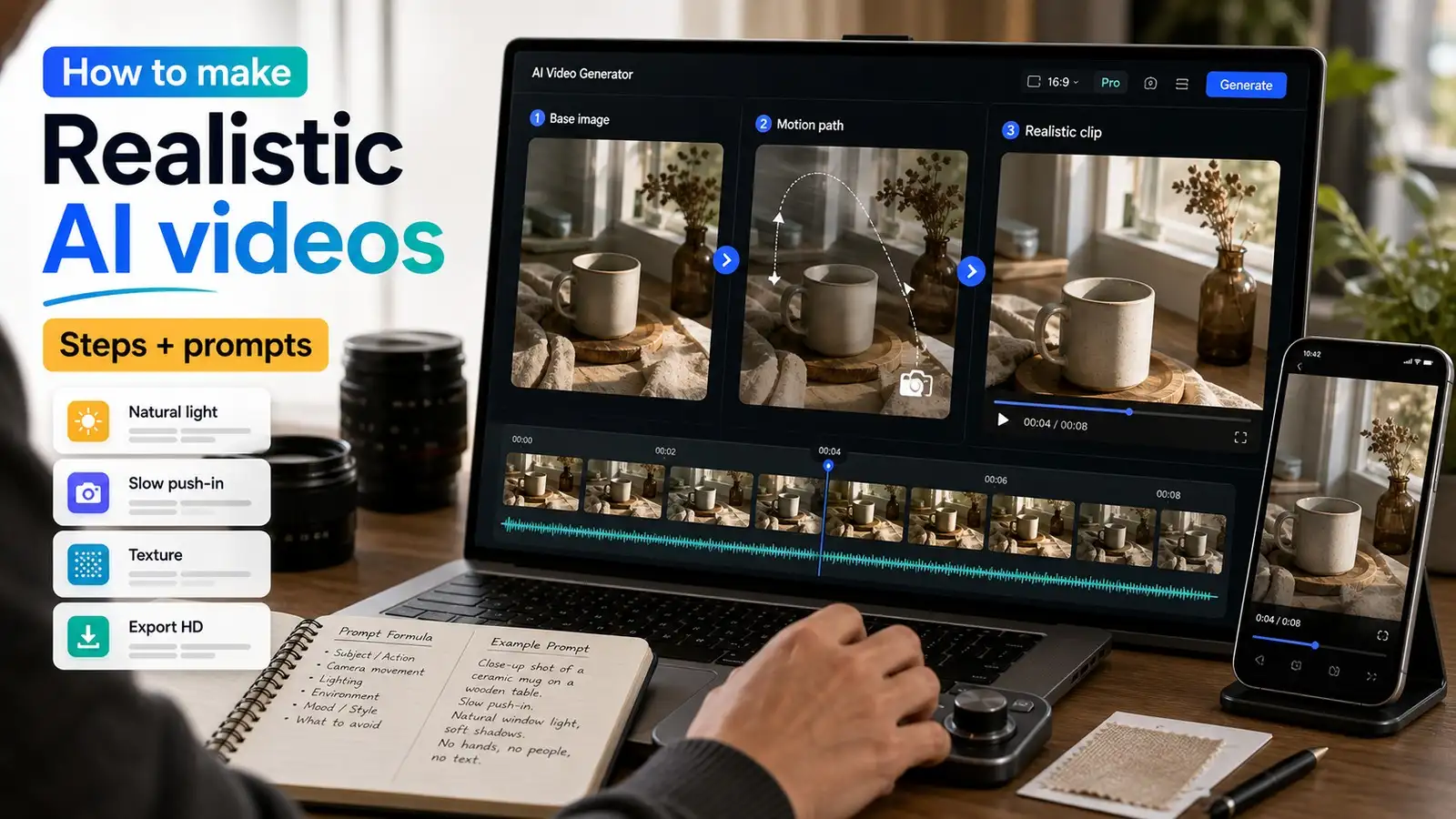
That's where AI steps in and changes everything. You grab one photo, tell it to pan or zoom a bit, and boom—MP4 ready in minutes, no fancy camera or editing software needed. I've tested these tools hands-on, and it's wild how fast you go from still to moving.
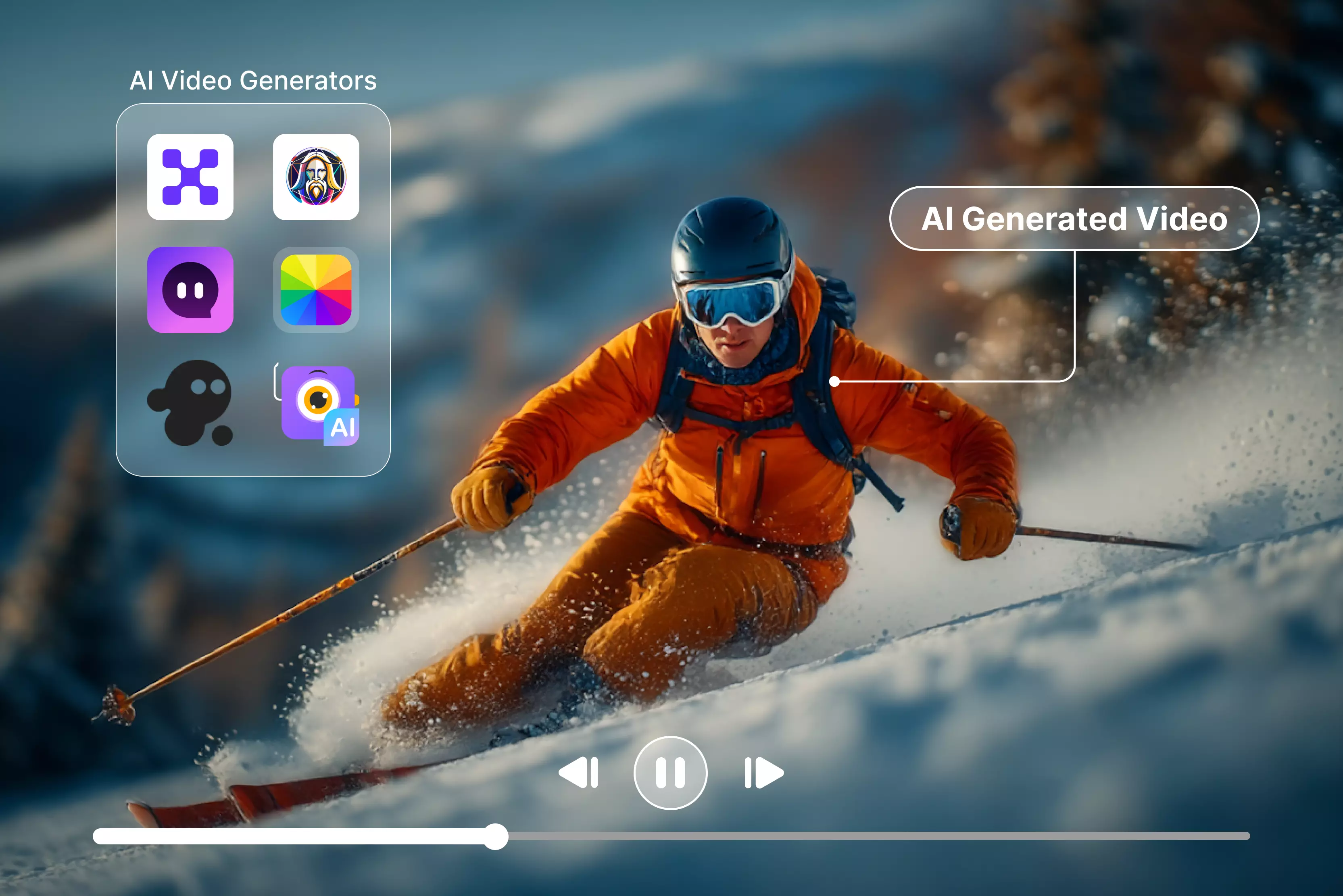
In this guide, I'll walk you through the best image-to-video AI generator top picks like Pixelbin (my go-to for free, sharp results), Luma for that cinematic feel, VEED for social stuff, and many more. Keep reading if you're cranking out Reels or tutorials and already using some complicated tools for image tweaks, as we have come up with some easy alternative options.
How does AI turn photos into videos?
The moment when you ask yourself what the best image-to-video AI generator is, it all boils down to how these tools actually pull off the magic behind the scenes. You're not just slapping frames together—AI has to guess what happens next from one still photo. I tested a bunch, and here's the real deal on the tech.
Most of these rely on diffusion models—think of it like starting with noise and slowly sharpening it into frames that match your image. They generate a sequence of frames that simulate motion (such as pans or zooms), usually aiming for smooth playback—often around 24–30 fps, depending on the tool and settings. Super smart, but it needs good inputs to shine.
Here's a breakdown for your easier understanding:
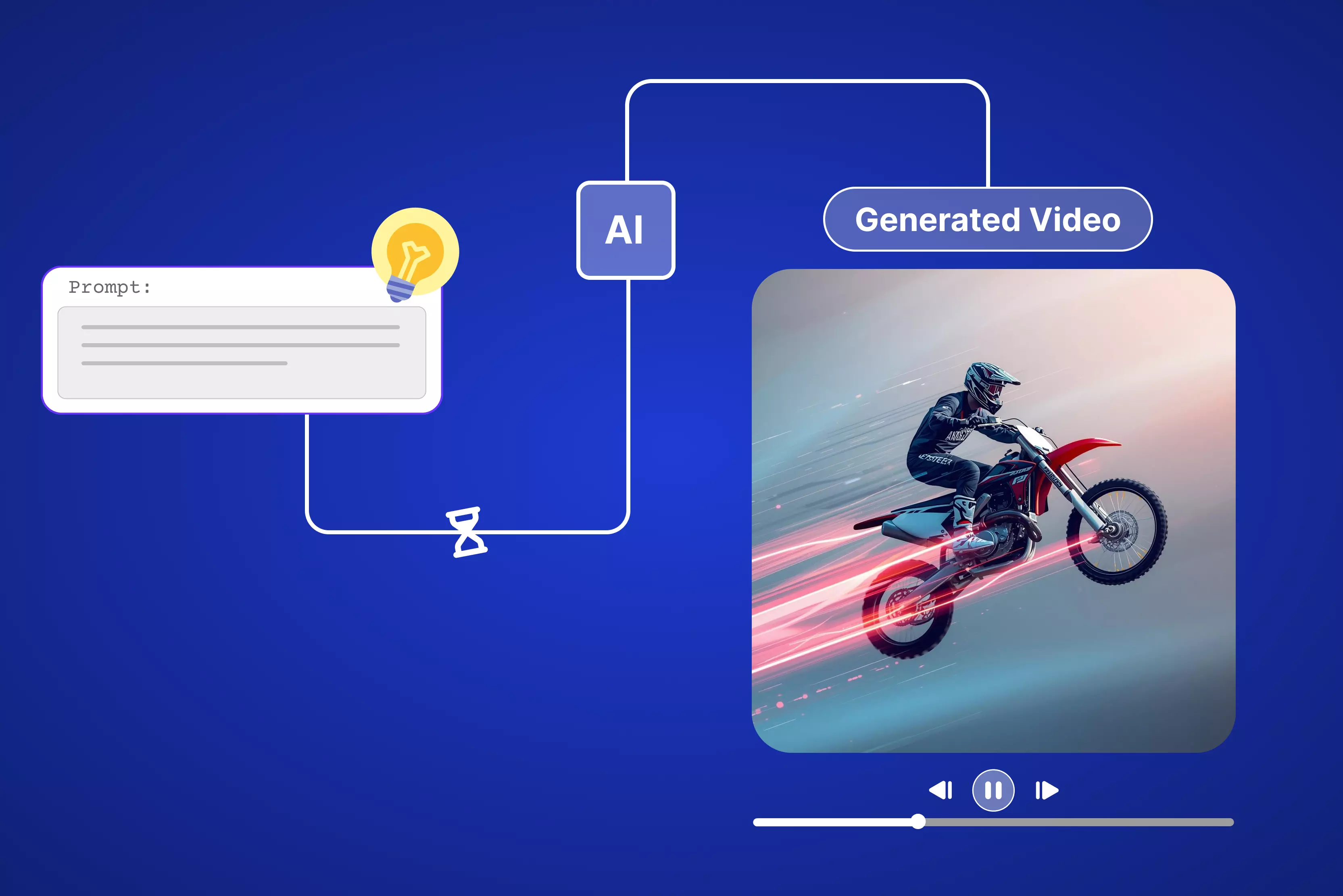
- Add one clean image (JPG/PNG, 1080p ideal) + a text prompt like "slow zoom on the car" or preset camera moves (pan, tilt).
- The system encodes your image and prompt, generates a sequence of frames that introduce motion, and blends them into a short video clip.
- MP4 clip ready to drop into Reels—no editing degree required.
I've run low-resolution pics through top tools, and diffusion handles upscaling okay, but motion prediction trips on busy scenes. That's why the best image-to-video AI generator often comes down to how well it nails frame consistency without weird morphs.
What is the best image-to-video AI generator (10 tested tools)
Tired of static pics and want it to get generated in a video? I tested 10 top image-to-video AI generators—Pixelbin, Luma, Pixlr, and many more. Keep reading to get more insights.
1. Pixelbin AI Video Generator

Sometimes you just need a quick video without diving into a full editor, and that’s exactly where Pixelbin’s AI Video Generator fits in. It lets you turn your ideas, product shots, or brand visuals into short, social‑ready clips in a way that feels natural, not technical.
You can start from text or images and still stay inside the same ecosystem you use for optimization and delivery. Forget bouncing between a bunch of different apps to get your content sorted. You just park everything in one spot, zero in on crafting the actual story, and let the AI editor handle all the fiddly bits quietly in the back.
Must known features
- Text‑to‑video and image‑to‑video generation are available for social posts, ads, and explainers.
- Generation modes tuned for marketing use cases like product demos and promos.
- Web‑based interface designed for non‑technical users and marketing teams.
- Controls for duration, aspect ratio, and resolution suitable for major platforms.
- Rapid rendering so you can iterate on creatives and test variations quickly.
- API‑friendly architecture for automating bulk or template‑based video creation.
Steps to know
Step 1: Head to Pixelbin AI Video Generator and select from the dropdown present under “Google Veo 3.1 fast” and choose “First/Last frame to video.”
Step 2: Type in your prompt like you're directing a mini movie. For my balcony setup, I punched in: "Energetic balcony party lights pulsing to music beat, colorful LEDs twinkling, camera circling railing slowly, champagne glasses clinking in foreground, vibrant nightlife atmosphere." Get descriptive—AI eats that up.
Step 3: Hit generate, and the AI crunches for 20-60 seconds.
Step 4: Preview the before and after results, tweak if needed, then export. Click export, and the video drops to your downloads.
2. Luma AI –AI Video Generator from Image
Ever stared at a photo and thought, man, I wish I could just step right into it? Luma AI's image-to-video generator pulls that off in a way that's honestly kinda wild. You drop your pic in, pick a camera move—like a lazy pan or a slow zoom—and next thing you know, it's breathing life into it with real depth and smooth motion.
It's less like grinding away in some video editor and more like you're the director barking orders on set. No messing around with software or dragging out endless timelines- spell out the flow you want, and the AI jumps in, handling all the realistic details.
Must known features
- Turns static images into dynamic, high‑quality videos in seconds.
- AI‑driven control over motion, style, and scene elements.
- Realistic camera moves with cinematic transitions and smooth parallax.
- Depth and perspective modeling for immersive, 3D‑like shots.
- Ideal for storytelling, marketing, gaming, VR, and product visualization.
- Intuitive “upload, customize, generate” workflow with no editing skills required.
- Dream Machine app on iOS for mobile‑first creation and sharing.
- API access so teams can automate image‑to‑video generation at scale.
3. OpenArt Image to Video
If you already enjoy experimenting with AI images, OpenArt’s image-to-video tool feels like a natural next step rather than a separate workflow. You take an illustration, character, or scene you like and simply ask the tool to bring it to life with motion that matches your prompt.
The experience is more about iterating on ideas than doing heavy editing, which is great when you’re exploring concepts for social posts or storyboards. You stay inside the same creative environment, tweak prompts, and quickly see how your static art behaves once it starts moving.
Must known features
- Image‑to‑video generation directly on top of OpenArt’s image models.
- Prompt controls to define how characters, scenes, or objects move.
- Multiple style options aligned with OpenArt’s illustration and concept‑art aesthetics.
- Timeline‑free workflow focused on generations, not manual keyframing.
- Good fit for looping clips, shorts, and concept animations.
- Seamless reuse of images you previously generated on OpenArt.
- Web‑based UI with creator‑friendly presets and default settings.
- Community‑driven examples to help you discover prompts and styles that work.
4. Pixlr AI Video Generator
Pixlr’s AI video generator tool feels like an extension of the quick edits, so that you can generate your images into a video. You make your usual tweaks, then add motion and structure so the image becomes a short, shareable video instead of just another static visual.
The interface doesn’t overwhelm you with advanced timeline controls, which keeps things light and approachable. It works especially well when you want to prepare vertical content for Reels or Stories, but don’t want to open a full video editor every time you need a simple animated post.
Must known features
- Image‑to‑video conversion with pre‑built motion and layout presets.
- Integration with Pixlr’s image editor for quick touch‑ups before animation.
- Templates optimized for social formats like vertical Reels and Stories.
- Easy text, sticker, and overlay tools for adding hooks or CTAs.
- Web‑based, no‑install workflow suited to quick marketing tasks.
- Export options tuned for common social media specs and sizes.
- Beginner‑friendly controls for motion, speed, and transitions.
- Collaboration‑friendly: assets can be stored and reused across projects.
5. VEED Image to Video AI
VEED’s Image to Video feature is built for the kind of everyday content you’re probably already making—explainers, social clips, quick promos—just with fewer steps. You upload a picture, pick a template or layout, and then layer in captions, music, or other elements directly in the browser.
It feels less like learning a new tool and more like speeding up what you already do in editing. That makes it easier to iterate on creatives with your team or clients, since you can adjust timing, text, and visuals without rebuilding a project from scratch.
Must known features
- AI image‑to‑video with presets for ads, explainers, and social clips.
- Built‑in captions, subtitles, and text‑to‑speech options.
- Library of stock music, B‑roll, and elements you can drop into videos.
- Timeline view for finer control over cuts and overlays when needed.
- Export profiles optimized for TikTok, Instagram, YouTube, and more.
- Collaborative review links so teams can comment without downloading files.
- Brand elements support (colors, fonts, logos) for consistent output.
- Browser‑based, no‑software workflow suitable for agencies and remote teams.
6. Fotor AI Video Generator
Fotor’s AI Video Generator is the kind of tool you open when you just want to get a story or idea out of your head and into a video quickly. You can start with a reference image and let the AI assemble visuals and motion around it.
The interface is straightforward enough that you don’t feel like you’re learning “video editing” in the traditional sense. Instead, you spend your time refining prompts, trying different styles, and nudging the output closer to your brand or narrative, one short clip at a time.
Must known features
- Text‑to‑video: convert written prompts or scripts into full videos.
- Image‑to‑video: animate still images with guided prompts and motion.
- Automatic video enhancement to reduce noise and blur.
- Style presets for marketing, education, storytelling, and more.
- Resolution and duration controls up to 1080p for pro‑looking output.
- User‑friendly interface suitable for non‑editors and solo creators.
- Supports both text‑based and image‑based workflows in one place.
- Cost‑efficient credit model with options for quick experimentation.
7. Filmora AI Image to Video
Filmora’s AI Image to Video feature is ideal if you like playing with trends but still want a proper editor behind the scenes. You can drop in a photo, apply one of the AI effects, and instantly turn it into a short, attention‑grabbing clip that feels right at home on social media.
The nice part is that you’re not stuck with whatever the AI gives you; you can fine‑tune timing, transitions, and audio on a full timeline afterward. That mix of automation plus control makes it easier to experiment without losing the ability to polish.
Must known features
- AI Image‑to‑Video that turns photos into up to 10‑second clips.
- Flexible editing with trimming, transitions, overlays, and music.
- Text‑prompt customization of AI effects for more specific looks.
- Cross‑platform support on desktop and mobile for seamless workflows.
- Export to multiple formats, including MP4, MOV, WEBM, GIF, and more.
- Extra AI tools: TTS, auto‑captions, and AI sound effects generation.
- Designed for social‑media‑ready, trend‑aligned short‑form content.
8. Vidnoz Gen Image to Video AI
Vidnoz's image-to-video AI is perfect for those times when you just wanna spitball an idea quickly—take one pic and spin it into a light video, no heavy lifting required. Drop your image, tweak a couple of settings, and boom, you've got motion happening right there to check out.
Since it all runs smoothly in your browser with dead-simple controls, you can bang out a bunch of versions without breaking a sweat. Killer for social stuff, thumbnails, or fast promo clips where speed and punch matter way more than fiddling with fancy edits.
Must known features
- Turn any static image into a dynamic AI‑generated video.
- Web interface with straightforward steps like “Upload → choose effects → generate.”
- Customizable effects and transitions to match your visual style.
- Preview and adjust before exporting final videos.
- Good fit for YouTube shorts, social posts, and simple animations.
- Part of a wider Vidnoz AI toolset for creators and marketers.
- Options to export and share directly to online platforms.
- Budget‑friendly, with free usage tiers and upgrade paths.
9. Keevx AI Avatar Video Generator
Keevx AI avatar video generator feels very different from classic image‑to‑video tools because it centers everything around a talking avatar. Instead of building scenes from scratch, you focus on the script, the tone, and the persona you want on screen. You pick or create an avatar, paste your text, and let the platform handle the voice, lip‑sync, and camera framing.
This setup is especially useful when you need a lot of explainer or training content but don’t want to constantly record yourself. It’s like having a virtual presenter you can reuse across languages and campaigns.
Must known features
- Generate studio‑quality avatar videos from scripts or topics.
- Create a personal AI avatar from a short video clip.
- Natural lip‑sync and AI‑generated voices for realistic delivery.
- Video translation into 170+ languages with synced lips.
- Modes for video translation, topic generation, and script reading.
- 1080p output optimized for clarity and engagement.
- Web interface tuned for marketers, educators, and creators.
- Scales easily for batch content, ads, and training videos.
10. Viddo All-in-one AI Video Generator
Viddo AI is aimed at people who want their static visuals to feel more alive without learning a full editor. You bring in an image and generate it into a video, choose from styles or motion options, and then let the tool add depth, movement, and subtle animation.
The workflow is intentionally simple so you can spend your energy on picking the right image and mood rather than figuring out complicated settings. It’s particularly useful for turning hero images, product shots, or banners into short clips that feel more engaging in feeds and landing pages.
Must known features
- Image‑to‑video engine that adds AI‑driven motion and effects.
- Style and effect choices for different moods and aesthetics.
- Supports both text prompts and direct image uploads.
- High‑quality outputs aimed at marketing and storytelling use cases.
- Simple workflow: upload image, choose effects, click Generate.
- AI analyzes the photo to create dynamic, enhanced animations.
- Designed to make static visuals more engaging for audiences.
Final thoughts
Grab 1-2 decent images, clean them up, and upload them into any of the above-mentioned best image-to-video AI generators. Type something punchy like "slow pan over party lights, upbeat vibe pulsing," smash generate, then export that MP4, and it's that easy.
I threw my balcony party shots at a couple of tools, and yeah, killer prompts are everything. Start basic ("gentle zoom in") and stack details till it pops like a pro clip. If you ask my take on the tools, I will refer you back to the Pixelbin AI video generator upfront.
Upscale the fuzzy ones, rip out crap backgrounds, then pipe them into your generator of choice. Crisp inputs greatly improve motion consistency, and using a single platform for prep can simplify workflows across different image-to-video AI generators.
FAQs
Yes, tools like Pixelbin give unlimited HD no-watermark exports, Luma hands out free daily credits for solid clips, and Pixlr does HD for free too. No paid plans needed, just browser action.
Pixelbin takes it for endless HD video without watermarks, especially if you're generating it for products or blogs. Pixlr is a close second choice with built-in edits. Test both—they're neck-and-neck for daily workflow.
Luma edges it with that 3D depth and 1080p motion via Ray2—landscapes and cinematics pop. Pixelbin matches for sharpened products. Depends on your shots, but these tools cancel the artifacts.
Free tiers stick to 5-30 seconds mostly—Luma starts at 5s (extendable), Pixelbin hits 10-30s easily. Chain them in editors like VEED for longer stuff without paying up.
Start sharp at 1080p if you can—blurry ones jitter even with upscaling. Pixelbin/Fotor fixes some noise, but crisp inputs = crisp motion across all best image-to-video AI generators.
Yes, for the most part, you can use these for your business purpose on the paid plans or free ones without watermarks—Pixelbin and Pixlr say go for it straight up.