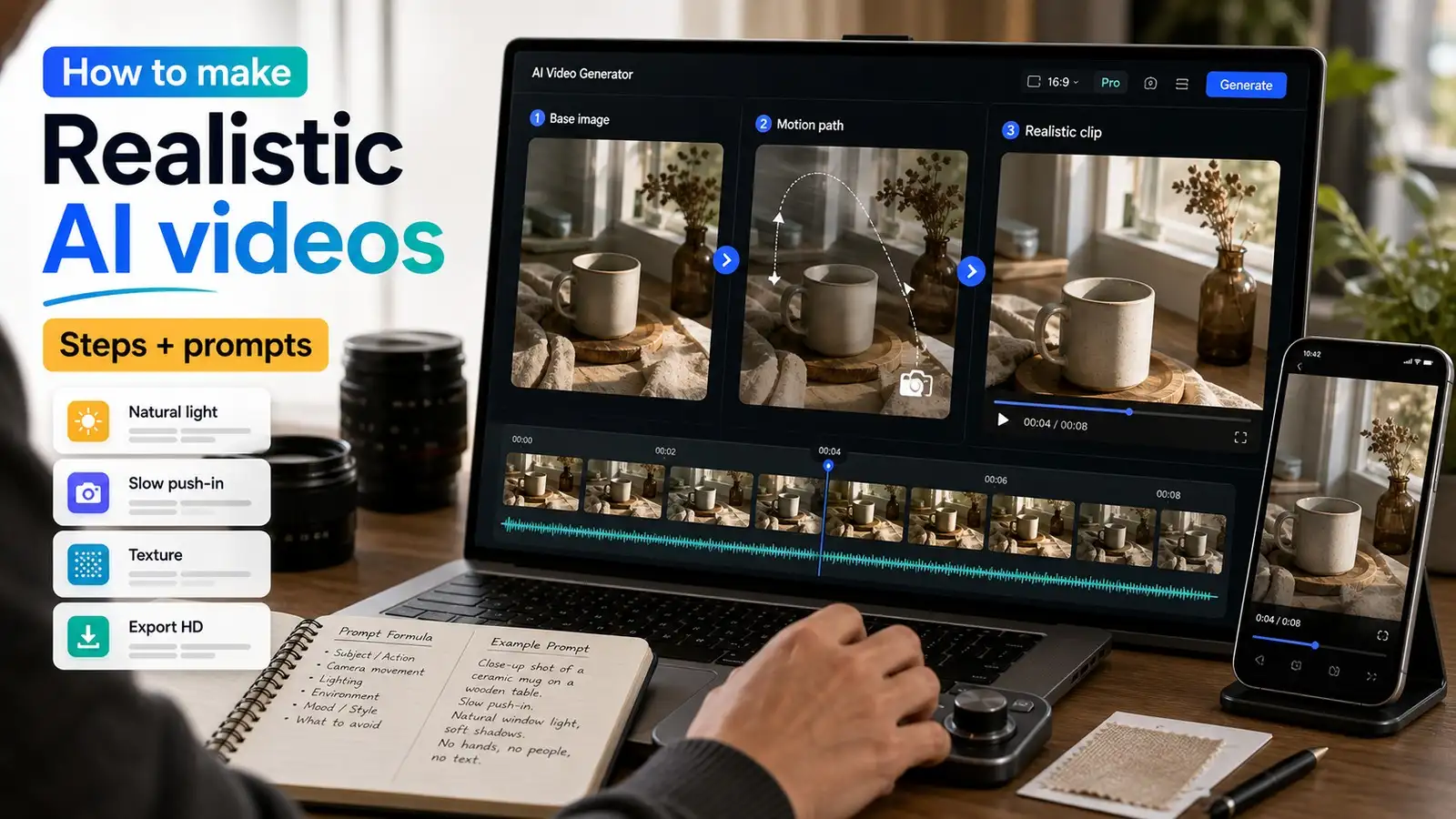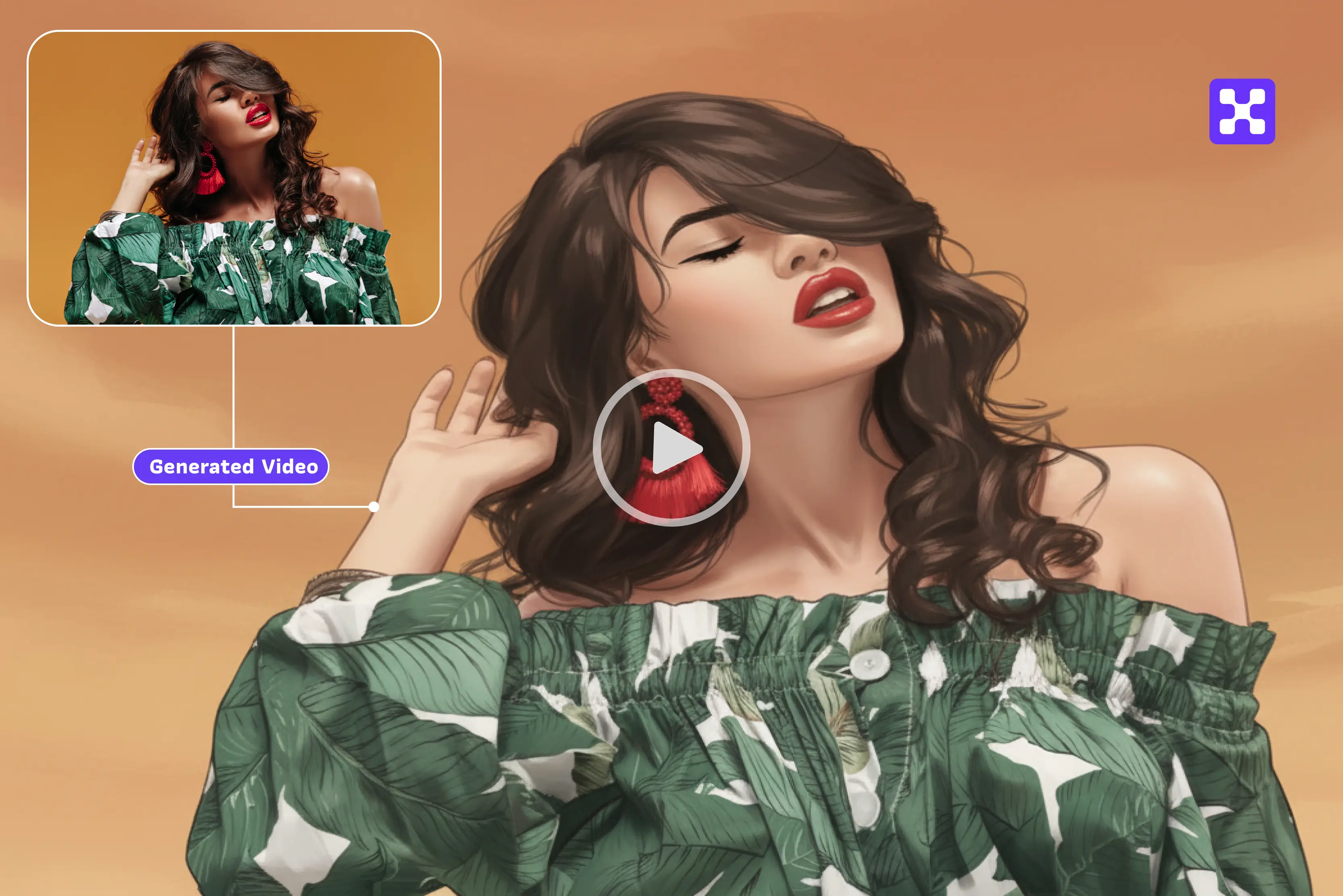


If you love to post online, videos get way more attention than photos—about 80% more clicks and views. But if you want to make an animated video from just one image, it used to take many hours using editing software like After Effects.
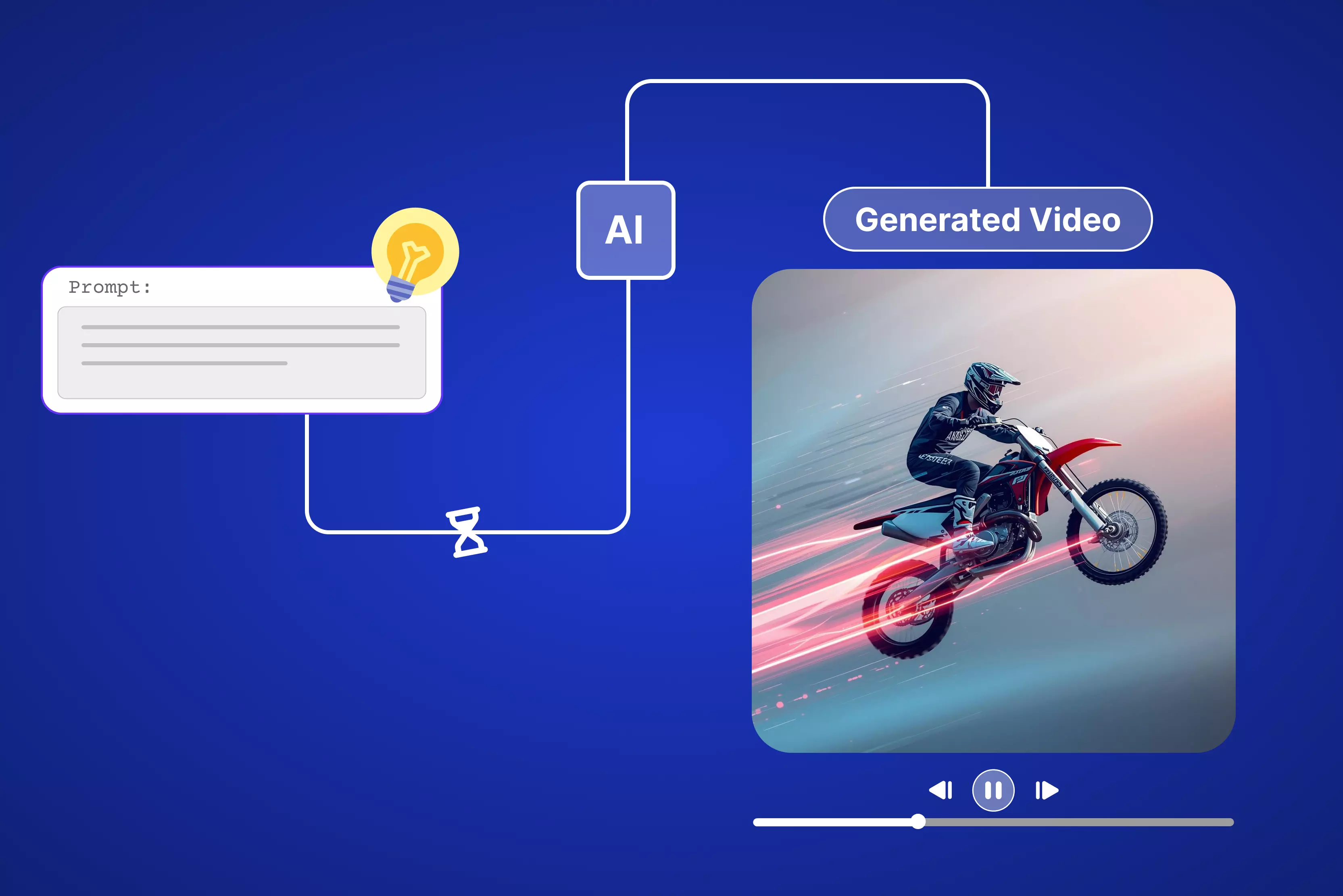
Now, images using AI to make animated videos make it very easy. You upload a photo to a website, type a simple instruction like "slow pan across balcony lights," and the tool creates a ready MP4 video in less than one minute. 9 AI tools (free & freemium) like Pixelbin, Leonardo.ai, and more. You do not need any special skills or training.
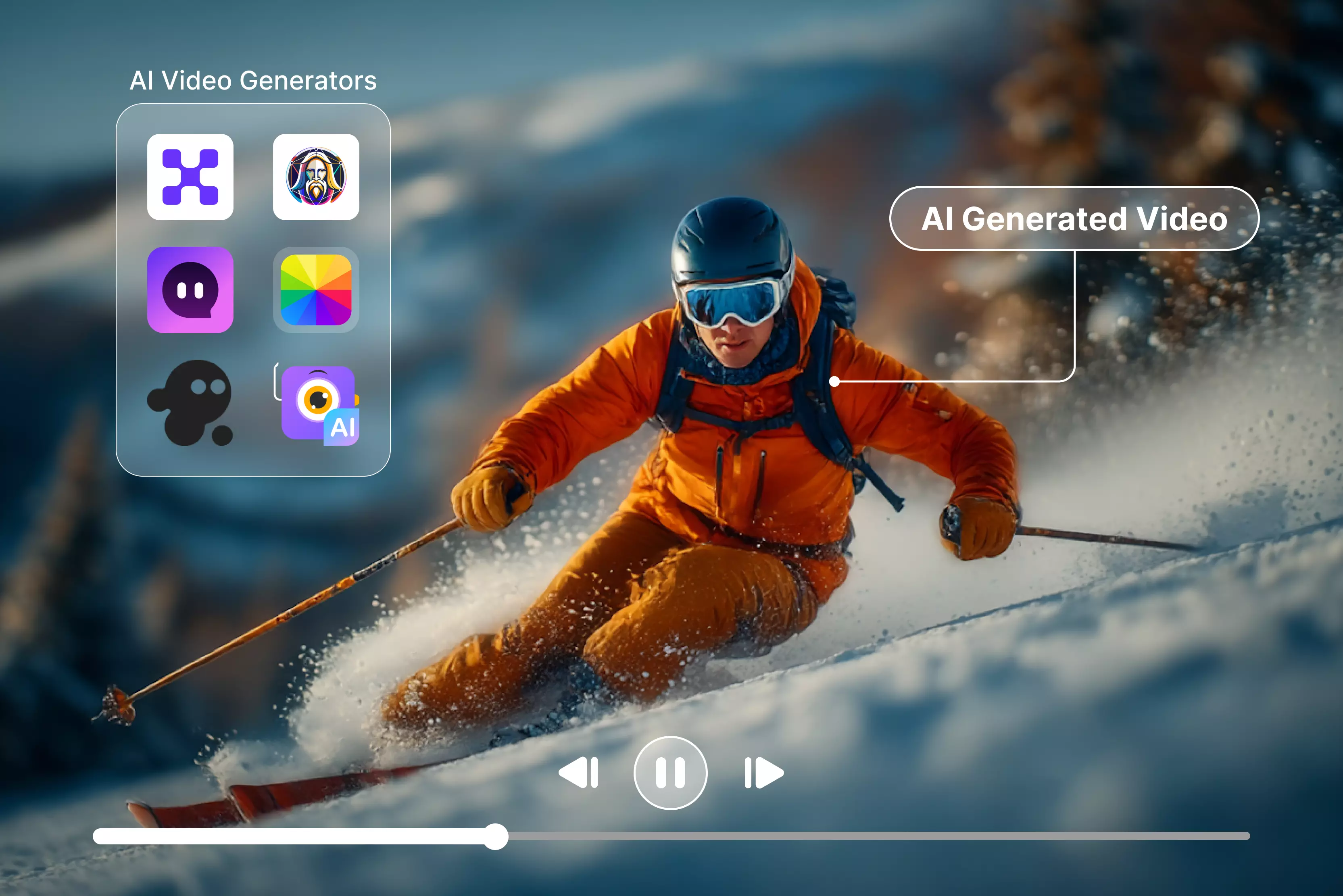
In this guide, I will break down the nine tools I've tested—Pixelbin for free HD videos, Leonardo.ai for smooth motion, Pixlr for quick edits, and more, to make you understand how to create an animated video from an image in a few seconds.
What do you need before starting to create an animated video from an image?
When you're ready to dive into how to create an animated video from an image, the difference between a choppy clip and a smooth promotion comes down to your starting point. I've tested this across dozens of photos—blurry phone snaps jitter like crazy, while clean 1080p shots flow beautifully.
Spend 2 minutes prepping upfront, and you'll save wasted regenerations later. Your main ingredient is one solid photo—JPG or PNG format works best. Aim for at least 1080p resolution if possible (that's Full HD), but honestly, even decent phone pics turn out okay after upscaling.
Cluttered backgrounds distract the AI, so a clean subject pops way better. Stable internet matters too—most tools often render within a minute, though queue times can vary.
Complete prep checklist:
- Sharp 1080p image (or upscale blurry ones free at Pixelbin—transforms fuzzy product shots into crisp 4K starters)
- Clean background (remove distractions so AI focuses on motion, not mess—Pixelbin's one-click bg remover handles this perfectly)
- Chrome is generally the most compatible browser across AI tools.
- Simple prompt idea (jot down basics like "slow pan left, sunset lighting" before starting—saves rewriting)
- 2-3 minutes total (image prep + tool load time; full workflow under 5 minutes after that)
- Quiet workspace (grab coffee during 30-second renders—no interruptions needed)
This prep checklist alone doubled my success rate across nine tools. Sharp, focused inputs mean the AI spends energy on realistic motion instead of fixing your photo's flaws. Trust me—skip it, and you’ll likely need far more regenerations.
Top AI tools to create an animated video from an image
Turn static photos into animated videos instantly! These nine browser-based AI editors (free & freemium) let you upload images and generate short animated videos—no downloads required.
1. Pixelbin AI Video Generator

If you are serious about how to create an animated video from an image, Pixelbin is the most practical place to start. It already handles things like upscaling, background cleanup, and overall image quality, so you’re not feeding low‑quality photos into your video tools.
Once your image looks sharp and clean, you can then use image-to-video tools to add motion prompts like pans or zooms. This makes Pixelbin especially handy if you work with product photos or blog graphics all day and just want a quick way to turn them into short, usable video clips for social or ads.
Must-know features
- Browser-based image enhancement and preparation—no downloads needed.
- Creates short social-ready clips in seconds for Instagram Reels, TikTok, and YouTube Shorts.
- Supports common image formats (JPG, PNG, WEBP) as visual starting points.
- Simple prompt interface for describing scene, mood, and motion.
- Fast processing optimized for quick social media and marketing content.
- 3 free credits available for testing without signup requirements.
Step-by-Step guide
Step 1: Open Pixelbin AI Video Generator and select from the dropdown present under “Google Veo 3.1 fast” and choose “First/Last frame to video.”
Step 2: After that, upload two images that you want to generate into a video and add a prompt like how you want the video to be and click on generate (like for my new year party I wanted my balcony decoration images generated into a video and my prompt was- “Energetic balcony party lights pulsing to music beat, colorful LEDs twinkling, camera circling railing slowly, champagne glasses clinking in foreground, vibrant nightlife atmosphere”)
Step 3: Wait for AI to process the video. Once done, you can click on export video, and you are done.
2. Leonardo.ai Video Generator
When you think about creating an animated video from an image with more cinematic or artistic results, Leonardo.ai fits that brief. It’s built for people who already work with concept art, character designs, or stylized visuals and want to see them move without traditional animation work.
You upload your image, describe the motion or scene, and the tool does the heavy lifting. It’s especially useful if you like dramatic camera moves, moody lighting, or storytelling clips rather than just simple pans and zooms over a flat photo.
Must-know features
- Designed to turn concept art and stylized images into short, cinematic motion clips.
- Accepts prompts describing how the scene or character should move over time.
- Good option if you and I want something beyond “slide-show” style movement.
- Helpful in workflows where creating an animated video from an image also involves story or mood, not just technical motion.
- The free tier usually includes enough credits to test different prompts and looks.
3. Pixlr Image-to-Video
Pixlr is useful if you like doing everything in one tab. For how to create an animated video from an image, it lets you take a static design or photo, tweak it in the editor, and then animate it without jumping between tools.
That’s great if you’re already designing social posts or banners in Pixlr and suddenly realize a short video version would perform better. You can add movement, transitions, and even music, which means you’re going from a still image to a ready-to-post clip in a single browser window.
Must-know features
- Combines image editing and image-to-video animation in the same interface.
- Let's you and me add simple camera moves, transitions, and text overlays on top of the image.
- Includes basic audio features so you can attach music or sound without leaving the tool, which depends on the premium plan.
- Fits nicely into a workflow where creating an animated video from an image starts with design and ends with a social-ready clip.
- Good choice if you want a simple, visual editor instead of a complex timeline.
4. VEED AI Animation
VEED is worth using when we want more control over the final edit. It doesn’t just handle how to create an animated video from an image; it also gives you a full online editor with captions, overlays, and audio tools.
You can upload an image, use their AI animation options, then fine-tune everything on a timeline. That’s useful if you’re creating content for Instagram, YouTube Shorts, or TikTok and need each clip to feel polished, with proper subtitles and branding elements, without opening heavy desktop software.
Must-know features
- Let’s you animate images and then refine results inside a full browser-based video editor.
- Easy to add captions, emojis, logos, and music to the animated segment.
- Helpful if your version of "How to create an animated video from an image" includes editing multiple clips together.
- Supports common social aspect ratios (9:16, 1:1, 16:9) with simple export presets.
- Good for creators who need both AI help and manual control in the same place.
5. Filmora AI Image-to-Video
Filmora is more of a traditional editor, but its AI image-to-video feature is handy if you don’t mind installing software. For how to create an animated video from an image, it lets you generate motion from a photo, then refine that motion alongside other footage on a full timeline.
This is especially helpful if you’re mixing animated stills with screen recordings, talking-head clips, or B‑roll. You get both AI shortcuts and frame-by-frame control, so you can fix little issues and keep everything on-brand.
Must-know features
- Generates motion from a still image and drops it into a familiar timeline interface.
- Offers tools like motion tracking, keyframing, and color correction once the animation is created.
- Good match if How to create an animated video from an image is just one part of a larger video project.
- Desktop software makes sense for longer videos or more complex edits.
- Suits users who like AI help but still want to be very hands-on in the final polish.
6. Hailuo AI
Hailuo AI focuses on smart, fluid motion from both text and images, so it fits nicely into a workflow centered on how to create an animated video from an image with more realistic camera movement.
You upload a photo, describe the shot you want—maybe a slow orbit, a gentle push-in, or a reveal—and Hailuo handles the in-between frames. It’s especially appealing if you aim for something that feels closer to real-world footage instead of a simple slideshow or basic zoom.
Must-know features
- Generates video from images and text prompts, with an emphasis on smooth camera moves.
- Lets you describe the type of shot instead of manually animating it.
- Useful when learning how to create an animated video, it should look like real camera work.
- Often accessible through web or app interfaces, making it easy to test ideas quickly.
- A good fit for product demos, mood clips, and simple promo videos.
7. Easemate AI Image Animator
Easemate is aimed squarely at bringing photos to life, especially portraits. If you’re thinking about how to create an animated video from an image where the subject’s face actually moves—blinks, smiles, or turns slightly—this is the type of tool you’d consider.
You upload a picture, choose or describe the motion, and Easemate handles the subtle details. It’s particularly useful for social content, personal projects, or simple explainers where a static face wouldn’t hold the viewer’s attention for very long.
Must-know features
- Specializes in animating faces and human expressions from still photos.
- Can add subtle motion like blinking, nodding, or smiling without manual rigging.
- Works well if How to create an animated video from an image involves people instead of products.
- Simple interface—usually just upload, pick behavior, and export.
- Great for quick social posts, profile content, or lightweight marketing experiments.
8. DomoAI Image Animation
DomoAI focuses on creative, stylized animation, which is helpful when your version of How to create an animated video from an image leans more playful than realistic. You can take a normal photo and push it into anime-style motion or other artistic effects.
That makes it a solid choice for music clips, gaming content, or any channel where you want a distinctive look. Instead of just sliding a camera across the image, DomoAI can completely reinterpret how the subject moves and feels.
Must-know features
- Turns static images into stylized animated clips (often anime or other strong looks).
- Lets you choose motion types and visual styles, not just basic camera movement.
- Ideal when How to create an animated video from an image is more about vibe and branding than realism.
- Particularly appealing for gaming channels, music visuals, and creative social content.
- Helps your clips stand out visually in busy feeds.
9. Monica – online animation of a picture
Monica’s “animate a picture” tool is handy if you like doing things in a chat-style interface. To create an animated video from an image, you upload your photo and then simply describe what you want in normal language—no need to learn special terms.
The tool interprets your instructions and generates motion accordingly. It’s a good option if you’re already using chat-based assistants and want animation to feel like just another conversation step, rather than a whole new piece of software to learn.
Must-know features
- Let's you guide animation using plain, conversational prompts.
- Works within a broader assistant-style environment, so it fits naturally into writing or planning sessions.
- Great if How to create an animated video from an image should be quick and low-friction.
- Simplifies the process for users who don’t want to deal with complex controls or timelines.
- Ideal for small social clips, explainer visuals, or testing ideas before investing more time.
Conclusion
There you have it—the complete rundown on how to create an animated video from an image. Five simple steps: prep a sharp photo (2 minutes max), pick your tool, type a motion prompt, hit generate (30-60 seconds), preview, and export MP4. That's it—no fancy skills, no downloads, just browser magic turning stills into Reels.
Test Pixelbin free right now—unlimited HD exports with no watermarks. Prep your images there first (upscale blurry ones, clean backgrounds), and you'll get 2x smoother motion across any tool. Jump in today and crank out clips that actually get views.
FAQs
Absolutely, Pixelbin gives you unlimited HD exports with zero watermarks, no credit card needed. Pixlr offers free HD clips, too, and Leonardo.ai hands out daily credits for testing. All run straight in your browser, so you can start turning photos into motion clips right now without spending a dime. Perfect for daily Reels or social experiments.
Pixelbin takes the crown—unlimited HD outputs plus built-in upscaling means your blurry phone pics come out sharp and smooth every time. Pixlr's a strong runner-up if you want quick music syncs and edits in the same tab. I've tested both daily; Pixelbin edges it for sheer volume without hitting walls.
Most free tiers cap at 5-30 seconds—Pixelbin delivers solid 10-30s clips, Leonardo lets you extend scenes, while VEED chains multiple generations for longer Reels. That's plenty for social attention spans, and you can stitch extras in free editors if needed. Quality stays high even at max length.
Start with 1080p sharp if possible, but no, you don't need pro gear. Pixelbin upscales fuzzy shots decently, cleaning compression and adding detail before motion kicks in. Blurry inputs jitter a bit, but prepped ones flow buttery smooth across all tools.
Keep it simple: motion first, then details—"Slow 360 spin on red sneakers, soft studio lights glowing, gentle shadows, 15 seconds." Add vibe like "upbeat party energy" or "cinematic sunset." Test 2-3 versions of the same prompt; AI nails specifics better than vague stuff every time.
Yes, on no-watermark free/paid tiers—Pixelbin, Pixlr, and more explicitly allow business use with full rights transfer. Free VEED limits you to personal use, but the upgrade unlocks everything. Always skim the terms page (usually footer), but these tools greenlight ads, shops, and client work no sweat.