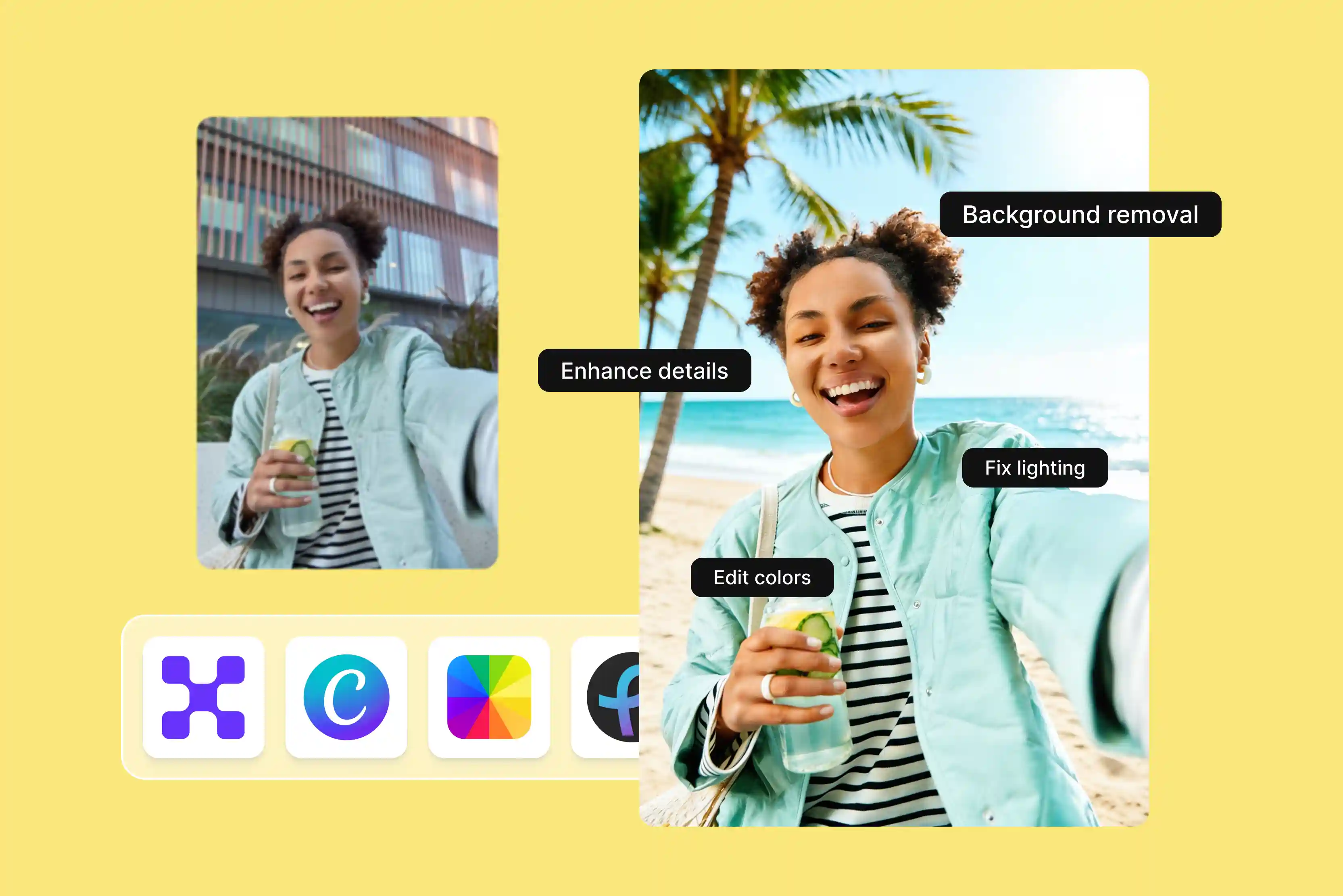


Creating outstanding images traditionally required strong design skills or time spent learning tools like Photoshop. That’s no longer always necessary, thanks to AI-assisted tools. AI image editor tools can automatically enhance, modify, or transform images using machine learning techniques.
Modern AI image editors can improve images, remove objects, and in some cases even generate new elements like outfits. I've been a photographer for five years, and much of my writing is about my photos. I’ve been testing and using AI image editor tools that have AI features in standard image editors since they’ve been available, which is probably a lot longer than you think.
I found many tools, of which I like Pixelbin, which is easy to use, requires no manual editing, and doesn't require a sign-up; you just upload an image and write a text prompt according to your requirements. It can handle exposure, clean up backgrounds, smooth skin, even fill in missing bits, and add objects, often in seconds.
In this blog, I share my hands-on testing of various AI image editors, how they save time, and which ones are worth your attention. Additionally, I also explain what an AI image editor does, why AI image editors for social media matter, how to select the best AI image editor, and more. Let’s dive in and explore these tools in detail.
What does an AI image editor do?
AI image editors have been around for a long time. Some features are improvements on older tools, while newer capabilities like generative editing are entirely new. So, what can an AI image editor actually do? It can enhance blurry or low-quality images by improving sharpness and clarity, though results depend on the original quality.
First, understand what kind of photo you took, like a portrait or a landscape, and suggest the right edits. You can remove the subject from the background with one click and place something else, even adding realistic shadows. You can also change the sky in a photo and adjust the lighting to match the new background.
You can also automatically adjust brightness, color, and contrast. AI is often used to improve faces, such as smoothing skin and brightening eyes. It can also restore old photos, fix damage, or even add color or convert to black and white. You can also select parts of an image easily to edit the image, add shadows to product photos, or even place clothes on AI-generated models. In simple terms,rms AI image editors use advanced algorithms to make editing faster, easier, simpler, and more automated.
AI image editor for social media: Quick comparison
Best AI image editor for social media
1. Pixelbin

Pixelbin has been the industry-standard image editor and social media for more than a few decades. It is easier to list the image editing tasks that Pixelbin can't do than the ones it can, until I realized I could come up with a list of things it can do. In short, Pixelbin is the best AI image editor for social media.
The tool is applicable to AI functions such as watermark removal, background removal, image upscaling, and more. The background removal tool improves the ability to remove unwanted objects, individuals, and artifacts from your photos. There's also a text-to-image generator that allows you to add or replace images by writing a text prompt. Pixelbin has plenty of other AI-powered tools.
An AI image editor has introduced a new AI image editor for social media to fix lighting, colors, and clarity to get images ready for social media posts. It has always been perfect for quickly creating everything needed for Instagram posts, including TikTok-style glows, background removal, blurring, adding lights, cropping for reels/stories, and more.
AI image editor tools help you to create clear, high-quality images that look sharp across social platforms and screen sizes. The images that you used for testing are processed securely with safeguards in place to protect your data. Using an AI image editor for social media is basic.
Click the upload image button or paste a URL, then upload your image in the format you need, such as JPG, JPEG, WEBP, or PNG. Enter the text and describe the changes you want in the image. The tool will process the prompt and generate an image. Preview the enhanced photo and download it in HD quality if you are satisfied with the result.
I tried one image by writing a text prompt: “Edit the photo by removing the background and replacing it with a soft, warm sunlight scene.” Add natural backlighting to create a gentle glow around the girl, giving her a professional, polished look. Add a small red flower near the girl standing, then click the generate button.
The results look very good; I really like the natural background change and the lighting. It saved so much time while giving high-quality output perfect for social media creation. Highly recommended for quick and polished edits. You can try 3 images a month for free without signing up.
Key features
- Ease of use
- Faster content creation
- No signup required
- Batch processing
- Support multiple formats
- No watermark image
- High-resolution output
- No technical knowledge needed
2. Canva
With the help of Canva's AI-powered photo editor, you can rework images your way with fun, intuitive tools that do the heavy lifting for you. The AI-powered photo editor can instantly transform your images with a simple text prompt. This is possible with Canva’s Magic Edit feature. Just click an element in the photo or brush over an area, then type what you want to change. If you need to change the background, you can replace it with Background Changer, which lets you create any background you want.
You can also recolor, replace, remove, or reposition elements in just a few clicks, all without complex tools or expensive software. The process of using Canva is very easy: click Photo Editor on the homepage, open a new or existing design, and access the AI-powered photo editor from there. Upload the photo that you want to edit, or drag and drop it into the layout. You can select images in JPG, PNG, HEIC/HEIF, WEBP, and SVG according to your requirements.
Make AI photo edits: remove unwanted objects with Magic Eraser, extend your image with an AI image expander, remove the background, or, for high-resolution images, try Image Enlarger to resize them without losing quality. Spruce up your image with stylish filters and photo effects, add text to tell a better story, and resize your image to fit various social media platforms. After the final share, download your image for Facebook, Instagram, TikTok, and LinkedIn.
I tried the same image that I tried with Pixelbin. Click the BG remover to remove the background. Then, click the Magic edit option and write the text prompt according to the requirements. I received the result, which is not perfect, and the process is much longer than Pixelbin's. Pixelbin is effortless to use; upload an image, and write a text prompt according to your needs.
Key features
- Ease of use
- No signup required
- Batch processing
- Support multiple formats
- No watermark image
3. Pixlr
Elevate your creations with the revolutionary text-to-image AI generator, which transforms simple text into visually captivating works of art. AI image editor: offers AI-powered features like image layers, cropping, resizing, size adjustments, background removal, and more. Pixlr's powerful AI tools are right in the browser, on mobile, or on desktop. Pixlr also added a Nano Banna-powered conversational editor.
The process of using the Pixlr image editor is to open Pixlr in the browser and click on "open image" or "open image URL." "Start editing using the right-hand layer bar; add text, new, or transparent layers. Adjust the brightness, color, or sharpness as you need and save your results.
I tried one image by clicking the “Open image” button on the left side of the AI tools, and then I clicked “Remove background” to clear the image's background. Then again, use AI tools, select Generative Fill from the list, choose the area where you need the change, and write the text prompt that will replace it.
Replace the background with red flowers, then click the generate button. I received the result, but it didn't exactly match the text prompt. It didn't meet expectations. The background is easy to remove, but it requires extensive manual editing, which is time-consuming. It might be suitable for basic editing, but it is not ideal for professional-quality content.
Key features
- Ease of use
- No installation
- Support multiple formats
- Generative fill
- Background removal
- No watermark
4. Fotor
Fotor's AI automatic photo editor can handle a diverse range of complex photo editing tasks, including background changes, adding or removing objects, upscaling image quality, and more. AI-driven editing tools to help fix blurry phone photos and messy backgrounds, or clean up a selfie all in one go. The AI photo editor can also respond to your photos with natural language like “Make the background green," and you can watch AI make it happen.
The process is simple: drag and drop or upload your image. There are various options available, such as AI upscaler, Magic Eraser, BG remover, and Image-to-video, depending on your requirements. I selected the BG remover option, which offers 3 more options: Auto, Common, and Person.
I selected a person and clicked on the apply button; the background was removed. I selected " Change background," where the colors and photos option is. I selected the black background color and clicked on the apply button. If you are satisfied with the result, click the download button. Using the Fotor AI image editor is much more time-consuming than using Pixelbin.
Key features
- Ease of use
- No signup needed
- No editing skill needed
- Support multiple formats
- Background removal
- Batch editing
5. Imagine.art
You don’t have design experience, you don't want to learn Photoshop, and you want to edit an image. With the ImagineArt AI image editor, you can easily edit your image. You can swap backgrounds, add objects, and make other edits with AI, though generation time and quality may vary. You can upload an image in various basic formats, depending on your needs.
The process is simple: upload your photo to the ImagineArt AI image editor now. After uploading, enter a detailed, clear text prompt, select the aspect ratio according to your requirements, and click the “Generate” button. Download the result if you are satisfied with it.
I tried with the image and writing the text prompt like “Edit the photo by removing the background and replacing it with a soft, warm sunlight scene.” Add natural backlighting to create a gentle glow around the girl, giving her a professional, polished look. Add a small red flower near the girl standing, select the 1:1 aspect ratio, and click the generate button. After a few seconds, I received the result. The background wasn't fully removed; it's a bit blurry, and adding the red flowers wasn't done properly, so it's not in line with the text prompt. The result feels inconsistent and lacks detail, with images not looking natural. To receive precise output, I recommend the alternative tool Pixelbin.
Key features
- Ease of use
- Support multiple formats
- Text-to-image generation
- Multiple aspect ratios
- Batch processing
- No watermark
6. Picsart
Upgrade your images with AI-powered tools that save your time and effort. Picsart performs complex edits like removing backgrounds from your photos, enhancing blurry or pixelated photos, and creating visuals from scratch with AI. From product photos to portraits, it handles background changes, text overlays, object swaps, ps, and even beauty edits like hair color updates, among other features, according to your requirements.
Picsart AI image editor can perform a wide range of edits, including color correction, object removal, image restoration, facial recognition, background replacement, and more. With over 25+ AI-powered features built into the Picsart photo editor, you can clean up, enhance, and transform your images in just a few clicks.
The process of using Picsart AI image editors is simple: upload a product shot, change the background, add text, and replace an item, all in seconds through a user-friendly interface built for creators. I tested one of my images by clicking on “Edit AI Image Editor.” On the next screen, you will see the “Upload” button; here, select the image you want to edit from your device.
Enter a text prompt in the prompt field where I have written Edit the photo by removing the background and replacing it with a soft, warm sunlight scene.” Add natural backlighting to create a gentle glow around the girl, giving her a professional, polished look.
Add a small red flower near the girl standing and click on the generate button. I received the result, which was perfect with no watermark. The downside is that it can be surprisingly time-consuming and often takes longer than expected because the tool has too many features scattered around.
Key features
- Ease of use
- Beginner-friendly
- Support multiple formats
- No signup required
- No watermark
- All-in-one app
7. PicWish
PicWish provides a one-stop solution for all your image editing needs, including removing backgrounds, enhancing photos, adding text, resizing, and even AI chat editing. Powered by advanced AI algorithms, PicWish photo enhancer quickly perfects and sharpens your photos. It supports common image formats like JPG and PNG, though supported formats may vary.
The process of using PicWish is to upload an image that you like to edit and select from your device, select from the image editing tools available on the left menu bar, start your editing, wait for a few seconds, and download the image after you finish and are satisfied with the result. I tried one of the images by clicking on the upload image button and selecting the image that I wanted to change. On the left side, you can see various options.
I selected Remove BG and added the BG color if you want to. Again, click on the Edit More option, where you can see various options like Light on, Refine, and more. Edit the image until you get the desired results, then click the save button. The process I found was too time-consuming, had an unclear image (blurry), and was not a one-click solution.
Key features
- Ease of use
- No signup needed
- Support multiple formats
- No watermark
- Beginner-friendly
What makes the best AI image editor
Many automatic editing features are marketed as AI, though not all use advanced AI techniques. Still, there is a big difference between a few one-click options that brighten and add contrast to a photo and tools that actually help you work faster with smart suggestions.
So, while many tools claim to be AI image editors, I focused on finding the ones that truly stand out. Here's what I looked for while testing each tool.
- Good outcomes: In my testing, some AI image editors performed poorly, failing to accurately detect subjects or applying excessive brightness and color adjustments. There are many excellent tools, like the Pixelbin AI image editor, that perform well and provide results without wasting time.
- Quick and easy to use: To put it another way, the tools needed to be strong and have a learning curve suitable for their feature set. For example, Photoshop has a steep learning curve, and beginners may struggle to achieve good results without practice.
- Advanced AI editing features: Advanced AI editing features like automatic subject detection, background removal, upscaling, and a general focus on powerful, effective tools.
- Creativity and flexibility: One-click changes really deliver excellent results. I’m a big fan of them. The finest AI image editor lets you select which parts of your image are affected and how forceful specific adjustments are. There are tools that let you make manual edits so you can make any final adjustments on your own.
Based on all my testing, I found seven picks for the best AI image editor, including how to use and key features.
Why an AI image editor for social media matters in 2026
AI tools are making image editing simpler and more accessible. Use the new AI image editor to effortlessly enhance, adjust, and reimagine any visual. AI image editor tools can instantly enhance lighting, colors, and composition so your visuals look polished without needing advanced design skills.
Here are some simple AI image editor tricks creators are using in 2026 to speed up and create better content.
- One-click background removal: In the past, one of the most time-consuming aspects of traditional image editing was background replacement. To make the edit appear natural, you had to carefully trace the subject, make masks, and manually adjust the lighting. These days, AI tools do those tasks automatically. In a few seconds, modern editors can identify the topic in an image and separate it from the background. The process allows creators to quickly place themselves in various settings.
- Auto enhance: Every image is not perfect. Image quality can be blurry, low lighting, or smart cameras. AI technologies for image enhancement can automatically sharpen and restore detail. AI upscaling reconstructs missing details in lower-resolution images and analyzes patterns in high-resolution photos.
- Object removal: There are some images that are often damaged by unwanted elements. An image may appear unprofessional due to messy surroundings, unwanted objects, or a random person in the background. To preserve the image's natural appearance, the AI object removal tools can remove these distractions while rebuilding the surrounding pixels.
- Fix lighting automatically: Lighting is one of the most important factors in photography. If the lighting is not perfect, the images look dull. AI image editors can automatically analyze shadow, lighting, and color balance to improve the lighting.
- Generate a product photo without a studio: In the past, e-commerce vendors relied on expensive studio setups to photograph their products. Without the need for complex tools, artists can now produce product photographs that look professional, thanks to AI image editing tools like Pixelbin. AI can enhance lighting, adjust shadows, and generate studio-style backgrounds for product photos.
This makes it easier for e-commerce brands to create polished visuals for product listings, advertisements, and online stores.
How to select the best AI image editor tool
Selecting an AI image editor tool for social media looks easy at first, but it gets confusing fast. Every tool claims to be smart, quick, and professional, so they all start to sound the same. Focusing on your real tasks makes it much easier to choose the right tool instead of getting caught up in features.
Are you trying to remove backgrounds, generate images from text, retouch photos, and more? There are some tools that are easy to use, like Pixelbin, which is beginner-friendly. You can upload images using either the upload button or by dragging and dropping them.
Speed and performance are often overlooked; the online tools can be fast and convenient, though performance depends on the platform and connection. When you read the features of the tool, they often sound very similar, which makes it hard to decide which one is actually better.
Ask yourself which one is better; for example, do you want to remove backgrounds, fix lighting, edit selfies, or create creative images? Your answer will help. At last, the best AI image editor for social media is one that fits your daily work and feels simple to use. When you focus on your actual needs rather than key features, the decision becomes much clearer and less stressful.
FAQs
An AI image editor tool that uses machine learning models to automatically analyze and modify images. Instead of manually adjusting dozens of sliders or masking layers, the AI identifies key elements in the image like background, lighting, faces, and textures, and edits them automatically.
Yes, the AI image editor is completely free to use online. Pixelbin, which offers a free plan that lets you edit your photos online with prompts up to 3 times a month.
No, you can use Pixelbin's AI image editor for social media online for free without signing up. If you need extra tools, you can edit your photo right away and upgrade.
Pixelbin AI image editor for social media is. Pixelbin, an AI-powered photo editor, can instantly transform your image with a simple text prompt. What you want to add to or remove from your image is possible with Pixelbin.
Pixelbin, my favorite, offers a free plan for testing and lets you generate up to 3 times per month at no cost. To continue using it, you have to sign up to redeem 10 free credits.
You can use AI for your social media posts by starting with a clear message and goal. Use it to explore new ideas, switch up your tone, and add variety to your posts.










