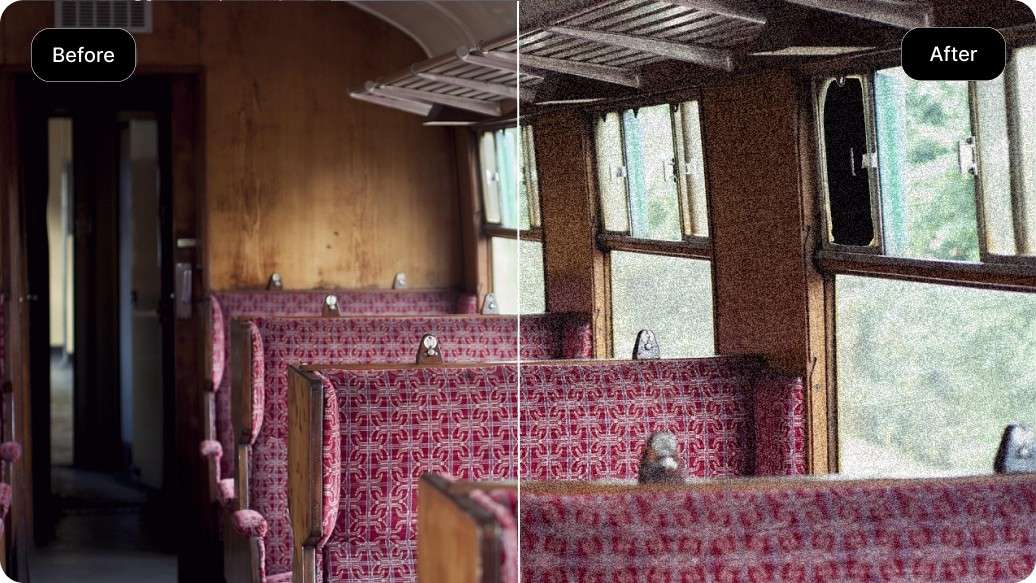




PixelBin logo
Image generator is here -   Create Now   and Claim 30% off on Pro Plans. Use code SALE30 at checkout.   Claim Discount

AI image editor for social media

Fix lighting, colors, and clarity to get images ready for social media posts.

Uploaded image
2500 chars left
Max file size 10 MB.
Loading

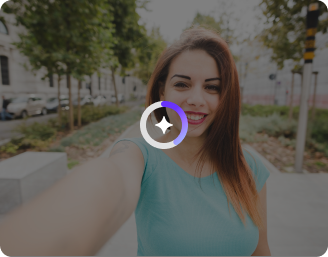
AI Magic in progress
Enhancing colors, applying effects, resizing for platforms, and preparing social-ready output

Ready

Your social media image is ready!

Edit image with AI
Get 🔥 free credits for image editing, upscaling, generation and more
Edit another product
Generation Failed

There was some issue on our end. Please try again.

Try Again
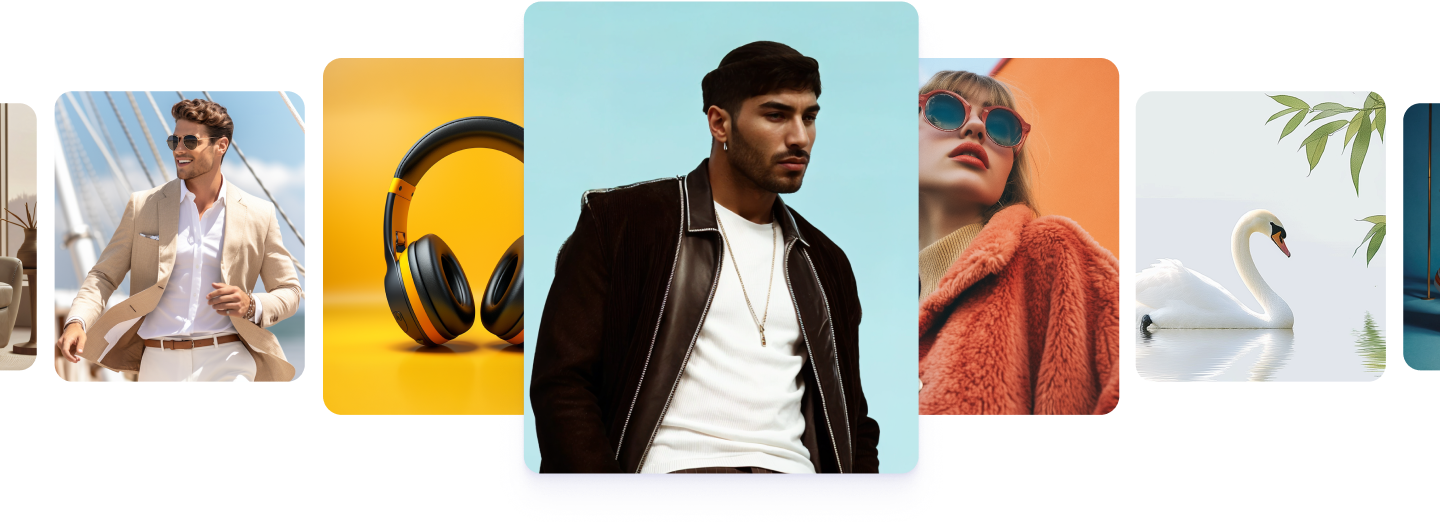
Show case

How to use Pixelbin’s AI image editor for social media?

1
Upload the image
Paste a URL or upload your image in any of the following formats: JPG, JPEG, WEBP, or PNG.
2
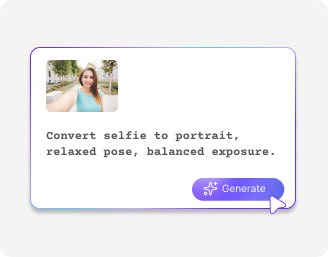
Enter the prompt
Describe the changes you want in the image. The tool will process the prompt and generate an image.
3
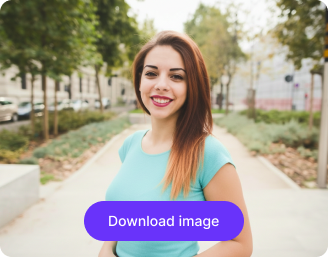
Download the image
Preview your enhanced photo and download it in HD quality and without watermarks.

Why use Pixelbin AI image editor for social media?

High-resolution output
Create clear, high-quality images that look sharp across social platforms and screen sizes.
Smart AI editing
Apply automatic enhancements with a single click to improve lighting, color, and overall quality.
Easy to use
Edit images directly in your browser with no downloads or setup required.
No watermark image
Download finished images without added branding or visual clutter.
Privacy and security
Your images are processed securely, with safeguards in place to protect your data.
Supports multiple formats
Upload and export images in formats supported by major social media platforms.

Create social media–ready visuals in seconds

Edit photos into platform-ready images without manual editing or design effort.

Faster content creation

Fix lighting and apply enhancements quickly so photos are ready to post without extra editing.

Feature 1
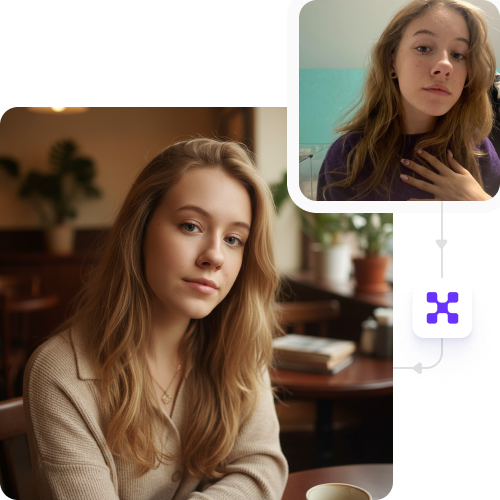
No sign-up required

Start editing images immediately with no account setup or onboarding steps.
Feature 2
Better engagement

Create clean, high-quality visuals with balanced colors and backgrounds that perform better on social feeds.

Feature 3
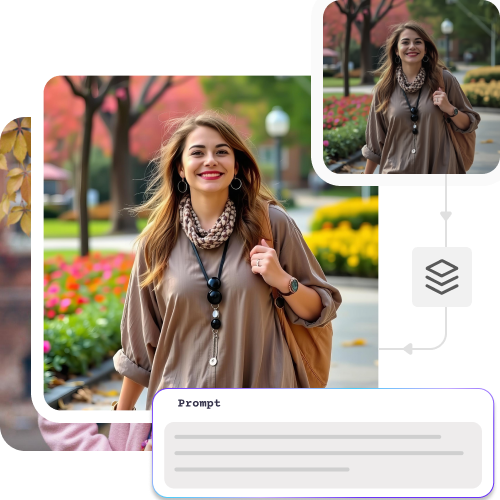
Batch editing

Edit multiple images at once using API to create social posts and ads faster.
Feature 4

AI tools by Pixelbin

Key highlights of Pixelbin’s AI image editor for social media

Benefits of using an AI image editor for social media

  • Create content faster: Turn raw images into social-ready posts in seconds.
  • Improve visual quality: Enhance lighting, colors, and sharpness so posts stand out in the feed.
  • Stay on brand: Keep consistent colors, backgrounds, and styles across all posts.
  • Resize automatically: Generate images in the right formats for Instagram, Facebook, LinkedIn, and more.
  • Create multiple versions easily: Make variations of the same post for A/B testing or different platforms.
  • Remove distractions: Clean up backgrounds and unwanted elements with one click.
  • Scale content production: Edit and publish large volumes of images without extra effort.
  • Boost engagement: High-quality, consistent visuals attract more likes, shares, and clicks.
  • Reduce design effort: Skip complex tools and manual editing with an easy-to-use AI workflow.

Use cases for the best AI image editor for social media

1. Social media posts

Create polished, high-quality images that stand out in busy feeds.

2. Platform-specific creatives

Resize and format images correctly for Instagram, Facebook, LinkedIn, and more.

3. Campaign content

Produce multiple visual variations from a single image for ads and promotions.

4. Brand pages

Maintain a consistent look and feel across all social content.

5. Influencer collaborations

Quickly adapt brand visuals for different creators and audiences.

6. Before & after visuals

Show transformations, makeovers, or results clearly.

7. Product launches

Get social creatives ready quickly for new launches or announcements.

8. Content at scale

Edit large volumes of images without slowing down your posting schedule.

How to get the best result from the Pixelbin AI image editor online free?

  • Use clear, high-quality images to achieve the best results.
  • Simple backgrounds help the AI apply edits more accurately.
  • Be specific when describing effects to guide the edit correctly.
  • Edit multiple images together to keep visuals consistent across your page.
  • Choose the correct image size for each platform, such as Instagram or Facebook.

FAQs

Here are some of the most common questions about our AI image editor for social media. If you can’t find the information you need, contact us at support@pixelbin.io or refer to our documentation for more details.

No. You can use our AI image editor for social media online for free without signing up. Edit your photos right away and upgrade only if you need extra tools.
Yes. You can use your photos for ads, thumbnails, or any business posts.
No. Our tools keep your photos sharp and clear. Your colors will stay bright and look professional.
Yes. Images up to 10 MB should work as long as they’re in the mentioned file formats (JPG, JPEG, WEBP, or PNG).
Pixelbin’s free plan lets you generate up to three images per month at no cost. To continue using the tool, you’ll need to sign up to redeem ten free credits, which you can use to access any of Pixelbin's other AI apps.
Edit images in seconds, not hours
Get pixel-perfect results just with your words
Start editing with AI