

Most of us have at least one favorite photo that looks blurry or pixelated when viewed or shared in higher quality. And today, that’s a real problem. We’re uploading images everywhere: Instagram, LinkedIn, websites, resumes, portfolios, product pages, and even official documents. A low-quality photo doesn’t just look bad anymore; it looks unprofessional.
HD photo converter apps solve this. They don't just resize (which makes things worse). They use AI to figure out what details should be there, sharpen edges, and clean up the image. I've tested a bunch. The good ones actually work, not miracles on terrible images, but they make a real difference for social posts, profiles, and anything work-related.
In this blog, I’ll walk you through the best HD photo converter apps available right now. You’ll learn which tools actually improve image quality, which ones are best for bulk conversions, which offer free usage without annoying watermarks, and where the limitations are. No hype, just practical advice to help you pick the right tool for your use case, whether you’re a creator, professional, or just trying to save an old photo.
What is an HD photo converter app?
An HD photo converter (or AI upscaler) takes a low-resolution image and makes it sharp. That's it.
When you resize a normal image, it just stretches existing pixels, everything goes blurry. An AI converter works differently. It looks at what's actually in the photo: faces, skin texture, edges, lighting. Then it uses algorithms to fill in the blanks and create new pixels that match what should be there.
How it differs:
- Standard resizers = stretching existing pixels (blurry result)
- AI converters = analyzing content and building new detail
- Removes compression artifacts and noise
- Sharpens edges without making them fake-looking
- Works on older photos, screenshots, phone uploads
How to convert a normal photo to HD with AI tool | Pixelbin
1. Preparation & file compatibility
Ensure your image is a JPG, JPEG, WEBP, or PNG under 10MB and 10,000×10,000 pixels. Use clear, uncompressed photos to get the highest conversion accuracy.
2. Uploading & aspect ratio preservation
Upload the photo, add the aspect ratio and choose the AI model like Super resolution and so on. Pixelbin automatically locks original proportions, scaling dimensions uniformly so characters or scenery never warp, stretch, or distort.
3. Automated processing via advanced AI
Advanced machine learning algorithms automatically handle the transformation. Instead of stretching pixels, the AI analyzes micro-components, detects blur, and naturally inserts high-fidelity pixels to build native sharpness.
4. Preview & quality control
The interface renders a dynamic workbench within seconds. Use the side-by-side interactive comparison slider to inspect enhanced sharpness, text legibility, and color accuracy before saving your file.
5. Exporting & scaling options
Click download to export your ultra-HD visual directly to your device for free, without watermarks. High-volume workflows can switch to the Bulk Editing API for simultaneous processing.
12 Best HD photo converter apps
In this list, I’ve walked you through 12 different HD image converter tools, and after testing and comparing them, a few patterns are pretty clear. Most of these tools offer a free trial or free credits, which means you can see real HD results before committing. Some support batch editing, which I personally prefer when working with lots of images at once; it’s a big time-saver. Know more from the glance table;
1. Pixelbin
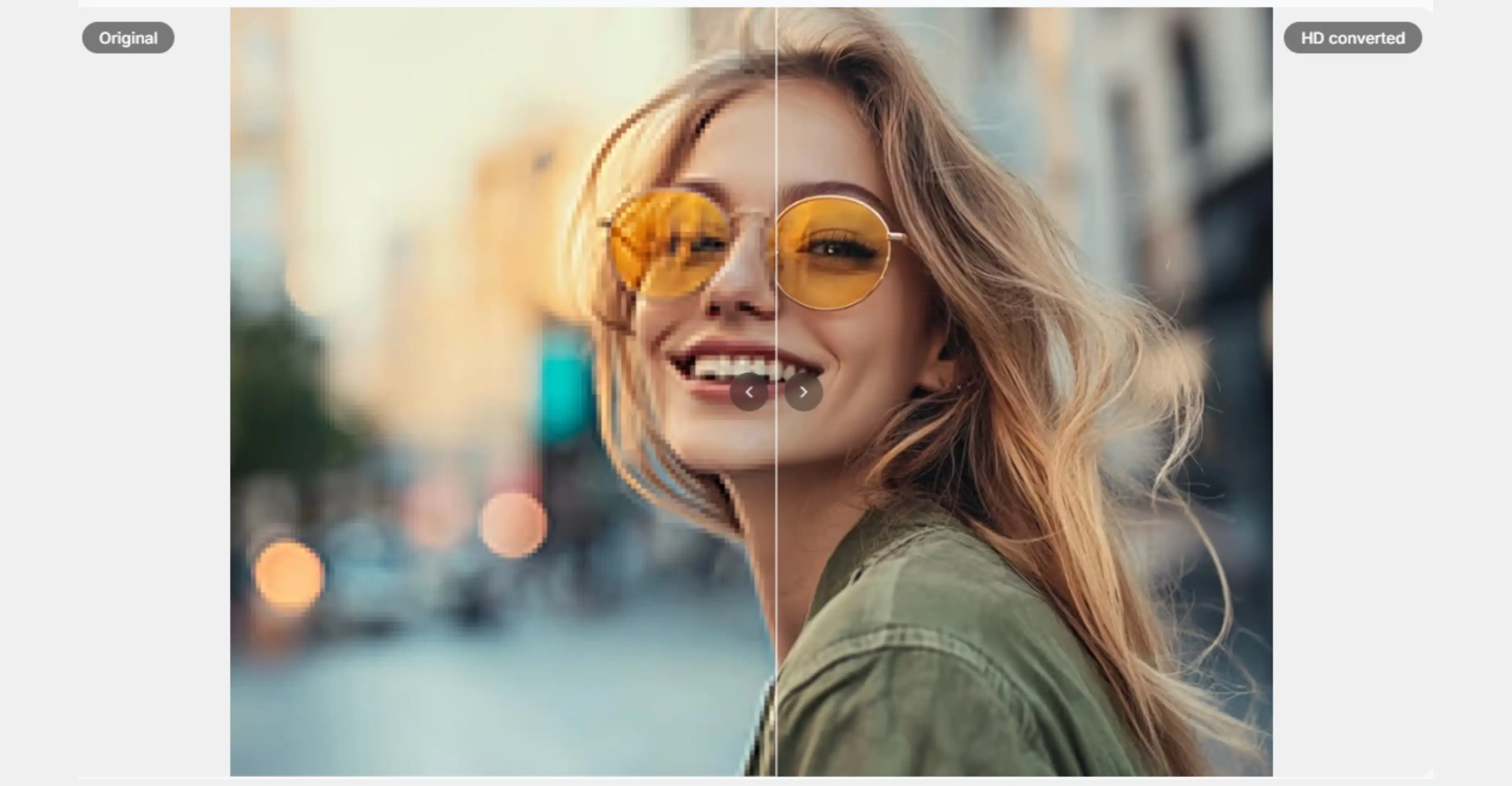
Pixelbin uses AI-powered upscaling to enhance clarity and detail rather than simply stretching pixels intelligently. You upload a JPG, JPEG, PNG, HEIC, or WEBP (the formats Pixelbin officially supports), choose your upscaling level (options go up to 8×), and its AI predicts missing detail to give you a sharper, higher-resolution image in seconds.
What’s nice is that you can test this right in your browser without installing anything, and Pixelbin accepts input files up to 25 MB, big enough for most personal and professional photos. But let’s be real: if your original photo is extremely blurry or tiny, even the best AI can only work with what it’s given. Try free HD photo converter
Why is the Pixelbin photo converter on the top of the list?
- Multiple Image Formats
Upload and convert your images in JPG, JPEG, WEBP, PNG and other standard formats instantly.
- Batch Upscaling
Process and upscale multiple images simultaneously using our powerful batch editing API for maximum efficiency.
- Free Downloads
Preview and download your upscaled images completely free with no watermarks, no hidden fees, ever.
- Smart AI Editor
Automatic image enhancement powered by intelligent AI that requires zero manual editing or user intervention.
- No Credit Card Login
Start using immediately without credit cards, signup requirements, or any payment information whatsoever ever needed.
- Complete Privacy
Your images processed securely on protected servers, fully encrypted, and never shared with third parties.
- One-Click HD Conversion
Turn any low-quality image into high-definition quality in seconds with just a single simple click.
- Browser-Based Platform
Access the HD photo converter directly from your web browser on any device without downloads.
2. Canva
Canva’s built-in AI-powered HD photo converter makes upping resolution feel almost effortless. You upload your blurry pic, choose the upscaling amount (typically up to 4× right now inside the editor), and let the AI enhance sharpness and detail without turning everything into a mess.
It works right in your browser or Canva app: no software installation, and it supports uploads in JPG, PNG, HEIC/HEIF, WebP, and more for editing and exporting. Once you’re done, you download a higher-quality JPG or PNG ready for posts, print, or decks.
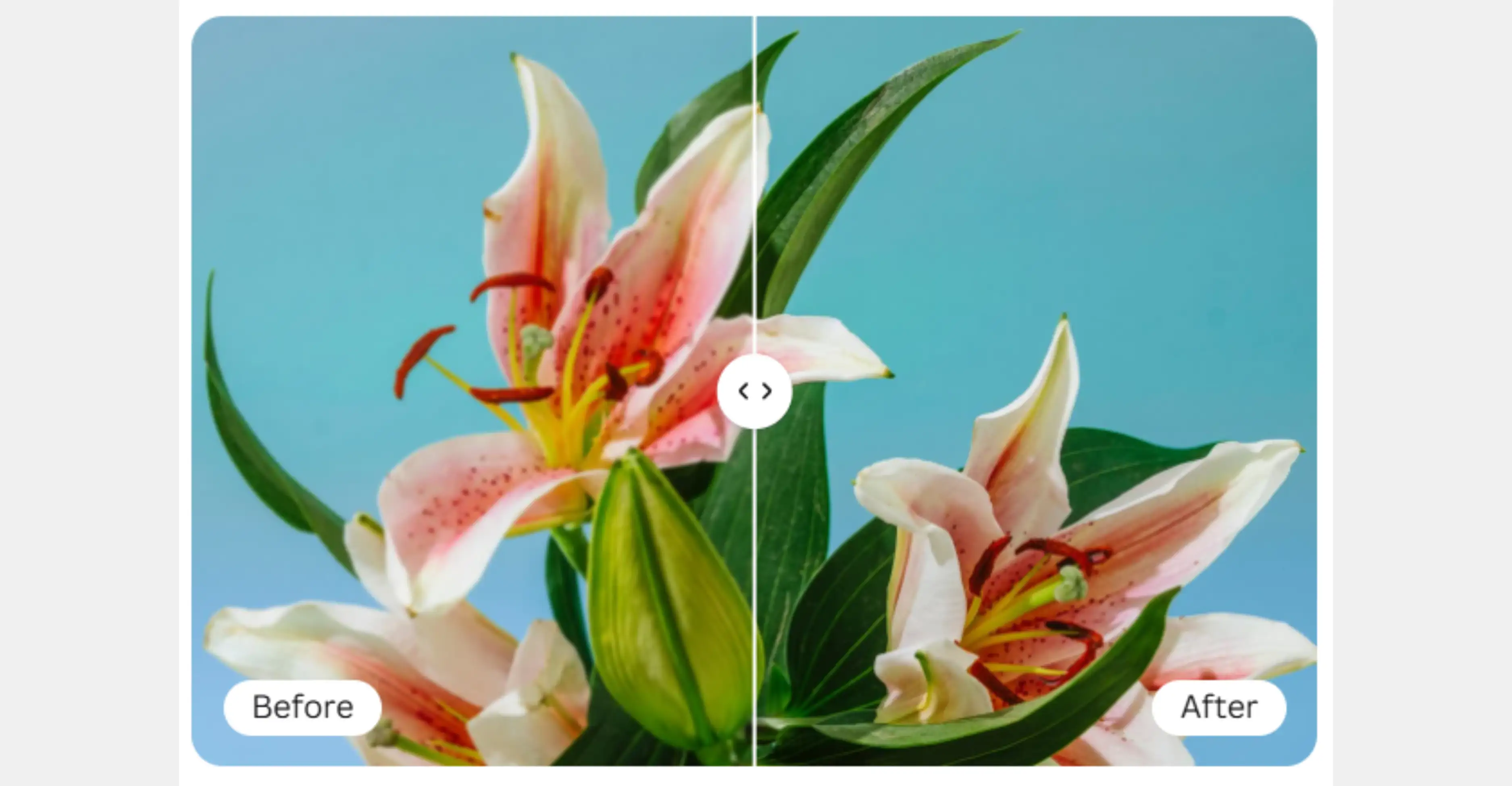
Image: Taken from the official website
3. Let’s Enhance
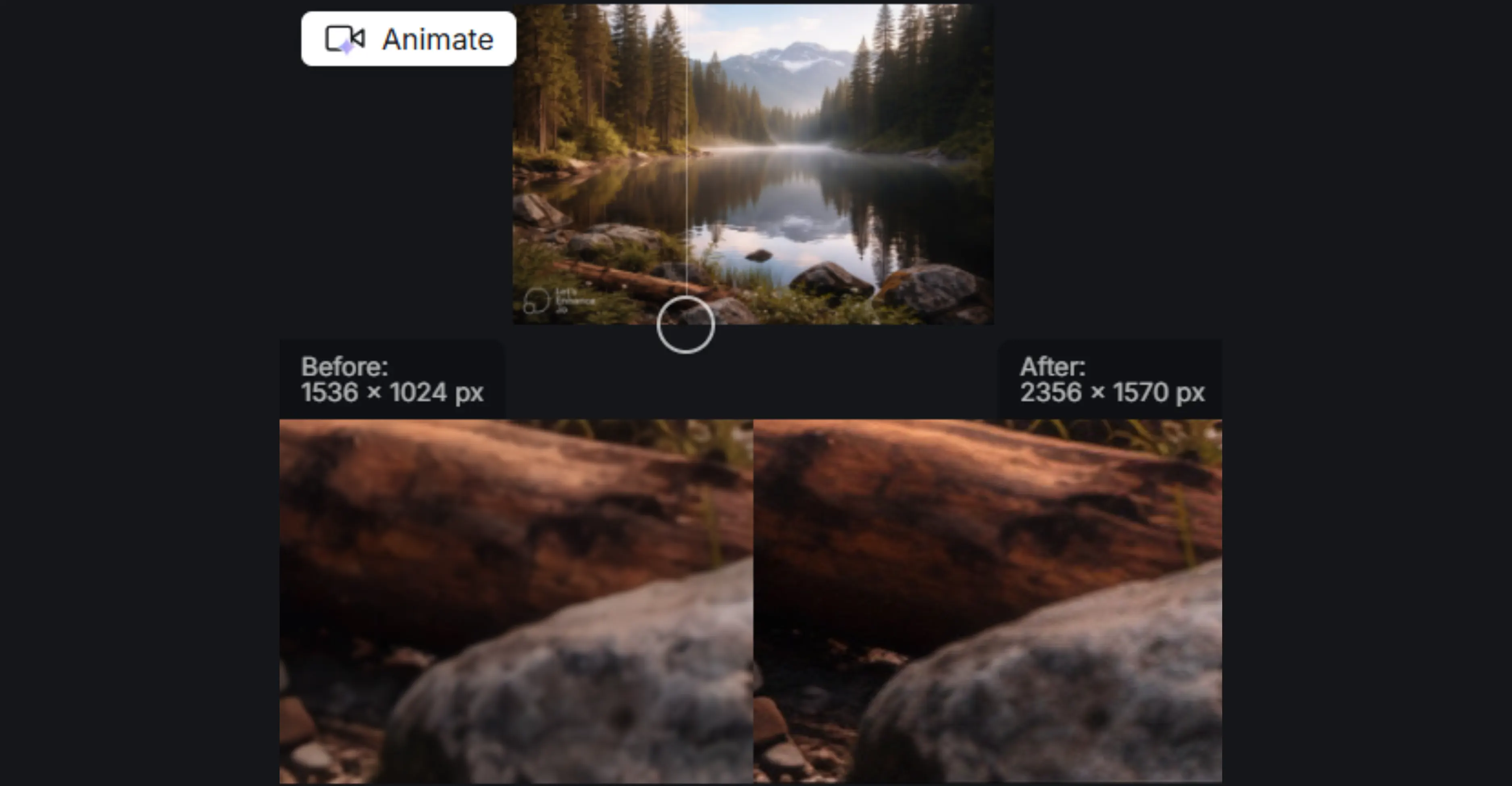
Let’s Enhance uses AI-powered super-resolution to turn low-resolution images into sharp HD or even 4K visuals by reconstructing missing details, not just resizing pixels. You upload JPG, PNG, or WebP files (up to 50 MB) and choose your upscaling level based on your goal. Free credits let you test the tool, but exports on the free plan come with a Let’s Enhance watermark.
Paid plans remove watermarks, unlock higher megapixel outputs, and enable batch processing.
Below, you can see the mentioned screenshot of the image that I tested with this tool. Though the image was not that blurry, I still got an improved final image quality.
4. Pixelcut
Pixelcut AI Image Upscaler lets you instantly boost a low-res photo’s clarity and size using smart algorithms. You upload a JPG, PNG, or HEIC file directly in your browser or app, and the AI enlarges and enhances it without pixelation, giving you results up to 4K or even 8K/16K resolutions with creative upscale options that let you tweak style and detail.
File sizes aren’t strictly capped online, and there’s no watermark on HD exports, a big perk if you’re tired of tools that sneak logos into your pics. There’s also a review/preview option before you download so that you can pick the best result.
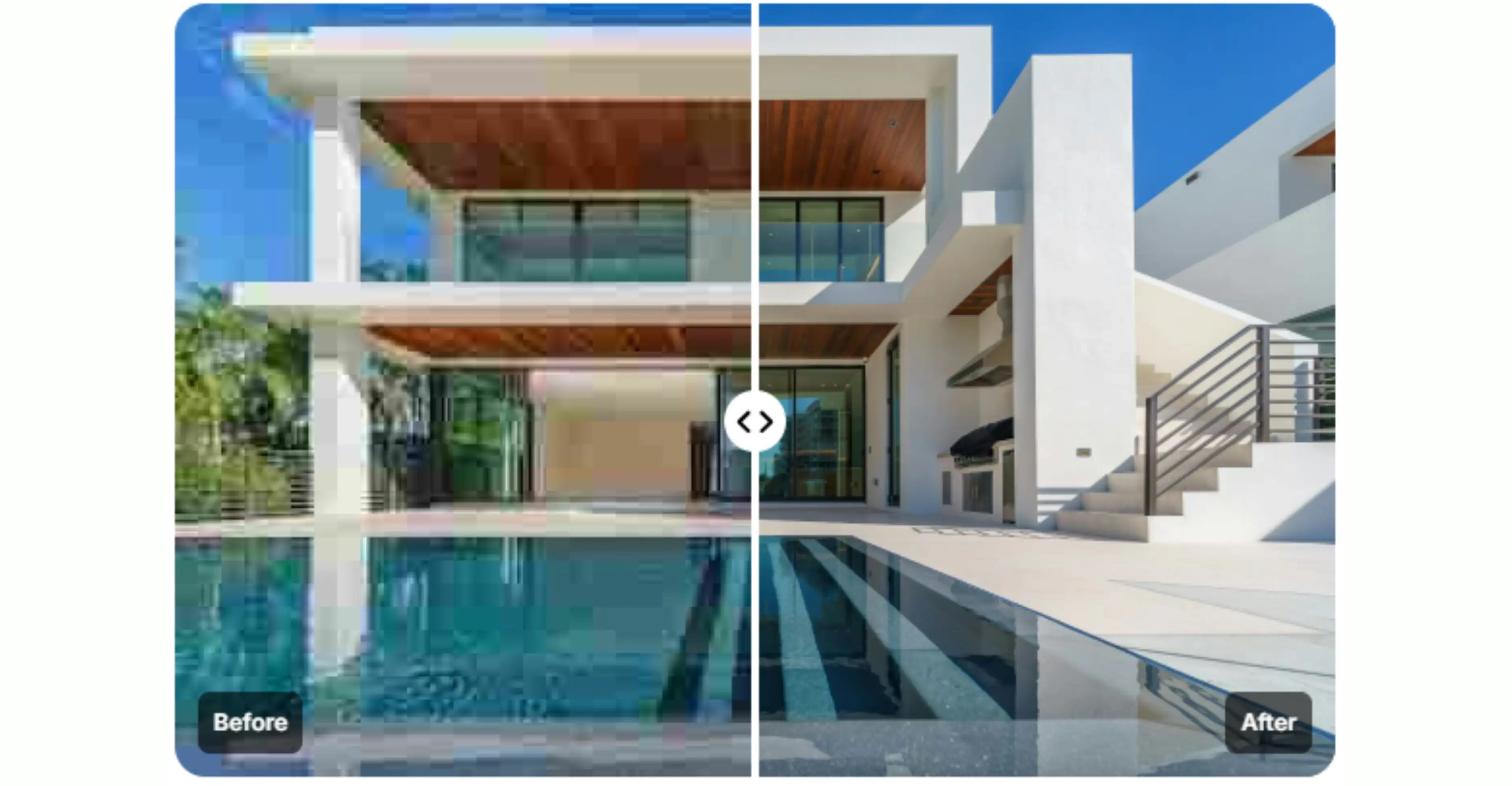
Image: taken from official website
5. HdPhotoConverter
If you need a quick, no-frills way to upsize a blurry pic, HD Photo Converter is worth a test drive. It’s a free, browser-based AI upscaler that supports JPG, PNG, and WebP files up to 10 MB, and it can boost your image up to 4× (4K-ready) with cleaner edges and less noise.
What I liked (after playing with it): you don’t need an account to try the tool, and it processes images fast, usually in under 10 seconds. There’s a daily free cap (5 images/day), but no confusing paywall before you see results. One thing to know: it keeps things simple, no unlimited file size, no batch processing, and export choices are basically HD or 4K only.
6. Picsart
Picsart’s AI-powered tools make boosting a blurry or tiny photo into something crisp surprisingly easy. You upload common formats like JPG, PNG, or WebP, then use the AI Image Upscaler or HD Photo Converter to intelligently rebuild missing detail and increase resolution up to about 4× size while keeping colors and textures natural.
There’s a preview step before you download, so you can check results first, and batch upscaling lets you enhance multiple photos at once. The basic tool is free to try, but high-res downloads and premium upscales usually require a Picsart Plus subscription.
7. OpenArt.ai
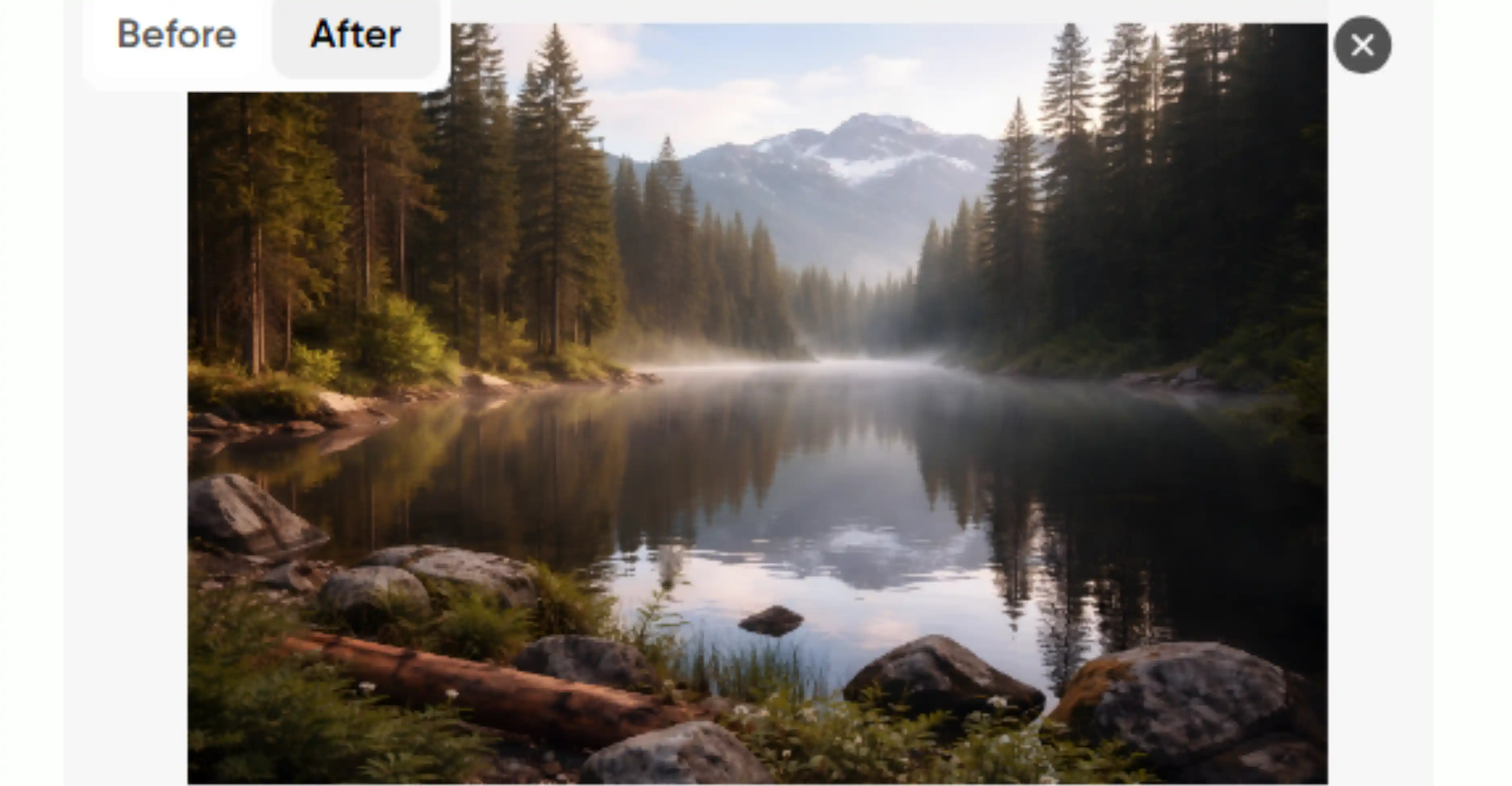
OpenArt.ai isn’t just an AI art generator; it also includes a web-based AI image upscaler that takes your low-res photos and boosts them to 2K or 4K resolution, letting you preserve or enhance details with surprisingly little effort. You upload common formats like JPG, PNG, or WebP, pick an upscaling mode (e.g., “Precise” for accuracy or “Creative” for a bit more interpretation), and the AI enhances clarity and edge definition while keeping colors natural.
There’s a preview before download so you can check results first, and no software installation is required since everything runs in your browser.
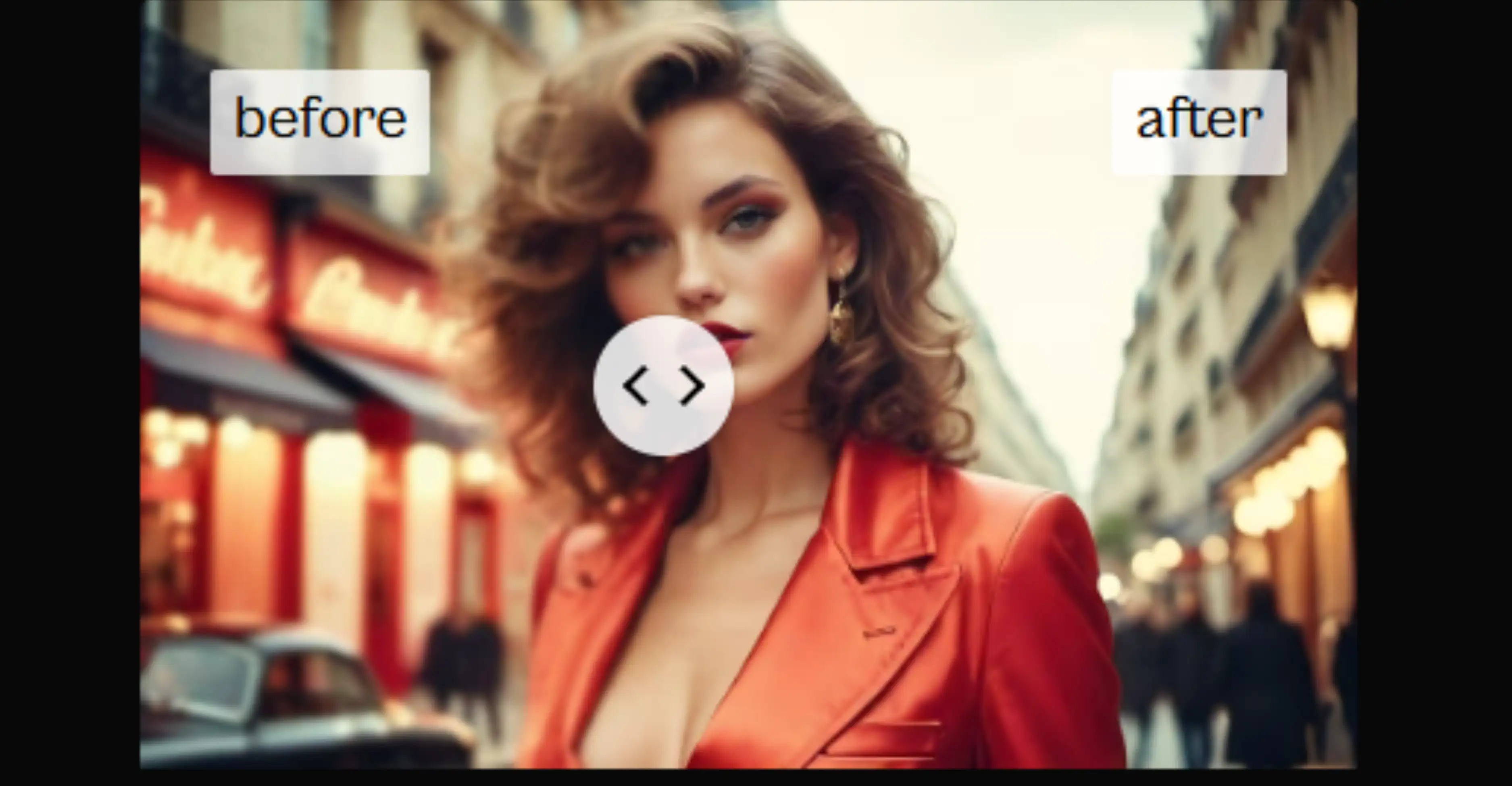
Image: taken from official website
8. Remini AI
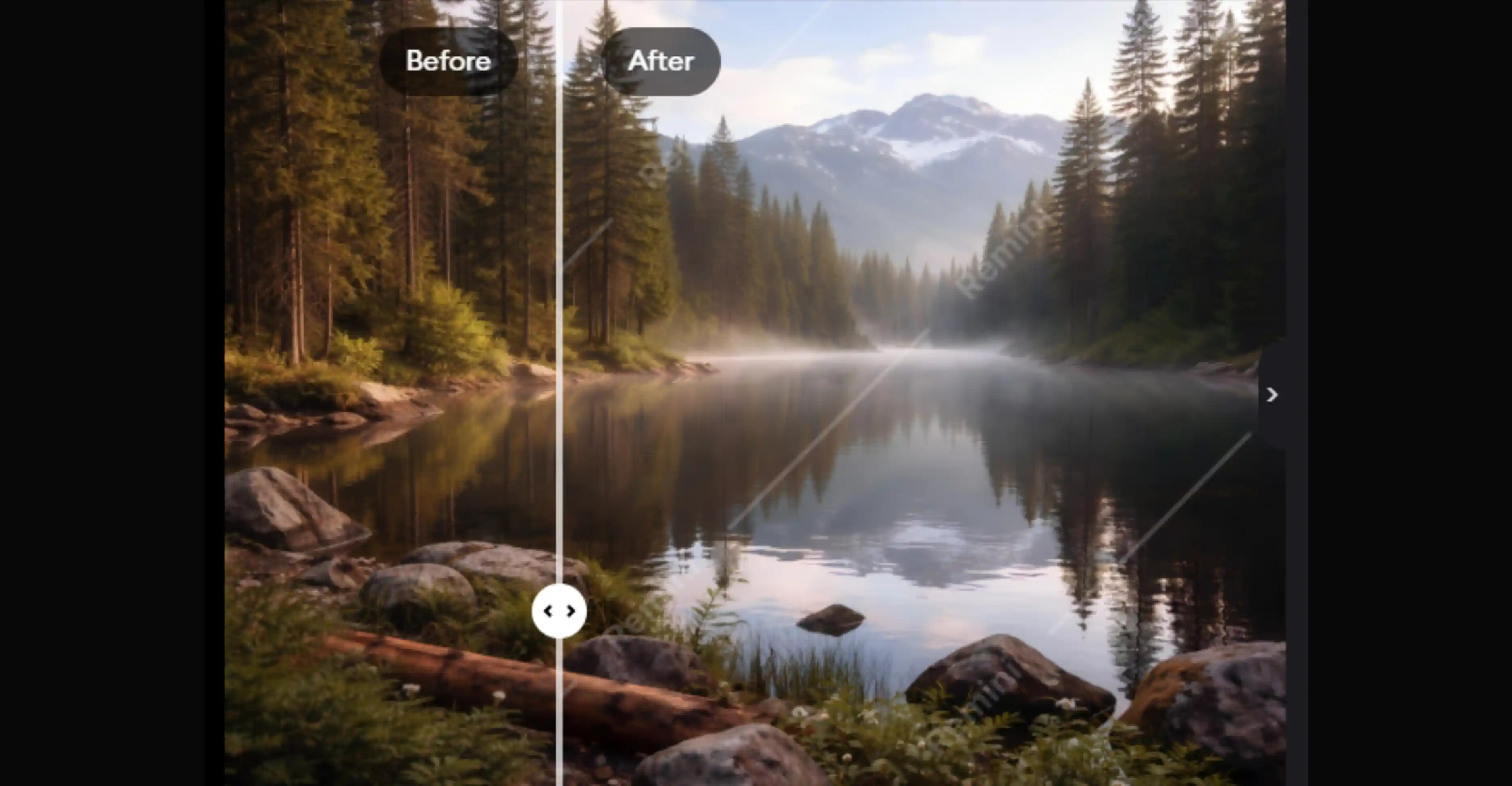
Remini AI uses AI-powered enhancement to turn blurry, pixelated, or low-res pics into sharper, high-definition shots with just one tap. It is perfect for old memories or smartphone snaps that deserve a second life. It accepts common formats like JPG, PNG, and similar images and can upscale them up to about 4096×4096 px, giving you clearer, more detailed results than typical resizing tools. You get a preview before downloading, so you can compare before/after easily. The free tier includes enhancements (sometimes with ads), but watermarks and heavy usage are removed on premium plans.
9. Media.io
I’ve found Media.io’s AI Image Upscaler to be a fast, browser-based way to revive low-res photos. You upload common formats like JPG, JPEG, PNG, WebP, and BMP (all supported), and the AI boosts resolution up to 8× with options like 2×, 4×, or 8× upscaling, perfect for everything from landscapes to product shots.
What I really appreciate is the preview before download, so you can judge results before saving, and exports are watermark-free. The only real catch? It doesn’t yet offer batch editing, so you enhance one photo at a time. In real use, it’s clean, simple, and noticeably better than stretching pixels manually, ideal if you want crisp HD images without installing software.
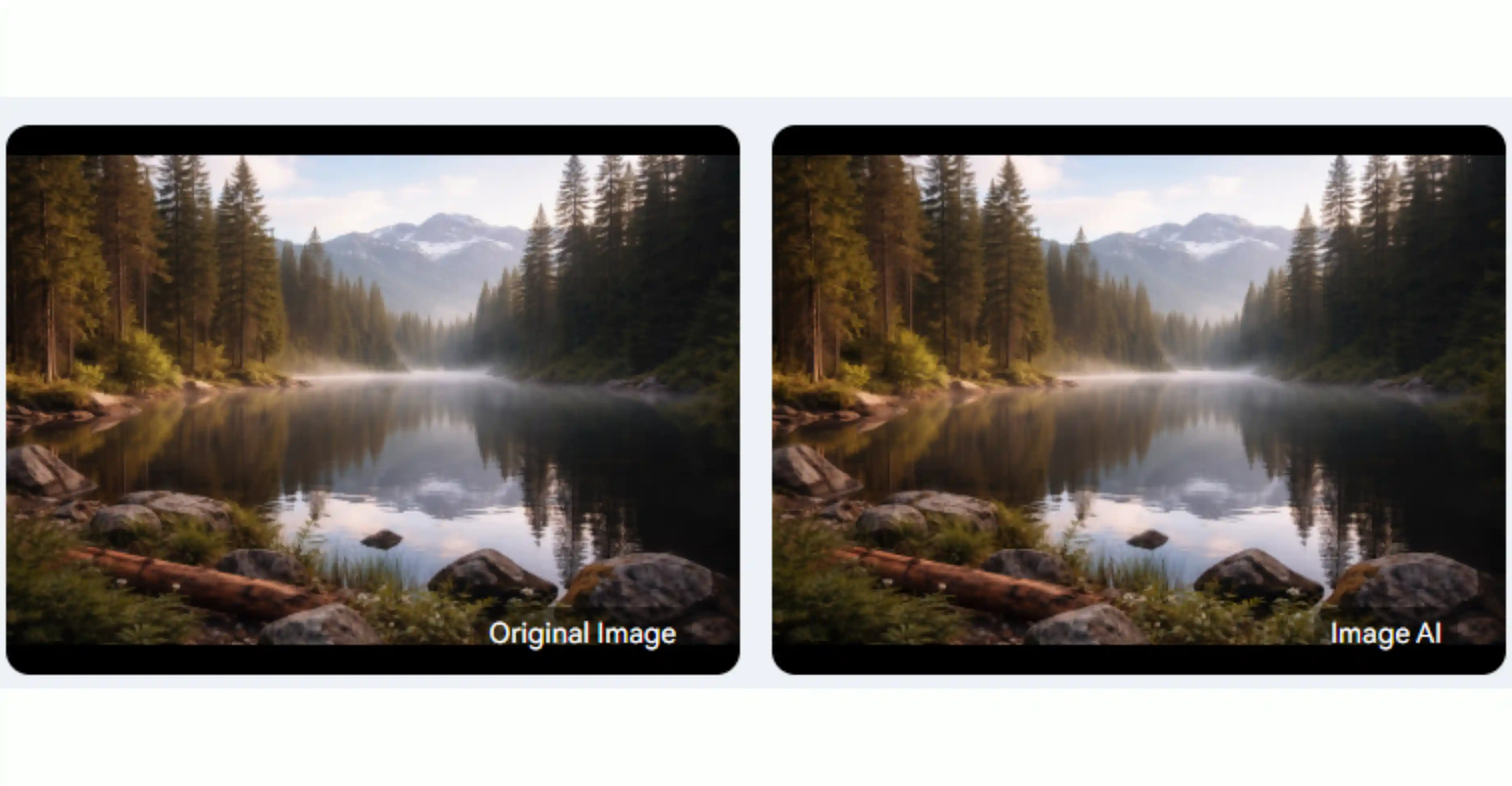
10. Pica AI
I’ve tried plenty of HD image converter apps, and Pica AI feels built for real work, not demos. You upload a low-resolution image, and the AI enhances sharpness, texture, and details without that fake, plastic look. It supports JPG and PNG formats and offers a preview before download. There is a free trial, but it comes with watermarks and file size limits. If you upgrade, you unlock batch editing, larger uploads, and watermark-free exports. It’s fast, practical, and honest about what’s free versus paid, which makes it easy to trust.
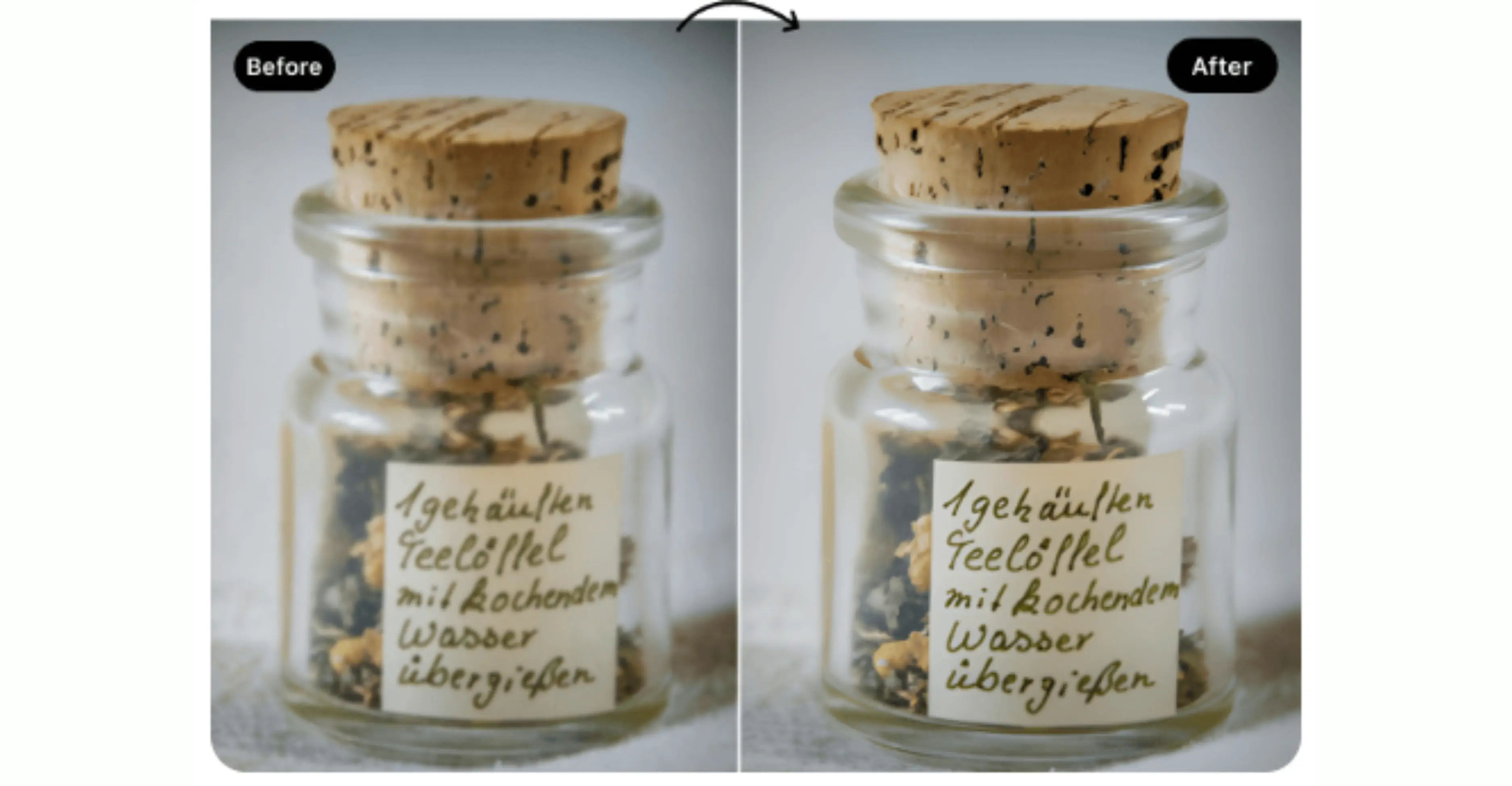
Image: taken from the official website
11. Fotor
I’ve spent plenty of time testing upscalers, and Fotor is a solid, no-fuss choice when you need to rescue a pixelated mess. Its AI upscaler doesn’t just stretch pixels; it actually “Reconstructs” them, pushing low-res shots up to 4K.
You can toss in JPG, PNG, or WebP files (up to 60MB, though it might compress larger uploads to 20MB). Before you commit, the side-by-side preview lets you see if the AI went too heavy on the sharpening. While the free version is great for a quick fix, it often adds a watermark or caps the resolution. For clean, watermark-free HD exports, you’ll likely want the Pro plan.
12. ImgUpscaler
It’s perfect when you have a tiny, blurry JPG or PNG and need a clean 4K version without the learning curve of Photoshop. It supports JPG, PNG, WebP, and HEIC formats, handling files up to 10MB (or 4000px).
Unlike many tools that hide the "Good" version behind a paywall, the free plan lets you download high-res results with no watermark. You get a clear side-by-side preview to check the AI’s work before spending your monthly credits. It’s simple, honest, and remarkably fast.
What to look for in an HD photo converter app?
I’ve tested a lot of HD photo converter apps over the years, some impressive, some… let’s just say they promised more than they delivered. If you’re trying to pick the right one, here are the features I always look at first (and yes, a few hard-earned opinions along the way).
1. AI upscaling quality
This is the heart of any HD photo converter. If the upscaling isn’t good, nothing else matters.
- Look for apps that use AI-based upscaling, not basic resizing. AI tools analyze patterns, edges, and textures instead of just stretching pixels.
- A good app should enhance details without making faces plasticky or overly sharp. Over-smoothing is a common problem.
- From my experience, the best tools preserve skin texture, text clarity, and fine edges even when you zoom in.
If an app makes your photo look “HD” only until you look closely, that’s a red flag.
2. Supported image formats
This sounds boring, but it matters more than you think.
- Make sure the app supports common formats like JPG, PNG, and WEBP at a minimum.
- If you work with design files or photography, support for TIFF, HEIC, or RAW formats is a big plus.
- I also check whether the app keeps metadata and color profiles intact, especially for professional use.
An app that forces you to convert formats before upscaling is adding unnecessary friction.
3. Batch photo conversion
If you’re converting one image, almost any app will do. But real life? You’ll probably have folders full of photos.
- Batch conversion lets you enhance dozens (or hundreds) of images at once.
- The best tools let you apply the same settings across all images, saving serious time.
- Some apps throttle batch processing in free plans, which is fine as long as they’re upfront about it.
Personally, I won’t use an app long-term if batch processing is locked behind unclear limits.
4. Online vs desktop tools
This is where your workflow really comes into play.
- Online tools are great for quick edits, one-off tasks, and working across devices.
- Desktop apps usually offer better performance, offline access, and higher resolution limits.
- I’ve noticed online tools often cap export size or speed unless you upgrade, while desktop tools trade convenience for control.
If you’re a casual user, online is usually enough. Power users? Desktop apps tend to age better.
5. Watermark and export resolution
This is where many “Free” tools quietly disappoint.
- Check whether the app adds a watermark to exported images and how intrusive it is.
- Look closely at maximum export resolution. Some apps upscale previews but limit final downloads.
- The best apps are transparent: they clearly state what you get for free and what’s locked behind a paywall.
Tips to get the best HD photo conversion results
I’ll be honest: even the best HD photo converter can’t perform miracles if you feed it the wrong input. After years of testing these tools (and ruining a fair number of photos along the way), I’ve learned that results depend as much on how you use the app as which app you choose. Here’s what actually makes a difference.
1. Choosing the right source image
Think of AI upscaling like restoring an old painting; the better the original, the better the outcome.
- Start with the highest-quality version of the image you have, even if it still looks small or slightly blurry.
- Avoid heavily compressed images pulled from messaging apps or social media. They already lost detail before the AI even got a chance.
- If the photo has clear edges, good lighting, and minimal noise, AI tools tend to produce cleaner, more natural results.
- I’ve found that images with readable text or defined facial features upscale far better than dark, grainy shots.
If your source image is extremely low-quality, manage expectations. AI can enhance, but it can’t recreate details that were never there.
2. Resolution and format tips
This is where a few small choices can quietly improve (or ruin) your final image.
- Don’t jump straight to the maximum resolution just because the app allows it. Upscaling 2× or 4× often looks more natural than pushing it to extremes.
- Export in PNG when image quality matters (logos, graphics, screenshots) and JPG when file size is more important.
- If the app supports it, keep lossless or high-quality compression settings during export.
- I usually avoid repeated upscaling. Converting the same image multiple times compounds artifacts and softness.
My rule of thumb: upscale once, export carefully, and stop there
Conclusion
After spending way too much time testing HD photo converter apps, here’s the honest takeaway: the “Best” app is the one that fits how you actually work. AI upscaling can be incredibly effective, but it’s not magic; it works best with decent source images and sensible resolution choices. Don’t get distracted by big promises alone. Pick an app that feels reliable, not clever, and you’ll end up with HD images you can actually use, not just admire once.
FAQs
The main difference is that an image resizer alters file dimensions, while an HD photo converter improves visual quality.
- Image Resizer: Changes layout size by stretching or shrinking existing pixels, often causing pixelation or loss of sharpness.
- HD Photo Converter: Uses Artificial Intelligence (AI) to upscale resolution, rebuild missing details, eliminate noise, and enhance overall clarity.
Yes, AI-powered HD photo converters can enhance image quality without blur by using machine learning models to predict and recreate sharp textures, clean edges, and fine details. However, the final output depends on the source material; highly pixelated or completely obscured images may have limited improvement.
Watermark policies vary by platform. While many free online tools restrict premium features behind a watermark, several platforms offer watermark-free downloads with alternative limitations, such as:
- Daily generation caps (e.g., 3 to 5 free credits per day)
- Maximum output resolution limits
- Standard processing speeds (premium users get priority speed)
Batch image conversion is primarily supported by professional desktop software and premium web-based platforms. Enterprise AI tools and dedicated image-processing suites allow users to upload, upscale, and convert multiple photos simultaneously to optimize workflows.
Yes, reputable online HD photo converters are safe, provided they implement strict data privacy protocols. Look for platforms that guarantee:
- Automatic Deletion: Uploaded images are permanently deleted from servers within 1–2 hours.
- Data Security: The website uses secure HTTPS encryption.
- Privacy Compliance: No forced account creation or selling of user data to third parties.
The best images for HD conversion are moderately detailed, well-lit photos with minor blur or standard compression. While AI can significantly upscale digital art, portraits, and slightly out-of-focus shots, it cannot fully restore images with extreme motion blur, severe lens distortion, or heavy pixelation.









