.webp)

Summary
An AI clothes changer is a tool that edits the clothing in a photo using AI, letting you swap outfits, change colors, or test new styles without a reshoot. This guide compares the best free and paid options for outfit previews, product photos, and fashion creatives, and shows you exactly how the editing process works.
Introduction
Changing an outfit in a photo used to mean booking a reshoot, hiring a stylist, or spending hours in Photoshop trying to make a new sleeve look like it belongs on someone's arm. AI has cut most of that work out. You upload a photo, describe the outfit you want, and the tool generates a new version in seconds.
This article walks through how these tools actually work, compares the strongest options available right now, and gives you practical prompts and quality checks so your results hold up whether you're testing a personal look or producing images for an online store. Recent AI content rules are moving toward stronger labelling, traceability, and accountability for synthetic media, which is why safety, privacy, and marketplace compliance matter just as much as visual quality when choosing an AI clothes changer.
What is an AI clothes changer?
An AI clothes changer is an online tool that edits the clothing in a photo while trying to keep the person's face, pose, and background untouched. You describe the change you want, either by typing a prompt, uploading a reference photo of the clothing, or picking a preset style, and the model regenerates the clothing area to match.
People use a clothes changer AI for things like:
- Swapping a shirt, dress, jacket, or suit for a different style
- Changing the color or fabric pattern of an existing outfit
- Trying on formal wear, streetwear, or seasonal looks before buying
- Generating outfit variations from a single product photo
Result quality depends on a few things. Your source photo matters a lot, since a sharp, well-lit, front-facing photo gives the AI more to work with than a blurry selfie. Your prompt matters too, because a vague instruction like "change the outfit" gives the model too much room to improvise, while a specific one narrows down exactly what should happen. And the tool itself matters, since some models are noticeably better than others at preserving hands, jewelry, and background details while the clothing changes.
How an AI clothes changer works: a step-by-step guide
Most tools in this category follow the same basic process, even though the interface looks different from one site to the next. Here is what that process actually looks like, using Pixelbin's AI image editor as a working example since it covers all the core steps you'll run into elsewhere too.
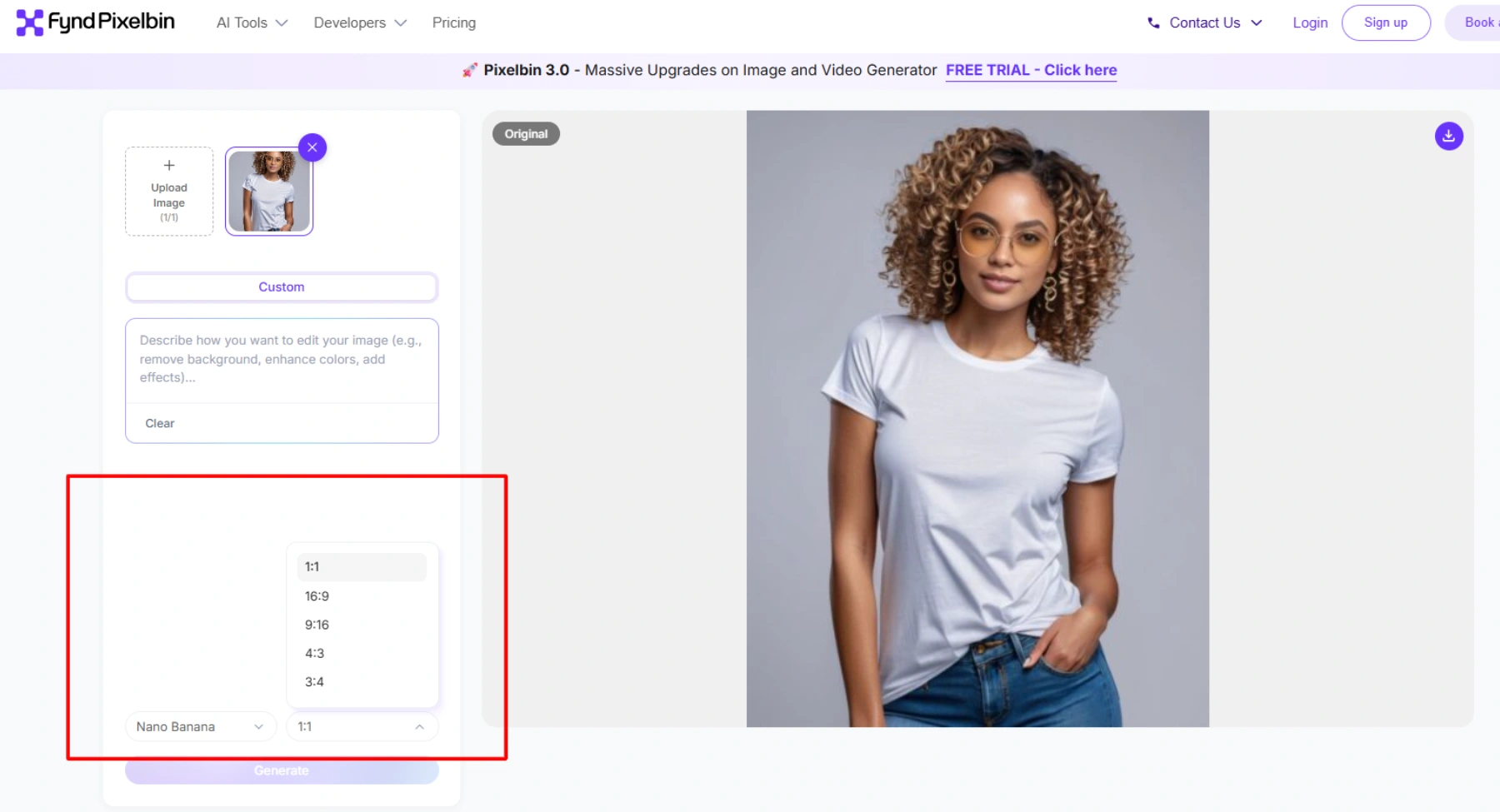
Step 1: add your image
Upload a WEBP, JPG, or PNG file up to 10MB, or pick a sample image if you want to test the tool first. At this point, you also choose your image ratio and pick which AI model handles the edit. Choose the ratio based on which platform you want to post. In the free model and without signing up, you can try the Nano Banana image only. For more upgraded versions, you need to sign up.
Step 2: write a prompt
Describe the change in plain language. Something like "change the shirt to a navy blue button-up, keep the face and background the same" works better than a vague instruction, since the AI applies exactly what the prompt says.
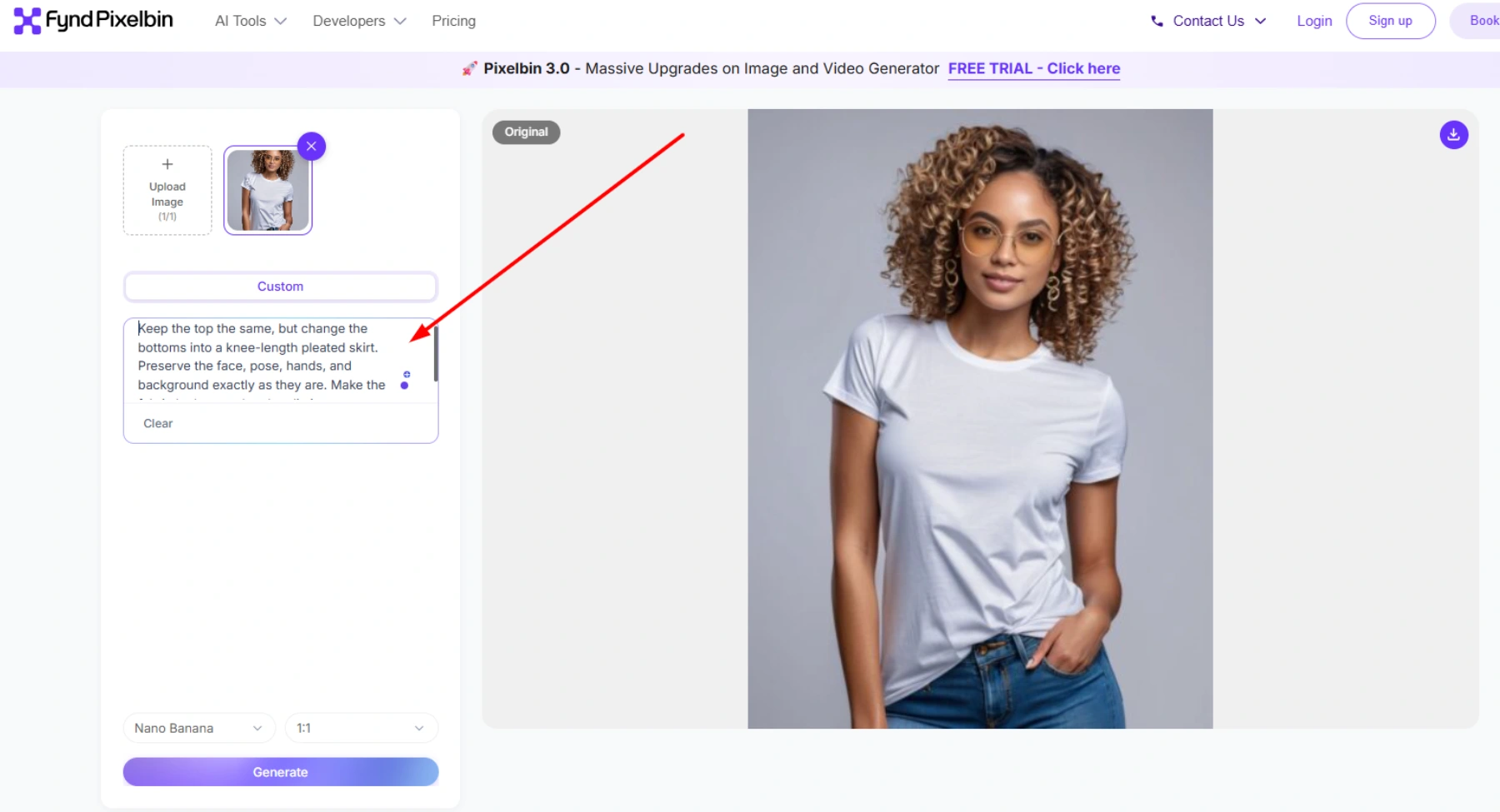
In our example, we have tried multiple variations:
Prompt 1: Keep the top the same, but change the bottoms into a knee-length pleated skirt. Preserve the face, pose, hands, and background exactly as they are. Make the fabric look natural and realistic.
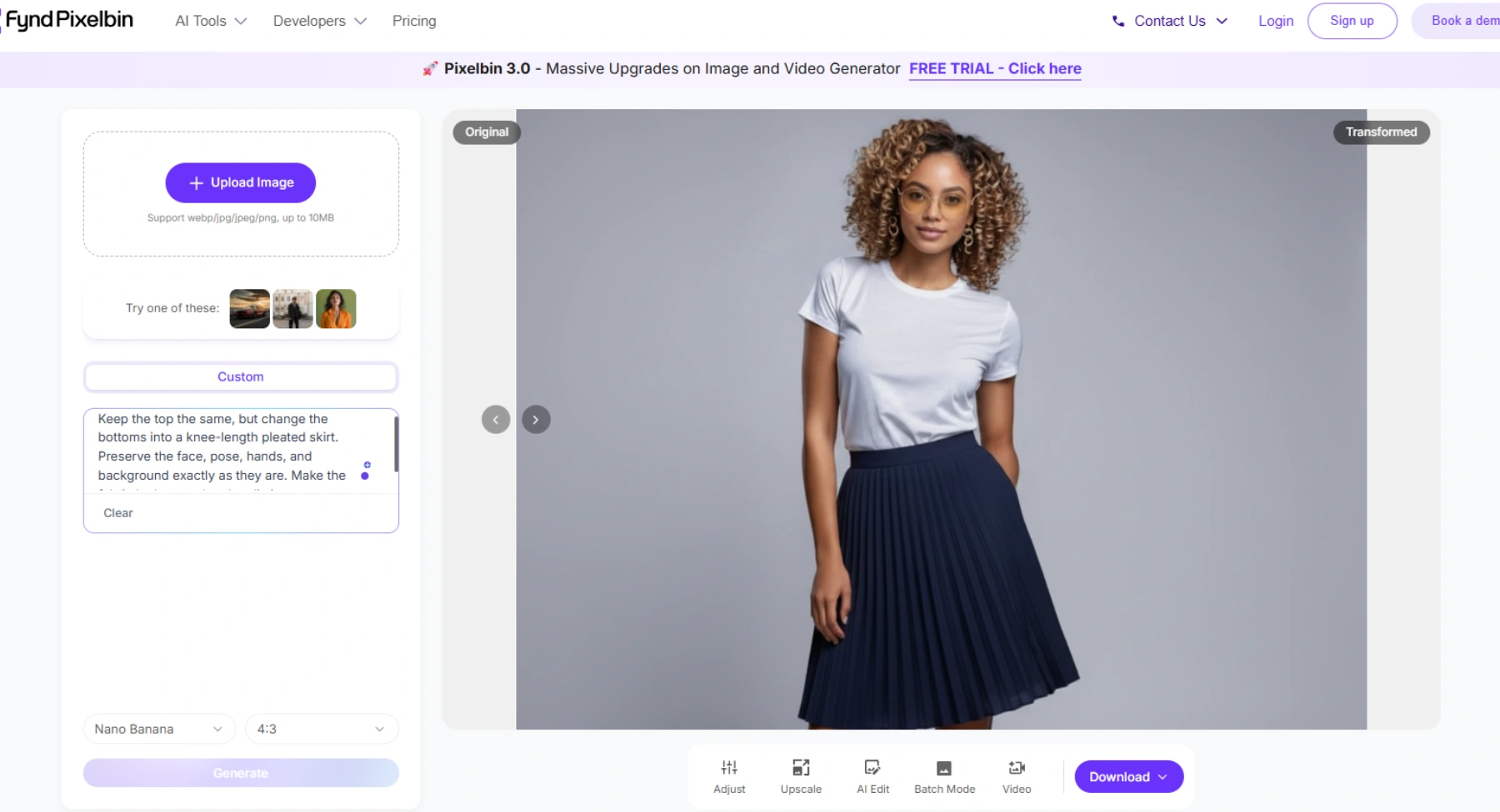
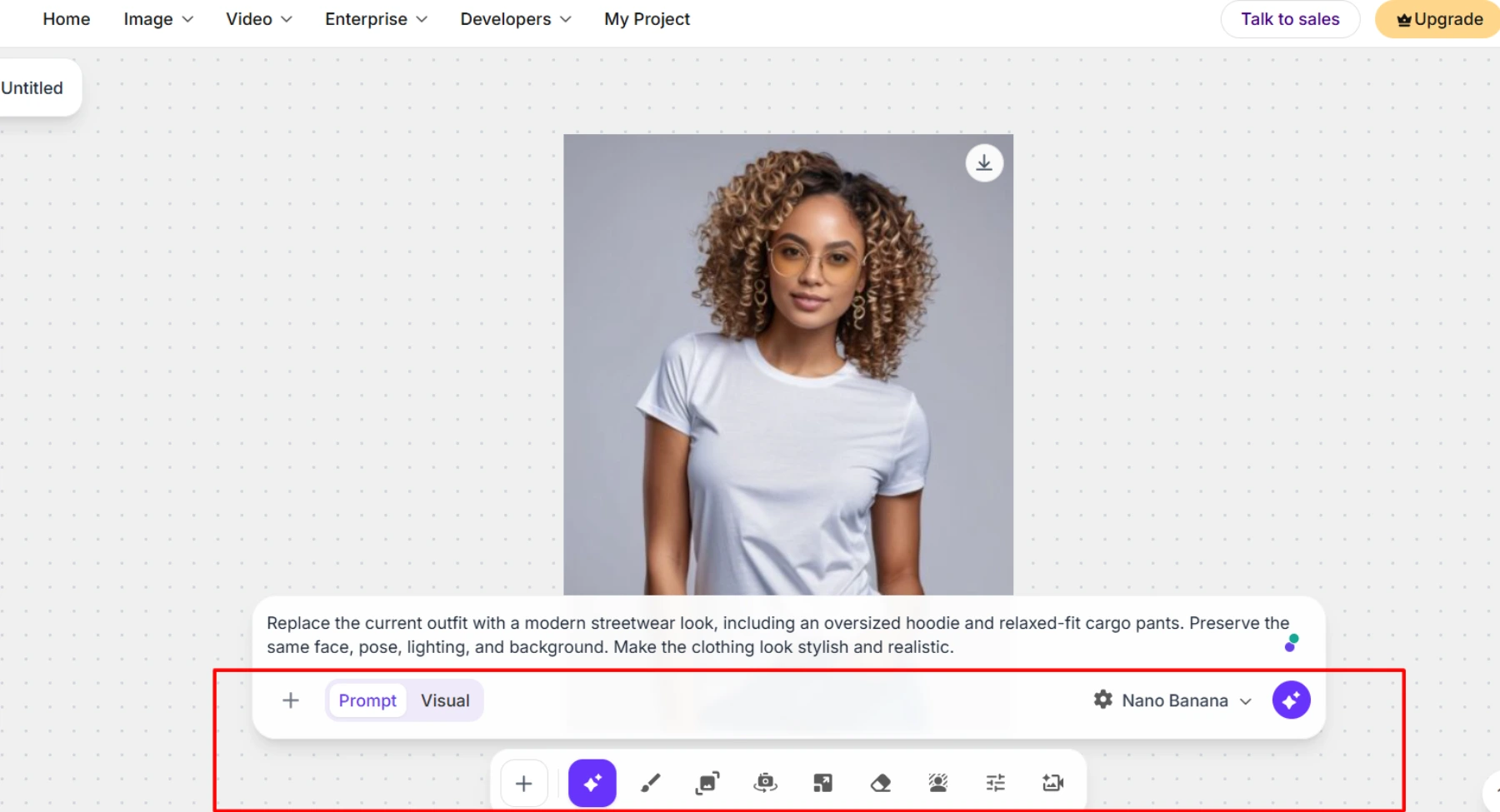
Prompt 2: Replace the current outfit with a modern streetwear look, including an oversized hoodie and relaxed-fit cargo pants. Preserve the same face, pose, lighting, and background. Make the clothing look stylish and realistic.
Note: (Tried this prompt 2 after signing up for the tool). The free version is always good, but when you sign up, you get to explore more editing features as marked in red:
Step 3: review and download
You get a live preview of the edit before committing to anything. If the fit, fabric, or edges look off, you can regenerate. Once you're happy with it, download in HD with no watermark and no extra steps.
That's the entire loop. Behind the scenes, the AI is doing three things during step 2: detecting body shape and pose, mapping the boundaries of the current outfit, and reading the lighting in the scene so the new clothing sits naturally instead of looking pasted in. This is also the point where most quality problems come from, since a model that gets the boundary detection slightly wrong will show it in warped sleeves, floating collars, or hands that don't line up with the new outfit.
Best AI clothes changer tools for 2026
The market is crowded with single-feature apps that all promise the same result, so the real differences only show up once you compare realism, how much editing control you get, and whether a tool actually fits ecommerce work or stays limited to casual, one-off swaps. All the tools below offer some form of free access, which is why they made this list. What separates them is everything past that baseline: control, output quality, and how well they fit a real workflow. Here's a full breakdown of each one. But before that, take a quick at a glance view of each tool:
1. Pixelbin AI image editor
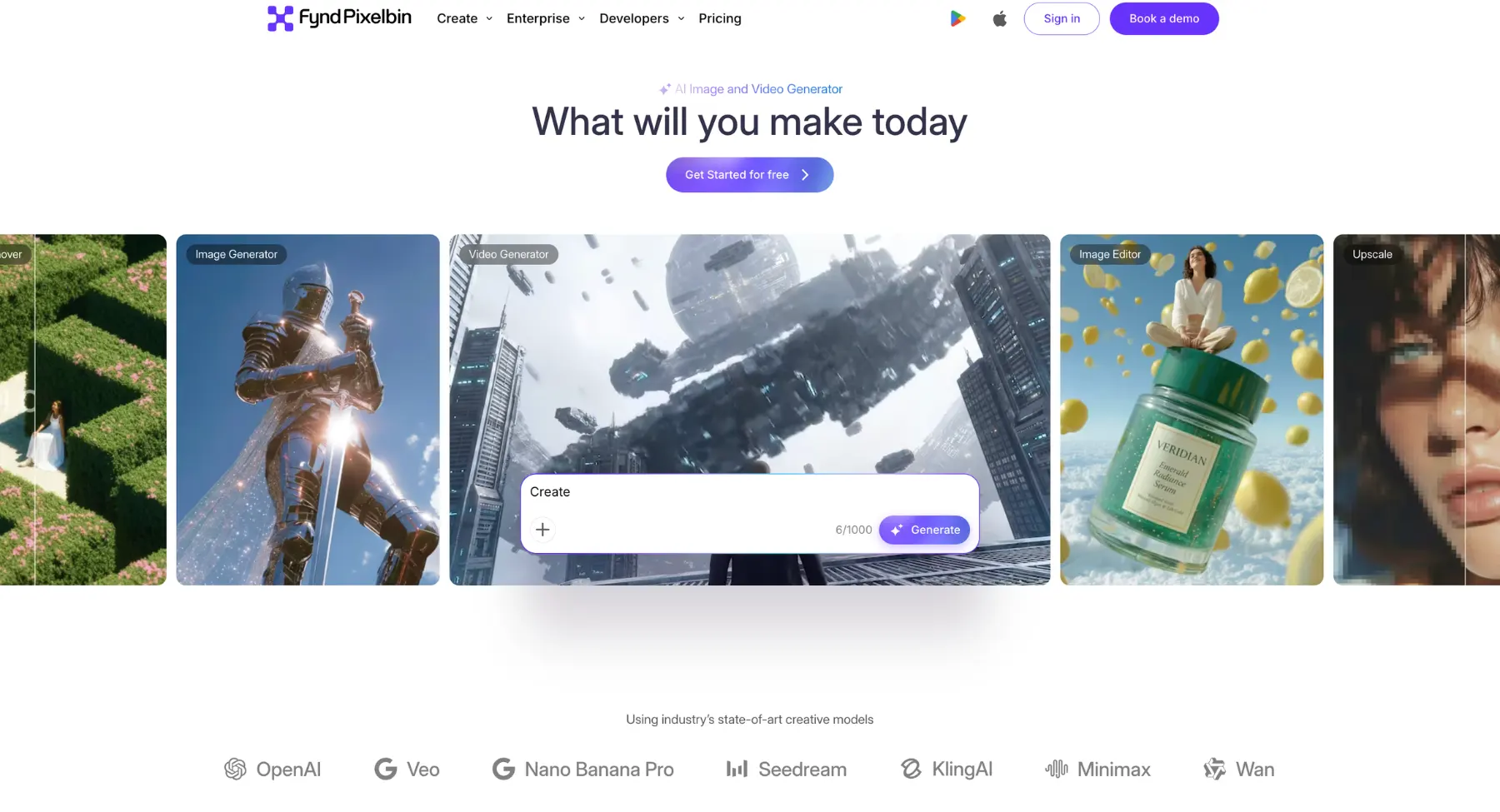
Pixelbin is a general-purpose, prompt-based AI clothes changer with no sign-up tool that handles outfit changes as one part of a bigger toolkit. Instead of being built around a single feature, it lets you change clothing, adjust backgrounds, fix lighting, or remove objects all within the same editing session. That makes it a strong fit if you want outfit edits as part of a broader workflow rather than a tool you open once for a single swap and never touch again. It also supports several underlying AI models you can pick between depending on the edit.
Pros
- Handles outfit changes, background edits, and object removal in one prompt-based workflow instead of separate single-purpose tools
- Preserves the original resolution of the uploaded photo instead of degrading quality during editing
- Batch editing is available on paid plans, useful when you need the same edit applied across a full product line
Cons
- Upload size is capped at 10MB, which can be tight for very high-resolution product shots
- Batch processing across many images at once requires upgrading to a paid plan
- Multiple AI model options can feel like an extra decision if you just want one quick edit
2. WeShop AI
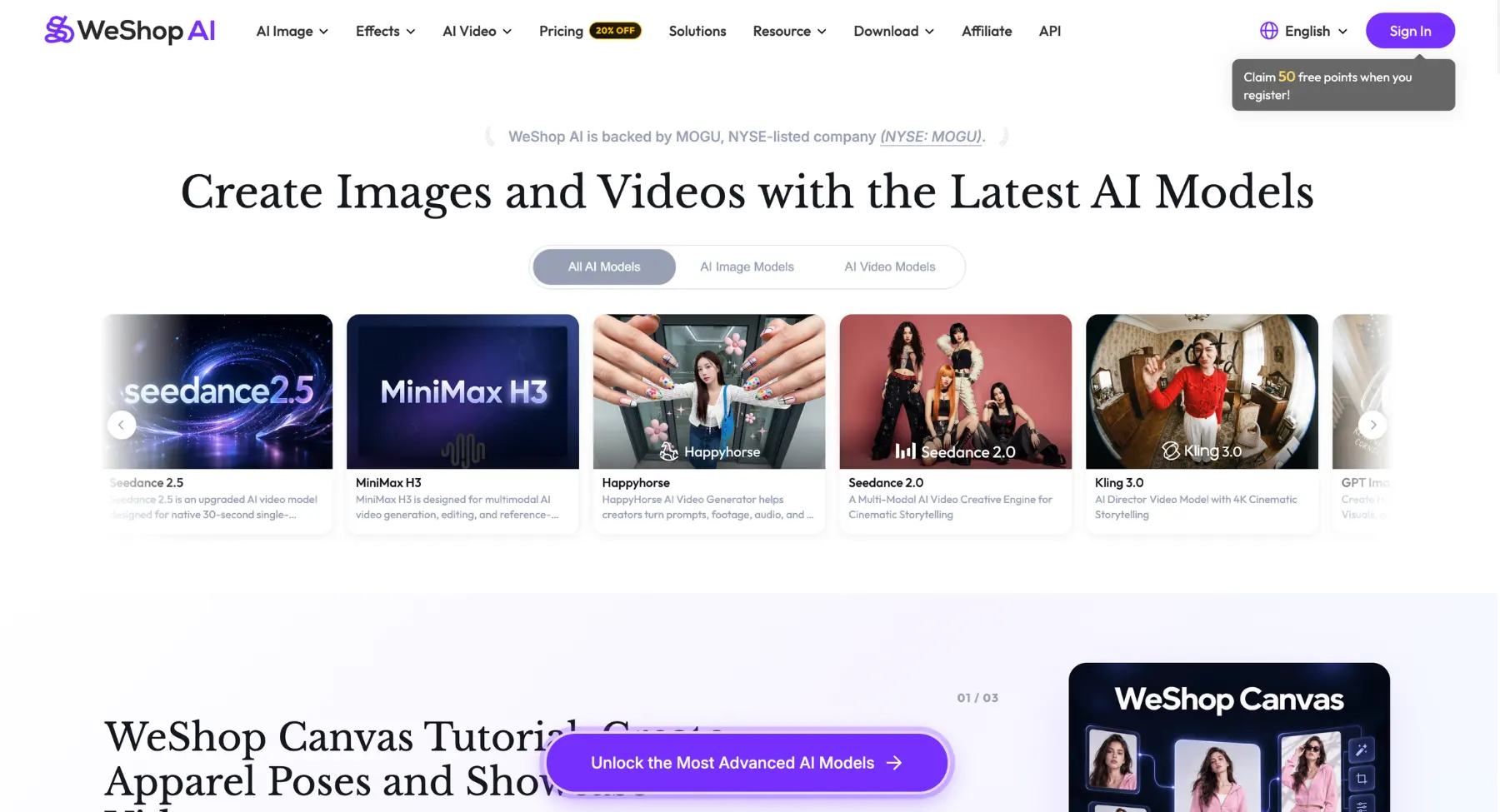
WeShop AI runs a dedicated AI clothes changer tool built specifically for ecommerce sellers who want to preview products on AI-generated models instead of booking a full photoshoot. The pitch is straightforward: upload a product photo, generate outfit variations, and skip the cost of a physical shoot for every new style or color drop.
One important thing to know here: WeShop AI's own website also promotes a separate line of "clothes remover" tools elsewhere on their domain, and some of their content compares that feature to known non-consensual nudify apps. That has nothing to do with the legitimate outfit swap product, but it's a serious enough concern that if you use WeShop AI at all, stick strictly to the dedicated outfit swap tool and avoid navigating into anything related to clothing removal.
Pros
- Purpose-built for ecommerce, with messaging and features aimed specifically at product photo variations rather than casual outfit tests
- Claims secure photo processing without long-term storage of uploads
- Simple, single upload workflow with no complex settings to configure
Cons
- The same domain hosts unrelated "clothes remover" content, which raises real consent and safety concerns and means the platform needs to be used with caution
- Marketing-heavy site copy makes independent verification of actual output quality difficult
- Commercial usage terms are not clearly documented compared to more established competitors
3. PhotoGPT
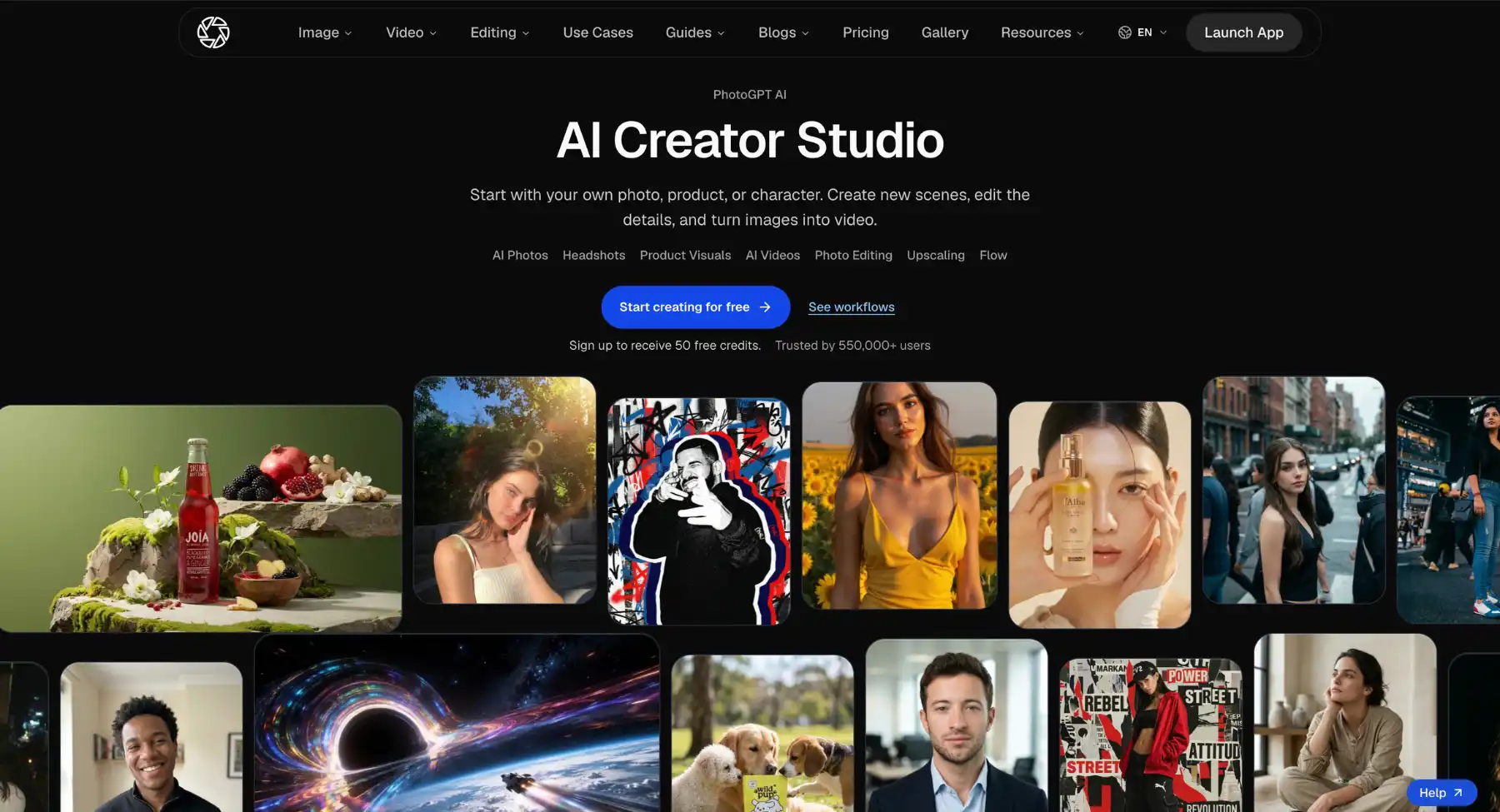
PhotoGPT is built around a workflow specifically designed to keep body shape, pose, and lighting consistent while it swaps the outfit. It is a straightforward, no-frills option for people who just want a fast result without creating an account first. It can change clothes on any person's photo while preserving the subject's identity and pose, which is exactly what you want from a practical outfit-swap editor.
Pros
- Designed specifically to preserve body shape, pose, and lighting during a swap, rather than treating the whole photo as fair game
- Straightforward, minimal interface with no extra editing tools competing for attention
- Fast turnaround for a single outfit swap without extra steps
Cons
- Little published detail on maximum resolution or file size limits, so results on very large images are unpredictable
- Commercial usage terms are not clearly stated anywhere on the site
- The feature set is narrow, since it focuses only on clothing swaps with no adjacent editing tools
4. Krea AI
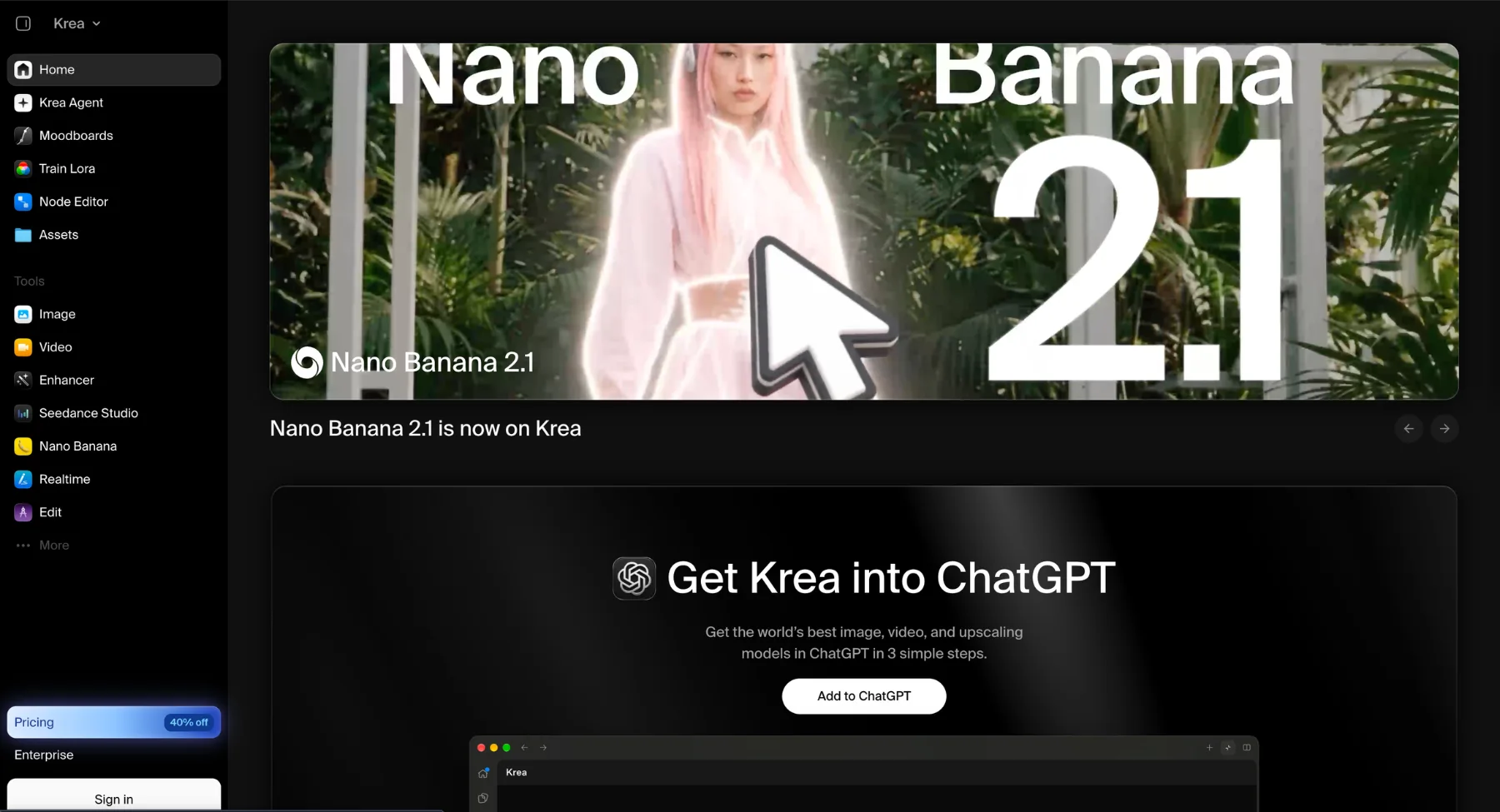
Krea AI runs its clothes changer inside a much larger suite of creative editing apps, which means once you finish an outfit swap, you can move into other tools like background editing or face swaps without leaving the platform. It supports a wide range of file formats, including PNG, JPG, WEBP, HEIC, HEIF, and AVIF, which is more flexible than most single-purpose tools in this comparison.
Pros
- Wide file format support, including HEIC and AVIF, which most competitors don't accept
- Sits inside a broader creative suite, so you can continue editing the same image with other tools right after the swap
- 10MB upload limit for free users, which is generous relative to some stricter competitors
Cons
- Being part of a large creative platform means the interface has more going on than a single-purpose tool, with a steeper learning curve
- Less specialized for ecommerce-specific needs like batch product photo editing across a catalog
- Quality leans heavily on how clean and well-lit your source photo is, more so than some purpose-built alternatives
5. OpenArt
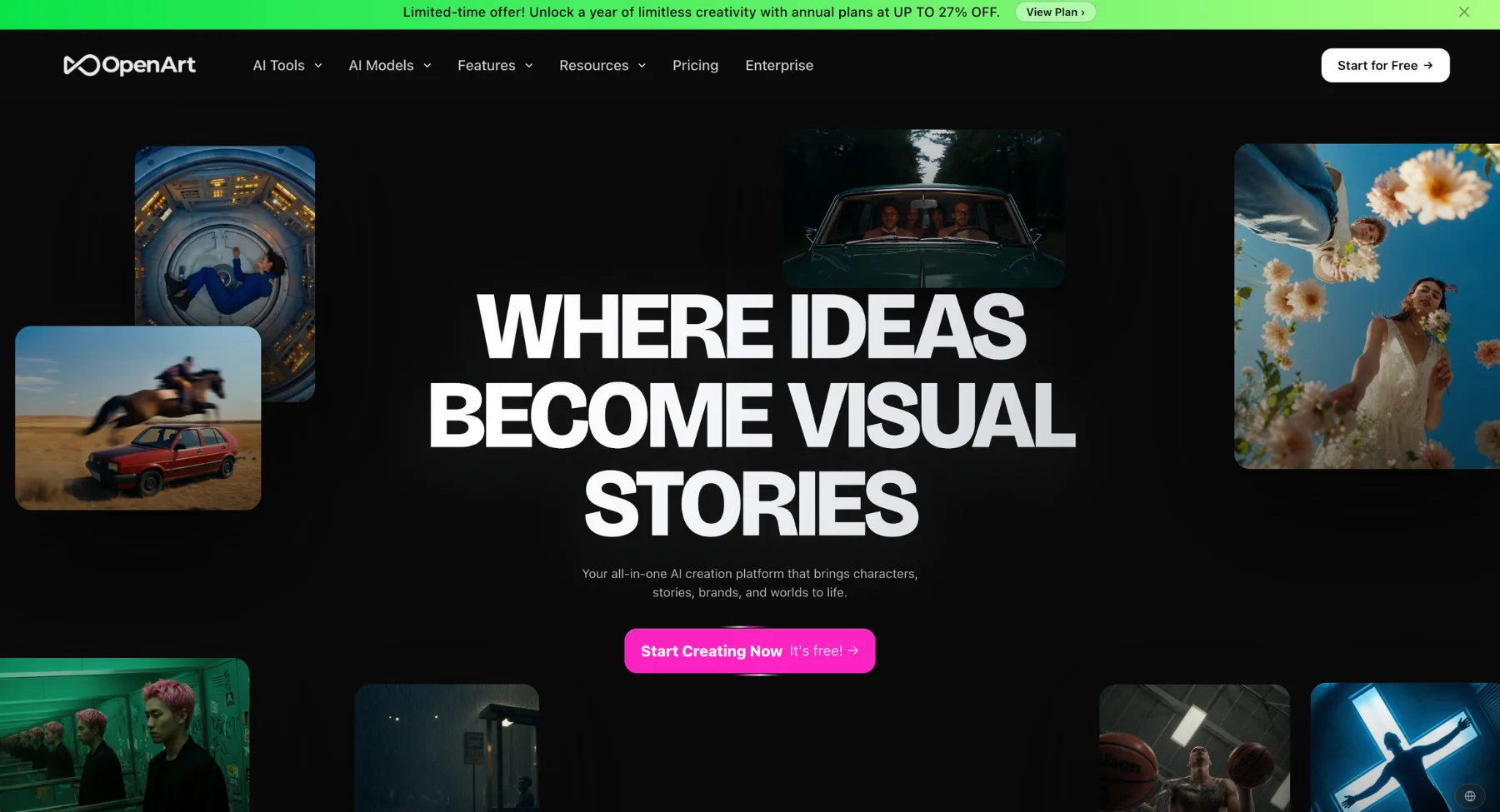
OpenArt leans creative rather than commercial. Its clothes changer is built for imaginative outfit concepts like fairy, royal, cosplay, or espionage themes, rather than the straightforward realism ecommerce work usually needs. It's a better fit for artists and illustrators exploring wardrobe ideas than for anyone producing product photography.
Pros
- Strong creative freedom for stylized and imaginative outfit concepts beyond everyday clothing
- Supports bulk editing, useful for generating a batch of concept variations at once
- A wide range of themed presets that remove the need to describe every detail manually
Cons
- Not well suited to ecommerce or realistic product photos, since the outputs lean stylized rather than true to life
- The broader feature set can feel complex for someone with no prior editing experience
- Less emphasis on the fabric and fit accuracy that retail use cases specifically need
6. Vidnoz
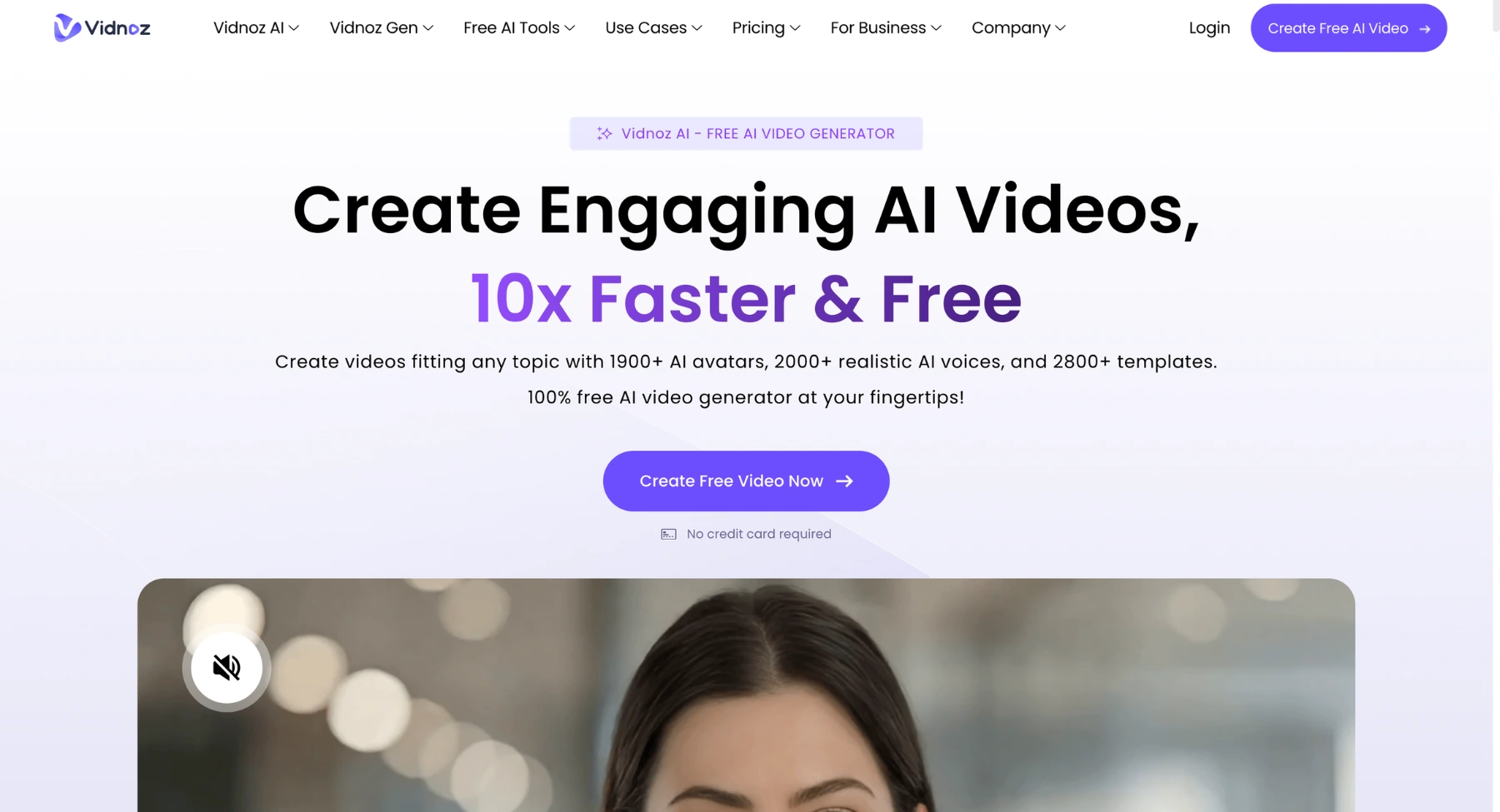
Vidnoz built its reputation on avatar and video generation, and its clothes changer feature sits alongside that broader toolkit rather than standing on its own. It is a great AI clothes changer online for free and lets you swap outfits inside photos or video templates. You can change complete outfits or replace only parts of clothing, and it highlights use cases like virtual try-ons, fashion design, marketing visuals, social media content, and outfit planning. The product also support for multiple clothing types, colors, patterns, fit, and length adjustments,
Pros
- Ties directly into Vidnoz's video and avatar tools, useful if your end goal is video content rather than a static image
- Simple, beginner-friendly interface that doesn't require any prior editing knowledge
- Supports outfit swaps inside video templates, not just static photos, which most competitors don't offer
Cons
- Clothes changing is a secondary feature next to Vidnoz's core video and avatar products, so it doesn't get the same level of polish or attention
- Realism can be inconsistent compared to tools built specifically around clothing edits
- Less documentation available around commercial use rights for generated outfit images
7. FitRoom
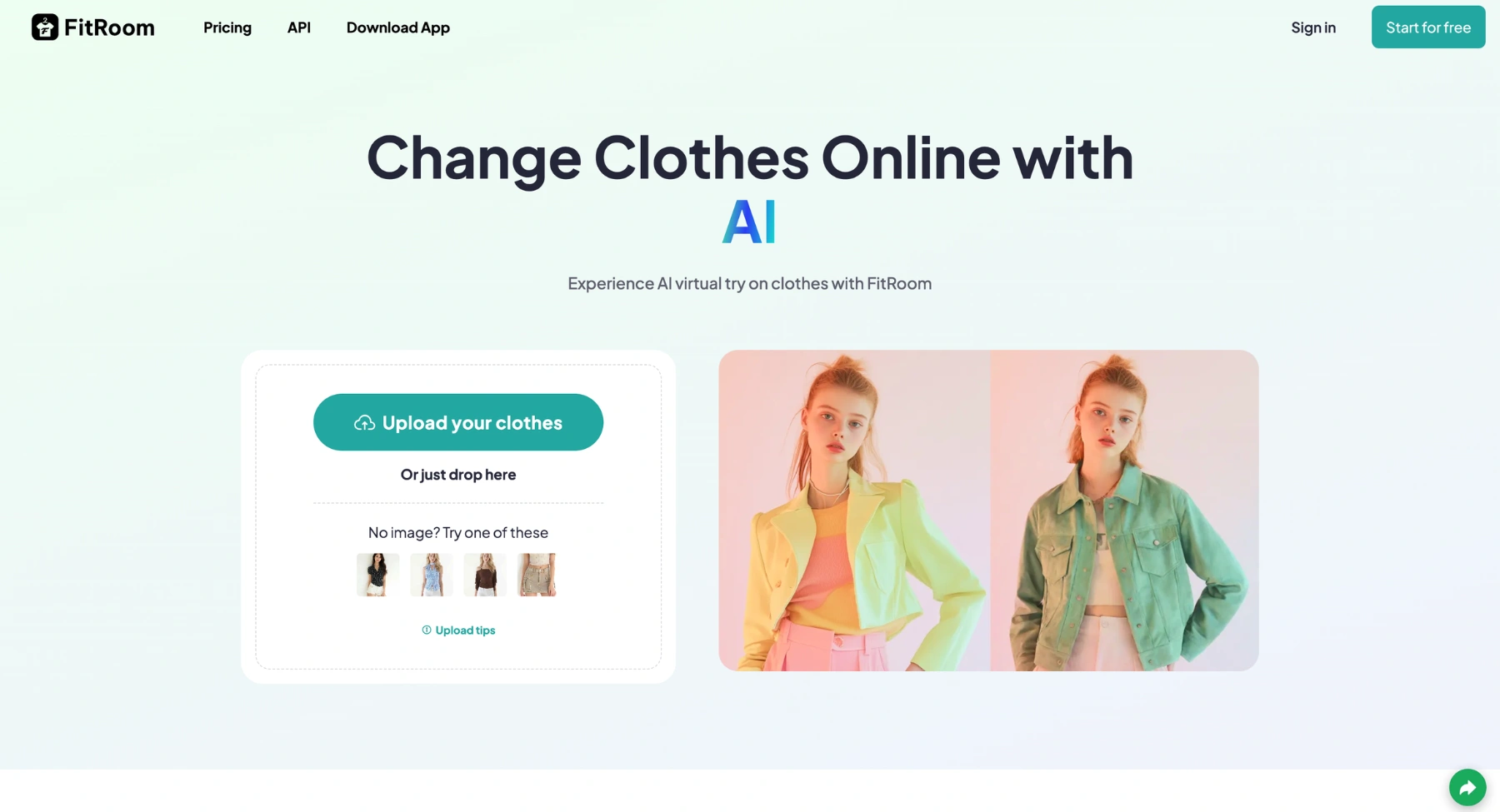
FitRoom is built specifically for retail virtual try-on, with a stronger focus on fabric texture accuracy than most tools in this comparison. It captures materials like silk, wool, and cotton with visible folds and natural draping, and offers a try-on API for brands that want to build this feature directly into their own storefront.
Pros
- Strong fabric texture accuracy across different materials, which matters most for retail and fashion use cases
- Fast processing, typically around 10 to 15 seconds per exchange
- Try On API available for brands and developers who want to integrate this into their own site
- Automatic file deletion after processing, which helps with privacy
Cons
- Requires login to use, unlike several competitors that allow a free first try without an account
- Leans toward paid plans once you move past light, casual use, limiting free commercial access
- Needs high quality, full body photos to produce its best results, which isn't always what users have on hand
Availability, free tier limits, and feature sets across all of these tools change often. Before you build a workflow around any of them, check current terms directly on the tool's own website, since pricing and access can shift without much notice. This comparison reflects what each tool published as of mid July 2026.
Best AI clothes changer for product photos
Ecommerce work has different needs than a casual outfit preview, and it's worth understanding those needs before picking a tool for this specific use case.
A product photo needs a consistent model pose across a whole catalog, fabric that still reads correctly when a shopper zooms in, lighting that matches the rest of your listings, and a clean background. Getting the outfit to look okay at a glance is not the same bar as getting a photo ready to publish on a store page.
This distinction matters most for:
- Fashion catalogs and lookbooks
- Marketplace and direct-to-consumer product listings
- Apparel ads and seasonal campaign variations
- Social commerce creatives for platforms like Instagram and TikTok
In practice, quality problems on product photos tend to show up in the same few spots regardless of which tool you use. Watch closely for warped or asymmetrical sleeves, collars that don't sit flush against the neck, hands that look slightly disconnected from the wrist, and logos or text on garments coming out blurred or misspelled. These are the details a customer is most likely to notice on a zoomed-in product page, and they're exactly the details AI models still get wrong most often.
If your workflow involves more than just the outfit, like cleaning up a background or correcting lighting on the same image, a tool that only does one thing will slow you down. A prompt-based tool that handles outfit changes, background edits, and detail adjustments in one place, like Pixelbin, saves time because you aren't bouncing between separate apps for each step. Whatever tool you choose, review every AI-edited product photo by hand before it goes live.
Free AI clothes changer vs paid tools
Deciding between a free tool and a paid plan comes down to what you actually need the output for.
A free tool is usually enough for quick, low-stakes tests: trying a new outfit for a social post, previewing a costume idea, or experimenting with a prompt before committing to something bigger. Several tools in this comparison, including Krea, PhotoGPT, and Pixelbin, work without requiring an account for initial use.
Paid or credit-based tiers start to matter once your needs get more specific:
- HD downloads without a watermark
- Batch or bulk editing across many product images at once
- Clearly documented commercial use terms
- API access for building outfit edits into a larger internal tool or website
- Stronger privacy guarantees around what happens to your uploaded photos
Free and no sign-up access on any of these platforms can change without warning. Before you build a workflow that depends on a specific tool staying free, check its current terms, especially if the output is going anywhere near commercial use.
How to choose the right clothes changer AI tool
With this many options available, picking the right one comes down to a short checklist rather than guesswork.
- Realism. Look closely at fabric texture, sleeve and collar edges, hands, and shadows, not just the outfit as a whole at first glance.
- Preservation. Check whether the tool keeps the face, pose, background, and product details intact, or whether the whole image shifts noticeably with each edit.
- Access terms. Confirm free credits, no sign-up availability, watermark rules, HD download limits, and file size caps before relying on a tool.
- Commercial use rights. Make sure the tool's terms actually allow use in ads, listings, or campaigns, not just personal posts.
- Workflow fit. For ecommerce specifically, prioritize tools that support batch editing and a repeatable review process over single image tools that only work well one photo at a time.
Best prompts for AI clothes changer edits
The quality of your prompt has a bigger impact on the final result than most people expect, so it's worth spending a minute getting it right before you generate anything.
A few templates to start from:
- Change the outfit to a black formal blazer and white shirt. Keep the face, pose, and background the same.
- Replace the casual t-shirt with a navy blue suit jacket. Keep natural lighting and realistic fabric folds.
- Change this dress to a red evening dress with realistic texture. Preserve the model's hands and hair.
- Turn this product photo into a premium fashion catalog image with clean styling and natural shadows.
- Change the hoodie color to beige while keeping the logo, pose, and background unchanged.
- Create three outfit variations for a summer fashion campaign: casual, formal, and streetwear.
Two habits make a real difference here. First, add explicit "keep the same" instructions for anything the AI shouldn't touch, like the face, pose, background, or hands. Second, avoid stacking too many changes into one prompt. Asking for one or two edits at a time tends to hold up better than a long list of instructions the model has to juggle at once.
Common mistakes to avoid
A lot of disappointing results come down to a handful of avoidable mistakes rather than the tool itself being bad. So, here are a few things you need to be mindful of to get the best outcomes.
- Starting with a blurry or low-resolution photo. The AI has less information to work with, and it shows clearly in the final output.
- Changing the outfit and the background in the same prompt when the tool struggles to handle both changes at once.
- Ignoring small details like hands, necklines, sleeves, hair overlap, jewelry, logos, and fabric folds. These are where AI edits most often break down and look unnatural.
- Publishing ecommerce images without a human review pass first.
- Skipping commercial use and model consent checks before using AI-edited photos in marketing or product listings.
- Assuming free or no sign-up access will stay that way forever. Pricing and access change often, so check again close to when you actually need the tool.
Is it safe to use an AI clothes changer? Data privacy explained
Uploading a photo to any online tool means handing that image, and potentially your face, to a third-party server. It's worth understanding what actually happens to that photo before you use it, especially if you're uploading a photo of yourself, a real customer, or a model.
A photo of a person's face is not just an ordinary image file. The US Federal Trade Commission has confirmed that a photograph depicting someone's facial features counts as biometric information, even if the company never processes it to identify the person. That means an uploaded selfie or portrait carries a higher privacy bar than a typical product photo, and it's reasonable to expect a tool to handle it with more care.
A few practical things to check before uploading any photo to a clothes changer AI tool:
- Read the retention policy. Some tools state they delete uploads automatically after processing, while others don't mention retention at all. If a tool doesn't say how long it keeps your photos, assume it keeps them.
- Check whether uploads train future models. Some free tools use uploaded images to improve their AI, which means your photo, or a customer's photo, could end up influencing outputs for other users. Look for an opt-out or a clear statement that uploads aren't used for training.
- Avoid uploading photos of other people without consent. This applies especially to customer or model photos used in a business context. Get clear permission before running anyone else's photo through a third-party AI tool.
- Be cautious with no sign-up tools. Skipping account creation is convenient, but it also means there's no account history tied to your uploads, which can make it harder to request deletion later if you need to.
- Watch for marketing claims that oversell accuracy or safety. The FTC has repeatedly warned that AI-related businesses are not exempt from ordinary rules against deceptive advertising, and that applies directly to claims companies make about their AI tools' capabilities, safety, or data handling. A tool that makes sweeping privacy promises without any detail in its actual policy is a signal to dig deeper before uploading anything sensitive.
None of this means these tools are unsafe to use. It means the upload step deserves the same scrutiny you'd give any service that asks for a photo of a real person, whether that's you, a customer, or a hired model.
Using an AI clothes changer for marketplace listings
Marketplaces like Amazon, Etsy, and Shopify storefronts have their own rules about what a product photo is allowed to show, and those rules matter more than general AI editing advice once your images are going live on a store page.
Most marketplaces require product photos to accurately represent the item for sale. That creates a specific limit on how you can use an AI clothes changer for listings:
- Color and style changes on the actual product are fine; mislabeling isn't. If you use AI to show the same garment in a different color, the listing needs to clearly state which color is actually shipped, and ideally include at least one true, unedited photo of the real item.
- Changing the model, not the product, is the safer use case. Using an AI clothes changer to place a real product on different AI-generated models, rather than altering the garment itself, keeps the listing accurate while still giving shoppers more visual variety.
- Check each marketplace's specific image policy before publishing. Amazon, Etsy, and most marketplaces publish separate guidelines on manipulated or AI-assisted imagery, and these get updated often. What's fine on one platform can violate the listing rules on another.
- Keep your originals. If a marketplace ever flags a listing for review, having the unedited source photo on hand makes it much easier to demonstrate the product itself hasn't changed, only the presentation has.
- Disclosure expectations are getting stricter, not looser. Regulators have been actively cracking down on AI-generated content that misrepresents products to consumers, so treat "the AI made it look better than it is" as a real risk, not just a style choice.
The safest approach for marketplace sellers is to treat an AI clothes changer as a tool for testing outfit ideas and generating marketing variety, not as a way to make a product look different from what a customer will actually receive.
Conclusion
An ai clothes changer is genuinely useful once you know what to expect from it. For casual, one off edits like testing a look, trying out a costume idea, or putting together a quick social post, a free ai clothes changer with no sign up covers most needs on its own. For product photos and marketing visuals, the bar is higher. You want a tool that gives real prompt control, detail level editing, HD output, and a review process you can repeat across a full catalog, because those are the details that separate a usable product image from one that needs another round of fixes.
None of these tools remove the need for a human check before publishing. Fabric folds, hands, and logos are still the places AI gets wrong most often, so treat the output as a strong first draft rather than a finished asset. If your work already involves broader photo editing beyond just outfits, like background changes or object removal, a prompt based tool like Pixelbin's Image Editor keeps that work in one place instead of forcing you to switch between several single purpose apps for every step.
FAQs
There is no single best tool for every situation. It depends on whether you need a quick free edit, a full product photo workflow, or creative and stylized outfit concepts. Compare realism, commercial use terms, and workflow fit for your specific need before picking one.
Yes. Tools like Krea, PhotoGPT, and Pixelbin all offer free use, either unlimited or with a small monthly cap, though exact limits can change over time.
Yes, most tools in this space run entirely in the browser with nothing to install. Free tiers typically come with some kind of usage limit or watermarked download.
Pixelbin, Krea, and PhotoGPT all let you try an edit before creating an account, though continued use often requires signing up for more credits.
Yes, and this is one of the more practical uses of the technology, since it lets you test outfit or color variations on a product photo without a full reshoot. Always review the output for logo, seam, and fit accuracy before publishing anything.
Yes. A color only prompt, such as "change the shirt color to black, keep everything else the same," tends to be more reliable than a full outfit swap.
Most tools try to preserve the face and pose, but results vary from one tool to another. Adding explicit instructions like "keep the face and pose the same" in your prompt noticeably improves consistency.
They can speed up testing of outfits and color variations significantly, but every output should still go through a human review pass before publishing, since fit, logos, and fabric details are the most common failure points.
It depends entirely on the specific tool's terms of service. Check commercial use rights before using AI edited images in ads or product listings, and confirm you actually have rights to any model or product photo you upload in the first place.
Be specific about the new outfit and explicitly state what should stay the same. For example: "Change the outfit to a black formal blazer and white shirt. Keep the face, pose, and background the same."
Yes, and full body photos generally give the AI more context to work with than a cropped portrait, which usually results in a more natural looking fit.
Start with a clear, well lit, high resolution photo. Keep prompts specific and limit yourself to one or two changes at a time. Regenerate the image if fabric texture, edges, or hands look off before you download the final version.