

A queue, not a one-off edit
The batch is the unit of work. Add a transformation, then another, then another. The stack runs on every image in the queue, in the order you set, end-to-end.

 Contact Us
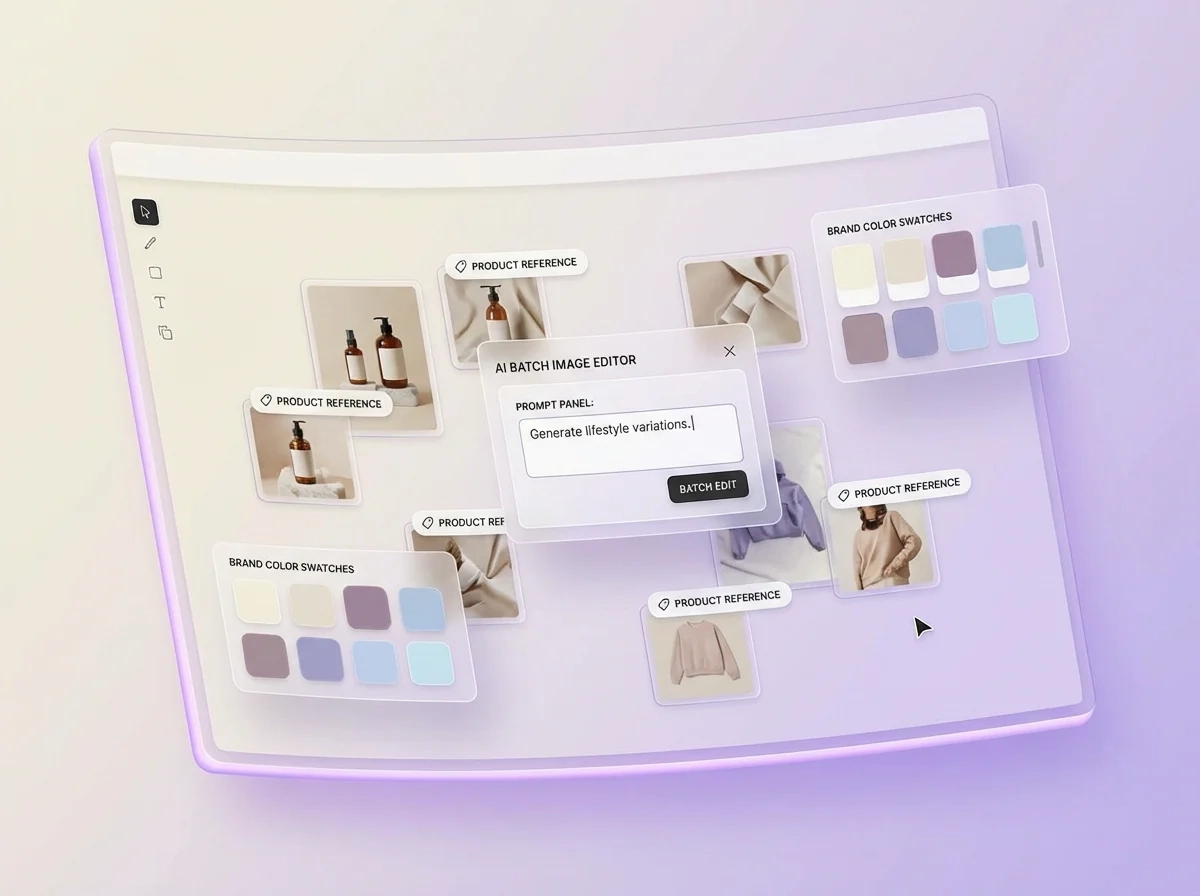
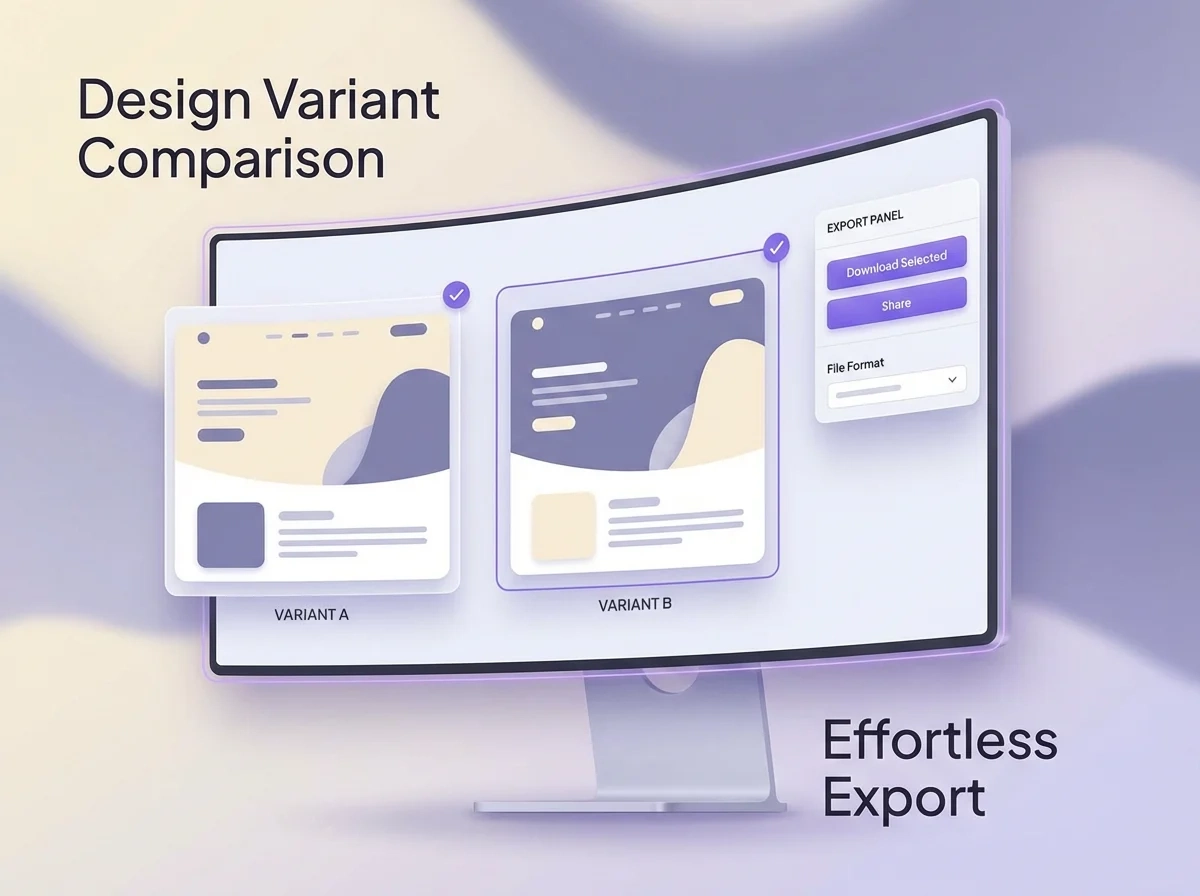
Upload a batch, stack edits like prompt-based edits, upscaling, background swap, unwanted text and overlay cleanup, resize, and camera angle, then run them across every image. Review outputs in one view, retry one-offs, save the stack as a preset, and reuse it next time. Outputs export ratio-correct and watermark-free.

Start free · 3 credits · No card required
Visuals on this page are AI-generated and intended to demonstrate creative workflows and output styles.
Three stages. A worked 50-SKU example follows below.

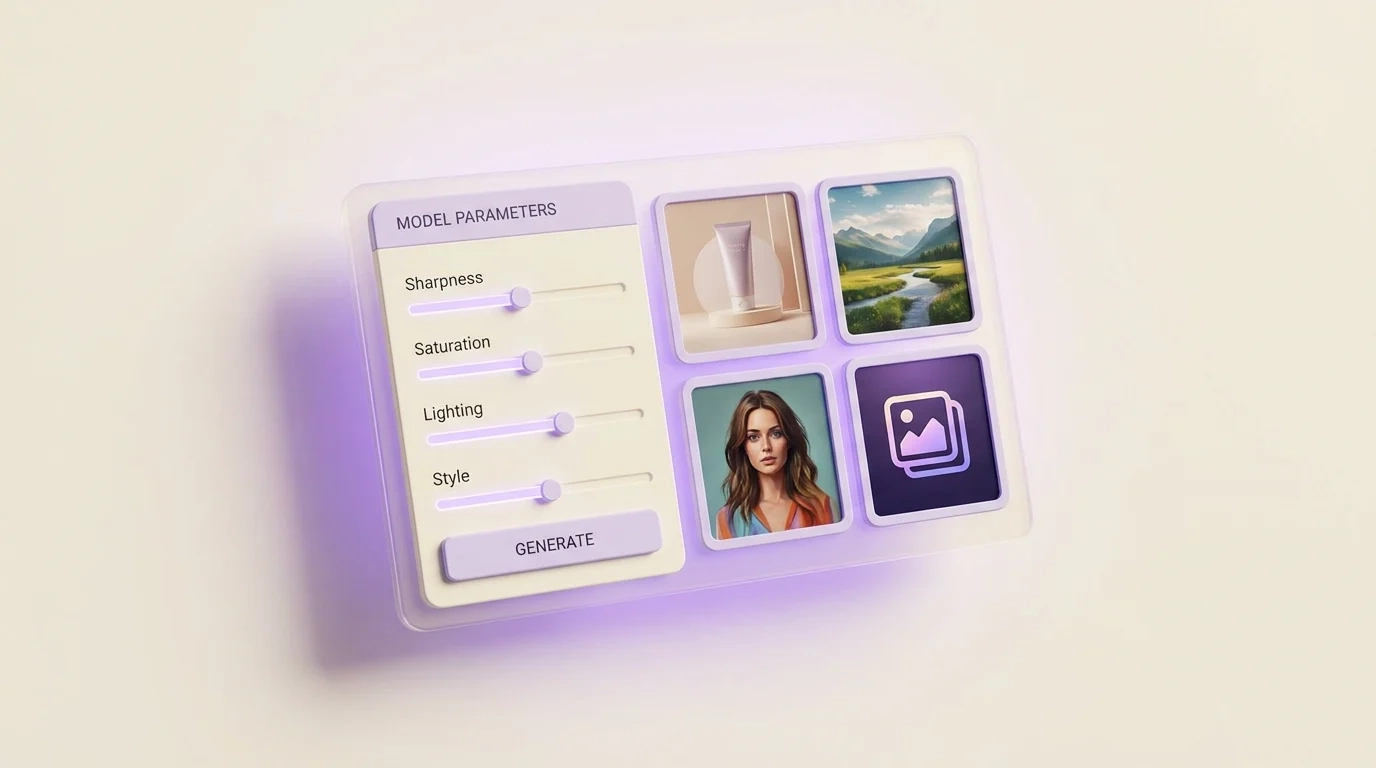
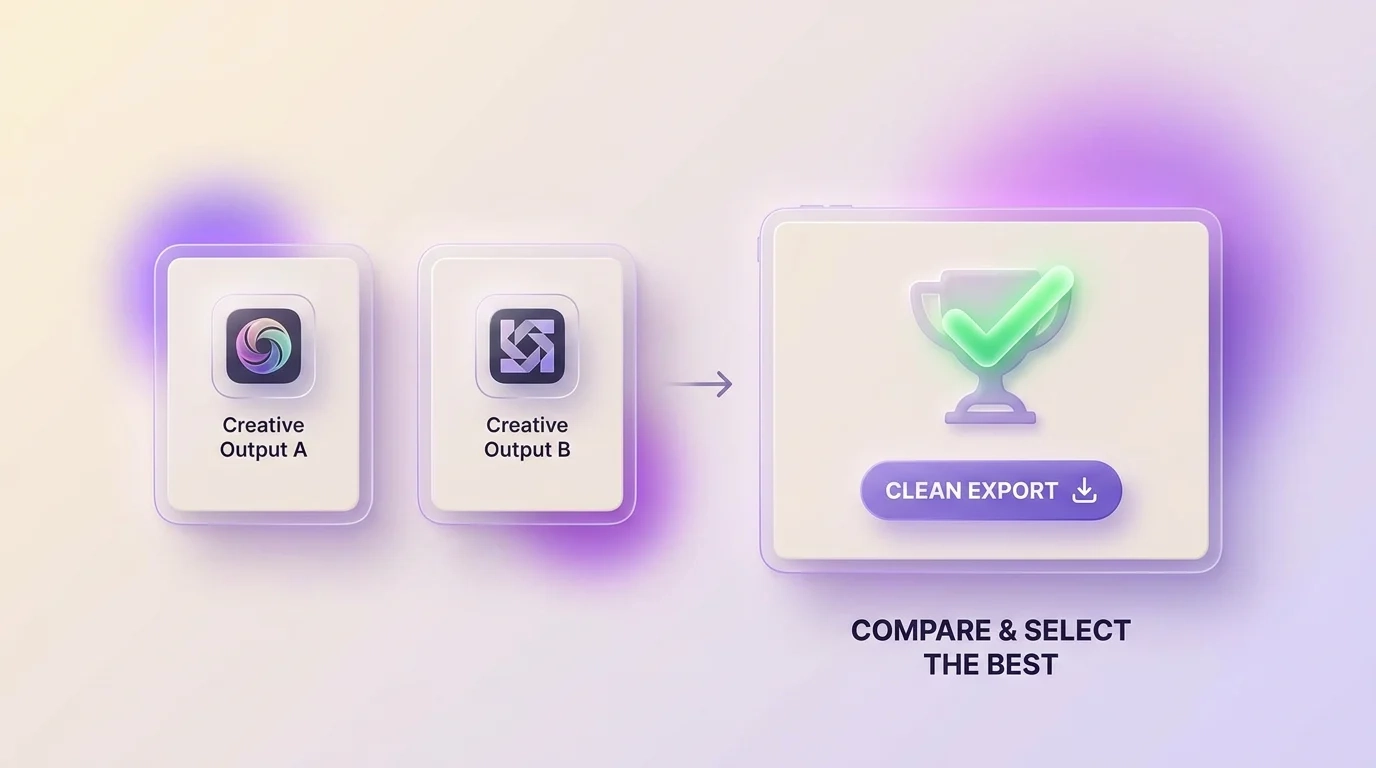
Not another single-image editor. The Batch Editor stacks the transformations you need, runs them across every image, and remembers the recipe.
The batch is the unit of work. Add a transformation, then another, then another. The stack runs on every image in the queue, in the order you set, end-to-end.

Start a new batch any time without closing the current one. Switch between Batch 1, Batch 2, and Batch 3 from the top tab strip, run them concurrently, and keep their stacks and outputs separate.

Pick a background template, a lighting preset, or a marketplace ratio and the editor applies it across the whole batch. Save your own stack as a named preset and apply it to the next batch with one click.
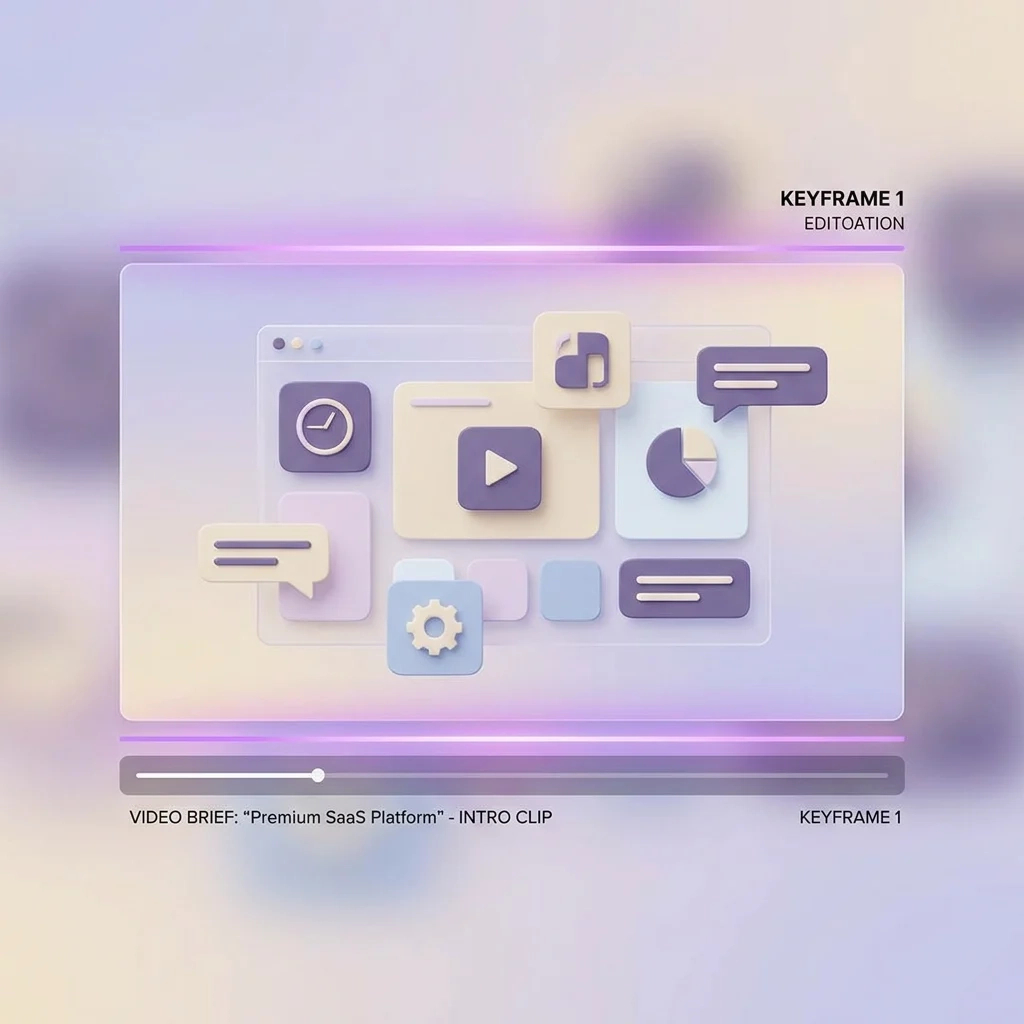
Every transformation, every parameter, and every run lives in the batch's edit history. Re-open a batch a week later, see the full sequence, and promote any sequence to a saved preset.

Six actions cover the full workflow, from upload to export.


Five workflows where one saved stack can replace hours of repeated per-image editing.

Lock background, exposure, and ratio in a saved preset. Run it on every fresh shoot for marketplace and storefront placements.

Update lighting, palette, and composition rules across an entire seasonal catalogue. Re-run the saved preset every season instead of redoing the brief.

Remove or replace product backgrounds across SKU sets without touching each image. Use a template for a uniform look or a prompt for a scene-driven background.

Drop products into seasonal or thematic backgrounds via templates. Pair with Camera Angle to keep perspective consistent across the batch.
Clean up unwanted text, overlays, or objects from images you own. Retouch with Adjust. Upscale to 4x or 8x for print and ad creative.
Six steps. One stack. 50 listing-ready images from one saved stack. Show More to see steps four through six.
Different inputs, different deliverables. Same stack-and-run workflow.
Refresh seasonal SKU sets without per-image manual work. Lock palette, exposure, and composition rules in a saved preset, then apply it to every fresh batch as products come in.

Generate listing-ready variants in the ratios each marketplace expects, with consistent backgrounds, exposure, and resolution across the catalogue. Prepare exports for Amazon, Flipkart, Shopify, Myntra, and your own storefront from the same batch — all from one stack.

Clean up shoot output: remove distracting objects, retouch, upscale to print quality, and change apparent camera angle — without opening each file. Save the stack as your post-shoot preset and re-use it for every shoot.

Maintain visual consistency across catalogues and storefronts without slowing the listing pipeline. New SKUs go into a batch, the saved preset runs, and listing-ready files land in the storefront workflow the same day. Edit history keeps a record of every change.

The Batch Editor orchestrates. PixelBin's specialised tools run inside it as transformations.


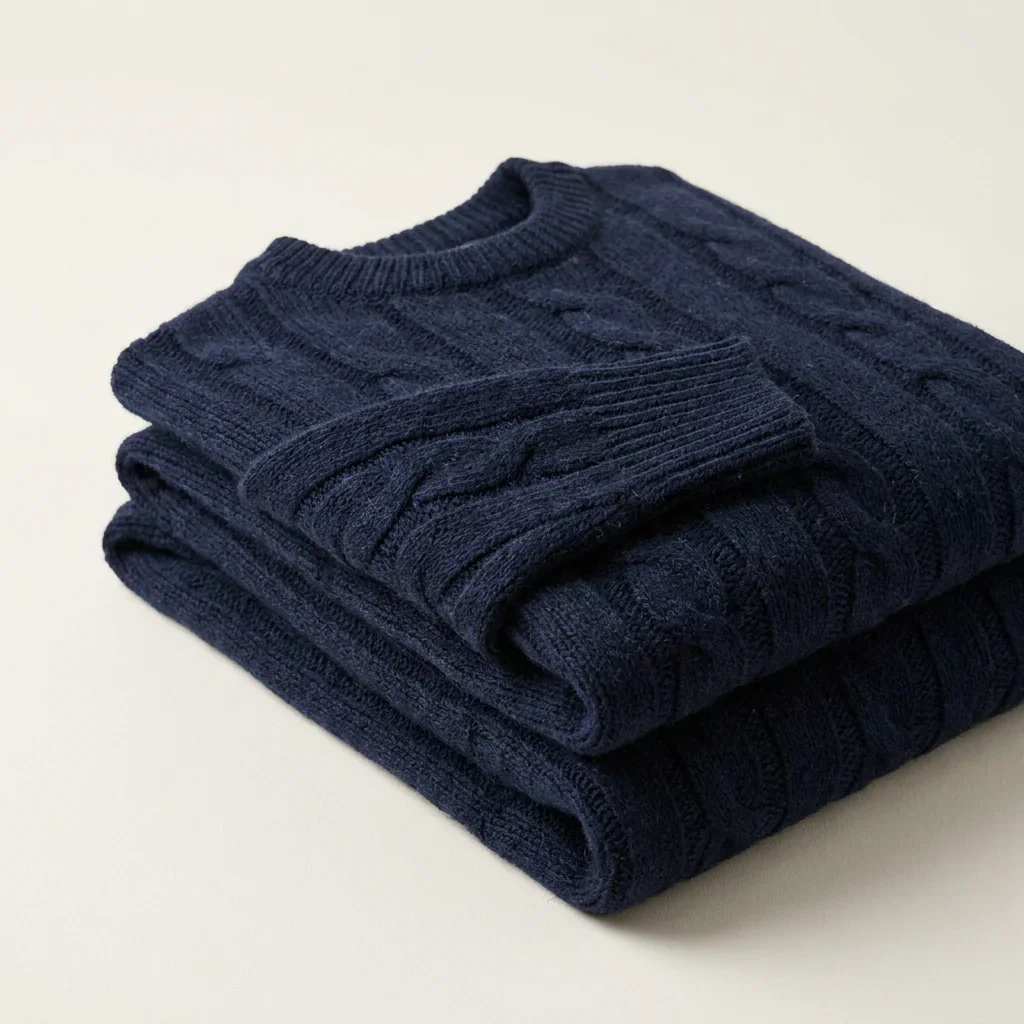


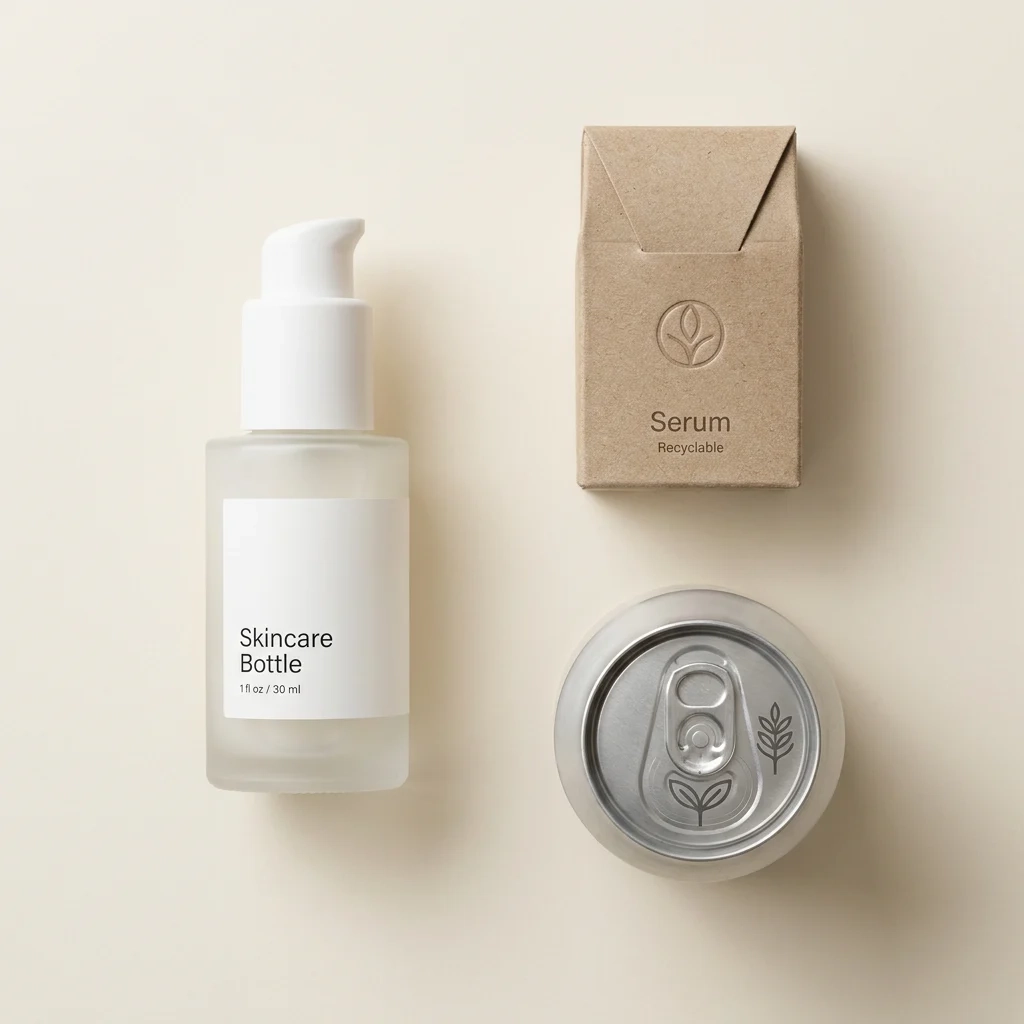
A practical look at where the Batch Editor fits into a catalogue or marketplace team's week.
Common questions about the Batch Editor. For anything else, reach us at support@pixelbin.io or read the documentation.
Start free · 3 credits · No card required