Summary
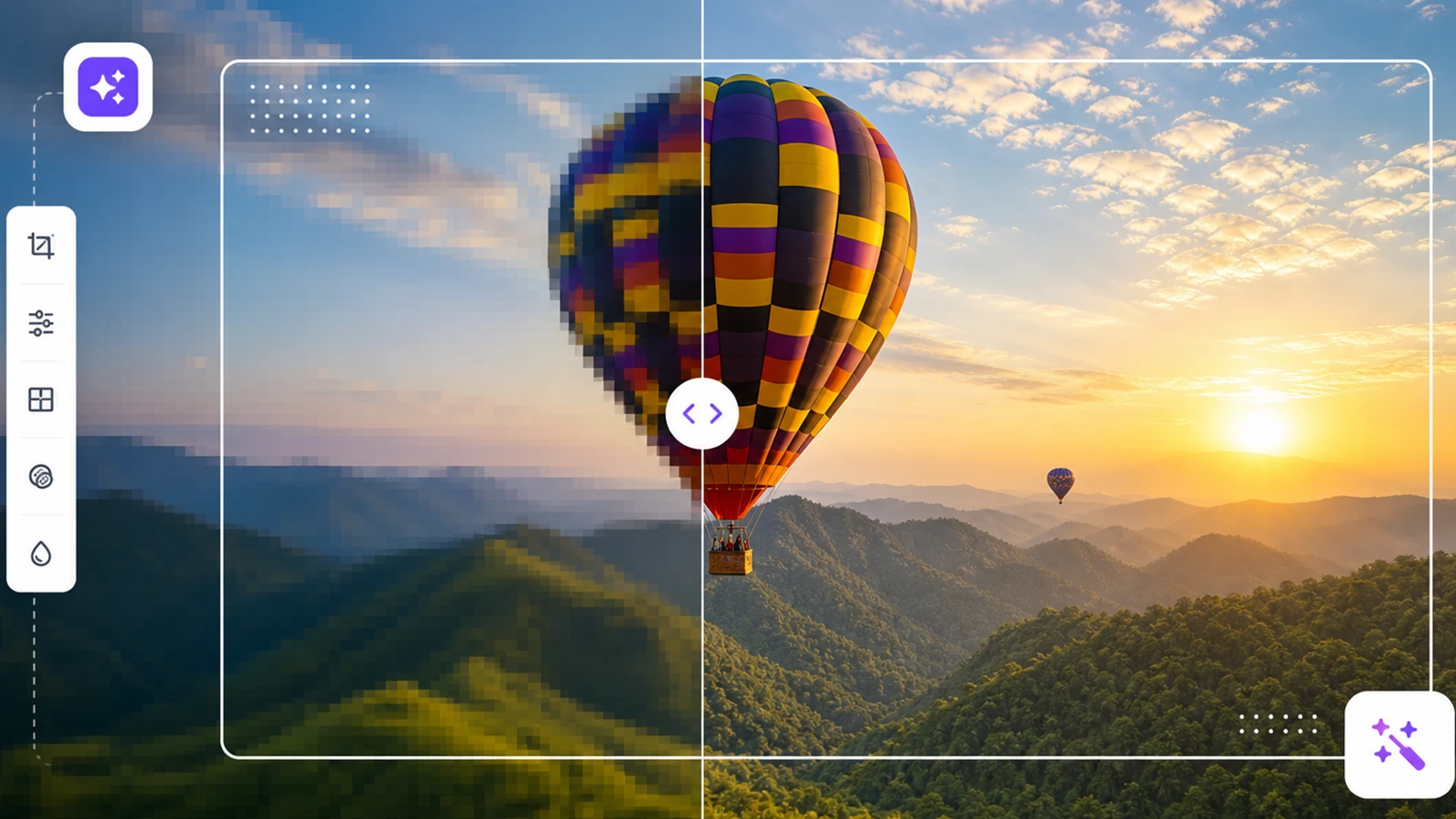
The best AI photo enhancer depends on what you need to fix. Pixelbin is the best first pick for browser-based upscaling, product photos, social media images, and quick quality improvement because its AI image upscaler supports 2x, 4x, and 8x upscaling with quality enhancement options.
Topaz Photo is stronger for professional photographers who need local denoising and sharpening control; Remini is popular for portrait and old-photo restoration; and tools like Pixelbin, Fotor, Picsart, Canva, Upscale.media and more are useful for fast online edits.
Introduction
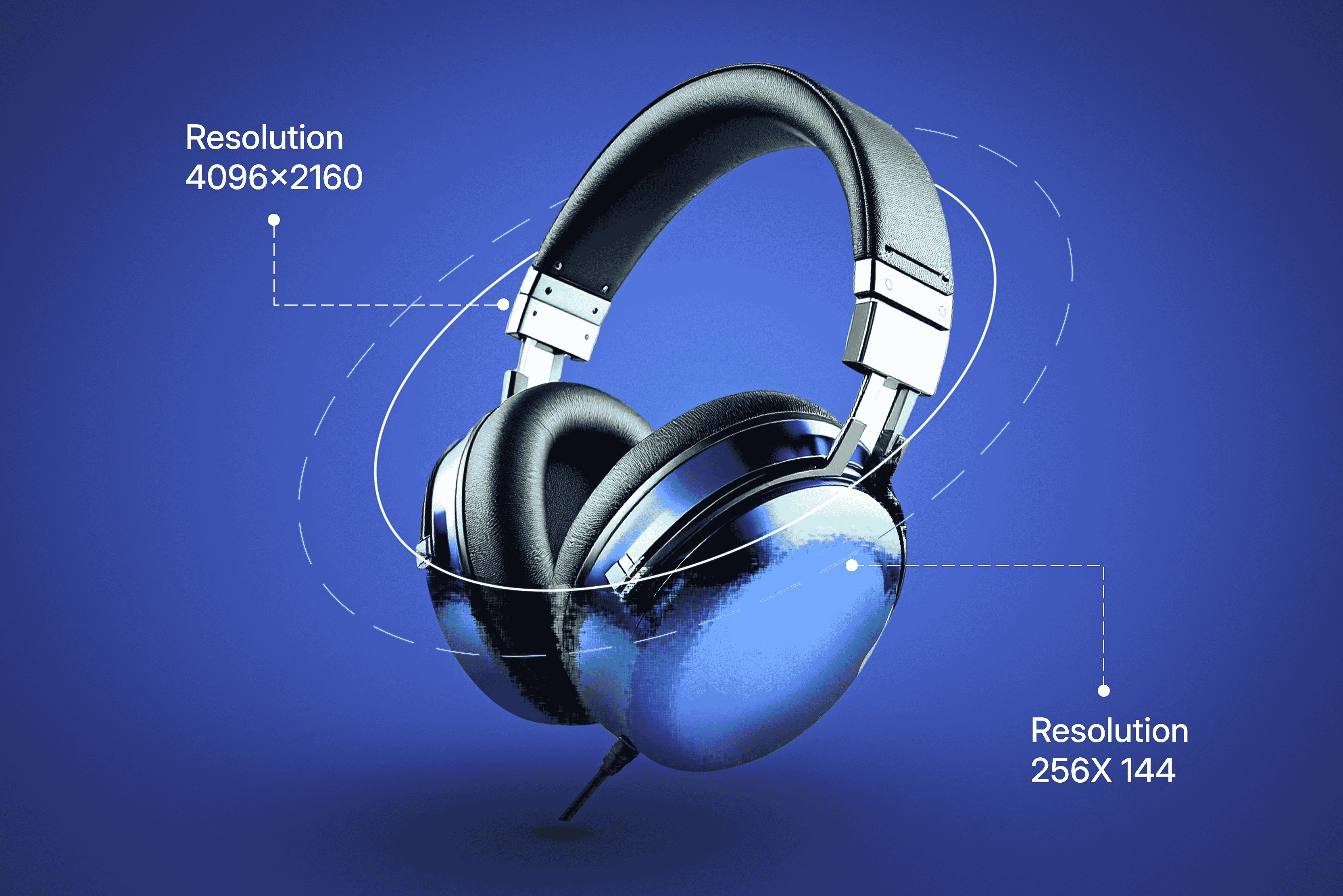
A good photo can still look weak online if it is soft, noisy, compressed, pixelated, or too small for the platform where you want to use it. Product images need clean edges and visible detail. Portraits need natural skin texture and clear faces. Social posts need crisp thumbnails. Print assets need enough resolution to hold up at a larger size.
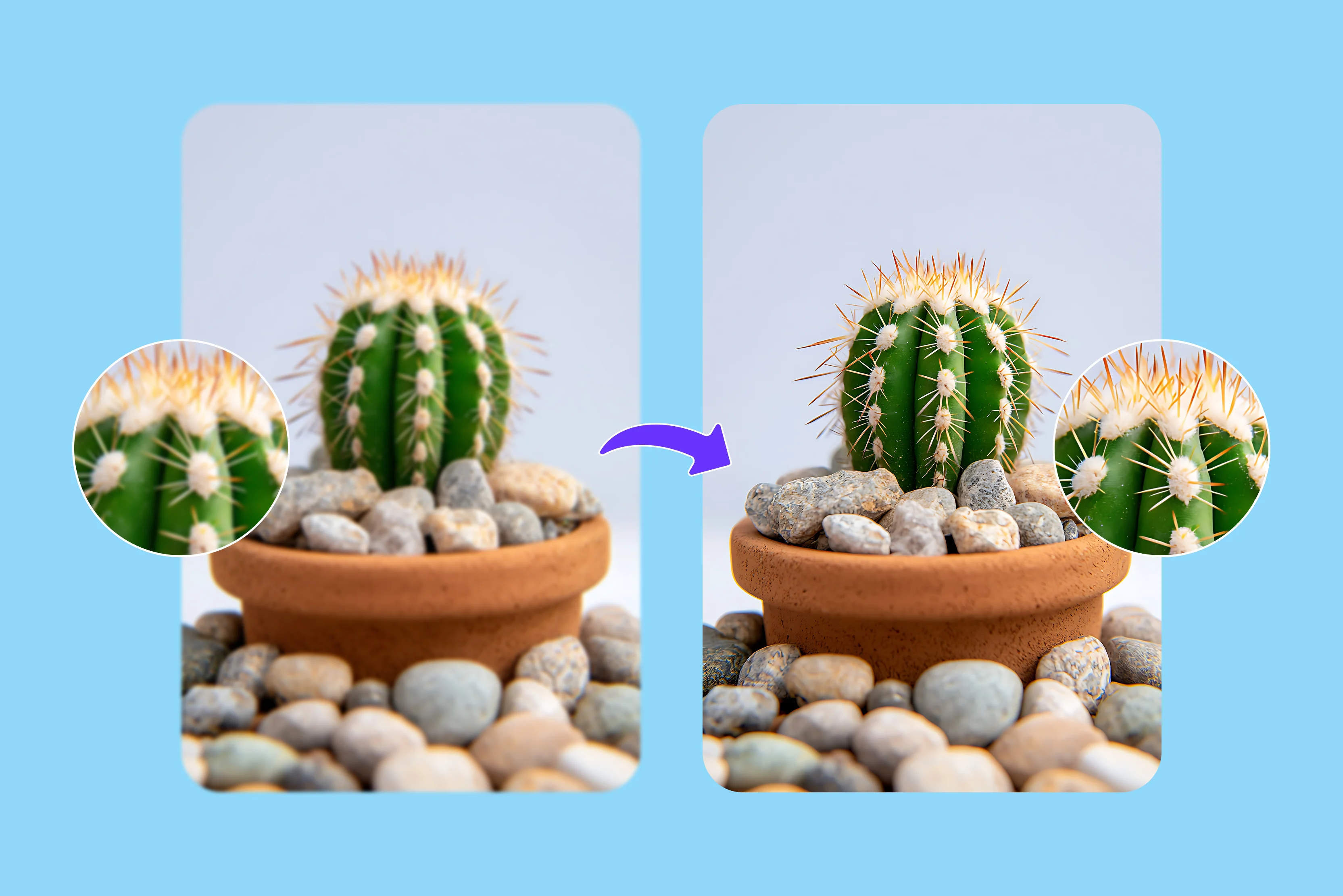
That is why AI image enhancer tools are useful. They can upscale low-resolution images, sharpen blurry details, reduce noise, improve facial clarity, remove compression artifacts, and make visuals look cleaner without requiring a full manual retouching workflow.
This guide compares the best AI image enhancer tools by actual use case, not just brand popularity. Start with the comparison table, then read the tool-by-tool notes to choose the best option for your photos.
What is an AI image enhancer?
An AI image enhancer is software that uses machine learning models (such as deep neural networks) to evaluate, reconstruct, and improve digital image quality. Unlike traditional photo editors that apply uniform manual adjustments, AI enhancers analyze pixel patterns to automatically correct specific visual defects without destroying original image detail.
Core functions & capabilities
- Quality Restoration: Sharpens blurry edges, removes digital noise/grain, restores facial features, and fixes low-light exposure.
- Artifact Removal: Cleans up blocky textures caused by JPEG compression or low-bitrate exports.
- Color & Tone Correction: Intelligently balances contrast, color saturation, and dynamic range.
AI enhancer vs. AI upscaler
How to choose the best AI photo enhancer
Selecting the right AI photo enhancer depends on matching model capabilities to your specific visual use case.
Business & commercial use
- E-commerce Photography: Prioritize tools built for commercial fidelity. The enhancer must sharpen edges, clear compression artifacts, and adjust lighting while strictly preserving product textures, exact colors, and brand labels without generating uncanny synthetic details.
- Team & Agency Workflows: Look for platform-level infrastructure. Ensure the solution supports batch processing, REST APIs for automated catalog pipelines, high file size limits, flexible export formats (PNG, WebP, TIFF), and commercial licensing terms.
Media & media preparation
- Professional Photography: Choose desktop or plugin software with granular manual sliders alongside automated models. Target features with local RAW processing, dedicated noise reduction (denoise), and precise focus recovery over single-click filter presets.
- Print Production: Focus on deep generative upscaling paired with hallucination controls. Increasing pixel counts (e.g., 300 DPI target) is useless if the engine introduces plastic textures, over-sharpened halos, or smooths fine grain.
Content & personal restoration
- Portraits & Headshots: Select software with dedicated face-restoration models. The tool should refine eyes and soft facial lighting without over-smoothing skin texture or altering person identity.
- Old Photo Restoration: Pick specialized models designed for physical degradation. Effective tools fix scratches, remove tear lines, denoise physical film grain, colorize black-and-white plates, and rebuild severely blurred face details.
- Social Media: Opt for lightweight, browser-based, or mobile platforms. Prioritize rapid cloud processing speed, automated aspect-ratio cropping, fast background removal, and instant export routines over heavy deep-learning customization.
Top 13 best AI image enhancer tools
Whether you are an e-commerce seller preparing product catalogs, a photographer restoring old prints, or a creator prepping high-DPI graphics, choosing the right tool depends on your specific visual needs. Here are the top AI image enhancer tools for you below;
1. Pixelbin
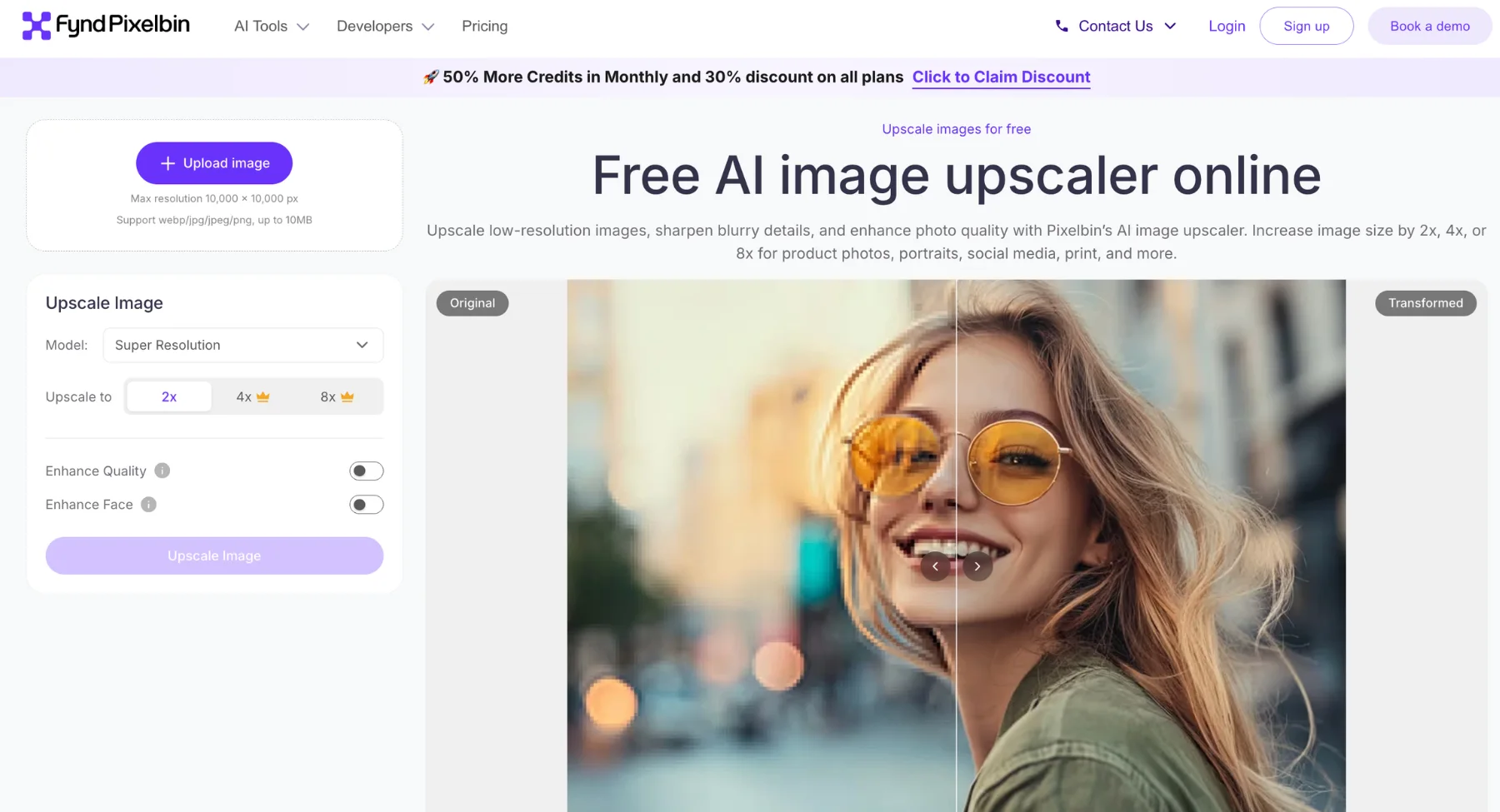
Best for: ecommerce product images, social posts, creator assets, low-resolution photos, and teams that want upscaling plus a broader AI editing workflow. Pixelbin AI image upscaler is built for increasing image resolution while sharpening blurry details and improving photo quality. It supports JPG, JPEG, PNG, and WebP uploads and offers 2x, 4x, and 8x upscaling options.
Why it stands out:
- Engine: Powered by advanced deep-learning algorithms, Pixelbin serves as a high-performance AI image enhancer designed to fix blur, restore fine detail, and upscale visual resolution without artifacting.
- Ecosystem: Operates as a cloud-based web application, mobile app, and API-driven digital asset management (DAM) platform, featuring real-time image transformation, instant background removal, and an automated photo quality enhancer.
- Audience: Built for e-commerce sellers, social media managers, SEO content creators, and marketing teams who require a fast AI image enhancer for free to process bulk product photography and digital visuals.
- Efficiency: Functions as an instant AI image enhancer online that handles single-click upscaling and real-time optimization, allowing users to improve image clarity, adjust contrast, and unblur photos in seconds.
- Limitations: Free plan accounts come with restricted export resolution caps and limited monthly processing credits, requiring a paid subscription for full bulk workflow access.
How to enhance photos with Pixelbin
- Upload Your Image: Open Pixelbin’s online image upscaler and upload any standard file format, including JPG, JPEG, PNG, or WebP.
- Select Upscaling Factor: Choose your preferred resolution boost—such as 2x, 4x, or 8x—tailored to your publishing needs, whether for web displays, social media, or high-density print materials.
- Apply Smart Enhancements: Toggle on quality enhancement or face unblur settings when processing portraits, product shots, or low-light photos that demand extra detail and texture sharpness.
- Preview and Download: Generate the processed file, preview the side-by-side comparison at full size against the original, and download the high-resolution output.
- Refine and Export: If your file requires additional cleanup, seamlessly transition into Pixelbin’s broader AI editing suite to run background removal or object erasure before final publication.
For prompt-based touch-ups after enhancement, the AI image editor can help with follow-up edits such as object cleanup, extension, or visual changes.
For ecommerce photos, pair enhancement with an AI background remover when the product needs a cleaner background before publishing.
2. Topaz Photo
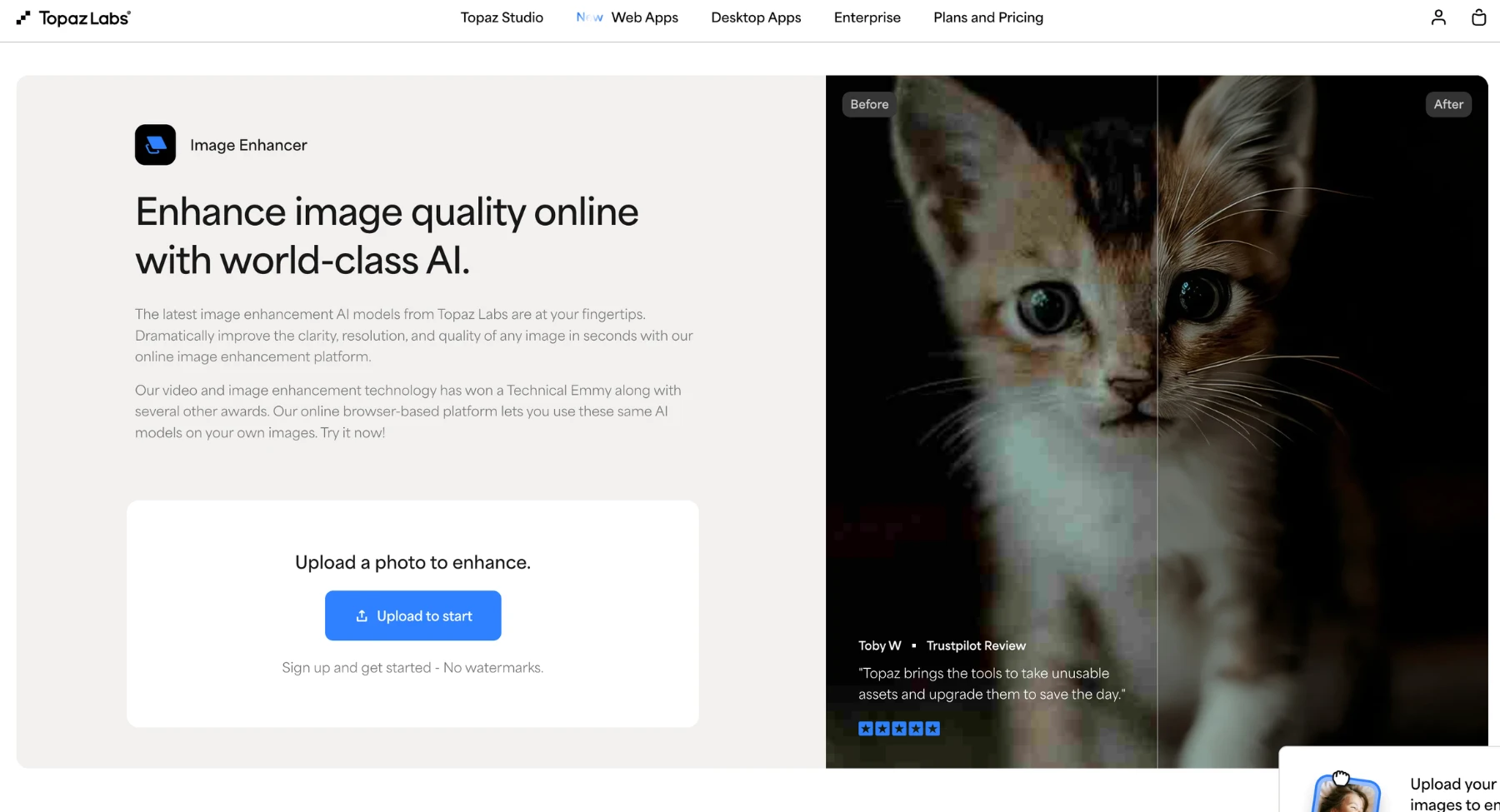
Best for: professional photographers, wildlife shots, sports photos, low-light images, and print preparation. Topaz Photo combines upscale, denoise, sharpen, face recovery, lighting, color, and other finishing tools. It is strong when the source photo is valuable and the user wants more control than a quick browser enhancer.
Why it stands out:
- Engine: Powered by advanced deep-learning neural networks, Topaz Photo operates as a professional AI image enhancer made to eliminate heavy noise, reconstruct fine surface textures, correct motion blur, and upscale resolution without producing edge artifacts.
- Ecosystem: Runs as a native desktop application for macOS and Windows while integrating as a direct plugin for Adobe Photoshop, Lightroom Classic, and Capture One Pro using dedicated local GPU acceleration.
- Audience: Tailored for professional photographers, digital artists, archiving specialists, and print production teams seeking a reliable AI image enhancer online to recover out-of-focus portraits and upscale cropped frames for large-format printing.
- Efficiency: Serves as a streamlined image enhancer 4k utilizing an automated Autopilot feature that detects subject flaws, assesses noise levels, and applies optimal sharpening, face recovery, and upscaling in a single step.
- Limitations: Demands a high-performance computer with a dedicated graphics card for fast rendering speeds, omits full creative color grading suites, and relies on a premium pricing structure without a permanent free plan.
3. Let's Enhance
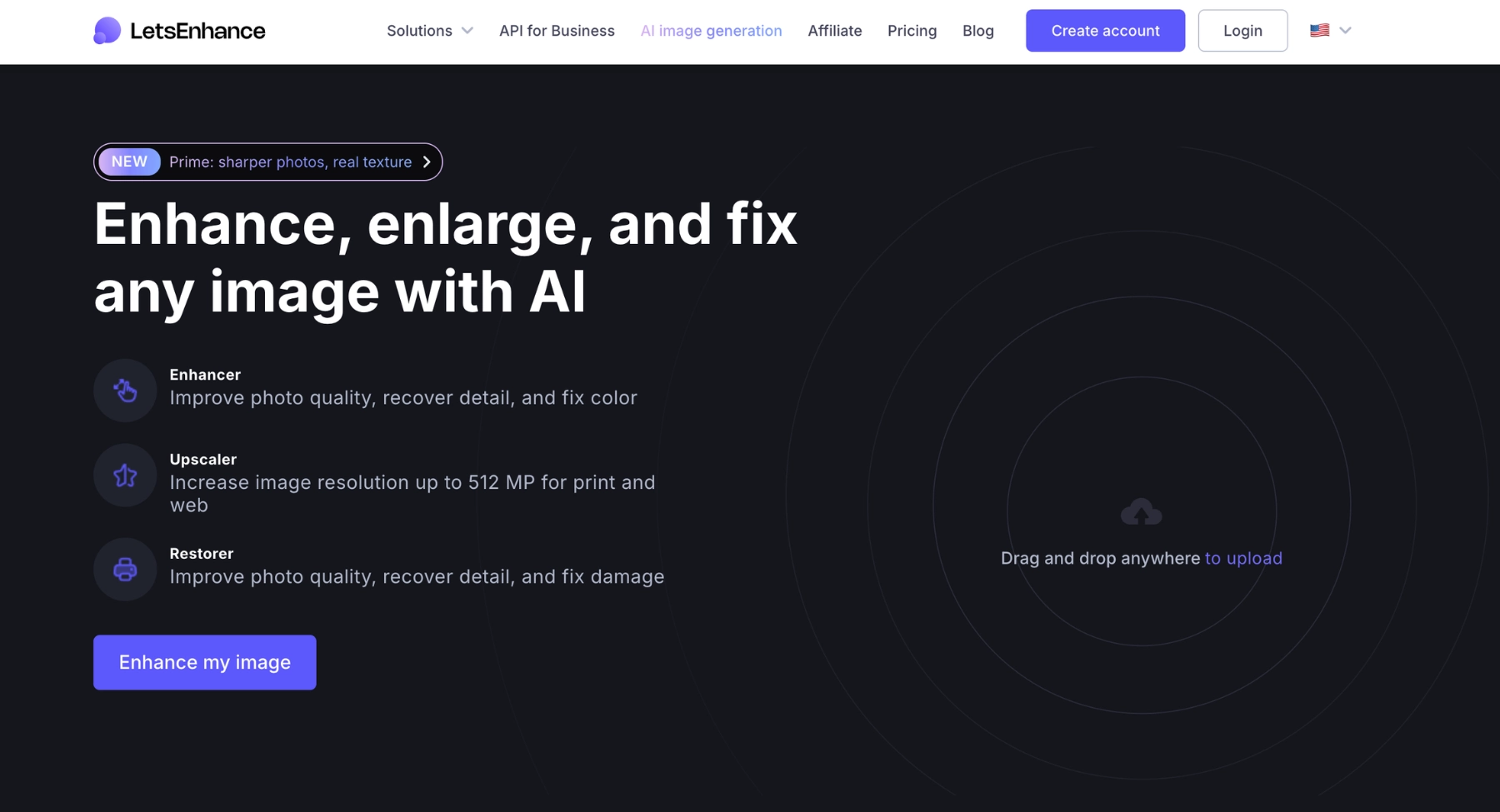
Best for: online image enhancement for ecommerce, print, marketing, and creative images. Let's Enhance focuses on improving clarity, detail, and resolution directly in the browser, which makes it practical for non-designers and teams that need quick output.
Why it stands out:
- Engine: Powered by deep-learning generative neural networks, Let’s Enhance serves as a web-based image enhancer engineered to reconstruct natural surface textures, remove JPEG compression artifacts, and upscale image resolution up to 16x without introducing edge halos or plastic skin distortion.
- Ecosystem: Operates as a cloud-based web application and API platform (via Claid.ai), featuring specialized operational modes including Prime, Gentle, Old Photo Restorer, Smart Enhance, and an automated background remover.
- Audience: Tailored for e-commerce store owners, digital artists, print-on-demand sellers, and social media marketers who need an accessible AI image enhancer to turn low-resolution assets into print-ready files or polished product catalog shots.
- Efficiency: Functions as a streamlined image enhancer online that handles single-click batch upscaling up to 512 MP, automatic color and exposure correction, and preset DPI targeting for quick workflow execution.
- Limitations: Relies on a web-only credit system that limits free tier usage with watermarked outputs, requiring a monthly subscription or credit bundle for high-volume batch processing and full commercial access.
4. Remini
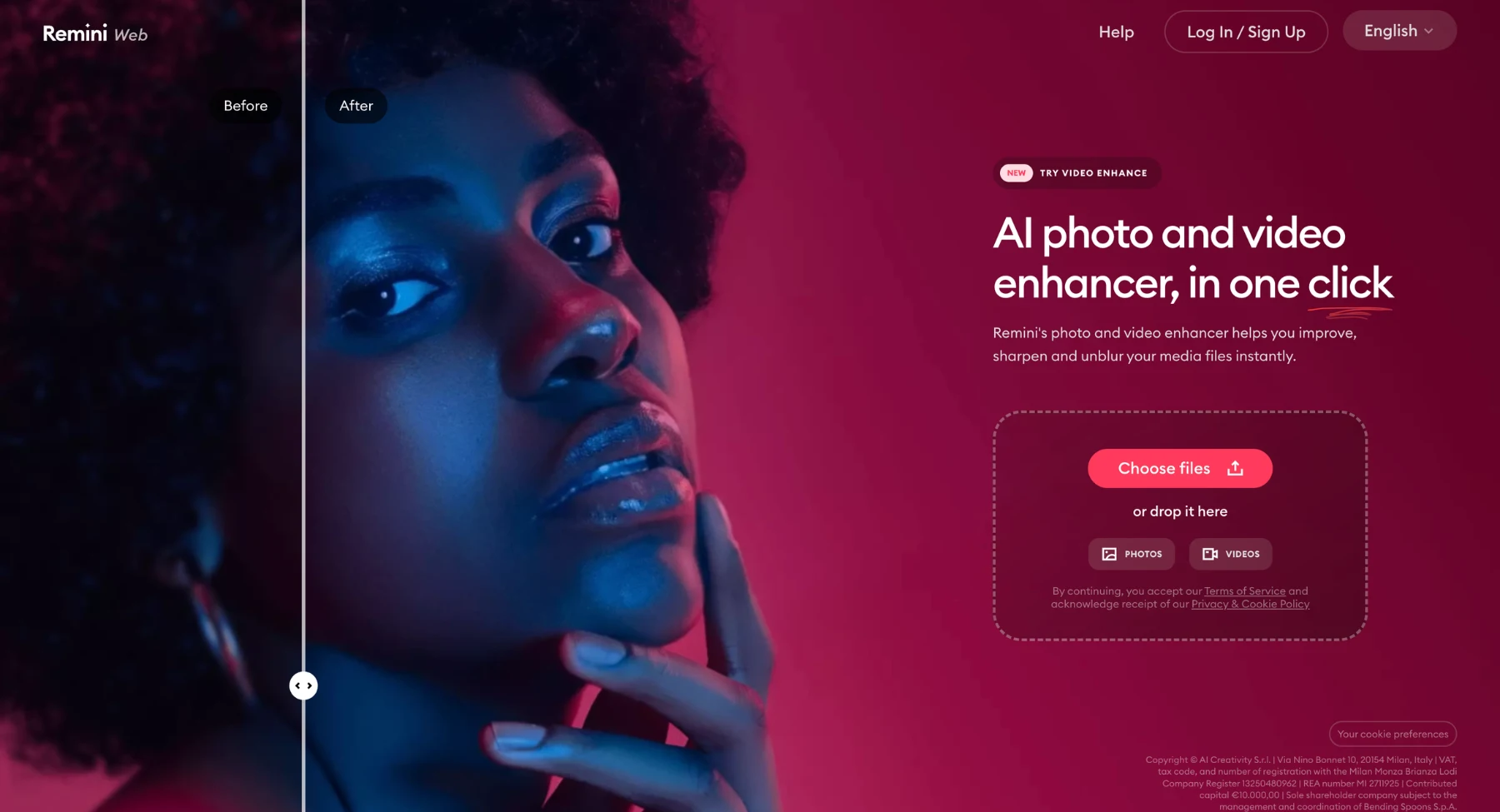
Best for: portraits, selfies, face enhancement, and old photo restoration. Remini is known for making faces look clearer and sharper. It is especially useful when the subject is a person and the goal is to recover a cleaner portrait quickly.
Why it stands out:
- Engine: Powered by specialized generative deep-learning models, Remini operates as a mobile-first AI image enhancer focused on facial detail reconstruction, skin texture smoothing, and high-definition feature sharpening.
- Ecosystem: Runs primarily as an iOS and Android mobile app alongside a web interface and API integrations, offering face enhancement, color restoration, and video upscaling tools.
- Audience: Tailored for mobile creators, casual consumers, social media influencers, and family archivists needing a quick image enhancer for 4k to restore low-resolution selfies, vintage portrait prints, and compressed social uploads.
- Efficiency: Delivers an instant image enhancer online experience through automated single-tap processing, delivering rapid facial clarity fixes, color correction, and noise reduction with minimal user configuration.
- Limitations: Heavy facial reconstruction can occasionally produce overly artificial skin textures, free mobile usage requires watching advertisements with download caps, and subscription tiers are split separately between web and app platforms.
5. Adobe Express
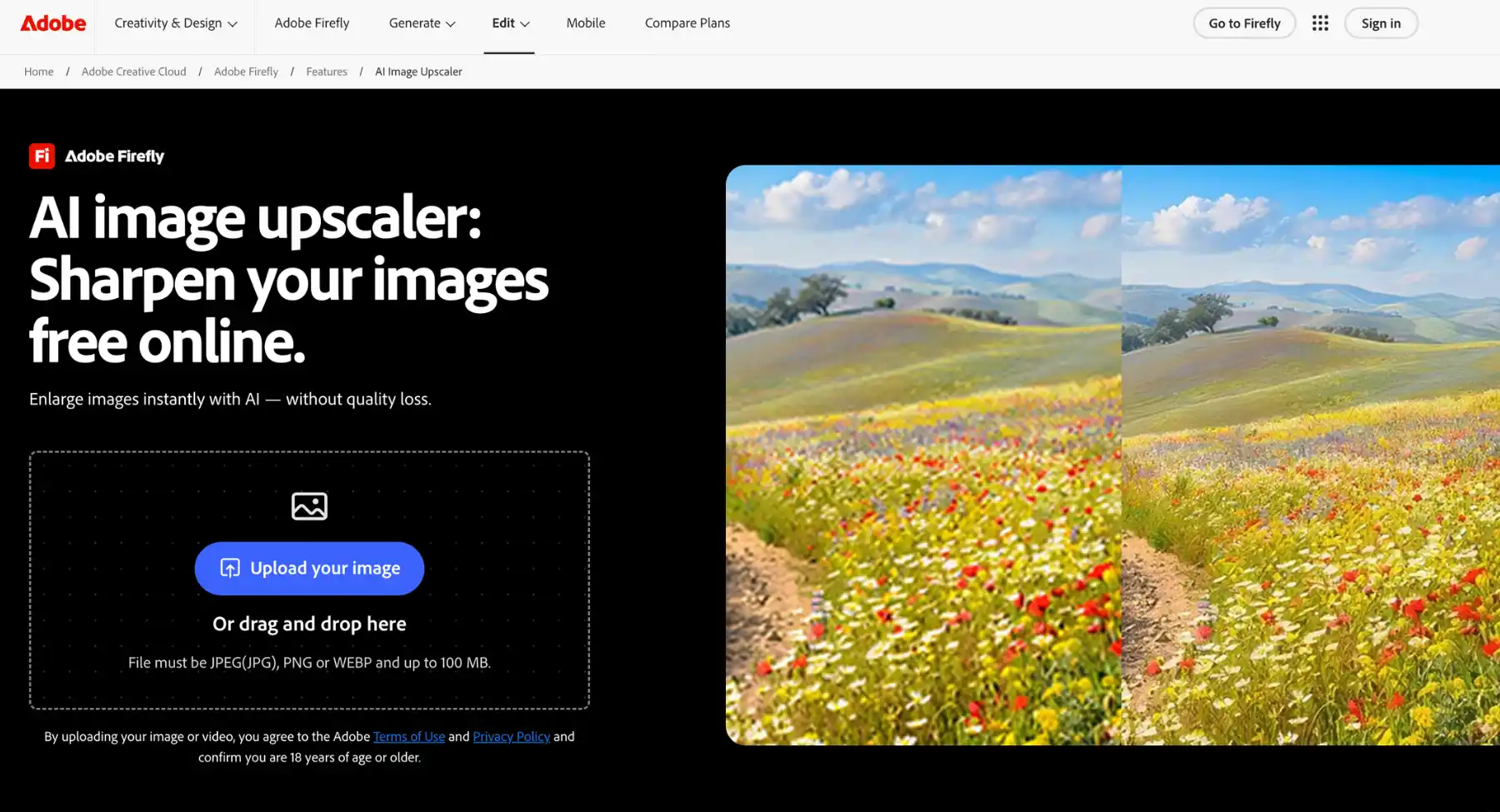
Best for: quick online enhancement, social content, and users already in the Adobe ecosystem. Adobe Express offers a free online image enhancer that can make photos clearer and easier to use in designs. It works well when enhancement is part of a social post, flyer, or quick graphic workflow.
Why it stands out:
- Engine: Powered by Adobe Firefly generative AI models, Adobe Express functions as an all-in-one web AI image enhancer free designed to execute object insertions, erase distractions, restore faded colors, and sharpen soft visual assets.
- Ecosystem: Operates as a cross-platform web application, desktop app, and mobile app for iOS and Android, integrating with Creative Cloud libraries, Adobe Stock, and enterprise design brand kits.
- Audience: Built for content marketers, social media creators, small business owners, and educators needing a versatile AI image enhancer to clean up imagery while building multi-format promotional campaigns.
- Efficiency: Serves as an intuitive photo quality enhancer online for free, featuring quick-action shortcuts for background removal, text-prompted edits, lighting adjustments, and dynamic template resizing in a single workspace.
- Limitations: Advanced generative fill transformations consume monthly generative credits, and raw image upscaling capability remains less comprehensive than dedicated desktop restoration suites like Photoshop or Topaz.
6. Canva
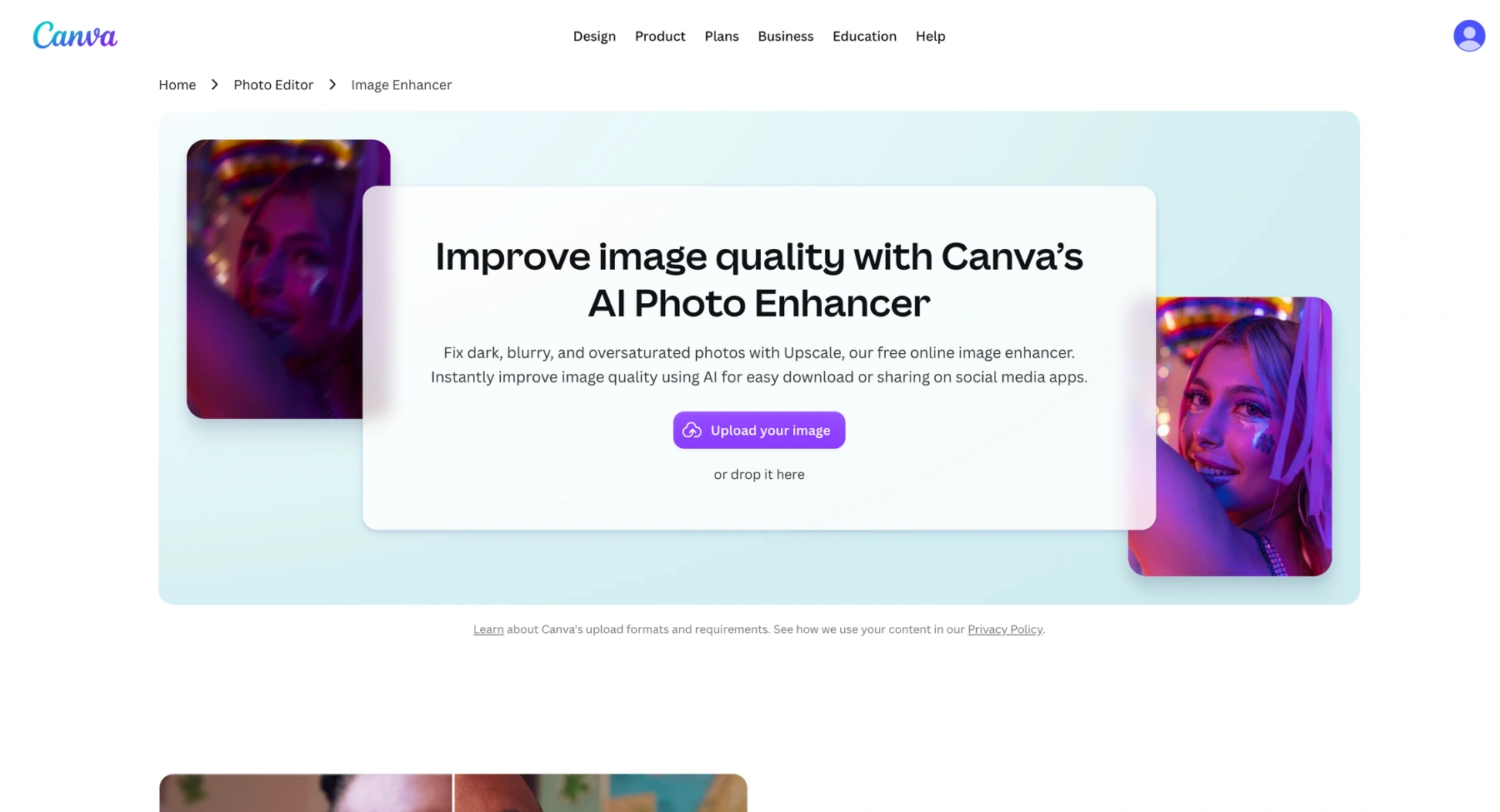
Best for: design teams, marketers, and social media creators who enhance images inside a design canvas. Canva is not only an enhancer. It is useful because photo improvement sits inside a wider design workflow with templates, resize options, text, brand kits, and social formats.
Why it stands out:
- Engine: Powered by Canva’s Magic Studio generative AI models, Canva functions as an intuitive web-based AI image enhancer designed to fix soft focus, remove unwanted objects, adjust lighting, and expand image boundaries using context-aware fill algorithms.
- Ecosystem: Operates as a multi-platform application across web browsers, desktop (Windows/macOS), and mobile (iOS/Android), seamlessly integrated with a vast stock media library, brand kits, and collaborative design tools.
- Audience: Built for social media marketers, graphic designers, small business owners, and educators needing an accessible image enhancer online to polish visual assets while assembling multi-channel marketing campaigns.
- Efficiency: Serves as a versatile AI image enhancer featuring one-click Magic Grab, instant background remover, photo clarity adjustments, and dynamic template resizing within a unified drag-and-drop workspace.
- Limitations: Advanced Magic Studio AI features require a paid Canva Pro or Teams subscription, and standalone image upscaling features offer fewer granular controls compared to specialized desktop restoration suites.
7. Picsart
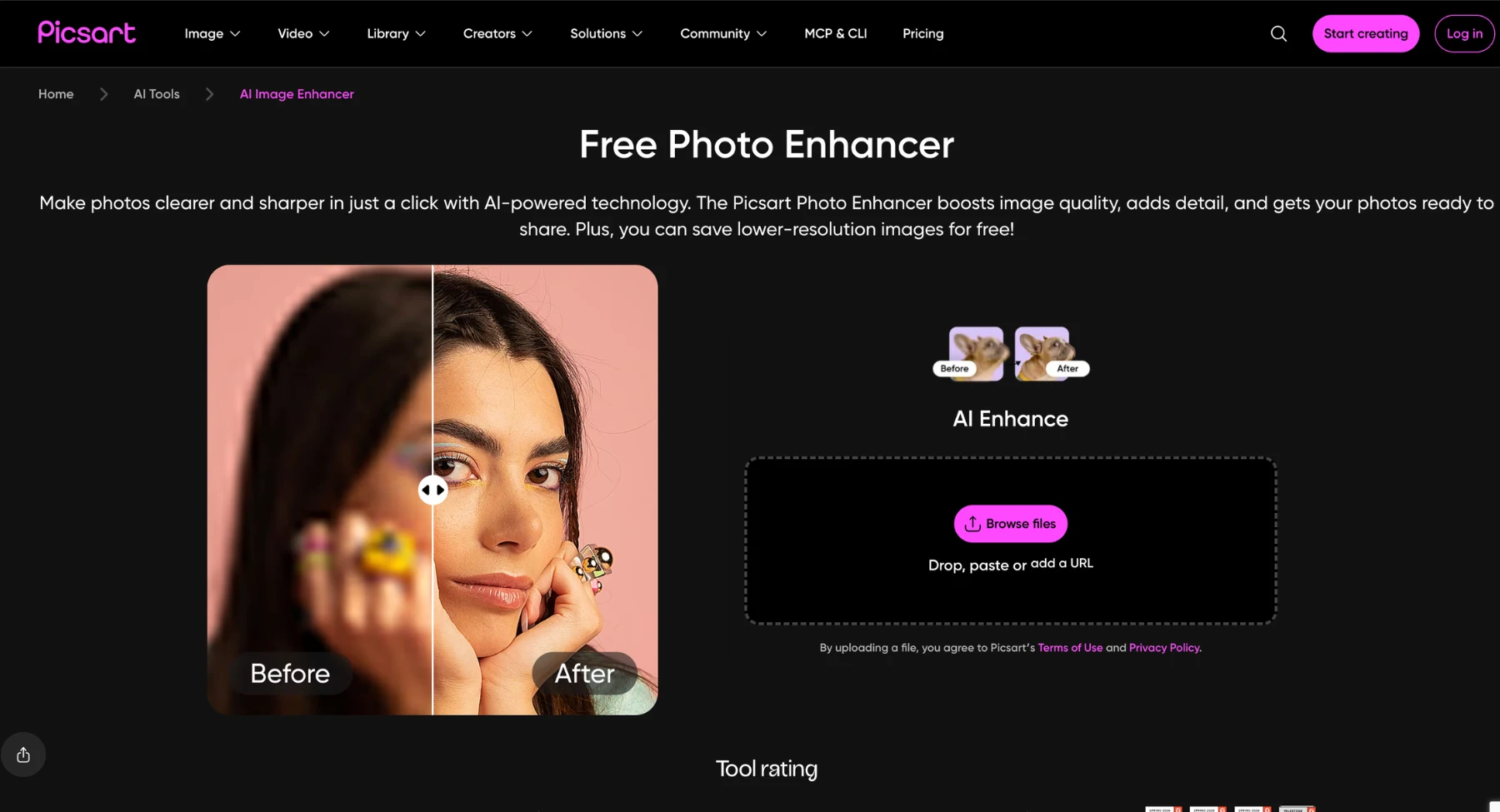
Best for: creator photos, social posts, batch enhancement, and mobile-friendly edits. Picsart's enhancer targets blur, noise, low contrast, resolution, and pixelation, with related tools for sharpening, denoising, unblur, restoration, and batch enhancement.
Why it stands out:
- Engine: Powered by proprietary generative AI models and computer vision algorithms, Picsart functions as a versatile creative AI image enhancer engineered to sharpen pixelated inputs, remove noise artifacts, adjust lighting balance, and upscale visual assets in real time.
- Ecosystem: Operates as a mobile-first application for iOS and Android, alongside a feature-rich web platform, browser extension, and API suite, featuring AI batch editing, style transfer, and background removal tools.
- Audience: Built for social media creators, digital artists, e-commerce vendors, and mobile marketers who require an accessible image enhancer online to turn low-quality photos into vibrant, channel-ready marketing visuals.
- Efficiency: Serves as a rapid image enhancer for free offering single-tap HD upscaling, automated lighting correction, object eraser quick-actions, and customizable creative filters within an all-in-one editing canvas.
- Limitations: Advanced high-resolution exports and specialized AI editing tools require a Picsart Plus or Pro subscription, while the free tier includes ad pop-ups and feature access limits on mobile devices.
8. Fotor
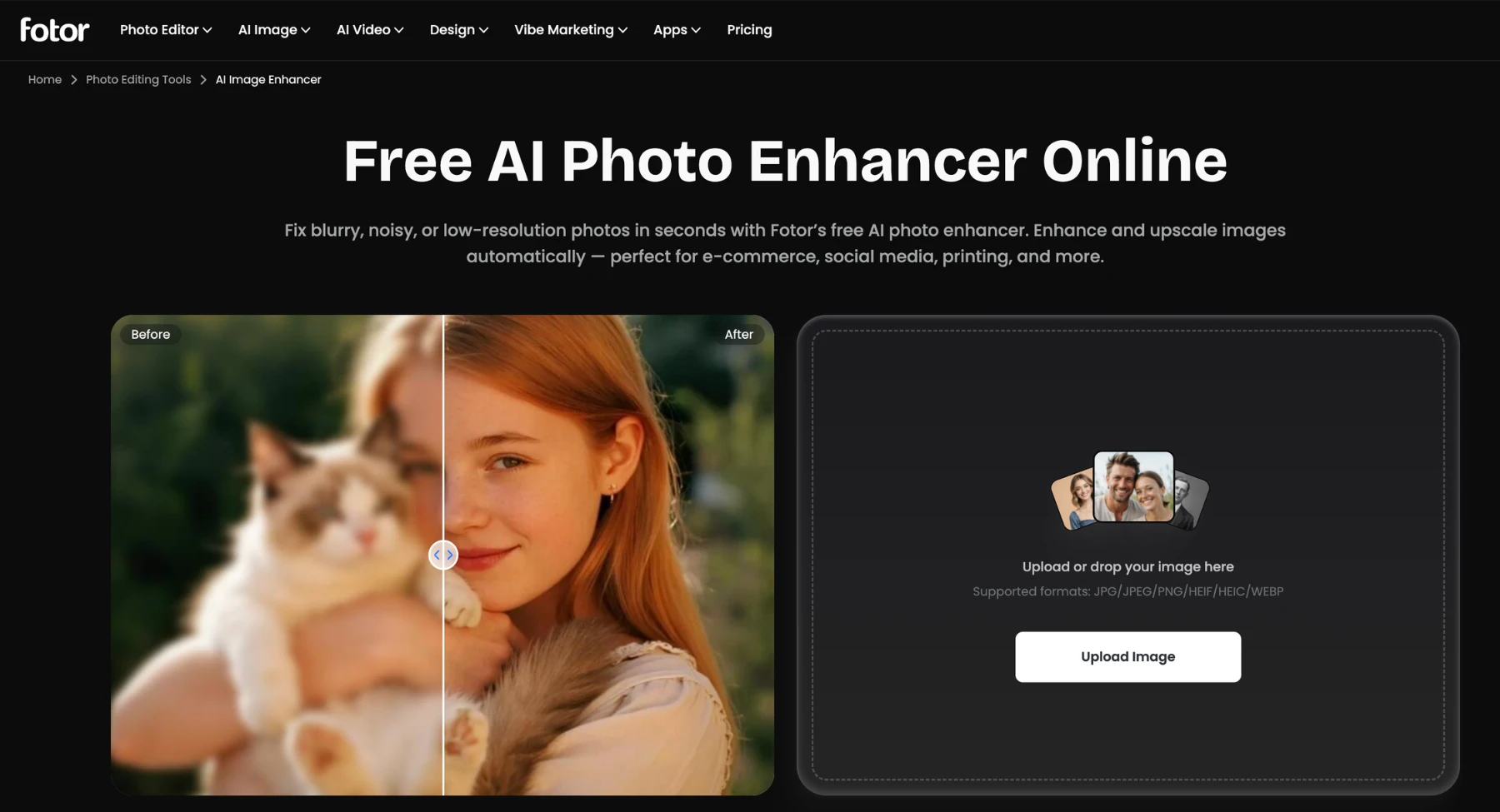
Best for: general online photo enhancement for casual users, creators, and small businesses. Fotor is easy to use and useful for improving image quality and resolution without a steep learning curve. It fits users who want a quick, browser-based photo quality enhancer.
Why it stands out:
- Engine: Powered by advanced computer vision and neural photo-restoration algorithms, Fotor operates as an all-in-one AI image enhancer engineered to fix blur, restore color balance, sharpen fine textures, and automatically adjust exposure levels across compressed visual files.
- Ecosystem: Available as a web-based application, desktop software (Windows/macOS), and mobile app for iOS and Android, integrating batch photo editing, AI portrait retouching, and background removal suites.
- Audience: Tailored for casual photographers, real estate agents, e-commerce merchants, and digital marketers seeking an easy-to-use image enhancer online to polish blurry product shots, landscape photos, and portrait imagery without complex editing skills.
- Efficiency: Delivers a single-click 4K image enhancer experience featuring 1-Tap Enhance, automated face unblurring, smart light correction, and HD upscaling to boost clarity and vibrancy in seconds.
- Limitations: Downloading high-definition, unwatermarked visual outputs requires Fotor Pro or Pro+ credits, and advanced restoration options for heavily damaged photos offer less manual control than desktop-native suites.
9. VanceAI image enhancer
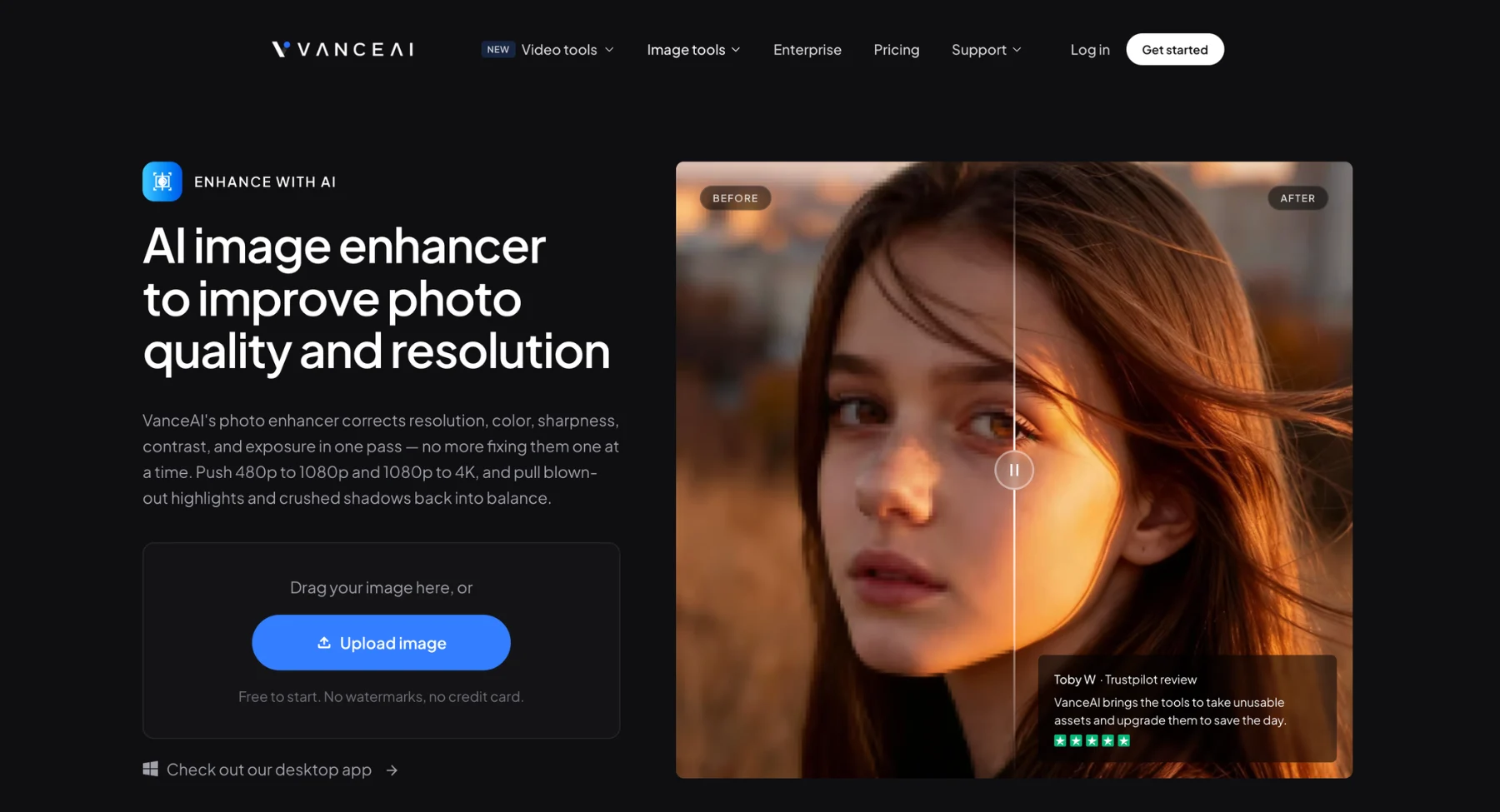
Best for: dedicated online enhancement, denoising, sharpening, and upscaling workflows. VanceAI offers multiple specialized utilities, which makes it practical when a user knows the exact issue: low resolution, noise, blur, or weak detail.
Why it stands out:
- Engine: Powered by specialized deep convolutional neural networks (DCNN), VanceAI operates as a dedicated online image enhancer 4k engineered to suppress noise, sharpen soft edges, restore lost facial details, and upscale resolution up to 8x without pixel degradation.
- Ecosystem: Available as a web-based processing platform, desktop software (VanceAI PC), and developer API suite, featuring specialized operational modules like AI Image Enlarger, AI Sharpener, AI Portrait Retoucher, and AI Photo Restorer.
- Audience: Tailored for graphic designers, webmasters, anime artists, and e-commerce specialists requiring an efficient image enhancer online to process product visuals, digital artwork, and low-resolution site graphics.
- Efficiency: Delivers an automated AI image enhancer workflow with single-click batch processing capabilities, allowing users to upscale multiple files, unblur photos, and eliminate JPEG compression artifacts simultaneously.
- Limitations: Free online tier operates on a strict credit system with watermarked previews, and processing heavy batch queues on the web interface requires purchasing recurring credit plans.
10. PicWish
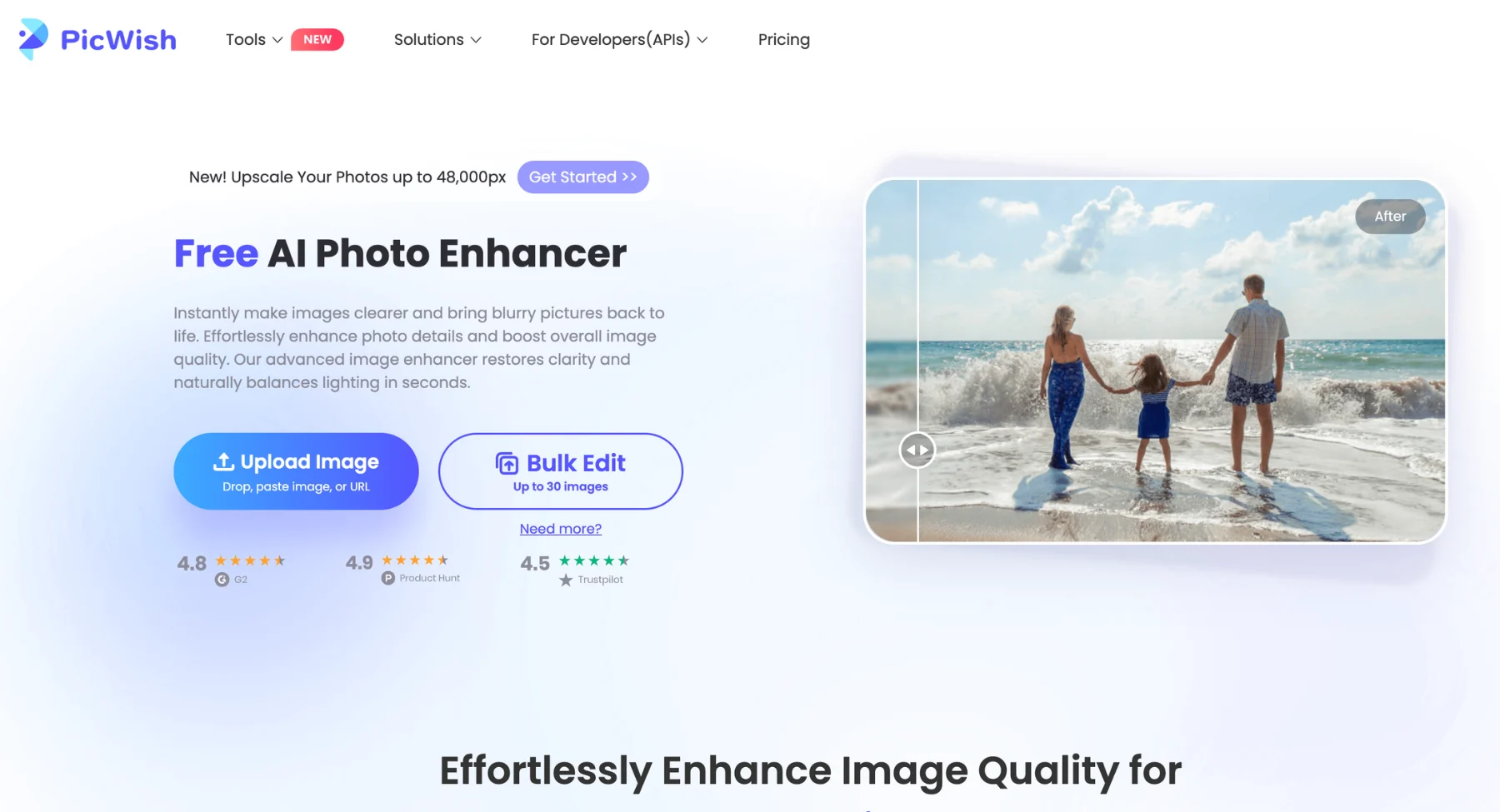
Best for: batch enhancement, product photos, portraits, anime, old photos, and social images. PicWish supports online enhancement and batch workflows, including product and business use cases. It is useful when users need to make many images clearer without editing one by one.
Why it stands out:
- Engine: Powered by deep-learning computer vision and automatic image restoration models, PicWish operates as a streamlined web AI image enhancer designed to fix pixelated surfaces, sharpen out-of-focus details, clear background distractions, and upscale photo resolution up to 4x.
- Ecosystem: Available as a web-based app, desktop software (Windows/macOS), mobile app (iOS/Android), and API integration, offering specialized tools including AI Face Unblur, Photo Retouch, Background Remover, and ID Photo Creator.
- Audience: Tailored for e-commerce store managers, real estate marketers, graphic designers, and casual creators looking for an accessible image enhancer online to clean up blurry inventory shots and high-volume digital visuals.
- Efficiency: Serves as a high-speed image enhancer 4k with single-click automated processing, fast batch upscale capabilities, and instant drag-and-drop clarity fixes that yield clean results in seconds.
- Limitations: High-resolution unwatermarked downloads and bulk batch processing require purchasing PicWish Pro credits or subscriptions, and manual fine-tuning controls are minimal compared to desktop editing suites.
11. Upscale.media
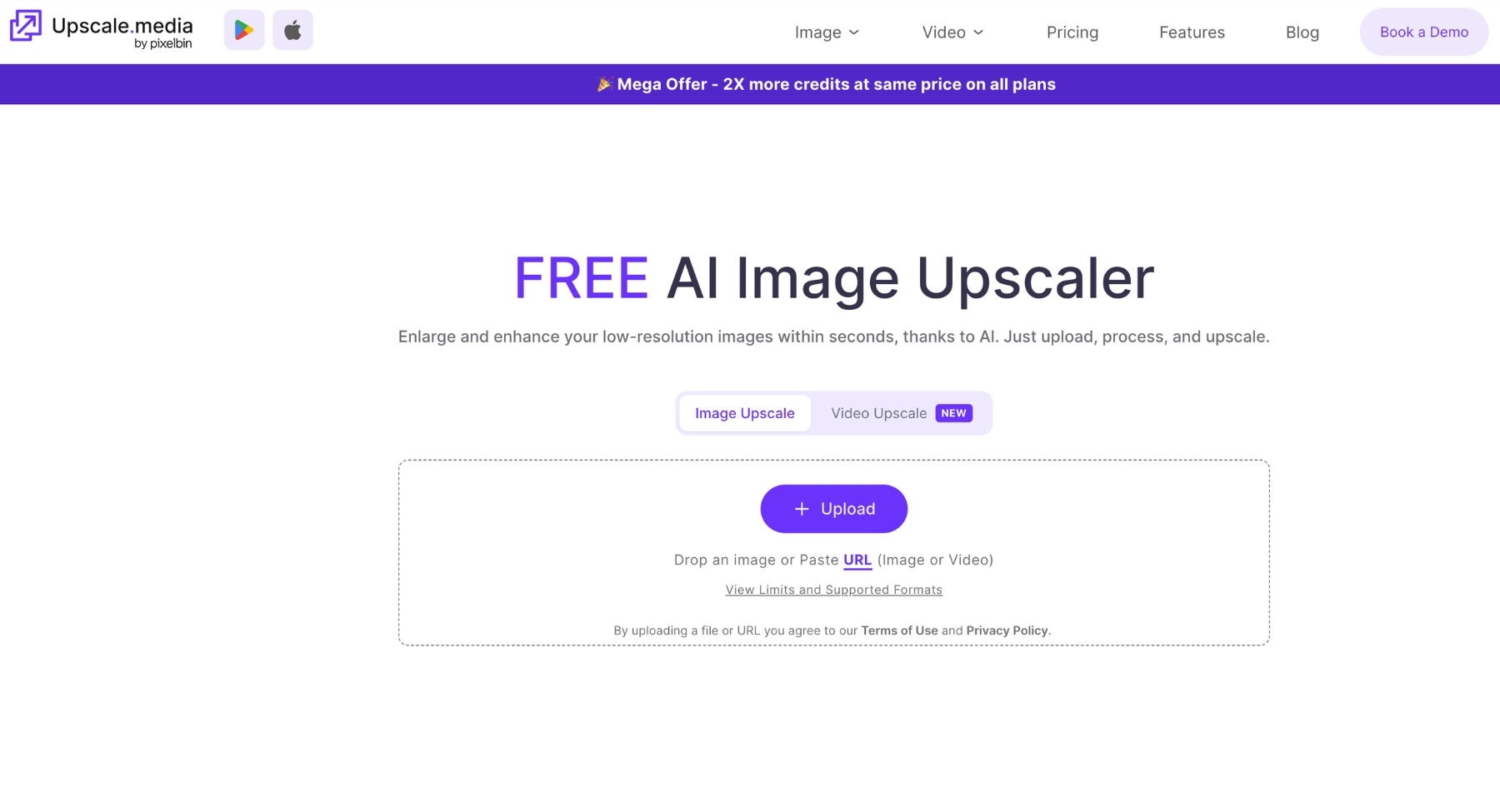
Best for: fast online upscaling and simple image quality improvement. Upscale.media is a straightforward tool for enlarging and enhancing photos online. It is good when the user wants a simple upload, process, and download flow.
Why it stands out:
- Engine: Powered by advanced deep learning super-resolution models, Upscale.media functions as a dedicated online image enhancer engineered to increase image resolution up to 4x, retain natural textures, remove JPEG compression artifacts, and restore sharp details across blurred image files.
- Ecosystem: Accessible via a web-based processing platform, mobile apps for iOS and Android, and a scalable cloud API, forming part of the Pixelbin.io AI media suite designed for automated workflow integration.
- Audience: Tailored for e-commerce retailers, digital marketers, web developers, and social media managers seeking a fast image enhancer 4k to turn low-quality product listings, graphics, and personal photos into high-definition digital assets.
- Efficiency: Serves as a streamlined image enhancer free with single-click drag-and-drop processing, offering real-time side-by-side preview toggles and automatic artifact removal to deliver polished results within seconds.
- Limitations: Advanced bulk batch processing and full commercial API access require a Pixelbin subscription plan, and heavily degraded or low-bitrate photos may display minor soft-edge artifacts during maximum 4x scaling.
12. Krea Enhance
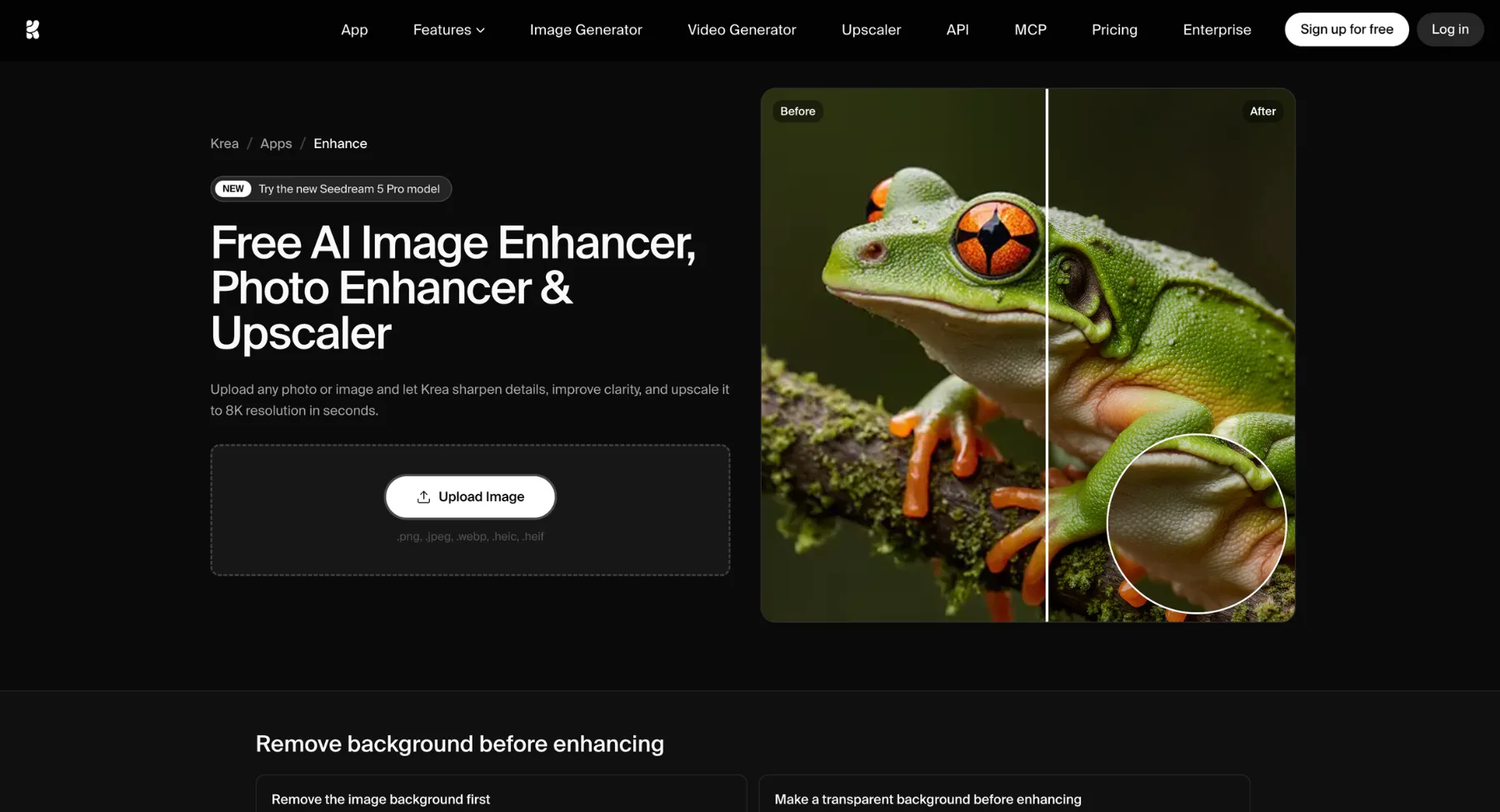
Best for: AI art, creative upscaling, detailed textures, and stylized images. Krea Enhance is strong for creative visuals where the user wants higher detail, richer texture, or a more polished AI-art output.
Why it stands out:
- Engine: Powered by advanced generative diffusion models and spatial AI algorithms, Krea Enhance operates as a high-fidelity AI image enhancer designed to intelligently re-imagine fine details, upsample visual textures, correct motion blur, and expand resolution up to 8k without blurriness.
- Ecosystem: Accessible via a web-based creative platform, integrating live real-time canvas editing, prompt-guided generative enhancement, AI video generation, and seamless custom pattern-generation tools.
- Audience: Built for concept artists, digital designers, 3D render creators, and luxury branding agencies needing a cutting-edge online image enhancer to add photorealistic depth, intricate surface details, and crisp resolution to generative art and visual drafts.
- Efficiency: Serves as a versatile image enhancer for free, featuring interactive slider controls for AI strength and detail fidelity, allowing users to fine-tune between exact structural preservation and creative detail addition in seconds.
- Limitations: High-speed cloud rendering, maximum resolution exports, and commercial usage rights require a Krea Pro monthly plan, with free-tier usage restricted by daily generation quotas and queue wait times.
13. HitPaw

Best for: unblurring, portrait enhancement, low-quality photos, and higher-resolution outputs. HitPaw offers online and desktop-style enhancement paths for users who want to clear up blurry images, improve faces, and enhance resolution.
Why it stands out:
- Engine: Powered by specialized deep-learning neural network models, HitPaw functions as an intelligent AI image enhancer designed to fix blurry details, denoise low-light shots, sharpen out-of-focus portraits, and upscale photo resolution up to 8K without quality loss.
- Ecosystem: Available as desktop software (Windows/macOS), a web-based online editor, and mobile applications for iOS and Android, featuring tailored AI models such as General Model, Denoise Model, Face Model, and Colorize Model.
- Audience: Built for photographers, graphic designers, digital archivists, and content creators looking for a reliable photo quality enhancer online free to restore old family photographs, sharpen blurry portrait shots, and prepare high-resolution prints.
- Efficiency: Operates as a user-friendly image enhancer online offering single-click automated processing, fast batch-editing modes for multiple images, and side-by-side preview comparisons before exporting final files.
- Limitations: Exporting unwatermarked high-resolution visual files requires purchasing a HitPaw license or plan, and heavy batch processing on older computer hardware can demand significant GPU resources.
Common mistakes to avoid when using an AI image enhancer
While an AI image enhancer can instantly restore compressed visuals, unskillful processing often introduces unnatural artifacts. Avoid these crucial pitfalls when upgrading your photos:
Before enhancement
- Over-Processing Crisp Images: Do not assume every photo requires automated enhancement. Processing an already sharp image can cause over-sharpening, harsh haloing, and digital noise.
- Misunderstanding Resolution Limits: Do not upscale tiny, heavily compressed screenshots and expect complex text to become perfectly legible. Generative upscalers reconstruct pixels based on patterns, not exact text recovery.
- Expecting Historical or Forensic Accuracy: Do not rely on one-click tools for legal, medical, forensic, or identity-critical visuals without expert manual review. AI models hallucinate details rather than recover true source data.
After enhancement
- Unnatural Facial Distortion: Do not apply face unblur features without verifying whether the target subject still looks natural. Generative face reconstruction can subtly alter facial structure and identity.
- Ignoring E-Commerce Product Accuracy: Do not publish product listings without carefully inspecting labels, edges, surface textures, and color balance. Inaccurate visual details can misrepresent inventory and drive customer returns.
- Relying Solely on Mobile Previews: Do not evaluate final quality exclusively within a small preview window or mobile screen. Always open and inspect the full-size high-resolution output before final deployment.
By avoiding these critical missteps, creators, e-commerce sellers, and web developers can leverage AI photo editor tools to produce crisp, professional visual assets that maintain structural authenticity across all digital channels.
FAQs
The best AI photo enhancer depends on the use case. Pixelbin is a strong first choice for online upscaling and practical image-quality improvement; Topaz Photo is strong for professional photographers; and Remini is popular for portraits and old-photo restoration.
AI can improve slightly blurry or low-resolution photos by sharpening details and reconstructing missing pixels. It cannot perfectly recover details that were never captured, so severe blur still needs realistic expectations.
An image upscaler increases size and resolution. An image enhancer improves the overall look, including sharpness, noise, color, faces, lighting, and compression artifacts. Many modern tools do both.
Pixelbin, PicWish, and Cutout.Pro are good picks for product-photo workflows because they focus on clarity, detail, and business/ecommerce use cases.
Remini, Picsart, HitPaw, and Topaz Photo are strong portrait options. Always check that the face still looks natural and accurate.
Yes, but review the output carefully. Product photos should not misrepresent colors, labels, dimensions, materials, or texture.
Not always. Enhancement and upscaling often make images larger. After enhancing, compress and resize images for web performance.
Free tools are often enough for quick social images, personal photos, and simple upscaling. Paid tools are usually better for high-resolution exports, batch processing, commercial use, and advanced control.