
Summary
Pixelbin is a creative platform that includes Google Veo alongside other AI video models. Veo is Google DeepMind's video generation technology, available through supported products and APIs. Choose Pixelbin when you want model choice, image preparation, and video editing in one platform. Consider Google Flow or the Gemini API when you need their specific Veo controls or billing options. The decision is about how you access and use Veo, not simply which name produces better videos.
Introduction
You have a product photo and an idea for a short advertisement. You want the camera to move, the scene to feel natural, and the result to fit a vertical feed. Both Pixelbin and Google Veo can be part of that process, but they play different roles.
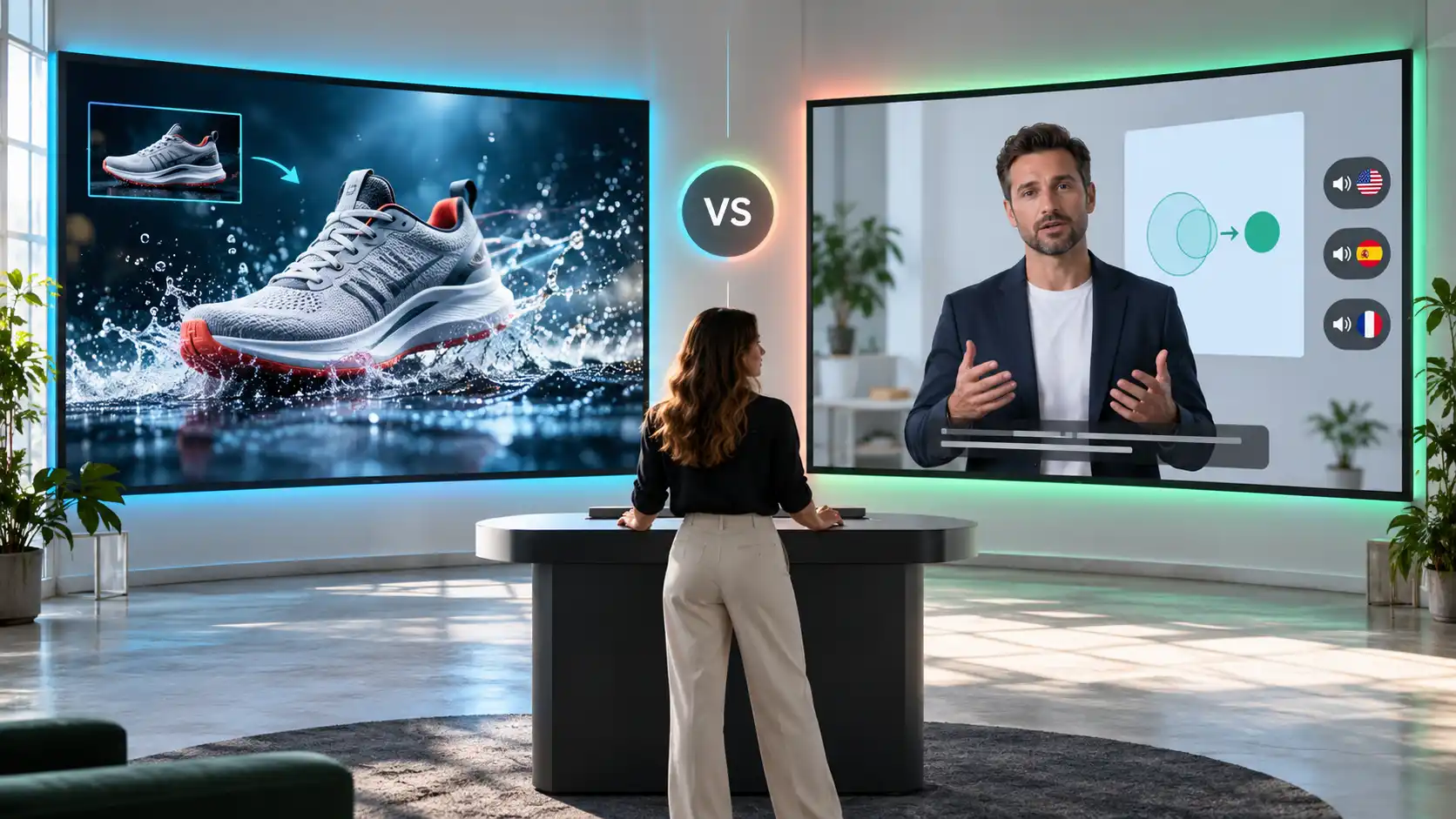
Pixelbin lets you choose a video model and work with creative tools around it. Veo generates the footage. In fact, you can select supported Veo models inside Pixelbin, so choosing Pixelbin does not mean giving up Google's video technology.
This Pixelbin vs Google Veo comparison explains the difference, then looks at video controls, sound, resolution, editing, pricing, and practical use cases. Features and published prices were checked on September 21, 2026.
What is Pixelbin?
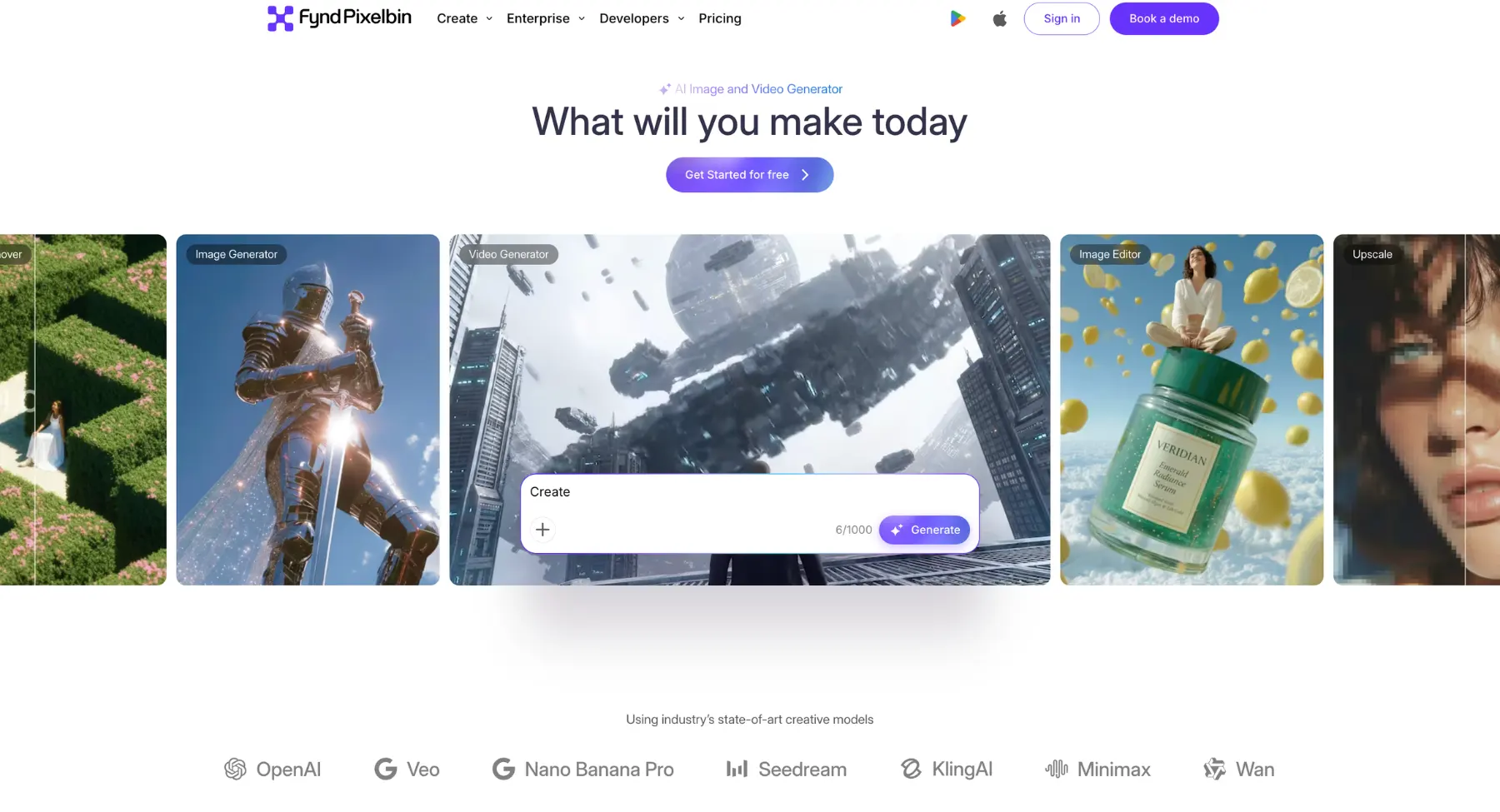
Pixelbin is an AI-powered visual media processing engine for multi-modal generation, enhancement and automated asset preparation for digital workflows.
The system combines high-performance video generation pipelines such as Google Veo with alternative foundation models and centralises access to them via a single infrastructure layer to reduce subscription overhead. Depending on the model configuration you choose, the amount of resources used, the way the data is processed and the output parameters all change.
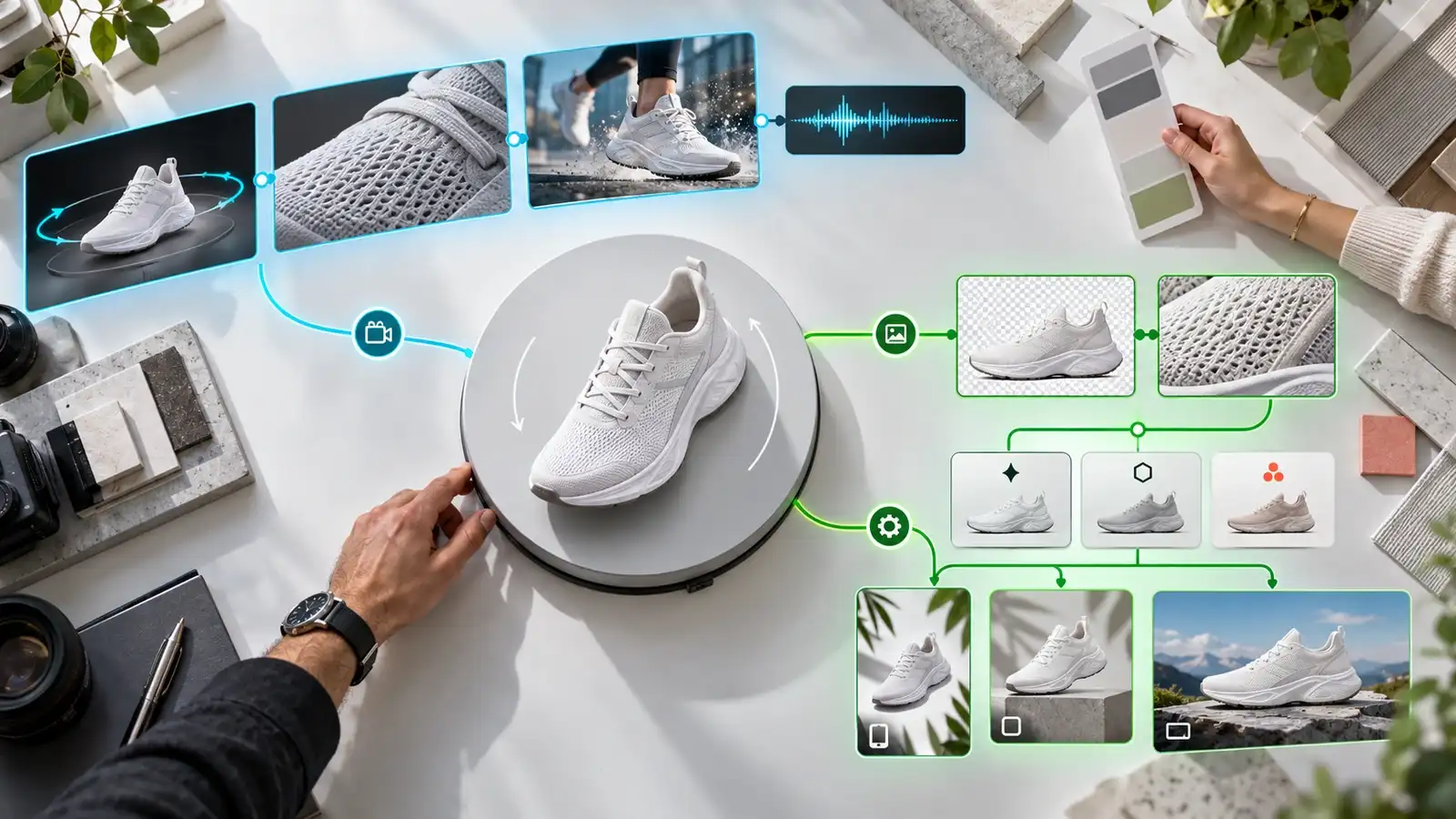
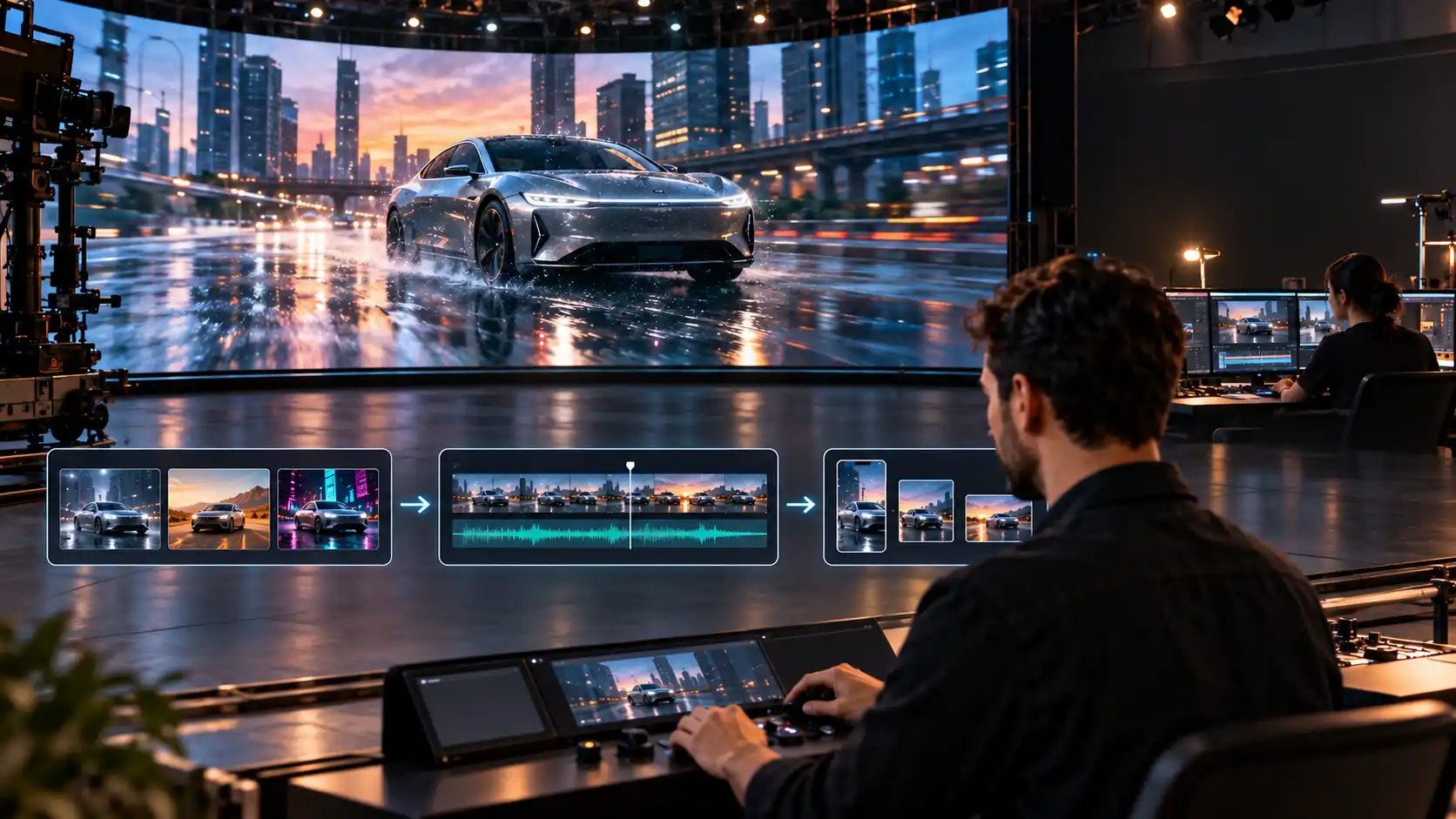
Architecturally, the platform is an end-to-end production environment. A workflow that moves raw source material through automated image refinement, motion synthesis and into finalised commercial assets through post-processing formatting all in one pipeline.
What is Google Veo?
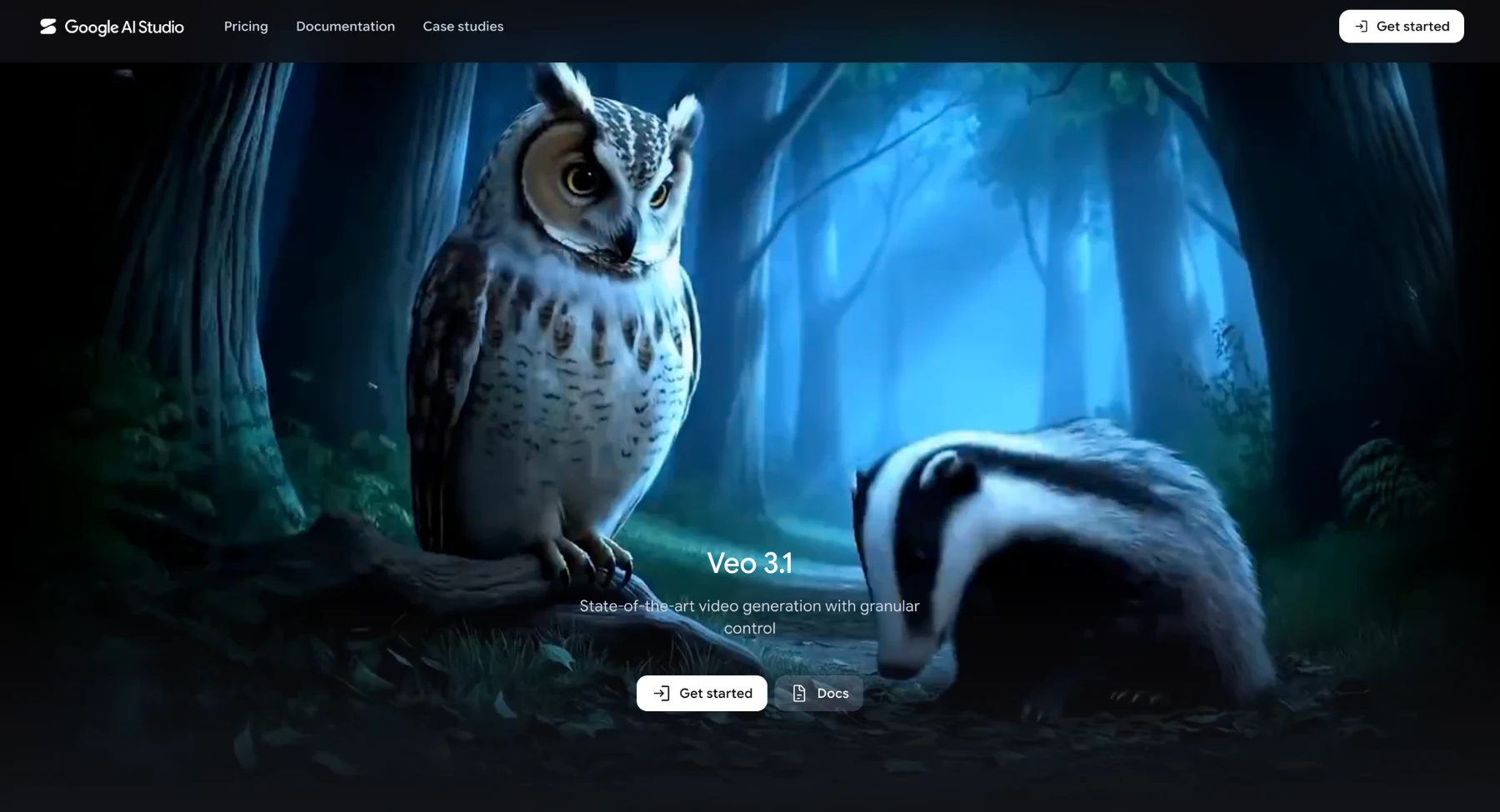
Google Veo is a family of video generation models by Google DeepMind. VQ-VAE-2 also supports audiovisual generation, so a scene can have sound as well as motion. It is relevant to text led scenes, image guided clips and other supported video workflows.
Veo is not the name of a universal subscription or an editor. Google Flow offers a creative interface, and the Gemini API a developer path. The routes differ in prices and features.
Another distinction that is worth knowing now: Google's Gemini Apps video help now describes Gemini Omni. So a Google video-generation subscription should not be taken as proof that every video uses Veo. If Veo is what you need, check the active model in the product you use.
Can you use Google Veo inside Pixelbin?
Yes. Pixelbin's video generator documentation lists Google Veo 2, Veo 3, Veo 3 Fast, and Veo 3.1 Fast. It also lists other video model families, including Kling, Seedance, MiniMax, and LTX.
This changes the buying question. You can compare Veo with another model inside Pixelbin, or compare Pixelbin's Veo workflow with a Google interface. Those are different evaluations.
In the first, you are testing how models respond to a brief. In the second, you are comparing controls, convenience, supported settings, and cost around the model. Neither comparison supports a blanket claim that all Pixelbin videos are better or worse than all Google Veo videos.
Match the exact version when possible. Veo 3 and Veo 3.1 Fast are different choices, and a shared family name does not establish identical performance, configuration, or feature access.
Text-to-video and image-to-video
Pixelbin leverages generative AI models to convert static inputs into motion visuals. Integrating specialized engines like Google Veo, the platform provides distinct creation workflows tailored for content creators and businesses.
Text-to-video
Text-to-video turns written prompts directly into dynamic video clips without requiring source footage.
- Prompt processing: Users input detailed descriptive text specifying subject actions, atmospheric details, lighting, and camera movements.
- Google Veo integration: Utilizing models like Google Veo, the system interprets complex narrative context, applying real-world physics, realistic movement, and native synchronized audio.
- Aspect ratios: Generates content formatted for various platforms, including 16:9 for YouTube and 9:16 for short-form social media.
Image-to-video
Image-to-video animates existing still photography, giving motion to static assets.
- Frame anchoring: Users upload start images and optionally end frames-to define precise transition paths and visual continuity.
- Subject & motion control: Prompts dictate specific actions (e.g., panning, zooming, orbiting) while keeping the original product or character style consistent.
- Workflow utility: Transforms e-commerce product photos or brand photography into engaging, high-definition promotional videos.
First frames, last frames, and reference images
In AI video generation platforms like Pixelbin, leveraging models such as Google Veo, reference images give creators precise control over visual outputs. By defining exact visual anchors, these tools bridge the gap between static assets and dynamic motion, significantly reducing the unpredictability of text-only prompting.
- First frames: The first frame establishes the video's opening state. By uploading an initial reference image, you lock in the subject's identity, lighting, and composition before any motion begins. This ensures the generated video accurately features a specific product, character, or brand asset.
- Last frames: The last frame defines the visual destination. When using models like Veo 3.1 Fast within Pixelbin, adding an end image forces the AI to calculate a logical physical trajectory that resolves exactly at your target composition.
- Reference images: Beyond strict start and end points, reference images act as visual blueprints. They condition the model to maintain aesthetic consistency, ensuring subject geometry, textures, and environmental depth remain stable throughout the clip.
Ultimately, the AI model synthesizes the complex transition between these endpoints. The text prompt then acts as the directional engine, detailing the physical action, camera path, and pacing required to connect the first frame seamlessly to the last.
Audio, dialogue, and sound effects
Modern AI video production extends beyond silent clips by synthesizing visual action with native, synchronized sound. Through Pixelbin's integration of models like Google Veo, creators can generate multi-sensory assets without relying on separate audio post-processing pipelines.
- Lip-synced dialogue: Google Veo parses written speech directly within your prompt to generate character dialogue. It automatically calculates facial geometry to synchronize natural lip movements, cadence, and tone alongside the visual scene.
- Foley & sound effects: The model creates precise, action-matched sound effects such as glass shattering, footsteps on gravel, or a car engine revving. Audio triggers align down to the exact frame where the physical action occurs.
- Environmental audio & music: Scenes are populated with contextual ambient soundscapes like distant traffic, ocean waves, or quiet indoor acoustics and subtle background score elements to anchor atmospheric depth.
By synthesizing sound directly alongside pixels in a single pass, Pixelbin streamlines the output of ready-to-publish, commercial-grade videos.
Resolution, duration, and vertical video
Pixelbin gives creators granular control over resolution, clip length, and aspect ratios, leveraging advanced generative models like Google Veo to optimize outputs for both traditional displays and mobile-first platforms.
- Resolution options: Users can generate crisp visuals ranging from 720p HD up to 1080p Full HD, with flagship engines like Google Veo supporting ultra-high-definition output. Visual clarity remains sharp without introducing distortion or pixelation across playback devices.
- Flexible clip durations: Outputs typically range between 4 to 8 seconds per generation, providing the ideal length for quick social media teasers, looping brand assets, or individual scenes destined for longer video edits.
- Native vertical video (9:16): Rather than cropping traditional landscape footage, Google Veo supports native 9:16 generation within Pixelbin. The AI composes subject placement and motion specifically for mobile viewports, maximizing engagement on TikTok, Instagram Reels, and YouTube Shorts.
- Widescreen & square formats: Beyond mobile-first vertical video, platforms support 16:9 widescreen formats for standard web video and 1:1 square aspect ratios for social feed posts.
Pixelbin vs Google Veo pricing
Pixelbin advertises 10 free signup credits and states that unused monthly subscription credits expire. Its pricing page lists Google Veo 3 at 10 credits, but that headline entry should not be applied to every Veo version, duration, or output setting. Check the quote shown for the generation you are about to run.
Google's plans bundle other benefits with Flow access. The credit numbers in the table are different currencies of usage: 1,000 Google Flow credits cannot be treated as four times the output of 250 Pixelbin credits.
Watermarks and export expectations
When exporting generated media, Pixelbin and Google Veo balance output quality with AI transparency standards. Understanding watermarking rules and export formats ensures smooth integration into creative pipelines.
Watermarks & AI attribution
Generative engines embed visible and invisible markers to distinguish AI-generated content from real-world footage.
- Google Veo SynthID: Veo embeds Google's invisible, imperceptible SynthID digital watermark directly into the video pixels. It survives compression, cropping, and standard editing, enabling forensic verification without impacting visual aesthetics.
- Visible overlay: Base tiers often apply a subtle "Made with AI" corner watermark for immediate transparency. Paid or premium enterprise tiers on Pixelbin typically allow creators to export clean, unwatermarked videos for direct commercial release.
Export expectations
Pixelbin provides standardized export parameters designed for multi-channel publishing and immediate post-production utility.
- File formats: Final videos export in industry-standard MP4, MOV, or WebM formats, ensuring seamless compatibility across social media platforms and video editing software.
- Frame rates & resolution: Outputs maintain standard playback speeds (typically 24 to 30 FPS) at resolutions up to 1080p Full HD.
- Production readiness: Exported files deliver optimized bitrates, clean motion rendering, and synchronized audio, making assets ready for instant deployment in ad campaigns or video timelines.
Which one to choose: Pixelbin or Google Veo
Choose Pixelbin if you want:
- An end-to-end editing suite: You need built-in tools for image upscaling, background removal, watermark editing, and product photo retouching alongside video generation.
- Access to multiple AI models: You want to test and compare different video and image models (such as Google Veo, OpenAI Sora, Kling, and LTX) under a single subscription without paying separate bills.
- E-commerce and marketing workflows: You are preparing complete promotional campaigns from scratch turning raw product photos into edited clips with branding assets.
- Flexible credit-based billing: You prefer paying via credit packs or tiered monthly subscriptions without managing complex developer setups.
Choose Google Veo directly if you want:
- RAW generation quality: You need maximum control over photorealistic video physics, precise camera movements, native audio generation, and prompt adherence.
- Developer and cloud integration: You are building your own application or pipeline and want direct API access via Google Cloud Vertex AI or Google AI Studio.
- Deep Google AI ecosystem sync: You already utilize Google's stack and want seamless integration with tools like Gemini or SynthID digital watermarking.
- A pure video generator: You already have dedicated photo-editing and post-production tools (like Photoshop or Premiere Pro) and only need the AI video engine.
Summary: Pick Pixelbin for an all-in-one studio that combines photo editing and multi-model generation. Pick Google Veo if you strictly want Google's flagship video-generation tech for specialized or developer-focused projects.
How to create a Veo video with Pixelbin?
Step 1: prepare the source or scene brief
Start with a clear product photo if appearance must remain recognizable. Check the crop and remove distractions before asking for motion. For a new scene, describe the subject and setting in a short brief.
Step 2: select the appropriate Veo option
Open Pixelbin's video generator and choose an available Veo model. Match the selection to your needs for source images, endpoint guidance, sound, and output size. Review the displayed credit charge.
Step 3: describe one controlled movement
Example prompt: Use the uploaded image of the ceramic lamp. Create a slow, gentle camera push toward it on the same wooden desk. Keep the lamp shape and shade color consistent. Warm evening light, subtle room ambience, no dialogue, no added text.
This gives the shot one main action. If the first result changes the product, reduce the complexity of the movement or revise the source image before adding more effects.
Step 4: review the full clip
Watch the beginning, middle, and end. Look for changing proportions, flickering textures, unexpected objects, and camera movement that drifts away from the brief. Listen for unwanted speech or sound.
Step 5: finish the promotion
Use the accepted shot in an edit with the required headline, offer, and closing message. Download the finished file and check it at the dimensions used by the destination. Keep a copy of the source, prompt, model selection, and accepted result for future variations.
Final verdict
Pixelbin vs Google Veo is more about choosing a workflow and access. Pixelbin supports Veo models on a broader creative platform with other model selections and editing tools. Veo has its own controls, allowances and pricing from Google Flow and the Gemini API.
Start with Pixelbin if your next project involves image preparation, AI motion, and promotional editing. Choose a Google route when you need a specific Flow capability or direct API access. Compare exact model and settings with one real brief and then judge usable results, revision effort, and total cost.
FAQs
They are different kinds of products. Pixelbin is a platform that can use Veo, while Veo is the generation model. Pixelbin may suit a broader creative workflow; Flow or an API may suit a specific Veo requirement. There is no universal quality winner from that distinction alone.
Yes. Pixelbin lists several Veo options, including Veo 3.1 Fast. Check the model selector for current availability and supported settings before starting a project.
No. Veo is a video model family. Gemini refers to other Google models and products, including an app and an API service. Google's current Gemini Apps video documentation describes Gemini Omni, so confirm the model rather than assuming every Gemini video is a Veo output.
Supported Veo models can generate sound with video, and Pixelbin lists audio support for several Veo options. Audio availability depends on the selected model and workflow. Review both sound and picture before publishing.
Yes. You can combine short clips during editing. Supported Google workflows also offer extension for eligible videos, with model-specific rules. Combining shots and extending one continuous scene are different approaches.
Free access depends on the product and current allowance. Google's Gemini API pricing does not offer a free Veo tier. Flow has its own trial or free allowances and paid options, while Pixelbin advertises signup credits. None should be interpreted as unlimited free Veo generation.
Compare the same model, duration, resolution, and audio settings. Pixelbin credits, Flow credits, and API charges use different billing systems. Count the attempts needed to get an acceptable clip, as well as any editing work, before deciding which route offers better value.