

Summary
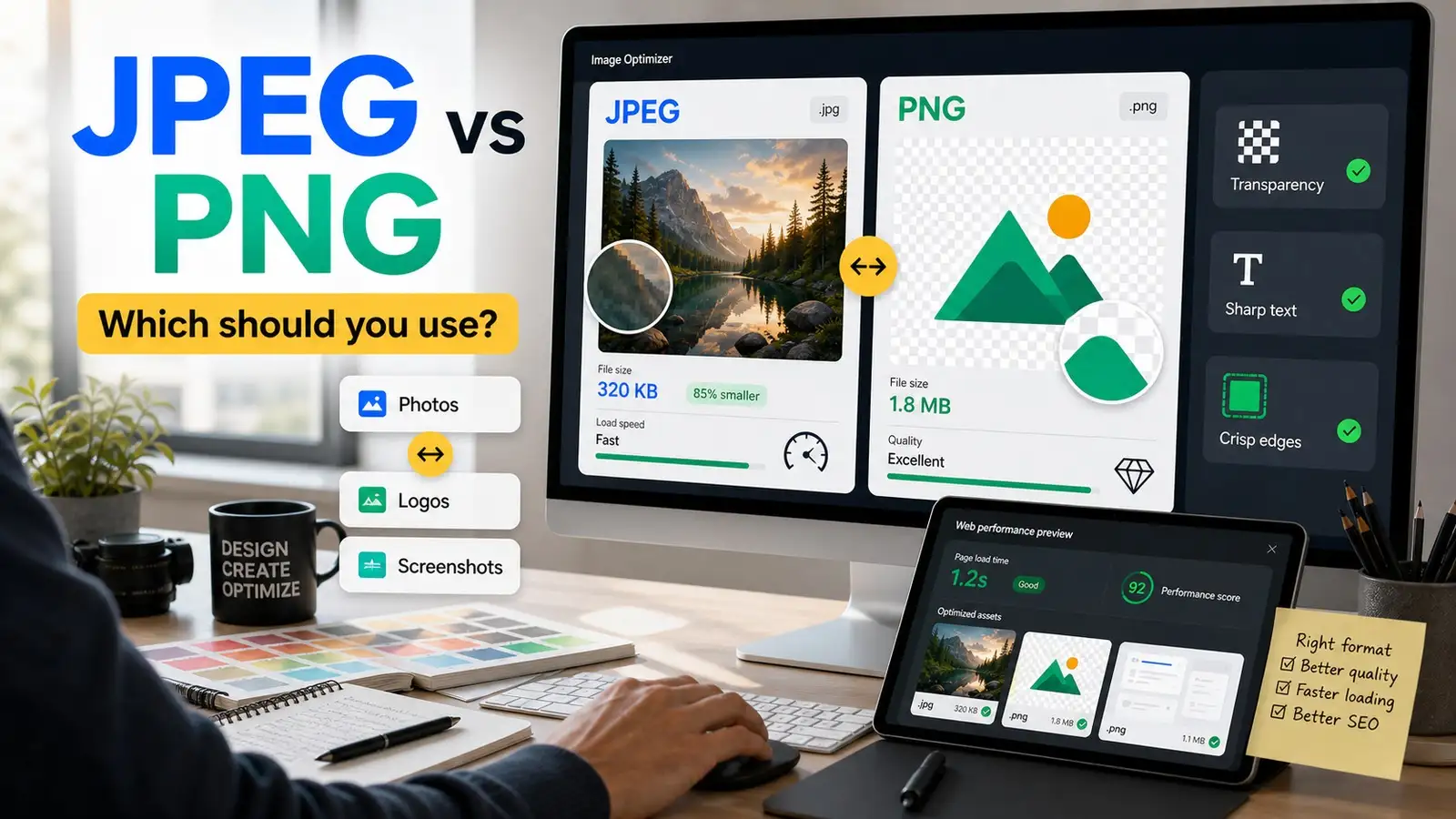
Use JPEG for photos, large web visuals, social posts, and product shots when file size and loading speed matter. Use PNG for logos, screenshots, icons, graphics with text, and any image that needs transparency. For modern websites, WebP or AVIF can reduce page weight, but JPEG and PNG remain reliable defaults when you choose them by image type rather than habit.
Introduction
Choosing between JPEG and PNG seems simple on the surface, but once you begin working with images, the correct choice depends entirely on the type of file you are dealing with, where it will be displayed, and how you want to balance file size, clarity, transparency, and loading speed.
If you’re publishing blog content, managing a website, or preparing visuals for social media, the format you choose directly impacts how polished and professional the final result feels. In plain terms, JPEG is typically the better selection for photographs, while PNG is the preferred choice for logos, screenshots, icons, and any image that requires transparency.
While this basic rule covers most everyday use cases, numerous situations require a more nuanced approach, especially when you are trying to balance visual quality with technical performance.
Quick answer
Here is the golden rule to decide which format you must choose:
- JPEG: Select this format for real-world photos, large visual backdrops, and complex images with rich color palettes. It offers the optimal image format for photos because it maintains remarkably compact file sizes.
- PNG: Use PNG for logos, digital illustrations, screenshots, and any graphics that contain text or require clear, transparent backgrounds.
The takeaway: As a general rule of thumb, use JPEG for photos to keep your website loading lightning-fast, and use PNG for logos to keep your branding perfectly crisp and sharp.
JPEG vs. PNG at a glance
Before exploring the details, you can review the core differences between the formats here:
This table provides the foundational picture, but it does not tell the entire story. The ideal format depends on the specific type of image, how it will be displayed, and whether you prioritize speed, quality, or flexibility. This is why JPEG vs. PNG file size, JPEG vs. PNG quality, and PNG transparency all matter in different ways.
Why image format matters
People often treat the image format as a minor technical detail, but it exerts a substantial impact on overall performance. The file type you choose can affect how quickly a webpage loads, how clear the image looks, how much storage space it consumes, and how professional your design feels.
If you use the wrong format, the image may load slowly, look blurry, or appear far too large for its actual purpose.
Consequently, when you consider JPEG vs. PNG for the web, it is not merely a formatting question, but a critical performance and presentation decision.
If you are comparing image formats beyond JPEG and PNG, this guide provides a useful overview of the strengths, limitations, and use cases of common web image formats.
What is JPEG?
JPEG stands for Joint Photographic Experts Group. It is one of the oldest and most widely used image formats on the internet, and it remains popular because it works exceptionally well for photographic images.
JPEG relies on lossy compression, which means it reduces file size by permanently removing some image data. While that may sound disadvantageous at first, in practice, it works very well for photos because the human eye usually does not notice the missing details. That is why using JPEG for photos remains such a common recommendation.
How JPEG works
JPEG is designed to handle images with complex color variations, soft gradients, shadows, and natural textures. It works best for portraits, food imagery, scenic backgrounds, or product photos. In those cases, JPEG consistently provides an optimal balance: the image looks good, but the file size stays manageable. This balance matters immensely when you are publishing online.
A heavy file can slow down a page and make the user experience feel clunky. JPEG keeps files lighter without making the image look obviously damaged or degraded. However, if you compress it too aggressively, the quality will fall apart, which is where the tradeoff becomes visible.
Advantages of JPEG
- Microscopic file sizes: You can compress a 10-megabyte photo down to less than 500 kilobytes without a massive drop in visual clarity.
- Universal compatibility: Every screen, web browser, operating system, email application, and smart device on earth can open and display a JPEG instantly.
- Rich color handling: It handles complex, multi-colored imagery with millions of color shifts smoothly and effortlessly.
Limitations of JPEG
- Artifact fuzz: If you turn the compression settings up too high to make the file smaller, you will start seeing unwanted blocks and blurry distortion (called artifacts) around sharp edges.
- No transparency: If your image has a transparent background, saving it as a JPEG will automatically fill that empty space with solid white pixels.
This is why comparing JPEG vs. PNG is often less about which format is universally “better” and more about what the image is supposed to achieve. A photo can handle JPEG compression quite well, whereas a logo or screenshot typically cannot.
When to use JPEG
When you are optimizing an image format for website use, JPEG serves as your absolute workhorse for heavy lifting. You should choose JPEG in the following common scenarios:
1. Website photos
Whether it is a giant hero banner at the top of your homepage or a series of lifestyle images scattered throughout your blog posts, real-world photography belongs in a JPEG format. These files contain thousands of blending colors, and JPEG handles these smooth transitions beautifully without exhausting your server storage.
2. Product images
If you run an online shop, you have dozens or hundreds of product angles. Using JPEG ensures that your customers can view beautiful, detailed shots of your items without waiting for a massive file to download. It is easily the best image format for photos of merchandise.
3. Social media images
When you upload graphics to platforms like Facebook or Instagram, their automated systems compress your files anyway. Starting with a properly optimized JPEG ensures your upload is fast and matches the platform's native compression expectations.
4. Large image libraries
If you manage a photography portfolio, a travel blog, or an archive of event photos, your storage space will disappear quickly. JPEG allows you to store thousands of memories without running out of hard drive space or paying for expensive cloud upgrades.
5. Email and file sharing
When you attach images to newsletters or send mockups to a client via email, you want to avoid hitting inbox size limits. JPEGs slide through email filters effortlessly due to their lightweight nature.
What is PNG?
PNG stands for Portable Network Graphics. It is a lossless format, which means it preserves image data much more faithfully than JPEG. That makes it a strong choice for images where sharpness, transparency, and clarity matter far more than minimizing file size.
Additionally, PNG is an open standard maintained through specifications published by the W3C, which define exactly how the format handles image data, transparency, and compression.
PNG is especially useful when an image needs to sit cleanly on top of different background colors. It is also highly effective when the image contains text, interface elements, line art, or flat design shapes. That is why using a PNG maker for logos is such a common choice.
How PNG works
PNG compresses images without the same permanent data loss that occurs with JPEG. This means the image stays crisp and accurate, which is especially important for visuals that rely on clean, precise edges. Screenshots, illustrations, interface graphics, and branding elements usually benefit from this approach.
The catch is that PNG files can become much heavier than JPEGs, especially if you try to use the format for a photo. A simple picture may still be acceptable, but once you start dealing with full-color photographs and detailed scenes, the file size can jump quickly. That is why the PNG vs. JPEG file size difference often surprises people when they compare the two side by side.
Advantages of PNG
- Flawless visual quality: Because it never discards data, your images will never suffer from compression blur or pixel artifacts.
- True transparency: It supports an "alpha channel," meaning pixels can be 100% transparent, 50% see-through, or fully solid.
- Perfect for text: Text, geometric lines, and sharp edges remain completely crisp, making it an excellent PNG choice for digital web layouts.
Limitations of PNG
- Massive file sizes: Since it saves every single byte of data, a high-resolution photograph saved as a PNG can easily be five to ten times larger than a JPEG version.
- Slow web performance: If you load up a blog post with ten large PNG photos, your page will load incredibly slowly, frustrating your readers and hurting your SEO.
So while PNG is excellent for certain tasks, it is not a universal solution. If you save every image as a PNG just because it feels like a “higher quality” option, you may end up with bloated files and slower pages for no real benefit.
When to use PNG
While JPEG wins on file size efficiency, PNG wins the absolute trophy for clarity and flexibility. You should actively select PNG in these critical situations:
1. Logos and branding assets
Your company logo needs to sit perfectly on top of colored backgrounds, video loops, or dark website footers. That’s why it's better to design your logo using professional tools. Because of PNG transparency, you can export it with a completely invisible background, ensuring it blends anywhere you paste it. Always default to PNG for logos.
2. Screenshots
If you are writing a software tutorial or capturing an error message to send to a support team, use PNG. Screenshots usually contain a lot of flat color and interface text. JPEG will make the text blurry, while PNG keeps it perfectly readable.
3. Graphics with text
Any time you overlay bold typography onto a graphic—like an infographic, a digital book cover, or a promotional banner—PNG keeps the edges of those letters razor-sharp.
4. Charts and diagrams
Pie charts, line graphs, and architectural blueprints rely on precise lines and solid blocks of color. JPEG compression will introduce ugly pixel fuzz around those clean lines. PNG keeps them looking sharp and professional.
5. Transparent images
If your web design features floating UI elements, cutout products without backgrounds, or overlapping decorative stickers, you must use PNG to preserve that transparent alpha channel. Alternatively, you can simply generate transparent backgrounds using modern AI tools.
Key differences explained
The core difference between JPEG and PNG comes down to compression. JPEG uses lossy compression, while PNG uses lossless compression. That single difference affects almost everything else: file size, quality, transparency, editing behavior, and performance.
This is why the JPEG vs. PNG quality debate is not a simple yes-or-no issue. A JPEG photo may look great and load quickly, while a PNG screenshot may look much sharper and clearer. The real question is not which format is superior in general, but which format protects the critical parts of the specific image you are using.
Lossy vs. lossless compression
Lossy vs. lossless compression sounds highly technical, but the concept is simple. JPEG removes some data to make the file smaller, whereas PNG keeps the image data completely intact. This means JPEG is usually more efficient for photographs, while PNG is better for visuals where absolute precision matters. In other words, JPEG trades a little quality for a lot of convenience, and PNG trades a larger file size for maximum accuracy.
File size comparison
The file size difference between JPEG and PNG is one of the primary reasons creators choose one over the other. For photographs, JPEG is often much smaller. The same image saved as a PNG can be several times larger, which makes it less practical for websites or large image libraries. For graphics with flat colors, the difference may not be as dramatic. Still, JPEG usually stays more compact overall when the image is photo-based. That is one reason the best image format for photos often ends up being JPEG or, in some web contexts, WebP.
Image quality comparison
When people ask about JPEG vs. PNG quality, they usually mean one of two things: they either want the sharpest image possible, or they want the image to look natural without visible artifacts. PNG tends to win when the image includes text, icons, fine lines, or sharp shapes. JPEG tends to win when the image is a real-world photo with a lot of color depth and visual variance. Therefore, quality depends on the kind of image, not just the format name.
Transparency support
PNG transparency is one of the primary reasons the format remains so essential. JPEG does not support transparency at all. If you need a transparent background, JPEG simply cannot do the job. This matters immensely for logos, stickers, overlays, product cutouts, and design assets that need to blend smoothly into different page backgrounds. In those cases, PNG is the obvious choice.
Editing and resaving
PNG is far more forgiving when you edit and save it multiple times. Since it is lossless, it keeps all of the original details intact. JPEG, on the other hand, degrades slightly every time you resave it, especially if the quality level is already set low. That does not mean JPEG is a poor choice for editing; it simply means you should avoid repeatedly overwriting the same JPEG file. A better workflow is to keep a master lossless version and export a final JPEG copy when your work is complete.
Performance impact
If you are publishing on the web, performance is critical. Google recommends optimizing image file names, alt text, and image delivery to improve both user experience and image search visibility. JPEG usually holds the advantage because it keeps file sizes smaller for photographs. PNG is often heavier, which can slow down page speeds when used for large background images. That does not mean PNG should be avoided entirely; it just means you should use it where it makes sense. A logo or screenshot in PNG is a good choice, while a full-width photo banner in PNG is usually a mistake.
Format choices by use case
The ideal format changes depending on the final use case. Now that you understand the theory, let us look at real-world scenarios. How do these technical traits alter your day-to-day choices across different media formats?
Websites
For websites, JPEG is usually better for photos because it keeps pages lighter and faster. PNG is better for logos, screenshots, icons, and other graphics that require crisp detail. If you are trying to improve site loading speed, this distinction matters a lot.
Print projects
For print, both formats can be utilized, but the result depends more on resolution and production quality than on the file extension alone. JPEG is common for photo prints, while PNG can be useful for digital design assets or items that require transparency. JPEG vs. PNG for print is not as simple as choosing the one with the larger file size; you must also prioritize resolution and color profiles.
Social media
For social media, JPEG is usually the correct choice for standard photos. PNG is highly useful when the post includes text overlay, corporate branding, or transparency. If you are making quote cards or promotional graphics, PNG can help preserve the crispness of the design against the platform's compression.
Ecommerce stores
E-commerce stores often need a combination of both formats. Product photos usually perform better as JPEGs to ensure quick browsing, while logos, labels, trust badges, and small icons belong in PNG format. A deliberate mix of the two provides the best visual and performance balance.
Is PNG higher quality than JPEG?
This is one of those questions that sounds straightforward, but the answer depends on what you mean by quality. PNG preserves more detail and keeps edges cleaner, so in a strict technical sense, it is higher quality. However, for photos, JPEG is actually the smarter and more practical choice because it gives you excellent visual quality without making the file size unmanageable.
So the real question is not whether PNG is always higher quality, but whether the image type benefits from the way PNG works. For a screenshot, yes, PNG looks distinctly better. For a photo, JPEG is the superior choice even if PNG technically preserves more data.
JPEG vs. JPG: Is there a difference?
Let us clear up one of the most common image format misconceptions: is there a difference between JPG and JPEG?
Not at all. JPG and JPEG refer to the exact same image format. The difference is largely historical; older operating systems, such as early versions of Windows, limited file extensions to three characters, which resulted in ".jpg" instead of ".jpeg".
So, when comparing JPG vs. PNG, you are looking at two entirely different image formats. However, when comparing JPG vs. JPEG, you are simply looking at two different file extensions for the exact same format.
WebP and AVIF vs. JPEG and PNG
If you have tested your website using optimization tools such as Google PageSpeed Insights, you have likely encountered recommendations to serve images in next-generation formats. This is where WebP and AVIF enter the conversation.
Both formats are designed to deliver high-quality images at significantly smaller file sizes than traditional formats like JPEG and PNG. Smaller images load faster, consume less bandwidth, and contribute directly to improved website performance.
For many websites, WebP provides an effective balance between image quality, compression, and wide browser support. AVIF can achieve even greater compression efficiency in some cases. However, implementation requirements and compatibility considerations should still be evaluated before adopting them fully.
That does not mean JPEG and PNG have become outdated. JPEG remains a highly reliable choice for photography and complex imagery, while PNG continues to be valuable for graphics that require transparency or lossless quality. The best image format depends entirely on your specific needs. WebP and AVIF can help reduce page weight and improve loading speeds on the front end, while JPEG and PNG continue to offer dependable compatibility and versatility across various platforms and devices.
Common mistakes to avoid
Even with a solid understanding of lossy vs. lossless compression, it is incredibly easy to fall into common workflow traps. Below are the biggest mistakes webmasters and creators make when managing their digital assets, along with exactly how you can avoid them:
- Using PNG for every single website image: Because PNG offers perfect pixel clarity, it is tempting to save every file as a PNG to ensure your site looks crisp. Avoid this temptation entirely. Uploading multi-megabyte PNG files for standard blog illustrations or header backgrounds will kill your page speed, cause mobile visitors to abandon your site, and damage your search engine rankings.
- Saving branding assets and logos as JPEGs: When you save a crisp vector logo as a JPEG, you create two distinct problems. First, you lose your PNG transparency, meaning your logo will now sit inside an unwanted white box. Second, the lossy compression will create a fuzzy halo of digital pixel distortion around your logo's clean lines and text fonts. Always stick to PNG for logos.
- Uploading massive, oversized raw images: Whether you use a JPEG or a PNG, never upload files directly from your digital camera or stock photo websites without resizing them first. A camera photo might be 6,000 pixels wide, but a standard laptop screen rarely needs an image wider than 1,920 pixels. Use editing software to scale the physical dimensions down before choosing your final export format.
- Setting your JPEG compression slider too low: When saving a JPEG, most software gives you a quality slider from 0 to 100. Setting it to 100 creates an unnecessarily large file size. Setting it below 50 saves space but turns your image into a blocky, blurry, unprofessional mess. Aim for the optimization sweet spot: a quality setting between 70 and 80 gives you the absolute best balance of small file size and clean visuals.
- Flattening graphic text into images instead of using HTML: If you have a banner with a headline, avoid writing the text inside a JPEG image file. Not only does the text risk getting blurry due to compression, but search engine crawlers cannot read text locked inside an image. Keep your images clean and use real HTML/CSS code to overlay text onto your visuals for better web accessibility and SEO performance.
JPEG vs. PNG decision checklist
If you are unsure which format to use, this quick checklist can help guide your choice:
- Is it a photo? Use JPEG.
- Does it need transparency? Use PNG.
- Does it contain text or sharp edges? Use PNG.
- Is file size a major concern? Use JPEG or WebP.
- Is it a logo or branding asset? Use PNG (or SVG if possible).
- Will it be edited and resaved often? PNG is usually safer.
- Is it for web performance optimization? Use the smallest format that still looks professional.
This is a straightforward way to avoid common mistakes and make faster choices. It also helps when you are comparing image formats for website use across different parts of a webpage.
JPEG vs. PNG for web
For web content, the best choice often depends on whether the image is photographic or graphical. JPEG is usually best for photos because it stays smaller and allows pages to load faster. PNG is usually best for logos, screenshots, icons, and other visuals that need fine clarity.
If your goal is speed, the choice for web use usually leans toward JPEG for photo-heavy content. However, if the image is a UI mockup, tutorial screenshot, or transparent graphic, PNG is the better option. The key is to match the file type to its specific purpose.
JPEG vs. PNG for print
For print, the decision is less about the format extension alone and more about the final resolution and output workflow. JPEG is highly common for photo-based print work, while PNG can be helpful for transferring specific graphics or standalone transparent elements.
A low-resolution file will look poor in print no matter what format you choose. So while JPEG vs. PNG for print matters, it is not the only factor. You still need the right physical dimensions, correct target quality settings, and an appropriate export process.
Best image format for photos
If you are looking for the best image format for photos, JPEG remains one of the most practical choices available. It keeps the file size reasonable and still delivers excellent visual quality for most use cases. That is why photographers, bloggers, and editors continue to rely on it so frequently.
In modern web workflows, WebP or AVIF may sometimes offer even better compression for the web. However, JPEG remains a highly reliable default because it is easy to use and universally supported by all systems.
PNG vs. JPEG quality in real use
In real-world application, PNG vs. JPEG quality depends entirely on the kind of image you are exporting. A photograph usually looks better in JPEG because the file remains compact and visually smooth. A screenshot or logo usually looks better in PNG because the details and sharp lines stay perfectly clean.
That is why it helps to stop thinking in absolute terms. The real question is not which format is “higher quality,” but which format preserves the specific parts of the image that actually matter to the viewer.
Final verdict
If you need the simplest possible answer, here it is: use JPEG for photos and use PNG for graphics, logos, screenshots, and transparent images. That rule alone will protect you from the most common optimization mistakes.
For modern websites, a smart mix of formats usually works best. JPEG remains a strong choice for photography, PNG is still essential for specific graphics requiring sharp lines or alpha channels, and WebP serves as a great option when you want to optimize web loading performance further. The best choice is always the one that fits the image type, the target platform, and the user experience you want to create.
FAQs
Neither format is universally better than the other; they are designed for entirely different jobs. JPEG is the undisputed champion for real-world photos where small file sizes are needed. PNG is the perfect choice for digital graphics, screenshots, and logos where absolute pixel clarity and transparent backgrounds are mandatory.
Yes, in terms of raw technical data preservation, PNG is higher quality because it uses lossless compression. It preserves every single pixel exactly as it was created. JPEG intentionally discards some image data to prioritize smaller file sizes, which can introduce minor visual distortion if compressed too aggressively.
JPEG is generally much better for overall website performance. Because most web imagery consists of large photographic banners and post illustrations, using compressed JPEGs keeps your total page weight low, enabling your site to load quickly for mobile visitors and desktop users alike.
You should always choose PNG for logos. This is the only way to ensure your logo retains clean, professional edges without pixel blur, while keeping the background transparent so it can overlay cleanly across different colored headers and footers.
Use PNG for screenshots. Software interfaces contain solid background colors and a massive amount of fine text. If you use JPEG, the text will become fuzzy and hard to read. PNG keeps the entire user interface looking perfectly crisp.
It is not recommended. PNG files are built purely for digital screens and only support the RGB color model. Commercial printing presses require the CMYK color profile. To print high-quality photos or graphics, you should save your work as a high-resolution JPEG or a print-ready PDF file.