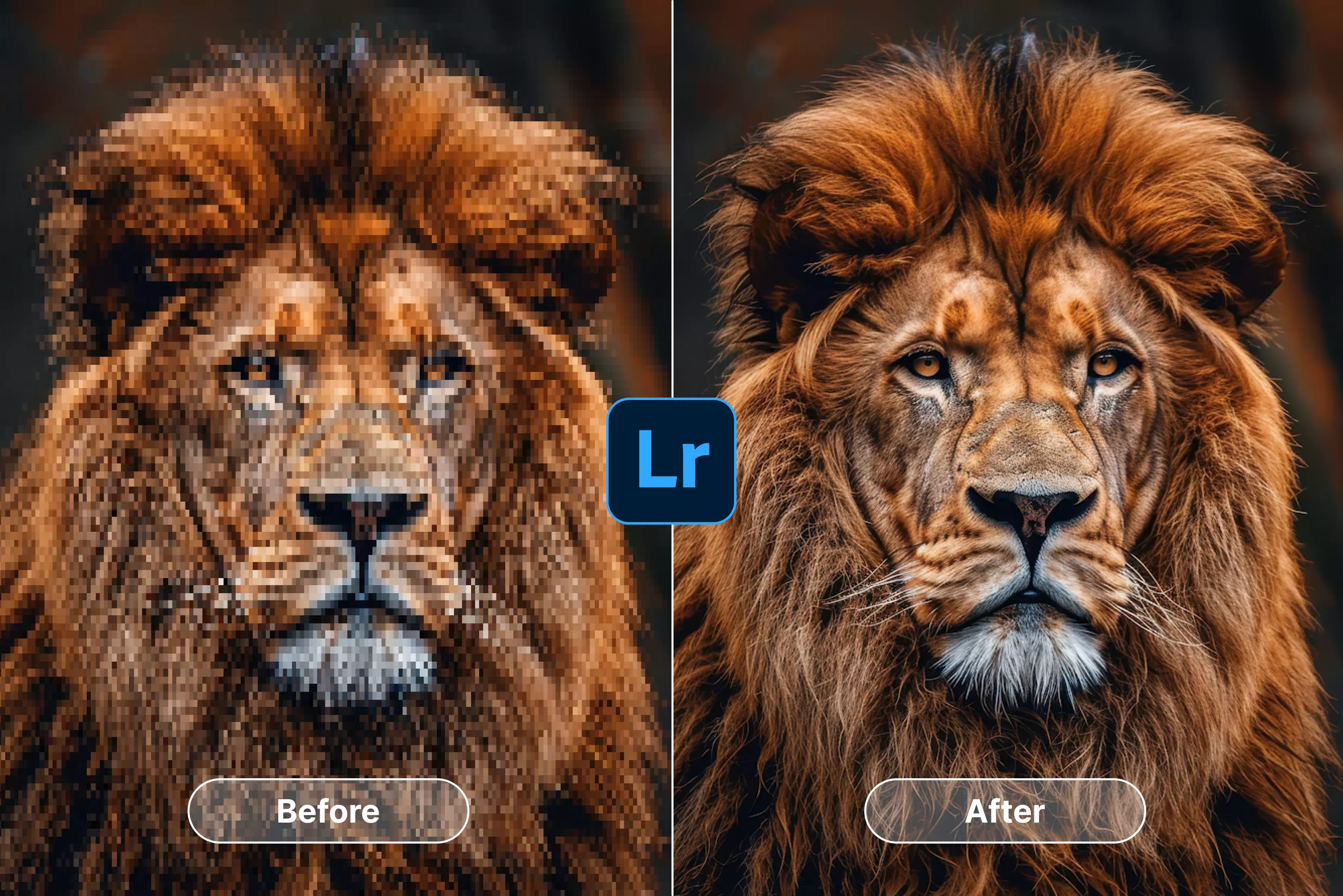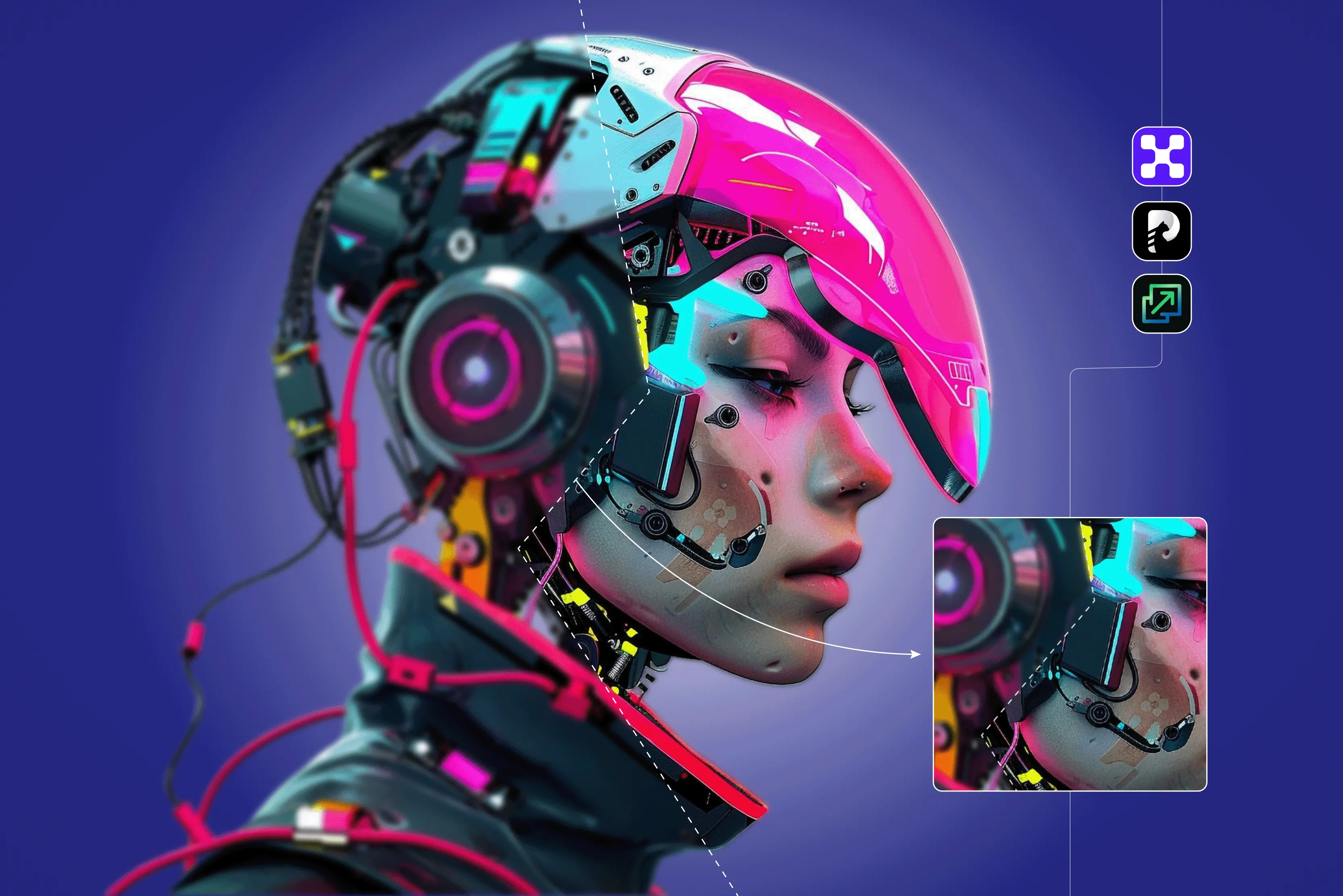


Ever upload a photo to WordPress and watch it look blurry on a high-end screen? The solution is knowing how to upscale an image in WordPress.
Instead of just stretching small images and ending up with pixelation, AI upscaling can improve perceived sharpness, though it cannot recreate the original missing detail. This is essential for bloggers, photographers, or agencies who want their visuals to look polished and professional.
In this guide, you will get to know how to resize images in WordPress for quick layout adjustments. Upscaling ensures your photos look crisp on phones and laptop displays, improves visual quality, and maintains Core Web Vitals when optimized for file size and served in next-gen formats.
I’ll walk you through three practical methods I’ve tested myself, from pre-upload tools to WordPress plugins. Follow these steps, and you will know how to upscale images in WordPress. Keep reading to make the image truly shine.
What is image upscaling in WordPress?
Image upscaling is the process of increasing an image’s resolution. When you increase the pixel count, your software doesn’t magically know what the new pixels should look like. That’s done using a process called interpolation.
Instead of relying on basic interpolation—which usually causes blurring—modern upscaling methods analyze the existing pixels and generate plausible extra detail that looks natural at larger sizes. This allows images to be enlarged two to eight times while still appearing crisp.
When is image upscaling needed in WordPress?
You don’t need to enlarge every image you upload to WordPress. It only becomes necessary when the picture you have is simply too small for the space where you want to use it.
Think of situations like these: you crop a photo for a hero section, but when it stretches across the full width of the page, it starts to look soft.
Or maybe you have older 800-pixel images that looked fine years ago but now appear fuzzy on today’s retina and 4K screens. That’s when smart upscaling helps—you get a larger, cleaner version instead of just stretching what’s there.
Here’s a simple way to know when you should upscale:
- When a small or tightly cropped image needs to fill a banner, hero area, or any wide layout.
- When pictures look grainy or pixelated on high-resolution screens because the original file isn’t large enough for the space it needs to cover.
- When product photos need to hold up under zoom, or when marketplaces require certain minimum dimensions.
- When you no longer have access to a larger original file, the only way to meet size requirements is to rebuild lost detail during enlargement.
How does WordPress handle image sizes by default?
When you upload a photo to WordPress, it doesn’t just stash the original and call it a day. It quietly creates a handful of ready-made versions so your site can load the right size in the right place. The sizes are:
- Thumbnail size: Typically 150 x 150 pixels and often cropped to be square. Used for small previews, post listings, or widgets.
- Medium size: Maximum width and height of 300 x 300 pixels. Suitable for in-content images within blog posts or smaller displays.
- Medium Large size: (Introduced in later WordPress versions) Typically 768 pixels wide. Used for responsive image handling.
- Large size: Maximum width and height of 1024 x 1024 pixels. Ideal for full-width content areas or more detailed views.
- Full size: The original dimensions of the uploaded image.
Pros and cons of upscaling images in WordPress
Pros
1. Bigger images don’t look fuzzy on newer screens, so stuff just looks clearer overall. It’s one of those things you notice only when it’s missing.
2. WordPress makes a bunch of different sizes automatically, so if the main file is bigger, all those smaller ones look better too.
3. Old, tiny pictures that were basically useless before can actually be used again instead of having to redo everything.
4. If you ever switch themes or layouts, bigger images handle all the weird banner sizes and full-width stuff without falling apart.
5. The whole site feels nicer when images aren’t blurry. People usually stay longer when the visuals don’t look sloppy.
Cons
1. Larger images mean bigger files, and bigger files slow things down unless you compress them properly.
2. Some pictures just don’t enlarge in a flattering way and end up looking odd, so you still have to look at each one.
3. If the original photo was bad, enlarging it won’t fix much—sometimes it just makes the problems more noticeable.
4. It adds extra steps you didn’t have before, which can be annoying if you’re doing a bunch at once.
5. Bigger files take up more space on your hosting and can make all the caching/optimization stuff more annoying to manage.
How to upscale images in WordPress? (3 tested methods)
I tested each of the methods the same way so I could actually compare results. I grabbed one low-resolution 800×600 JPEG and used it for every method, checking how it looked on my phone and laptop, both with high-resolution screens.
I paid attention to things like sharpness, weird textures, and how much the file size went up. I also watched how WordPress handled the different sizes it creates automatically. Each method ran the exact same image, and I timed how long the whole process took. Let’s delve into the methods now and learn how to upscale images in WordPress.
Method 1 – Upscale images before uploading to WordPress
For this method, I treated WordPress as a distributor rather than an editor. The main work happens before the images go into the Media Library. First, you make a higher-resolution version of each image, then upload it so WordPress can generate all its standard sizes from a higher-quality source, which helps reduce blurriness in the generated derivatives.
This method works well for testing because the comparison is clear: you can see how a normal upload performs versus a larger, enhanced upload under the same WordPress settings.
Steps to know
- Choose one AI upscaler and stick to it for consistency (e.g., 2x, 4x, or 8x mode) (like I have chosen Pixelbin AI image upscaler).
- Export your best available originals (not screenshots or already compressed social copies).
- Upload each image to the AI tool and generate an upscaled version without changing the aspect ratio.
- Download the upscaled images and convert/compress them sensibly (e.g., WebP at moderate quality).
- Upload these upscaled files to WordPress; treat them as the new “full size” sources.
- Insert them into posts/pages and compare clarity and loading behavior with the original versions.
Method 2 – Upscale images inside WordPress with AI plugins
In this method, everything stays inside WordPress, and a plugin does the work. This is how many site owners actually handle images, so it’s useful for practical research. You start with a regular site—existing posts, a mixed media library, and some small or low-resolution images.
Then you use a plugin to enlarge those images and regenerate WordPress’s standard sizes. This lets you see how much clarity can be improved without leaving the dashboard and how it affects page performance, storage, and workflow. It’s especially handy for older sites where the original images aren’t available.
Steps to know
- Install a well‑documented image plugin that explicitly supports AI upscaling or “enhance/enlarge” features.
- Enable any backup option so you can revert to the original images if needed.
- In the Media Library, pick a small test set of visibly soft or tiny images.
- Run the plugin’s upscale/enhance action on those files, choosing a modest factor (for example, 2x).
- Regenerate thumbnails/derived sizes if the plugin offers or requires that step.
- Compare before/after on the front‑end and record changes in visual quality, file size, and page metrics.
Method 3 – Upscale images within AI page builders
This method keeps things easy and simple. Instead of editing the entire media library, you should only upscale the images that matter—work on the hero sections, main banners, and key call-to-action areas. It’s especially useful when you want to see how higher-resolution images affect the look and performance of a page.
You just open the page builder, replace the blurry images with sharper versions, and then check what changes: overall clarity, layout stability, and how quickly the page loads. It mirrors the way designers usually work and gives you practical, page-level results instead of trying to adjust everything at once.
Steps to know
- Open a representative page in your chosen AI builder (I have chosen Divi AI builder).
- Identify modules where images look soft or pixelated at the size they’re displayed.
- Create upscaled versions of those specific images externally, or use any built‑in “Enhance/upscale” option if your builder provides one.
- Replace the original images in those modules with the upscaled versions from your Media Library or from a trusted external URL.
- Leave other modules unchanged so you can attribute differences to upscaling alone.
- Preview on multiple devices and note changes in clarity, layout, and perceived loading speed for your analysis.
Best alternatives to WordPress to upscale an image—5 top AI tools
WordPress plugins often fall short for true image upscaling, then we need to check on alternatives. Discover the best AI-powered alternatives for upscaling images like Pixelbin, Upscale.media, and more to dramatically enhance and enlarge your visuals without losing quality.
1. AI image upscaler by Pixelbin

When I was trying out different tools to find the best way to upscale an image other than WordPress, Pixelbin turned out to be one of the simplest platforms I have ever used.
I tried it with an old image, which looked a bit faded and had jagged lines around the edges. After using Pixelbin’s 8x upscale option, my image stood up to high resolution.
The sharpness was visible, the blurry spots were cleaner, the background became smoother, and overall, the image just felt rightly upscaled without losing its natural look, right from an HD image to 4k image look. Pixelbin also supports from 2x to 8x scale size with sign-up credits, so you can go well beyond 4x if you start with a larger image.
Must known features
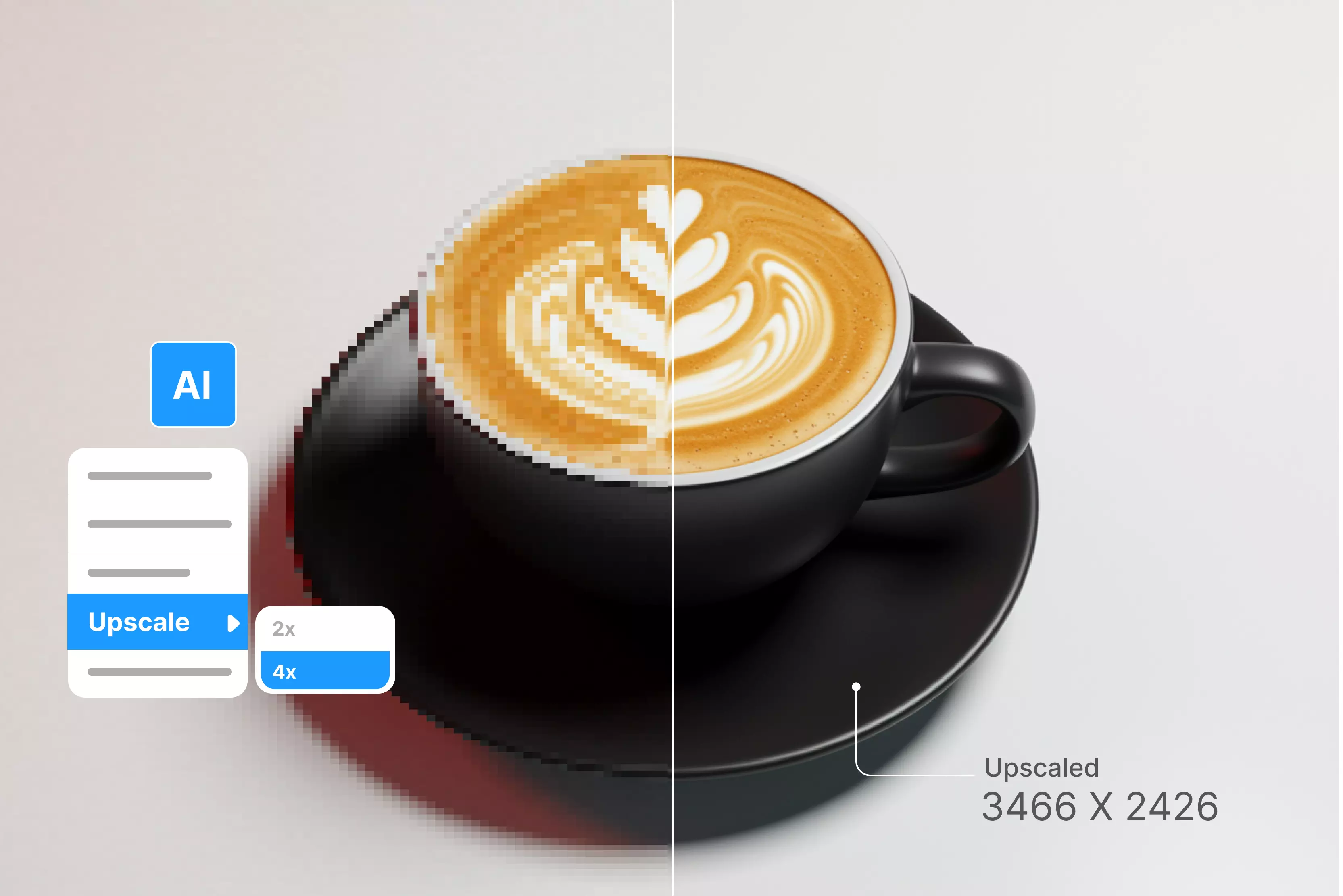
- Enlarges images by 2x, 4x, or up to 8x without sacrificing visual quality.
- Quick processing speed, results delivered in a few seconds.
- Uses advanced AI to intelligently reconstruct details and sharpen edges during enlargement.
- Accepts a wide range of formats: PNG, JPEG, JPG, and WEBP.
- Clean and easy to understand interface, just upload the images, and the smart AI algorithms will upscale it automatically.
- Offers upscaling with no watermarks even on its basic free-to-use option, with paid plans for bulk processing and API access.
- Ideal for website images, product photos, and social media graphics.
Steps to upscale the image in Pixelbin
Step 1: Head over to Pixelbin AI image upscaler.
Step 2: Upload your image by selecting it from your device or simply pasting the image URL. As batch processing is a feature, you can add up to 10 images in one go.
Step 3: Choose your image upscale size—2x, 4x, or 8x
Step 4: Preview the image and select 'Download' to save it in SD or HD resolution.
2. Upscale.media
If you're looking for a single click, fast AI tool as one of the best ways to upscale an image, Upscale.media is worth trying. I tested it using a low-quality image having jagged edges and blurriness.
After running it through Upscale.media, I was awestruck. The clarity improved, and the noise reduction kicked in well. Edges looked cleaner, details sharper, and that washed-out blur was mostly gone. You can upscale images by 2x or 4x, or 8x, with 3 free credits every day. What I liked about the tool;
Must known features
- You don’t need to sign up or install anything—just drag and drop the image.
- Increases image resolution in upscale sizes like 2x, 4x, or 8x using advanced AI.
- The process is instant and automatic, requiring only a few clicks.
- AI noise reduction works automatically, which cleans up the grains.
- Enhances image size and clarity without significant loss of original detail.
Steps to upscale the image in Upscale.media
Step 1: Go to the AI image upscaler.
Step 2: Upload your image in PNG, JPG, or JPEG format.
Step 3: The AI algorithms automatically upscale the image in 2x, 4x, or 8x scale size.
Step 4: Download your upscaled image instantly.
3. Pixelcut
If you're working with product photos, e-commerce visuals, or even quick social content, Pixelcut’s Image Upscaler is one of the smoothest tools I’ve tried. I uploaded a small product image and used the 4x upscale option. The result blew my mind, definitely sharp enough to look clean on an HD screen.
Unlike some tools that try to over-fix missing details of the image, Pixelcut keeps it natural and professional. The object edges looked sharp, the background stayed noise-free, and there was no weird oversaturation.
It feels like a tool made for beginners where you can just upload, enhance, and download. What I like most about it is that I can claim it as one of the best ways to upscale an image.
Must known features
- No sign-up needed to try it.
- Works great for product photography, posters, and clean visual assets.
- One-click, easy-to-understand interface
- Mobile-friendly and fast.
- Minimizes common scaling issues like blurriness, grain, and pixelation.
- Offers an Image Upscaler API for developers to integrate the functionality into their own applications, like WordPress.
4. PhotoGrid
PhotoGrid’s AI Image Upscaler is a simple, web-based tool designed to upscale small or blurry images with minimal effort. I tested it on an old picture that was slightly blurred and lacked detail, especially around the edges.
This tool automates 4K image upscaling; no selection of image scale is required. And the image turned out into a high-resolution one. The result looked cleaner, especially in the edges, removed the blurry spots, and sharpened the texture as much as required.
Must known features
- No sign-up required.
- Simple, easy-to-understand interface with no unnecessary steps.
- Provides a one-click process that is fully automated with no editing skills required.
- Free to use, and the image can be downloaded without watermarks.
- Smart AI adds missing details and sharpens edges for natural results.
5. Picsart
I tried Picsart’s AI Image Upscaler with a selfie, which looked nice back then, but now, when I viewed it on a high-resolution screen today, it felt blurry and grainy.
After upscaling my image through a 4x image scale, the result made me awestruck; edges looked cleaner, texture was sharper, and colors looked vibrant. This tool can upscale images to look crisp, which is perfect for content creators, marketers, and designers. What I liked about the tool;
Must known features
- Supports JPG and PNG image formats.
- Free use available.
- Web-based, no software installation needed.
- Increases image resolution up to 4x (and up to 8x or 16x via API) while preserving clarity.
- Ability to upscale and enhance up to 50 photos simultaneously to speed up workflows using the premium plan.
- Cleans up visual noise, grain, and artifacts from compressed or low-light images.
Final thoughts
Upscaling images in WordPress is no longer a “Nice-to-have experience”—it is how you keep your site looking sharp on retina laptops, 4K phones, and modern tablets. Whether you upscale before uploading, use AI plugins, or rely on theme-level AI builders, the goal stays the same: give WordPress high-quality source files so every generated size looks clean and professional.
Other than WordPress, when you want your images to load fast and stay crisp everywhere, and your WordPress site seems to be more complicated and more premium, Pixelbin AI Image Upscaler adds browser-based, no-code upscaling—fast, clean, and beginner-friendly for WordPress creators managing client sites at scale.
FAQs
Use external AI upscaling tools like Pixelbin or Upscale.media before uploading. WordPress's native resizing stretches pixels, causing quality loss; AI intelligently reconstructs details.
No plugin truly upscales; they optimize. Use ShortPixel for compression and Optimole for responsive delivery, ensuring the best appearance of high-res images.
Yes. Use free external AI tools (like Upscale.media's free tier) to enlarge the image first. Then, use free plugins to optimize the file size before deployment.
Yes, if the file is too large. You must aggressively compress the high-resolution image and use a plugin to serve smaller, responsive versions to mobile users.
No, if you upscale the image externally and upload the finished file. WordPress automatically creates thumbnails from that large original file upon initial upload.
Upload images at double the display size (2x) for retina screens (2400 X 1200). Always use strong compression and the WebP format.