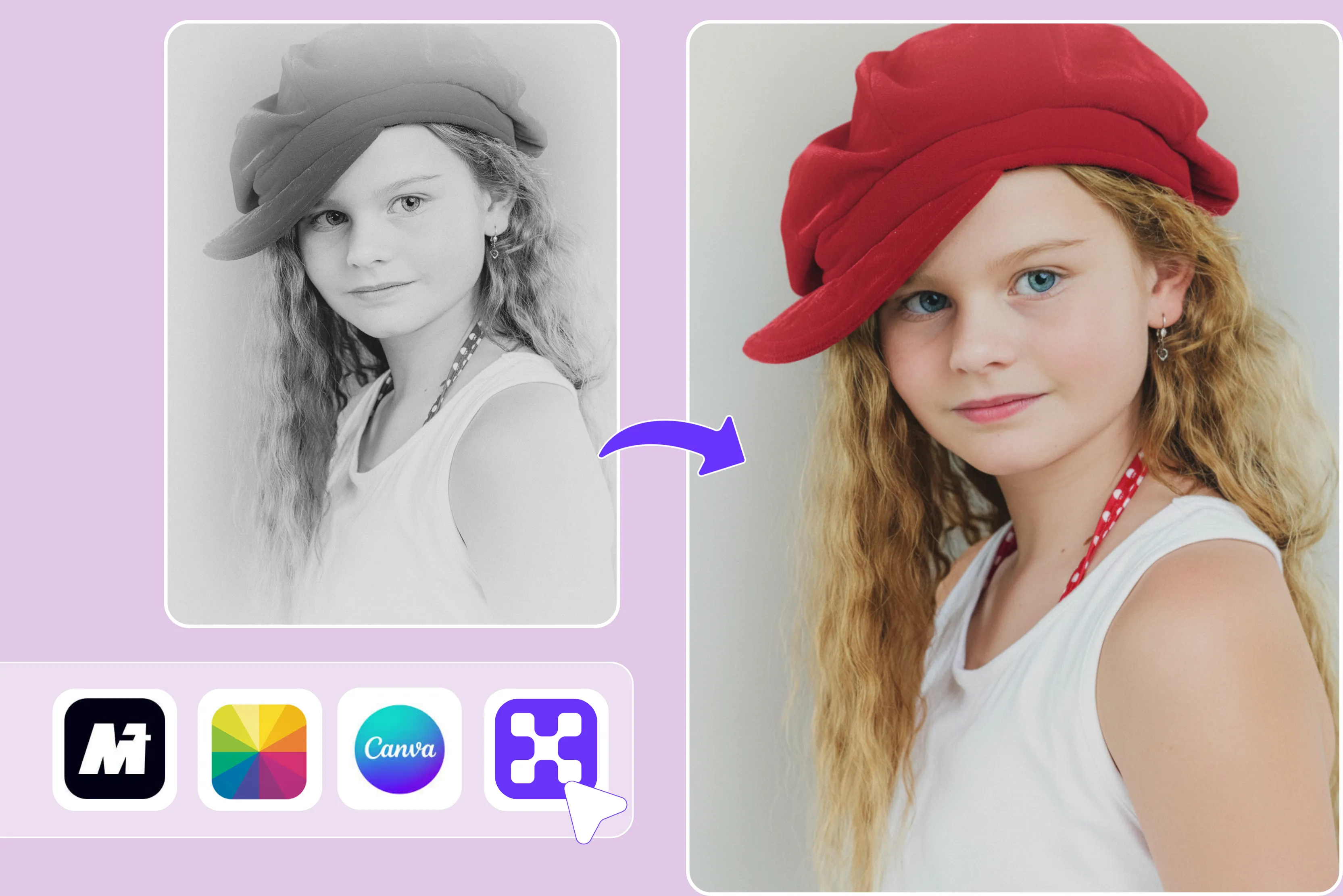


I was looking at the older images and thinking of changing their color. Changing a single photo required more time: 1 hour of manual masking in Photoshop, depending on complexity. I conducted this research because if there are numerous photos that need to be changed, using Photoshop for the task becomes more time-consuming.
I conducted extensive research to determine the ease of use and the optimal website for recoloring images online in less time. AI recolor tools can complete most basic recoloring tasks in seconds, often with minimal manual input.
Among the AI recolor tools I explored, Pixelbin stood out as my favorite due to its ease of use and speed. Users typically upload an image, enter a prompt, and click generate. In most cases, results are generated within a few seconds, depending on image size and platform performance.
This technology has rapidly evolved from a designer’s convenience to a widely adopted solution in many industries. Whether individual creators are perfecting portraits or fashion brands are generating endless product variations, AI recoloring now enables faster, more cost-effective results.
In this blog, I will explain what AI image recoloring means, review 8 popular online AI recoloring tools, how they work, step-by-step usage, and their key benefits. Let’s begin.
What is the meaning of the AI image recolor tool?
An online AI image recolor tool is a smart editor that lets you alter the color of certain items in a photo, such as a dress, purse, hair, skin tone, and more. Instead of manual editing, it uses AI to understand the image and apply new color, requiring no manual edits.
In practical terms, this means turning a red dress to blue, changing the car color from red to blue, or testing different product colors, all without complex Photoshop skills. The process is typically simple: upload an image, select the object or describe the change, choose the desired color, and generate the result.
In many cases, the output is ready within a few seconds, depending on the platform and image size. This integration allows users to complete multiple editing tasks within a single workflow with smooth production while ensuring consistency across all visuals.
Best site to recolor images online
1. Pixelbin

Pixelbin offers an AI-based image recoloring tool that can modify objects, clothing, or backgrounds in many types of photos. Text-based editing may be supported depending on the current feature set. You can change the red dress to blue, make the car black instead of red, keep the skin tone natural, and more.
The process is very simple; the only thing to do is add the image you want. Upload images in popular formats such as JPG, JPEG, WEBP, or PNG, depending on your requirements.
Write a prompt and describe the changes you want to make using simple text, then click on the generate button. Please feel free to preview the recolored image and download it if you are satisfied.
Access the color editor directly from your browser on any device; no downloads or installation required. Recolor up to 3 images each month for free, and upgrade anytime for more credits or API access.
I tested uploading my old photos, changing the t-shirt color to white, changing the hair color to multiple colors, and clicking the generate button. Waited for a few seconds; the message received was “Swapping selected colors while preserving the texture highlights and shadows.”
The received result was excellent, with no blur, no watermark, and very easy to use. The processing speed is impressive and supports multiple styles, which saved me both time and money.
I would strongly suggest this solution to anyone seeking efficient optimization and management of their media assets. Recoloring tools cover all common needs for e-commerce platforms, the advertising industry, social media users, the beauty industry, and more.
Key features
- No signup needed
- Ease of use
- Multiple image formats
- Easy accessibility
- No app installation
- No watermark
- Zero distortion
2. Canva
Easily edit image colors with Canva’s free online photo editor. Canva allows adjustment of various color properties, though precise selective color editing may require additional tools or a Pro subscription.
Changing the photo colors depending on where they’ll be posted or how they’ll be used. Canva allows general color adjustments for PNG and JPEG images. Advanced sensitive color editing may require Pro features.
The process is very simple: upload your image, then drag and drop it onto the canvas. Select from the available stock photos in our extensive media library. Select your photo, then choose the color edit option on the toolbar.
Add finishing touches by inserting text in trendy fonts and finding icons, illustrations, stickers, and other graphic design elements from the library. Download the result.
I tested my image, where I found that the processing time is longer than that of Pixelbin, which may affect the overall efficiency of my graphic design workflow. I found that many of the features are limited unless you pay for the Pro version. Based on my experience, I expected greater flexibility and smoother performance.
Key features
- Ease of use
- Fully online
- No signup needed
- No watermark
- Beginner-friendly
- Fast color adjustments
- Works on desktop and mobile
3. Pixlr
Easily change the colors in your images with Pixlr’s color replacement tool. The tool allows adjustments to several brush settings for more detailed edits. Adjust the brush size for precision. Set softness for smooth bleeding and select step styles from straight lines to dotted effects.
Users can manually recolor older photos, though results depend on editing technique and image quality. The process of using Pixlr is very simple: upload your photo, select the color replace tool from the left menu, and then adjust the brush settings. Select the desired color, then use the brush tool to paint over the object or area you want to replace.
Once it's done, save your final output as a PNG, JPG, PDF, or WebP file by clicking the save button. I tested one of my images by changing the hair and dress colors. I'm really disappointed because the process is too time-consuming, involves too much manual work, and doesn't produce a clear, clean image. For something that's supposed to be fast and easy, it felt overly complicated and not very precise.
Key features
- No technical knowledge needed
- No watermark
- No signup needed
- Multiple color options
- Adjustment layer
- Browser-based editing
4. Fotor
Fotor offers tools for recoloring images, primarily through overall color adjustment and, in some modes, selective edits depending on the tool/version. Fotor provides color-changing tools that can adjust or shift colors.
Precise color replacement may depend on the specific feature used. With a few clicks, you can bring your old image to life with the online color changer. The process is very easy: click the "Recolor an image now" button, drag and drop your images, open them, and upload them.
Click HSL, which stands for Hue, Saturation, and Lightness, and pick the color you want; then adjust the hue (the type of color), saturation (the intensity of the color), and lightness (the brightness of the color) as needed to get your image recolored.
I tested one of the images in which I had to select a replacement option, such as a bag, dress, clothes, hair, or skirt. I selected the red hair option and clicked the generate button.
Wait a few seconds, then check the result. The result was received in an improper red color with a watermark, making it less than perfect, since there are fewer selection options than with other tools like Pixelbin.
Key features
- No signup needed
- Easy to use
- Multiple color options
- No installation required
- Support multiple formats
5. Media.io
Colorize black-and-white photos and enhance images using AI. Processing time varies by image size and network conditions. Explore the magic of recoloring with our user-friendly online photo tool. Our user-friendly tool is designed for beginners; just upload your old photos and let AI handle the picture recoloring.
No complex operation is needed. With a single click, it can generate product images in various colors, allowing marketing professionals to finalize the design. You can upload various image formats, like JPG, PNG, JPEG, WEBP, and BMP.
The process is very simple: upload the image or photo you want to recolor; the tool cannot recolor PNG files. Once the image is displayed, click the restore button in the left corner.
Then click "Process" and wait for the AI to automatically identify and recolor the photo online. The tool outputs a colorized result and may provide multiple variations depending on the feature. Download the result if you are satisfied with it. I tested one of the images; the color selected was green, but the result I received was unsatisfactory.
Key features
- Ease of use
- No technical knowledge needed
- Support multiple formats
- No installation required
- No watermark
- Multiple color options
6. Imagine.Art
Create stunning recolored images using ImagineArt. It can be used for product editing, background changes, and creative color experimentation, depending on the selected feature.
Imagine.Art allows prompt-based recoloring, where users can type the desired color changes and let AI apply them. Users can experiment with different color ideas or refresh older photos using AI-based edits.
The tool may preserve textures like fabric or metal when applying color changes, depending on image quality and prompt accuracy. The process is simple: upload your image, add a high-quality photo, type a short prompt to recolor it, and replace the colors to ensure realistic color application.
Click on the “Generate” button. Please review the result and proceed to download it. I tested with a photo of a black dress on a green background. In my test, the output matched the prompt and did not include a visible watermark.
Key features
- Ease of use
- No technical knowledge needed
- No watermark
- Multiple color styles
- Aspect ratio
- Support multiple formats
7. DeepAI
Add color to old photos and historic images, or bring your old film back to life with colorization. DeepAI provides an online image colorization demo that may be usable without a login. The process is very simple: upload an image, wait a few seconds, and download it if you are satisfied with the result.
There are limits on resolution and on daily use for higher-volume or API access, so users may need to consider these restrictions if they plan to use the service frequently or with larger images.
I tested one of the old images by simply uploading it and waiting a few seconds. The result I received was a little perfect, with no watermarks. However, the output image appeared slightly soft or less sharp compared to the original.
For high resolution or commercial work, users may want to compare it with more advanced or paid alternatives like Pixelbin, depending on their quality requirements.
Key features
- Ease of use
- No signup needed
- No technical knowledge needed
- Support multiple formats
- No watermark
8. Picsart
Picsart offers color effects and filters that can quickly change the look and tone of a photo. In a single click, your basic images will take on a whole new colorful life. You can experiment with various colors, from warm to cool, until you achieve the ideal final look.
The process is simple: upload a photo, click Effects, then go to the Colors category to apply the effect. Click Adjust to make changes, then tap Apply to save. I tested one of my images; you can try JPEG or PNG depending on your requirements.
I uploaded that image, then on the left side, I selected colors like colorize, and the result I saw was disappointing, and it had a watermark too. The applied filter affected the entire image rather than selectively targeting specific areas, which made the color appear unnatural in some regions.
I was definitely dissatisfied with the experience. You can use this tool to further customize the look of your colorized image. It can be used for personal or professional projects like social media, websites, or blogs, though results may require additional adjustments.
Key features
- Ease of use
- No technical knowledge needed
- No signup needed
- Multiple color options
- Remove background
How to recolor images online
Here are some common steps for recoloring images online. My all-time favorite Pixelbin
Step 1: Visit Pixelbin-> AI tools; in search option, write -> AI image recolor tool
Step 2: Select the image you want to change to any of the following formats: JPG, JPEG, PNG, or WEBP, according to your needs.
Step 3: Write the proper text prompt to describe the color changes you want to make.
Step 4: Click on the “Generate" button and wait for a few seconds.
Step 5: Preview the recolored image and download it in HD, at no extra cost or watermarks.
What are the benefits of using an online recolor image tool?
AI recoloring offers far more than ease; it's revolutionized how creators, marketers, and designers approach visual editing.
- Speed and efficiency: You can now complete Photoshop-like tasks that took hours in a matter of seconds. AI automates color adjustments, eliminating the need for manual masking, layering, or parameter tuning.
- Flexibility in creativity: Exploring countless color combinations, seasonal themes, and branding variants is made simple with AI recolor, which is a tool that uses artificial intelligence to automatically adjust colors in images. Multiple tools can be previewed instantly before final selection.
- Reliable and expert outcomes: Every recolored image looks natural and superior thanks to sophisticated AI models that preserve lighting, shading, and texture accuracy. This is important for preserving brand consistency.
- Ready for high-volume e-commerce: Because of the technology's flexibility, retailers may swiftly add new color options to their entire product catalogs, ensuring speed to market and visual consistency.
FAQs
No, modern AI recolor tools like Pixelbin are designed for both beginners and professionals with an intuitive interface, one-click recoloring, and no manual adjustments.
It depends on the tools you choose, but many platforms offer free trials, such as Pixelbin. The platform may impose a usage limit through daily credits or a cap on the number of operations.
If you are looking for a recoloring tool, Pixlbin's AI-powered tools allow users to create, modify, and recolor high-quality results quickly and efficiently without any need for digital illustration skills.
With the help of the free online tool Pixelbin, you can recolor any parts that you want up to 3 times a month. You can sign up for ten free credits to use across all apps. The Pixelbin is very easy to use; just add your prompt, write a text prompt, and click on the button.
Yes, you can upload big files to the Pixelbin image recolor online tool. Images up to 10 MB should work as long as they’re in the supported file formats, such as JPG, PNG, JPEG, or WEBP.
You can recolor black-and-white photos online for free using Pixelbin's recolor image tool. Just upload your photo, write a simple text prompt, and click the generate button. You will see the best result.










