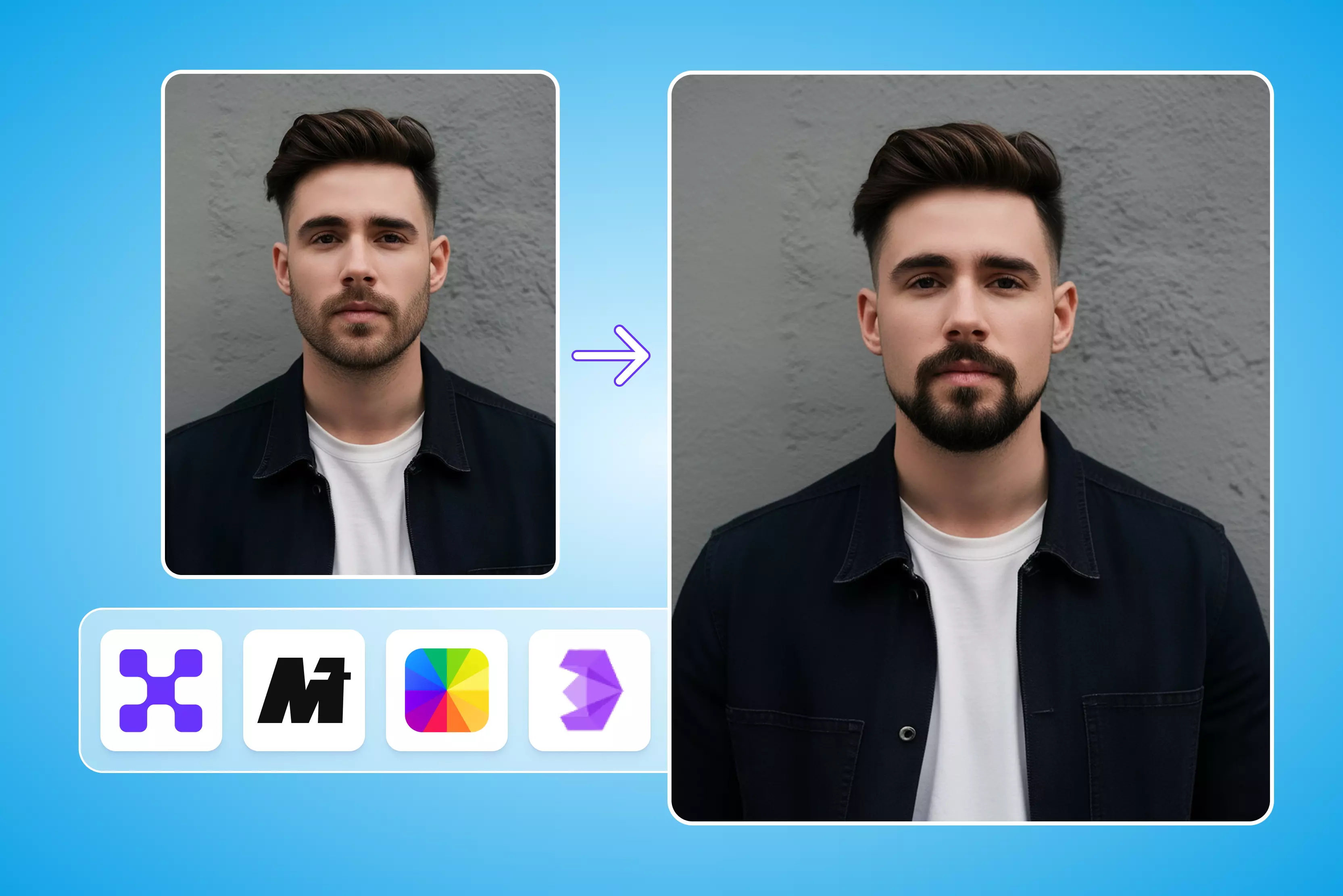


Scroll through your photo gallery, and you’ll probably spot at least one picture where everything looks right from the lighting, angle, and outfit, but the beard? Not so much. Maybe it feels too heavy, patchy, or just not you anymore. That’s exactly why beard removal apps have quietly become popular. People aren’t just using them for jokes or filters anymore; they’re using them to fix profile photos, update professional headshots, or see how they’d look clean-shaven without actually picking up a razor.
Thanks to AI, removing a beard from a photo is no longer a clumsy blur job. Modern apps analyze facial structure, skin texture, and lighting to realistically rebuild the face underneath the beard. The result, when it works well, looks natural enough for LinkedIn, resumes, or dating apps. Of course, not every app gets this right, and some still over-smooth or leave strange patches.
In this blog, I’ve tested and compared the best apps to remove a beard, both free and paid. You’ll learn how these tools work, which ones deliver realistic results, where they fall short, and which apps are best for casual edits versus professional use. If you are curious, cautious, or just experimenting, this blog will help you choose the right tool without wasting time.
What is an AI Beard Remover?
An AI beard remover app is a digital photo-editing tool that uses machine learning algorithms to isolate facial hair and reconstruct the hidden jawline, chin, and skin texture underneath.
Unlike traditional beauty filters that merely smudge or blur the targeted area, advanced beard removers utilize face segmentation to map facial landmarks (lips, cheeks, and jaw) and predict realistic skin grain that matches the original photo’s lighting conditions.
Beard Removal vs. Face Retouching
- Face Retouching: Smooths existing pixels to hide blemishes, balance skin tone, or reduce wrinkles.
- Beard Removal: Generates completely new visual data to fill in a large, missing structural area of the face.
Free vs Paid Beard Removers
Free beard remover apps are best for quick experiments, casual selfies, and checking how you might look without facial hair. They usually let you remove a beard from a photo with basic AI tools, no-beard filters, or prompt-based editing. However, free AI beard remover apps often come with limits such as lower image quality, daily credit caps, slower processing, ads, or watermarks.
Paid beard remover apps are better when you need realistic beard removal for professional photos, dating profiles, LinkedIn headshots, resumes, or client work. Premium tools usually offer more accurate facial hair removal, better skin texture reconstruction, sharper jawline blending, high-resolution downloads, faster processing, and no watermark.
If you only want to test a clean-shaven look, start with a free beard remover app. If the photo needs to look natural and polished, especially for professional use, a paid AI beard remover app is usually the better choice.
12 Best apps to remove bear
After testing and comparing 12 no-beard tools, one thing becomes very clear: there’s no single “Right” way these apps handle beard removal. Some tools keep it dead simple with a direct, one-click filter that automatically removes facial hair for a clean-shaven look. Others take a more flexible route and use prompt-based editing, where you describe what you want and let the AI figure out the details.
A few go a step further and also offer multiple beard styles, so you can switch between stubble, a full beard, or a clean shave before deciding. The good news? Most of these tools offer a free trial or free usage, making it easy to test results before paying.
1. Pixelbin
Pixelbin AI beard removal is surprisingly simple: you upload a clear selfie, pick the “No Beard” tool, and the AI reconstructs the underlying skin texture to give a realistic, clean-shaven look in seconds.
Its retouching pipeline blends facial-structure awareness with texture restoration so results don’t look plastered-on, and it preserves image resolution for social use.
From my testing, it’s fast and practical for previews and profile photos, though very heavy stubble, odd lighting, or occluded faces can leave artifacts, so pick a straight, well-lit shot for best results.
2. Kaze.ai
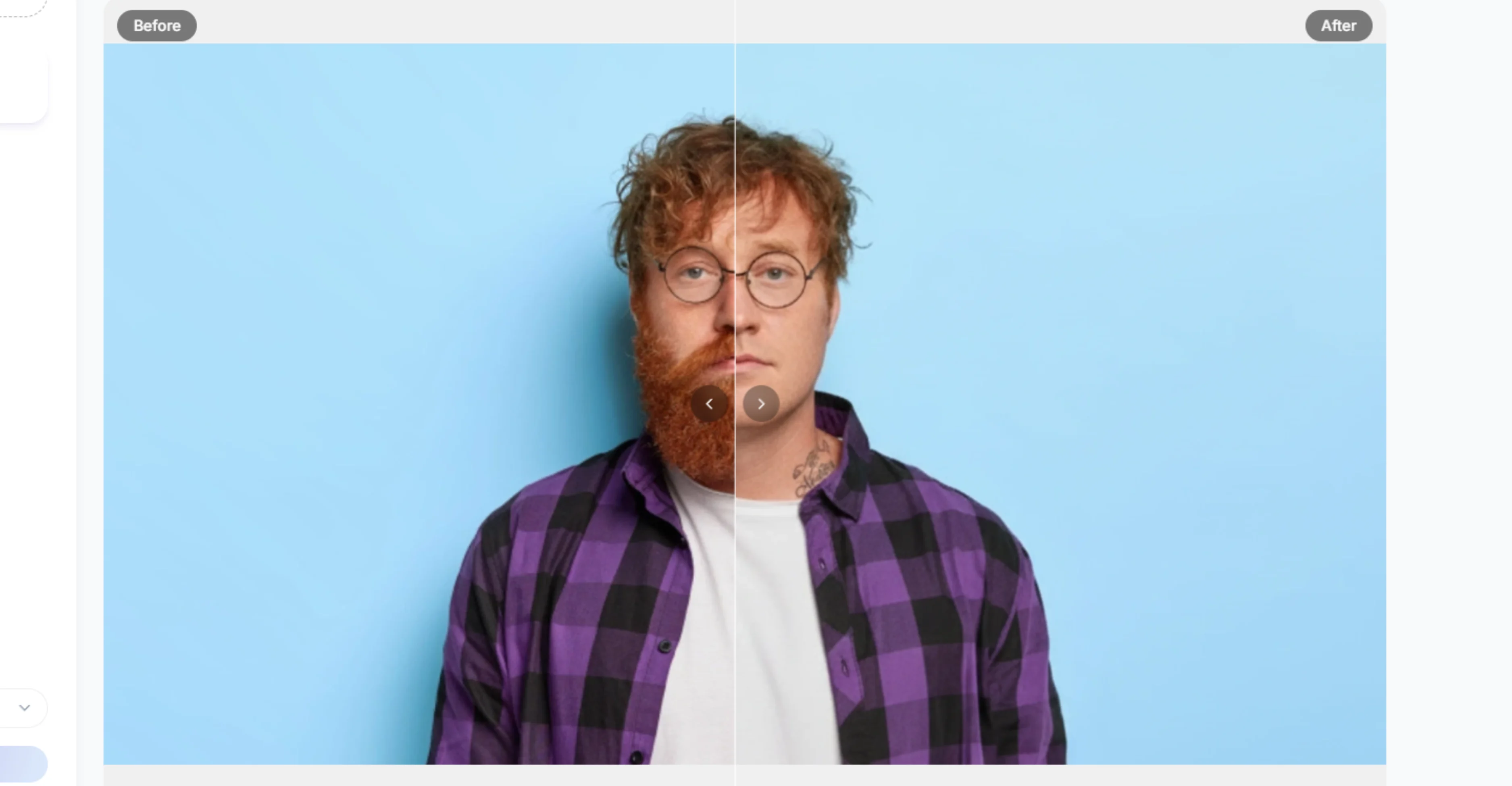
When you upload a selfie to Kaze.ai’s beard filter, you don’t just get “Beard on” or “Beard off”, you get four distinct options to play with your look: Clean shaven look for a smooth face, beard removal effect to digitally remove existing facial hair, fresh face style for a subtle polished appearance, and AI shave filter that blends your skin texture realistically post-removal.
These choices let you preview different grooming outcomes without touching a razor. I found it especially handy for testing what suits you best before committing to a style, though lighting and photo quality still affect consistency.
3. Media.io
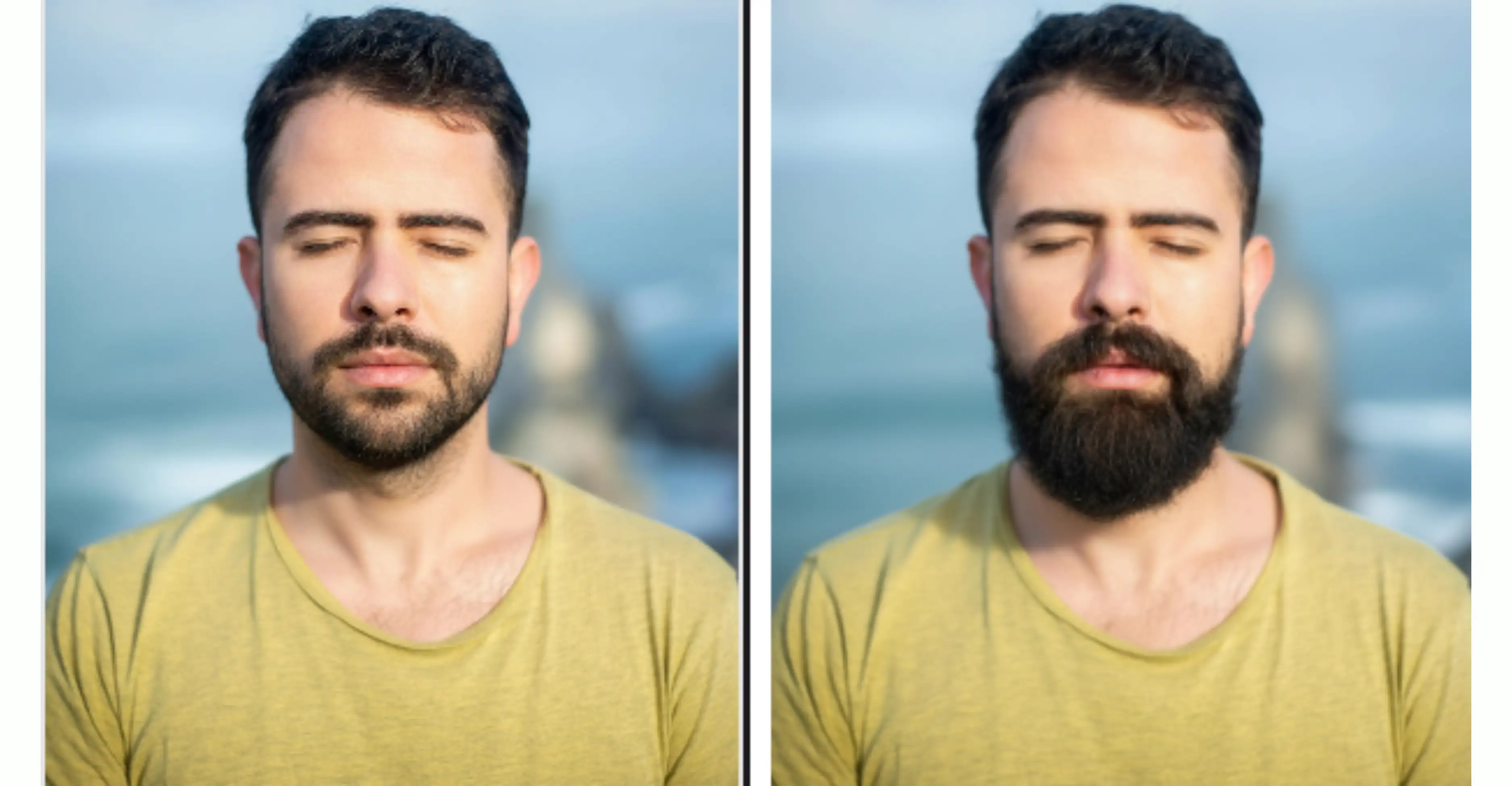
If you’re curious what you’d look like clean-shaven without touching a razor, Media.io’s AI beard removal feels like a clever digital hack rather than a complex editor. You have to upload your photo and use prompts to tell the AI what you want, like “Remove beard, keep natural skin.”
The underlying AI then distinguishes facial hair from skin and fills in the cleared space with a realistic texture,e so you don’t get weird smudges. You can even choose the final image’s aspect ratio before downloading, which is great for Instagram or LinkedIn. I’ve found it works best on well-lit, front-facing shots.
4. Youcam online editor
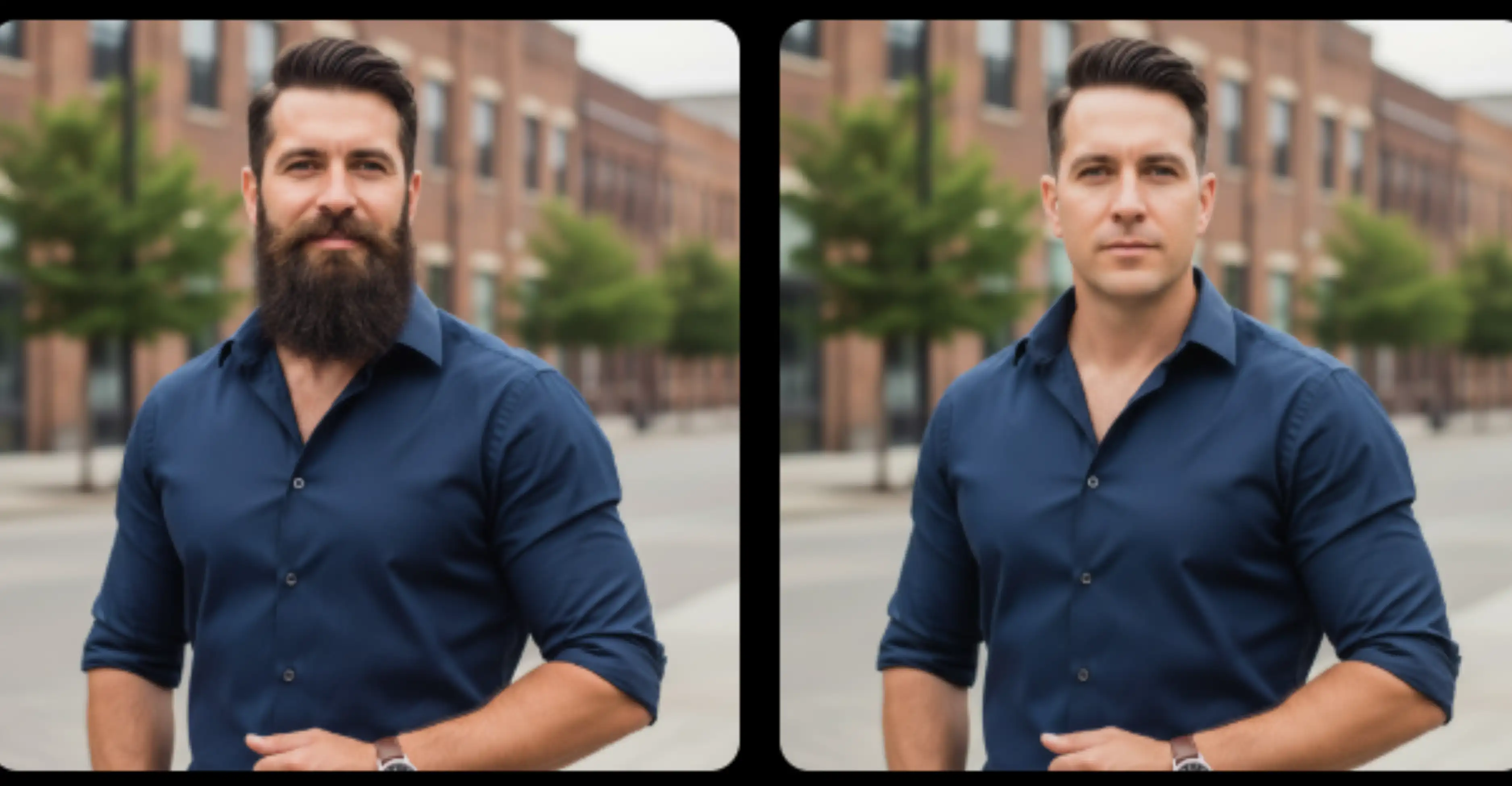
YouCam’s grooming features aren’t just about removing a beard; they’re about exploring grooming styles. Once you upload a selfie, you can jump into its Beard feature and choose from 15+ pre-set beard looks like goatee, anchor, circle, or mustache, he and yes, there’s a “Shaved” (clean-shaven) option that effectively erases facial hair for a smooth preview. The AI uses smart face mapping and AR to apply or remove styles realistically, blending with your skin tone and contours.
After testing it, I’ll say it’s fun and practical for quick experiments or style decisions before a real shave, though the results lean more stylized than ultra-photorealistic; it's great for social pics or inspiration, less so if you need professional-grade photo retouching.
5. Airbrush.com
If you want to see your face before you actually commit to a shave or a new beard style, Airbrush.com’s AI beard tools are built exactly for that. You upload a photo, and instead of guessing with brushes, you choose from multiple beard style options, including clean-shaven, stubble, goatee, and fuller beards. The AI maps your facial structure and blends skin texture naturally, so the result usually looks believable, not edited.
From regular testing, it works best on clear, front-facing photos; heavy shadows can throw it off a bit. It’s practical for quick experiments, not perfection-grade retouching, and that’s honestly where it shines.
6. FlexClip
If you want to digitally test a clean-shaven you without awkward manual editing, FlexClip’s AI Beard Remover is worth a try, but with a prompt-based twist. You upload a photo, then enter a text prompt like “Remove beard completely while keeping other features untouched,” and the AI intelligently identifies and erases facial hair, rebuilding skin texture for a natural look.
I’ve used it enough to see that it handles full beards, stubble, and mustaches fairly well, though lighting and image clarity still matter. After the beard removal, you can continue refining your portrait with FlexClip’s other AI photo tools, like blemish removal or background tweaks, all in one place.
7. Fotor
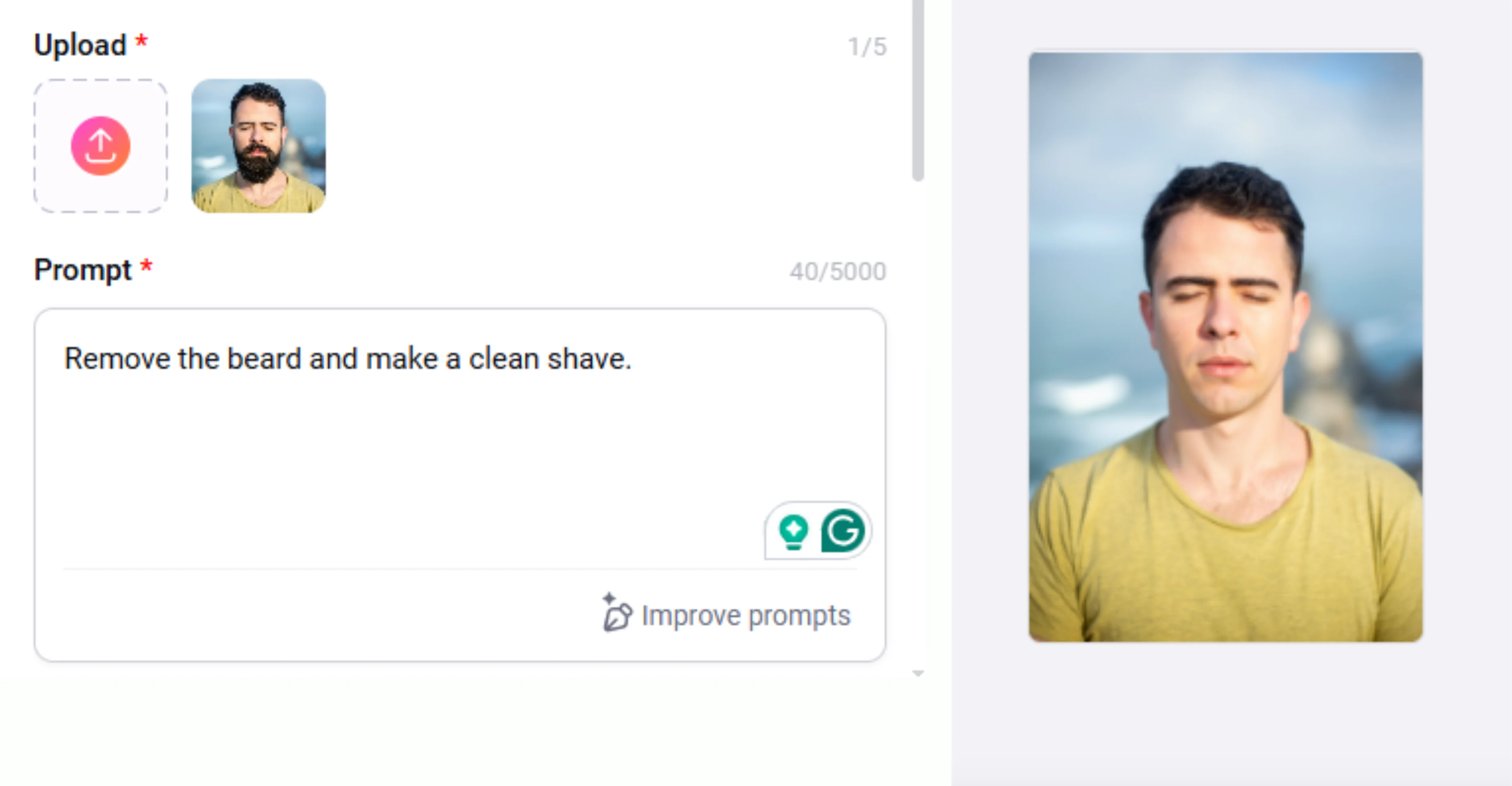
If you want to experiment before actually shaving, Fotor makes beard editing refreshingly straightforward. You upload a photo and choose from several beard style options: clean-shaven, light stubble, full beard, goatee, mustache, and more, rather than guessing with manual brushes. The AI detects facial contours and blends skin texture so the result usually looks natural, not airbrushed.
From long-term use, it works best on clear, front-facing photos; heavy shadows can still confuse the model. It’s practical for profile photos and quick style decisions, not high-end retouching, and that honesty is why it’s useful.
8. Pixelcut
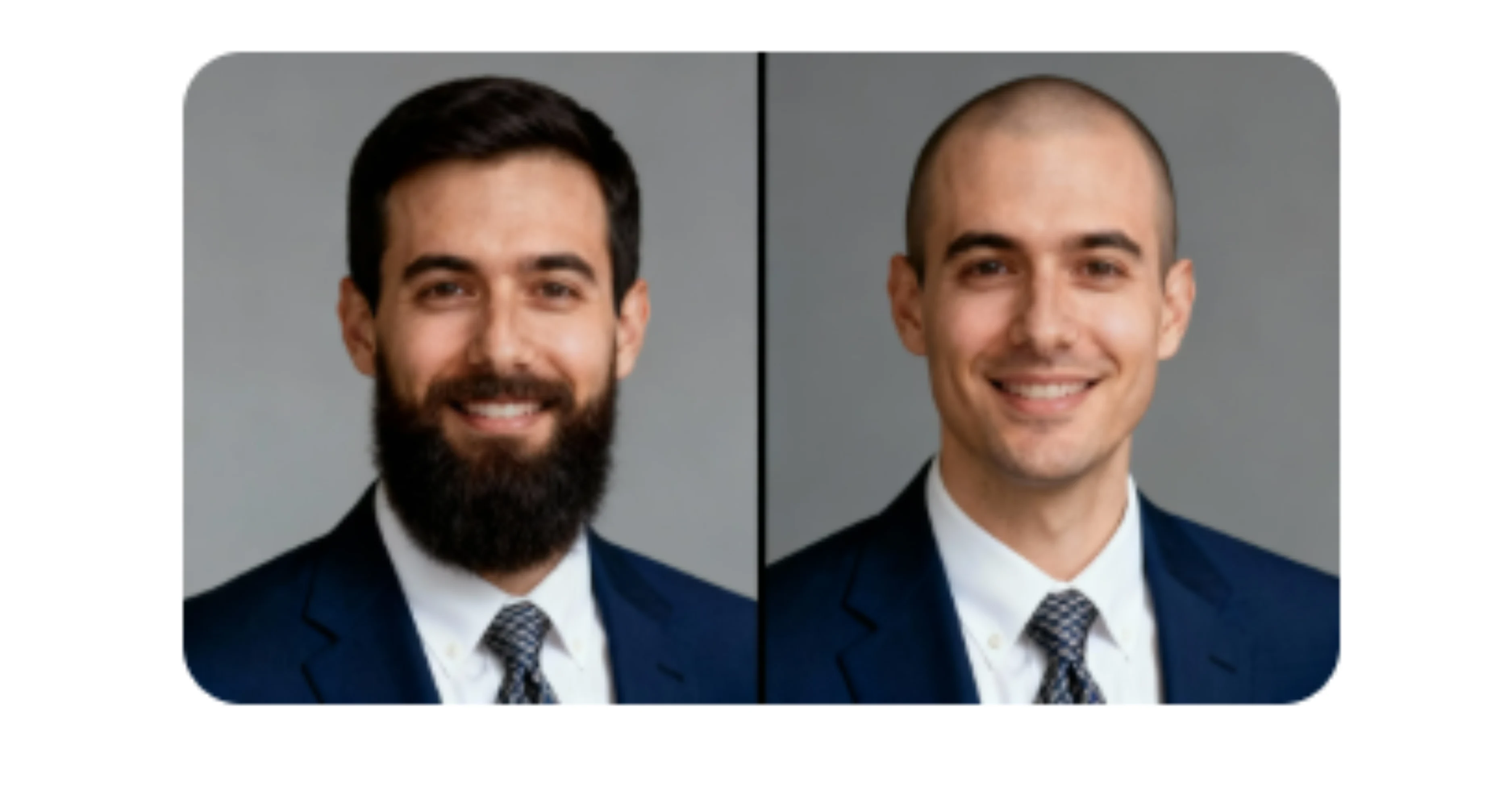
If you’ve ever wondered what you would look like without a beard before committing to a real shave, Pixelcut has a surprisingly simple way to show you, and it’s all prompt-based. Their AI Beard Remover lets you upload your photo and type a prompt like “Remove beard, clean-shaven” to instantly generate a smooth, clean-shaven version of yourself.
From my testing, the results feel natural and high-resolution, but the quality still hinges on clear lighting and front-facing shots; shadows can confuse the AI sometimes.
9. Arting.AI
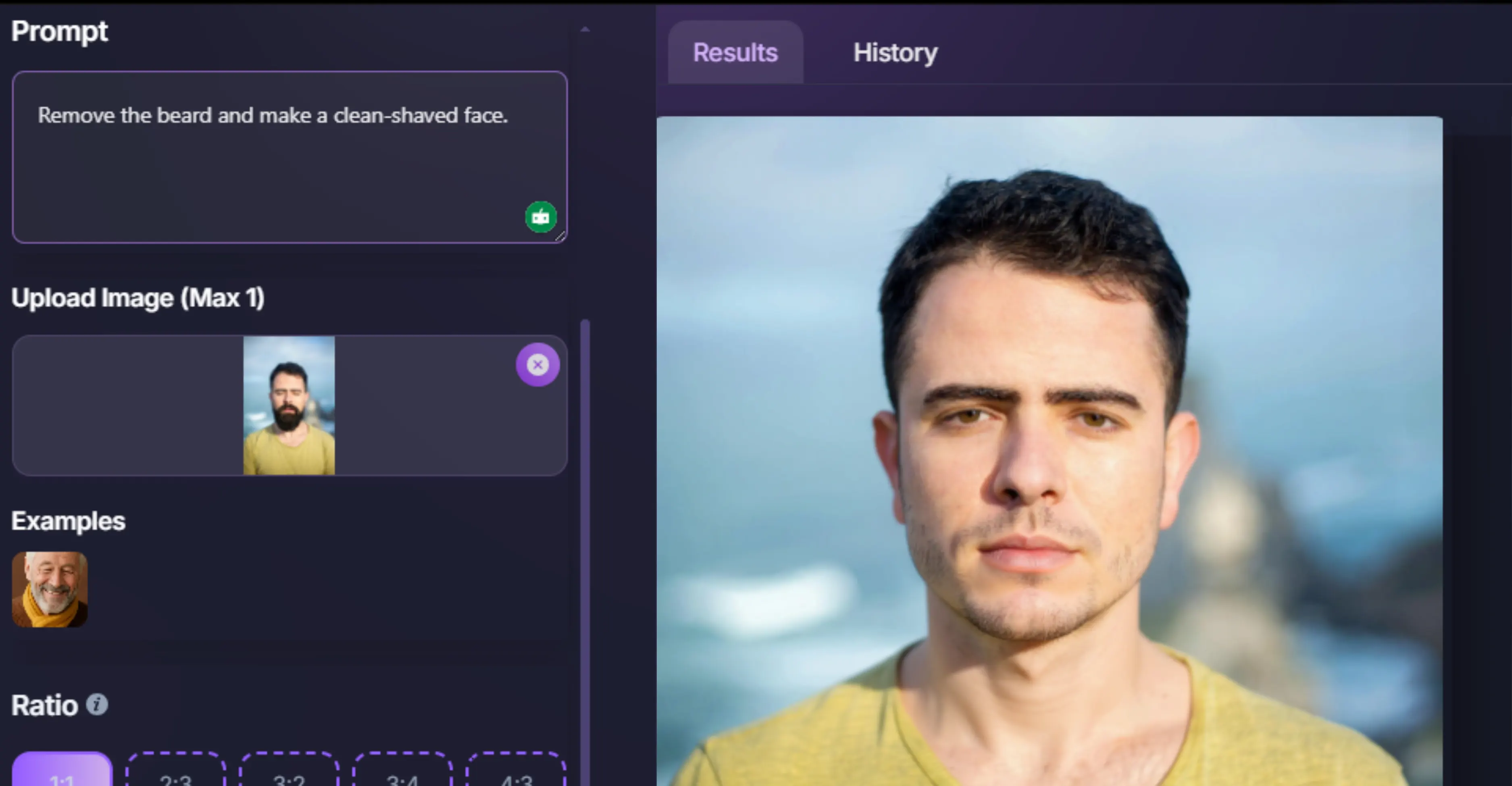
If you’ve ever wondered what you’d look like without facial hair, right in your browser, Arting.AI’s No Beard Filter is a delightfully quick way to find out. You upload a photo, pick an aspect ratio, enter the prompt, and the AI automatically removes beards while preserving your natural skin tone and facial structure, all without installing anything.
Arting doesn’t stop at a one-size-fits-all button, though. It is excellent for experimenting with a clean-shaven look before a real shave or creating professional ID or social media photos.
10. Pokecut
You have to upload a clear portrait, and the AI automatically erases the facial hair while preserving skin texture and jawline. You can also use its adjustable brush to target specific areas (like removing a mustache but keeping a goatee), giving you precise control over exactly what stays and what goes.
It supports image file formats such as JPEG, JPG, PNG, WebP, and BMP,, and outputs crisp results you can download instantly. From my testing, it’s fast, beginner-friendly, and particularly handy for headshots or resumes, though it doesn’t offer style switch presets like “Full beard” or “Stubble”; it’s all about removal and selective cleanup.
11. Bylo AI
With Bylo.ai, you can remove beards using a prompt-driven workflow: upload a clear photo (PNG, JPG, or WEBP; up to 5 MB, up to 10 images), type a short instruction like “remove beard, keep skin texture,” and the AI returns a clean-shaven result. Choose an output format (PNG or JPEG) and pick aspect ratios (1:1, 9:16, 16:9, 4:5, etc.) before downloading. It’s fast and surprisingly natural in good lighting, though heavy shadows or blur can cause artifacts. Honest tip: use well-lit, front-facing shots for best results; they're perfect for profile photos, IDs, or quick style experiments and edits.
12. VideoPlus.ai
If you want to see a clean-shaven you without touching a razor, VideoPlus.ai makes it delightfully simple: upload a clear selfie, apply the No Beard (Beardless) Filter, and the AI detects and removes facial hair while reconstructing realistic skin texture. You also have a prompt box to enter any suggestions for removing the beard. All in your browser, and watermark-free.
You can preview results instantly and download; the tool accepts common image formats and needs no login, which is great for quick profile or ID photos. It’s fast and practical, though heavy stubble, harsh shadows, or low-res images can still confuse the model; use well-lit, front-facing shots for best results.
Best Beard Remover Apps by Use Case
- Best overall AI beard remover app: Pixelbin
- Best free beard remover app: VideoPlus.ai
- Best for realistic clean-shaven results: Media.io
- Best for beard style experiments: YouCam
- Best for manual beard cleanup: Pokecut
- Best for professional profile photos: Pixelcut
- Best no-login beard remover: VideoPlus.ai
- Best prompt-based beard remover: Bylo.ai
- Best for trying different beard styles: Fotor
- Best browser-based beard remover: Arting.ai
Key features to look for in a beard removal app
After testing a bunch of beard remover apps, I’ve learned that the difference between “Wow, that looks real” and “Why does my face look blurry?” usually comes down to a few core features. Here’s what actually matters when you’re choosing one.
1. Natural Skin Reconstruction
The best apps to remove beard from photos do more than erase hair. They rebuild the skin texture underneath the beard so the chin, cheeks, and jawline still look natural. Look for tools that preserve skin tone, pores, shadows, and facial structure. If the result looks too smooth or plastic, the app is probably using a basic blur effect instead of proper AI reconstruction.
2. Accurate Face Detection
Strong face detection helps the app understand where the beard ends and where the lips, chin, cheeks, and jawline begin. This is especially important when removing a thick beard or mustache. Poor face detection can create warped lips, uneven skin, missing patches, or an unnatural jaw shape.
3. Prompt-Based Editing
Some AI beard remover apps let you type instructions such as “remove beard and keep natural skin texture” or “make the face clean-shaven.” Prompt-based editing is useful when you want more control over the final look without manually brushing over the face.
4. Manual Cleanup Tools
Manual editing tools are helpful when the AI result is close but not perfect. A brush, eraser, or retouching tool can help clean up leftover stubble, fix patchy areas, or remove only part of the facial hair, such as a mustache or sideburns.
5. Watermark-Free Downloads
Many free beard remover apps limit downloads or add watermarks. If you plan to use the edited photo for LinkedIn, resumes, dating apps, business profiles, or client work, choose a tool that offers watermark-free exports.
6. High-Resolution Output
A clean-shaven photo may look fine in preview but poor after downloading. Always check whether the app supports high-resolution exports. This matters if you need the edited image for professional headshots, ID photos, print use, or high-quality social media uploads.
Things to Check Before Uploading Your Photo
Before using an AI beard remover app, choose a clear, front-facing photo with good lighting. Beard removal works best when the face is sharp, the skin tone is visible, and the beard area is not covered by shadows.
Avoid blurry selfies, heavy filters, side-angle photos, sunglasses, harsh shadows, and low-resolution images. These can confuse the AI and lead to unnatural skin texture, distorted jawlines, or patchy beard removal.
If privacy matters, also check the app’s photo upload policy. Some beard remover tools process images temporarily, while others may store uploaded photos for product improvement. For personal or professional images, use tools that clearly explain how your photos are handled.
Conclusion
The best tools don’t just delete facial hair; they understand faces, lighting, and texture well enough to make the result look believable. From my testing, free apps are great for quick experiments, but paid tools consistently deliver cleaner skin reconstruction, higher resolution, and fewer awkward artifacts. The right choice really depends on how you plan to use the image: casual edits, social profiles, or professional photos. My advice? Try a couple of tools with the same photo, compare the results side by side, and stick with the one that looks the most human, not the most “AI-edited.”
FAQs
Yes, AI beard remover apps can remove facial hair realistically, depending on facial hair density and photo resolution.
- Light-to-Medium Beards: Achieve a 90-95% realism rate because the AI easily matches existing cheek and neck skin textures.
- Thick, Dense Beards: Fall to a 60-70% realism rate. The AI must artificially generate a large amount of missing jawline data, which often results in artificial smoothing or pixel artifacts around the lips and chin.
Yes, most reputable AI beard removal apps are safe, but data privacy depends entirely on the tool's backend data retention policy.
To ensure maximum privacy protection, review the platform's terms for two specific protocols:
- Ephemeral Processing: The app processes the image in temporary RAM and deletes it immediately after your session.
- Model Training Opt-Out: The app guarantees your uploaded photo will not be stored to train future public machine learning models.
Yes, the majority of free AI beard remover tools enforce visible watermarks, daily generation caps, or restricted low-resolution exports. Upgrading to a premium tier or paid subscription is required to unlock uncompressed, high-resolution files (PNG/JPEG) suitable for professional resumes or corporate websites.
Yes, but only if the software features Multi-Face Detection models. Basic beard remover filters lock onto the single largest, most centered face in the frame. Advanced AI editors can scan the entire image matrix, map multiple sets of facial landmarks simultaneously, and strip facial hair from several individuals at once.
Yes, specialized AI video editors can remove beards from video footage, but they require deep learning temporal consistency. While standard photo editing changes a single frame, video beard removal requires the AI to track and anchor the generated skin texture across 24 to 60 frames per second to prevent visual warping, glitches, or texture sliding as the head moves.
A high-resolution, front-facing portrait with flat, even lighting yields the most accurate AI beard removal results.
To avoid distortion or AI generation failures, avoid the following image issues:
- Harsh Side Shadows: Confuses the AI's lighting model, leading to uneven skin tones.
- Extreme Camera Angles: Obscures natural jawline proportions.
- Low-Light Grain: Prevents the face segmentation engine from accurately distinguishing hair follicles from skin pores.









