
Quick summary
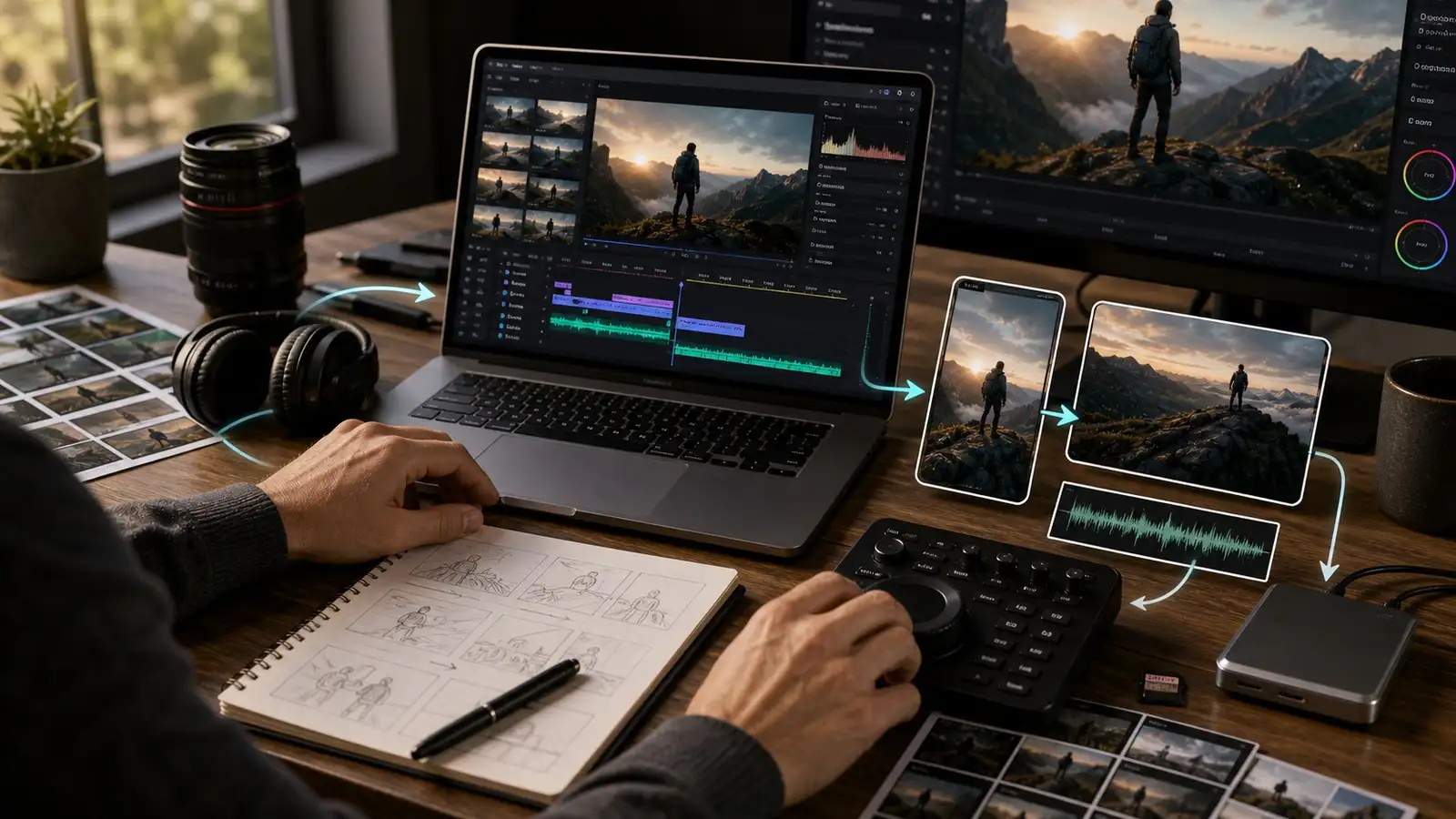
An AI video editing workflow helps you plan, generate, fix, repurpose, optimize, and deliver videos faster. By combining AI-powered automation with human review, you can speed up repetitive tasks while maintaining creative control, accuracy, and consistent quality throughout the editing process.
Introduction
Creating one good video is difficult. Creating ten platform-ready versions is where most teams lose time. Between scripting, editing, resizing, captioning, reviews, and exports, even short videos can require hours of repetitive work. An AI video editing workflow changes that by bringing automated video editing into your system, speeding up production tasks while keeping human creativity in control.
The goal is not to replace editing entirely. The goal is to make the process faster, more flexible, and easier to repeat. For marketing teams, creators, ecommerce brands, and agencies, this matters because content demands rarely stop at one version. A traditional workflow can handle this, but it usually does so with more manual steps than necessary.
An AI-powered workflow changes that balance. It lets you move from idea to first draft faster, repair common issues without starting from scratch, and prepare platform-ready outputs with less friction. Used well, it does not remove creative judgment. It simply gives you a better system for getting to a usable video faster.
What is an AI video editing workflow?
An AI video editing workflow is a repeatable process that uses AI across planning, generation, rough editing, fixing, resizing, optimization, and delivery. It is not only about making a video faster. It is about making the whole process more scalable, so you can create more content without adding unnecessary manual work.
In practice, the workflow may include Text to Video,Image to Video, rough cut generation, caption and subtitle support, B-roll creation, audio cleanup, format resizing, and output optimization. Each step removes friction from a different part of the video production process.
Why traditional workflows slow teams down
Traditional video workflows often break down because the work is spread across too many places.
- Assets may live in folders, drives, review tools, or chat threads, and that makes it harder to find the right clip at the right time. Editors also spend too much time starting from a blank timeline, which slows the first draft before the real creative work begins.
- Simple edits can also take longer than expected. Trimming clips, fixing captions, resizing for different platforms, and preparing export files can add hours to a project.
- When you need separate versions for Instagram Reels, TikTok, YouTube Shorts, paid ads, landing pages, or ecommerce pages, the workload multiplies quickly.
- Review cycles can slow things down even more. If the first version is weak, you may need extra B-roll, a tighter hook, a different aspect ratio, or a fresh cut for another channel. AI does not replace creative direction, but it shifts more time toward decision-making and quality review instead of repetitive editing.
- There is also a hidden cost in traditional workflows that many teams underestimate. Every extra handoff increases the chance of delay, version confusion, or missed context. A clip that started as a product demo can lose clarity by the time it becomes a social ad if the workflow is not structured.
AI helps reduce that drift by keeping the workflow moving more quickly and consistently from one stage to the next.
The 8-step AI video editing workflow
A strong video production workflow should move in a clear order. The goal is not to use AI everywhere just because it is available. The goal is to use it at the points where it saves the most time and improves output quality.
1. Define the goal, audience, and format
Before using any AI tool, start with purpose, not tools. Decide what the video needs to do and who it is for.
Is it an ad, reel, explainer, ecommerce clip, training video, or landing page asset? That answer shapes everything from pacing to visuals to export size.
Format matters just as much as the message. A 9:16 reel needs a different pace than a 16:9 product demo. A paid ad usually needs a stronger hook and a clearer call to action. A website video may need better optimization so it loads well and supports the page experience.
For ecommerce, a simple workflow might begin with product photos, then add motion, then export versions for reels and ads. That approach keeps the content focused while making it easier to reuse the same core idea across channels. Starting with the goal makes the rest of the workflow easier to control.
You should also define the intended viewing environment. A video that will be seen in a feed needs to hook attention in the first few seconds. A video that will sit on a product page has to support a purchase decision without being too long or too loud. A training clip needs clarity and retention more than spectacle. When the goal is clear, every later step becomes more deliberate.
2. Turn the idea into a script or scene plan
AI performs better when the input is structured. Before generating clips, turn the idea into a simple script or scene plan. Each scene should have one clear idea and one main visual direction, so the output does not become crowded or confusing.
A useful scene prompt usually includes the subject, action, setting, camera angle, mood, duration, and aspect ratio. If the video is for a product campaign, include brand details, product features, and visual constraints that matter. The more specific the input, the more helpful the output usually becomes.
A good habit is to break one big idea into smaller scene units. For example, instead of asking for an entire product story in one prompt, you can build a hook scene, a product-in-use scene, a benefit scene, and a CTA scene. This gives the AI clearer instructions and gives you more control over the final output.
It also makes revision easier. If one scene feels weak, you can adjust just that part without restarting the whole clip. That is a major advantage over workflows that treat the whole video as one single block of content.
3. Generate or collect the first set of visuals
There are usually three ways to start. The first is text-to-video, which works well when you have an idea or script but no footage. This is useful for social content, campaign concepts, product storytelling, and explainers that need fast visual drafts.
The second is image-to-video, which works well when you already have product photos, campaign visuals, illustrations, or older assets. It can turn still images into short motion clips, which is helpful for ads, reels, B-roll, and product launches.
The third is existing footage. That may include interviews, product shots, webinar recordings, demo clips, or raw camera files. AI can help organize and repurpose that material instead of forcing you to start over.
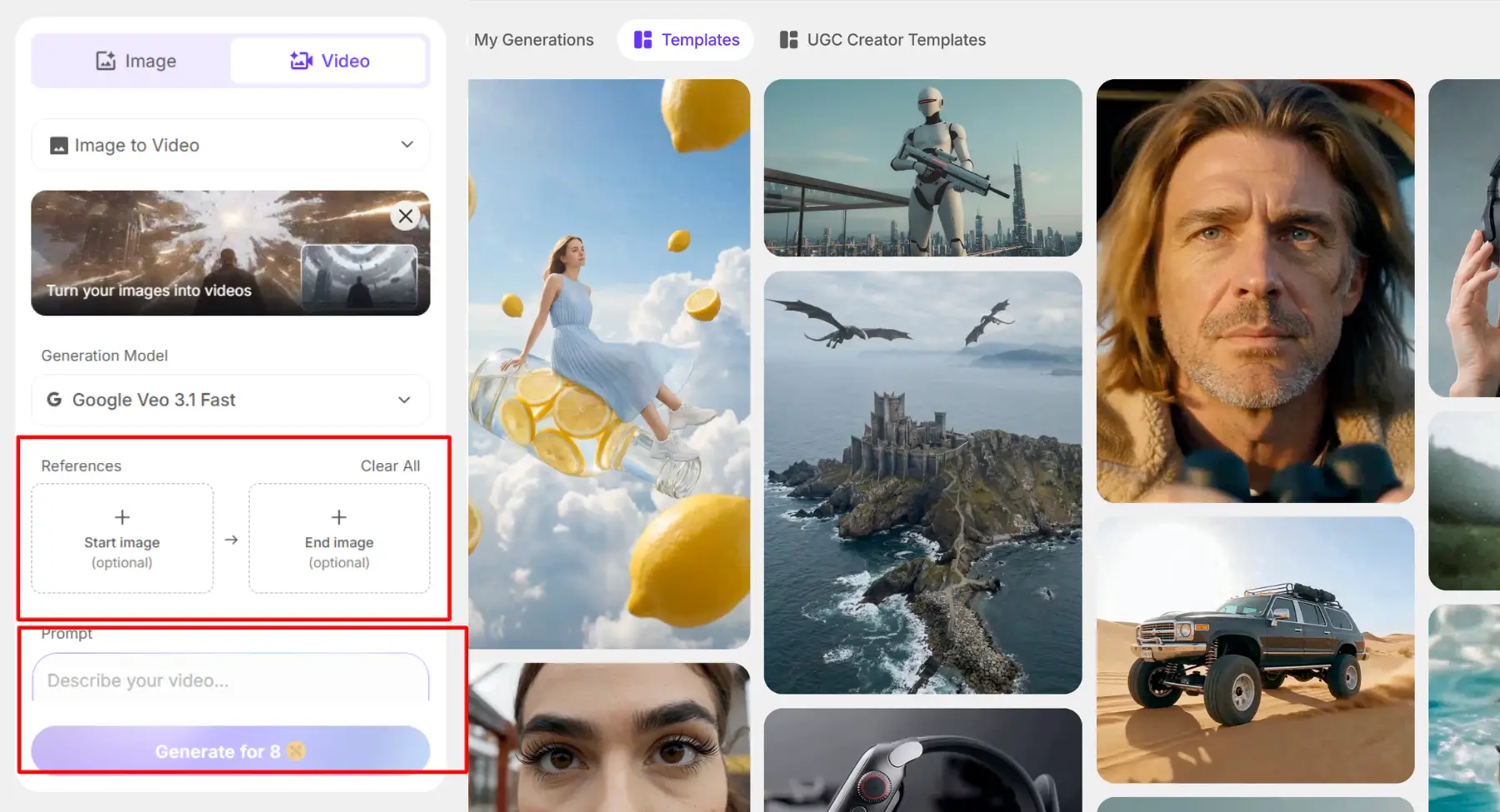
Whether you're starting with a written concept or existing images, Pixelbin AI Video Generator helps create the first visual draft without rebuilding everything manually. Since it supports both text-to-video and image-to-video workflows, teams can work with whichever assets they already have while moving from idea to an editable first draft much faster.
If you already have content libraries, this step becomes especially powerful. A product shoot, a blog post illustration set, or a batch of campaign visuals can become the base for several new clips. Instead of treating old assets as finished files, you can treat them as raw material for new production. In other words, you can upload your existing images to give a direction to the AI tool.
That shift matters because it helps you extract more value from the content you already paid to create. In many teams, the fastest wins come not from producing entirely new material, but from turning existing assets into something more usable for today's channel mix.
4. Build the rough cut faster
A rough cut is the first usable version of the video, not the final polished one. It shows the basic structure, pacing, message, and visual flow before you spend too much time on detailed refinements. That makes it one of the most useful stages in the workflow.
AI can help assemble scenes, pull highlights, and suggest B-roll much faster than manual editing alone. It can also turn a script or scene list into a visual draft before a human editor starts polishing the details. This helps solve the blank timeline problem that often slows teams down at the start.
For example, a long webinar or product demo can become a first short-form draft by pulling out key quotes, matching supporting visuals, and trimming away pauses or weak transitions. The output is not final, but it is much easier to improve than an empty project file. The rough cut gives the team something real to react to.
This step is especially useful when you are working under time pressure. Instead of debating what the video could become, you are looking at what it already is and deciding how to improve it. That makes meetings shorter, feedback more specific, and edits more meaningful.
Rough cuts also help with version planning. Once you can see the first shape of the video, you can decide whether it works better as a short teaser, a product walkthrough, a social cutdown, or a fuller landing page asset. That kind of clarity saves time later in the process.
5. Fix footage and continuity errors with AI
This is one of the most practical parts of the workflow because it deals with the issues teams face right after assembling a rough cut. AI is useful here for repairing raw visual assets, fixing timeline pacing, and correcting audio mistakes before any final styling takes place.
- Smart jump-cut and pause removal: AI can instantly scan your audio track to strip out awkward silences, stuttering, and filler words like "umms" and "ahhs" to make the dialogue sound snappy and professional.
- Generating missing B-roll footage: When your original footage feels incomplete or has narrative gaps, AI can generate highly specific supporting visuals to cover up cuts and keep the viewer engaged.
- Audio cleanup and background removal: AI tools can isolate voices to eliminate distracting background noise, balance dialogue levels, and even swap out a messy or boring filming background with a clean, brand-consistent backdrop.
- Voice cloning and dialogue punch-ins: If there is a misspoken word or a minor script error in the recording, you can use AI audio tools to regenerate that specific phrase without forcing the speaker to re-record the entire section.
6. Create variations for each platform
One video is rarely enough. Most teams need different versions for Instagram Reels, TikTok, YouTube Shorts, website hero sections, paid ads, and ecommerce product pages. That means the workflow has to think in variations, not just in one final export. If you are using Pixelbin’s free version, you get two options:
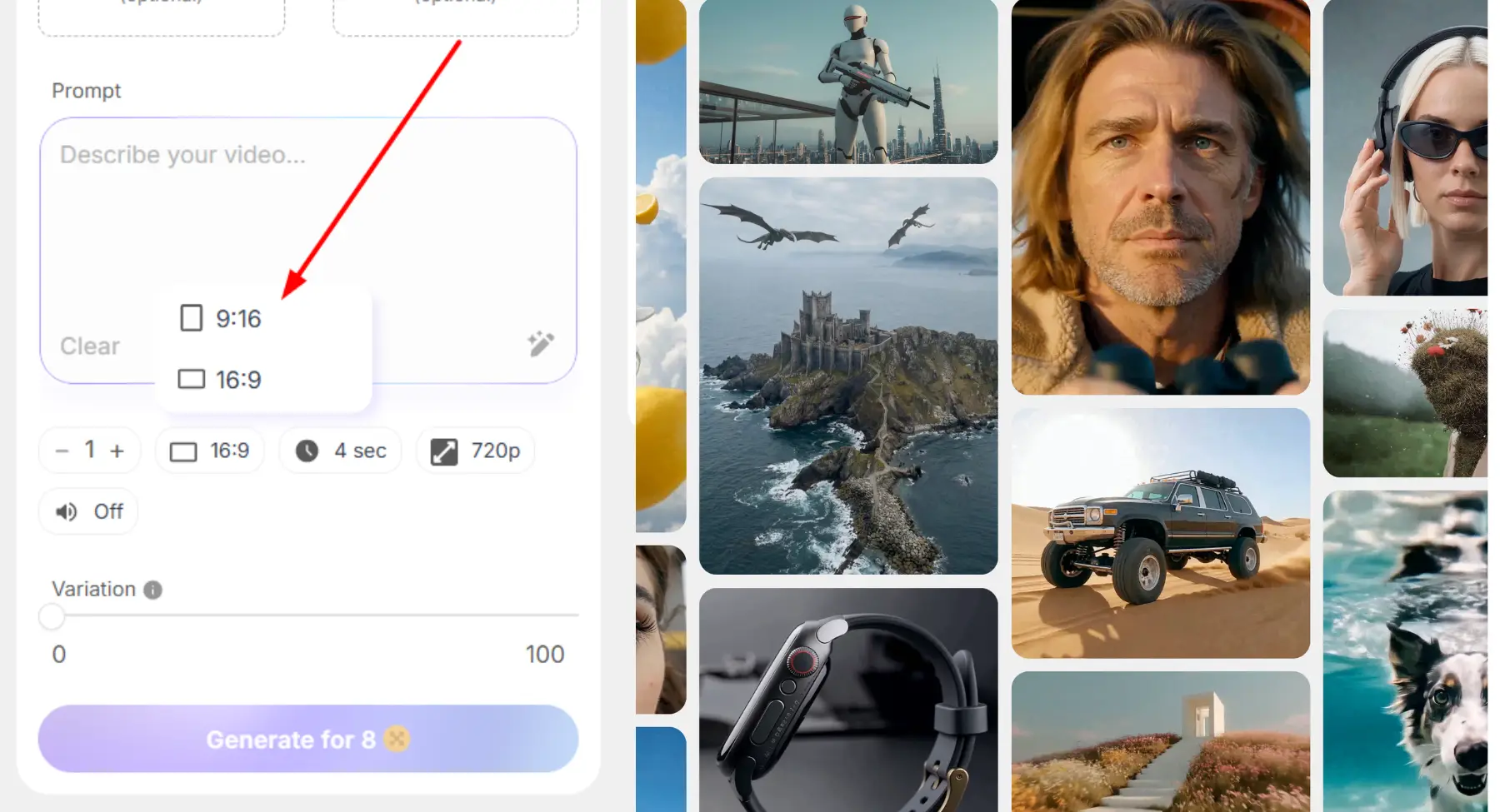
AI helps because it reduces the time needed to create those versions. A single master asset can become multiple platform-ready outputs with different aspect ratios, durations, hooks, captions, and layouts.
Platform variation is not only about size. It is also about narrative shape. A version for Reels may need a faster hook and shorter payoff. A version for a website may need a slower explanation and stronger visual proof. A paid ad may need the call to action earlier than a product page video would.
Planning these variations early makes content production far more efficient and helps teams maintain consistency across every channel without recreating the same video from scratch. With Pixelbin’s AI video generator, you can try multiple video engines that support different formats for different social media platforms.
7. Review quality before publishing
AI can speed up the workflow, but it should not replace final review. This stage is where you check whether the video is accurate, on-brand, and ready for the platform where it will appear.
Review key elements such as faces and hands, product details, logos, captions, brand consistency, audio quality, transitions, and legal usage rights. Even polished AI-generated content can contain small errors that affect trust and professionalism.
It is also worth previewing the video on the devices where your audience is most likely to watch it. Mobile-first platforms, desktop websites, and ecommerce pages all display content differently, so a final review in context helps catch issues before publishing.
8. Package and optimize the final video for delivery
Editing is not finished when the video looks good on your timeline. The final asset still needs the right file format, resolution, compression, and delivery settings for its intended platform.
When optimization becomes a standard part of the workflow rather than an afterthought, teams can publish faster while maintaining quality and consistency.
Editing is only part of the workflow. Before you export, save, and publish, review your video to make sure it is optimized for quality, accessibility, and the platform where it will be shared. A few final adjustments can improve both viewer experience and engagement. Here are a few ways to optimize your video:
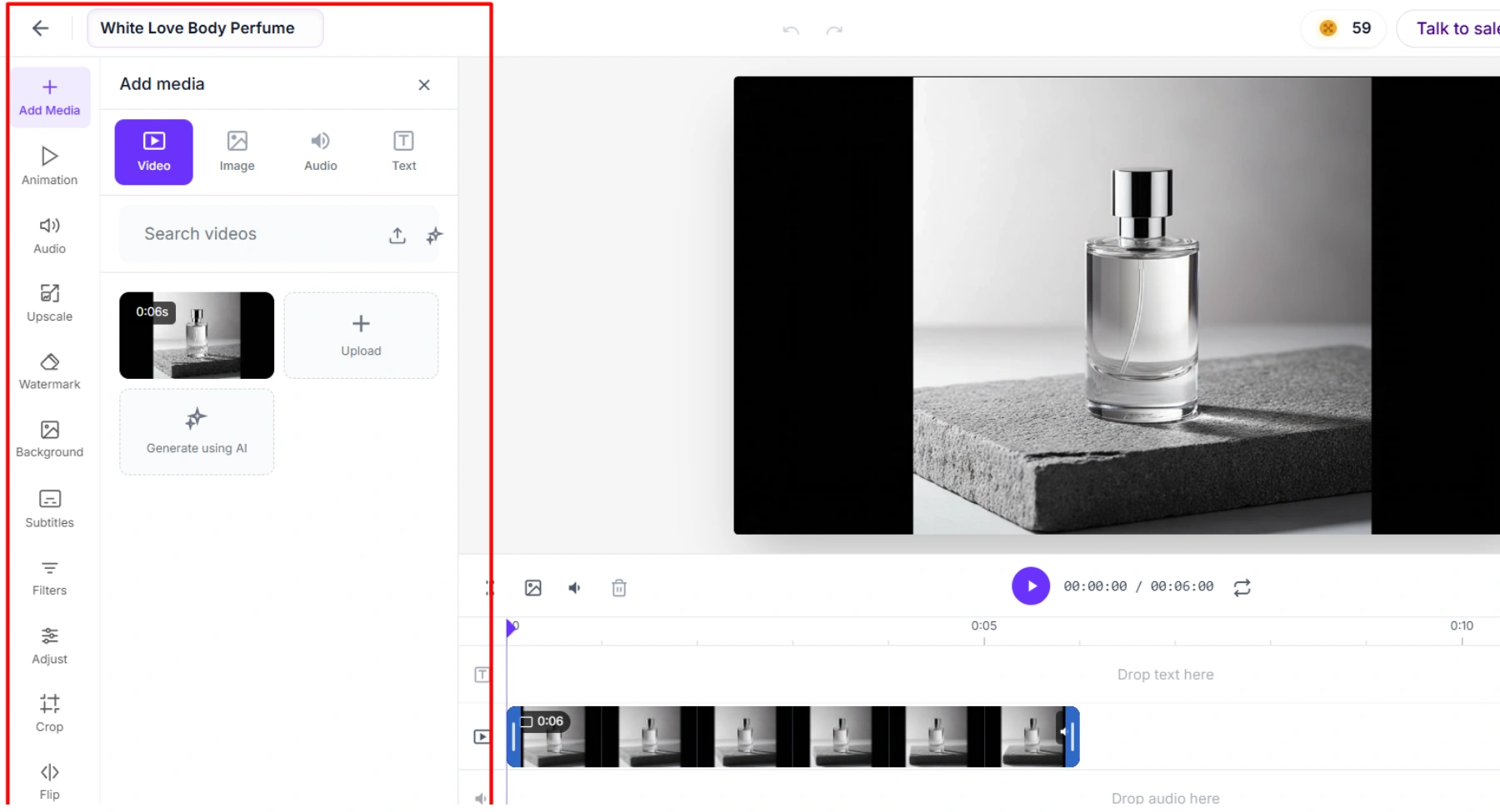
- Enhance video quality: Upscale lower-resolution video if needed so the final video remains sharp on larger screens or high-resolution platforms.
- Add or refine audio: Balance background music, voiceovers, and sound effects. Ensure dialogue is clear and that audio levels remain consistent throughout the video.
- Include subtitles: Add accurate captions to improve accessibility and make videos easier to watch with the sound off, especially on social media.
- Remove or add watermarks appropriately: Make sure branding is intentional. Remove unwanted watermarks from source assets if you have the right to do so, or add your own brand watermark where appropriate.
- Replace or clean up backgrounds: If the original background is distracting or inconsistent, replace it with one that better matches your brand or the video's purpose.
- Apply filters carefully: Use filters only to create a consistent visual style. Avoid over-processing, which can make footage look unnatural.
- Adjust brightness, contrast, saturation, and color: Fine-tune lighting and colors so every scene looks balanced and maintains a consistent visual appearance.
- Crop for each platform: Resize or crop your video to match the platform you're publishing on, such as 16:9 for YouTube, 9:16 for Shorts and Reels, or 1:1 for feed posts.
- Check framing and orientation: Flip or rotate clips only when necessary to correct orientation or improve composition.
- Review transparency and overlays: If your video includes logos, graphics, or text overlays, adjust their opacity so they remain visible without covering important visual details.
- Verify timing and transitions: Watch the entire video from start to finish to catch awkward cuts, abrupt transitions, or sections that feel too long before exporting.
These optimization steps help ensure your video looks polished, loads correctly across platforms, and provides a better viewing experience regardless of where it is published.
How to choose the right AI video model for your workflow
Not every AI video model is designed for the same type of project. Some are optimized for generating videos from text prompts, while others perform better when animating existing images or maintaining consistent motion across scenes.
Choosing the right model depends on the content you want to create, the platforms you're publishing to, and the level of control you need over the final output.
If you're starting with an idea or script, look for Text to Video support. If you already have product photos, illustrations, or campaign assets, choose a model that offers Image-to-Video generation.
For smoother camera movements or consistent animations across scenes, Motion Control and Reference to Video capabilities are especially useful.
You should also consider practical requirements such as audio support, multiple aspect ratios for different social platforms, high-resolution output for professional-quality videos, and fast generation when producing content at scale. The comparison below highlights the key strengths of Pixelbin's premium AI video models, making it easier to choose the right option for your specific workflow.
| AI models | Key capabilities | Supported aspect ratios | Best for |
|---|---|---|---|
| MiniMax Hailuo 02 | Image to Video, Text to Video, Start/End image support, 1080p output | Standard video formats | Cinematic image animations and realistic AI videos |
| MiniMax Hailuo 2.3 | Image to Video, Text to Video, 1080p output | Standard video formats | Fast, high-quality AI video generation |
| Kling 2.1 Master | Image to Video, up to 10-second videos | 16:9, 9:16, 1:1 | Reels, Shorts, product videos, and social media content |
| Kling 2.6 | Image to Video, Motion Control, Reference to Video, sound support | 16:9, 9:16, 1:1 | Controlled animations and reference-based videos |
| Kling 3.0 Omni | Image to Video, Motion Control, Reference to Video, up to 2160p, audio | 16:9, 9:16, 1:1 | Premium marketing videos and commercial-quality content |
| Kling 3.0 | Image to Video, Motion Control, Reference to Video, up to 2160p, audio | 16:9, 9:16, 1:1 | Professional AI video production |
| LTX-2 | Image to Video, up to 2160p, audio support | 16:9 | Landscape presentations, explainers, and storytelling |
| LTX-2 Fast | Faster Image to Video generation, audio support | 16:9 | High-volume landscape video creation |
| PixVerse 6 | Image to Video, up to 1080p, audio support | 21:9, 16:9, 4:3, 3:2, 2:3, 1:1, 3:4, 9:16 | Multi-platform content creation across every major format |
| Seedance 1.5 | Start/End image support, audio | 21:9, 16:9, 4:3, 1:1, 3:4, 9:16 | Promotional videos and smooth scene transitions |
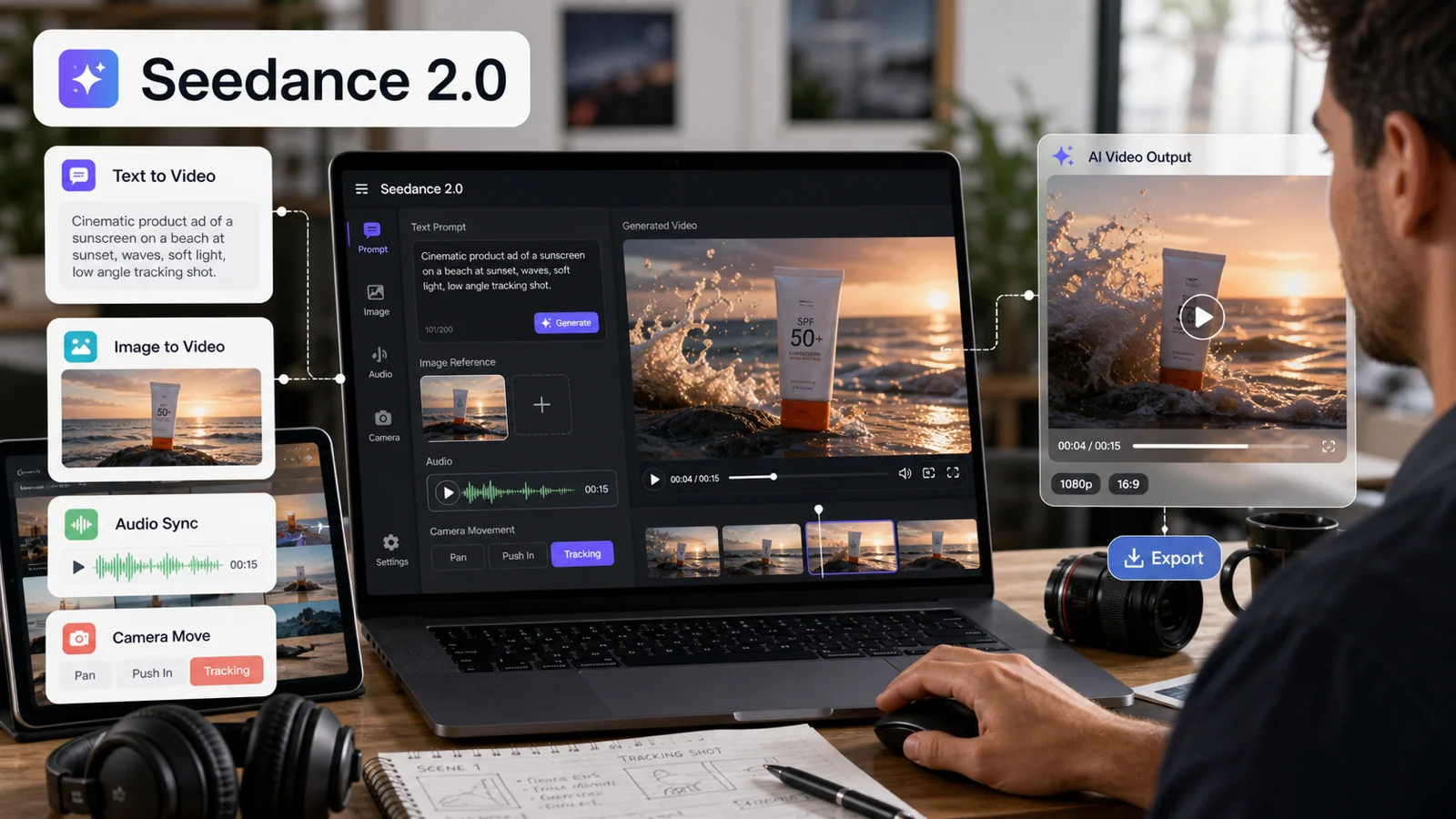
| Seedance 2.0 | Longer clips, audio, Start/End image | 21:9, 16:9, 4:3, 1:1, 3:4, 9:16 | High-quality branded video creation |
| Seedance 2.0 Fast | Faster generation, audio | 21:9, 16:9, 4:3, 1:1, 3:4, 9:16 | Fast social media content production |
| Seedance 1.0 Fast | Quick Image to Video generation | 21:9, 16:9, 4:3, 1:1, 3:4, 9:16 | Concept videos and rapid prototyping |
| Seedance 1.0 Lite | Lightweight Image to Video | 21:9, 16:9, 4:3, 1:1, 3:4, 9:16 | Everyday AI video generation |
| Seedance 1.0 Pro | Enhanced quality, Start/End image support | 21:9, 16:9, 4:3, 1:1, 3:4, 9:16 | Professional creative projects |
| OpenAI Sora 2 | Image to Video | 16:9, 9:16 | Cinematic AI storytelling and realistic scenes |
| Google Veo 2 | Image to Video, Start/End image | 16:9, 9:16 | Storytelling and marketing videos |
| Google Veo 3 | Image to Video with native audio | 16:9, 9:16 | AI videos with synchronized sound and dialogue |
| Google Veo 3.1 Fast | Faster generation with audio | 16:9, 9:16 | Rapid video production for social platforms |
| Google Veo 3 Fast | Fast Image to Video with audio | 16:9, 9:16 | High-volume marketing workflows |
| Wan 2.2 | Image to Video, Start/End image | 16:9, 9:16, 1:1 | Short promotional clips |
| Wan 2.5 | Image to Video with external audio support | 16:9, 9:16, 1:1 | Videos with custom music or voiceovers |
| Wan 2.7 | Image to Video, Start/End image, external audio | 16:9, 9:16, 1:1, 4:3, 3:4 | Flexible cross-platform video creation |
Example AI video workflows
Real workflows are easier to understand when they are tied to actual use cases. These examples show how you can use AI video editing tools without losing control of the final result.
Ecommerce product ad
Start with high-quality product photos or short product clips. Turn them into engaging motion visuals that showcase key features from different angles. Create multiple versions with different backgrounds, pacing, or messaging to test what resonates best with your audience.
Once the visual direction is ready, add captions, a clear call to action, and platform-specific formatting. Export vertical versions for Reels or Shorts and square versions for social ads. Finally, optimize the files for fast loading and consistent quality across every channel.
Blog post to social video
Begin with a blog article or campaign message and identify the key takeaway. Convert that idea into a short script with a strong opening that captures attention within the first few seconds.
Generate supporting visuals, add captions, and trim unnecessary pauses to keep the pacing engaging. Create multiple edits for different platforms so your written content reaches audiences who prefer watching instead of reading.
Long-form video to short-form clips
Start with an existing webinar, podcast, product demo, or interview. Identify the most valuable moments and turn them into shorter clips focused on a single idea or takeaway.
Adjust the pacing, resize the video for different platforms, and add captions where appropriate. This workflow helps extend the value of existing content while maintaining a steady publishing schedule without recording new footage.
Explainer video with limited visuals
Start with a script or voiceover and identify sections where additional visuals would improve understanding. Use animations, existing images, diagrams, or product assets to support key points and maintain viewer interest throughout the video.
Review the final edit for accuracy, consistency, and brand alignment before publishing. Even simple visual enhancements can make technical or educational content easier to follow and more engaging.
Best practices for better AI video results
Good results depend on good inputs. If the brief is vague, the output will usually be vague too. That is why the prompt and scene plan matter so much in an AI video editing workflow.
- Write one scene at a time. Include the subject, action, setting, mood, camera movement, duration, and aspect ratio.
- When brand or product consistency matters, use reference images so the model has a better visual anchor. This is especially useful for campaigns and ecommerce content where accuracy matters. It also helps to create multiple drafts before choosing the final direction. Faster models are useful for ideation, while stronger models may be better for final outputs. That balance lets you explore ideas quickly without settling too early.
- Another important habit is to keep brand guidelines nearby. Colors, tone, visual style, and messaging should stay consistent across versions. AI can help with speed, but it should still work inside a clear brand system.
- You should also think in terms of repeatable prompt structure rather than one-off creativity. When every prompt follows the same logic, your results become easier to compare, refine, and scale. That is a major advantage for teams that produce video frequently.
Mistakes to avoid in AI video editing workflow
The biggest mistakes are usually workflow mistakes, not tool mistakes. People often buy or test tools before they define the process, which creates confusion and weak output.
One mistake is starting without a clear goal or format. Another is stuffing too many ideas into one prompt. A third is using one export for every platform, which usually creates performance problems or awkward framing.
Skipping human review is another common issue, especially when captions, product visuals, or claims need accuracy.
It is also important not to ignore rights, permissions, or brand safety. AI can make content faster to produce, but that does not remove the need for ownership checks and careful approval. The best workflow is fast, but it is also responsible.
Another mistake is assuming that more automation always means less effort. In reality, the best results usually come from pairing AI efficiency with good planning, strong prompts, and careful review.
If those pieces are missing, the workflow may still feel messy even if the tools are advanced.
Conclusion
AI video editing works best when it becomes a workflow, not a one-off tool. That means using it to plan, generate, fix, repurpose, optimize, and deliver content faster while still keeping human judgment in the loop.
The biggest opportunity is not just faster drafts. It is a better system for producing platform-ready videos with less manual effort and less tool switching. That is what makes AI video editing automation valuable for marketers, creators, ecommerce teams, and agencies that need more output without losing quality.
Pixelbin fits naturally into that system by helping you create videos from text, turn images into motion, generate variations, and prepare media for faster publishing. When creation and optimization live in one simpler video editing workflow, you can move faster from idea to final asset.
FAQs
AI can do both. Some AI tools improve existing videos by trimming clips, adding captions, enhancing quality, reducing background noise, or resizing for different platforms. Others can generate entirely new videos from text prompts or images. Many modern workflows combine both capabilities to speed up content production.
No. Many AI video editing tools are designed for beginners and can automate repetitive tasks such as creating rough cuts, generating captions, and resizing videos. However, basic editing knowledge can still help you make better creative decisions and refine the final output.
AI video generation creates new video content from text prompts, images, or other inputs. AI video editing focuses on improving existing footage by making edits such as trimming clips, enhancing quality, adding subtitles, adjusting aspect ratios, or optimizing videos for different platforms. Many content creators use both together in a single workflow.
Yes, AI can enhance low-resolution videos through techniques such as upscaling, noise reduction, sharpening, and color correction. The final result depends on the quality of the original footage, so while AI can significantly improve many videos, it cannot always restore missing details or fix severely damaged files.
No. AI helps automate repetitive tasks and speeds up the editing process, but professional editors are still essential for storytelling, creative direction, brand consistency, and final quality control. AI works best as a productivity tool rather than a replacement for human expertise.
An AI video editing workflow can be used to create a wide range of content, including social media videos, product demos, ecommerce ads, explainers, tutorials, promotional campaigns, training videos, and marketing content. It also makes it easier to repurpose one core video into multiple formats for different platforms.