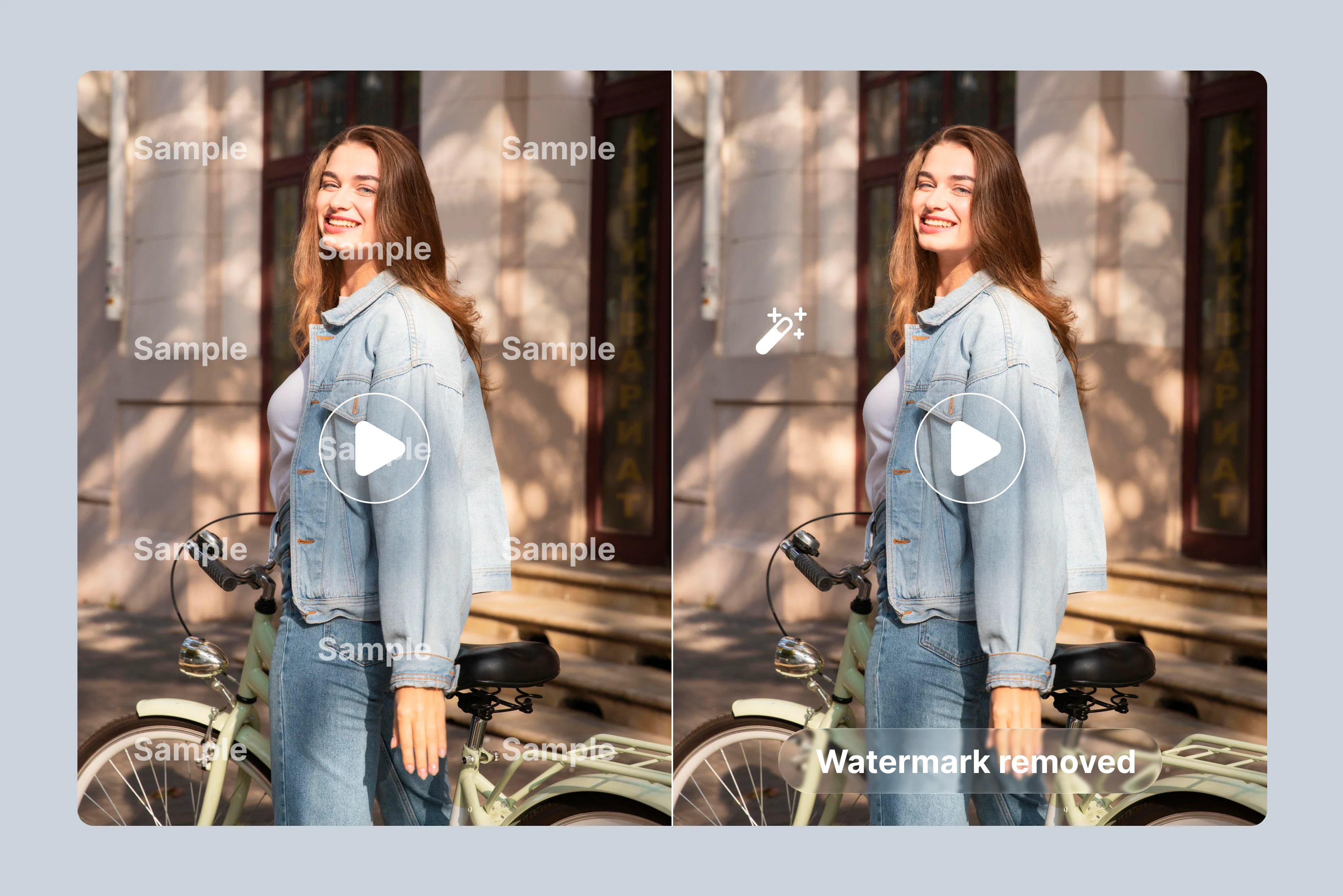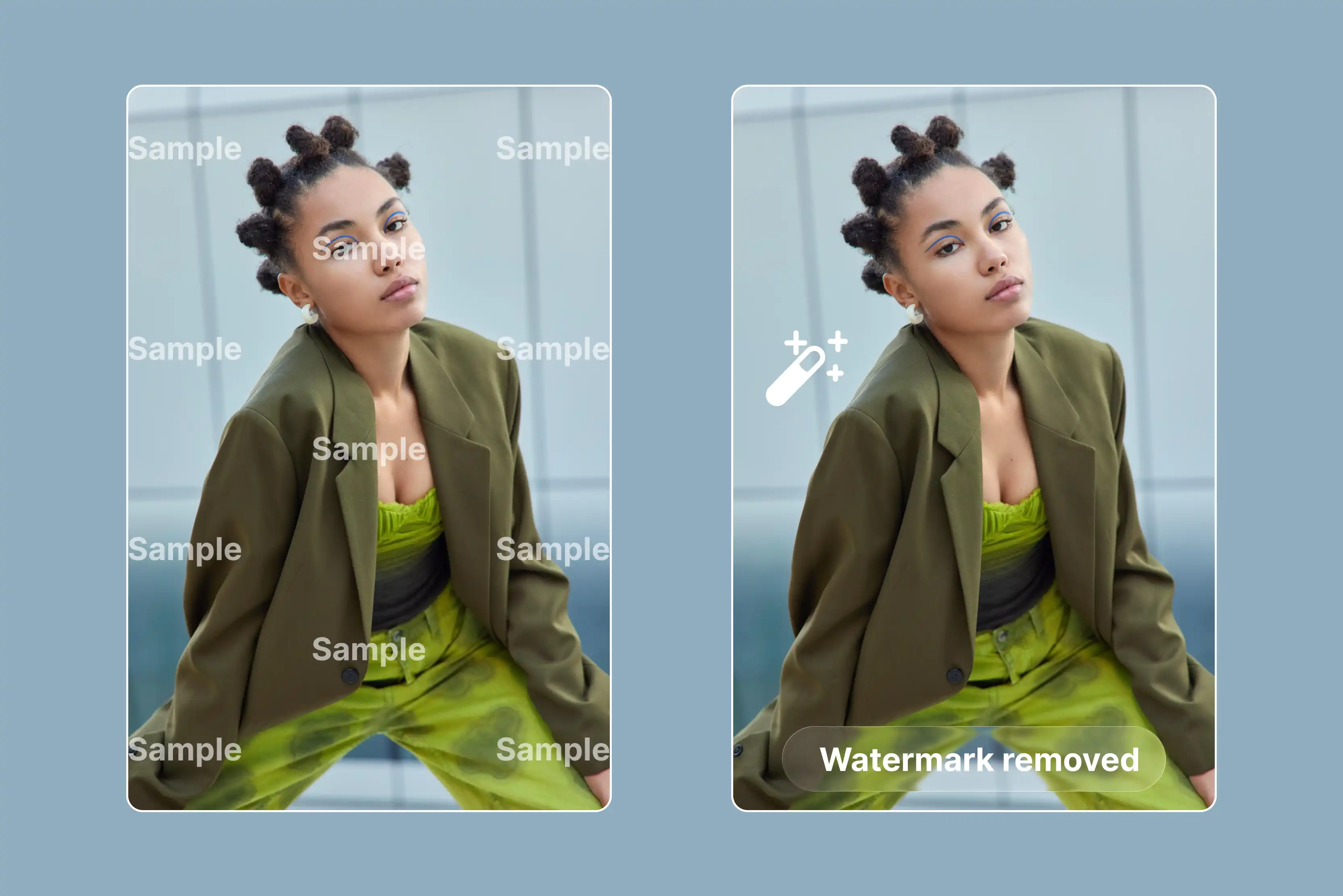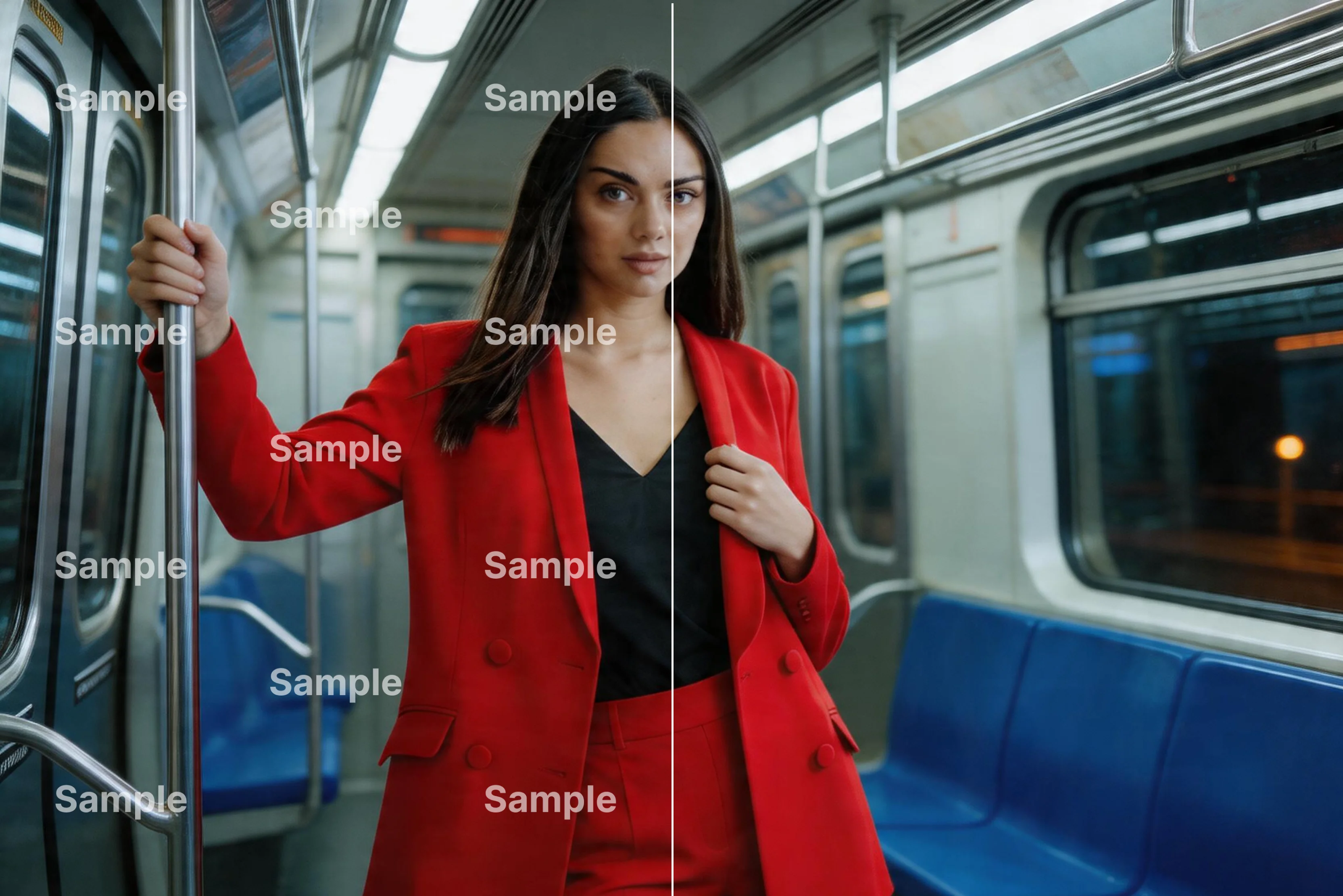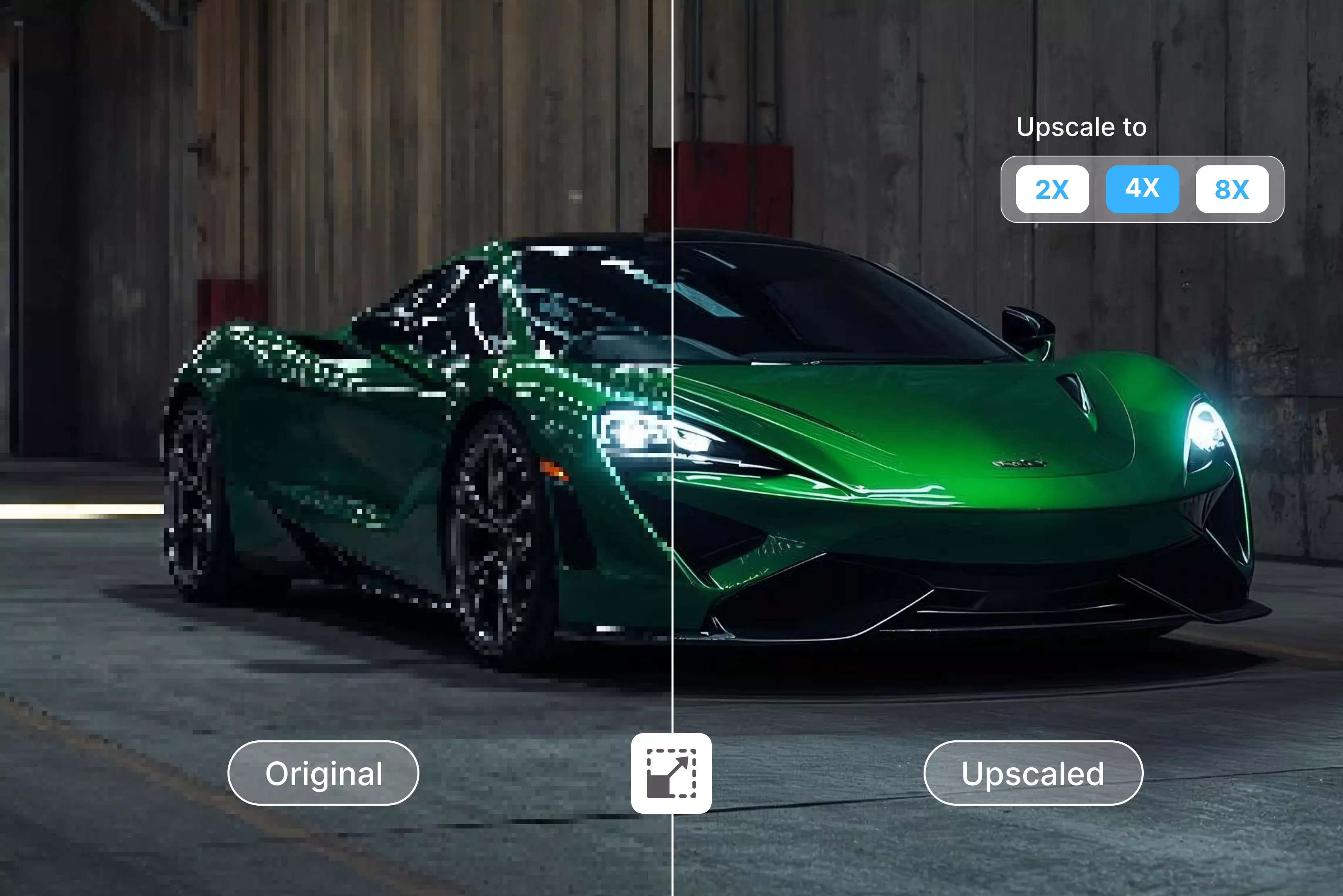


Ever scanned your gallery and found those grainy 360p videos from years back that now look absolutely misfit as a social media post since every platform demands at least HD quality just to give your content half a chance before burying it under better-looking uploads?
I know how it feels, I've spent hours fixing the old family trips or product clips that are treated like discarded video because modern screens show every compression flaw while algorithms push crisp footage that actually stops scrolls.
This guide lays out exactly what a video upscaler is, why AI totally changed the process from basic pixel stretching to data-driven detail reconstruction, and my real tests across 11 tools like Pixelbin video editor, Canva, and other AI tools and desktop software that upscale low-resolution videos to higher resolutions, such as 4K.
I will also provide insights about AI and traditional video upscaling comparisons with AI tools and software included, so you can pick the right one without wasting time.
What is a video upscaler?
Ever tried watching an old movie on a 4K TV? It usually looks blurry and pixelated. That’s where a video upscaler saves the day. Essentially, it’s a tool that takes low-resolution footage (like 480p) and bumps it up to high definition (1080p or 4K). Keep reading to know more in-depth.
How does video upscaling happen?
Ever shot those family clips on your old phone that looked decent enough at the time, but now they turn blurry and pixelated on today's big TVs, newer smartphones, or even Instagram Reels? Video upscaling steps in to solve that exact issue.
It takes low-resolution footage (like 360p) and scales it to higher resolutions, such as 1080p or 4K output. With AI upscaling, the video can look noticeably cleaner and sharper—but it won’t match true native HD/4K captured on modern cameras.
Traditional VS AI video upscaling
How did traditional video upscaling work?
Back in the day, basic software handled upscaling by simply stretching out the pixels you already had, like tugging on a piece of taffy to make it cover more ground without adding anything new.
Sure, the video got bigger, but the quality tanked: edges stayed soft and fuzzy, faces took on that weird waxy sheen, any quick movement came off blocky and stuttery, and those ugly compression artifacts just spread further. I tried it once on some vacation tapes, and nobody could stomach watching the results for more than a minute.
How does modern AI video upscaling work?
All the AI tools first study real high-quality videos to recognize patterns like natural skin textures, individual hair strands, lighting changes, and smooth motion.
Then they analyze every single frame from your bad clip and rebuild missing details intelligently, faces sharpen with proper skin tones, colors correct automatically, and slight camera shakes smoothly and naturally.
Your decade-old vacation footage suddenly becomes shareable again in no time without any hassle. While results don't perfectly match cameras filming native 4K originally, casual viewers rarely spot the difference.
Effectiveness of AI video upscaling
- AI upscaling can make a surprisingly big difference when you’re working with old 360p or 480p clips. Instead of just blowing up the image, it actually adds plausible detail, so the final video often looks close to true 1080p or even 4K to the average viewer.
- It handles motion much better than older methods. Fast movements, quick panorama shots, or handheld shots look smoother, with blocky artifacts. Sports clips, kids running around, or event footage feel more watchable and less like a shaky relic from an old phone.
- One of the biggest strengths is how well it cleans up noise and compression junk. Grainy, pixelated areas and blocky patches get softened or replaced with cleaner detail, so the video feels more modern and less “Old YouTube era.”
- In side‑by‑side comparisons, many people can’t immediately tell which version is the original high‑res and which one is AI‑upscaled, especially on smaller screens or social media feeds. The difference becomes more obvious only if you zoom in or pause and inspect specific frames.
- Upscaling does take time, especially for longer videos, but for important clips like weddings, travel footage, and brand content, the payoff is usually worth the wait. You get more use out of the footage you already have, without having to reshoot anything.
- It’s not magical, though. If the original is extremely blurry, overexposed, or badly focused, AI can’t pull detail out of thin air. The best results come from videos that are low‑resolution but still clearer than the old ones.
7 most searched AI video upscalers
Got old videos that you want to fix fast? Here are the 7 most searched AI video upscalers in 2026 that turn low-resolution clips into sharp 4K quality. For quick details, look at the table below.
1. Pixelbin

After trying out a bunch of AI video upscalers, Pixelbin's editor always ends up my clear favorite for salvaging rough, low-res footage. Its smart algorithms, trained on tons of genuine video clips, don't just enlarge the image; they intelligently recreate what's missing.
Faces come alive with believable skin tones and subtle details instead of that artificial gloss, wobbly camcorder shakes get buttery smooth, grainy noise disappears while preserving things like clothing folds or hair strands, and faded colors snap back vibrantly, often faster and sharper than other options I've put through the paces.
Plus, it handles photos too, sharpening blurry shots or upscaling old pics to print quality effortlessly. Just upload, pick a model like face or motion, hit go, and minutes later get pro results, no tech skills, no watermarks, ready for reels.
Steps to use the Pixelbin video editor
- Head straight to your Pixelbin account dashboard and hunt down the AI Video Generator section. This spot lists powerhouse models like Kling 2.1 Master, Seedance 1.0 Fast/Lite/Pro, Sora 2, Veo 3/3.1, plus Wan 2.2/2.5, ready for upscaling that turn junk footage pro fast.
- Click the dropdown arrow right next to the generator button, pick Video Editor from the menu that pops up, and it drops you into a full editing workspace perfect for tweaks, upscales, and fixes without jumping apps.
- Smash the New Project button to fire up a blank timeline where you control everything fresh, no leftover junk or presets slowing you down from past work.
- Drag your blurry clips (handles two at once for quick compares or blends) straight from phone rolls, Google Drive, or Dropbox so processing kicks in without delays.
- Pull the uploaded video from the sidebar onto the center workspace; now it's primed for AI magic on sharpness, motion, and clarity.
- Hit Crop for edge cleanups, Adjustments to crank resolution and sharpness, Filters for instant pop, Opacity/Blur fixes, Animated video to smooth shakes, or layer Text overlays, AI handles each pass for HD polish.
- Type a detailed prompt covering subject/action, camera moves (pan/zoom/orbit), lighting/mood/style into the box, then generate, but grab a premium plan first since top models burn 30+ credits per run for full power.
2. Upscale.media
Got some fuzzy old videos cluttering up your phone that just look flat and dated now? Upscale.media's AI Video Upscaler sorts that out quickly. It grabs those blurry 360p clips and pumps them up to crisp HD, Full HD, or even 4K, adding back real-looking details one frame at a time.
Best part? It holds onto the original colors and lighting just right, so the final version. Just drag-drop your MP4, MOV, or WebM files right in the browser, no sign-up, no fees, no downloads needed, and it spits back pro-looking results ready to post anywhere.
Once you open the page, you get to see it's a free video upscaler, just upload your video, and AI will generate the upscaled version that makes it social media-ready to make your content pop without headaches.
Must known features
- Turns blurry, low-resolution clips into sharp, detailed HD or 4K visuals by refining every frame for better focus and clarity without losing the original feel.
- Handles MP4, MOV, WebM files across any resolution so you upscale phone footage, old camcorder tapes, or social clips without format headaches.
- One smooth drag-and-drop process enhances and exports fast, with no jumping between apps or complex steps eating your content creation time.
- Keeps colors, tones, and style exactly as shot while boosting sharpness, so upgraded videos look naturally pro instead of AI-touched.
- Single upload delivers studio-quality results in seconds, perfect for quick Reels fixes or client deadlines when time's tight.
- Processes securely on protected servers, deletes files immediately after, and never stores or shares your footage.
- Unlimited enhancements with zero sign-ups, fees, or subscriptions, ideal for testing tons of clips risk-free.
3. Canva
Got rough video clips messing up your Canva designs? Canva's built-in AI Video Upscaler cleans low-quality footage right inside the editor. It boosts clips to HD or 4K while adding details smartly. Your project's style stays intact, so the video fits perfectly with the graphics and text.
Just drag videos onto your Canva canvas. Click the upscale option. AI sharpens each frame automatically. Edit or export with templates afterward. Free for everyone. Perfect for presentations, Reels, or marketing where clean video lifts the whole story fast.
Must known features
- Enhances videos to HD/4K directly within the Canva design workspace seamlessly.
- Upscaled footage integrates perfectly with Canva graphics, text overlays, and templates.
- Available to all Canva users regardless of subscription level for design enhancement.
- Produces polished videos optimized specifically for presentations and social content.
- Complete upscale and edit process contained within the familiar Canva environment.
4. Media.io
Sick of lousy, low-quality videos that come out all pixelated, no matter where you post them? Media.io's AI Video Enhancer jumps in and grabs your blurry 360p clips, cranking them up to spotless 4K.
Its smart system pokes through each frame to patch in missing detail, such as faces get sharp without looking plastic, movement rolls smoothly, and colors stay true instead of going fake or faded like with cheaper fixes.
Upload MP4, AVI, or MOV files right in your browser, pick 2X or 4X upscale with one tap, preview the pro results fast, then hit download, all done in minutes without downloads, logins, or tech know-how, since their simple three-step flow works for anyone fixing old footage or social clips quickly.
Must known features
- Scales videos 2x/4x to 4K, adding missing details for pro clarity on modern displays.
- Matches low-resolution clips to high-quality ones for smooth, consistent final videos.
- Turns grainy vintage recordings crisp and future-proof for family archives or posts.
- Upscales before zooming to keep images sharp, not blurry or blocky.
- New AI removes grain alongside upscaling, no extra tools needed.
5. CapCut
Got old videos that look grainy and outdated everywhere you post them? CapCut's AI Video Upscaler grabs blurry 360p phone clips and boosts them to crisp 4K or HD. CapCut's algorithm analyzes each frame carefully, but doesn’t literally create brand-new, real details it works on the pixels.
The AI guesses smart details from patterns it learned, while wiping out blur and noise. Hence, everything is clearly in the video without messing up the original colors or feel, like your footage got a shot fresh.
This tool walks through beginner-friendly steps to upload from desktop or cloud, pick HD/4K enhancement plus noise reduction, preview fast, then export ready for YouTube or Reels, all free in their editor that packs extra tools for quick polishes.
Must known features
- Pushes low-resolution videos to 4K, keeping quality crisp, adding smart details that beat basic stretching.
- Strips blur and grain from shaky clips or old recordings while sharpening faces and edges naturally.
- Handles all formats and projects from personal memories to pro edits without limitations.
- Free desktop app lets you upload, enhance to 4K, reduce noise, and export in minutes without any online hassles.
- Combines upscaling with filters, effects, and captions right in one app for social-ready results fast.
6. Airbrush
Grainy footage destroying your posts? Airbrush AI Video Enhancer cleans it up online by sharpening and cutting noise from videos. You do need to sign in and download after, but it pulls real details back from low-res originals. Motion keeps flowing nicely and smoothly, clarity jumps out sharp, no harsh over-sharpening or weird color shifts.
Upload clips directly to their web tool, apply one-click AI enhancement, preview improvements live, and download ready-to-post versions. Works to be the best for social media creators, fixing quick phone videos or old recordings into eye-catching content that holds up on any screen size.
Must known features
- Sharpens low-quality videos, recovering natural details, and maintaining smooth motion flow.
- Removes grain while preserving realistic textures, ensuring social-ready professional appearance.
- Browser-based processing delivers post-ready videos without complex editing requirements.
- Eliminates fake over-sharpening effects, maintaining natural video appearance throughout.
- Enhanced videos maintain quality across mobile phones and large display screens.
7. Fotor
Got fuzzy old clips you wouldn't dare share now? Fotor's AI Video Upscaler takes 360p junk and jumps it to clear 4K. It sharpens blurry edges, brightens colors, and smooths out choppy motion, all with one click. Plus, you get templates and effects to make it social-media-ready right away.
Upload to their online editor, select AI upscale, preview the transformation, apply filters if desired, and export. Just log in, no download is needed, perfect for quick fixes on family videos, product demos, or Reels where pro polish comes without complicated editing timelines.
Must known features
- Converts blurry footage to 4K, including edge deblurring, color enhancement, and motion smoothing.
- Includes professional effects templates creating instant social media-ready content.
- Real-time transformation preview before final export decision-making.
- Complete browser-based process eliminates desktop application requirements.
- Produces content specifically formatted and optimized for major social media platforms.
Best 4 Video Upscaling Software
Desktop tools like these give you real hands-on control over old footage. They take grainy 360p clips and turn them into sharp 4K results. No waiting on shaky internet uploads either. Great for content creators who need batch processing and privacy for Reels or client projects.
I picked these four after checking their popularity and their actual power. They cover personal tapes all the way to marketing B-roll without much headache. Each handles specific headaches like shaky motion, washed-out colors, or pixel smudges. Choose based on your computer setup, budget, and daily workflow. All work after you install them, so your files stay private.
1. Nero AI Video Upscaler
Nero makes it super easy for Windows people to fix up personal clips or fast AI jobs. Just drag a video file from your drive. Pick a model for faces, noise cleanup, or basic sharpening. It rebuilds each frame up to 4K resolution at 120 fps.
Old sports footage drops the choppy stutter. Camera pans come out smooth as butter with no glitches. I tested it on some soccer clips once, and the ball movement looked straight pro. Processing finishes in minutes on okay hardware, longer on basic laptops. Exports go to standard MP4 or high-quality masters ready for more edits.
Key terms:
- Free trial on login. Exports show watermarks till you pay. Test your worst clips first to check the real output.
- Paid plan hits $85 a year or $195 lifetime. Sales knock it down to about $60 around the holidays.
- Handles average PCs with 8GB RAM fine. NVIDIA GPU cuts times in half or more. AMD cards work, but lag a bit.
- Perfect for simple ownership without monthly bills. Good for one-time family fixes or light content work.
- Available on Windows only. No Mac or mobile versions yet.
2. HitPaw Video Enhancer
HitPaw shines when you batch-fix low-light or blurry videos from weddings, drones, or events. Load up several files together. Grab AI models made for exact problems. One pulls back faded colors from old tapes.
Another fixes drone shakes from rough flights. Low-light tools brighten night shots without a neon glow. Final files hit 8K if the source holds up, plus it slips in frames for smooth 60fps from jumpy 24fps starts. The screen looks like a simple photo app, no deep menus or tech talk. Sliders and previews make it quick. Results jump right onto social feeds looking fresh.
Key terms:
- Trial processes files but cuts exports short for samples. Full use starts at $43 a month, $100 a year, or $350 once.
- Runs on old laptops okay. NVIDIA cards speed batches twice as fast.
- Top choice for creators pushing social posts from bad originals. Manages lots of files without freezing. No tricky tweaks.
- Converts formats for weird phone videos. Exports fit TikTok or YouTube sizes perfectly.
- Gets pricey for everyday use. Better for part-time pros.
3. CyberLink PowerDirector
PowerDirector sticks upscaling inside a complete video editor setup. Mix your cleaned clips with graphics, text, or tunes all in one place. Drop in low-res B-roll from phones or cameras. Use AI credits to jump to 4K quality.
Then denoise and tweak colors with easy wheels. Covers 360-degree clips and 3D from action cams, too. Exports click straight to Instagram, YouTube, or TikTok at the right size. Timelines handle hour-long stuff without slowing. Add fades or effects after upscale, no quality loss.
Key terms:
- Plans go from $5 to $20 a month by features. Comes with free stock clips and tracks. Buy once for $140 as a yearly subscription.
- Sliders fit total beginners. Pros build effect stacks for big looks.
- NVIDIA or AMD GPU power blasts big projects quickly.
- Best for jobs blending edits and upscales like tutorials, ads, or Reels. No jumping between apps.
- Records screens for demos. Mobile app links projects across gear.
4. Topaz Video AI
Topaz brings pro-grade detail to nightmare clips like vintage films, squished YouTube downloads, or security tapes. Load your file. Pick from 20-plus AI models for the task. Straighten old TV lines. Wipe compression junk.
Bring back faces lost in crowds or dark spots. Handheld shakes lock steady. Tops out at 8K resolution and 120fps for slow-mo tricks. Stack models for crazy detail grabs, like face boost over motion clean. Live previews let you adjust as you go. Clear disk space first; files swell big during work.
Key terms:
- A personal license runs $33 a month or $299 a year. Pro for business hits $67 monthly to $699 lifetime.
- No long free trial, just quick demos. Solid refund backs buys.
- Stacking models needs a day to get, but the output smokes the rest. Files hit 10x size in process.
- Consists of top GPUs like RTX 40-series at a decent pace. CPU mode drags on long videos.
- Suit filmmakers, tape keepers, or print spots after perfection. Pass for fast social stuff.
Final thoughts
Video upscalers are game changers for turning old, pixelated clips into 4K videos. They take 360p phone videos that look outdated and boost them to clear quality. The results feel freshly shot, like you shot them last week. Online tools like Pixelbin video editor work faster than any other tools without any setup.
Desktop software like Nero and Topaz handles big batches securely. All the above-mentioned AI tools and software win for privacy and bulk work. Web apps lead to quick jobs on any device. Free versions cover short clips well.
Paid plans unlock unlimited use for heavy lifting. All the above-mentioned online AI tools and software work great. But if you ask for the author's recommendation, then I will say it’s Pixelbin Video Editor, as it works on faces and motion fixes perfectly without making anything look unnatural. So now it’s your turn to transform your old footage into killer reels with the best tool.
FAQs
Canva and Pixelbin video editor built-in tools work best. Just drag clips into the editor and click enhance. Pick a clarity style for quick results. No extra installations needed.
Yes, they turn 360p into watchable 4K. Faces sharpen naturally, and motion smooths out. Colors pop, too. Casual viewers cannot tell the difference. Test your own clips first.
Cloud tools take 30 seconds to 5 minutes, depending on the type of video. Desktop software needs 1-3 seconds per frame on good GPUs. Always preview the first frame.
Most tools remove noise and blur automatically. AI cleans grain and sharpens edges naturally. It smooths the shakes, too. Heavy blur improves less, but phone clips look pro.
Software stretches pixels and leaves blurry results. AI predicts real details from training data for natural faces and smooth motion. Web AI runs fast; desktop handles batches.
Sign up at Pixelbin first. Upload your clip to the Video editor. Pick a face or motion model and pick a premium subscription. Let cloud processing finish. Download clean 4K results.