

Summary
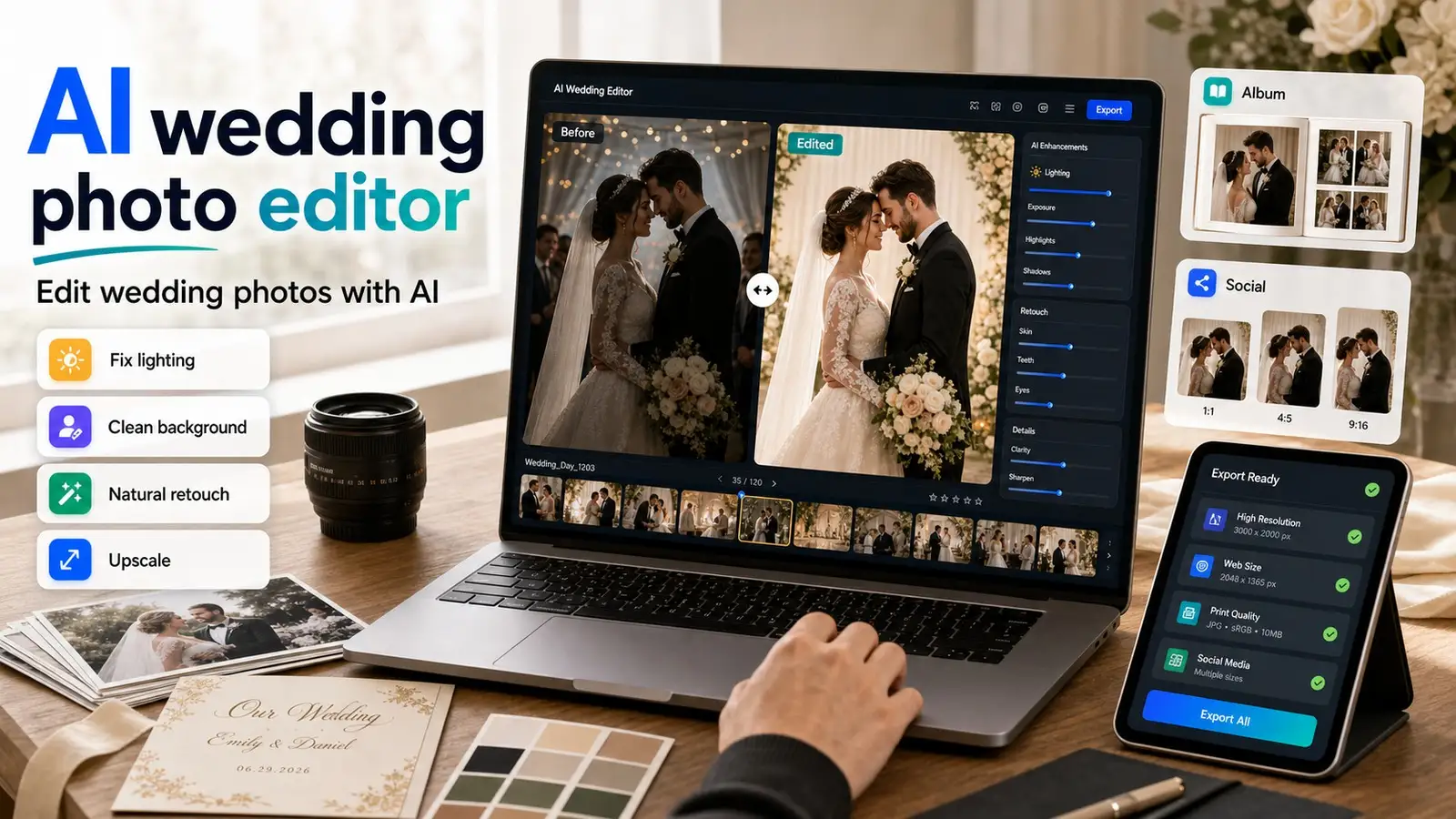
A wedding photo editor helps you fix the small things that go wrong in wedding photography: dim lighting, cluttered backgrounds, dull colors, tired-looking skin tones. With AI, you can now describe these fixes in plain words instead of learning Lightroom or Photoshop from scratch. Say something like "remove the background clutter" or "add warm golden-hour light," and the tool does the heavy lifting, while you keep an eye on the details that actually matter, like faces and outfits staying real. This guide walks through how AI wedding photo editing works in practice, the edits worth trying, and where Pixelbin's AI Image Editor fits into all of this.
Introduction
Not every wedding photo turns out the way you hoped. Someone blinked. The reception lighting turned everything orange. A stray chair or a guest's shoulder ended up right behind the couple's heads. These things happen at every wedding, no matter how good the photographer is, because weddings move fast and nobody's pausing the ceremony to fix a stray extension cord in the frame.
That's usually where a wedding photo editor comes in. A wedding photo editor helps you fix these issues after the photo is taken. An AI wedding photo editor takes this further by letting you describe what you want to change in plain language, instead of learning complex editing software. In this guide, we explain what a wedding photo editor does, what AI edits are most useful, how to write prompts that actually work, and how to prepare your wedding photos for albums, invitations, websites, and social posts.
What is a wedding photo editor?
A wedding photo editor is a tool that helps refine wedding images after they are captured. Traditional photo editors focus on cropping, brightness, color correction, skin retouching, background cleanup, and export formatting. An AI wedding photo editor adds another layer to this by letting users request edits through text prompts instead of manually adjusting sliders and layers.
The core jobs a wedding photo editor typically handles include:
- Color and lighting correction
- Background cleanup or replacement
- Portrait retouching
- Object or distraction removal
- Image enhancement and upscaling
- Preparing photos for frames, album covers, invitations, and social media
Think of a wedding photo editor as more than a tool for professional photographers. Couples reviewing their own wedding gallery, wedding planners preparing highlight reels, small studios handling multiple weddings a month, and social media teams creating posts for a venue or vendor all use these tools for different reasons. The underlying task is the same: taking a real photo and making it clearer, cleaner, and ready for its final use.
How to edit wedding photos with an AI wedding photo editor
Editing wedding photos with AI works best as a structured process rather than random trial and error. Here is a practical workflow that you can try with Pixelbin’s AI photo editor:
Step 1: Choose the editing goal. Before uploading a photo, decide what actually needs to be improved. Is the goal to fix lighting, remove a distraction, change the background, upscale the image, retouch a portrait, or prepare a social post? One clear goal produces better results than trying to fix everything about a photo in a single prompt.
Step 2: Upload the photo. A good AI wedding photo editor should support common formats including WEBP, JPG, JPEG, and PNG, so photos from any camera or phone can be used without conversion.
Step 3: Write a specific prompt. Vague prompts like "make it better" tend to produce unpredictable results. A more effective prompt pattern mentions the subject, the specific change, the mood, and what should stay unchanged: "Edit [specific area] by [specific change], keep [important details] natural, and make the final image suitable for [use case]."
For example: "Remove the people in the background, add warm evening light, keep the bride and groom unchanged, and make the image suitable for an album cover."
Step 4: Choose your image model & ratio. Different models suit different wedding editing needs, so it helps to match the model to the task rather than defaulting to the same one every time.
Nano Banana — Fast, simple image generation. Best for quick edits like brightening a photo or a basic background cleanup when speed matters more than fine detail.
Nano Banana Pro — Higher quality with more creative control. A better fit for background replacements or invitation-style visuals where the composition needs to look intentional.
Nano Banana 2 — Higher quality, latest model. Useful when the photo needs more refined retouching or color work than a quick edit.
GPT Image 2 — Premium quality images. Worth using for album covers or any visual going to print, where final detail matters most.
Seedream 4.5 — High-quality, creative, 1:1 focused. A good choice for social-first edits like Instagram posts or profile-style crops.
For the ratio, match it to where the photo will actually be used rather than leaving it at the default:
- 1:1 for Instagram feed posts or profile-style visuals
- 16:9 for wedding websites, banners, or widescreen displays
- 9:16 for Instagram Stories, Reels covers, or WhatsApp status
- 4:3 for standard prints and traditional album layouts
- 3:4 for portrait-style prints or vertical album pages
A practical way to decide: pick the model based on how much quality the final use case demands, and pick the ratio based on where the photo is going, not the shape it happens to be in right now. Setting the correct ratio before editing also avoids awkward re-cropping later, which can cut off faces or important details in a group shot.
Step 5: Review the output carefully. Check faces, hands, jewelry, outfits, skin tones, and background details closely. Wedding photos involve people and details that matter, so it is worth confirming nothing looks distorted or unnatural before moving forward. For this, you can make further edits like adjusting brightness and contrast, and even turn your image into a video.
Step 6: Refine with a follow-up prompt (Optional). Instead of starting over, small adjustments can be requested directly: "Make the background slightly softer," "Reduce the skin smoothing and keep more natural texture," or "Make the lighting warmer but do not change the outfit color."
Step 7: Export for the final use case. The right export depends on where the photo is going: an album cover, an Instagram post, a WhatsApp status, an invitation, a wedding website, or print. If resolution is a concern, particularly for older or lower-quality source photos, an AI image upscaler can help bring the image up to a usable size for print.
Wedding photo editing checklist before exporting
Before downloading or sharing your edited wedding photos, take a few minutes to review the final image. A quick quality check helps ensure the edits look polished without appearing artificial.
- Ensure faces and expressions look natural.
- Check that skin texture has not been over-smoothed.
- Verify that the wedding dress, suit, and jewelry retain their original details.
- Make sure background edits match the lighting and perspective of the scene.
- Confirm that colors appear balanced and true to the original moment.
- Ensure no important guests or meaningful objects were accidentally removed.
- Verify that the image resolution is suitable for its intended use, whether for printing, albums, invitations, or social media.
- Check that the correct aspect ratio has been selected for the destination platform.
- Zoom in to inspect fine details before exporting the final version.
Following this checklist helps ensure your edited wedding photos remain timeless while preserving the authenticity of the original celebration.
Why use an AI wedding photo editor for wedding photos?
AI wedding photo editing reduces the repetitive manual work that used to require detailed knowledge of layers, masks, and color curves. If you have no design background, you can now describe an edit in plain language and get a usable result without learning specialized software.
This matters most for common wedding photo issues that show up again and again: reception photos with mixed or dim lighting, backgrounds cluttered with chairs or wires, colors that look duller than the actual moment felt, and images that need to be resized or sharpened for printing.
An AI wedding photo editor can address each of these faster than manual editing, and it also makes it easier to create multiple versions of one photo for different needs, such as an album cover, a wedding invitation, and an Instagram post from the same source image.
The bigger advantage is creative control. Instead of hunting through menus for the right tool, you can simply describe the outcome you want. That said, AI should support the editing process, not replace judgment. Wedding photos should still be reviewed carefully so that faces, outfits, jewelry, venue details, and the overall feeling of the moment stay natural and accurate.
Before you start editing wedding photos
Good AI edits start with a good source photo. Here’s why it matters:
Before uploading anything, it helps to pick the sharpest image from a burst of similar shots rather than editing the first one that looks close.
If several photos were taken of the same pose or moment, comparing them for focus and expression first saves time later, since no amount of editing can fully recover a photo that is badly out of focus.
A good image also helps you check basic exposure before editing. A photo that is only slightly underexposed is much easier for an AI wedding photo editor to correct than one that is severely overexposed and has lost detail in the highlights, such as a white wedding dress with no visible texture.
Starting with the best available version of a photo means the AI has more real detail to work with, which gives you a more natural final result.
Wedding photo editing ideas you can try with AI
Wedding photo editing ideas usually fall into a few recurring categories: fixing what went wrong during the shoot, enhancing what already looks good, and repurposing a photo for a new use like an invitation or a social post. Here are some of the most useful ones to try with an AI wedding photo editor.
1. Enhance low-light wedding photos
Reception photos are often taken under mixed lighting: string lights, warm tungsten bulbs, and camera flash all in the same frame. This combination is usually what causes the yellow or orange color cast and uneven shadows seen in indoor wedding shots. An AI wedding photo editor can brighten these images, reduce harsh shadows, and balance the color temperature so skin tones look natural instead of overly warm or washed out.
Example prompt: "Brighten this wedding reception photo, reduce harsh shadows, and keep the skin tones natural."
2. Clean up distracting backgrounds
Wedding venues are busy places, and it is common for chairs, cables, decor stands, or guests to end up in the background of an otherwise great shot. If the photo belongs to the person editing it, or they have permission to edit it, AI background cleanup can soften or remove these distractions so the couple stays the visual focus.
Example prompt: "Remove the distracting people in the background and keep the couple as the main focus."
3. Change or improve the wedding photo background
Sometimes the background itself needs to change entirely, such as swapping a plain hallway wall for a floral backdrop, improving a flat sky, or creating a softer, studio-style look behind a portrait. This is one of the more visible uses of a wedding photo background editor, since the change has to match the original lighting and perspective to look believable.
Example prompt: "Change the background to a soft floral wedding backdrop with warm lighting, while keeping the couple unchanged."
4. Retouch couple and bridal portraits naturally
Portrait retouching should smooth minor blemishes and reduce under-eye shadows without erasing skin texture or changing facial features. This is where a couple photo editor needs to be used carefully, since over-retouching can make people look artificial rather than simply well-rested.
Example prompt: "Retouch the bride and groom naturally, soften minor blemishes, and keep the original facial features and skin texture."
5. Correct wedding colors and tones
Color issues are common in wedding photography because of mixed lighting sources, colored uplighting, or overexposed outfits. An AI wedding photo editor can correct the color balance so outfits look true to their actual shade, flowers look less dull, and the overall photo keeps a warm, elegant tone instead of a strange color cast.
Example prompt: "Correct the color balance, make the outfits look true to color, and keep the overall photo warm and elegant."
6. Create a wedding invitation visual from a couple photo
A strong couple photo can double as the base for a save-the-date or invitation visual. This usually means softening the background slightly and leaving clean space for text, without altering the couple themselves.
Example prompt: "Turn this couple photo into a clean wedding invitation background with space for text on the right side."
7. Make album-cover-ready wedding photos
Album covers need higher clarity, a clean composition, and a crop that works well on a physical page rather than a screen. AI enhancement combined with upscaling can prepare a photo for this kind of print use.
Example prompt: "Make this wedding portrait suitable for an album cover with a soft cinematic look and clean composition."
8. Create social media-ready wedding posts
Instagram posts, WhatsApp status updates, reel covers, and engagement announcements all have different framing needs than a printed album. AI editing can quickly adapt one photo into a version that looks intentional for social sharing rather than just resized.
Example prompt: "Create a romantic Instagram-ready wedding post from this photo with soft lighting and a clean background."
Wedding photo editing scenarios for different wedding moments
Every wedding includes a mix of portraits, ceremonies, celebrations, and candid moments. Each type of photo presents different editing needs. Instead of applying the same edits to every image, tailor your AI prompts to suit the occasion while keeping the final result natural.
Bride portraits
Bridal portraits often benefit from subtle retouching, balanced lighting, and gentle background cleanup. Focus on enhancing the image while preserving the bridal outfit, jewelry, makeup, and facial features.
Example prompt: "Brighten the portrait, soften the background, reduce minor blemishes, and keep the bridal dress, jewelry, and skin texture completely natural."
Groom portraits
Groom portraits usually require improvements to lighting, sharpness, and color balance rather than heavy retouching. Small adjustments can make suits, accessories, and facial details stand out without looking artificial.
Example prompt: "Enhance lighting, improve suit details, sharpen facial features, and maintain realistic colors throughout the image."
Couple portraits
Couple photographs are often the highlight of the wedding album. AI can help improve composition, remove distractions, and create a warm, romantic atmosphere while preserving authentic expressions.
Example prompt: "Remove background distractions, enhance warm lighting, keep the couple unchanged, and create an elegant cinematic look."
Haldi ceremony photos
Haldi ceremonies are known for bright yellow colors, playful moments, and outdoor settings. AI editing can enhance vibrancy while keeping skin tones balanced and preserving the festive atmosphere.
Example prompt: "Enhance the vibrant yellow colors, brighten the scene naturally, and keep skin tones realistic."
Mehendi ceremony photos
Mehendi photography focuses on intricate henna designs and colorful decorations. AI can improve clarity, sharpen fine details, and enhance color without altering the original artwork.
Example prompt: "Sharpen the mehendi patterns, improve color balance, enhance hand details, and maintain a natural appearance."
Reception photos
Reception images are often captured in low or mixed lighting. AI can brighten the scene, reduce noise, and improve overall clarity while preserving the mood created by venue lighting.
Example prompt: "Brighten this reception photo, reduce image noise, balance the lighting, and preserve the venue ambiance."
Family and group photos
Large group photographs can benefit from exposure correction, distraction removal, and improved sharpness. AI should enhance the overall image without changing individual faces or expressions.
Example prompt: "Improve overall sharpness, remove background clutter, balance lighting evenly, and keep every face natural."
Candid wedding moments
Spontaneous laughter, emotional reactions, and joyful celebrations often become the most memorable wedding photographs. AI editing should enhance these moments while maintaining their authenticity.
Example prompt: "Improve lighting, increase clarity, preserve natural expressions, and keep the candid atmosphere untouched."
Prompt examples for AI wedding photo editing
Since AI wedding photo editors work through prompts rather than manual controls, the quality of your prompt directly affects the quality of your result. A few practical examples you can adapt:
- "Enhance this wedding photo with soft golden-hour lighting, richer colors, and natural skin tones."
- "Remove the clutter from the background and keep the couple sharp and realistic."
- "Change the background to a royal wedding stage with warm lights and floral decoration."
- "Make this photo look like a premium wedding album cover with a clean crop and elegant color grading."
- "Retouch the bride's portrait naturally, reduce blemishes, and keep skin texture realistic."
- "Improve this low-light reception photo by reducing noise and brightening faces."
- "Turn this couple photo into a wedding invitation visual with a soft background and space for text."
- "Create a festive anniversary post from this wedding photo with elegant lighting and subtle celebration elements."
Keep your prompts grounded in what is realistic to ask for. AI editing works best for enhancement and correction, not for reconstructing faces that were not clearly captured in the first place, and you should never use it to edit images without the owner's permission.
What makes a good wedding photo editor online?
When comparing options for wedding photo editing online, a few criteria matter more than others.
Ease of use is one of the biggest factors, since most people editing wedding photos are not professional designers and do not want to learn complex software. Prompt-based editing helps here, since it lets people describe an edit in natural language rather than navigating menus.
Background cleanup and replacement are essential for wedding photos specifically, given how common cluttered venue backgrounds are. An AI background changer that can swap or clean up a background while keeping the subject intact is genuinely useful for this.
Similarly, a dedicated object remover is worth having for removing distractions like wires, stray chairs, or people who wandered into the frame, as long as the photo belongs to the person editing it.
Other important factors include: reliable color correction and lighting enhancement, retouching that stays natural rather than artificial, image upscaling for photos that need to be printed or used in albums, and support for common formats so photos from any camera or phone can be uploaded without conversion.
For studios or planners handling many photos at once, a batch editing feature that can apply consistent edits across multiple images saves significant time compared to editing each photo individually. Since wedding photos are personal, privacy and data handling also matter when choosing where to upload and edit them.
Where Pixelbin helps with wedding photo editing
Wedding photo editing often needs more than one simple filter. A single gallery might need lighting fixed in some photos, backgrounds cleaned up in others, a few portraits upscaled for printing, and several images resized for social media. Pixelbin's AI Image Editor is built around describing these changes in simple prompts rather than manually adjusting each photo.
Based on its current feature set, Pixelbin allows users to: upload WEBP, JPG, JPEG, or PNG images up to 10MB, edit them online using text prompts, enhance colors, adjust styles, remove imperfections, and make targeted changes with AI. It also supports upscaling edited photos, adjusting colors and tones, and editing directly from a browser without installing any software. For larger batches of wedding photos, bulk editing is available, and finished edits can be downloaded in HD depending on the plan or credits available.
Best practices for natural wedding couple photo editing
A few habits will consistently give you better, more natural-looking results:
- Start with the clearest, best-exposed version of a photo whenever you have a choice between similar shots
- Make one significant edit at a time rather than combining several major changes into a single prompt
- Keep faces and skin texture natural rather than smoothing them to the point of looking artificial
- Make sure any background change matches the lighting and angle of the original photo
- Leave culturally significant details like outfits, jewelry, rituals, or venue decorations untouched unless you have a specific reason to change them
- Use upscaling when a photo is low resolution or intended for print
- Review the final result carefully before you share it publicly or send it to print
- Get consent before editing or sharing photos that include guests or family members
What AI can't fix (yet)
It is worth being direct about where AI wedding photo editing has real limits.
Photos with heavy motion blur, such as a dance floor shot taken with a slow shutter speed, are difficult for any editor to fully sharpen, since the detail that would be needed simply was not captured.
Very noisy, low-light phone photos taken in near-darkness can be brightened, but heavy noise reduction at that level often introduces its own smudging or texture loss.
Large group photos with many overlapping faces are also harder to retouch evenly, since edits that look right on one face may not suit another in the same frame.
None of this means AI editing will not help in these situations. It often does, especially for reducing noise or improving overall clarity. It just means you should review results with realistic expectations rather than assuming AI can fully restore every flawed photo.
Mistakes to avoid when editing wedding photos
A few common mistakes show up repeatedly in AI-edited wedding photos:
- Using vague prompts like "make it better" instead of describing the specific change needed
- Over-smoothing faces during retouching, which can make people look less like themselves
- Changing outfit colors unintentionally while correcting the overall color balance
- Replacing a background that does not match the original lighting or perspective
- Editing photos without the owner's permission
- Using one crop or aspect ratio across every platform instead of adjusting for each use case
- Ignoring print quality when preparing album covers or invitations
Privacy and consent when editing wedding photos with AI
Wedding photos often include family members, friends, children, and other guests, making privacy an important consideration during editing. Before uploading any image to an AI wedding photo editor, ensure you have the right to edit and share the photo.
If you're editing images taken by a professional photographer, check whether your agreement allows modifications. Likewise, avoid making significant edits to photos of guests without their knowledge if you plan to publish them publicly.
When choosing an AI editor, review its privacy practices and upload images only to services you trust. If the wedding photos contain sensitive or private moments, consider limiting public sharing and storing edited copies securely. Responsible editing helps preserve both the memories and the privacy of everyone involved in the celebration.
Beyond weddings: Editing other celebration photos
The same AI editing workflow used for wedding photos also applies to related celebration visuals, such as anniversary posts, engagement announcements, festive greetings, or family celebration photos.
The core steps, choosing a clear goal, writing a specific prompt, and reviewing the result carefully, work the same way regardless of the occasion.
This article stays focused on wedding photo editing specifically, but the same AI wedding photo editor can be used for these related moments as well.
Conclusion
A wedding photo editor helps turn imperfect wedding photos into polished visuals for albums, invitations, social media, and keepsakes.
With AI, these edits can happen faster by describing the changes needed, whether that means fixing lighting, cleaning up a background, retouching a portrait naturally, or upscaling an image for print. The goal throughout is preserving the moment as it actually happened, not replacing it with something artificial.
It is possible to edit wedding photos online with simple prompts, refine visuals step by step, and prepare polished images ready for sharing or printing.
FAQs
A wedding photo editor is a tool that helps improve wedding photos by adjusting lighting, colors, backgrounds, composition, retouching, and final export quality.
AI can automate many wedding photo edits, such as lighting correction, background cleanup, color enhancement, retouching, object removal, and upscaling. Final human review is still important to make sure the result looks natural.
Upload the photo to an AI image editor, describe the new background you want, and specify what should remain unchanged. For example, ask the AI to change only the background while keeping the couple natural and in place.
Yes. AI tools can improve clarity, sharpen details, adjust colors, and upscale low-resolution images so they are easier to share or print.
Specific prompts work best. Mention the edit, the subject, the mood, and what should stay unchanged. For example: "Brighten the reception photo, reduce background noise, and keep skin tones natural."
Yes. AI can help prepare wedding photos for invitations, album covers, social posts, and wedding websites by improving composition, lighting, backgrounds, and resolution.
Yes, if the photo belongs to the person editing it or they have permission to edit it. AI object removal can clean up distractions like chairs, wires, or people in the background.
Look for an editor that supports prompt-based editing, background changes, object removal, color correction, upscaling, common file formats, and clear privacy practices.