.webp)

Summary
Pixelbin and Photopea solve different parts of the image-editing process. Pixelbin is the stronger choice for AI-led product-photo production, especially when you need to remove backgrounds, clean images, upscale visuals, generate scenes, and maintain consistency across a catalog. Photopea is the stronger choice for detailed manual editing, retouching, color correction, and complex composites.
If your priority is to process many images quickly, Pixelbin is the better fit. If your priority is to perfect individual images with full creative control, Photopea is the better fit. For teams that need both scale and quality, Pixelbin can handle the bulk production work while Photopea handles the final refinements.
Introduction
Most people comparing Pixelbin vs Photopea are really asking one question: do I need a tool that edits images for me, or one that lets me edit every detail myself?
Pixelbin is built around the first need. It uses AI to remove backgrounds, clean up product shots, improve resolution, replace backdrops, and prepare visuals for online stores. Photopea is built around the second. It gives you a Photoshop-like workspace in the browser, complete with layers, masks, selections, and retouching tools.
Neither tool is trying to replace the other. Pixelbin works best when you have a steady stream of product images and need consistent results without spending hours on each one. Photopea works best when an image needs careful correction, creative compositing, or a level of control that automated editing cannot provide.
This comparison looks at how each tool handles AI editing, product photo work, workflow speed, pricing, and the kind of user each one suits best.
Pixelbin vs Photopea at a glance
Pixelbin vs Photopea: the short answer
Think of Pixelbin as the tool you reach for when the same edit needs to happen again and again. Remove the background. Clean the frame. Improve clarity. Resize for a listing. Create a lifestyle version. Repeat across a catalog.
Photopea is the tool you reach for when one image needs closer attention. A necklace with fine chains. A glass bottle with reflections. A garment where the original color has drifted. A product that needs to sit convincingly in a new scene.
Pixelbin is built to reduce manual work. Photopea is built to give you manual control.
That difference shapes everything else in this comparison, from AI features to pricing to the kind of team each platform suits.
What Pixelbin is built for
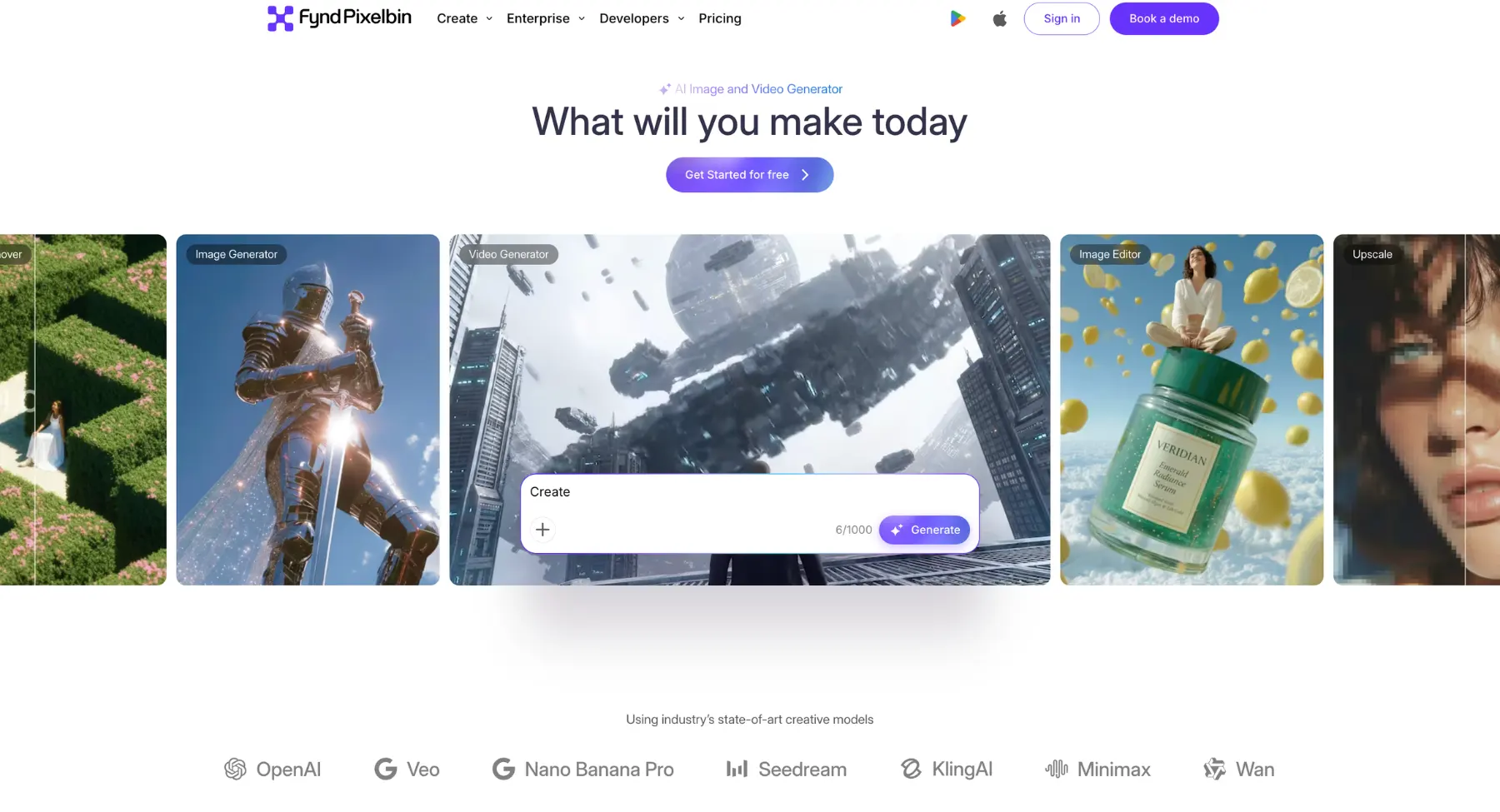
Pixelbin is an AI image editing platform designed around speed and repetition. It is most useful when you have a steady flow of visuals that need to look consistent, whether that means product listings, social creatives, ads, or catalog images.
Online sellers rarely work with just one version of a product image. A single SKU may need a white-background listing photo, a lifestyle image, a compressed web version, and a square creative for social media. Doing that by hand for every product becomes exhausting.
Pixelbin shortens that loop. Its AI ecommerce product photo editor lets you upload a product image, apply AI-led changes, and create a cleaner version for Shopify, Amazon, or another storefront. It supports JPG, JPEG, PNG, and WEBP files, and produces HD downloads without watermarks.
It also helps when the original photo is not great to begin with. The AI object remover can clear background clutter, unwanted people, cables, text, and other distractions. The AI background generator can place a product in a studio-style or lifestyle setting, which is useful when a plain white backdrop is not enough.
Low-resolution supplier photos are another common headache. Pixelbin's AI image upscaler can enlarge an image by 2x, 4x, or 8x while improving sharpness and reducing noise. That matters because many marketplaces reject or poorly display images that are too small or blurry.
What Photopea is built for
.webp)
Photopea works differently. It is a browser-based editor with a familiar Photoshop-like layout, and its strength lies in the amount of control it gives you.
You can work with layers, masks, smart objects, adjustment layers, paths, selections, blend modes, filters, and retouching tools. That makes it a practical choice for designers, freelance editors, and businesses that need to correct images rather than simply transform them.
It also handles a wide range of file types, including PSD, PNG, JPG, WEBP, SVG, PDF, TIFF, and several RAW formats. If you receive layered files from a photographer, packaging designer, or creative team, Photopea can open and edit them without forcing you into a desktop application.
Photopea does include AI. You can remove a background, select objects, use Magic Replace, and edit parts of an image through text prompts. But those features work best alongside manual editing. If an automated cutout misses a strand of hair or a generated background looks slightly off, you can refine it yourself.
That matters most for products where visual accuracy affects buyer trust. Apparel, cosmetics, jewelry, watches, electronics, furniture, and packaged goods often need careful attention to color, texture, reflections, and proportions.
How each tool handles AI editing
The biggest difference in Pixelbin vs Photopea is not the number of AI features. It is how central AI is to the workflow.
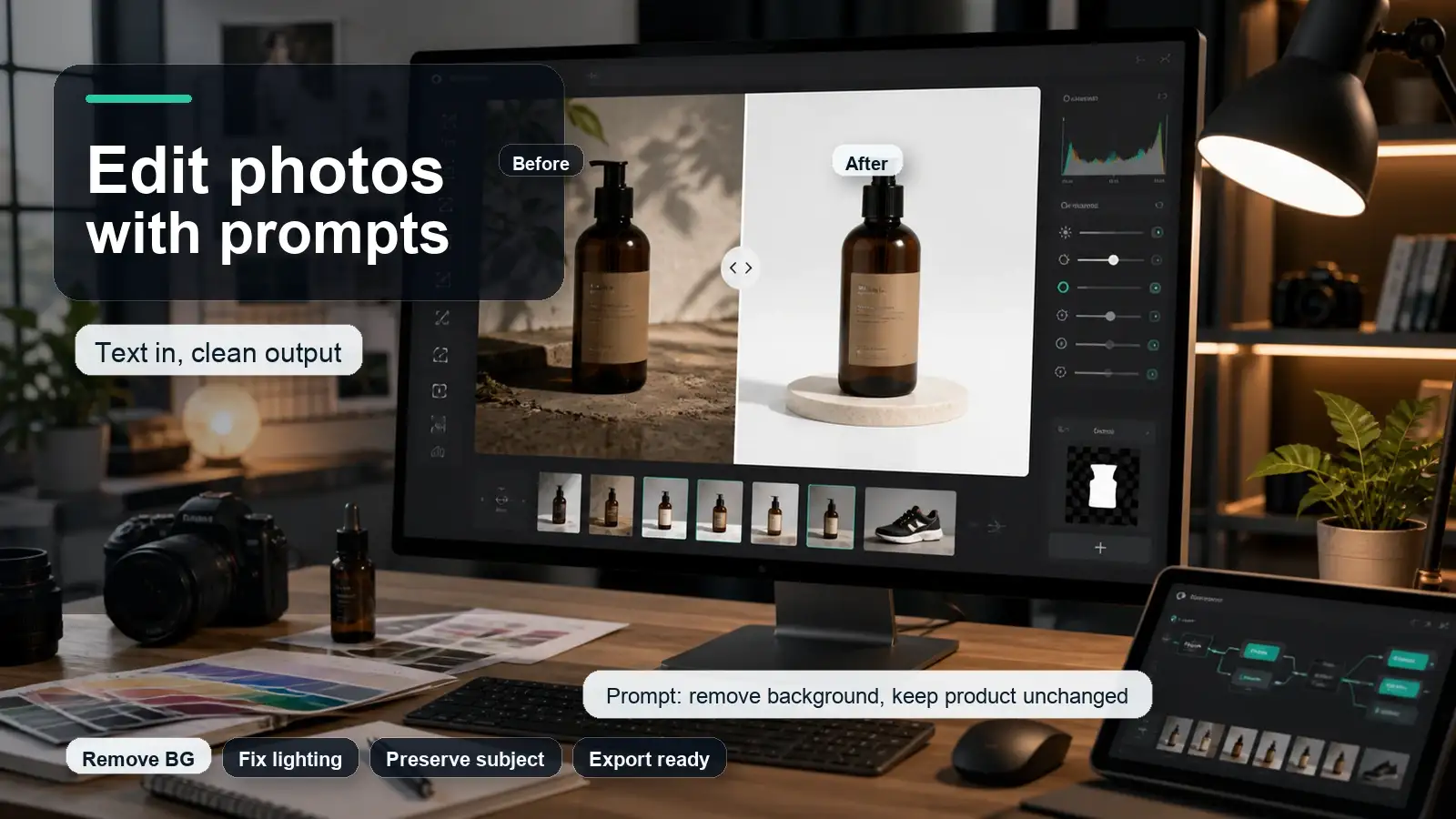
Pixelbin uses AI to do the heavy lifting. You upload an image, choose the transformation, and let the platform handle the work. This is ideal for background removal, object cleanup, enhancement, upscaling, and generated product scenes.
Photopea uses AI as one part of a larger editing environment. You can use it to remove a background or replace part of an image, but you can also take over and refine the result manually. That makes it better when precision matters.
Background removal
Pixelbin is the faster option when you need to remove backgrounds from many images. The AI background remover identifies the subject, removes the backdrop, and creates a transparent PNG or clean solid-color background. It is designed to handle product edges, hair, fur, and fine details, which makes it useful for marketplace listings.
Photopea also offers one-click background removal. Its advantage is what comes next. You can adjust the mask, restore missing areas, clean up rough edges, and blend the subject into a new background. That extra control is valuable when the source image is difficult.
Background replacement
Pixelbin is more efficient when you need to create multiple background versions of the same product. You can generate a white-background image for a marketplace listing and a lifestyle version for social media without rebuilding the edit each time.
Photopea is better when realism is the priority. You can manually match lighting, add shadows, adjust perspective, and blend the product into the scene. It takes longer, but the result can look more natural.
Object removal
Pixelbin is ideal for quick cleanup. If a product photo has a distracting label, cable, shadow, or background person, you can remove it without spending time on manual retouching.
Photopea is better when the removal is complicated. If deleting an object leaves a gap or damages an important reflection, Photopea lets you rebuild the area manually. That makes it a better rescue tool for imperfect source images.
Upscaling and enhancement
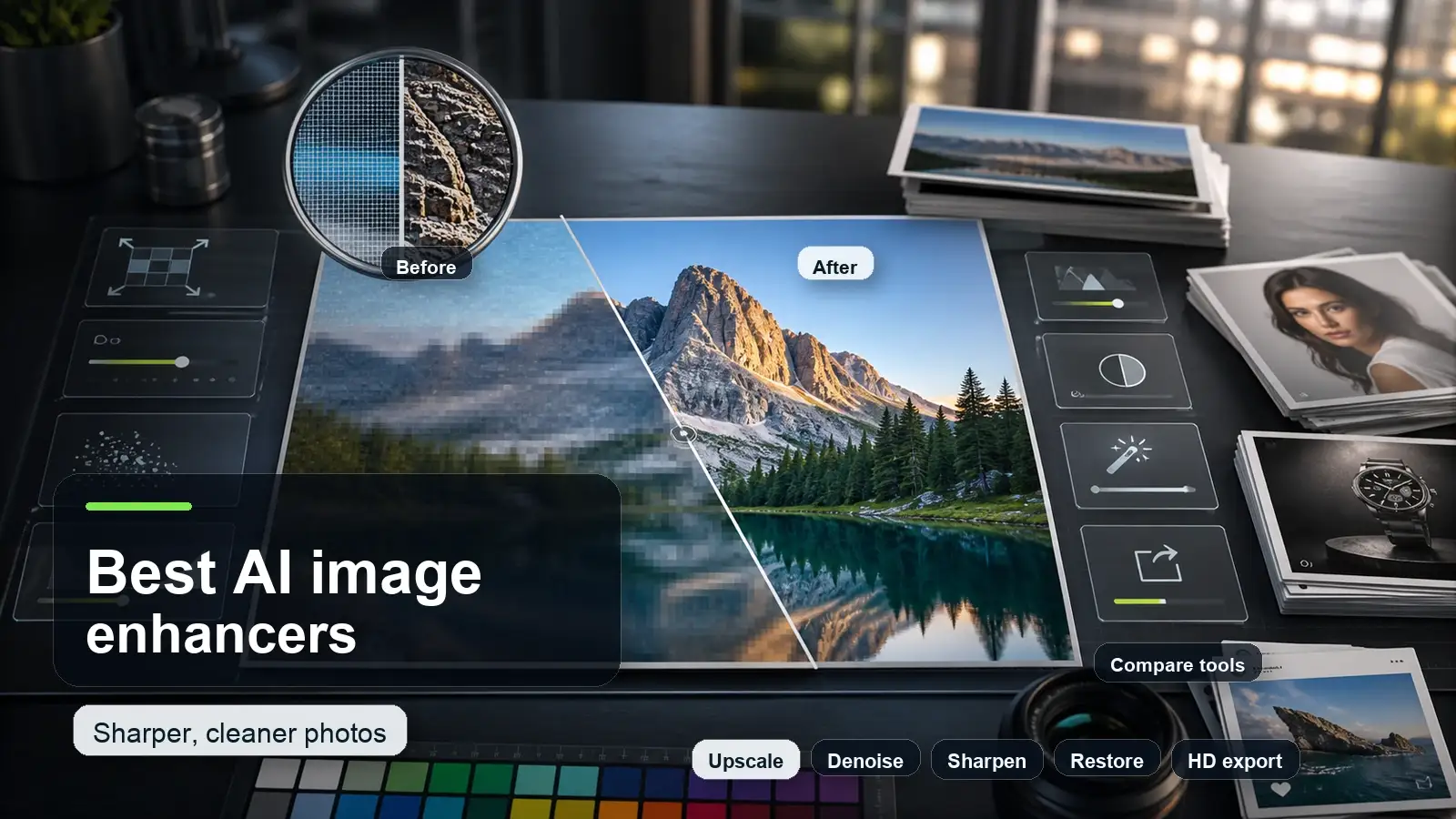
Pixelbin has a clear advantage here. Its AI upscaler can enlarge low-resolution images while improving clarity and reducing visual noise. This is useful when a supplier sends small or blurry product photos that need to meet marketplace requirements.
Photopea can sharpen and enhance images, but it is not primarily an AI upscaling tool. It works better for final adjustments after an image has already been enlarged or restored.
Which tool is better for product photos?
For product photography, the answer depends on how many images you need and how much finishing each one requires.
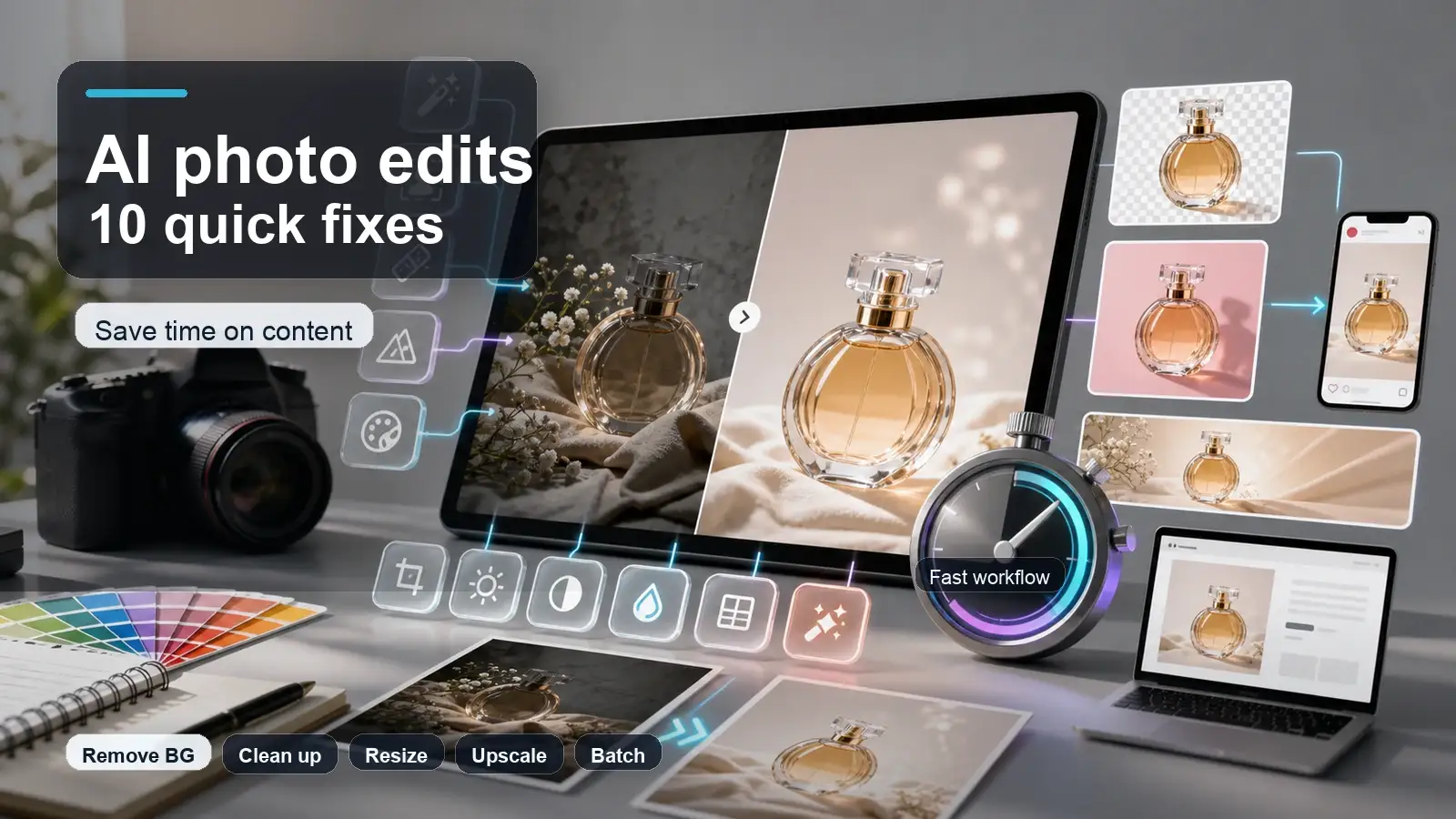
Pixelbin is better when you need consistency across a catalog. If you have 100 SKUs and every image needs a clean background, proper dimensions, sharp details, and a uniform look, Pixelbin saves a lot of time. You can apply the same type of transformation across multiple images instead of repeating the same manual steps.
Photopea is better for high-value or visually demanding products. If one image will appear on a homepage banner, paid ad, packaging mockup, or premium product page, the extra control is worth the additional time. You can correct small imperfections, refine shadows, adjust color, and ensure the final image matches your brand.
White-background product images
Pixelbin is the more efficient option for white-background images. Marketplace listings usually require a clean, distraction-free background, and Pixelbin can create that consistently across a catalog. It also supports resizing and format conversion, which helps when preparing images for different platforms.
Photopea can create white-background images too, but the process is more manual. It is a good option when the original photo needs cleanup before the background can be replaced cleanly.
Lifestyle product images
Pixelbin is better for generating lifestyle visuals at speed. You can take a basic product photo and place it in a setting that fits your brand, such as a kitchen counter, bathroom shelf, desk, or outdoor scene. This is useful for social media, ads, and product-page galleries.
Photopea is better when you need to build a custom scene from separate assets. You can combine a product image with a background, add shadows, adjust lighting, and refine the composition manually. This gives you more creative freedom but requires more editing skill.
Color accuracy
Pixelbin can improve color, lighting, and overall clarity automatically. That is helpful for creating a consistent catalog appearance, especially when images come from different suppliers or were shot in different conditions.
Photopea is better for precise color correction. If a garment appears too warm, a lipstick shade looks inaccurate, or a product's packaging color needs to match the physical item, Photopea gives you the tools to correct it carefully.
Workflow and ease of use
Pixelbin is easier for non-designers. The workflow is mostly upload, choose an edit, review the result, and download. You do not need to understand layers, masks, blend modes, or advanced selection tools to get a usable product image.
Photopea has a steeper learning curve. If you have used Photoshop, the interface will feel familiar. If you have not, it may take time to learn how layers, masks, selections, and adjustment layers work together. The reward is far more control once you understand the workflow.
For a small business owner who needs to edit a few product images each week, Photopea can be a practical low-cost option. For a team handling hundreds of images each month, Pixelbin's automated workflow is usually easier to manage.
Pricing and value
Pixelbin uses a credit-based pricing model. Credits are consumed by AI generations and transformations such as background removal, upscaling, prompt-based editing, and lifestyle image generation. Some basic actions, including resizing and adjust-and-retouch tools, do not consume credits. Pixelbin's plans start with a Creator plan offering 250 credits per month for $15, with higher-volume Lite and Pro plans available.
Photopea's core editor is free to use with ads. Its AI features, including background removal and generative editing, are credit-based, and a Premium plan removes ads and includes AI credits.
When comparing cost, do not look only at the monthly price. Calculate the cost per usable image. A tool that costs more upfront may be cheaper if it removes the need for repeated manual corrections. Conversely, a free editor can become expensive in time if you need to edit hundreds of images manually.
Privacy and file handling
Photopea has an advantage for users who prefer local processing. It runs in the browser and uses the device's CPU and GPU, meaning files do not need to be uploaded for its core editing workflow. This can be useful for confidential designs, unreleased products, or client files.
Pixelbin is cloud-based, which supports automation, team collaboration, storage, and large-scale delivery. That makes it better suited to businesses that need to process and distribute images across websites, catalogs, and marketing channels. For sensitive assets, review the platform's data and storage policies before uploading.
Final verdict
Pixelbin vs Photopea is not a contest between two identical tools. Pixelbin is a production platform for AI-led image editing and eCommerce workflows. Photopea is a precision editor for people who need hands-on control.
Pixelbin is the better choice for most product-photo operations because it turns raw images into clean, consistent, marketplace-ready visuals at scale. Photopea is the better choice when a single image needs careful correction or creative finishing.
If you sell online and need to process product images regularly, start with Pixelbin. If you are a designer or need to perfect high-value visuals, keep Photopea in your workflow. For many growing eCommerce teams, the strongest setup is Pixelbin for scale and Photopea for precision.
FAQs
For most Amazon catalogs, Pixelbin will save you more time. It can create clean white-background images, resize visuals, remove distractions, and keep a large set of listings looking uniform. Photopea is still useful if one listing image needs detailed retouching before it goes live.
It can. Photopea has one-click background removal, along with selection and masking tools if the first result needs correction. That combination is handy when you want automation but still want the final say over the edges.
Yes, and that is where it is strongest. Pixelbin is designed for repeated image transformations, so it works well for background removal, resizing, compression, enhancement, and background replacement across many product images.
The core editor is free to use with ads. AI features work on a credit system, and a Premium plan removes ads while including AI credits. If you only need manual editing, the free version can go a long way.
Use them together. Pixelbin can handle the bulk work, such as cleanup, background removal, upscaling, and background generation. Photopea can handle the finishing pass, especially for color correction, shadows, and detailed composites.
Photopea gives you more manual control over color, texture, shadows, and fine details. Pixelbin is better for automated consistency, but high-value products may still benefit from a manual review in Photopea.
It is. Photopea includes layers, masks, adjustment layers, selections, filters, and retouching tools. If you already know Photoshop, the transition is fairly easy. If you do not, expect a short learning period before the workflow feels natural.