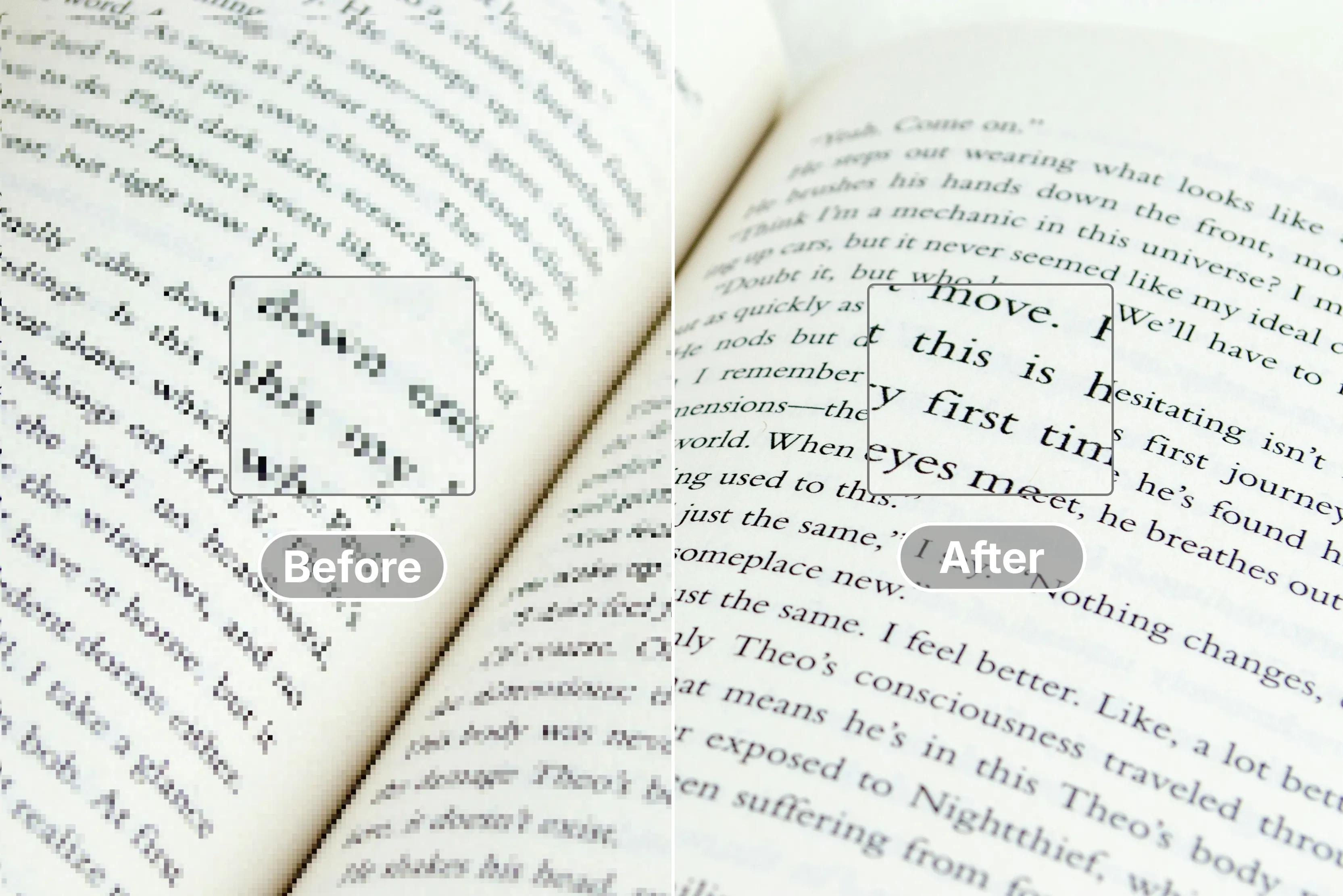


Blurry text in photos derails your workflow fast, whether it's a faded scan from an old album, a screenshot mangled by low-quality compression, a meme that's all pixels and no punch, or that receipt you snapped in bad light last week.
You end up staring at screens, zooming in vain, or hunting for replacements that never turn up, eating time you don't have while deadlines loom or simple tasks drag on. AI unblur tools cut through the frustration by grabbing those fuzzy edges, rebuilding letters with pattern smarts, and handing back clean reads in seconds, without any skills or editing degree.
Upload the mess, watch it sharpen live, download a sharp copy for emails, notes, or posts, all free online, where anyone grabs results without app installs or steep learning curves. In this guide, I will walk you through proven fixes to unblur text in images, with standouts like Pixelbin unblur text and more tools, plus bonus tips to bring more details.
What causes blurred text in images?
Blurry text turns useful photos into frustrating puzzles, whether due to useless shooting habits or sloppy digital tweaks. Things like unsteady hands during capture, skimpy resolution from the start, or ruthless compression to shrink file sizes all chip away at those crisp letter edges, leaving scans, screenshots, and quick snaps half-readable at best. Spotting these usual suspects helps anyone dodge the hassle and grab sharp results without endless retries. Know in detail what exactly causes blurry text.
Poor lighting issues
Snap a photo in dim corners or late evening glow, and your phone fights back by jacking up the exposure time to suck in every scrap of light. That longer shutter speed turns out to be a sneaky trap, though any tiny hand trembles or pagerustles gets baked right into the shot, stretching clean text into ugly gray smears that no amount of squinting fixes.
Motion Blur effects
Picture this: you're rushing a shot, and either your grip wobbles or the paper shifts under your fingers mid-capture. That split-second motion drags sharp lines into streaky trails across every letter, wiping out readability in a heartbeat and forcing you to reshoot or live with the mess.
Poor focus problems
Modern cameras pack autofocus smarts, sure, but they still goof by latching onto the wrong thing, like a busy background or random clutter, instead of zeroing in on your text. The result lands soft and hazy every time, with edges dissolving into a foggy blur that laughs at your zoom attempts.
Wrong distance traps
Get too cozy up close or hang back too far from your subject, and the text warps right there in the viewfinder, either swelling huge and losing definition or shrinking tiny and fading out. Depth of field plays no favorites here, turning potential winners into instant washouts.
Compression damage
Those handy JPEG files trim bulk by tossing out "extra" visual data, but they hit text hardest by rounding off fine edges into mushy shapes just to save space. Switch to lossless tricks when you can, and you hang onto more of that original bite without the telltale softening.
Improper upscaling fails
Fire up a quick resize on a low-resolution picture, and those pixels stretch like taffy, bloating tight letters into chunky, blocky disasters that mock any hope of legibility. Digital blow-ups without smart handling just amplify the flaws, not fix them.
How to unblur text in images? (Basic steps)
Ever find yourself rubbing your eyes over some washed-out screenshot or a receipt photo that's more smudge than words? Those AI tools unblur tricks out there cut right through the headache, handing you back sharp, readable text without you needing to mess with clunky software. Know the basic steps below;
1. Upload your blurry text image
Grab a ranking AI tool to kick things off; Pixelbin shines for scans and docs since it ties into your toolkit, while YouCam Enhance handles phone snaps like a champ on the go.
Just drag that mangled JPEG or PNG; most take files up to 10MB, straight into their upload zone, skipping sign-ups for one-offs. You'll see a quick preview pop up, letting you double-check the mess before the magic even starts.
2. Deblur text in an image with AI
Smack the unblur or enhance key, and watch the AI chew through those ragged edges, patching strokes and boosting contrast like it was born for it, all in seconds flat without touching the layout.
Tools like Pixelbin, Picsart, and Fotor lock onto document vibes perfectly, pull miracles from screenshots; tweak sliders if the free run needs a nudge for extra punch. Flip between before and after right there to make sure every letter stands tall, no endless do-overs or finger-crossing.
3. Save your enhanced image
Satisfied with the glow-up? Snag the cleaned-up file in beefy PNG or JPEG, watermark-free on basic plans, primed for firing off emails, jotting notes, or even printing.
Run batches through if you've got a pile, ditch the old blur-fest, and boom, text that reads as you shot it in broad daylight. Quick hack: bump the upscale to 2x on stubborn ones first, and it'll hold up under any zoom down the line.
Top 10 AI tools to unblur text in images online
Struggling with blurry screenshots, scans, or smudged receipts where reading the text turns to guesswork? These top 10 AI tools, like Pixelbin, Fotor, CapCut, and more, sharpen letters and make them visible for free, no apps or skills needed.
1. Pixelbin

Struggling with blurry text in your images, screenshots, or scanned documents? Pixelbin's AI unblur text tool is one of the best, sharpening faded letters, smudged handwriting, or pixelated screenshots without you fiddling with sliders or filters.
Just upload a file under 10MB or drop a URL, and the smart editor spots those unclear spots on its own, rebuilding edges for instant readability that pops. Whether you're rescuing old family recipes from yellowed scans, clarifying eCommerce product labels for listings, pulling vital details from hazy screenshots like error codes or payment slips, or making study notes from library book pages crystal clear, this browser-based fixer handles it all in seconds, no downloads, no installs, and works on any device.
Compare your before-and-after right there to see the glow-up, then download the crisp version. Free for up to three images a month, with upgrades for heavy users or API hooks if you need to scale.
Must known features
- Upload your blurry image or screenshot, and the tool automatically pinpoints fuzzy text areas, restoring sharp edges and clarity without manual adjustments or software downloads, perfect for quick turnarounds on scans, labels, or notes.
- Preview your original fuzzy version next to the enhanced one before saving, so you can confirm every letter reads clean and decide on the spot without guesswork.
- Unblur up to three images monthly at no cost as you get 3 credits; bump to paid plans anytime for unlimited credits, higher volumes, or seamless API integration into your workflows.
- Jump in from any browser on phone, tablet, or desktop, no apps or setups required, making it a go-to for on-the-fly fixes during eCommerce shoots, research sessions, or meme tweaks.
- Tackles everything from faded handwritten notes and product packaging to presentation slides, infographics, and payment confirmations, turning hazy messes into shareable, legible assets.
2. Media.io
Ever snapped a screenshot with smudged text, scanned an old document that's more haze than handwriting, or grabbed a product label photo that's pixelated? That’s where Media.io AI Image Text Enhancer steps up to sharpen those blurry messes into crisp, readable gems with nothing but a single click, no Photoshop skills needed or fiddly sliders required.
Fire it up in any browser on desktop or phone, upload your JPG, PNG, WebP, BMP, or whatever format you've got (under limits, of course), and the cutting-edge AI dives in to boost contrast, crank resolution, and rebuild those faded letters automatically. It spots pixelated spots on its own, turning unreadable notes, eCommerce listings, study docs, or payment slips into clear winners ready for sharing or printing.
Preview the result using the side-by-side comparison tool, tweak if you want to adjust with sharpen or recolor options, then download your fixed file hassle-free. Best part is it's web-based, no app installation needed, and packs bonus tools like upscaling or blemish removal for full photo tune-ups.
Must known features
- Advanced algorithms hunt down pixelated or blurry text zones automatically, pumping up contrast and resolution for effortless readability, no manual tweaks or expertise needed, just upload and process to watch letters snap into focus.
- Cross-platform browser access from phone, tablet, or desktop anytime without downloads or installs, making it a lifesaver for on-the-go fixes during meetings, research, or quick shares wherever life pulls you.
- Handles JPG, PNG, WebP, BMP, and more right out of the gate, so your screenshots, scans, or label shots process smoothly regardless of what format landed in your lap.
- Bonus editing tools included, like beyond text sharpening, upscale low-resolution files, recolor faded shots, remove blemishes, or sharpen portraits, all in one spot.
- Preview the before and after results through the sliders and download the generated image from this AI text image enhancer without any cost.
3. Fotor
Ever squinted at a screenshot where the chat bubble text dissolves into a pixelated mess, or wrestled with a blurred scanned document? Fotor's unblur text tool steps in as your quick-rescue with its AI smarts to sharpen those hazy letters back to bold readability without you touching a single slider or firing up desktop software.
Drag your JPG, PNG, HEIC, or WebP file straight into the browser, works seamlessly on phone or laptop, auto-hunts blurry zones, cranks contrast, and rebuilds edges for pro-level clarity in seconds.
Whether you're salvaging work docs, product labels from eCommerce shoots, or notes from a rushed photo, this one-click wonder previews your fix side-by-side so you see the transformation live, then downloads watermark-free for sharing or printing.
Must known features
- One-tap AI sharpening as the tool scans and uploads automatically to detect and fix pixelated text, boosting edges and contrast without manual fiddling, so screenshots or documents snap crisp even for beginners.
- Multi-format support like JPG, PNG, HEIC, and WebP files effortlessly across Windows, Mac, iOS, and Android browsers.
- Intuitive layout guides you step-by-step with before-and-after views, letting you tweak sharpen levels if wanted before saving, ensuring every letter pops perfectly without quality dips or surprises.
- Processed files stay at original resolution with no data leaks, plus encrypted handling means your work docs or personal scans remain safe while delivering print-ready sharpness every time.
4. Pixa
Grabbed a product shot where the label text blurs due to shaky hands or low light, or does your meme screenshot defy every zoom? Pixabay unblur image tool flips the script fast, restoring sharp details across photos, not just text, with a browser upload that processes JPG or PNG files up to decent sizes without hogging your storage.
Hit the site on any device, drop your file or URL, and watch the AI dissect motion blur, camera shake, or compression artifacts to rebuild crisp edges and textures automatically.
This tool is ideal for eCommerce sellers for clarifying packaging, creators reviving old snaps, or anyone pulling readable texts from hazy captures. It offers preview sliders before downloading enhanced versions ready for listings or posts.
Must known features
- Automatically targets motion, focus, or compression issues in uploads, sharpening text and details like labels or faces with precision that feels custom-tailored, no pro skills required for stunning turnarounds.
- Jump in from phone, tablet, or desktop seamlessly, supporting common formats, so you can unblur on the spot during shoots, reviews, or edits without installing anything extra to slow you down.
- Compare the original against the fixed version instantly, adjust upscale if needed for a 2x or 4x boost, then snag high-res files watermark-free for immediate use in sales or social shares.
- Handles full images like portraits, products, or vintage prints alongside blurry words, reviving textures and clarity to elevate everything from memes to marketing assets effortlessly.
5. CapCut
Rushed a screen grab of notes, but the shot got blurred? CapCut's unblur text tool charges in with video-editor roots but laser-focused AI for images, sharpening smudged letters in screenshots, docs, or labels through simple browser drags of JPG and PNG files.
Tied to their creative suite, it auto-detects fuzzy areas on upload from any device, rebuilds strokes with smart contrast lifts, and previews transformations so you can confirm readability before saving.
Creators love it for quick fixes in content pipelines, think clarifying captions, thumbnails, or chat logs, while keeping everything lightweight and free to start, with no heavy software commits. This tool integrates smoothly if you're already in CapCut's world, turning workflow headaches into seamless wins that keep your projects rolling without missing a beat.
Must known features
- Smart AI text recovery makes it possible to restore blurred letters in one pass by analyzing edges and boosting definition automatically, perfect for screenshots or notes where every word counts in your creative flow.
- Access instantly on any platform without downloads, handling standard image formats so you can fix text during edits, reviews, or collaborations wherever inspiration strikes.
- Side-by-side views let you eyeball results live, tweak intensity sliders for fine control, then export clean files ready to drop into videos, posts, or docs without quality loss.
- Pairs with CapCut's video and design tools for end-to-end polishing, unblurring text in thumbnails or overlays while maintaining the platform's free-entry vibe for hobbyists to pros.
- No upfront fees for core use, with options to scale for teams, ensuring privacy-safe processing that deletes uploads post-job and delivers speed for daily content hustles.
6. NoteGPT
Shot an important document, but a camera shake turned the text blurry, or does your screenshot of notes blur under zoom? NoteGPT's AI unblur image tool grabs those hazy shots and sharpens them back to life online for free, handling portraits, product photos, old scans, or quick captures with zero editing know-how.
Upload from your device, no apps or logins nagging you, and the smart AI strips out motion or focus blur, pumps details, and delivers natural-looking clarity in seconds, trusted by millions for its speed.
Preview the before and after results, download high-quality results securely with full privacy, no storage or sharing of your files, and keep everything intact without quality dips. This hassle-free browser fix turns blurs into shareable images.
Must known features
- Upload any blurry photo, and the engine detects issues like shake or focus fails to sharpen details and boost clarity on its own, spitting out natural fixes for portraits or screenshots without you lifting a finger beyond the drag.
- Supports batch processing for multiple fuzzy images at once to unblur the lot in parallel, slashing time for pros handling product batches, family albums, or content queues while keeping every output crisp and ready.
- Restores edges and textures precisely so your enhanced shots print or post as good as new, dodging the over-sharpened artifacts that plague lesser tools every time.
- Accessible from phone, laptop, or tablet sans downloads or skills, pulling testimonials proves it shines for hobbyists, students, and creators daily without setup snags.
7. PicWish
Found a blurry scan of a book page or product label that defies reading, or snapped docs that are too fuzzy for notes? PicWish's AI image text enhancer swoops in free online to clarify pixelated or smudged letters effortlessly, turning hazy screenshots, PDFs, receipts, or camera grabs into sharp ones.
It is a free tool that prevents costly mix-ups by ensuring every detail stands out, outputting high-quality versions that aid everything from academic pulls to eCommerce listings.
Users lean on its reliable tech to ditch unclear messes, making workflows smoother as you understand info fast without endless retries or complex edits. This game-changer revolutionizes handling blurry images, keeping you ahead in any spot where text clarity counts.
Must known features
- AI scans blurry zones in docs, labels, or signs to remove fuzz and restore sharp legibility automatically, ensuring books, PDFs, or receipts read true without interpretation headaches.
- Supports HD resolution and detail for print-ready or screen-perfect results that hold up under zooms, dodging the degradation from basic fixes on screenshots or camera shots.
- Drag-and-drop interface processes are fast with no software installs, fitting quick jobs on any device for users juggling info-heavy tasks without steep learning curves.
- Works equally on documents, screenshots, or photos alike, revolutionizing clarity so you grasp essential data effectively every time, no matter the blur's origin.
8. Picsart
Ever watch a creative shot or meme screenshot turn to blur soup from compression or quick snaps? Picsart's AI image enhancer unblur tool flips hazy photos sharp with pro-grade AI that tackles text, faces, or details in seconds online.
Upload your file to the browser, no apps needed, and it auto-removes blur from shaky hands, low light, or file squeezes, boosting overall clarity for social posts, edits, or work assets.
Creators like this tool because it gives natural results that fit their style, previewing changes live before downloading enhanced versions ready for canvas tweaks or shares. It's free access hooks beginners while professionals scale up, turning everyday blurs into standout visuals that pop without gaining Photoshop skills.
Must known features
- Automatically strips motion, compression, or focus blur from images, sharpening text and elements with natural finesse that integrates smoothly into Picsart's editing flow for creators.
- Enhancements unfold in real-time with before-and-after views, tweak strength or upscale as needed, then export for posts, prints, or further canvas magic without quality hits.
- Pairs unblur with stickers, backgrounds, or Gold tools in one platform, empowering quick fixes for memes, social shots, or product visuals, all under browser control.
- Handles uploads from anywhere sans downloads, supporting diverse files so you can enhance on phone during shoots or desktop for batch polishes effortlessly.
- Dive in at no cost for core unblurs, unlock advanced options via Gold for unlimited power, keeping it accessible yet scalable for hobby edits to pro workflows.
9. InsMind
Captured eCommerce labels or documents through low-megapixel megapixel cameras that turned the texts blurry? No worries anymore, InsMind's AI text enhancer delivers AI precision to clarify those blurry strokes online, focusing on product packaging, screenshots, or scans with upload-and-fix simplicity.
Browser-based, it processes your files to rebuild edges and contrast automatically, previewing sharp results before you save for listings or reviews. Jump in free, handle batches if needed, and watch fuzzy texts vanish into pro assets.
Must known features
- AI automatically works on the blurry letters in labels or docs to restore sharpness and contrast precisely, making eCommerce packaging or scans pop clear without over-editing the whole image.
- Upload and view enhanced versions side-by-side right away, fine-tune if desired, then download high-res files perfect for listings, prints, or digital shares.
- Tackle multiple images at once without any costs included, scaling easily for sellers or teams, fixing product shots in volume without tool limits cramping style.
- Works across phones or computers sans installs, keeping privacy tight while outputting watermark-free results ready for immediate workflow drops.
10. TinyWow
Dealing with old photos or quick snaps where text or details blur under shaky grips? TinyWow image unblur tool offers a stripped-down online fix that sharpens fuzzy files fast using AI without any sign-up or installations.
Drag JPG, PNG, or GIF up to 25MB, hit process, and it clears the blur automatically, previewing the lift before download. Part of a toolkit suite, it pairs with crops or resizes for one-stop tweaks, keeping things lightweight for users who just want clear results yesterday. Privacy stays too while uploading the images to work on.
Must known features
- Jump straight to unblurring with drag-drop uploads, no sign-ups or payments nagging, handling JPG, PNG, GIF up to 25MB for screenshots or photos in seconds flat.
- Automatically, AI detects and removes blur types like motion or compression on autopilot, delivering clear details without sliders or guesswork for quick daily fixes.
- Grab enhanced files clean and ready, preview first to confirm sharpness, perfect for memes, notes, or shares where quality counts.
- Provides a suite of complementary tools like unblur with crop, resize, or compress right there for full edits in one tab, streamlining workflows for casual users, dodging app overloads.
- Files are processed privately and automatically deleted, ensuring your personal or work images stay yours alone.
Final thoughts
This full guide talks about AI fixes like Pixelbin, Fotor, Adobe Express, and more. Marketing professionals sharpen product tags, students use them for lecture scribbles, and everyday users fix pictures; every tool skips the learning hump, for instance, browser-crisp results without any complicated software.
Match your pick to the mess at hand, like Pixelbin works the best on document scans, and Fotor, which owns deblurring the screenshots, and keeps workflows humming. Here's to no more eye strain and do-overs; drag, click, save, and watch frustration melt into smooth reading of images with text.
FAQs
Upload fuzzy shots to Pixelbin, Fotor, or Pixa in your browser, let AI sharpen edges automatically, preview changes, and download crisp versions, no subscription or apps needed.
After testing all the above tools, Fotor and Picsart lead for screenshots with one-click natural sharpening; Pixelbin excels on scans and texts, all are free and online, beating others on speed and clean results without watermarks.
Yes, AI tools that are mentioned above can rebuild readable letters from shaky or low-light snaps if original shapes linger, though heavy smears might leave faint spots behind.
Pixelbin offers three free unblurs monthly, no login or subscription required, for files under 10MB, sharp and watermark-free download right in your browser anytime.
Photoshop sharpens via Smart Sharpen filters with slider control, but needs skill to avoid halos, and is slower than free AI tools for quick text fixes.
Drop screenshots into any of the AI tools, hit AI enhance or similar button for edge rebuilds and contrast boosts, preview live, then grab clean PNGs ready for use.









