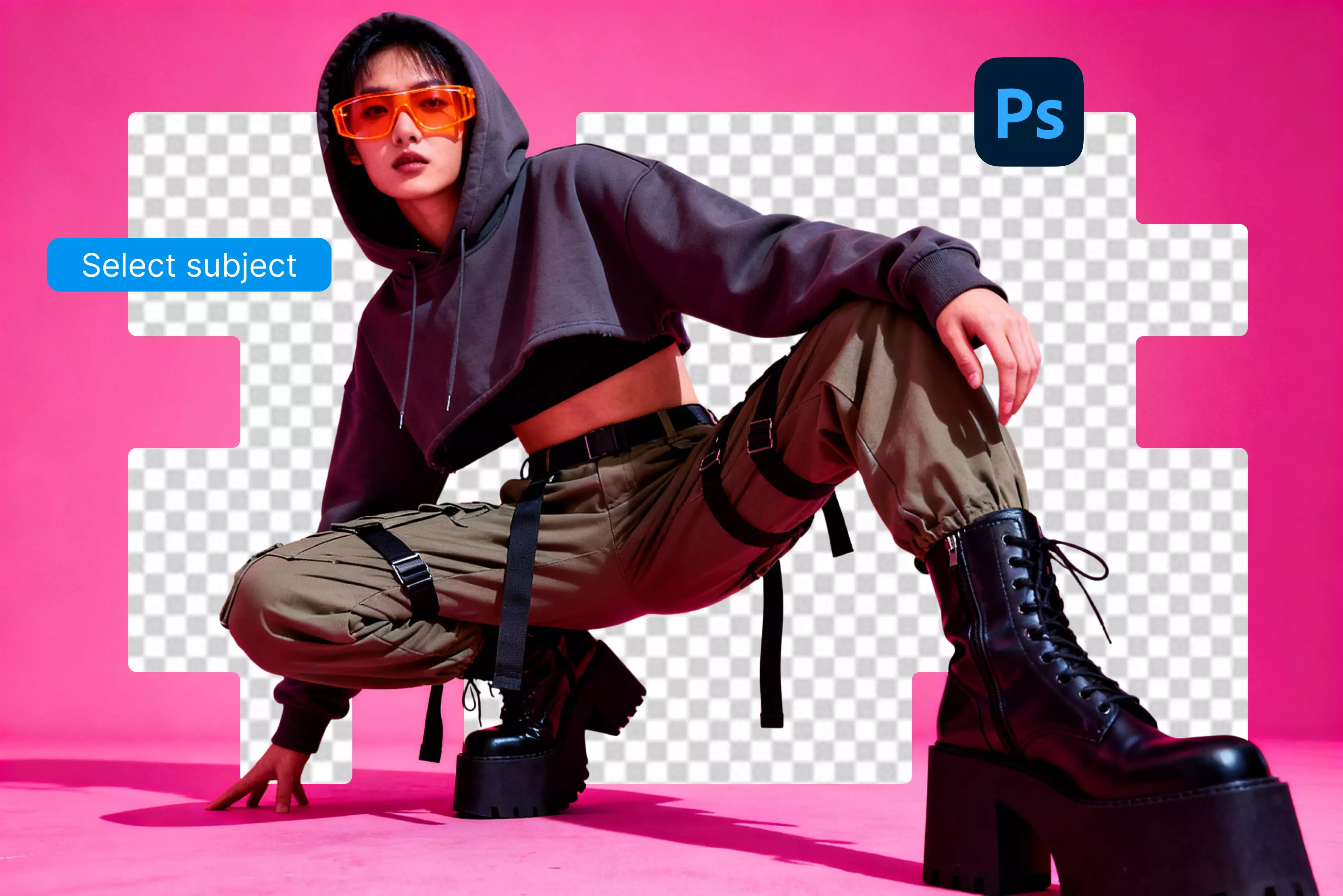


Removing a background by selecting the subject cleanly is one of those skills every photo editor ends up using sooner or later. If you’re preparing product photos, retouching portraits, or building graphics for a campaign, being able to separate the subject from the rest of the image makes your work look polished and intentional.
Once the subject is isolated, you can drop it onto a new background, build a composite, or simply keep things looking sharp and distraction-free. Photoshop has become incredibly good at this over the years.
What used to take a lot of careful manual tracing can now be done with a mix of smart tools and precise controls. Beginners get something quick and easy to work with, while experienced editors still have all the fine-tuning options they need.
In this guide, I will cover the main ways to select a subject and remove a background in Photoshop. You’ll see five different approaches—from fast, one-click methods to techniques that give you full control—along with practical tips to avoid common issues and keep your workflow efficient. By the end, you’ll have a reliable set of tools you can use for almost any kind of image.
Understanding subject selection basics in Photoshop
Selecting the subject is the foundation of any background removal step in Photoshop. Before you erase, replace, or redesign anything behind your subject, you need a clean, accurate outline of the person or object you want to keep. If that first step isn’t solid, the rest of your edit will never look convincing.
A good selection protects the edges and fine details—things like hair, fabric texture, or thin shapes that easily get lost. Photoshop offers a wide mix of tools for this, from quick automatic options to precise hands-on methods. Which one you choose usually depends on how complicated the image is, how busy the background looks, and how much contrast you’re working with.
Some of the trickiest situations involve wispy hair, fur, transparent materials, or subjects sitting in front of messy, patterned backgrounds. Getting these right takes a bit of extra care, but learning how to manage these details makes a huge difference in the realism of the final edit.
Key factors to remember
- The goal is to isolate the main person or object so it can be edited separately from everything behind it.
- Clean selections prevent the common problems: jagged edges, halos, leftover background bits, or that obvious “Cut-out” look.
- Photoshop gives you a spectrum of tools—quick automatic options like Select Subject, as well as manual tools like the Pen Tool when you need full control.
- Complicated edges (hair, fur, smoke, transparent materials) usually need extra refinement in Select and Mask.
- High contrast between the subject and the background usually makes automatic tools perform better.
- Using layer masks instead of deleting pixels keeps your edit flexible and non-destructive.
- Typical mistakes include hard edges, missed areas, or color fringing. These can be fixed with edge refinement and cleanup after the main selection is done.
How to perform subject selection and background removal in Photoshop (5 tested methods )
There are plenty of ways to pull a subject out of its background in Photoshop, and each method has its own personality. Some tools get the job done fast with hardly any effort, while others give you the chance to really shape the edges and control every pixel. Know the methods below;
Method 1: Quick Selection Tool
The Quick Selection Tool is one of those features most Photoshop users reach for when they need to grab a subject quickly. It works a lot like painting: you drag the brush over the area you want, and Photoshop tries to snap to the edges on its own.
When the subject clearly stands apart from the background, this tool can lock onto the shapes surprisingly fast, giving you a usable selection in just a few strokes. That said, it isn’t magic.
If the edges are soft, the background is busy, or there are transparent sections—like lace, glass, or loose hair—the tool can struggle and grab too much or too little. In those cases, people usually take the rough selection into Select and Mask for cleanup. A bit of extra refining there smooths out the mistakes and helps turn a quick draft into a clean, professional result.
Steps to know
- Open your image and select the Quick Selection Tool from the toolbar.
- Brush over the parts of the subject you want to select.
- Allow the tool to detect edges and expand the selection automatically.
- Use “Add to selection” mode to include missed areas.
- Switch to “Subtract from selection” mode to remove unwanted background.
- Refine edges using the Select and Mask feature if necessary.
- Apply a layer mask or delete the background based on your needs.
Method 2: Select Subject command
Select Subject is Photoshop’s quick way of figuring out what you’re trying to isolate. You hit the button, and it makes its best guess at outlining the main person or object in the shot. When the subject is clear and well-lit, it usually does a decent job and saves you from having to drag a selection tool around every edge.
Of course, it’s not perfect. Complicated hair, weird shadows, or anything blending into the background can throw it off. That’s why most people take the initial selection straight into Select and Mask.
There, you can tighten up the outline, smooth the rough patches, and fix anything the automatic pass didn’t catch. After a bit of cleanup, the selection is usually solid enough for a clean background removal.
Steps to know
- Open your image in Photoshop.
- Go to Select > Subject to activate automatic selection.
- The subject is detected and outlined automatically.
- Review the selection and fine-tune edges in the Select and Mask workspace.
- Use the Refine Edge Brush to handle tricky parts (e.g., hair).
- Output the selection as a mask or directly delete the background.
Method 3: Object Selection Tool
The Object Selection Tool sits somewhere between full automation and hands-on control. Instead of selecting everything for you, it lets you roughly mark the area where your subject is, and Photoshop tries to figure out the edges inside that region.
All you have to do is drag a box or a loose lasso around the object, and the program does the detailed outlining for you. It’s a great choice when the scene is cluttered or when there are several objects close together, and you only want one of them.
Most people use this tool when they want to work quickly but still keep a bit of control. It’s also handy for step-by-step editing—make a rough selection, adjust a few areas by hand, and refine it before you move on to masking or removing the background.
Steps to know
- Select the Object Selection Tool from the toolbar.
- Draw a rectangle or lasso roughly around the subject.
- Photoshop automatically creates a selection inside the defined area.
- Use the add or subtract selection brushes to adjust the selection if necessary.
- Refine edges and details using Select and Mask.
- Apply a layer mask or remove the background as needed.
Method 4: Pen Tool for advanced selection
The Pen Tool is a traditional method for making selections in Photoshop on the image. Instead of relying on the software to guess the edges, you can select the outline yourself. It’s slower than the automatic tools, but nothing else gives you this level of control when the edges need to be exact.
Designers often use it for products, logos, and anything with clean, defined shapes—especially when the colors or textures blend too much for Photoshop’s automatic options to understand. If you take the time to learn it, the Pen Tool lets you create paths that you can save, tweak later, and convert into selections whenever you need them.
Steps to know
- Choose the Pen Tool from the toolbar.
- Click to place anchor points along the edge of the subject, dragging to curve lines as needed.
- Complete the path by connecting back to the first anchor point.
- Right-click the path and choose “Make Selection.”
- Adjust feathering if desired and click OK to confirm the selection.
- Use the selection to add a layer mask or remove the background.
Method 5: Select and Mask workspace
Select and Mask is needed in Photoshop when a regular selection is not enough for removing the background, along with selecting the subject. It’s built for fine-tuning tricky edges—things like hair, fur, or semi-transparent areas that often give other tools trouble.
Inside this workspace, you get brushes, sliders, and edge-refining options that let you smooth, feather, and adjust your selection with precision. The workspace is especially helpful for turning rough selections into clean, professional-looking masks.
You can switch between different background views to see exactly how your subject will look once it’s separated. Mastering Select and Mask is what allows editors to take a good selection and make it look seamless, even in situations where automatic tools leave rough or uneven edges.
Steps to know
- Make an initial selection using any preferred tool.
- Click “Select and Mask” in the options bar to enter the workspace.
- Use the Refine Edge Brush to paint over soft or hairy edges.
- Adjust Smooth, Feather, Contrast, and Shift Edge sliders to hone the selection’s boundary.
- Change the background view to check the selection against multiple contrasts.
- Output the refined selection to a layer mask or a new layer with a mask.
- Continue fine-tuning with brush tools if necessary.
How to select a subject and remove the background in Photoshop CC (Most searched query)
Start by picking the subject in your image. If it’s obvious and stands out from the background, you can try Select Subject. One click and Photoshop highlights the object for you—it’s quick and saves a lot of time compared to tracing by hand.
Once the selection is made, switch to Select and Mask to clean it up. Hair, fur, or soft edges often need a little extra attention. You can smooth, feather, or tweak the edges until they look natural.
Switching to the background helps you see if anything doesn’t look good in the image. Instead of deleting the background, use a layer mask. You can replace the background, adjust the selection, or fix the mistakes easily.
Steps to know
- Open your image in Photoshop CC.
- Go to Select > Subject; Photoshop will automatically detect and select the main subject.
- Click “Select and Mask” on the toolbar to enter the refinement workspace.
- Use the Refine Edge Brush to clean up complex edges such as hair or fur.
- Adjust sliders like Smooth, Feather, and Shift Edge to enhance edge transitions.
- Output the refined selection as a layer mask.
- Use the mask to remove the background without deleting pixels, allowing flexible future edits.
How to select a subject and remove the background in Photoshop 7.0 (Bonus tip)
Photoshop 7.0 doesn’t have any automatic tools to pick out your subject, so everything has to be done manually. To select a subject, most people use the Lasso Tool or the Polygonal Lasso Tool.
You carefully trace around the edges, point by point or freehand, which takes patience but gives you full control. If you’re willing to work slowly, you can get very clean selections. Once the subject is selected, removing the background is a hands-on process.
You’ll often use a layer mask, along with tools like the Clone Stamp or Healing Brush, to clean up edges and fill in any gaps left by the selection. It’s slower than modern versions, but doing it carefully allows for professional-looking results. In Photoshop 7.0, precision and attention to detail are more important than speed.
Steps to know
- Open your image in Photoshop 7.0.
- Select the Lasso Tool or Polygonal Lasso Tool from the toolbar.
- Carefully trace the outline of your subject, connecting back to your starting point to close the selection.
- Refine the selection manually by adding or subtracting areas if needed.
- Apply a layer mask based on this selection for non-destructive editing, or delete the background if preferred.
- Use the Clone Stamp Tool to fill in any irregular gaps or background remnants.
- Apply the Healing Brush to smooth edges and blend background textures naturally.
- Zoom in to make fine adjustments, ensuring seamless separation of the subject.
Advanced background removal techniques
1. Using channels
Sometimes you can’t clearly see the subject against the background. That’s when channels can help. Open the Red, Green, and Blue channels one by one and look for the one where your subject stands out the most.
It might be a little brighter or darker than the rest of the image. Once you find it, you can use that channel to make a selection. It’s a bit messy sometimes, but it works better than guessing with the normal selection tools.
2. Combining tools
Some images are stubborn. One tool alone won’t cut it. I usually start with the Quick Selection Tool to get the rough shape, then go over tricky areas with the Pen Tool to fix sharp edges.
If there’s still background left in hard spots, I use Color Range or the right channel to grab it. Put it all together with a layer mask, and you can clean things up without destroying anything. It takes patience, but you end up with a clean cutout, even on difficult backgrounds.
Best Photoshop AI alternative for selecting a subject and removing the background—Pixelbin’s AI image background remover
If you just want to get rid of a background by selecting a subject without performing tough steps with layers and masks in Photoshop, Pixelbin is a really simple option. It works online, handles both images and videos, and doesn’t need much setup at all. The best part is how easy it is to use—no complicated steps, just upload and go.
With the premium plans, you can remove white backgrounds in batches, which is a huge time-saver if you’ve got hundreds of photos to deal with.
Everything runs automatically, but the quality stays solid. Whether you’re a business owner, a designer, or just someone looking to save time, Pixelbin does the job quickly and without the usual Photoshop hassle.
How to use Pixelbin for white background removal
Step 1: Go to Pixelbin and open the background remover tool.

Step 2: Upload your image by dragging and dropping it into the upload area or browsing your device to select the file. Supported formats include PNG, JPG, JPEG, WEBP, and HEIC.
Step 3: The AI automatically detects the subject and removes the background instantly using advanced algorithms, preserving details such as fine edges, lighting, and shadows with high precision.
Step 4: Once satisfied, download the high-resolution image with a transparent background, ready for eCommerce, marketing, social media, or creative projects.
Why did I like it?
- Automatically removes backgrounds using AI.
- Supports multiple image formats (PNG, JPG, and WEBP).
- Maintains high resolution and image quality.
- Allows bulk processing of many images at once.
- User-friendly; no software install or Photoshop skills needed.
- Free to use with professional-quality output.
- Ideal for e-commerce, social media, marketing, and photography.
- Bulk background removal with accurate results.
- Supports automation with API integration.
- Works smoothly with large, high-resolution files.
Final thoughts
Picking out a subject and removing the background can be done in different ways depending on the image. If the subject is easy to see, you can use Select Subject or the Quick Selection Tool to grab it fast.
For harder images, the Pen Tool lets you trace edges carefully. After that, Select and Mask helps clean up things like hair, fur, or soft edges. Always use a layer mask instead of deleting parts of the image.
The best way to get good at this is to practice on different kinds of images. Try simple portraits first, then move to products or detailed shots on different AI tools like Pixelbin background remover. Every picture is different, and sometimes you have to combine tools to get a clean result.
FAQs
Photoshop’s Select Subject tool is generally highly accurate, especially for clear, distinct subjects. However, it often requires refinement around complex edges like hair or overlapping backgrounds.
Using Select Subject combined with the Select and Mask workspace is the best beginner-friendly method, balancing ease and precision.
Yes, by utilizing Select and Mask’s Refine Edge Brush and careful edge smoothing, Photoshop preserves fine details like hair.
Use the Healing Brush or Clone Stamp to replicate shadow details naturally. Adjustment layers can help restore proper lighting and contrast.
Using masks is better because it keeps edits non-destructive, allowing later adjustments or restoration without permanent loss.
Selections can be saved via Select > Save Selection. Layer masks are preserved in PSD files for editing flexibility, allowing reuse and refinement.