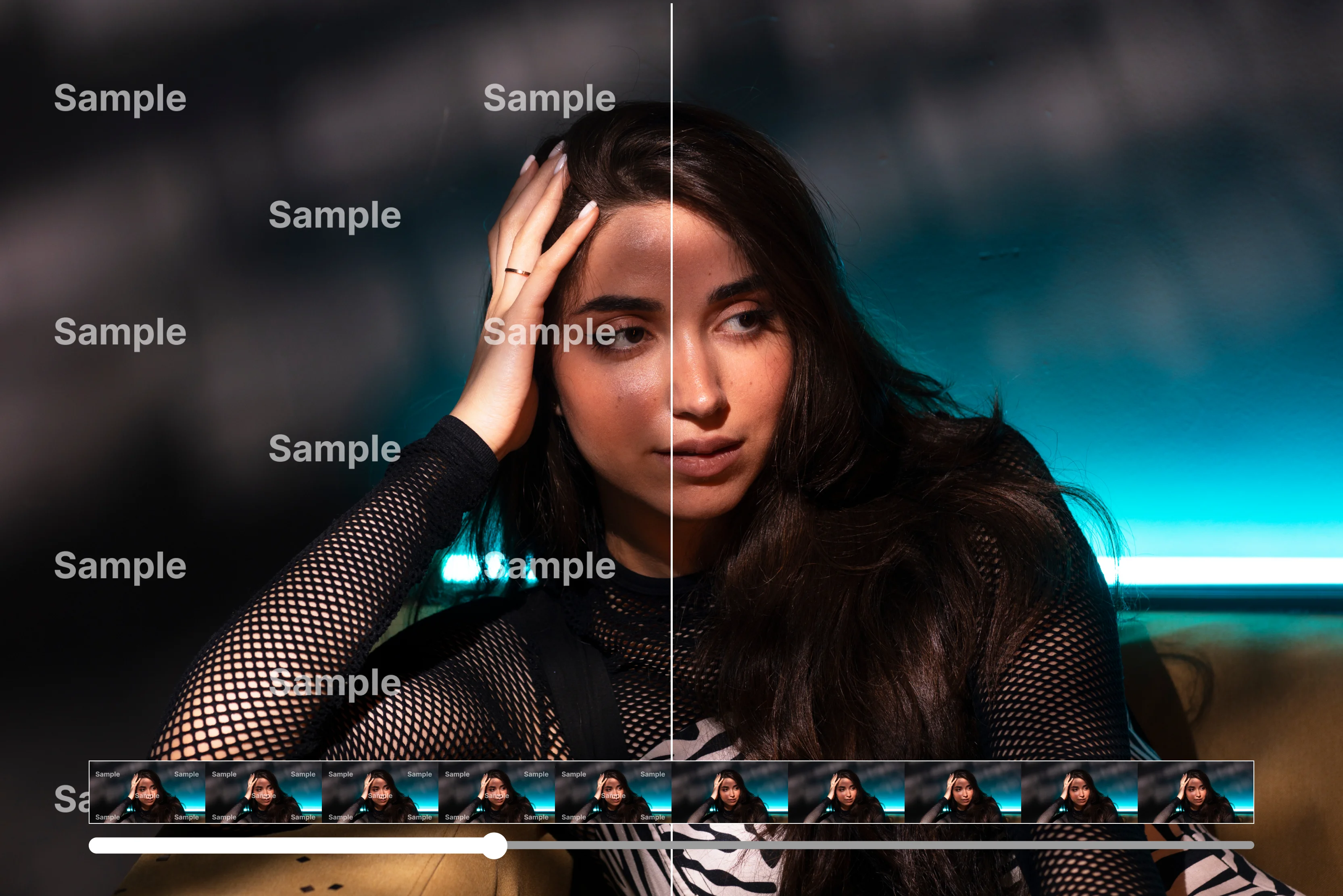


Instagram videos may show a logo or username when downloaded or reposted using certain tools. It affects the clean look of your reel. You save a video for a client presentation. Then you notice the unwanted overlay.
This guide talks about legal methods to remove watermarks from Instagram videos. Start with an AI-powered tool like Pixelbin for quick and effective results. Other reliable methods include manual editing software.
This blog will guide you through step-by-step instructions to remove a watermark from a video in Instagram. It explains why it appears and shares prevention tips for future videos. You will gain practical advice to keep Instagram content professional and ready for sharing.
Why do Instagram watermarks appear on videos?
A watermark is a translucent image, text, or pattern embedded in documents or media. Its primary purpose is to assert ownership. Instagram watermarks function similarly to an artist's signature on a reel, a post, or a story.
They add it as a subtle Instagram logo with the creator’s username superimposed on videos. Content creators employ these elements to preserve their visibility.
Key reasons for Instagram watermarks include:
- Reposted content: Instagram displays original usernames and Reel icons for attribution during in-app shares. Screen recordings uploaded elsewhere often lose these marks.
- Downloaded Reels or Stories: Exports of your own content include your handle and the Instagram logo by default.
- Video editing apps: Tools such as CapCut, InShot, or Canva overlay their logos unless users upgrade subscriptions or view ads.
- Creator-added marks: Professionals insert custom logos before posting to gain recognition from viral shares.
Instagram incorporates watermarks during video export or download processes. These features assist in verifying content origins. Nevertheless, watermarks possess limitations. Recipients may crop, obscure, or eliminate them using specialized software. Consequently, they discourage misusing the content rather than provide absolute security.
Legal & ethical considerations
Removing a watermark from a video is straightforward if you own the rights to the video for example, you shot the footage and just want a clean copy. In that case, Cropping or editing out a watermark from your own video is legal under copyright law, though third-party apps may conflict with Instagram’s terms of service.
The situation changes when the content belongs to someone else. Under copyright law in most countries (for instance, the U.S. Copyright Act and similar statutes worldwide), a watermark is a form of authorship identification. Removing it without permission can lead to copyright issues and violations of Instagram’s terms and conditions.
Best practices
- Get consent by a quick DM or email for written permission to protect you.
- Check licenses as creative commons or paid-stock licenses may allow editing.
- When unsure, credit anyway. Sometimes, simply tagging or linking back keeps everyone happy.
By understanding why watermarks appear and the legal guardrails around them, you can decide when it’s appropriate to remove one and when it’s better to leave it untouched or simply request a watermark-free version from the original creator.
Basic removal methods for original vs. reposted videos on Instagram
Instagram videos gain watermarks from apps and exports. Basic methods include cropping and overlays. This section covers simple steps for clean results for both original and repost reels.
Method 1: If you own the original file of the video
Owning the original video, if you are the creator of it, makes watermark removal easy. Before you even upload to Instagram, work with the highest-quality version of it. This gives you room to crop, mask, or clone areas without losing important detail.
Edit before posting
Open the raw file in your editor of choice and crop out the watermark if it sits near an edge. If the mark is in the middle, place an overlay—perhaps a background-matching patch or a small graphic of your own.
Desktop accuracy
Professional programs like Adobe Premiere Pro, Final Cut Pro, or the free tier of DaVinci Resolve offer motion tracking and advanced masking. You can paint/clone in After Effects or Resolve (Fusion/Color) or use tracked masks/patches in Premiere/FCP.
Mobile convenience
When you’re away from a computer, apps such as InShot and CapCut let you blur, crop, or cover a watermark directly on your phone. Upgrading to their paid plans removes the apps’ own branding.
Method 2: If you repost a video
Legal and ethical protocols hold equal importance to execution techniques. Watermarks represent the creator's proprietary mark, safeguarded by copyright statutes. Unauthorized erasure contravenes Instagram's community guidelines and broader intellectual property regulations. Adhere strictly to compliance measures for sustained platform access.
If repurposing external video material, implement these protocols:
Ask the creator
Compose a concise direct message detailing proposed usage, distribution channels, and modifications. Such inquiries frequently yield approval from collaborative owners.
Check the license
Examine metadata for Creative Commons designations or equivalent permissions. These frameworks typically authorize alterations provided attribution accompanies the output.
Edit only with consent
Obtain documented authorization prior to initiating crops, blurs, or overlays. Employ the previously described desktop and mobile applications for professional-grade outcomes.
Quality trade-offs to know
- Cropping shrinks the frame and can cut off important visuals.
- Blurring or stickers hide the mark but may distract viewers.
- AI removal tools can leave faint smudges if the background is complex.
How to remove the Instagram watermark from a video for free using AI tools?
Struggling with Instagram watermarks on your videos? Learn the best AI video watermark removers that remove the Instagram logo for free. Know the top tools to deliver the best results.
1. Pixelbin video watermark remover

Instagram videos often carry watermarks for exports, reels, or reposts. These marks include logos, usernames, or icons that distract viewers. Clean footage improves shares and engagement.
Pixelbin video watermark remover stands out as the top choice. It requires no software downloads or manual tweaks. Visit Pixelbin video watermark remover. Upload your Instagram video directly. The AI scans every frame to detect logos and text precisely.
It fills in the removed areas with backgrounds that match seamlessly. Short videos are processed in minutes while keeping full quality. Output matches your original format perfectly. Follow the steps below for results:
Step 1: Visit the Pixelbin website
Open your browser and go to Pixelbin. The free watermark removal tool loads instantly for video uploads.
Step 2: Upload your Instagram video
Click the upload button and select your file from device storage. Supported formats include MP4, WebM, or MOV.
Step 3: Let AI detect watermarks
Pixelbin scans the video automatically to spot Instagram logos, endings, or template marks. Processing starts right away with no manual setup.
Step 4: Download watermark-free video
Hit the download button for your final file. The clean video works perfectly for TikTok, Instagram Reels, or YouTube uploads.
2. WatermarkRemover.io AI watermark eraser & logo remover from video
Instagram videos with watermarks or date stamps need simple fixes. Avoid complex editing software with WatermarkRemover.io. This tool works in any web browser without installation or subscription.
Upload your file directly to start. It suits quick cleanups for Reels or posts effectively. The process automates frame-by-frame scans. WatermarkRemover.io detects marks precisely and reconstructs backgrounds naturally.
No manual masks required. Short clips finish in minutes. Know the steps below;
Step 1: Upload your Instagram video
Open the homepage and locate the Upload button or drag-and-drop zone. Select your video file from computer storage or phone gallery easily.
Step 2: Mark the watermark area
Preview shows the first frame automatically. Use the brush tool or selection box to highlight Instagram logos, text, or ending clips precisely. Some AI sites detect marks without manual selection.
Step 3: Process for clean removal
Click the Remove or Erase button to start. The tool scans all frames and fills backgrounds naturally so watermarks disappear completely. Processing takes seconds for short clips or minutes for longer videos.
Step 4: Download your final video
Review the processed result carefully, then hit Download. Save the sharp, watermark-free file ready for TikTok, Instagram Reels, or YouTube posts immediately.
Popular cases to remove a watermark from Instagram
Instagram watermarks appear in posts, downloads, and app exports often. Creators face these marks daily. This section covers common scenarios. Learn targeted removal for each case.
How to remove a watermark from an Instagram post?
Instagram posts appear in square, portrait, or landscape formats. Watermarks result from common practices. Reposted clips carry the original username. Free stock sites attach logos to downloads.
Free editors place their branding on exports. These marks lower the professional standard. Editing methods works to remove watermark on iPhone and Android as well as laptop and PC. Professional tools like Adobe Premiere Pro deliver precise tracking controls, DaVinci Resolve supplies free masking functions, and CapCut features AI tools for phone use. Whereas you can also use free apps like InShot offers cropping precision. Also, you can use Pixelbin watermark remover to remove the watermark without any hassle.
Execute these general steps to remove watermarks:
- Import the video file into your chosen editing application first.
- Crop along the edges to remove watermarks positioned on borders.
- Add overlays that blend with the background over central watermarks.
- Export at 1080 × 1080 pixels to match square post dimensions.
- Export at 1080 × 1350 pixels for portrait post requirements.
Author’s Tip: Re-upload with caution if using others' content. Send a message to the original creator promptly. Ask for a version without watermarks. Include attribution details in your post caption. Creators share clean files when the credit receives assurance.
How to Remove a Watermark from an Instagram Story
Instagram Stories feature short vertical videos that vanish after 24 hours. They support stickers, text overlays, and GIFs with auto-play. Watermarks disrupt their clean, temporary format. Common sources include downloads and editing apps.
Quick fix for a posted story
Spot a watermark post-upload? Delete the Story from your profile immediately. Edit a clean version and re-upload promptly. This resets visibility without losing audience reach.
Using Instagram’s own tools
For a fast cover-up:
- Tap Stickers while editing the Story.
- Choose a GIF or a solid-color sticker.
- Drag it over the watermark.
This doesn’t remove the mark but hides it from casual viewers.
Best practice: edit first
The cleanest approach is to remove or mask the watermark before uploading. Open the video in a mobile editor, crop or blur the logo, save, and then post.
Key tips for beginners
- Always keep the original file: If something goes wrong, you can start over.
- Check ownership: Removing a watermark from someone else’s video without permission can break copyright law and Instagram’s Terms of Use.
- Export in the right size: Reels and Stories need 1080 × 1920; square Posts need 1080 × 1080.
Final thoughts
Taking a watermark off an Instagram video can make your content look cleaner, especially if it’s something you filmed yourself and want to present somewhere else. That said, it’s important to stay on the right side of the copyright law.
Don’t remove watermarks from videos that aren’t yours or that you don’t have permission to edit. If you’re working with your own clips, our tool, Pixelbin video watermark remover, makes the process quick without needing to download anything or needing any subscription. Use the techniques and the above-mentioned AI-powered tool wisely, keep your edits honest, and always aim to share content the right way.
FAQs
Generally, no. Watermarks are used to indicate ownership of content. Removing a watermark from a video you do not own or have permission to use can violate copyright laws. It is always best to seek permission from the original creator before making any edits.
It can, depending on the method used. Cropping, blurring, or editing over a watermark may affect the visual quality of the video. However, high-quality tools like Pixelbin are designed to preserve video clarity as much as possible during the process.
Yes, Some online tools, such as WatermarkRemover.io, offer free watermark removal without requiring registration. While free versions may have limitations, they are often suitable for simple or occasional use.
Some of the most effective tools include:
- Pixelbin video watermark remover: A web-based tool requiring no installation
- InShot: A mobile video editor with watermark features
- Adobe Premiere Pro: Best for advanced desktop editing
Choose based on your device, needs, and editing experience.
Yes, You can use web-based platforms like Pixelbin and WatermarkRemover.io to remove watermarks directly in your browser. These tools are convenient, require no downloads, and are suitable for quick edits.
Yes, Instagram’s algorithm may reduce the visibility or reach of posts that feature prominent third-party watermarks, particularly from other platforms such as TikTok or Snapchat. Removing watermarks from your own content can help your posts appear more professional and perform better.