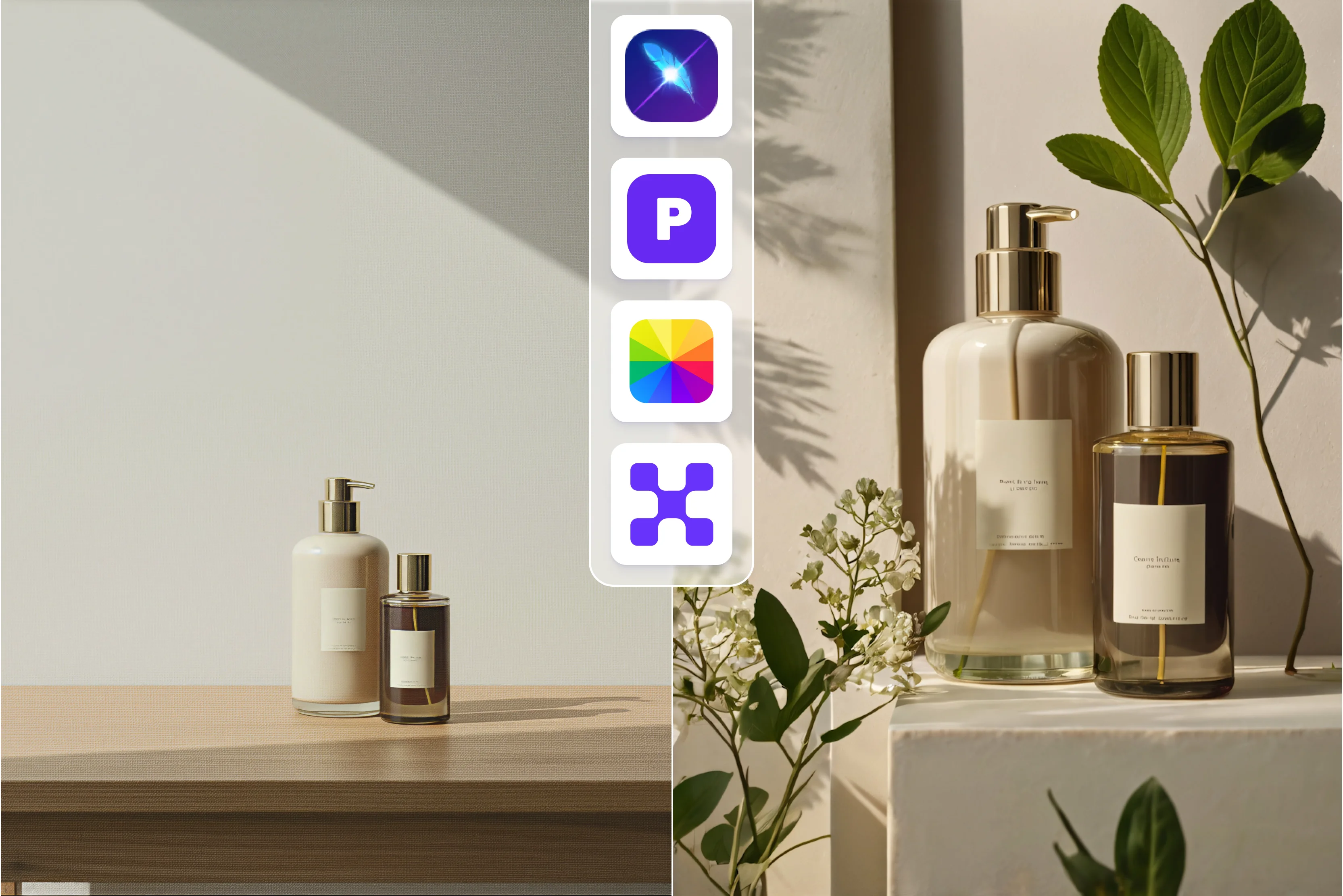


Ecommerce sellers on Amazon lose sales every day because their product photos look like quick phone snaps. Buyers expect nice, clean images, but they click away fast when they see blurry edges or bad lighting. Amazon makes you use white backgrounds and exact sizes that catch new sellers off guard and send listings back for fixes.
I spent so many late nights in Photoshop, carefully removing backgrounds one pixel at a time and messing with brightness levels on each photo. Sure, that work paid off, but it ate up hours I couldn't spare when handling lots of different products at once. Then I started using better tools that take care of the boring stuff quickly while keeping pictures looking real and solid.
I will guide you on easy, free AI tools to know how to generate Amazon product images. No matter if you are fixing main product shots or making lifestyle product pictures on Amazon, AI tools like Pixelbin, Phot, and more, as well as photo editing software, work hand in hand. Keep reading to know more in detail.
AI vs Traditional Images: Which Method Wins for generating Amazon images?
AI and traditional editing are two different ways of handling Amazon images. In traditional editing, you have to start with a real photo of your product taken with your device. You then open that photo in an editor like Photoshop or others and change the background, fix the lighting, and adjust colors manually. Each move is done by hand, so you control every small thing, but it takes time and some practice to get it right.
With AI editing, you still upload the same real photo, but the tool does most of the work for you. You click a few buttons or type a short instruction, and the software changes the background, fixes lighting, or places your product into a lifestyle scene automatically. This is much faster, but you cannot fine‑tune every little detail yourself, and the result sometimes looks too smooth or a bit too perfect.
Traditional editing gives full manual control over cropping and sizing because they come from real light and a real shooting setup. Small textures, marks, reflections, and shadows stay as they are, which makes the product look honest. AI images can look very clean and polished, sometimes so clean that they feel less real. Traditional also lets you crop and resize the image exactly how you want, while many AI tools put you in fixed sizes that match Amazon’s layout rules.
Keep the following pointers in mind:
- Use AI editing when you need fast background removal, lighting fixes, or lifestyle scenes.
- Traditional images feel more real and honest because they come from a real camera and real light.
- AI images can look too smooth or too perfect, which may not match the real product.
- Traditional lets you freely crop and resize for any style or layout.
- AI tools often push you into fixed sizes that fit Amazon’s layout rules.
- Combine both: use traditional for the hero image and AI for extra scenes and infographics.
What are Amazon product image requirements in 2026?
- Amazon requires at least one main product image with a pure white background, no text, and no extra items or props. The main image must show the actual physical product you are selling, not an illustration, 3D render, or stock photo.
- The product should fill 85% of the image frame so it looks large and clear in search results. It must be in focus and free of blur so buyers can see details clearly.
- Images should be at least 500 pixels on the longest side, with 1000 pixels recommended for smooth zoom. Use JPEG or PNG format, with each file under 10 MB and a 1:1 square aspect ratio for main and secondary images.
- Main images must exactly match the title and variant listed, including color, size, and packaging. Do not add promotional text, logos, watermarks, URLs, or extra branding on the main image.
- Your product must be the only item in the main image, with no hands, models, props, or other products distracting the buyer. Colors should look accurate and not overly edited or unrealistic.
- Additional images can show lifestyle scenes, infographics, and close‑ups, but all visuals must stay honest and professional. Avoid nudity, sexual content, or misleading edits that fake sizes, features, or materials.
- All images should look consistent across your catalog, with similar lighting, framing, and style to build trust. Amazon may replace weak or non‑compliant images if better ones are available.
How to generate Amazon product images using AI tools?
Using AI tools lets you turn basic product photos into polished Amazon images in minutes. You will get clean backgrounds, better lighting, and extra lifestyle shots without hiring a designer or spending hours in editing software. Know them all below;
1. Pixelbin AI Amazon product photo editor

Pixelbin’s Amazon product photo editor helps sellers turn rough product shots into clean, platform‑ready images in seconds instead of hours. The tool works inside the Pixelbin console straight in your browser, so you do not need extra apps or desktop software.
You can upload JPG, JPEG, PNG, or WEBP files up to 10 MB and use simple text prompts to remove backgrounds, fix lighting, and sharpen the image while keeping the product's look real and honest.
The editor is made for Amazon sellers, so outputs match clean white backgrounds and clear product focus. You can start with one photo, remove the background, and create lifestyle scenes or feature shots without hiring a designer, then download HD images and upload them directly to your listing.
Must known features
- Upscale your product images up to 8X so fine details like stitching, labels, and textures stay sharp and clear on Amazon listings.
- Edit directly in your browser on Chrome, Safari, or Firefox and start refining product photos in seconds with zero installs.
- Keep your product visuals consistent in style, color, and tone across Amazon, your website, and all marketing campaigns.
- Protect your product images with enterprise‑grade security, encryption, and secure storage so creative assets stay safe.
- Manage and tweak product photos on the go with a mobile‑friendly interface that works smoothly from your smartphone.
- Work with an intuitive, no‑learning‑curve editor that makes it easy to adjust product images even if you have no prior design experience.
2. Phot Amazon product showcase maker
Phot.ai’s Amazon Product Showcase Maker helps sellers turn plain product photos into clean, ready‑to‑upload images with simple background swaps and basic text overlays. You just upload a shot, pick a preset style, and let the tool arrange the layout so your listing looks more polished and attractive.
It is built for non‑designers, so you do not need to think about colors or spacing yourself. The tool keeps the product in focus while adding small details like short feature lines or simple icons that fit Amazon’s clean style and make your images stand out in search results without extra effort.
Must known features
- Turn rough photos into polished Amazon‑style showcase images with background swaps and smart layouts that feel ready for listings.
- Use simple presets and sliders to adjust colors, contrast, and brightness quickly, so you do not need deep design experience.
- Add short feature lines or icons directly on the image, so buyers can see key benefits at a glance and feel more confident.
- Work entirely in the browser, so you do not need to install extra tools or keep multiple apps open while editing.
- Preview how the image looks on a mock Amazon listing before saving, so you can fix sizing and framing and feel sure it will work.
3. LightX ecommerce product photography
LightX’s Amazon Product Showcase Maker is a free online editor where you can remove backgrounds, adjust colors, and add short text or simple graphics to your product images. You can brighten shadows, sharpen details, and frame the product in a clean layout that looks professional but still feels honest.
The tool works straight in your browser, so there is no need to install anything or learn complex menus. It works good for Amazon sellers who want quick edits and want their images to look clean and consistent across multiple listings without spending much time or money.
Must known features
- Remove backgrounds automatically and fix shadows so that messy or dark photos look cleaner and more professional.
- Adjust colors, saturation, and sharpness with simple tools to make images look brighter and clearer without over‑editing.
- Add short text lines or labels to highlight features directly on the photo, so your listing looks more informative.
- Edit in the browser with no heavy apps to download, so you can switch devices and maintain the same workflow.
4. Pixa Amazon listing image design generator
Pixa Amazon listing image design generator lets you build simple infographic‑style and lifestyle‑style images from your product photos using ready‑made templates. You upload a shot, pick a layout, and add short feature lines, icons, or callouts that match your brand style.
The tool keeps all your images looking the same, so your catalog feels unified and more trustworthy. You can reuse templates for different products, which saves a lot of time and lets you focus more on listing content and less on design work. It fits Amazon’s need for clear, simple visuals that help buyers quickly understand the product more precisely.
Must known features
- Provide ready‑made templates to turn plain photos into simple infographics and lifestyle‑style listing images in a few clicks.
- Drag and drop your product into a layout and let the tool center it neatly, so you do not waste time on manual alignment.
- Add short feature lines, icons, or callouts around the product, so buyers can understand the benefits faster and feel confident.
- Keep fonts, colors, and spacing consistent across images, so your brand looks unified and professional.
- Export images in common formats ready for upload to Amazon and social platforms, so there is no extra conversion or resizing.
5. Glorify Amazon image generator
Glorify Amazon image tool helps you turn a basic product photo into a set of polished, marketplace-ready visuals with just a few clicks. You still use your real product shot as the base, then Glorify swaps the background, tweaks the lighting, and can place the product in simple scene setups that feel natural.
The tool is built for sellers who do not want to spend hours in Photoshop but still want clean, professional images that match Amazon’s white‑background style. You get more image options fast, including hero shots and simple lifestyle scenes, without losing the real, authentic look that buyers trust.
Must known features
- Remove backgrounds and refine edges automatically so your product sits cleanly on a white or neutral background.
- Apply simple scene layouts that place the product in subtle, Amazon‑friendly settings without heavy design work.
- Generate extra images like lifestyle shots or infographics from the same base photo so that you can build full listings faster.
- Keep the product as the main focus, so the final images feel real, honest, and close to the actual product.
- Download high‑quality images and upload them straight to your Amazon listing, so your catalog stays consistent and easy to update.
6. Photoroom sell on Amazon
Photoroom Amazon‑focused tools let you remove backgrounds, fine‑tune colors, and export images in exact marketplace sizes so your product photos look sharp and consistent. You upload a shot, cut out the background with one click, adjust brightness and contrast, and save the image in the right format for Amazon or other platforms.
The whole process happens in your browser, so you do not need a desktop app or advanced skills. PhotoRoom is good for sellers who want to clean up many listings quickly and keep all images looking neat and uniform, which helps build a more professional brand feel on the marketplace.
Must known features
- Remove backgrounds with one click and keep the product centered on a clean background that fits Amazon’s style.
- Adjust brightness, contrast, and color so your photos look accurate, and details stay visible in zoom views.
- Crop and resize images to Amazon‑recommended dimensions, so they look sharp in search, zoom, and listing pages.
- Preview how the photo looks in a mock‑listing layout, so you can tweak framing and feel confident about the final image.
7. Fotor AI product image generator
Fotor AI product image generator lets you upload a product photo and automatically change the background, tweak the lighting, and apply simple layouts without heavy editing. You can experiment with different scenes or colors to see what works best for your listing.
The tool is simple enough for beginners so that you can produce cleaner images faster than with manual editing. Fotor also helps you add small details like text lines or icons that fit marketplace style, which makes it easier to build attractive Amazon‑ready visuals even if you do not consider yourself a designer.
Must known features
- Use AI to change the background, tweak lighting, and apply simple layouts that turn basic photos into polished images.
- Test different scenes or color styles for the same product to see which best fits your listing and brand.
- Add short text lines or small icons directly on the image, so key features are easy for buyers to read and understand.
- Edit in the browser or through the Fotor app, so you can move between desktop and mobile without losing your workflow.
- Produce cleaner images faster than manual editing, even if you have no design experience, which helps you scale quickly.
How to generate Amazon product images using ChatGPT 5? (Bonus tip)
ChatGPT 5 helps you turn one real product photo into multiple Amazon-ready scenes by using simple text prompts, so you can build lifestyle shots, infographics, and A+ style images without hiring a designer. Know the steps below.
Step 1: Start with a clean, real product photo that will serve as your main image and upload it to ChatGPT 5’s image-generating mode.
Step 2: Write a clear prompt describing the scene, dimensions, and style, such as a pure white background, a 1:1 ratio, and a lifestyle kitchen setting.
Step 3: Use the same reference photo for all variants so scale and product look stay consistent across main, lifestyle, and infographic images.
Step 4: Generate four to eight images and use the Remix or Rerun option to refine lighting, background, or product placement until you are happy.
Step 5: Download the final images in a 1:1 ratio for main and carousel shots, or 3:2 for product banners, and check them on mobile and desktop.
Step 6: Upload the original real photo as the main image on Amazon and place the AI-generated variants in secondary slots like infographics and lifestyle scenes.
How to generate Amazon product images using Photoshop? (Most asked query)
Photoshop gives you full control over Amazon product images so you can manually crop, retouch, and layer text and graphics, which is ideal when you need pixel-perfect edits and detailed infographics for your listings. Run the following steps to generate the image:
Step 1: Open your product photo in Photoshop and create a new document at 2000×2000 pixels with a white background.
Step 2: Use the Pen Tool or Select Subject to carefully cut out the product and place it on the white background, refining edges with the Select and Mask tool.
Step 3: Correct exposure, brightness, and color balance so the product looks true to life and details remain visible.
Step 4: Create separate layers for text, icons, and measurement lines, keeping them aligned and easy to read against the background.
Step 5: Save the final image in a 1:1 square format, export as JPEG or PNG at high quality, and check that the product fills 85% to 100% of the frame as per Amazon’s regulations.
Step 6: Repeat this workflow for each image type, hero, infographic, and lifestyle while keeping colors, fonts, and layout consistent across your catalog.
Final thoughts
Creating Amazon product images with AI tools are not about replacing real photos; it is about moving faster and cutting production time. Combining a high-quality product image with intelligent AI tools allows you to create polished natural looking images, lifestyle shots, and easily understandable infographics in a fraction of the time.
The best part of these tools are that they stick to Amazon’s standards, like pure white backgrounds, sharp focus, and no misleading edits, keeps listings compliant and customers trusting what they see on the page. For my own workflow, the go-to tool is Pixelbin’s AI Amazon Product Photo Editor.
It turns raw product photos into Amazon-ready visuals with just a few clicks and handles background removal, lighting tweaks, and bulk edits in a single browser-based workflow. If you want a fast, repeatable process that scales across large catalogs, this is the tool I reach for every time.
FAQs
No. Use a real photo for the main shot and AI only for extras like infographics or lifestyle scenes.
Traditional shoots plus editing can take hours, while AI tools generate edited images in minutes once you have a base photo.
Check white background, 85% product fill, sharp focus, correct size, and no extra text or logos on the main image.
Upload your product photo, use simple text prompts, and let Pixelbin edit backgrounds, lighting, and layout in the browser.
It lets you edit many images fast, keeps styles consistent, and works in the browser without heavy software or extra installs.
Pixelbin offers 1 free image edit and limited AI processing, so you can test the tool before committing to a paid plan for all users.









