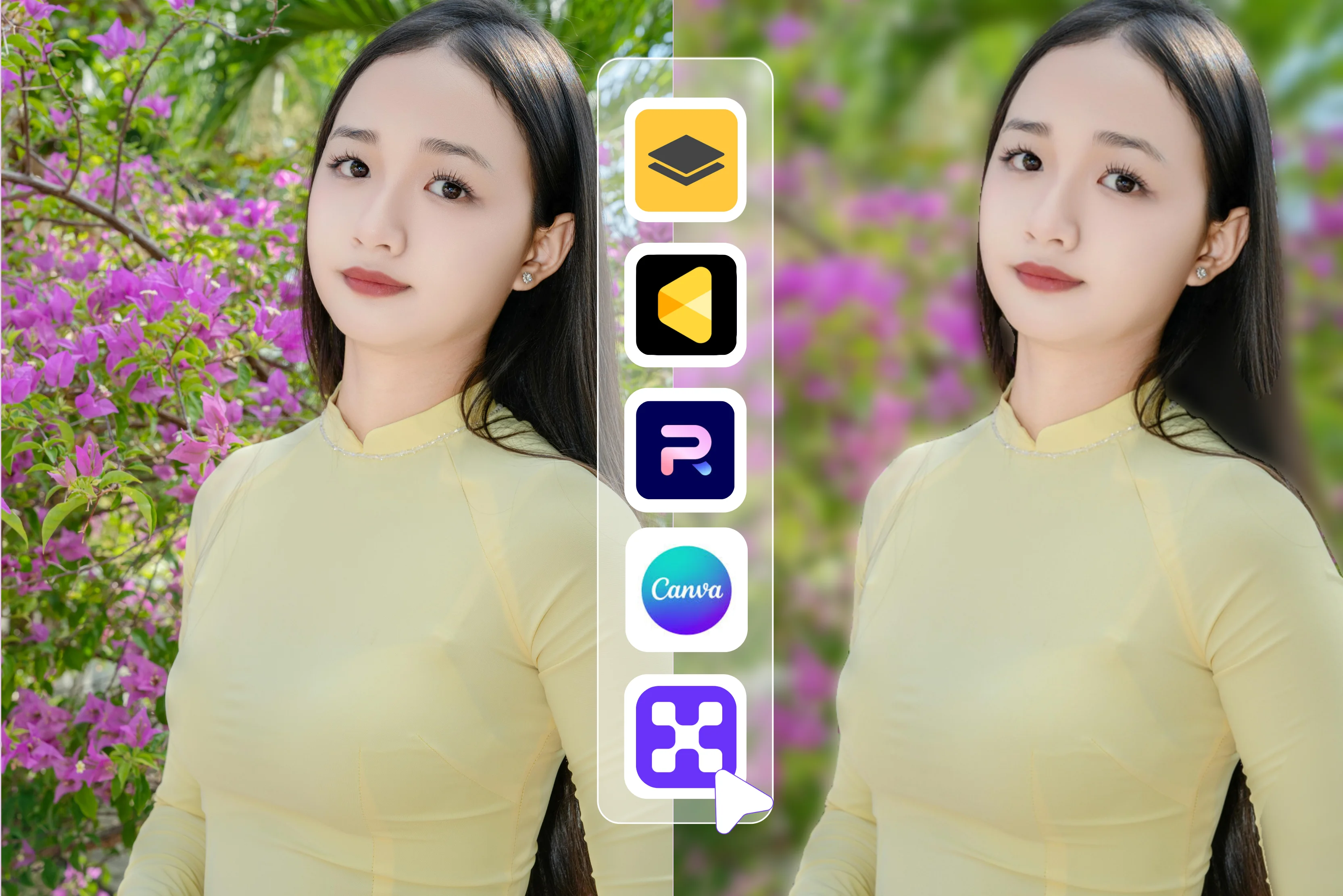


We've all been there: you’ve captured the perfect shot of your team or a new product, but the background is a disaster. Perhaps there's a stray coffee cup on the desk, or the office lighting is transforming the wallpaper into a surreal 1970s scene.
In an ideal world, we would all be equipped with high-end cameras and expensive lenses to achieve the soft, blurred focus that enhances the subject's appearance. However, in the real world, where we are rushing to publish a LinkedIn post or update a product listing, we need a shortcut.
I've spent the last week testing over a dozen online background blur editors to see which ones actually deliver and which ones just make your photo look like a messy smudge.
I'm looking for more than just a "Blur" slider; I want tools that can intelligently distinguish a person's hair from the wall behind them without making it look like a badly done edit.
While some of these tools utilize AI-powered magic, others can be challenging to navigate. Here is my honest take on the best online blur background editors that will actually save you time and make your photos look professional.
What is an online blur background editor?
An online blur background editor is a web-based tool that mimics the "Depth of field" you get from a professional camera. You don't have to download heavy software or be a design pro; you just upload a photo, and the tool separates the subject (you) from the background (the messy kitchen) and softens the latter.
In my experience, these tools generally fall into two camps: AI automatic detection and manual tools.
- AI Detection: This is the "Magic" button. The tool uses artificial intelligence to scan your photo, find the edges of your subject, and apply the blur instantly. When it works, it’s a lifesaver. When it doesn't, like when it accidentally blurs out your left ear, it can be frustrating.
- Manual Tools: These give you a "Brush" to paint the blur yourself. It takes more time, but if you're a perfectionist like me, you’ll appreciate the control for those tricky spots around hair or glasses.
Portrait blur vs. full-image blur
It's also worth noting the difference between portrait blur and full-image blur. A full-image blur is just a filter that washes out everything. It is helpful if you're making a background for a slide, but useless for a profile picture.
Portrait blur is smarter; it keeps the foreground sharp while the background fades away. I've found that the best tools offer a mix of both, but if you're looking to look professional, you really want a tool that masters that smart portrait separation.
Why use an online blur background editor?
I've used my fair share of heavy-duty photo editing software over the years. And while those "Pro" programs are great if you’re retouching a magazine cover, they're usually overkill for the rest of us.
For most of my daily tasks, I’ve actually swapped my desktop apps for online editors. Here’s why I think you should, too:
1. Zero downloads or installations
There is nothing more soul-crushing than needing a quick photo for a blog post and seeing a "Downloading Update... 14 minutes remaining" bar. Online tools live in your browser.
You open a tab, drop your photo, and you’re done. No large software installation is required, and there are typically fewer hardware requirements than for full desktop apps.
2. Built for speed (Social Media & Ecommerce)
If you’re trying to get a product listing up on Shopify or a quick post on Instagram, you don't need a thousand tiny buttons. These online editors are built for speed.
I’ve found that I can blur a background and export a clean image in about 30 seconds, something that takes much longer when you're waiting for a heavy app to launch.
3. It works on everything
I'm often jumping between my MacBook at the desk and a Chromebook when I’m traveling. Online editors don't care what operating system you're using. If you have an internet connection, you have your editor.
4. Beginner-friendly workflows
Let's be real: professional software has a steep learning curve. I spent weeks learning how to use layers and masks properly. Most online blur tools are designed so that my grandma could use them. They use simple sliders and clear buttons, so you aren't guessing what an icon does.
To be honest, if you’re doing high-end commercial photography, stick to the desktop. But for 95% of the work we do in the "Real world," these browser tools are more than enough.
List of the best blur background editor tools
I've tested 13 different online tools to see which ones actually deliver a clean background blur. It's been an interesting ride; some tools are simple one-click wonders that use AI to do all the work, while others give you a manual brush so you can control exactly what stays sharp. I also looked closely at the fine print.
A few of these tools let you download your work without a watermark using free credits, but many others will add their logo unless you pay. The best part is that every tool on this list offers a free trial or a free version, so you can try them out yourself without any risk.
1. Pixelbin

If you’ve ever had a great product shot or headshot ruined by a messy background, I’ve found that Pixelbin is a total lifesaver. Its AI-powered blur tool automatically picks out your subject and adds a professional, soft focus to everything else, no manual masking or expensive lenses are required.
It’s perfect for making your brand photos pop, and the best part is that it works right in your browser. From my testing, it handles standard files like JPEG, PNG, and WEBP up to 25MB.
You can try it for free with three images a month without even signing up; your downloads won't have any annoying watermarks. While power users might eventually need a paid plan for more credits.
2. Cutout.pro
If you've ever had a great photo ruined by a cluttered background, Cutout.pro is like a digital lens upgrade. I've tested it on several portraits, and its AI is incredibly reliable at separating the subject from the mess to create that soft, professional look.
A standout feature is the five different blur effects, like tilt-shift and bokeh, which let you customize exactly how "Dreamy" the background feels. It handles standard formats like JPG, PNG, and WEBP for files up to 15MB. You can try it for free, and while you’ll need credits for high-definition downloads, the standard previews are watermark-free.
3. Pixa
If you've ever captured the perfect portrait only to realize the background is a cluttered mess, Pixa's AI blur tool is the quick fix you've been looking for. I've found its "Gaussian blur" effect to be incredibly smooth. You can manually set the blur strength to get the exact look you want, from a subtle softening to a complete "Dreamy" bokeh.
It supports the most common file formats, including JPG, PNG, and HEIC, for files up to 20MB. You can try it out for free, and the best part is that it offers high-definition downloads with no watermarks.
4. Canva
If you've ever had a busy background steal the spotlight from your subject, Canva is the easiest fix I've found. While it does offer a manual "Blur" brush to paint over specific spots, the real magic is in the "Auto Focus" tool, which uses AI to instantly detect your subject and soften everything else.
You can easily slide the intensity to get that perfect bokeh look. It supports standard formats such as JPEG, PNG, and HEIC for files up to 50 MB. While many AI tools are Pro-only, Canva often lets you try them for free, and your downloads are always watermark-free.
5. Magic Studio
If you've ever had a distracting background steal the spotlight from your subject, Magic Studio is a fantastic, no-fuss fix. I've spent some time testing their AI blur tool, which uses artificial intelligence to automatically isolate your subject, and it lets you slide the blur level to achieve that professional DSLR (digital single-lens reflex) look. It supports all the popular formats: JPG, PNG, HEIC, and WebP, and it handles high-resolution images without a specific size limit.
While you can use it for free, keep in mind that free downloads come with a small watermark. To get high-definition, watermark-free results, you'll need their PRO plan. It’s a practical, honest shortcut for creating clean brand visuals in seconds.
6. Pixlr
Pixlr's "Focus/Bokeh" tool is a shortcut to blur the background. I've played around with it quite a bit, and I love how it gives you different modes like radial or linear blur to draw the eye exactly where you want it. You can even swap the standard blur for fun shapes like hearts or stars and manually adjust the blur strength to keep things looking natural.
Practically speaking, Pixlr is very flexible, supporting everything from JPEGs and PNGs to WebP and even PDFs. You can jump in and edit for free right in your browser; downloads are high-res and watermark-free.
7. ImagineArt
To be honest, I was really hoping ImagineArt would be a one-click wonder for background blurring, but my experience was a bit disappointing. While it's built on powerful AI, the edge detection felt clunky, often blurring bits of my subject's hair or clothes along with the background.
It supports standard JPG and PNG files up to 10MB, and you can test it using their free daily credits. On the bright side, your downloads are watermark-free even on the free tier, which is a huge plus. However, if you're after a clean, professional finish, the inconsistent results might leave you doing more manual cleanup than you'd like.
8. Kapwing
I've spent a lot of time in the Kapwing studio, and while it's a powerhouse for social clips, its background blur tool is a bit of a mixed bag. I love that it's browser-based, with no heavy software to install, and the AI does a decent job of isolating subjects with one click.
Kapwing supports extensive file compatibility, including MP4, MOV, JPG, and PNG. Your exports will include a Kapwing watermark unless you upgrade to a Pro plan (which includes a free trial). If you're just making a quick meme or a casual video, it's helpful.
9. Remove.bg
If you've ever needed a professional headshot but only had a cluttered living room for a backdrop, Remove.bg is the ultimate "I’ve got your back" tool. I've found its AI to be incredibly sharp at separating hair and fine details from the background. Once the background is gone, you just hit the "Edit" button and toggle the "Blur" slider to get that smooth, expensive-lens look.
Practically speaking, it supports JPG, PNG, and HEIC files. While you get unlimited free previews at low resolution, downloading a high-def, watermark-free version usually costs one credit.
10. Evoto
If you’re a photographer who hates spending hours masking flyaway hairs just to get a clean background blur, Evoto is a genuine game-changer. I’ve put it through its paces, and the AI edge detection is arguably the best in class; it intelligently separates your subject, even tricky textures like fur or lace, and lets you adjust the "Blur Intensity" to achieve that perfect, professional depth of field.
It’s incredibly robust, supporting JPEG, PNG, TIFF, and even most camera RAW files, with a watermark on images exported for free. It's advantageous because you only pay for what you use, but you'll need to purchase credits to actually save your high-res results.
11. Photoroom
If you're running a side hustle and want your product shots to look like they were taken in a high-end studio, Photoroom is a valuable tool. I’ve found its "Blur" tool is remarkably smart; it uses AI to instantly separate your subject from the background, letting you adjust the blur strength to get that perfect focus. It's incredibly versatile, supporting JPG, PNG, and HEIC files.
While you can use it for free and enjoy watermark-free downloads on the web version (a huge win!), the mobile app often adds a small watermark to free exports. If you want high-resolution, professional-grade results without any branding, you can jump into their 7-day Pro free trial.
12. YouCam online editor
If you're looking for a quick, browser-based way to make your portraits pop, the YouCam Online Editor is a solid, user-friendly choice. It automatically detects your subject and applies a smooth, natural-looking blur in seconds. What's really practical is the slider that lets you manually adjust the blur intensity, so you can go from a subtle softening to a heavy focus.
While it's great for standard portraits, I've noticed the AI can sometimes get a little confused with complex edges, like fine jewelry or messy hair, so it's worth a quick double-check before you hit save. From a technical side, it supports the basics like JPG, JPEG, and PNG, but the free version's image exports have a watermark.
13. AirBrush
I've dedicated significant time to testing AirBrush, and although it's a convenient browser-based shortcut, its performance can be inconsistent. I love the flexibility of switching between an "Auto" AI mode and a manual brush for precision, but I noticed the AI sometimes struggles with complex edges, like messy hair, leaving the blur looking a little artificial.
Practically, it supports standard JPG and PNG files. You get five free uses per day, which is a generous daily reset. However, there’s a catch: while the site mentions "Instant downloads," you'll often find that watermark-free high-definition exports require a premium subscription or a 7-day free trial.
Key features to look for in a blur background editor
I've spent a lot of time testing these tools and learned that a "Blur" button isn't just a blur button. Some tools make your photo look like a professional portrait, while others make it look like you're standing in a cloud of digital soup. If you’re hunting for the right editor, these are the non-negotiables I look for:
1. AI subject detection
This is the brain of the operation. You want an editor who can tell the difference between your messy hair and the wall behind you. If the AI is lazy, you’ll end up with a weird glowing "Halo" around your head. I always look for tools that "Snap" to the edges of the person or object automatically.
2. Adjustable blur intensity
One size does not fit all. Sometimes you just want a subtle softening to make the background less distracting; other times, you need to completely hide a cluttered room. I’m a big fan of editors that give me a slider. If a tool only has one "On/Off" setting, I usually skip it.
3. Edge refinement
This is where most tools fail. Look for an editor that lets you "Touch up" the edges. If the AI misses a spot between your arm and your torso, you need a manual brush to fix it. Without this, your photo will always look a bit "Fake."
4. Portrait mode vs. object-focused blur
Most tools are trained to recognize humans. But what if you’re selling a coffee mug on Etsy? A great editor should be able to focus on objects just as well as faces.
5. One-click editing
We're using online tools because we’re in a hurry. If I have to click through five menus just to see a preview, it’s not the right tool for a fast-paced workflow. The best ones do the heavy lifting the second you upload the file.
6. HD export options
Some "Free" tools let you edit your photo in high resolution but then force you to download a tiny, blurry thumbnail. Always check if the tool allows for a high-quality (HD) export so your photos actually look good on a high-res screen.
Conclusion
At the end of the day, there isn’t a single "Perfect" image editor, only the one that fits your specific workflow. If you’re just trying to hide a messy office for a LinkedIn headshot, a quick AI-powered tool is your best friend.
But if you’re a perfectionist like me, you’ll want something with a manual brush to fix those tricky edges. I’ve found that the best online tools save hours of frustration compared to desktop software.
Just keep an eye on those "Free" export limits so you don’t lose your hard work to a blurry download. My advice? Pick two tools from this list, keep them bookmarked, and you’ll never have to worry about a distracting background again.
FAQs
The best tool depends on your needs, but AI-powered editors are usually the easiest because they blur backgrounds automatically. Many online tools offer free plans with quick one-click editing and clean results. Look for options that provide watermark-free downloads and adjustable blur settings for better flexibility.
Yes, most modern background blur tools work fully online through your browser. You simply upload a photo, apply the blur effect, and download the edited image. This makes online editors convenient for quick edits without installing heavy software.
Some online editors add watermarks on free downloads, while others allow clean exports without branding. It usually depends on the tool’s free plan and export limits. Checking pricing and download settings before editing can help you avoid unwanted watermarks.
AI tools have improved significantly and can detect subjects with good precision in most cases. They usually handle hair and detailed edges well when the photo quality is clear and well-lit. For very complex backgrounds, minor manual adjustments may still be needed.
Yes, most online blur editors include a slider to control the blur strength. This allows you to create a subtle depth-of-field effect or a stronger blur for focus. Adjustable intensity helps make the final image look more natural and professional.
Blurring itself does not reduce quality, but some tools may compress images during export. Free plans sometimes limit resolution or apply compression to downloads. Choosing high-resolution export options ensures your edited photo remains sharp and clear.