

Blemish remover apps have quietly become one of those things we don’t realize we need—until we do. I’ve had days where I felt ready to click a perfect picture, only to notice a sudden pimple, a tiny dark spot, or uneven skin that the camera somehow highlights more than real life.
In moments like these, blemish remover apps feel like a small rescue. With just a tap, they clean up the little distractions so the focus stays on you, not on skin issues that happen to all of us.
People use these apps for everyday reasons: a quick selfie before heading out, a birthday photo that deserves to look its best, or a professional headshot where you want to look polished without looking fake.
And with how fast we share photos - Instagram stories, WhatsApp DP updates, or even work-related profile pictures- the need for quick, natural-looking edits has grown like never before.
In this blog, I will walk you through some of the best Blemish remover tools that can help you edit pictures and generate amazing results quickly. Also, you will get to know tips to follow to get better results, and how to pick the tool for yourself, and much more. So stay tuned.
How do blemish remover apps work?
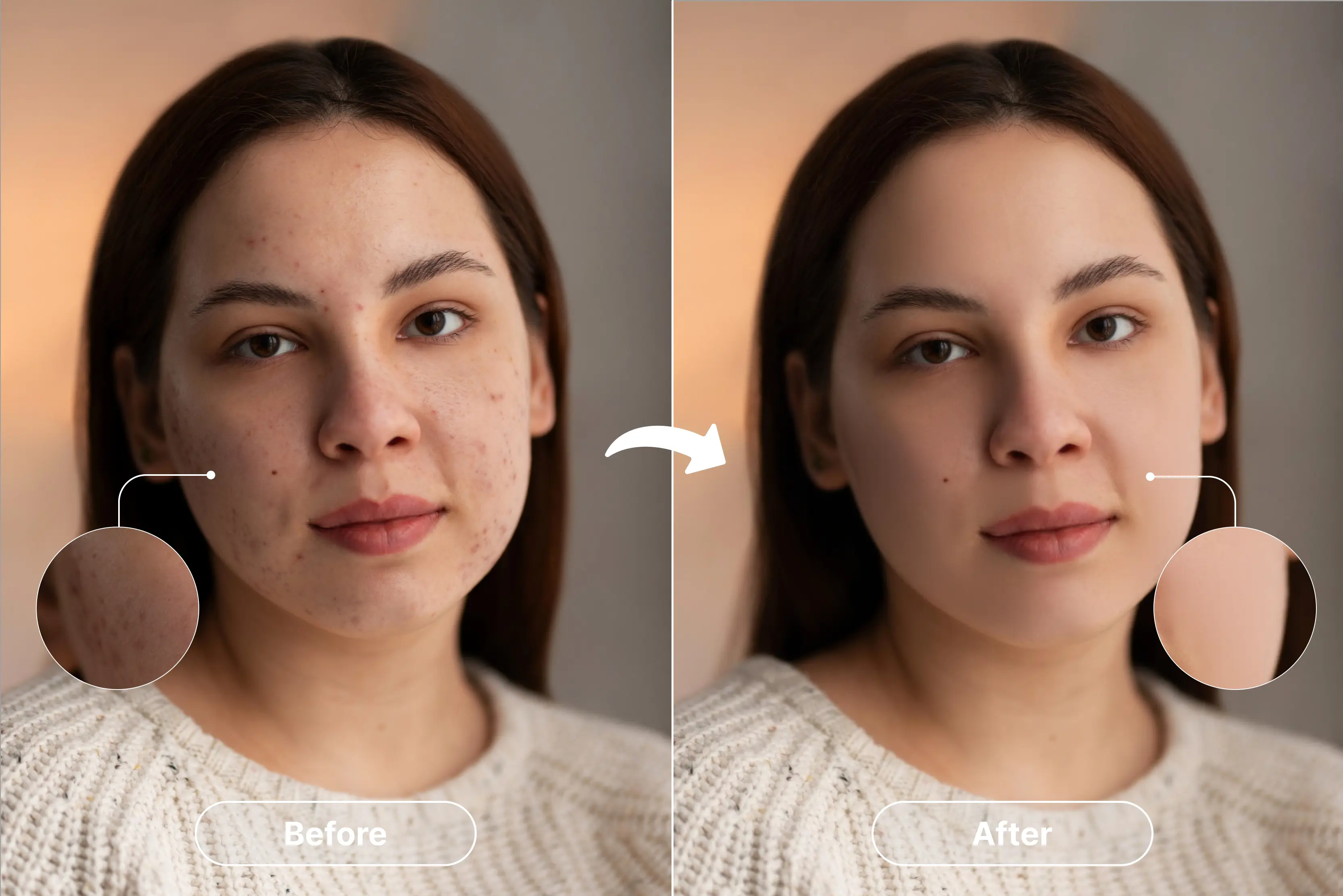
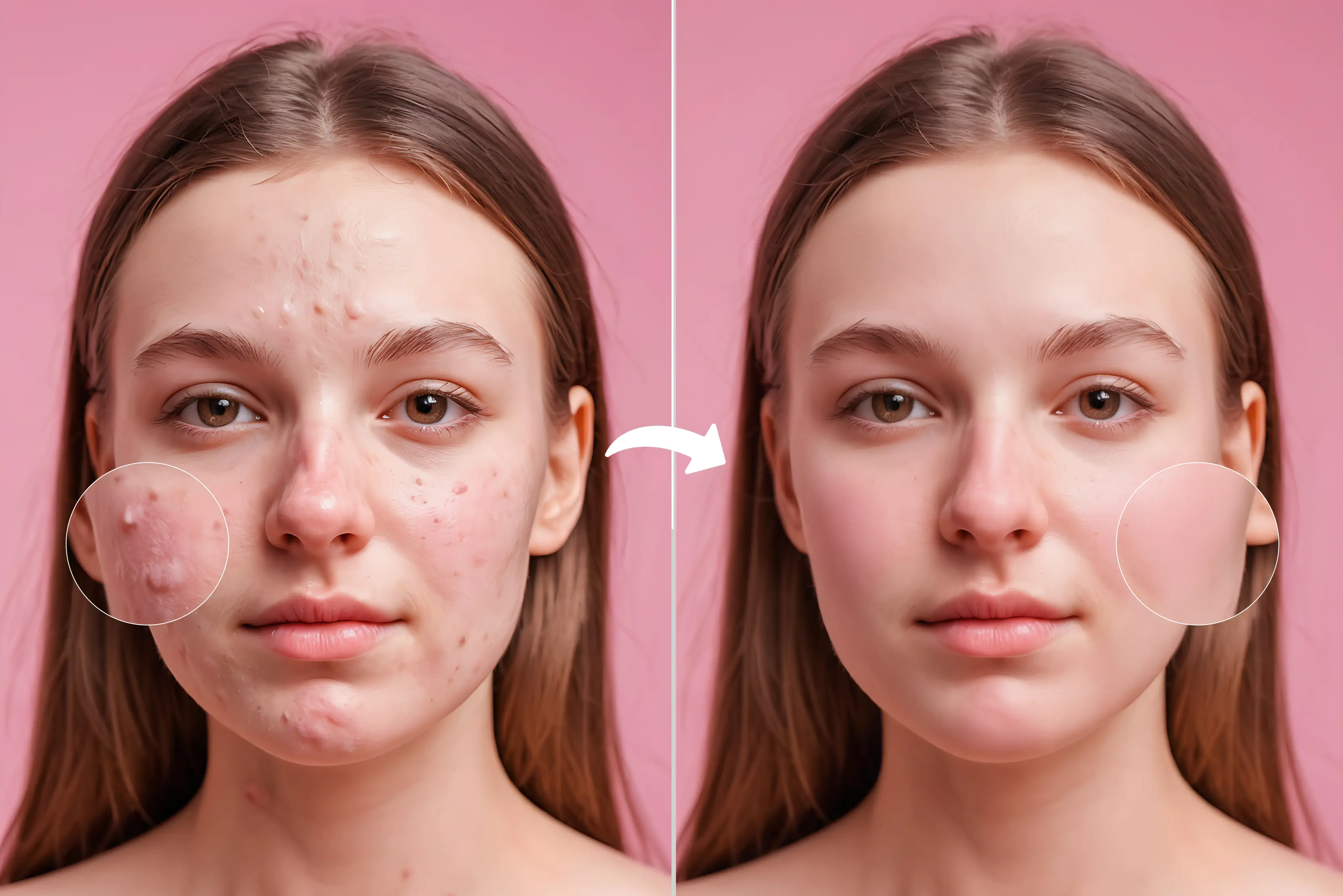
Most blemish remover applications use smart AI to clear acne and marks without making your skin look fake. They use a method called AI inpainting, which checks the skin around the blemish and makes new pixels that blend in naturally.
Instead of just blurring the mark, the AI fills it in so it looks natural and smooth. That's why the results are more accurate and smoother than they were with older editing methods.
These apps also analyze skin texture, color, lighting, and imperfections. They automatically detect acne, small marks, dark spots, or uneven patches, then decide how much correction is needed. Good tools don’t treat all spots the same—they adjust based on size, sharpness, and position on the face.
There is a big difference between smoothing and smart correction. Basic smoothing tools blur everything, which often leads to a plastic or unrealistic look. Smart correction, on the other hand, removes only the blemish while keeping your pores, highlights, and natural texture intact.
Best blemish remover apps in 2026
In this section, I have mentioned the top twelve tools that can help you remove blemishes or acne from your face. I have used one image to show how each tool has processed the same image and generated a clear image. Explore them one by one.
1. Pixelbin

When I used Pixelbin, it smoothed out my acne and scars but still kept my skin looking real. The AI instantly clears pimples, dark spots, and tiny marks. What impressed me most is that it doesn’t simply smooth the skin—it actually recreates the natural texture so the edit looks real.
The changes to the skin tone look natural, so the picture still looks real. I also tried out features like removing blemishes, backgrounds, and objects, as well as batch editing. All of these worked quickly and felt very professional.
The preview of the before and after is useful because you can see if the edit looks natural before you download it. PixelBin gives you free credits every month, which is great for basic use. But if you need more edits or higher resolutions, the paid plans give you extra credits, access to the API, and the ability to edit a lot of files at once.
2. SnapEdit
SnapEdit is one of the simplest tools I have used for removing acne and other blemishes from photos. The AI quickly detects pimples, dark spots, and rough areas, and with a single click, it fixes them all without making your skin look overly smooth or fake.
I really like how it blends the fixed area with my natural skin tone. The picture still looks like me, but it's clearer. SnapEdit has other useful features like removing objects, backgrounds, and improving photos. It can even make low-quality photos look better.
These features make it good for taking selfies, pictures of products, and posting on social media. The free version gives you basic access with limited credits, which is enough for light editing. If you need HD downloads, faster processing, or more AI credits, the paid plans unlock all the advanced features. Overall, it’s simple, quick, and genuinely helpful.
3. Cleanup.pictures
Cleanup.pictures is a fast, no-frills AI tool that removes blemishes, acne, and other small skin defects by letting you paint over the unwanted area and then intelligently rebuilding the background pixels so the edit blends smoothly with the surrounding skin.
It uses inpainting to match texture and color rather than just blurring, so results often look natural on close-up portraits. Independent reviews say that it is easy to use and works well for quick fixes and removing objects.
A browser-based editor (no installation needed), support for common image formats, and the ability to remove objects, text, or distractions from photos are some other useful features. This is useful when you need more than just skin retouching.
Cleanup.pictures has a free plan that lets you make as many low-resolution edits as you want (good for quick fixes) and a paid/pro plan that lets you make high-resolution edits, get results faster, and have more storage space for heavy users or professionals. Different plans have different prices and exact quotas.
4. Picsart
Picsart helps both new users and professionals remove acne and blemishes from pictures with ease. Its Retouch/Spot Heal and Remove tools let you brush or tap on individual spots, and then AI fills in the surrounding pixels to make the fix look natural.
The program suggests using spot healing instead of heavy smoothing for the best results. In addition to basic spot removal, Picsart has tools for smoothing skin, cloning and brushing, reshaping faces, and a separate face editor that lets you change tone, texture, and small flaws without losing pores.
The web editor and mobile apps include AI-powered one-tap edits and a Remove Object cleaner for larger distractions. Picsart follows a freemium model: the free tier provides standard editing tools, limited AI credits, and templates, while Picsart (Plus, Pro, Ultra) unlocks premium filters, advanced AI tools, extra assets, and full access to templates and higher export options.
5. Kaze.ai
Kaze.ai has a smart AI Blemish Remover that helps you remove acne, pimples, scars, and other marks from your face. It cleans the skin without making it look fake and keeps your natural skin texture looking real.
Kaze.ai also has a lot of great image-editing tools, like a background remover to isolate or replace scenes, an image upscaler to improve resolution, an AI-powered headshot generator, and a photo restoration to fix old or damaged photos.
Kaze Free gives you 4 credits to try out tools like removing blemishes, as well as the ability to download HD images and see your edit history. The starting paid plan is Kaze Pro, priced at around $4.95 per month, and it offers a significantly higher number of editing credits.
The Pro+ and Max plans provide even more credits, along with quicker processing speeds and access to priority support. Overall, Kaze.ai is easy to use for retouching faces, whether you want to make small changes or more complex ones. Its credit-based model makes it useful for both casual and professional use.
6. Evoto
Evoto offers a powerful AI-driven blemish removal feature that targets acne, pimples, and scars with “dodge & burn” technology, letting you adjust the strength for freckles and acne independently to keep skin looking natural.
It also provides tools to reduce shine, smooth wrinkles, lighten dark under-eye circles, remove moles (while preserving selected ones via a manual tuning pen), and even refine facial features like double chins.
For fine control, the Manual Tuning Pen lets you brush in or erase effects precisely. Evoto’s pricing works on a credit system — you only spend a credit when you export an edited image.
There’s a pay-as-you-go option (credits valid for 2 years) and annual subscription plans where unused credits roll over (up to a limit). Some users note billing or credit-loss issues when downgrading plans, so that’s something to watch out for.
7. Aragon
Aragon uses an AI-based Blemish Remover that quickly removes acne, pimples, scars, and dark spots. All you need to do is upload your photo, and the tool automatically cleans and smooths the skin without making it appear fake or over-edited.
Along with blemish removal, Aragon offers several other useful tools, such as a Magic Eraser to remove unwanted objects, a background changer, an image upscaler, an unblur tool, color correction, and photo restoration—making it a complete photo-editing platform.
The Basic plan costs US$35 for a one-time bundle that gives you 40 headshots, with a generation time of about 45 minutes, 1 outfit choice, 1 background choice, and standard resolution.
The Standard plan is US$45, and includes 60 headshots, 30-minute generation time, 2 outfit choices, 2 backgrounds, and standard resolution. The Executive plan costs US$75, giving you 100 headshots, a 15-minute generation time, access to all outfits and backgrounds, and enhanced resolution.
8. Freepik
Freepik helps with blemish or acne removal through its AI Retouch tool, which allows you to select the area of the face and describe the changes you want. The AI then cleans pimples, spots, and marks by naturally filling in the skin without making it look overly edited.
Although it is not a dedicated blemish-removal feature, the retouching tool is flexible enough for smooth face editing. Besides this, Freepik offers useful tools such as background removal, object erasing, image enhancement, and AI-powered refinements that help improve overall photo quality.
Freepik follows a credit-based system: the free plan includes a limited number of monthly AI edits, while the premium plan gives higher credit limits, more AI features, and faster processing. Overall, Freepik is a helpful option for quick blemish fixes and general photo editing.
9. Pixlr
Pixlr makes it easy to remove acne and blemishes using the Heal/Repair tool in the Retouch menu. You can use Spot Healing for small pimples and Object Healing for bigger marks.
You can also change the size of the brush and pick a healing mode (Speed, Balanced, or Quality) to make the edit look more natural. There are a lot of other useful tools in Pixlr as well. You can get rid of backgrounds and things you don't want, lower noise, make photos bigger, make colors better, and even make stickers.
The free version of Pixlr comes with basic tools and the Heal tool. You get 80 AI credits with the Plus plan, which costs $2.49 a month. The Premium plan costs $9.99 a month and comes with 1,000 AI credits, no ads, and more advanced features. A user can buy more AI credits at any time.
10. ChatGPT
ChatGPT can help get rid of acne or blemishes on a face, but it doesn't work like a regular photo-editing program. ChatGPT doesn't directly retouch pixels; instead, it uses AI image generation to make a cleaner, better version of your photo based on your prompt.
You can upload a picture and tell ChatGPT what changes you want, like getting rid of pimples, smoothing out skin, or fixing marks. It will make a new, better picture that looks a lot like the old one.
In addition to this, ChatGPT has many other features, such as the ability to create images, upload files, generate advanced text, do deep research, use voice mode, create custom GPTs, and handle documents.
The free plan lets you use ChatGPT, but you can only create a small number of images, and the processing is slower. The Plus plan costs about $20 a month and gives you faster image results, more usage, access to better AI models, and overall higher-quality images.
11. Google Gemini
Google Gemini doesn’t offer a built-in tool specifically for removing blemishes or acne like a photo-retouching app would. Instead, it excels in image generation and editing via prompts: you can ask Gemini to recreate or enhance a portrait by describing how you want the skin to look, and the AI will regenerate the image while reducing imperfections.
Beyond that, Gemini provides many other features: advanced chat capabilities, “Deep Research” for long-form information synthesis, file uploads, image-generation, and even integration with Google apps like Gmail and Docs.
Regarding plans: the free tier allows text-based queries, some image generation (Imagen 4), and limited Deep Research. The Pro plan unlocks powerful models like Gemini 2.5 Pro, gives you a larger context window, and includes extra features like 2 TB of Google storage.
12. AI Ease
AI Ease helps you remove acne and blemishes easily with its AI-based Blemish Remover tool. The tool automatically detects pimples, dark spots, scars, freckles, and other marks, then clears them while keeping the skin texture natural.
You can also use the manual brush to fix specific areas if you want more control. Apart from blemish removal, AI Ease offers useful features such as background removal, object or watermark erasing, photo enhancement, upscaling, face swap, hairstyle try-on, AI headshots, and even text-to-image generation.
Many of AI Ease’s tools can be used for free, but free users may have limits on how much they can edit. The platform works on a credit and subscription system. You can either buy credits or get a paid plan to use advanced options like Headshot Pro or watermark removal. The credits you buy stay valid for one year, and you can stop your subscription whenever you want.
Key features to look for in a blemish remover app
When picking a blemish remover app, make sure it has features that give clean, natural, and realistic results. Here are the key things you should always look for before picking one.
1. Blemish and acne removal
This is the main job of any blemish remover app. The tool should easily clear pimples, dark spots, acne marks, or small scars without creating any uneven areas. A good app fills in the spot with pixels that match your actual skin tone, making the edit look smooth and natural.
2. Skin smoothing and tone correction
Skin may look uneven because of lighting or camera quality. Smoothing helps soften harsh lines or rough areas, while tone correction adjusts patchy or dull skin. Look for apps that do this softly so your face doesn’t end up looking too airbrushed.
3. Texture preservation
Many basic apps overblur the skin, which removes pores and details. Texture preservation is important because it keeps your skin looking real. A good blemish remover should fix the flaw while keeping your skin’s natural texture, highlights, and shadows.
4. Before/after comparison
Being able to switch between the original and edited photo helps you spot when you’ve edited too much. This feature lets you quickly see whether the results look real or if you need to reduce the intensity of your edits.
5. Batch editing in advanced tools
If you edit many photos—like selfies, portfolio shots, or product images—batch editing saves time. It lets you apply the same retouching settings to multiple images at once, keeping all photos consistent and reducing manual work.
6. Free vs. paid features
Free tools generally provide simple blemish removal and basic smoothing. Paid plans usually offer more advanced features like stronger AI corrections, high-quality exports, face adjustments, color fixes, and customizable edit levels. This allows users to choose the version that best fits their requirements and editing preferences.
Tips to get the best results
To get the most out of any blemish remover app, following a few simple tips can help you achieve natural and flawless results. Here are some helpful guidelines to keep in mind.
1. Avoid over-editing
Try not to remove too many things from your face. When you edit too much, the skin can look plastic or fake. Make small changes instead of big ones. A few gentle edits will keep your photo looking clean but still real.
2. Keep natural texture
Real skin has pores, tiny lines, and small highlights. Don’t try to erase all of these. Choose tools that keep your skin texture visible. When your natural texture stays, your photo looks more honest and less edited.
3. Remove only what is necessary
You don’t need to remove every small mark. Some features, like freckles or tiny lines, make your face unique. Only fix things that clearly bother you, like pimples, dark spots, or harsh marks. This helps keep your facial look natural.
4. Make edits under good lighting
Proper lighting makes it easier to notice every small detail on the skin. If your screen or room is dim, you might skip important spots or edit the wrong areas. With bright and clear light, you can make more accurate edits and get a better final result.
5. Zoom in for precision
Zooming in lets you focus on tiny spots without affecting the rest of your face. This way, you can remove a blemish neatly while keeping other areas untouched. It also helps you spot small errors and fix them before saving your edited photo.
Conclusion
With blemish remover apps, you can quickly fix small skin issues like pimples, spots, and marks. They help your pictures look clean while still highlighting your skin's natural texture. The key is choosing the right app and editing carefully. Make changes that look good by not editing too much, using good lighting, and zooming in.
Free apps work well for simple touch-ups, while paid tools give better quality and more control. In the end, these apps are not about changing your face—they simply help your photos look fresh, clear, and closer to how you look on your best days.
FAQs
Most blemish remover apps maintain the original quality, especially AI-based ones. However, over-editing or excessive smoothing can make the image look blurry or artificial. Using subtle edits usually keeps the photo sharp and natural.
They can lighten or soften deep scars and marks, but complete removal depends on the tool and photo quality. Tattoos are harder to remove cleanly—some apps may blur them, but they rarely disappear perfectly without manual editing.
Most reputable apps are safe, but it’s important to check their privacy policy. Choose apps that do not store or use your photos for training. Browser-based tools with “local processing” are usually safer.
AI tools like SnapEdit, Pixelbin, Evoto, and Aragon are known for natural skin texture preservation. They remove blemishes without making the skin look flat or plastic-like.
Free apps work well for basic fixes, but paid versions usually offer better AI accuracy, higher resolution exports, and more control over texture and tone. For quick touch-ups, free tools are enough.
Yes, you can use them for group photos. However, detection may be less accurate when multiple faces appear. It works best on clear, close-up portraits, but still performs well on group shots with good lighting and resolution.