

We all have that one photo sitting in our gallery that feels special but also a little plain. Maybe it is a family portrait, a travel memory, your pet’s best pose, or even a product photo you want to make more eye-catching.
You know it has potential, you just wish it looked more artistic. For years, turning a normal photo into a painting meant hiring a designer, learning Photoshop, or downloading heavy desktop software. I have tried all three. They work, but they also eat up time, money, and patience.
That is why AI photo-to-painting tools feel like such a relief. These tools promise to turn your photos into watercolor, oil-style, or artistic paintings in seconds—no brushes, no layers, and no design skills needed. But here is the honest part: not every “Free” tool actually feels free, and not every AI painting looks good in real life.
I spent time testing a wide mix of free AI painting converters using everyday photos—portraits, pets, lifestyle shots, and product images to see which ones truly deliver usable results and which ones just look like heavy filters. In this blog, I will walk you through the best free AI photo-to-painting tools, what they do well, where they fall short, and which ones are actually worth your time.
What is an AI Photo to Painting Converter?
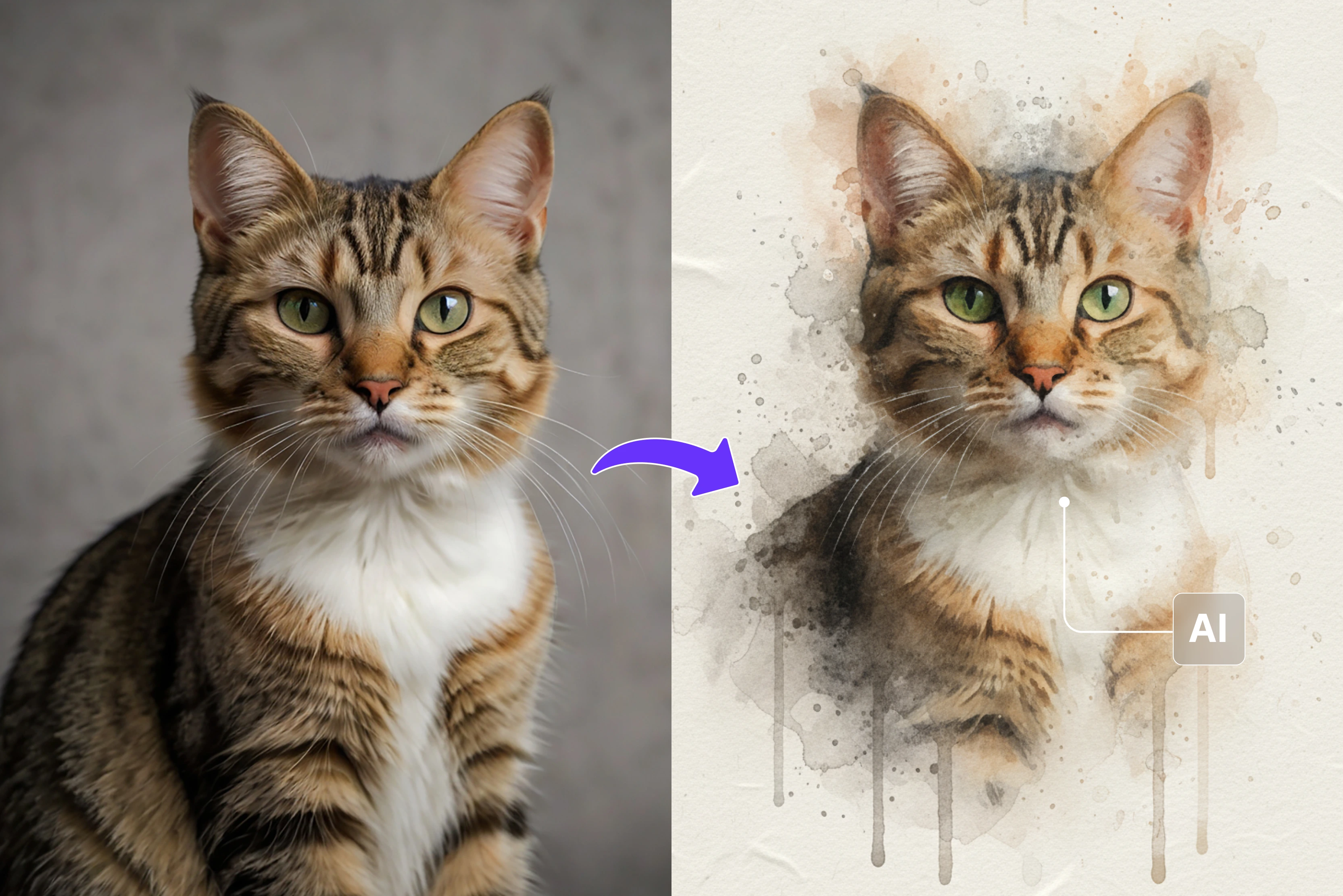
An AI photo-to-painting converter tool is an online tool that takes your normal photo and turns it into something that looks like an artist painted it. You upload an image, choose a painting style, and the tool creates a new version that feels more like watercolor, oil art, or an artistic portrait than a regular photograph. You do not need brushes, layers, or editing skills. If you can upload a photo, you can use these tools.
Behind the scenes, the AI studies your image, your subject, lighting, colours, and edges, and then applies artistic textures and brush-style patterns it has learned from thousands of real paintings.
It does not randomly slap a filter on your photo. It actually tries to rebuild your image using painting-style strokes and colour blending, so it feels more like an artwork than a photo with effects.
Now for the honest part. The expectation is often “Gallery-ready art in one click.” The reality is more balanced. On good, clear photos, the results can look genuinely beautiful and gift-worthy. On dark, blurry, or cluttered images, the paintings can feel flat or over-processed. These tools are powerful, but they still depend heavily on the quality of your original photo.
Tools at a glance
Best AI photo to painting converters
To put this list together, I actually tested 12 different tools that promise to turn your photos into painting-style artwork. Every tool mentioned here runs in your browser and offers a free trial, so you can try them without committing to anything. Most of the time, the results are impressively good.
But AI isn’t magic. It can struggle when you upload complex images with busy backgrounds or lots of people. I got into this problem with Media.io: I tried the Van Gogh style on a crowded group photo, and the tool ended up missing a few faces.
That’s why I always recommend starting with clean, simple images for the best results. Now let's explore the tools one by one, along with their features and the output they generated.
1. Pixelbin

Pixelbin’s photo-to-painting tool is built for people who want results, not settings. You have to upload a photo, and the AI automatically converts it into a soft, painted-style artwork.
No prompts, no filter hunting, and no confusing sliders needed. I tested it with portraits, pet photos, and casual selfies, and the experience feels almost boring in a good way: upload, wait a few seconds, download.
The tool focuses on keeping facial features natural while adding a subtle painted texture on top. It’s not for artists who want creative control, but if you just want a clean, ready-to-share painted version of your photo, Pixelbin makes it refreshingly simple.
Key features
- One-click automatic photo-to-painting conversion
- No prompts, presets, or style selection needed
- Tries to maintain natural facial structure and skin tones
- High-resolution output for social or print use
- Web-based tool, no software installation
- API support for bulk and automated workflows
2. Fotor
Fotor is the kind of tool you open “Just to try once” and then end up playing with for an hour. Its AI photo-to-painting feature lets you turn any regular photo into artwork in a few clicks. You upload your image, choose from painting styles like oil, watercolor, sketch, pop art, or even artist-inspired looks, and the AI instantly recreates your photo as a piece of art.
I tested it on portraits, pet photos, and travel shots, and the results were consistently sharp and printable. It’s great for social posts and wall art. The free version adds limits, but for quick, creative results, Fotor is genuinely fun to use.
Key features
- 50+ AI painting filters and styles (oil, watercolor, sketch, cartoon, etc.)
- Easy upload and one-click conversion, no editing experience needed
- High-resolution export for sharing or printing
- Inspired by famous art and classic techniques
- Web-based (works in browser), no software install required
3. PortraitArt
If you’ve ever wished your favorite photo looked like an artwork hanging on your wall, PortraitArt makes that super easy. You upload your photo, pick from over a dozen artistic styles - like oil painting, watercolor, pencil sketch, cartoon, or pop art along with photo types such as group portrait, family portrait, wedding portrait, etc., and the AI generates a custom piece that reflects your original image.
I tried it on portraits and pet photos, and what struck me was how many distinct looks you can explore without any design skills. It’s not perfect every time (very low-quality uploads can be glitchy), but for quick creative results or heartfelt gifts, it’s delightfully straightforward.
Key features
- 15+ art styles, including oil painting, watercolor, sketches, cartoons, caricatures, and Chinese ink
- Converts portraits, pets, landscapes, and group photos
- AI-powered photo-to-art generator (highly personalized)
- Easy upload and style selection
- Free trial preview before purchase
4. BeFunky
If you’ve ever wanted to turn a favorite snapshot into something that looks like it was painted by hand, BeFunky’s photo-to-painting tools make that surprisingly fun and easy. You upload a photo and then choose from a library of Artsy filters that mimic real-world art styles like oil painting, watercolor, impressionism, and pointillism.
These effects use smart processing to break your photo into brush-like strokes and rich textures, so even landscape or portrait photos feel like expressive artworks. I’ve played with several styles, and while it’s not a substitute for a trained artist, the results are delightful for prints, gifts, and social post.
Key features
- One-click artistic filters turning photos into paintings, watercolors, and other art styles
- Web-based editor with desktop and mobile access
- Part of a full photo editor with other creative tools
- Works with portraits, landscapes, pets, and more
5. EaseMate.ai
EaseMate.ai is for people who want both speed and creative control. You upload your photo, and the tool instantly applies an oil-painting style effect, but unlike many one-click converters, it also lets you customize the prompt to guide how the final artwork should look. You can tweak the mood, brush feel, or artistic direction using simple text instructions.
I tested it on portraits and travel photos, and the results leaned beautifully stylized while still keeping faces recognizable. It’s fast, browser-based, and doesn’t demand design skills. The free version has daily limits, but if you enjoy experimenting and shaping your art instead of accepting a default look, EaseMate feels refreshingly flexible.
Key features
- Photo-to-oil-painting AI converter
- Prompt customization for creative control
- One-click default conversion option
- Web-based editor, no installation needed
- Free plan with daily usage limits
- Watermark-free downloadable images (terms may apply)
6. Picsart
Picsart feels less like a “Tool” and more like a creative playground. To turn a photo into a painting, you upload your image, open Effects → Magic, and choose from painting-style options like Pop Sketch, Sketchy, and other artistic looks. These Magic effects use AI to add brush-like textures and hand-drawn details while keeping your photo recognizable.
I tested it on portraits and travel shots, and it’s especially fun if you like experimenting with styles rather than settling for just one look. It won’t replace real canvas art, but for social posts, posters, and creative edits, Picsart gives you plenty to play with.
Key features
- Magic effects for painting and sketch styles (Pop Sketch, Sketchy, etc.)
- One-click photo-to-painting conversion
- Works on web and mobile apps
- Part of a full creative editor (text, stickers, layers)
7. AILab tools
AILab Tools turns your ordinary photos into creative artworks without asking you to be an artist first. You upload an image, pick a style like cartoon, pencil sketch, colored pencil, or one of several unique oil-painting looks (such as gothic or lavender oil painting), and the AI instantly reimagines your photo with artistic flair.
The system recognizes subjects in your image and applies the effect in seconds, so you’re not fiddling with settings. I’ve played with a few conversions and found results lively and fun; maybe not museum-ready, but perfect for social posts, prints, or creative projects when you want an artistic twist quickly.
Key features
- AI Photo to Painting converter with multiple art styles (cartoon, pencil, colored pencil, gothic oil, lavender oil, etc.)
- Simple upload and style selection process
- Fast, browser-based conversion in seconds
- Works with common image formats (JPG/PNG)
- Optionally available via API for integration into apps or workflows
- Auto-deletes uploaded files after processing for privacy
8. Imageupscaler.com
You upload your image and choose your output image style, like painting, sketch, animation, and other artistic looks, before letting the AI process it. Instead of forcing a single preset, the tool lets you decide how creative you want the result to be. I tested it with portraits and travel photos, and the painted and sketch versions came out especially clean and soft, without destroying facial details.
It’s fast, browser-based, and easy enough for beginners. The free version has monthly limits, but for quick creative edits, ImageUpscaler strikes a nice balance between speed and flexibility.
Key features
- Choose from multiple output styles: painting, sketch, animation, and more
- Simple upload → style selection → download flow
- Supports common image formats (JPG, PNG, WEBP, BMP, HEIC)
- Free monthly credits with optional paid plans
- No watermarks on final images
9. GoEnhance
GoEnhance.ai is for people who don’t want to settle for one “Click-and-done” filter. You upload your photo, head to the Photo Effects section, and pick from painting-style options like photo to painting, Van Gogh, oil painting, or sketch.
What makes it more interesting is the prompt box; you can actually tell the AI how you want your artwork to feel, whether that’s softer colors, stronger brush strokes, or a calmer mood. I tested it on portraits and scenery shots, and the results felt more like custom-made art than a basic effect. It takes a little experimenting, but that flexibility is exactly what makes it fun.
Key features
- Photo Effects with a dedicated Painting style
- Prompt input for customizing the art output
- Image-to-image AI transformation
- High-resolution downloadable results
- Web-based tool, no installation needed
- Free plan with daily usage limits
10. Media.io
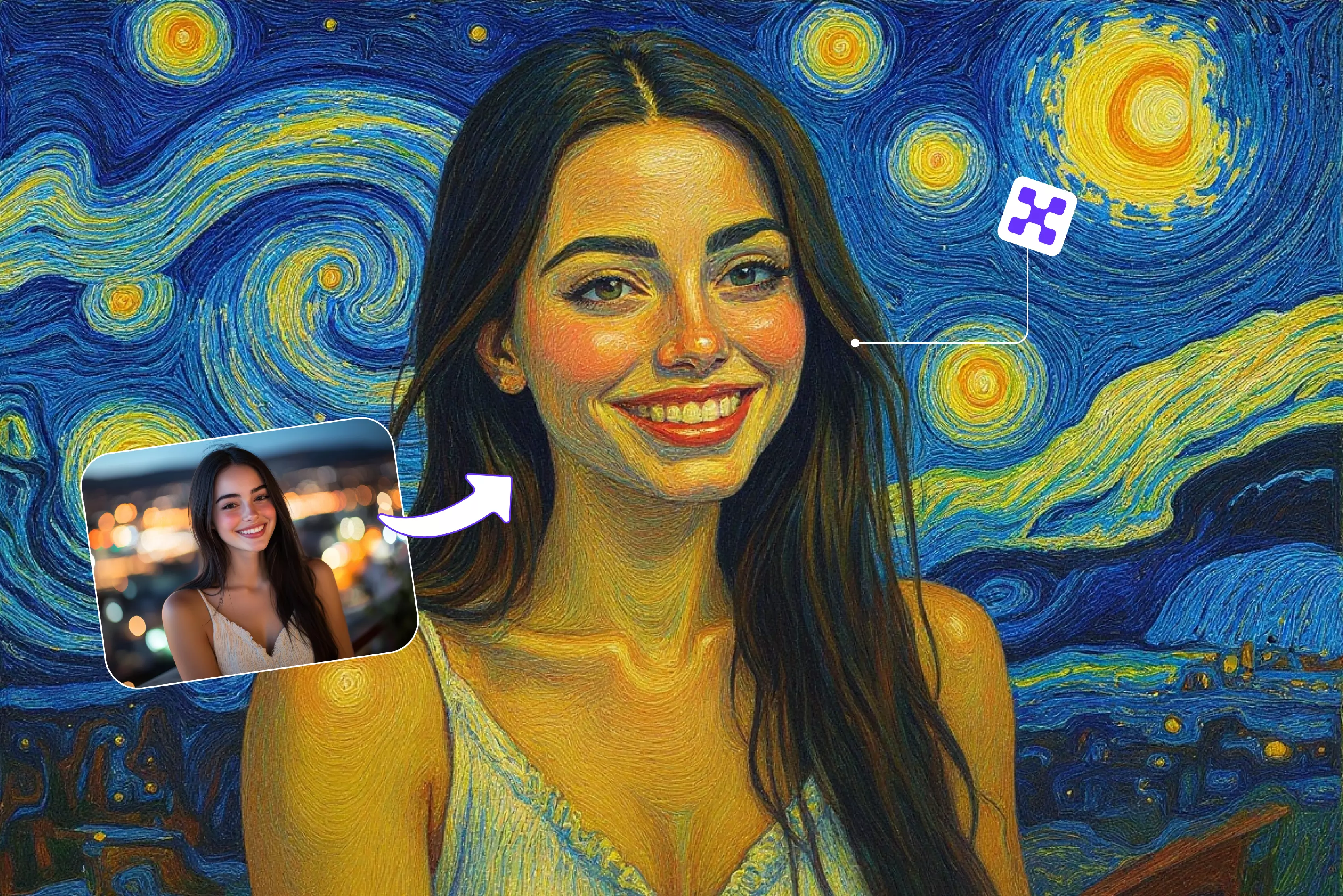
Media.io makes turning photos into artwork feel easy. You upload your image, choose from over 20 artistic styles like oil painting, watercolor, sketch, comic, or Van Gogh-inspired looks, and the AI recreates your photo in seconds.
I tested it with the Van Gogh style on a group photo, and this is where its limits showed up: because my image had too many people and a busy background, the AI got a bit confused and missed a few faces in the final result.
For simple portraits and clean images, though, the outputs look genuinely creative and high-resolution. It’s best for quick social visuals and artistic experiments rather than complex group scenes.
Key features
- 20+ artistic styles, including Van Gogh, Picasso, oil, watercolor, sketch, and comic
- Style selection before generating the artwork
- High-resolution downloadable results
- Fast browser-based processing
- Free plan with usage limits
- No design skills needed
11. Aragon.ai
If you’re curious how an ordinary photo can be reimagined as art without opening Photoshop, Aragon.ai’s Photo-to-Painting converter keeps things refreshingly simple.
You upload your image in common formats like JPG, PNG, or HEIC and choose a painting style from classic looks like Baroque and Oil to modern Graffiti or Pop Art. The AI then generates a painterly version that looks like something you could hang on a wall. Below you can see the image it generated when I chose oil painting.
Key features
- Multiple painting styles (Baroque, Oil, Pop Art, Graffiti, Realist)
- Simple upload + style selection workflow
- Supports JPG, PNG, WEBP, HEIC formats
- AI generates art in minutes, ready to download
- Part of a full suite of AI photo editing tools (background change, retouching, more)
- Browser-based, no software install needed
12. LightX Editor
If you’ve ever wanted to give a photo that gallery-worthy feeling without complex software, LightX Editor makes it both creative and fun. You upload your photo and choose from a variety of AI art filters and painting styles - like watercolor, oil painting, sketch, pop art, or classic expressionist looks and the AI transforms your image. You can also enter text prompts to guide the style, but this feature comes under the paid version.
I tested it on portraits and landscapes; the results feel playful and expressive, even if they aren’t exactly like traditional canvas art. It’s browser-based, fast, and great for social posts or creative prints.
Key features
- AI painting and art filters, including watercolor, oil painting, sketch, and more
- Choose from preset art styles or add a custom text prompt for creative control
- Works entirely online (browser-based)
- Great for portraits, landscapes, pets, and social visuals
How to get better results from painting converters?
After testing a lot of AI painting tools, I can tell you one thing clearly: the photo you start with matters more than the tool you choose. Even the best AI cannot rescue a dark, blurry, cluttered image. If you want paintings that actually look frame-worthy, a few small choices make a huge difference.
1. Choose the right photo
Pick images that are sharp, well-lit, and have a clear subject. Portraits, pet photos, and product shots with simple backgrounds almost always turn into better paintings than busy group photos or dim indoor clicks.
2. Pick the correct art style
Not every style suits every photo. Watercolor styles work beautifully for soft portraits and nature shots. Oil-style art looks better on bold, high-contrast photos. Try more than one style before deciding, it is often the easiest way to improve results.
3. Use crop and lighting wisely
Cropping out unnecessary background and slightly increasing brightness before uploading can dramatically improve the final artwork. Think of it as giving the AI a cleaner canvas to paint on.
4. Avoid common mistakes
Do not expect miracle fixes on low-quality photos. And do not rely on just one conversion, running the same image through two or three styles usually helps you find the version that actually feels “Right.”
Conclusion
AI photo-to-painting converters have made it incredibly easy to turn everyday photos into creative artwork without any design skills, and no complicated software is required.
After testing many of these tools on real images, one thing is clear: the right photo and the right style make all the difference. While free versions come with limits, they are more than enough to create beautiful portraits, gifts, social media visuals, and wall-art-style images.
FAQs
Photos with good lighting, clear faces or subjects, and simple backgrounds give the best results. Sharp, well-lit images help the AI understand details like edges, shadows, and facial features, which makes the painting look more natural and artistic.
Many tools allow commercial use, but it depends on the platform’s license. Always check the usage rights of the tool you are using. Some free plans limit commercial use, while paid plans usually allow it.
Yes. Pixelbin gives you three free painting conversions every month as a trial. These free results are created using the same AI quality as paid plans, so you can genuinely test how good the paintings look before upgrading.
Pixelbin’s free trial lets you download your paintings in the same visual quality, but paid plans unlock higher resolution options, bulk processing, faster workflows, and advanced features that are useful for professional or frequent users.
No. These tools are designed for beginners. You just upload your photo, choose a style, and the AI creates the painting for you in seconds.
They work best with simple photos. If your image has many people or a busy background, the AI may miss or distort some faces. Clear, well-lit group photos usually give better results.