

Video upscalers are suddenly everywhere, and honestly, it makes sense. We’re all working with video more than ever: old phone clips, compressed downloads, and social media footage that looked fine on a small screen but falls apart on a bigger one. An AI video upscaler promises an easy fix: upload your video, let the algorithm do its thing, and get a sharper, cleaner version without re-editing from scratch.
But here’s the catch. Most powerful AI upscalers aren’t cheap. That is why people actively search for free AI video upscalers online, especially creators, marketers, and students who just want better quality without committing to a subscription.
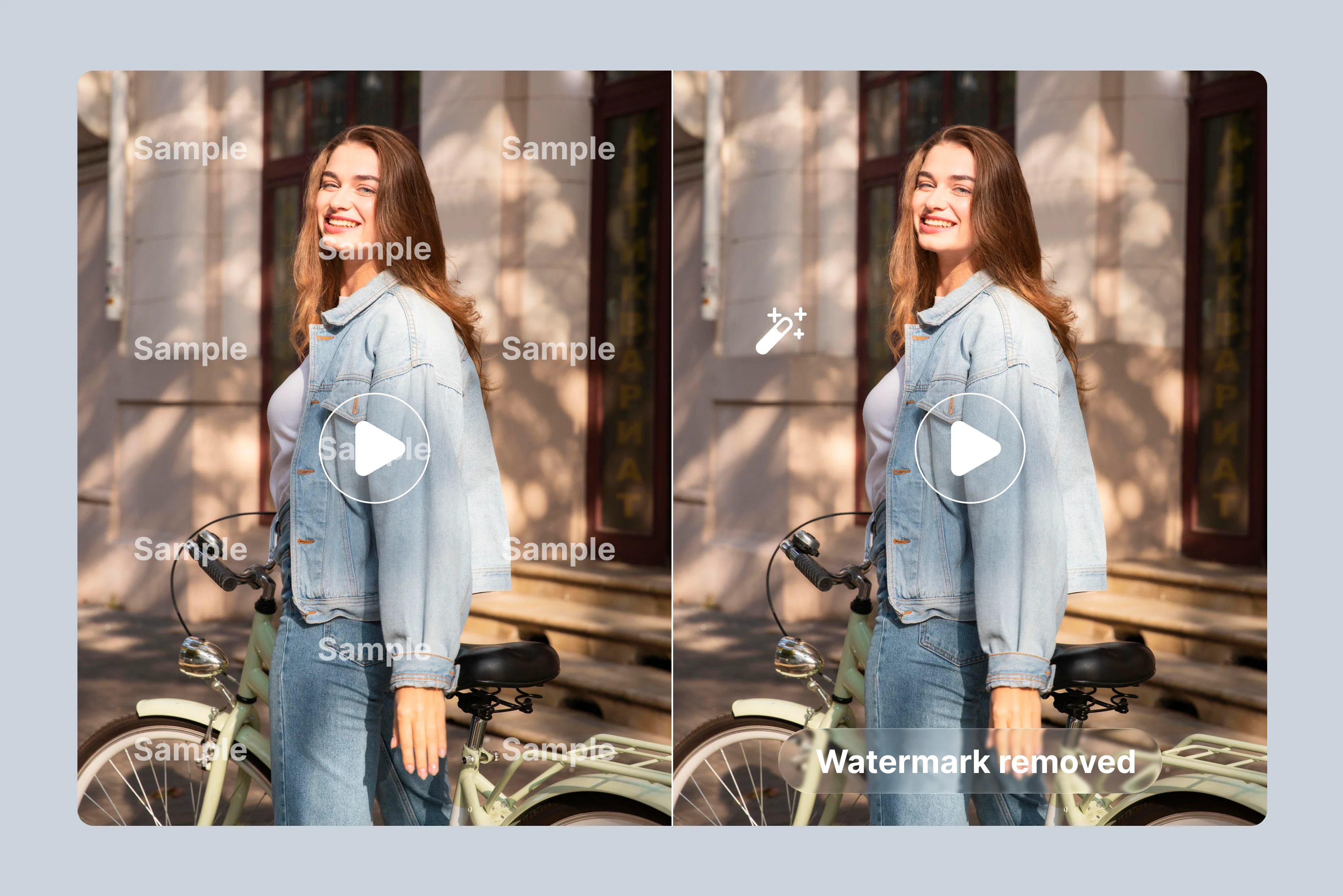
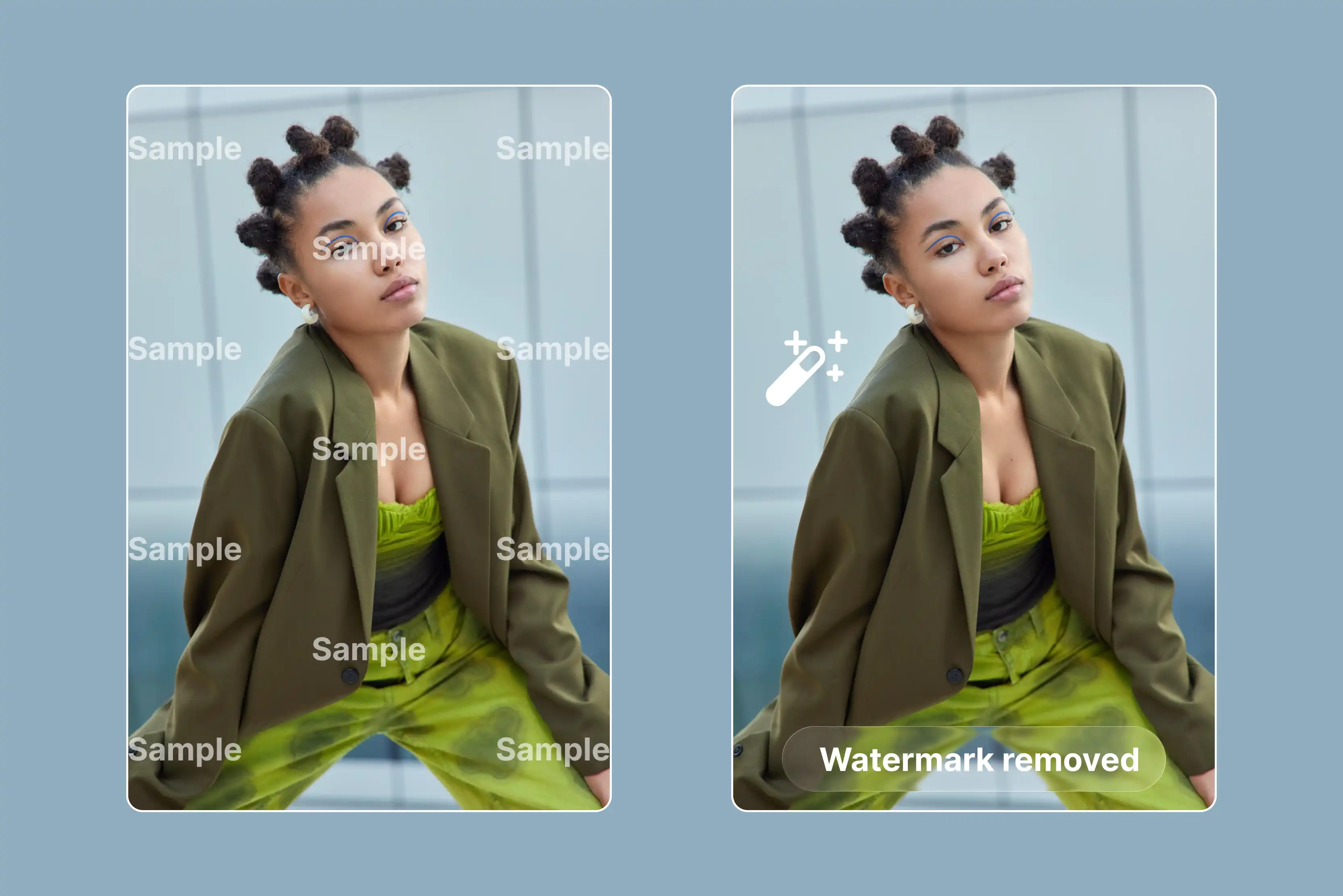
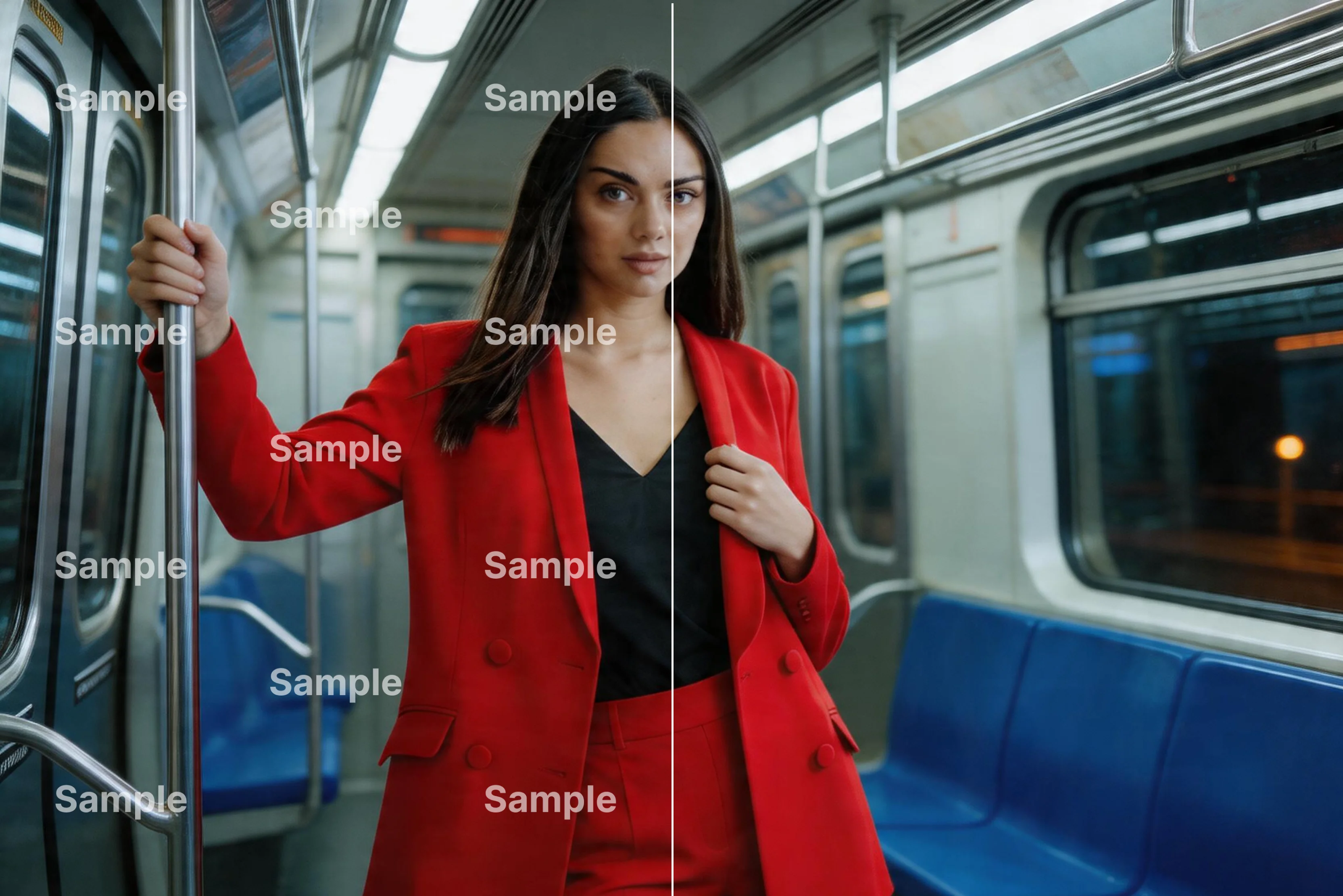
Free tools would not magically turn a 240p clip into cinema-grade 4K. You will often run into limits such as watermarks, capped resolutions, shorter video lengths, or slower processing. Still, some free options are genuinely useful if you know what to expect and how to use them smartly.
In this blog, I’ll break down the best free AI video upscalers online, what they’re good at, where they fall short, and who they’re best for, so you can choose a tool that fits your real-world needs, not just the promise on the homepage.
What is an AI video upscaler?
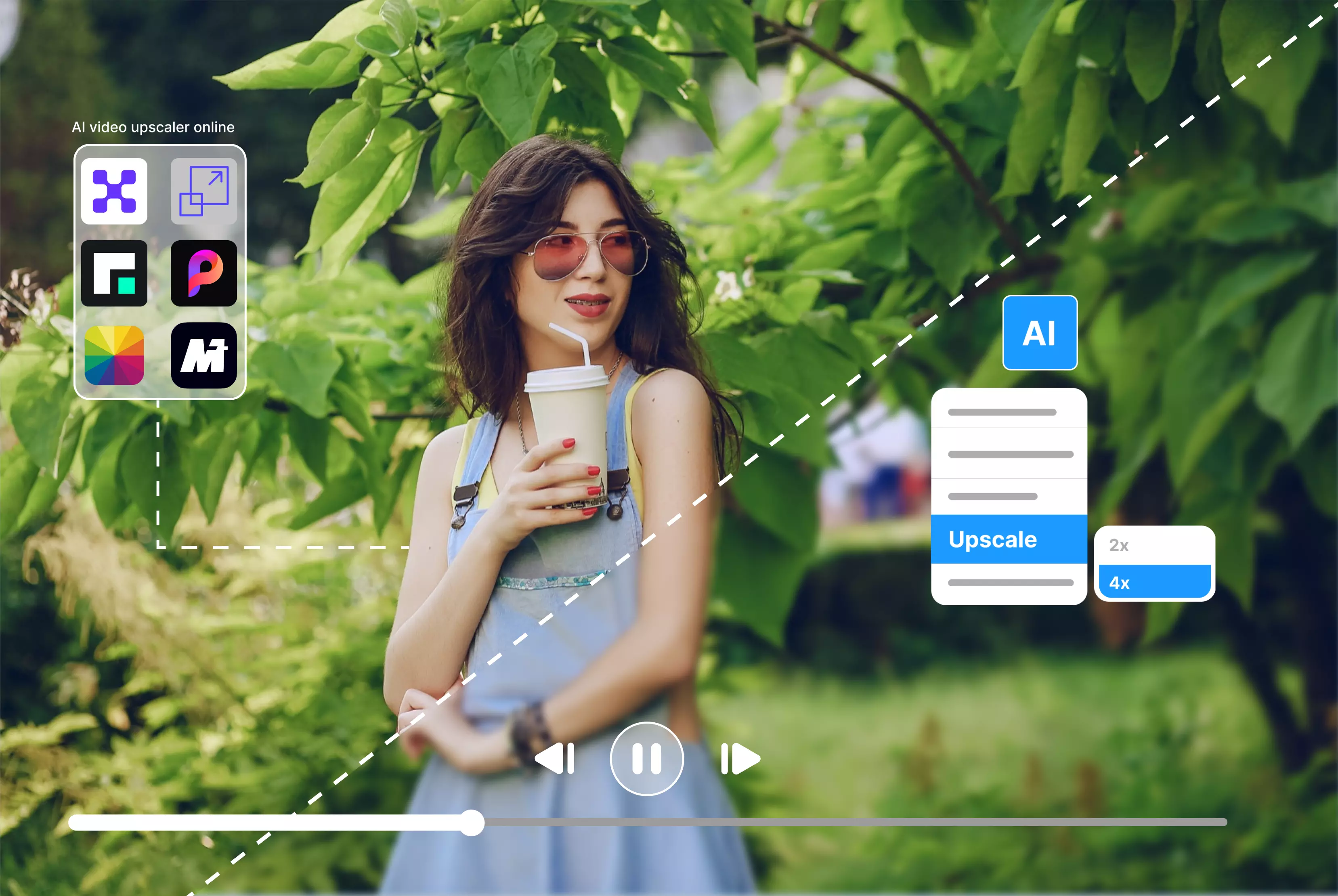
An AI video upscaler is a tool that makes videos look clearer using AI, not by simply stretching them. You upload a low-resolution video, and the AI studies each frame to recreate missing details like edges, textures, and shapes.
Here is how it works behind the scenes (without the math headache): the AI model is trained on thousands, sometimes millions of high- and low-quality video samples. Over time, it learns what details should look like when a video is enlarged by the user.
So when you upload your clip, the AI predicts and fills in missing information frame by frame. That’s why good AI upscaling doesn’t just make videos bigger, it makes them clearer.
What “Free” really means for AI video upscalers?
When a tool says it’s “Free,” it’s worth slowing down for a moment because in the AI video upscaling world, free can mean a few different things. From long-term testing, I’ve found that most tools fall into two categories: free trials or permanently free plans.
Free trials usually give you full access for a short time or a limited number of exports. You’ll see the best quality, faster processing, and higher resolutions but only temporarily.
Once the trial ends, you’ll need to upgrade to keep using those features. Permanently free plans stay available, but they come with clear limits. They’re designed for light, occasional use rather than heavy or professional workloads.
These limits show up in a few common ways. Watermarks are very common on free plans. Resolution limits are another common restriction: many tools cap output at 720p or 1080p. Speed is often slower, too, especially for longer videos. Some tools also limit the video length or the number of videos you can upscale per day.
Best free AI video upscalers online
After testing 12 different AI video upscalers that offer free trials or free credits, one thing became very clear: not all “AI upscaling” is created equal. I ran the same low-quality clips through each tool to see how well they handled real problems such as unblur the content, noise, color loss, and stretched pixels.
Some tools were impressively fast but softened details too much, while others delivered sharper results at the cost of longer processing times or stricter free limits.
Free credits were especially helpful for honest evaluation, letting me preview results before committing. This hands-on testing made it easier to separate genuinely useful upscalers from tools that mostly rely on marketing promises. Now, let’s explore each tool one by one.
1. Pixelbin

If you’re dealing with blurry or low-resolution clips, Pixelbin’s AI video upscaler is built to clean them up without making things complicated. You have to upload a video, choose the upscale option, and Pixelbin’s AI analyzes each frame to increase resolution, sharpen details, reduce noise, and improve overall clarity.
It’s designed for real-world use cases: social media videos, marketing assets, product demos, where you want better quality fast. Everything runs online, with no software installation, and it fits neatly into Pixelbin’s broader AI workflow.
Pros
- AI-powered video upscaling improves resolution and clarity
- Fully online, no software download needed
- Automatic processing (no technical settings required)
- Good for marketing, social media, and product videos
Cons
- Limited manual controls for advanced editing
- Free usage is usually credit-limited
2. Free Upscaler Video
I’ve spent time trying out different AI upscalers, and Free Upscaler Video stands out because it’s truly zero-cost and dead simple to use. It runs entirely in your web browser using WebGPU technology, so you don’t need accounts, installs, or cloud uploads; your video is processed locally on your device.
Just upload a video file (supports MP4 only) and choose a quality level. It handles both animated and live-action footage, scaling up resolution without watermarks or signup walls. Because it’s open-source and browser-based, I’ve found it especially handy for quick upgrades of short clips - no fuss, no cost, and decent results for everyday use.
Pros
- Completely free with no signup
- No watermarks on output videos
- Runs locally in your browser (better privacy)
- Supports upscaling up to 4K
- Simple and beginner-friendly interface
Cons
- Processing can be slow on weaker devices
- Limited file format support (mainly MP4)
- Quality isn’t as advanced as paid tools
- Requires a modern browser with good GPU support
3. TensorPix
TensorPix doesn’t just upscale video; it gives you a surprising amount of control for an online tool. You can try its free preview mode to see how a short clip looks after enhancement before using any credits, which is great for testing quality without commitments. Once you upload a video (common formats like MP4 work smoothly), you can choose from multiple upscale resolutions up to 4× larger, including HD and 4K.
What sets it apart are the preset options tailored for different content types: general footage, people, animation, old videos, AI-generated clips, and even games, so the AI applies the right tweaks for the style. TensorPix also offers frame-rate boosting, letting you smooth out motion.
Pros
- Free preview available to test quality before upscaling
- Multiple upscale resolution options (HD to 4K)
- Presets for different video types (people, animation, old videos, games)
- Frame-rate enhancement for smoother motion
- Easy-to-use, browser-based interface
Cons
- Free usage is limited by preview length or credits
- Full exports require credits or a paid plan
- Processing speed can slow down for longer videos
- Mostly supports common formats like MP4
4. Picwand
Picwand AI Video Upscaler supports common formats like MP4, AVI, MOV, and MKV, and lets you upscale clips up to 4K and beyond, sharpening details while reducing noise and preserving aspect ratio.
The standout part? You get a free preview before committing to the full upscale, so you can judge quality first. Picwand also offers different AI model settings (e.g., general and cartoon/anime mode) so you can tailor enhancements to your content type, whether it’s real-world footage, animation, or game clips. It is browser-based, quick to use, and great for casual creators who want better video quality without complex tools.
Pros
- Free preview to check quality before full upscaling
- Supports common formats (MP4, AVI, MOV, MKV)
- Multiple AI model modes (general, anime/cartoon)
- Upscaling available up to 4K
- Simple, browser-based workflow
Cons
- Full exports may require credits or limits may apply
- Processing speed can be slow for long videos
- Fewer advanced controls compared to pro tools
- Quality depends heavily on the chosen model
5. Fotor
In Fotor, you have to upload clips in formats like MP4 or MOV, and its AI analyzes each frame to boost resolution even taking 240p, 360p, or 480p up to HD or 4K with much cleaner detail and fewer artifacts.
What surprised me most is the preview option: before you commit credits or downloads, you get to see a short enhanced snippet, so you know what you’re getting. It’s online, fast, and gets real results, though complex edits still belong in proper editors.
Pros
- AI-powered upscaling boosts low-resolution videos up to HD/4K automatically
- Works completely online; no downloads or installation needed
- User-friendly interface, great for beginners
- Preview option lets you check a short enhanced clip before committing
- Compatible with common formats like MP4, MOV, and WebM
Cons
- Free version has limitations on full-length or high-res downloads
- May smooth details too much on heavily compressed footage
- Lacks advanced manual controls compared with professional editors
6. Media.io
With Media.io, you can upload supported format such as MP4 or MOV video. Choose a 2× or 4× upscaling the AI then boosts resolution up to 4K, reduces noise, sharpens details, and even tidies up colors and blur automatically.
What I genuinely like is how simple it feels: no tech jargon, no installations, just upload and go. On the free plan, you can test the upscaler (videos up to 50 MB/30 sec or 100 MB/1 min when logged in) and preview up to 45 frames before deciding to subscribe for full downloads, so you’re not committing blind.
Pros
- AI-powered upscaling boosts video resolution up to 4K with 2× and 4× options
- Web-based & easy, no software installs, works in your browser
- Noise reduction, sharpening, and color improvements alongside upscaling
- Simple one-click workflow, which is great for beginners
- Supports common formats like MP4 & MOV
Cons
- Free plan is limited: you can only preview the first 45 frames, and downloading may require a paid plan
- Limited upscaling factors on the free tier (often only 2×)
- No advanced manual controls like professional editors
- File size/duration limits on free use
7. YouCam online editor
If you’re like me and have old clips that look blurry or grainy, YouCam’s AI Video Enhancer feels like that friend who somehow magically tidies up your footage.
With one click in your browser, it uses deep AI to upscale low-quality videos up to 4K, sharpen details, remove noise, and even brighten dark scenes - all without needing any fancy software.
You upload file (MOV, MP4. M4V under 1 minute length), preview what the AI will do, then download the improved result. Best part? On the free plan, you get 5 free credits to try upscaling and preview first, so you can test the quality without paying upfront.
Pros
- AI-powered upscaling boosts low-quality videos up to higher resolutions (e.g., 4K) automatically
- Noise reduction, deblur, and color improvement make clips look cleaner and sharper
- Web-based and easy to use: upload, enhance, and download without software installs
- Free plan available lets you try basic enhancement and previews with limited credits
- Friendly interface suits beginners and casual creators
Cons
- Free tier limitations: short video length and basic output before subscribing
- Limited advanced controls, fewer manual adjustments than pro editors
8. Canva
I’ve spent a bunch of time with Canva’s Video Upscaler, and honestly, it’s like having a friendly AI assistant for sloppy footage. You upload a low-res clip (MP4, MOV, or MKV), then choose target resolutions from standard HD up to crisp 4K and let Canva’s AI sharpen details, reduce noise, and balance color across frames.
What’s neat is the enhancement style options (like “General,” “Portrait,” or “Anime”) so you pick the vibe that fits your footage. On the free plan, Canva is surprisingly generous; you get 16 Video Upscaler credits, which lets you test real enhancements before paying. Once those credits are used, you can upgrade if you need more.
Pros
- Simple one-click AI upscaling, no technical skills needed
- Multiple enhancement styles (General, Anime, Portrait) for different video types
- Free plan includes 16 upscaler credits, great for testing real results
- Works fully online inside Canva; noCanva,no extra tools required
- Good quality improvement for social media and marketing videos
Cons
- Credits are limited on the free plan; heavy users must upgrade
- No advanced manual controls for fine-tuning frames
- Not ideal for long or cinematic videos
9. Vmake
It’s a browser-based, AI-driven tool that lets you upload videos (MP4, MOV, M4V, 3GP, AVI) and instantly boost them to 1080p, 2K, or 4K resolution. The AI doesn’t just enlarge; it analyzes each frame to sharpen, reduce noise, improve clarity, and restore lost detail so the visuals look more natural.
You can also batch process up to 3 videos at once if you’re handling a few clips together. While the free tier lets you test basic upscaling and previews, full-length downloads at higher resolutions typically need credits or a subscription.
Pros
- AI-powered upscaling up to 1080p, 2K, and 4K
- 5-second preview lets you check quality before using credits
- Supports multiple formats (MP4, MOV, AVI, M4V, 3GP)
- Browser-based, no software installation needed
- Batch upscaling for up to 3 videos saves time
- Clean, beginner-friendly interface
Cons
- Free version is limited (preview only, restricted exports)
- Credits are required for full-length, high-resolution downloads
- Limited manual controls for advanced editors
- Large or very long videos may process slowly
10. Wink
You upload your low-resolution video (supports common formats like MP4, MOV, etc.) and let Wink’s online AI increase resolution to 1080p, 2K, or 4K while boosting clarity, sharpening textures, correcting colors, and reducing noise frame by frame.
What’s neat is the scenario-based options (e.g., Portrait, Concert, Game) so the enhancement fits the content better. It also lets you adjust intensity and preview results before saving, so you don’t commit blind. Best of all, you can try the upscaler free in your browser with no install, though advanced features and higher-resolution exports may work better with paid plans.
Pros
- Improves video quality using AI upscaling
- Can increase resolution up to 1080p, 2K, or 4K
- Reduces blur and noise, and improves colors
- Different modes for different videos (like portrait or gaming)
- Works online, no software to download
- Free option available to test the tool
Cons
- Free version has limits on export quality or length
- Full features need a paid plan
- Not many manual editing controls
11. Cutout.pro
Cutout.pro’s AI Video Enhancer is a solid online tool that feels like a friendly assistant rather than a manual. You upload a video (supports formats like MP4, WebM, MOV, GIF), and the AI upscales resolution (up to 2K at 30 fps) while reducing noise, smoothing motion artifacts, and sharpening detail.
It supports files up to 2 GB and videos up to 4K resolution. Before you commit credits, it lets you preview a short clip of the enhanced version to see the quality difference.
The output comes in MP4 format, making downloading and sharing easy. You can try basic enhancements for free, but full-length, high-quality exports usually require credits or a paid plan, so you get a taste before you invest.
Pros
- AI-powered video upscaling improves clarity and sharpness
- Preview option available to check results before using credits
- Supports large files (up to 2 GB)
- Works fully online, no software installation needed
- Reduces noise and motion blur automatically
- Simple interface, good for beginners
Cons
- Free version is limited (preview or watermark on exports)
- Full-length, high-quality downloads require credits or a paid plan
- Limited manual control for advanced editing
- Processing can be slow for large or long videos
12. Upscale.media
I like Upscale.media’s video upscaler because it’s very clear about what you can and can’t do upfront which saves time. You simply drag and drop a video (maximum 1-minute duration and 1280×720 resolution) and let the AI enhance clarity and sharpness.
For browser uploads, it supports MP4, MOV, and WebM, which covers most everyday use cases. What’s especially useful for teams is the API support, which expands format compatibility to MP4, MOV, WebM, AVI, MPG, MPEG, and MKV, making it easy to integrate video upscaling into automated workflows.
Pros
- Simple drag-and-drop video upscaling
- Clear limits: 1-minute max duration and 1280×720 input resolution
- Supports common formats in browser (MP4, MOV, WebM)
- API support available with wider format support (MP4, MOV, WebM, AVI, MPG, MPEG, MKV)
- No software installation needed
Cons
- Strict free limits on video length and resolution
- Not suitable for long or high-resolution videos
- Limited manual controls
- Full-scale or automated usage may require API access or paid plans
Key features to look for in a free AI video upscaler
Not all free AI video upscalers are created equal. After testing plenty of them, I have learned that quality alone doesn’t tell the full story. A tool might produce decent results but still be frustrating to use. Here are the key features I always check before recommending a free upscaler.
1. Supported resolutions and formats
First, look at how far the tool actually lets you upscale. Some free plans stop at 720p, others allow 1080p, and a few even offer limited 4K exports. Also check supported formats. If your video is in MP4, MOV, or AVI, you’re usually fine but older or less common formats can cause upload issues.
2. Processing speed
Speed matters more than most people expect. Free tools are often slower, especially during peak hours. For short clips, this isn’t a big deal. But if a one-minute video takes ten minutes to process, that slowdown adds up quickly. I usually test speed with a short clip first before committing to longer videos.
3. Watermark policies
Watermarks are a deal-breaker for some users and a minor annoyance for others. Some tools add large, visible logos, while others keep them subtle or remove them entirely on free plans. Always check this early so you’re not surprised after waiting for an export.
4. Ease of use
A good free upscaler should feel simple. Upload, choose a resolution, and export, no confusing settings or hidden steps. If a tool makes you work too hard just to upscale one video, it’s probably not worth your time, no matter how good the AI sounds on the homepage.
Tips to get better results from free AI video upscalers
Free AI video upscalers can work surprisingly well, but only if you meet them halfway. After testing many tools over time, I’ve noticed that results depend less on the AI buzzwords and more on how you prepare and process your video.
1. Choose the right video settings
Always start with the best source video you have. AI can sharpen and enhance details, but it can’t fully recover information that isn’t there. If the tool lets you pick an output resolution, resist the urge to max it out every time.
Upscaling to 1080p usually gives the most natural-looking results on free plans and finishes faster. Stick to widely supported formats like MP4 to avoid upload or export issues.
2. Avoid common mistakes
One of the biggest mistakes is pushing very low-resolution footage too far. Turning a 240p video clip into 4K may create artificial textures instead of real detail.
Another common issue is ignoring noise and lighting; dark, grainy videos are harder for free AI tools to handle cleanly. Finally, don’t process long videos blindly. Run a short test clip first to see how the tool handles faces, motion, and text before committing time to a full export.
Conclusion
Free AI video upscalers are a solid place to start if you just want better-looking videos without pulling out your credit card. I’ve used them for quick fixes, short clips, and quality tests, and in those cases, they do the job well.
You just have to go in with realistic expectations. Free tools are slower, more limited, and sometimes add watermarks, but they’re still useful if you know their boundaries.
My advice: try a few, test with short videos, and see what fits your workflow. When upscaling becomes a regular task or quality really matters, that’s usually the point where a paid tool earns its keep.
FAQs
There’s no single best option for everyone. Some free AI upscalers offer better quality, while others focus on speed or ease of use. The right choice depends on your video length, resolution, and purpose.
Most are safe if they come from reputable providers. Avoid uploading sensitive or private videos, and always check the tool’s privacy policy before use.
Some free tools add watermarks, while others don’t. Watermarks are common in free plans to encourage upgrades, so it varies by tool.
Yes, many can upscale to HD, and some allow limited 4K upscaling. However, free versions usually have resolution or length limits.
Free upscalers are usually slower. Paid tools offer faster processing and priority access, especially for longer or high-resolution videos.
Upgrade if you need faster speeds, no watermarks, higher resolutions, or frequent video upscaling for professional work.