

Summary
Google Veo is Google's AI video generation model used inside tools like Google Flow, Google Vids, and the Gemini API. To use the Google Veo AI video generator, open the right Google tool, choose a video model such as Veo 3.1 where available, write a clear scene prompt, set the aspect ratio and length, then generate and refine the clip. The best prompts describe the subject, action, location, camera, lighting, sound, and mood. Availability, credits, video length, and export options can change by country, plan, and product.
Introduction
If you searched for "how to use Google Veo video generator" or "how to use Google Veo AI video generator," the first thing to know is simple: Veo is not just one separate app that everyone opens in the same way. Veo is Google's video generation model, and Google uses it inside different products.
For most people, the easiest place to start is Google Flow because it is made for video creation and scene building. Google Vids is better if you are making work videos, explainers, team updates, or presentation-style content. Developers can use Veo through Google AI Studio or the Gemini API. Some users also see video generation inside the Gemini app, although Google's consumer video tools and naming can change by plan and region.
This guide keeps things practical. You will learn where to use Google Veo, how to create your first video, how to write better prompts, what to do when Veo does not show up, and how to avoid the common mistakes that make AI videos look unfinished.
What is Google Veo?
Google Veo is a next-generation generative video model capable of turning text prompts, static images, and editing instructions into high-definition, cinema-quality video clips. Unlike early-stage AI tools that produced surreal, morphing visuals, the Google Veo 3 AI video generator family delivers advanced physics simulation, strict prompt adherence, and spatial consistency.
Key Upgrade (2026): The rollout of the Veo 3.1 video generator architecture introduces structural scene control, native audio effects creation, and remarkably cleaner image-to-video Google Veo rendering.
Google Veo AI video generator features
The main Google Veo AI video generator features are useful for creators, marketers, educators, and teams who need short visual clips quickly. Exact features can vary by product, but these are the ones most users should understand before starting:
- High-Resolution Output: High-resolution video generation up to 4K with 24fps in landscape and portrait aspect ratios.
- Native Audio Generation: Native audio generation with synchronized dialogue, sound effects, and ambient noise fully integrated in videos.
- Reference Image Control: Image-based direction using up to three reference images to guide overall video content generation.
- Scene Extension: Scene extension capability to create longer videos lasting up to one minute through continuous generation.
- AI Watermarking: SynthID watermarking technology provides invisible identification marking AI-generated content to help reduce overall misinformation spread.
- Cinematic Video Creation: Text-to-video generation with cinematic understanding of camera movements, lighting, and advanced visual storytelling.
The important point is that Veo works best when you ask for one clear scene at a time. It is better to create three focused clips and edit them together than to ask the model for a complete long video in one prompt.
Which Google Veo video generator tool do you need?
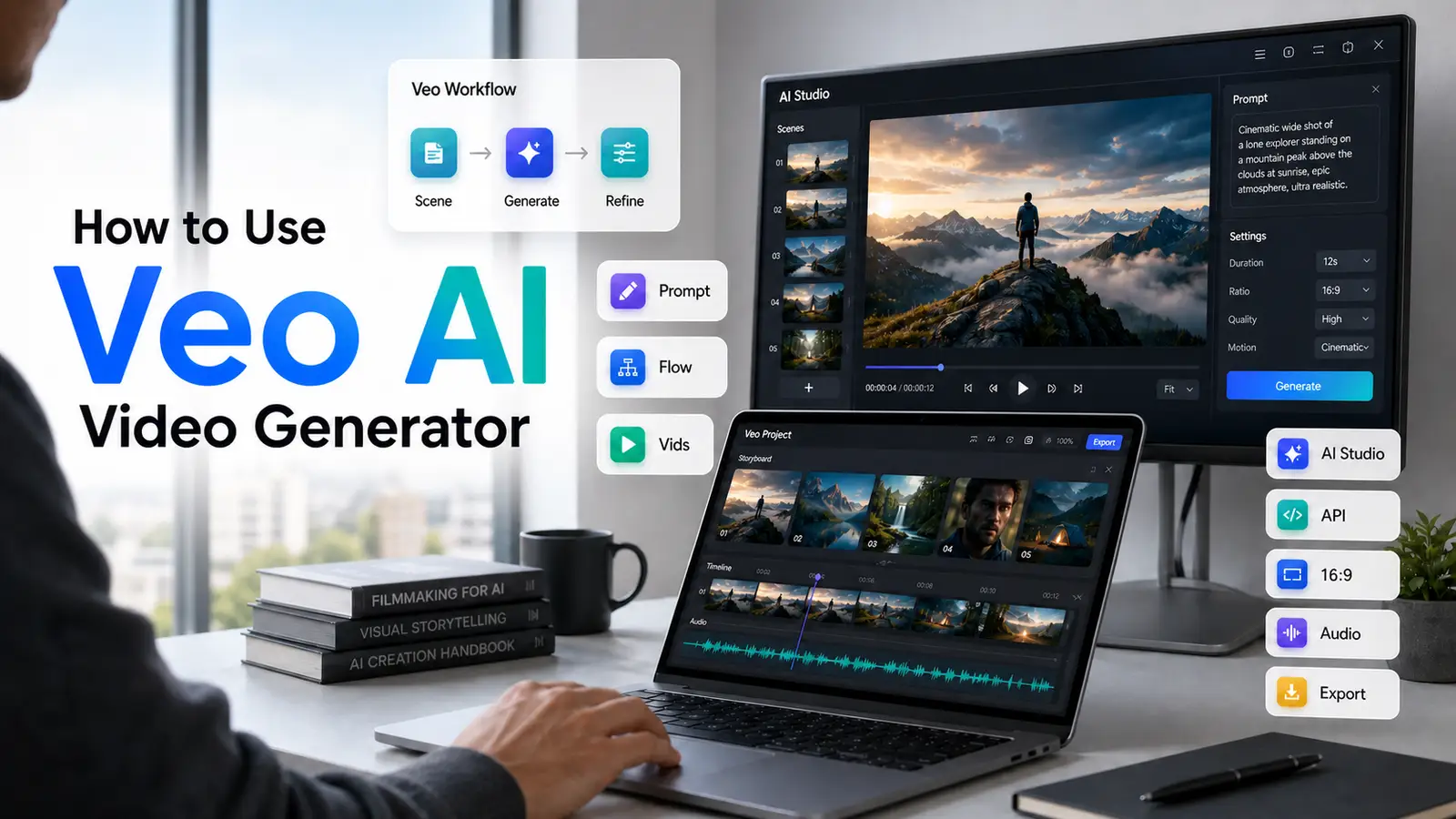
You cannot download "Veo" as an app. Instead, you access the Google Veo AI video generator through distinct platforms tailored to different workflows. Use this breakdown to see where you should work:
How to access Google Veo AI video generator
If you are wondering about Google Veo AI video generator access, availability is tied strictly to your region, account classification, and active Workspace or Google One AI Premium subscriptions.
To check for Google Veo AI video generator free access or trial credits:
- Navigate directly to your workspace inside the Google Flow video generator or Google AI Studio.
- Sign in using a primary, non-managed personal Google account (Workspace accounts require explicit admin authorization).
- Look for the model drop-down selection menu to confirm Google Veo AI video generator availability on your account profile.
How to use Google Veo in Google Flow
Step 1: Open Flow and start a project
Sign in to Flow with your Google account, open the Flow workspace, and create a new project. If video options aren’t visible check account type, subscription tier, or regional availability, then try a different Google account or contact your admin.
Step 2: Pick a single-scene goal first
Choose “New video” (or the equivalent scene tool) and select a single scene to generate. Keep the first clip focused: one subject, one action, one camera approach. Avoid multi-scene brand films or complex multi-angle requests on the first run.
Step 3: Draft the scene prompt like a film direction
Write a concise scene direction that covers: subject, action, setting, camera, lighting, style, sound, and pacing. Use short, specific phrases (not long paragraphs). Example: “8s close-up of a young founder placing a handmade leather notebook on a wooden desk near a window; soft morning light; slow push-in; natural hand motion; quiet room; premium mood.” Save the prompt text for iteration.
Step 4: Select model, aspect ratio, and duration
If Flow exposes model choices, pick the newest Veo model available to your account for best fidelity. Then set format and duration: 16:9 for landscape, 9:16 for mobile vertical, 1:1 for square social. Choose length before generating to avoid unwanted cropping or timing issues.
Step 5: Generate multiple variations
Create 2–4 variations of the same prompt to compare outputs. Look for: adherence to the prompt, subject stability, natural motion, helpful camera movement, and usable audio. Don’t judge the model on a single pass.
Step 6: Inspect and note issues clearly
When a clip misses the mark, list concrete fixes: “camera too jittery — request locked-off camera,” “face morphing — use wider profile shot,” “ambiguous product — specify brand color/texture,” “text overlays appearing — add ‘no text on screen’.” Precise instructions guide the next generation.
Step 7: Refine the prompt and re-run
Incorporate the fixes into a tightened prompt and regenerate. Use incremental changes (one or two edits) so you can see what each change affects. Keep a running log of prompts so you can reproduce successful results.
Step 8: Fine-tune audio and pacing
If Flow supplies music, voice, or ambient sound options, test them separately. For business content: mute AI audio during edit if it sounds synthetic, add licensed music, or replace voice with a professional voiceover track after export.
Step 9: Edit, stitch, and extend scenes (when ready)
Once you have stable single scenes, use Flow’s scene tools or your editing timeline to stitch clips together, adjust transitions, and align sound. For consistent continuity, reuse the same prompt “ingredients” (character description, lighting, camera style) across scenes.
Step 10: Save metadata and export cleanly
Save the best clip in the project, and export at the highest allowed resolution. Record metadata for each final asset: prompt text, model used, date, any reference images, and edits applied. This habit preserves brand consistency and speeds future re-creation.
How to use Google Veo in Google Vids
Google Vids is useful when you want a video for work, not just a standalone cinematic clip. It can help with explainers, internal updates, lessons, pitches, and presentation videos.
The basic workflow is:
1. Open Google Vids.
2. Start a new video.
3. Choose a video generation option if it is available in your account.
4. Select a model such as Veo 3.1 where shown.
5. Enter a clear prompt.
6. Choose landscape or portrait format.
7. Generate the clip.
8. Insert the clip into your video timeline.
9. Edit the rest of the video with text, narration, music, or slides.
Google Vids is not only for one-off visuals. It is better when the Veo clip supports a larger message. For example, you might create a short opening shot for a training video, a product demo mood shot, or a background scene for an internal update.
Example Google Vids prompt:
"Create a clean 8-second video of a small marketing team looking at a campaign calendar on a conference room screen. Natural office lighting, realistic movement, calm professional tone, no readable text on the screen, subtle room sound."
Can you use Google Veo in the Gemini app?
You may see older tutorials saying to use Veo directly inside the Gemini app. This can be confusing because Google's consumer video generation experience changes over time. Current Gemini help pages discuss video generation in Gemini, while Google also provides Veo through tools such as Flow, Google Vids, and the Gemini API.
The practical answer is:
- If you want the simplest chat-based video experience, check the Gemini app on your account.
- If you specifically want a Veo creator workflow, use Google Flow.
- If you need a work video, use Google Vids.
- If you are building a product or automation, use Google AI Studio or the Gemini API.
If you do not see video generation in Gemini, it does not always mean you did something wrong. The feature may not be available for your account, country, age group, workspace setup, or plan.
How developers can use Google Veo with the Gemini API
Developers can access Veo through Google AI Studio and the Gemini API where the model is available. This is the right route if you want to build video generation into a website, app, internal tool, or automated workflow.
At a high level, the developer process is:
1. Open Google AI Studio.
2. Set up API access.
3. Choose a supported Veo video model.
4. Send a prompt or image prompt request.
5. Wait for the video generation operation to finish.
6. Download or store the generated file.
7. Add safety, review, logging, and user controls before production use.
Developers should read the official Gemini API video documentation before building. Model names, file retention, safety rules, length, resolution, and pricing can change.
If you see older searches or tutorials using phrases like "Google AI Studio Veo 3 video generator," check the current model name inside Google AI Studio before following the steps. Google may update model names, and the newest available option in your account is usually the one to test first.
How to use Google Veo in Pixelbin
If you want to create AI videos without juggling too many complicated tools, you can start with Pixelbin’s video generation workflow. I find it especially useful when you want to turn a simple idea into a polished short video quickly, whether you’re making content for social media, ecommerce, or a creative campaign
Start with the video tool
You and I both know that the first step is usually the simplest one: open Pixelbin AI video generator. From there, you can choose a text-to-video or image-to-video workflow depending on what you already have. If you’re starting from scratch, text-to-video is the easiest route.
Write a detailed prompt
The better your prompt, the better your output. I recommend thinking like a director and including the subject, action, setting, camera style, lighting, mood, and pacing. For example, instead of saying “make a product video,” you can write something like: “Create a cinematic 8-second video of a skincare bottle on a marble table with soft daylight, slow camera push-in, premium feel, and a clean studio background.”
When you give the model clear direction, you’re much more likely to get a result that feels intentional and usable.
Choose the right format
Before you generate, decide where you want to use the video. If you’re creating for Instagram Reels, YouTube Shorts, or TikTok, you should go with a vertical format. If your video is for a website, ad, or presentation, a horizontal format usually works better.
I always suggest picking the aspect ratio first, because cropping later can ruin important details in the frame.
Generate and compare results
Don’t stop after one output. You’ll usually get better results when you create more than one version and compare them side by side. Look at how well each clip follows your prompt, whether the motion feels natural, and whether the visual style matches your goal.
If one version looks too generic, you can tighten the prompt and try again. Small changes often make a big difference.
Refine for better quality
If the scene feels unstable, add more control words like “single continuous shot,” “locked-off camera,” or “slow push-in.” If the visuals seem too crowded, reduce the number of elements in the prompt. I’ve found that simpler prompts often produce cleaner, more polished videos.
You can also refine for brand use by being specific about color palette, product placement, and mood. That helps keep your content consistent across campaigns.
Save and reuse what works
Once you get a version you like, save both the final clip and the prompt that created it. This makes it easier for you to reproduce the same style later. If you’re using video for business, keeping a record of prompt, date, and final output is a smart habit.
Best Google Veo prompt formula
Use this formula for most prompts:
Subject + action + setting + camera + lighting + style + sound + constraints
Here is a reusable prompt structure:
"Create a [length] [style] video of [subject] doing [action] in [setting]. Use [camera angle/movement], [lighting], and [mood]. Include [sound/dialogue/ambient noise]. Avoid [things you do not want]."
Example:
"Create an 8-second realistic product video of a matte black water bottle standing on a gym bench while a person ties their shoes in the background. Close-up shot, slow camera slide from left to right, bright morning gym lighting, clean athletic mood, subtle gym ambience, no text or logos."
Prompt Example for a YouTube Short
"Create a 9:16 vertical video of a travel creator walking through a narrow street market at sunset. Handheld camera, warm golden light, natural crowd movement, colorful stalls, soft street ambience, energetic but not chaotic."
Prompt Example for a Product Ad
"Create an 8-second premium product ad for a stainless steel travel mug on a kitchen counter. Steam rises from the mug, slow push-in camera, soft morning light, shallow depth of field, realistic reflections, quiet kitchen ambience, no text."
Prompt Example for a Real Estate Video
"Create an 8-second realistic video of a modern living room with sunlight moving across a beige sofa and wooden floor. Wide-angle lens, slow steady pan, calm luxury home mood, soft outdoor ambience, no people, no text."
Prompt Example for an Educational Video
"Create a clean 8-second video of a teacher placing colorful science experiment materials on a classroom table. Medium shot, bright natural light, realistic hand movement, friendly learning mood, quiet classroom sound, no readable text."
Prompt Example for Image-to-Video
"Use this image as the starting frame. Animate a slow camera push-in while the fabric moves slightly in a soft breeze. Keep the product shape and color consistent. Realistic lighting, no added text, no extra objects."
Tips to get better results from Google Veo
Start with one clear scene
Veo works best when the prompt describes one clean moment. If you ask for too many scenes, the model may skip details or make the video feel messy.
Control the camera
Words like “cinematic” are not enough. Tell Veo exactly how the camera should move or frame the scene. For example, you can ask for a slow push-in, a locked-off camera, a wide establishing shot, a close-up product shot, an over-the-shoulder view, or a smooth side-tracking shot. Clear camera direction often makes the biggest difference between a generic AI clip and a usable video.
Mention what you do not want
If you do not want text, logos, subtitles, extra people, distorted hands, or sudden scene changes, say that in the prompt.
Example:
"No text, no logos, no sudden camera cuts, no extra people."
Use natural sound instructions
Veo models can support audio depending on the tool and model, so mention the sound clearly if it matters for your video. You can describe details like soft rain on glass, quiet office ambience, footsteps on gravel, gentle cafe background noise, or a short dialogue line. If the clip is for social media and you plan to add your own music later, keep the prompt simple and mute or replace the generated audio during editing.
Keep brand videos simple
For brand use, avoid asking Veo to create complex logos, readable packaging, or exact text. AI video tools can struggle with text consistency. Add final titles, captions, and brand graphics in your video editor after generation.
Use reference images carefully
If the tool supports image-to-video or ingredients, use clean reference images. A messy image with bad lightin g, text, or too many objects can confuse the output.
Google Veo AI video generator pricing and free access
Google Veo AI video generator pricing depends on the product, plan, country, and account type. Google Flow uses credits, and credit limits can vary across free, paid, and higher-tier plans. Google Vids and Gemini features may also depend on your Google Workspace or Google AI plan.
For the most accurate answer, check the official pricing or plan page before publishing a pricing claim. Do not promise that Veo is free for every user. A safer sentence is:
"Google offers some video generation access through supported accounts and plans, but credits, limits, model availability, and pricing can vary by region and subscription."
If people search for "Google Veo 3 free video generator" or "Google Veo AI video generator free access," they are usually trying to find out whether they can test Veo without paying. The safest answer is: check your own Google account and current plan, because free access, credits, and model availability can change.
Troubleshooting: Why is Google Veo not showing?
If you are following a Google Veo tutorial but cannot find the generation fields in your interface, look into these common system triggers:
- Corporate Account Policies: Managed Google Workspace accounts frequently hide experimental AI features. You will need your IT administrator to switch on the release flags.
- Geographic Rollouts: Certain deep-generative video architectures are deployed gradually due to localized data compliance rules.
- Age and Profile Flags: Google accounts flagged under 18 years old are blocked systematically from accessing complex synthetic video generation models.
Common mistakes beginners make
Mistake 1: Using a one-line prompt
"Make a cool video for my brand" is too open. Add the subject, action, setting, camera, lighting, and sound.
Mistake 2: Asking for too much at once
One prompt should not contain a full script, three locations, five people, two product shots, and a final logo animation. Break the idea into short scenes.
Mistake 3: Ignoring aspect ratio
A beautiful 16:9 clip may not work for Reels or Shorts. Choose 9:16 at the start if the video is for mobile platforms.
Mistake 4: Expecting perfect text
Do not rely on Veo for exact written text inside the video. Add titles, captions, price tags, and CTAs in your editor.
Mistake 5: Not saving good prompts
When a prompt works, save it. Good prompts become your style guide.
Final takeaway
The easiest way to use Google Veo video generator is to start in Google Flow, write one clear scene prompt, choose the right aspect ratio, generate a few versions, and refine the best one. For work videos, use Google Vids. For apps and automations, use Google AI Studio or the Gemini API.
Do not expect the first video to be perfect. Treat Veo like a creative assistant for short scenes. Give it clear direction, keep your scene focused, and polish the final result in a video editor.
FAQs
Google Veo 3 AI video generator is a common search phrase people use for Google's Veo video model. In practice, users should check the latest Veo model available in Google Flow, Google Vids, Google AI Studio, or the Gemini API, because Google can update model names and access over time.
Open a supported Google tool such as Google Flow, start a new video project, choose the available Veo model, write a detailed scene prompt, select your aspect ratio and length, then generate the clip. Review the output, refine the prompt, and save or download the best version.
To use Google Veo AI video generator, open Google Flow, start a project, write a clear scene prompt, choose the available Veo model, select the format, and generate the clip. For work videos, use Google Vids. For app or automation use, use Google AI Studio or the Gemini API.
Try Google Flow first, then check Google Vids if you use Workspace, or Google AI Studio if you are a developer. Access can depend on region, account type, age settings, subscription, and Workspace admin controls.
Not exactly. Veo is a model, while Google Flow, Google Vids, Gemini, and Google AI Studio are tools where video generation may be available.
Some users may see limited video generation access through supported Google tools, but there is no safe promise that Google Veo 3 or Veo 3.1 is free for every account. Check the current Google plan, credits, and availability in your region.









