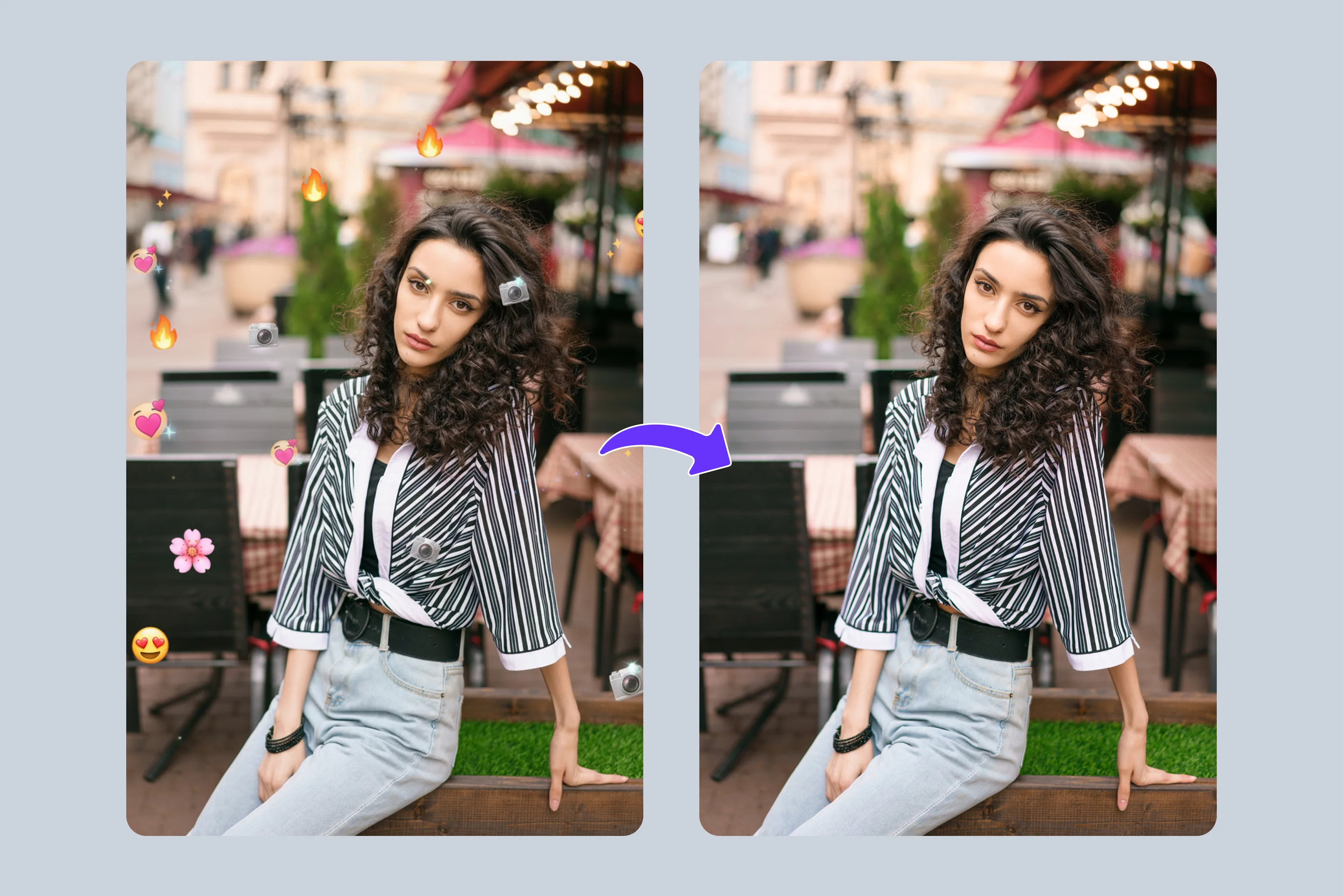


Many people end up with photos that have emojis stuck on faces, text, or important parts of the picture. These emojis usually come from social‑media apps, stickers, or chat filters that someone adds for fun.
After a while, the same photo is needed for a profile, an official document, or a print, and the emoji just does not fit. This is why more users want to remove emojis from a photo and get a clean version. You do not need years of editing experience to remove emojis from a photo.
Today, there are simple AI tools like Pixelbin that do the work for you with just a few clicks. You can keep the natural look of the face or scene while getting rid of the emoji that covers it. In this guide, you will learn how to remove emojis from a photo in a clear, step‑by‑step way. You will see which is the right tool to pick, upload your image, mark the emoji, and save a clean photo you can use anywhere.
When to remove emojis from pictures?
1. Removing emojis from faces
People often add emojis over faces to hide their identity or to make photos look funnier. At times, you may need the original face back for a profile, ID, or print. AI‑based emoji removers clear the emoji while keeping skin texture, shadows, and natural facial details as close to the original as possible.
2. Eliminate unneeded stickers
Social‑media posts and chats often use stickers or emojis as reactions or comments. When you need the original content back or want to clean a professional screenshot, AI‑based online tools can remove those stickers while keeping the text and message around them clear and intact.
3. Restore damaged old images
Old photos sometimes carry stickers or emojis that were added without any reason. Using AI to remove these unwanted elements helps in old photo restoration and maintains the look of the original image without leaving rough or messy spots.
4. Use AI to clean digital photos
Sellers and creators often work with stock images that have watermarks, logos, or emojis on them. AI‑powered photo sticker removers can erase these extra elements so the image looks clean and ready for professional use or product display.
5. Fix overedited images
When too many emojis or stickers are added, a photo can look messy instead of professional. AI emoji removers quickly clean up these over‑edited images, either restoring the original look or preparing them for further editing or different uses.
AI vs. manual editing: Which emoji eraser is easy to use?
When it comes to removing emojis from images or removing objects, you’ve got two main routes: AI-powered tools and manual editing. Each has its strengths and weaknesses. Know them below in more detail:
Who wins: AI wins for most users as it gives fast, clean emoji removal with almost no effort, while manual editing is better only when you need pixel‑level control or are already comfortable with advanced tools.
Remove emojis from a picture online for free- Pixelbin Free AI emoji remover
Unwanted emojis stuck over faces, text, or important parts of your photos can ruin the image you wanted to keep. They often show up as stickers on selfies, playful symbols on product shots, or random emojis blocking text in screenshots and social media posts.
These small marks make your photos look messy and unprofessional. The Pixelbin emoji remover helps you clean those images easily. You can upload PNG, JPG, JPEG, or WebP files up to 10 MB and work with any aspect ratio from 1:1 to 16:9.
The tool uses Nano Banana AI models and more to remove emojis without hurting image quality. You do not need to sign up or install any app. Just upload your photo, let the AI erase the emoji, check the clean preview, and download the result for sharing or selling. Know more in detail below.
Must known features
- Preview and download in HD quality: You can preview the cleaned image and download it in high resolution, completely free from watermarks or extra logos, so it looks ready for profiles, ads, or print.
- Mobile‑friendly for any device: The tool works smoothly on phones and tablets, letting you remove emojis from photos directly in your browser without needing to install any separate app.
- Global CDN for fast sharing: Edited images are delivered through a fast global CDN, so you can share your clean photos quickly across websites, social platforms, or work chats.
- Watermark‑free exports: All downloaded images come without any watermarks or logos, making them suitable for professional use, portfolios, and marketing campaigns.
- Complete privacy and security: Your photos are processed on secure servers and are never stored, reused, or shared, so your personal or business images stay private and protected.
- No sign‑up, instant access: You can start using the emoji remover right away without creating an account or adding any payment details.
How to remove emojis using the Pixelbin AI emoji remover?
Step 1: Upload image
Go to the Pixelbin Emoji Remover and upload your photo by dragging a file or pasting a URL, supporting JPEG, JPG, WEBP, or PNG formats with emojis or stickers.

Step 2: Wait for AI processing
Once uploaded, Pixelbin’s AI automatically detects the emojis, clears the overlays, and regenerates the hidden areas in a few seconds.
Step 3: Preview the result
Check the edited image carefully to see if the emoji is fully removed and the skin, text, or background looks natural and clean.
Step 4: Adjust if needed
If any part looks slightly off, you can re‑upload or tweak the image using the tool’s simple options before finalizing the edit.
Step 5: Download the photo in HD
When satisfied, download the image in high resolution, free from watermarks or logos, ready for sharing, printing, or online use.
Step 6: Reuse or batch‑edit
Use the same tool for multiple emoji‑covered photos or connect via API for bulk editing, saving time on repetitive cleanup tasks.
How to remove emojis from a picture online in the Snapseed app? (Bonus tip)
Snapseed lets you remove emojis from photos directly on your phone without any learning curve or complex tools. Just simply open the image, use the Healing tool to paint over the emoji, and let it blend the area naturally.
The whole process happens inside the app and gives you a clean photo ready to save or share. Know it in detail;
- Open Snapseed and load your photo: Launch the Snapseed app and tap the ”+” icon to upload or select the photo that has the emoji you want to remove. Make sure the image is clear, and the emoji is fully visible on the screen.
- Go to the Healing tool: Tap Tools at the bottom, then choose the Healing option. This tool is designed to remove small objects and blend the background or skin around them automatically.
- Adjust the brush size and select the emoji: Use the slider to set the brush size so it fully covers the emoji without touching too much of the surrounding skin or text. Slowly drag your finger over the emoji area until it is completely marked.
- Let Snapseed blend the area: Once you release your finger, Snapseed will replace the emoji with nearby pixels, matching color and texture. The preview usually updates instantly, so you can zoom in and see if the result looks natural.
- Check and refine if needed: Zoom in on the edited spot and look for any patchy edges, color mismatches, or repeated patterns. If required, repeat the Healing step on small leftover parts of the emoji until the area looks smooth.
- Save the edited photo: When you are satisfied with the result, tap the tick mark to confirm the edit, then tap Export or Save to export the image to your phone’s gallery.
How to remove emojis from a picture in Photoshop? (Most searched query)
Photoshop gives you strong control to remove emojis from photos using precise tools. You mark the emoji with the Healing Brush or Spot Healing Brush and let Photoshop fill the area with nearby pixels.
This method works well for both simple stickers and emojis that partly cover faces or text. Know the steps below.
- Open the image in Photoshop: Launch Photoshop and open the photo that has the emoji covering part of the face. Make sure the image is high enough in resolution so the edit looks smooth after the emoji is removed.
- Duplicate the background layer: In the Layers panel, right‑click the Background layer and choose Duplicate Layer. This keeps the original safe while you edit on the copy, so you can undo or try again if needed.
- Select the Spot Healing Brush: Choose the Spot Healing Brush (J) for small emojis or the Healing Brush for larger or more complex areas. Set the brush size slightly bigger than the emoji so it fully brush off the emoji.
- Paint over the emoji area: Carefully drag the brush over the emoji to remove it. The tool will sample nearby pixels and blend them into the marked area, turning the emoji zone into matching skin, background, or text.
- Refine edges and skin tone: Zoom in and check the edges of the edited area for any roughness, color shifts, or visible patterns. If needed, use the Healing Brush again on small leftover spots or adjust brightness and contrast to match the rest of the image.
- Save the emoji‑free photo: Once the emoji is fully removed and the area looks natural, flatten the image if required and choose File → Save As. Save the result as a JPG or PNG so you can share it online or use it for print.
Final thoughts
Whether you’re cleaning up a photo for social media, fixing a meme, or editing your latest art project, knowing how to remove emojis from photos opens up a world of creative possibilities.
With tools like Pixelbin AI Emoji Remover and all the above given methods, you do not need to be a professional designer to make clean, polished images. You can do it all online in just a few clicks, without installing heavy software or signing up for complex accounts.
The Pixelbin AI Emoji Remover makes it fast to erase emojis and get a clean, HD photo ready to share or sell. So next time an emoji crashes your perfect shot, no need to worry, just upload, brush it away, and let your true image shine through.
FAQs
Yes, you can remove emojis from most photos without noticeable quality loss. Modern tools like Pixelbin use AI to replace the emoji area with matching pixels, keeping the rest of the image sharp and clear.
Yes, several free online tools let you remove emojis from photos easily. You upload your image, mark the emoji, and download the cleaned version without paying for basic edits or features.
No, you do not need design skills to use an AI emoji‑removal tool. These tools are built for beginners, with simple brushes and one‑click buttons that anyone can use to clean emojis in seconds.
Pixelbin’s Emoji Remover is an AI‑powered online app that removes emojis and stickers from photos. Upload a PNG, JPG, or WebP file, mark the emoji area, and the AI erases and blends it smoothly.
No, you do not need to sign up or pay to use Pixelbin’s Emoji Remover. You can upload an image, preview the edited result, and download the clean photo without creating an account or entering payment details.
Yes, Pixelbin’s Emoji Remover can remove multiple emojis in the same photo. You can mark each emoji area with the brush, and the AI processes them together, giving you a fully cleaned image in one go.









