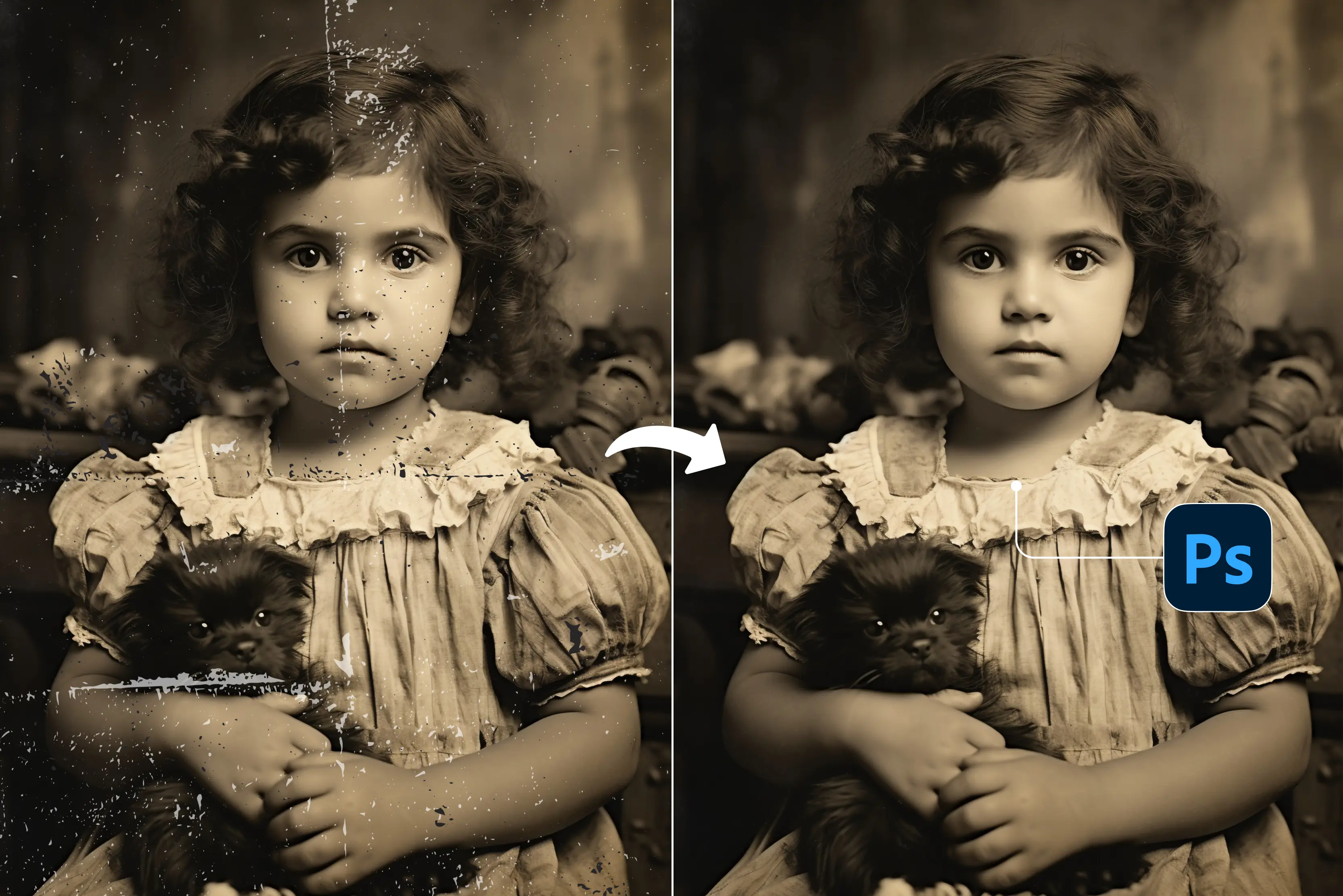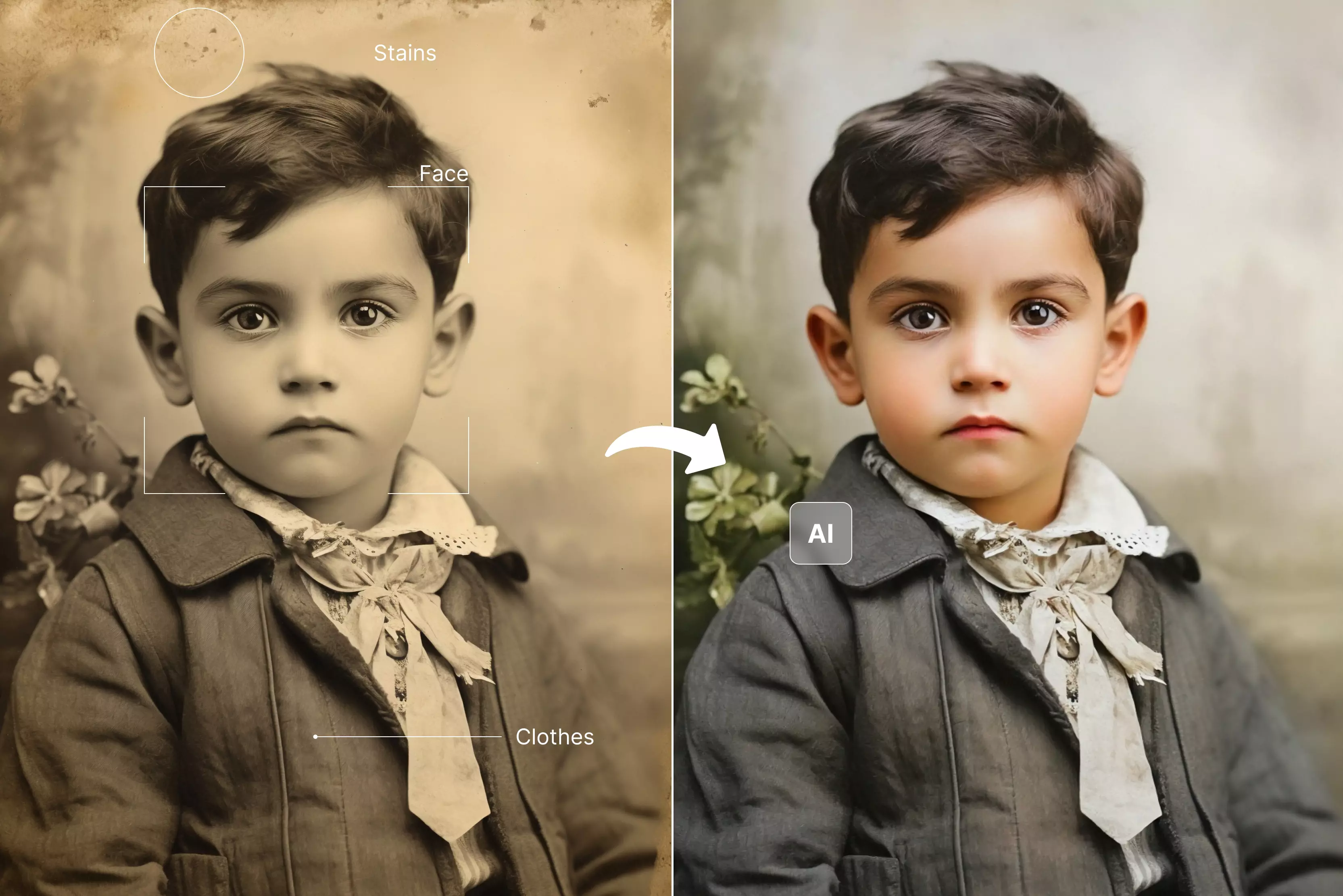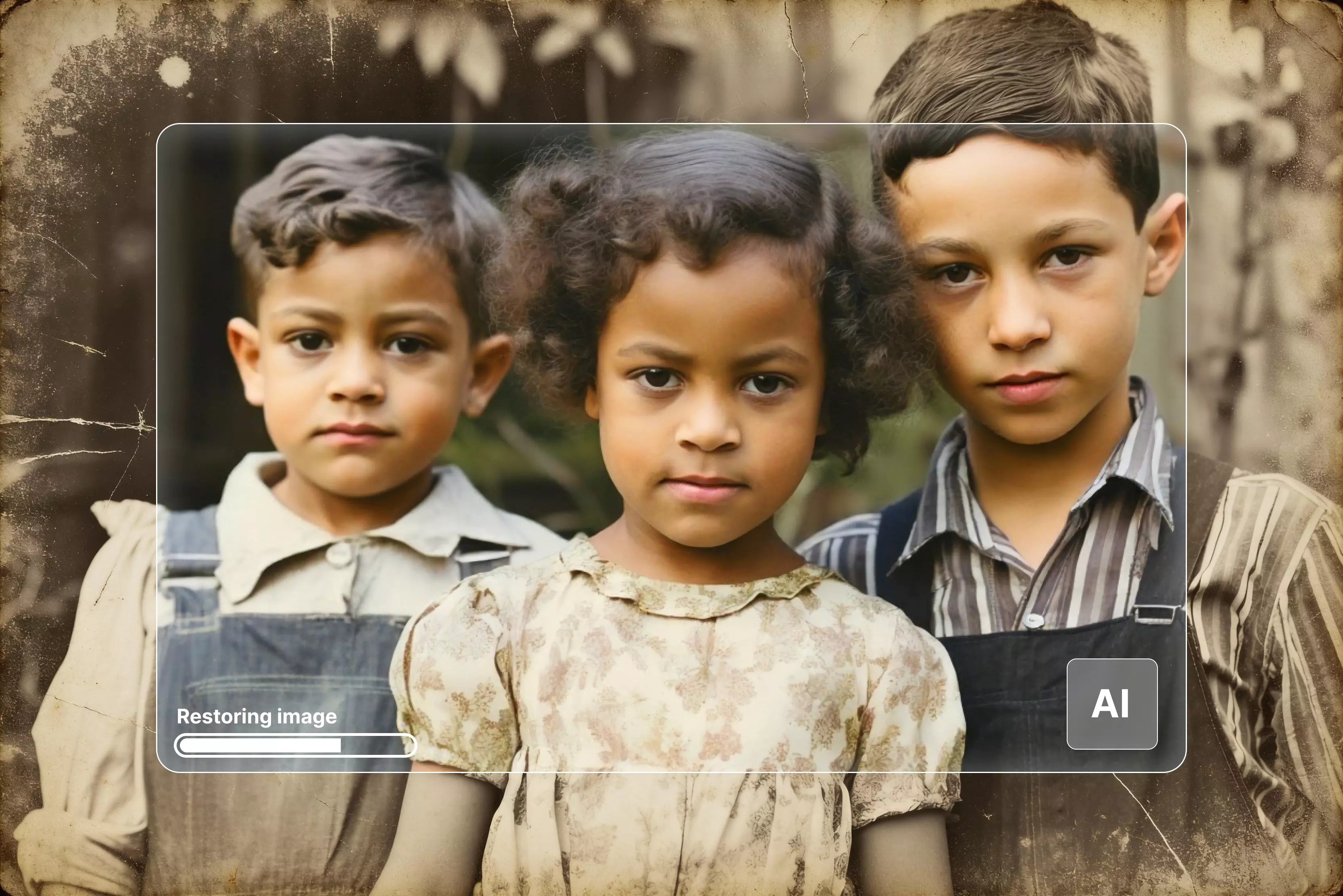

Old photos have a strange kind of magic. No matter how faded or damaged they get, they still hold stories that take us back to moments we never want to forget. Over the years, some of my favorite pictures have lost their colors, gathered scratches, and almost vanished. That’s when I discovered how powerful AI old photo restoration can be it brings those worn-out memories back to life.
Earlier, old photo restoration used to mean hours of editing, with every mark carefully fixed by hand. Now, AI tools have made the process faster and surprisingly effortless, without losing that personal touch and going through learning skills to understand how restore old photo.
In this blog, I’ll guide you through how the process works, and you will get to know about 8 tools like Pixelbin, Evoto, and a few others to make old memories shine again
Why restore old photos?
Old photos carry more than just faces; they hold memories, emotions, and stories we never want to lose. I have opened old albums many times and seen how time slowly fades them, edges tear, colors fade, and sometimes even the people in them start to blur. It honestly hurts to see those moments slipping away. That’s why old photo restoration means so much. It’s a way to hold onto the past a little tighter
The real value of restoring old photographs
Old photographs deteriorate faster than most people expect and many exist as a single print with no surviving negative.
- Preserve family lineage: Restored images keep generational memories intact and accessible for the people who come after you.
- Reconnect emotionally: Recovering facial detail and background context makes ancestors feel real, not just names on a family tree.
- Create lasting heirlooms: A restored digital file can be printed, framed, and shared across the entire family instantly.
- Protect irreplaceable history: Once a photograph is lost to damage, that moment and everything it captured is gone permanently.
How to restore old photos? (Basic steps)
Restoring old photos means carefully repairing faded, damaged prints so they feel like the original memory. To understand how to do it in generalized steps, have a quick look at the table below.
| Operational Checklist | Practical Steps |
|---|---|
| Frame the Subject with Care | Use intelligent cropping tools to remove torn borders, messy edges, and physical edge degradation so the focus stays entirely on the central scene. |
| Supervise Structural Cleanup | Let automated algorithms handle broad cracks, background stains, and dust spots, then step in manually where fine details like hair, fabric, or skin features are blurred or smudged. |
| Adjust Tone and Color with Balance | Apply natural, warm, period-appropriate color tones and contrast curves instead of relying on over-saturated, flat, or unnaturally vibrant modern hues. |
| Sharpen Key Areas Lightly | Use an image sharpener strictly on focal points like eyes, lips, and clothing textures to recover structure without making the photo look plastic or overly artificial. |
Author’s Tip:
When using the below mentioned methods to perform old photo restoration, you don’t need to perform these steps manually; the model takes care of most of the work. But if you’re using Photoshop or similar manual‑editing software, you should keep these points in mind and apply them to guide the final result effectively.
Top methods to restore old pictures (AI tools, Photoshop & more)
Damaged photographs can be restored, you just need the right approach. Here are the most effective methods right from popular AI tools to manual methods people use today to understand more in details about how to restore old photographs.
Method 1: How to restore old photos with Pixelbin old photo restoration?
Restoring old photo used to mean hours in a professional editing studio like Photoshop or Lightroom. Today, dedicated tools like Pixelbin AI old photo restoration tool have made the process accessible to anyone, regardless of technical background or editing experience. Whether you are salvaging a single faded portrait or working through an entire family archive, the right software handles the heavy lifting.
Pixelbin's old photo restoration tool works entirely in your browser, no software installation needed. Upload a damaged JPG, JPEG, PNG, or WEBP file up to 10MB, and it automatically detects and repairs scratches, fading, discoloration, and tears. Results appear in seconds with a clear before-and-after view, making it practical for preserving low-resolution images, wedding albums, and historical images.
Steps to perform old photo restoration using Pixelbin
Step 1: Upload your old photo
Click the "Upload Image" button and select your old photo in PNG, JPG, JPEG, or WEBP format. Your file must be under 10MB. Choose the AI model and aspect ratio that fits your restoration needs perfectly.

Step 2: Select AI model and settings
Choose from available AI models like Nano Banana and others. Pick your preferred aspect ratio like 1:1, 16:9, or 9:16. These settings ensure the AI applies the right restoration techniques for your photo.
Step 3: Let AI repair automatically
The AI scans your photo and automatically repairs scratches, cracks, stains, and dust spots. It restores faded colors, enhances facial details, and sharpens blurry areas. The entire process completes within one minute without any manual intervention needed.
Step 4: Preview restored results
Preview your restored photo to check quality before downloading. Zoom in to verify face clarity, color accuracy, and scratch removal. Ensure the restoration looks natural without over-smoothing or artificial plastic effects on your important old photo memories.
Step 5: Download HD watermark-free image
Download your fully restored photo in HD quality, completely watermark-free. Save in PNG, JPEG, or WEBP format for printing or sharing online. Your old photo is now restored with vibrant colors, sharp details, and no visible damage or scratches.
Method 2: How to restore old photo using Adobe Photoshop?
When it comes to photo editing, Photoshop is impossible to overlook. As Adobe's flagship product, it carries decades of industry trust and an extensive toolset that covers virtually every editing need imaginable.
However, it comes with two well-known drawbacks like a steep subscription cost and a workflow that genuinely takes time to learn. Despite that, many professionals still rely on it for detailed restoration work. So the real question is: how to do old photo restoration in Photoshop?
Step 1: Open the image and set up non-destructive layers
Import your high-resolution scan into Photoshop. Go to the top menu bar and select Layer, then click Duplicate Layer. This creates a separate working layer, ensuring your original scan remains completely untouched as a backup.
Step 2: Erase physical defects and scratches
Select the Spot Healing Brush from the left toolbar to quickly click away small dust specs and thin scratch lines. For larger, more complex areas like a tear running through a detailed clothing pattern switch to the Clone Stamp Tool. Hold down the Alt (Windows) or Option (Mac) key to sample a clean texture area, then carefully paint over the damage to rebuild the pattern seamlessly.
Step 3: Apply neural filters for automated colorization
If you are working with a grayscale photo, navigate to the top menu, select Filter, and open Neural Filters. Locate and toggle the Colorize filter on. Photoshop’s cloud-based AI will analyze the scene and automatically apply a balanced, natural color palette across the image.
Step 4: Fine-Tune tones and fix faded contrast
To bring back depth to a washed-out or yellowed photo, add a Curves Adjustment Layer. Adjust the highlight and shadow points on the master histogram curve to fix old color casts, deepen shadows, and boost overall contrast without losing fine image details.
Method 3: How to restore old photographs manually?
Manual photo restoration gives you complete control over every repair decision, making it the preferred approach for photographs with significant sentimental or historical value.
- Scan the original print first: Before touching anything, create a high-resolution scan at a minimum of 600 DPI. This becomes your working file and your safety net if anything goes wrong during editing.
- Assess the damage carefully: Identify exactly what needs fixing, whether that is tears, scratches, fading, discoloration, or missing sections, before selecting your tools. Rushing this step leads to inconsistent results.
- Use the Clone Stamp tool: This remains the most reliable method for repairing scratches, dust marks, and small tears by sampling clean areas of the image and painting over damaged sections precisely.
- Work in layers: Never edit directly on the original scan. Working in separate layers lets you reverse individual corrections without affecting the rest of the image.
- Adjust tones gradually: Restore contrast, brightness, and color balance in small increments rather than large sweeping adjustments. Subtle corrections preserve the photograph's original character far better.
- Save multiple versions: Keep the original scan, a mid-restoration version, and the final file separately so you always have a reliable fallback at every stage.
Method 4: How to restore old photo online for free using alternative AI tools
With the below guide, pour new life into faded memories with the 7 best old photo restoration tools to restore scratches, colors, and clarity effortlessly.
1. Picsart AI Photo Restoration
Picsart AI photo restoration handles restoration across web and mobile, supporting PNG, JPG, JPEG, and WEBP files without any software download. Upload a damaged photo and choose between two approaches: Enhance with AI that repairs the whole image automatically, while Edit with AI lets you type a prompt and receive two restored variations instantly. Batch processing makes it genuinely useful for anyone working through an entire family album rather than fixing photos one at a time.
Must known features
- Automatic AI restoration that detects and removes scratches, tears, spots, and sepia tones from old photographs without any manual editing steps.
- Two dedicated restoration paths including AI Enhance for full-image repair and Edit with AI for prompt-based restoration that generates two variations instantly.
- Batch processing that restores multiple old photos or entire family albums at once, making it the most time-efficient option for large digitising projects.
- Resolution enhancement that recovers fine detail and sharpens blurry or faded areas, producing print-ready output from heavily deteriorated originals.
- Browser and mobile access with no software download, plus integration with Picsart's colorizer, image upscaler, and full editing suite for complete photo revival.
2. Nero AI Photo Restore
Nero AI photo restore tool accepts JPG, JPEG, PNG, BMP, WEBP, JFIF, and AVIF files entirely in the browser. New users get 10 free credits, with each restoration effect using one credit. Drop in a damaged photograph and it automatically removes scratches, sharpens faded colors, and clears surface deterioration within seconds. A dedicated face enhancement model recovers blurry facial detail in portraits specifically, and built-in colorization converts black and white prints into natural-looking color images without any manual adjustment.
Must known features
- Automatic scratch removal, color sharpening, and surface damage repair that processes old photographs in seconds using AI without manual input.
- Dedicated face enhancement model that specifically recovers blurry and degraded facial detail in vintage portraits and old family photographs.
- Built-in colorization that converts black and white or sepia old photos into natural-looking color images without any manual color selection or adjustment.
- Credit-based free access giving new users 10 restoration credits, with each effect consuming one credit and additional credits available for purchase as needed.
- Supports JPG, JPEG, PNG, BMP, WEBP, JFIF, and AVIF formats entirely in the browser, with API integration available for developers embedding restoration into their own applications.
3. Evoto AI Old Photo Restoration
Evoto is free, requires no account, and works directly in the browser with JPEG, JPG, PNG, and WebP files. Upload a damaged photo and it automatically finds and repairs scratches, fading, discoloration, creases, stains, and tears while keeping the original texture intact. Black and white photographs can be colorized in the same session. Once processing finishes, a side-by-side before-and-after preview lets you review the result before downloading a high-resolution file ready for printing or sharing.
Must known features
- Automatic detection and repair of scratches, fading, discoloration, creases, stains, mold, and tears while preserving the original texture and character of old photographs.
- Built-in colorization that converts black and white photographs into natural color versions in the same session, without switching to a separate tool.
- High-resolution output that recovers fine facial detail, sharpens textures, and improves overall image clarity for old prints intended for framing or digital sharing.
- Side-by-side before-and-after preview that lets you review the full restoration result before committing to a download, avoiding wasted credits or unwanted changes.
- Completely free and browser-based with support for JPEG, JPG, PNG, and WebP formats, requiring no account registration or software installation to get started.
4. PicWish AI Old Photo Restoration
PicWish AI old photo restoration supports PNG, JPG, JPEG, HEIC, WEBP, and JFIF files and delivers output up to 4096px resolution. What sets it apart is three dedicated restoration modes built for different damage levels, so a lightly faded print and a severely torn photograph get treated differently. Advanced face enhancement unblurs and recovers facial detail automatically. Text prompt support lets you fine-tune results after restoration. Built-in colorization and a few free credits are included, with additional credits available as needed.
Must known features
- Three dedicated restoration modes built for different damage levels, handling everything from lightly faded prints to severely torn and creased old photographs with equal accuracy.
- Advanced face enhancement that automatically detects, unblurs, and recovers fine facial detail in old portraits where the subject has deteriorated beyond basic repair.
- Text prompt support that lets you describe specific improvements after the initial restoration, giving you more control over the final result than single-click tools offer.
- Built-in colorization that adds realistic, natural-looking color to black and white old photographs, with image enlargement available up to 4096px for high-quality print output.
- Free credits included on signup with support for PNG, JPG, JPEG, HEIC, WEBP, and JFIF formats, plus batch processing for up to 30 images on the desktop version.
5. NoteGPT AI Photo Restoration
NoteGPT Ai photo restoration runs on Google's Nano Banana model and accepts PNG, JPG, JPEG, and WebP files up to 10MB, extended to 20MB for premium users. It removes scratches, dust, and blemishes while recovering faded colors and sharpening fine detail automatically. Resolution upscaling reaches up to 8K. Free users get two restorations per day, while premium accounts unlock batch processing for handling multiple photos at once. It also connects to NoteGPT's wider suite covering image enhancement, background removal, and object removal.
Must known features
- One-click restoration removes scratches, tears, fading, and blurs while reviving colors and sharpness automatically.
- High-resolution upscaling up to 8K that enhances restored old photographs without introducing noise, making them suitable for large-format printing or high-definition digital display.
- Batch processing for premium users that restores multiple old photos or full family albums simultaneously, with free users receiving two restorations per day at no cost.
- Accepts PNG, JPG, JPEG, and WebP files up to 10MB for free users and up to 20MB for premium accounts, accommodating high-resolution scans of original prints.
- Integrated with NoteGPT's full AI image suite covering enhancement, background removal, object removal, and image generation for complete restoration and editing in one platform.
6. Recraft Old Image Restoration
Recraft ola image restoration is a full professional design platform, and restoration is one part of a much larger toolkit that includes an AI image generator, vector creator, image upscaler, and AI eraser. It repairs scratches, tears, spots, stains, and sepia photographs, with inpainting and outpainting giving you precise control over damaged areas. No installation is needed. Plans start at $20 per month, with a Pro plan at $48 per month. It suits designers and creators who want restoration sitting alongside their full creative workflow.
Must known features
- Repairs scratches, tears, spots, stains, and physical damage on old photographs, with support for sepia and black and white images that need tonal recovery alongside structural repair.
- Inpainting tool that lets you target and repair specific damaged areas of an old photograph precisely, rather than applying blanket corrections across the entire image.
- Outpainting feature that extends missing or damaged edges of old photographs by generating contextually accurate content that matches the original style and period of the image.
- AI eraser that removes unwanted elements from old photographs cleanly, useful for clearing damage artifacts or distracting marks left by decades of physical deterioration.
- Part of a full professional design platform with an image upscaler, vector creator, and AI image generator, giving designers a complete workflow from restoration to final output.
7. Media.io AI Photo Restorer
Media.io AI photo restorer accepts JPG, PNG, WEBP, and BMP files up to 10MB with a maximum input resolution of 4000x4000 pixels. It repairs fading, scratches, tears, and discoloration using super-resolution technology and delivers HD output without watermarks. Upscaling runs at 2x, 4x, and 8x magnification. Black and white photographs can be colorized, and batch processing handles multiple images simultaneously. Free credits are provided on signup, and the entire process runs in the browser with no download or technical knowledge required.
Must known features
- Super-resolution technology that repairs fading, scratches, tears, and discoloration in old photographs while delivering HD output without adding a watermark to the final file.
- Upscaling at 2x, 4x, and 8x magnification that recovers fine details from deteriorated old prints, making restored images suitable for large-format printing and high-resolution digital use.
- Colorization that converts old black and white photographs into natural color images, with intelligent analysis of tones and textures to produce historically appropriate color results.
- Batch processing that restores multiple old photographs simultaneously, reducing the time needed to work through family archives or collections of damaged historical prints.
- Accepts JPG, PNG, WEBP, and BMP files up to 10MB with a maximum input resolution of 4000x4000 pixels, running fully in the browser with free credits provided on signup.
Final thoughts
Hence, preserving your family legacy no longer requires hours of tedious manual editing or expensive professional studio fees. Modern AI platforms have completely transformed the archiving landscape, allowing anyone to rescue fragile, aging prints from permanent degradation with a single click.
AI killed the learning curve. The best thing I loved about these best old photo restoration tools is how they can clean up the photo clarity, sharpen faces, and even colorize black-and-white pictures. But Pixelbin? My go-to for perfect and quick results, restores clean, optimizes pixel-perfect, and has no crashes. Upload done, and memories preserved.
FAQs
You can restore faded or yellowed old photos by uploading them to an online AI old photo restoration tool that automatically corrects color casts. The underlying artificial intelligence analyzes the grayscale or sepia pixel gradients, reverses the chemical degradation caused by aging, and balances the exposure. This process deepens washed-out shadows, sharpens fine details, and infuses natural, historically accurate colors back into vintage family prints.
Yes, advanced AI photo restoration tools feature intelligent structural inpainting models that completely erase deep cracks, scratches, and tears. Instead of just blurring out the damaged areas, the AI scans the pixels surrounding the physical tear, identifies the missing pattern context, and mathematically reconstructs the lost image data. This allows you to patch heavy surface damage seamlessly while preserving the original textures of the portrait.
Yes, modern AI photo editors like Pixelbin image editor feature specialized face restoration models designed specifically to repair facial features in blurry portraits. When the algorithm detects a human face, it isolates the region from the background and applies a deep learning model trained on high-resolution facial textures. This allows the tool to realistically reconstruct intricate details like eyes, hair strands, and skin textures so the output looks clean and natural instead of synthetic or painted.
Pixelbin, Picsart, PicWish and all the above mentioned tools are the best old photo restoration tools. These platforms excel at automatically detecting and eliminating surface scratches, repairing deep creases, correcting old color casts, and colorizing black-and-white prints within seconds using automated web dashboards.
Yes, many premier AI photo restoration platforms offer free tiers or trial credits to process your images. Applications like Pixelbin provide free initial trials with high-definition, watermark-free exports, while platforms like Picsart, NoteGPT and few other tools offer free basic processing options to help you test their cleanup models before committing to a paid subscription.
To get the best results from AI tools, scan your physical prints at a minimum of 300 DPI (600 DPI is ideal for small prints) and save them as uncompressed JPEG or PNG files. Make sure to wipe any loose dust off your scanner bed, crop away heavily frayed edges, and run your test images through an automated tool one at a time to check the processing quality.