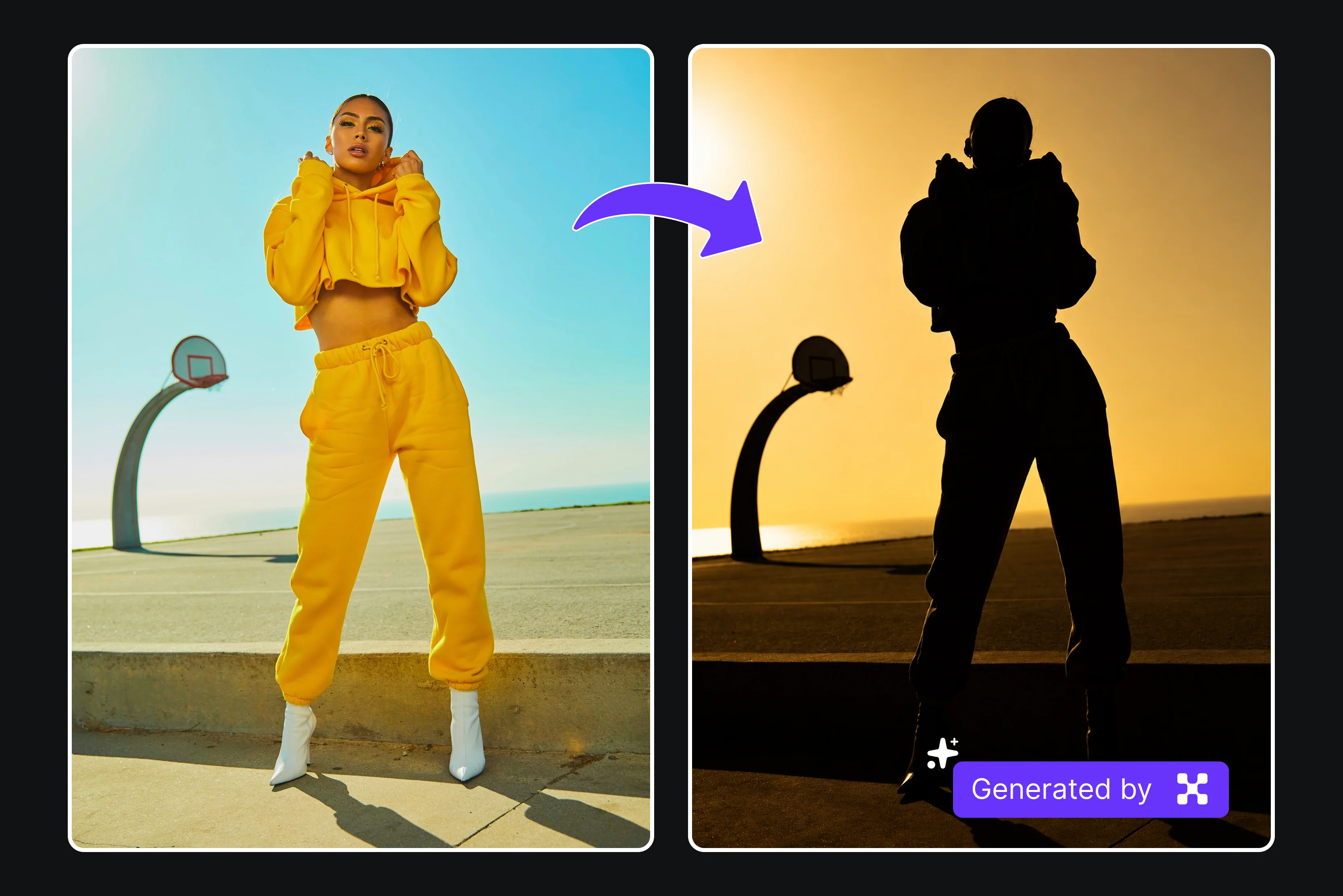


Silhouette art feels modern and dramatic, using bold shapes to convey emotion without detail. Creating a clean silhouette by hand is time-consuming, especially with complex edges like hair or flowing clothes. Manual tracing leads to uneven lines and mistakes, making the result look rough.
AI tools solve this by automatically detecting the subject, removing the background, and converting the outline into a bold silhouette in seconds. You don't need Photoshop, browser-based converters like Pixelbin handle the work. Upload your photo, choose silhouette mode, and download a clean PNG with crisp edges for posters, logos, or profile pictures.
This guide will show you how to make a silhouette using easy online tools like Pixelbin and others that do not require advanced skills. You can follow a simple, beginner‑friendly workflow, get good results, and start using your silhouettes in everyday designs. Keep reading to discover them all.
What Is an AI Silhouette?
An AI silhouette is a solid black outline of a person or object created with artificial intelligence. The tool detects the subject in your photo, removes the background, and fills the shape with a single color so you get a clean, high‑contrast silhouette without manual tracing or design skills.
Why does AI beat traditional silhouette tracing every time?
How does AI create silhouettes from photos?
AI silhouette tools follow a structured process to turn a regular photo into a clean, readable silhouette. Instead of applying a filter, they analyze the image step by step to isolate the subject, refine the outline, and remove unnecessary detail.
1. Subject Detection and Masking with AI
The first step is separating the subject from the background. The system identifies the person, object, or figure and creates a precise mask around it, even in challenging areas like hair, loose clothing, or dynamic poses.
This stage relies on computer vision for masking, similar to digital portrait cutting techniques. By understanding where the subject ends and the background begins, the tool ensures that the silhouette outline stays accurate and doesn’t blend into surrounding elements.
2. Edge Detection, Smoothing, and Fill
Once the subject is isolated, the outline is refined. Edge detection identifies the outer contour and simplifies it into a clean shape. Internal details such as facial features, folds in clothing, or textures are removed so the focus stays on the overall form.
Smoothing is applied to fix jagged or uneven edges, which is how AI edge detection creates silhouettes that look polished rather than rough. This step is key for users who want to fix messy silhouette edges with AI and produce results suitable for printing or vector export.
3. Background Removal and Styling Options
After the silhouette is formed, the background is either removed entirely or replaced. Transparent backgrounds are useful for design work, while solid colors like white or black are common for classic silhouette art.
Some tools, like Pixelbin, also allow custom backdrops, such as sunset gradients or textured backgrounds. Thoughtful use of negative space helps the silhouette stand out and keeps the final image visually balanced.
What features to look for in the best AI silhouette maker?
Not all silhouette tools produce the same quality of results. Some create rough cutouts, while others generate clean, professional silhouettes suitable for design, printing, or crafting. Knowing which features matter helps set clear expectations and avoid extra cleanup work.
1. One‑click silhouette conversion
A good AI silhouette maker lets you convert a photo into a silhouette with one click, automatically filling the outline in solid black and removing the background. This avoids manual masking or tracing and gives you a fast, clean result without extra steps or complex settings.
2. Adjustable contrast & edge smoothing
Look for tools that let you tweak contrast and edge smoothing so you can refine the outline around hair, profiles, and curves. These controls help remove jagged edges and uneven lines, making the silhouette look smooth and polished for prints or design work.
3. Vector output (SVG / EPS)
Choose a tool that supports vector export, like SVG or EPS, so your silhouette scales to any size without losing quality. This is important for logos, cutters, and large‑format prints because the edges stay sharp and crisp at different sizes.
4. Background & color controls
Pick a platform that lets you change backgrounds and colors, including black, white, custom shades, or transparent PNG. This flexibility makes your silhouette easy to use in different layouts, posters, or designs without extra editing.
5. Batch processing
Go for a tool that supports batch processing so you can create multiple silhouettes in one go. This saves time when working with family photos, teams, or event graphics because you do not have to upload each image separately.
6. HD export
Make sure the tool offers high‑definition or HD export so your files stay sharp and print‑ready. This helps your silhouette look clean at larger sizes, making it suitable for wall art, stickers, or professional design projects.
Best AI tools for creating silhouettes
Here is the best AI tools for creating silhouettes that let you turn photos into clean, bold outlines without design skills. These online tools detect your subject, remove the background, and generate a sharp silhouette in seconds. Know them below;
1. Pixelbin free AI silhouette maker
Pixelbin silhouette maker is my best pick as it turns photos into clean, black‑and‑white silhouettes with almost no effort. You can upload your image by clicking “Upload Now” and choosing files in JPG, JPEG, PNG, or WEBP format up to 10 MB. The tool works directly in your browser, so you do not need to sign up or download anything.
If you want to try a sample, simply select one of the ready‑made AI models, like Nano Banana or others, in the preferred aspect ratio and let the AI generate a silhouette instantly. This makes it easy to test the tool, compare styles, and reuse the output for social media, stickers, or design projects.
Must known features
- Converts any image into a clean black‑and‑white silhouette with one click, no prompts or manual tracing required.
- Supports JPG, JPEG, PNG, and WEBP files up to 10 MB, giving flexible upload options for your projects.
- Works entirely in the browser on any device without sign‑up or payment for basic silhouette creation.
- Offers HD, watermark‑free PNG downloads that are ready for designs, stickers, and prints.
- Allows bulk processing through its API so you can generate multiple silhouettes at once efficiently.
- Keeps your data private and secure, never storing or sharing your uploaded images at any step.
2. Fotor free AI silhouette maker online
Fotor AI Silhouette maker lets you turn any photo into a clean, black‑and‑white silhouette directly in your browser on a desktop or mobile device. You upload your image, which can be JPG, PNG, or other common formats, and the AI removes the background and fills the subject with a solid black outline in just a few clicks.
You can choose from ready‑made silhouette templates, adjust the effect, add text, stickers, or borders, then download the result for use in profiles, posters, stickers, or prints. The tool works without sign‑up, has no watermark, and is free to use, making silhouette creation simple and fast.
Must known features
- Turns your photo into a silhouette in seconds using an AI‑powered editor without any manual editing.
- Offers many ready‑made templates with different background styles and themes for silhouette designs.
- Adds text, stickers, borders, and effects directly into the silhouette editor for polished results.
- Generates silhouettes from both images and text prompts inside Fotor’s larger creative ecosystem.
- Needs no design skills and gives quick one‑click results suitable for social media and print work.
- Runs in the browser, is free to use, and keeps your images safe and private during processing.
3. Phot.AI silhouette maker
Phot.AI AI Silhouette maker converts photos into elegant silhouettes using smart image analysis technology. You upload your image in standard formats like JPG or PNG, and the AI automatically detects the subject, strips away colors and textures, and creates a clean, high‑contrast outline in seconds.
You can describe the style you want in text, adjust colors, opacity, and background, then download the silhouette for logos, storytelling images, or decor. The tool runs entirely in the browser, needs no sign‑up, and is free to try, with extra options for advanced editing and AI‑generated imagery in the same ecosystem.
Must known features
- Converts images into elegant silhouettes using a text‑prompt based generator for precise control.
- Describes the silhouette style, then choose format, aspect ratio, and output count together.
- Produces high‑resolution, clean black‑and‑white silhouettes ideal for logos and branding purposes.
- Integrates with other Phot.AI tools like enhancer, background remover, and art generator.
- Works online, needs no install, and is free to try within a usage‑based plan.
- Maintains shape accuracy and recognizability of the subject without losing important outline details.
4. Media.io AI silhouette maker
Media.io AI Silhouette maker turns any portrait or object photo into a sharp, high‑contrast silhouette with one click. You upload your image in JPG, PNG, or WEBP format, and the AI detects the edges, removes the background, and fills the subject so the outline becomes a solid black shape.
You then download the result as a high‑resolution PNG with a transparent background, ideal for profiles, logos, wall art, or social‑media designs. The tool is free, works in the browser on any device, and requires no design skills or login, letting you quickly reuse your silhouettes for personal or light‑commercial projects.
Must known features
- Transforms portrait or object photos into sharp, high‑contrast silhouettes with one simple click.
- Automatically detects edges and removes the background, giving a clean black outline each time.
- Exports results as high‑resolution PNG with transparent background for easy design use.
- Is entirely free to use, with no download or sign‑up needed for basic processing.
- Runs in the browser and works fast on any device connected to the internet.
- Handles a wide range of subjects from portraits and pets to logos and wall‑art ideas.
5. Pixa silhouette maker
Pixa Silhouette tool converts your images into clean, artistic silhouettes using its AI‑driven editor. You upload your photo, then type a simple prompt like “turn this into a silhouette,” and let the AI analyze the subject and generate a bold outline without manual tracing.
The tool supports common formats such as JPG and PNG and exports high‑resolution, watermark‑free PNG files that are ready for prints, decals, or Cricut‑style crafts. It handles portraits, couples, pets, and objects, and is free to try for beginners, making it a quick way to turn everyday photos into craft‑ready silhouettes.
Must known features
- Uploads a photo and types a prompt like “turn this into a silhouette” for instant AI‑based conversion.
- Uses AI‑driven subject detection to create a clean, craft‑ready silhouette outline directly from the image.
- Supports portraits, couples, pets, groups, and objects, making it versatile for many use cases.
- Exports high‑resolution, watermark‑free PNG files suitable for prints, decals, and Cricut‑style cutting.
- Is free to try so you can test before using it for gifts, logos, or wall art.
- Works in the browser and needs no design software or advanced editing skills from the user.
6. InsMind silhouette maker
InsMind Silhouette Maker lets you convert any photo into a clean silhouette with a simple upload and brightness slider. You can log in or use basic features without an account, upload your image in JPG or PNG, and the AI automatically cuts out the subject, leaving a transparent background.
You then adjust the brightness to turn the outline into a solid black shape and can add a new background, text, or stickers before downloading. The tool supports high‑quality exports for social media, prints, and profiles, and offers low‑cost upgrades for more downloads while keeping the workflow simple and beginner‑friendly.
Must known features
- Turns a regular photo into a silhouette with a simple brightness slider and one‑click background removal.
- Automatically removes the background and keeps the subject outline visible for easy darkening into black.
- Supplies AI‑generated and preset backgrounds you can add behind your silhouette for more style.
- Adds sharpening, contrast, and filter tools to refine the final silhouette for your project.
- Provides text, stickers, and smart resize options so you can fully customize the final image.
- Is free to use for basic resolutions with low‑cost upgrades for high‑quality downloads later.
7. GoEnhance AI silhouette maker
GoEnhance AI Silhouette Maker turns photos into precise silhouettes using computer-vision algorithms. You upload your image in JPG or PNG, and the AI instantly analyzes the main subject, separates it from the background, and fills it to create a sharp outline.
The tool can maintain a background or lighting around the silhouette for a more natural look and delivers high‑resolution results suitable for logos, social‑media assets, and printed art. It is free to try, runs in the browser with no sign‑up, respects privacy by processing images in real time, and supports a wide range of subjects from portraits and groups to animals and objects.
Must known features
- Converts any photo into a precise silhouette outline using advanced AI segmentation and edge detection.
- Works on portraits, groups, animals, and objects, giving clean, consistent results every time.
- Preserves the original background or lighting for a more natural, layered silhouette effect.
- Produces high‑quality, professional‑grade outputs ready for logos, decor, and printed materials.
- Is entirely web‑based, needs no software install, and runs on desktops and mobile browsers.
- Processes images securely and in real time, without storing them on the server afterward.
8. Kaze AI silhouette maker
Kaze AI Silhouette Maker converts any photo into a sharp, clean silhouette in one click, with no design experience needed. You upload your image, typically in JPG or PNG format, and the AI uses advanced segmentation to detect the subject’s shape with pixel‑level accuracy, then turns it into a solid black outline.
You can keep the original background or choose a new one before downloading the silhouette as a PNG for crafting, wall art, gifts, or social‑media posts. The tool is completely free, requires no signup, works on any device in the browser, and focuses on fast, accurate results for portraits, pets, and everyday images.
Must known features
- Turns your uploaded photo into a sharp, clean silhouette in one click with no extra settings.
- Uses advanced segmentation to detect the subject with pixel‑level accuracy before silhouetting it.
- Presents the option to keep the original background or choose a new one behind the outline.
- Exports PNG files that you can use for crafts, wall art, gifts, or social‑media posts.
- Runs in the browser on any device and requires no sign‑up or account creation to use.
- Keeps the tool free to use while focusing on fast, accurate silhouettes for everyday photos.
Final thoughts
Turning your photos into silhouettes using AI tools lets you create custom artwork for logos, posters, stickers, and social media without needing design skills or special software. A clear image with good lighting and a simple background helps keep the silhouette recognizable and the edges clean and sharp.
If you want to try it yourself, Pixelbin’s Silhouette Maker gives you a simple, no sign-up way to convert photos into silhouettes quickly. Choose your tool from the options above, check the result at different sizes, and make sure your final silhouette looks crisp and professional before using it in prints, crafts, or digital designs. This way, your silhouettes stay clear and effective in every project you use them.
FAQs
An AI tool detects the subject, removes the background, and fills the outline with a solid color to create a clean, high‑contrast silhouette from your uploaded photo.
No, you do not need design skills or Photoshop-like software because AI silhouette tools run in the browser and create the outline automatically with a single click.
Clear photos with good lighting, simple backgrounds, and sharp edges around the subject produce the cleanest silhouettes without rough or missing edges.
Yes, modern AI analyzes the subject’s outline and key features, so the silhouette often remains clearly recognizable and true to the original shape.
Pixelbin’s Silhouette Maker lets you upload an image, detect the subject, remove the background, and fill it to create a solid black silhouette instantly.
Yes, Pixelbin’s Silhouette Maker is free to use and works directly in your browser, so you do not need to download or install an app or sign up.