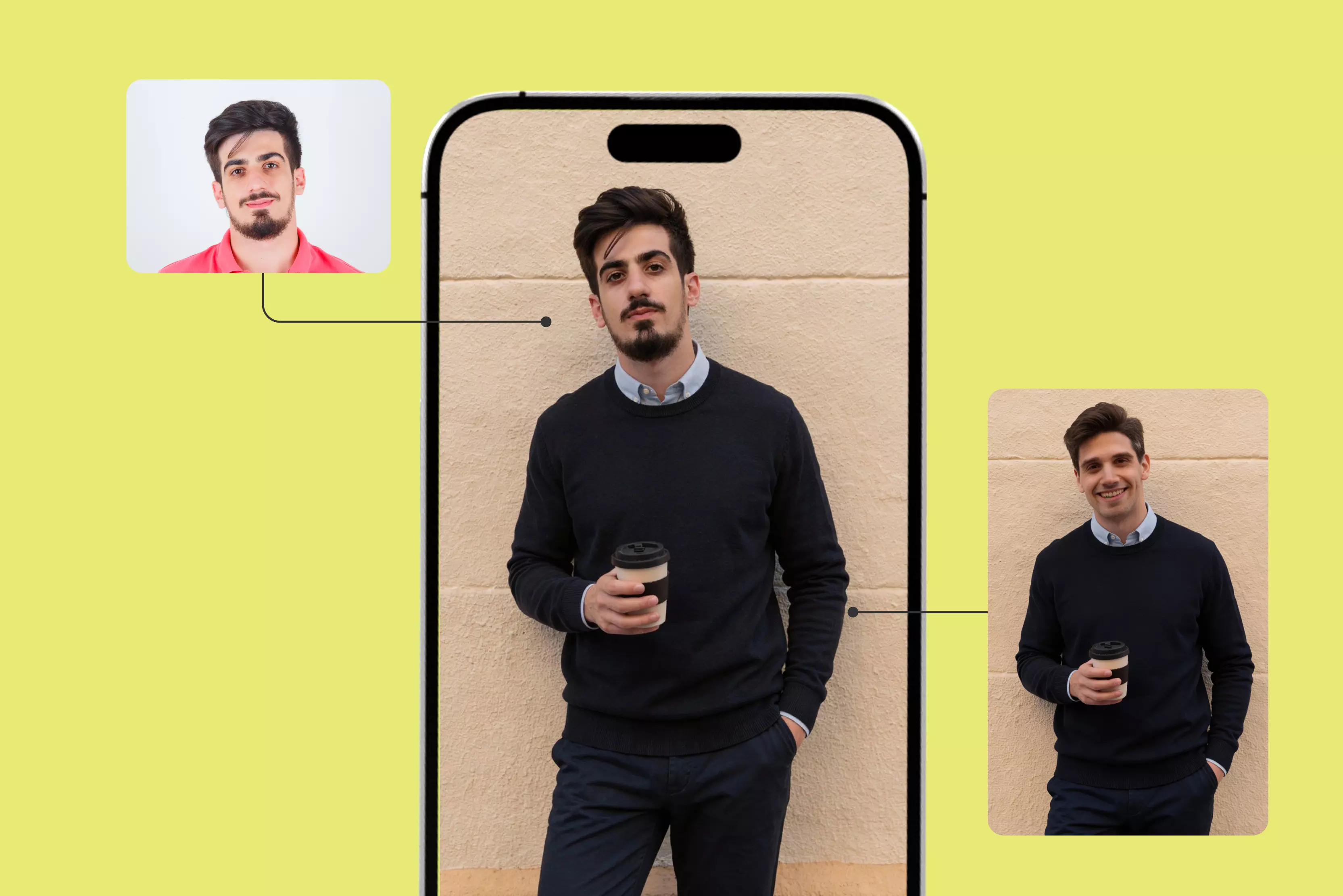


Ever snapped a photo and wished you could put your face on someone else's body, like a celebrity or your friend? Face swapping makes that happen. It takes one person's face and puts it on another person's body in pictures or videos.
People use it for funny memes, family jokes, quick social media clips, or even professional marketing content. In the past, you needed complicated desktop software and spent hours editing. Today, your iPhone can do most of it easily.
Apple improved things a lot with iOS 18 and newer versions. They added Apple Intelligence tools, like the Clean Up feature in the Photos app. This works well on recent iPhone models for simple face swaps without needing extra downloads.
However, all the apps handle more advanced tasks better. They support multiple faces, expression editing, and blends that look completely natural. This guide will explain how to face swap on iPhone using Apple intelligence, eight AI apps, Pixelbin's Face Expression Changer tool, and more. Dive in today.
What is face swap?
Face swap means grabbing one person's face from a picture or video and pasting it onto someone else's body. You see it all the time in those hilarious TikTok clips or Instagram stories where your friend's head ends up on a dancer's frame.
It started as a pain with early Photoshop techniques that took hours for most users and often looked obvious, but now apps handle it smoothly in seconds. The process breaks down easily. First, software picks out face landmarks like eyes, nose, mouth, and jawline.
Then it resizes and rotates the face to line up perfectly with the target head. Last step blends colors, light, and shadows so it fools the eye completely. I've fixed up vacation photos this way; family cracks up every time without spotting the edit.
You can find face swaps in many places today, including social media apps like Snapchat, TikTok, and Instagram. People use this feature to create humorous memes, edit family photos, or produce creative content.
How does face swap work for photos or videos?
1. The AI first finds faces in your pictures automatically
It scans every photo you pick and spots heads right away by checking for skin colors, round shapes, and things like two eyes close together.
You never have to circle anything yourself because it picks them out even if people stand far back or turn sideways a bit. I remember first trying this years ago and being shocked by how it grabbed faces in busy crowd shots without mistakes.
2. Marks dozens of tiny spots all over the face
AI tools draw invisible dots on stuff like eye corners, nose bridges, mouth curves, and cheek lines over a hundred points total. Those dots make a map, so the AI knows exactly where every part goes later. Without this careful mapping, your swapped face would not sit well.
3. Resizing and twisting to make faces just right
The program grabs your chosen face and bends it just right to fit the other body's head tilt or smile width. Say one guy frowns while the other grins big, it all adjusts smoothly without pulling skin unnaturally. This step turned sloppy old edits into stuff that passes for real photos now.
4. Fixes colors and shadows
AI checks light bouncing off cheeks or dark spots under chins in both pics, then copies that exact look over. A guy's pale mug blends into his buddy's tan neck without white patches sticking out. Lighting mismatches used to ruin swaps; this nails it every time.
How to face swap on iPhone for free?
Apple Intelligence does not offer a direct "Face swap" tool, but you can achieve similar results for free using the Clean Up feature in the Photos app to erase and blend faces creatively. It works on iPhone 15 Pro onwards with iOS 18.1+ and Apple Intelligence enabled. Here's how to mimic a basic face swap step by step:
- Check your device: Go to Settings, then Apple Intelligence & Siri. If off or unavailable, update iOS.
- Open Photos app: Pick a photo with the target body (the one you want to "Swap onto").
- Edit the photo: Tap Edit on the top right and then the Clean Up tool, which is the sparkle icon at the bottom.
- Erase the original face: Circle or brush over the face you want to replace. AI removes it and fills it with a natural background that swipes precisely for clean edges.
- For source face blend: Take a second photo of the face you want to add. Use Markup (pen icon) to copy-paste roughly, then Clean Up around it for a seamless fit. Adjust opacity/size in Edit tools.
- Refine and save: Zoom for details, use Auto Enhance if needed. Tap Done and then Save as New Photo.
How to face swap on iPhone using Pixelbin Face Expression Changer?
Pixelbin Face Expression Changer is a handy free online tool that fixes facial expressions in your photos using plain text prompts. You don't need to download any app; it runs smoothly right in iPhone Safari or any web browser.
You have to upload a clear portrait, type something like "Add a big smile" or "Make it look surprised," and the AI tweaks eyes, mouth, and eyebrows naturally without messing up skin tones or lighting.
This Pixelbin tool is for cleaning up LinkedIn profile pics, funny memes, or those awkward family shots where nobody smiled right. The free plan lets you do edits with 3 credits each month, and you can start without even signing up.
Must known features
- Text prompts for description: Write simple descriptions like "Add cheerful smile" or "Show confused face," and AI makes the exact change.
- Keeps everything real: Skin texture, lighting, and photo quality stay perfect, without generating any blurry or fake-looking results.
- One-click interface: Upload an image, type a prompt, and download a ready PNG file in seconds.
- Works anywhere: Use on iPhone, laptop, or tablet through a browser, no extra software.
- High-quality downloads: Get you sharp PNGs good for social media, prints, or professional use.
Step-by-Step guide
Step 1: Open Safari on iPhone and go to Pixelbin face expression changer page.
Step 2: Tap the "Upload Photo" button and choose a clear face photo from your camera roll.
Step 3: Type your prompt in the text box, such as which expression you want "Change to a happy smiling expression."
Step 4: Click the “Generate” button. AI works fast and shows you a preview right away.
Step 5: If needed, tweak the prompt and regenerate, then tap download for a clean PNG.
Step 6: Save the new image to the Photos app or share it directly with friends.
Top 8 face swap apps for iPhone in 2026
Discover the trending face swap apps iPhone turning selfies into viral fun, check the glance table below for quick picks.
1. YouCam Perfect

When you first open YouCam Perfect, I love how it greets you with a clean camera screen ready for selfies or quick snaps. You see live beauty filters pop right up, letting you try makeup or slim looks before even shooting.
The app feels welcoming for beginners. You tap "Photo Edit" for your gallery pics and also get enormous AI tools like face swap, AI removal, body tuner, object remover, image to video, and more.
It's got that pro vibe without overwhelming menus, perfect for daily use on iPhone. You dive into photo editing, and the magic hits: AI retake fixes closed eyes or bad smiles in seconds.
I use it for a face swap tool to change my face with someone else naturally, then add collages or stickers for fun posts. Just grant access, add the original image and the one you want to swap the face of, and the AI starts swapping faces in a quicker way. No learning curve required.
Top features
- AI face swap for fun edits: Swap your face onto friends, celebs, or group photos with one tap. AI blends skin tones and lighting so it looks real. Great for memes or fixing bad group shots where someone blinked. Adjust size/angle post-swap for perfection; works on selfies or candids.
- AI object remover saves shots: Circle photobombers, signs, or wires, they vanish instantly with smart background fill. No blur or patches like old clone tools.
- Body tuner for confidence boost: Slim waist, lift hips, add height, or reshape chest naturally, no fake plastic look. Subtle sliders prevent over-edits; preview live before saving.
- Image-to-video animation magic: Turn static selfies into smooth clips with motion, zooms, or effects, perfect for Reels starters. Add music or text overlays easily. Converts memories fast; exports 1080p ready to share.
2. Faceover
When you open Faceover, you have to opt for their trial period. It jumps straight to your photo library with a big "Start" button, no fuss setup. You pick an image, and it highlights faces ready to copy-paste or swap in seconds.
The simple interface shows tools like flip, rotate, and resize right up top, making it feel like kids' play for hilarious edits. Perfect for iPhone users who want a quick face swap without learning curves.
You grab a friend's face from one shot and drag it onto family or celeb photos; the results look surprisingly real with blend options. I use it for party memes or swapping dog faces on humans, and many more such hilarious face swaps. With easy sharing to socials, you create viral stuff fast.
Top features
- Easy face copy-paste: Select and drag faces between any photos, works on people, pets, and celebs for instant swaps.
- Flip, rotate, resize: Adjust swapped face angle, size, and position precisely for a perfect fit.
- Realistic blends: Smooth edges and colors so edits look natural, not pasted on.
- High-quality exports: Save/share HD images directly to Camera Roll or apps like Instagram under the paid plan.
- Fun effects add-ons: Stickers, tints, shapes to amp up hilarious results.
3. Deep Face Fusion
When you first launch Deep Face Swap AI (FusionFaces), I notice it opens with a sleek upload screen asking for your source photo, no confusing menus.
You tap to pick a face from your library, and it instantly previews templates like headshots or movie roles ready for swapping. The design stays minimal so you focus on results; one "Swap" button processes everything fast. Ideal for iPhone users wanting pro edits without hassle.
You upload a selfie, choose a celeb or friend target, and AI fuses them in under a minute with sharp HD quality. I use it for LinkedIn profile pictures or gaming avatars, turning plain pics into eye-catching templates like cyberpunk, elegance, and more. Free tier lets you test templates before committing.
Top features
- Ultra-fast 1-minute swaps: Upload photo, hit Swap, AI delivers realistic face fusion in seconds, no waiting.
- HD professional outputs: High-definition results perfect for headshots, social feeds, or prints, with crisp details every time.
- Preset templates galore: Celeb looks, business portraits, anime styles, gender swaps, pick and apply instantly.
- Any content works: Handles portraits, cartoons, selfies, group shots, and creative freedom without limits.
4. RemakeFace AI
When you first open RemakeFace AI, you will see it loads a bright upload screen with clear buttons for single or multiple face swaps, with no complicated start.
You tap to grab a selfie or group pic from your library, and templates pop up for celebs or custom looks right away. The layout keeps things dead simple for iPhone, so you jump into editing without hunting menus.
You pick single swap, multi swap to swap, whether one friend or a whole crowd, and AI blends them smoothly in seconds on your selected template. I use it for party memes or dating profile twists, add templates or your own pics for endless variety. Save and share directly to socials. Free basics let you test before anything else.
Top features
- Single & multiple face swaps: Replace one face or swap many in group photos, handles crowds easily.
- Image templates variety: Celeb, fun styles ready, pick and apply for instant new looks.
- Custom gallery uploads: Use your own photos for personalized swaps, not just presets.
- Easy download & share: Save edits to Photos, post straight to Instagram or WhatsApp.
- AI generation: Type prompts with custom faces to generate fresh images fast.
5. Reface
When you first open Reface, I love how it hits you with a fun gallery of movie clips and celeb templates right on the home screen, no boring setup. You snap a quick selfie or grab one from Photos, and it auto-detects your face for instant swaps into dancing stars or funny scenes.
The vibe screams entertainment; vibrant thumbnails make you want to try everything immediately on your iPhone. Swipe through endless GIFs and videos ready for your face, a pure playground for creativity.
You pick a template like Avengers or viral TikTok dance, tap swap, and AI works on your face on perfectly with lip-sync magic. I use it for birthday memes or Reels that turned into a funny content, and export sharp videos. Daily new content keeps it fresh; free swaps let you play before premium unlocks more. Turns anyone into a content creator overnight.
Top features
- Video Face Swaps with Lip-Sync: Drop your face into movie scenes, GIFs, dances, and AI matches mouth movements for realistic talking heads.
- Huge template library: 1000s of celeb clips, memes, animations updated daily, swap into superheroes or pop stars instantly.
- AI Avatars & photo edits: Generate custom avatars, age/gender swaps, hair changes beyond basic face swaps.
- High-quality exports: Crisp HD videos/photos ready for Instagram Reels, TikTok, Stories, no watermarks on the free tier.
- Face animation tools: Make photos talk, sing, or react, and add effects for viral social content.
- Quick processing: Selfie scans in seconds; batch multiple templates fast for content creators.
6. AI Face Swap
When you first open AI Face Swap, I see it starts with a straightforward selfie capture screen that asks for a clear portrait right away. You snap or upload one photo, and it immediately shows thousands of templates like politicians, movie stars, aliens, and cartoons, ready for your face.
The interface keeps it dead simple on iPhone; no buried menus, just pick a style and watch AI work its magic. Perfect for anyone wanting wild transformations fast. You upload your pic, choose Trump or a zombie template, and it fuses your face seamlessly in seconds with deep learning blends.
I use it for hilarious memes or trying celeb looks, and share to Instagram easily. Strict privacy deletes images quickly, and free trials let you test styles before buying. Turns ordinary selfies into endless fun characters.
Top features
- Huge stock of templates: Politicians, celebs, zombies, 2D anime, swap into any character instantly.
- Single photo magic: One clear selfie transforms into endless looks, no multiple uploads needed.
- Deep learning realism: AI detection blends faces naturally with perfect skin/light matching.
- Custom template uploads: Add your own face swap targets for personal or friend edits.
- Easy social sharing: Save HD results and post directly to Instagram, Facebook, and WhatsApp.
- Privacy protected: Strict security deletes photos after use, and it is safe for personal images.
7. FaceApp
When you first open FaceApp, you will see a clean selfie upload screen and instant preview of stunning filters without any learning curve at all. Tap your photo from Photos, and AI instantly shows aging effects, gender swaps, or full makeup that blends so naturally people swear it's real.
The iPhone interface feels pro yet dead simple, perfect for quick edits before Instagram posts. Fun ramps up fast, you swipe through photorealistic filters like beard adds, hair color changes, or wrinkle smoothing in one tap.
I use it for headshot refreshes by swapping my face from the old to the new image. The before/after compare tool seals perfection every time. Share crisp results straight to socials without watermarks on the free tier. Pro unlocks endless variety for content creators who need polished looks fast.
Top features
- Inbuilt photorealistic filters: Impression filters perfect selfies with natural beauty enhancements.
- Selfie editor tools: Smooth wrinkles, remove acne, adjust facial features, add makeup, or a beard.
- Fun transformations: Age to old/young, gender swap, hairstyle/color changes, weight filters.
- Creative effects: Movie scenes, light effects, backgrounds, borrow styles from other photos.
- Easy compare & share: Before/after tool plus one-tap posting to social media.
- Pro subscription perks: Unlimited filters, no ads, regular updates for fresh content.
8. FaceSwap Studio
FaceSwap Studio launches right into a vibrant template gallery packed with viral trends and celeb clips, tap once to start swapping. Upload your selfie, pick a dancing meme or movie scene, and Ai works on your face seamlessly across photos or videos in seconds.
iPhone users love the no-fuss flow; it feels built for Reels creators chasing laughs. Playtime explodes with constant template updates matching TikTok crazes, new styles drop weekly to keep swaps fresh and shareable.
I drop friends' faces into superhero fights or group pics for party hits; premium exclusive content takes it pro-level. Save favorites, pre-pick faces, and export HD ready for Stories. Turns casual scrolls into viral goldmines effortlessly.
Top features
- Trendy templates: Regularly updated library matches viral styles and popular content.
- Seamless face swap: Advanced AI ensures realistic swaps for photos and videos.
- User-friendly design: Few taps access high-quality results, no skills needed.
- Custom & premium content: Unlock exclusive templates and advanced swap features.
- Profile management: Save results, favorite templates, and pre-select faces for speed.
- Continuous updates: New tools and content keep creative possibilities endless.
Final thoughts
Want to know how to face swap on iPhone? Download apps like RemakeFace, Reface or more. Take a selfie, choose a celeb pic, and AI puts your face right on it.
First try feels exciting, you can swap your pet’s face with yours, ready for Instagram fast. Many creators use this for Reels that get tons of likes quickly. Simple snaps turn flat photos into fun hits.
Tools like Reface make videos dance with your face. FaceApp fixes selfies so real, friends can't tell. Top picks for iPhone in 2026. For facial expression changes, Pixelbin Face Expression Changer works great, upload in Safari, and add a smile easily. No app needed, just clean results for your edits.
FAQs
Download free apps like RemakeFace AI, Reface, or AI Face Swap from the App Store; they offer basic swaps without upfront cost. Upload a selfie, pick a template or second face, tap swap, and save/share results instantly. Free tiers handle single photos well; watch for ads or watermarks on exports.
Reface leads for video swaps with lip-sync and daily templates, while FaceApp excels at realistic photo edits beyond swapping. RemakeFace AI shines for quick multi-face fun; FaceSwap Studio suits viral trends. Pick based on needs, Reface for creators, FaceApp for polished selfies.
Yes, iOS 18 provides face swap through cleanup in Photos. Also, Snapchat offers basic live swaps, but full features need third-party apps like those above for photos/videos. Use Shortcuts for simple blends if creative, though results stay basic.
Open Reface or FaceSwap Studio, upload your face photo, select a video template (movie clips, dances), and let AI process with lip-sync. Exports take seconds to minutes; free tiers limit length, premium unlocks HD. Trim in iMovie post-swap for polish before Reels/TikTok sharing.
Pixelbin Face Expression Changer scans your uploaded face, then applies expression changes according to (smiles, winks) via AI without full swaps, web-based, no app needed. Access via browser, selecta photo, choose an emotion preset, process, and download seamlessly on Safari. Great for subtle edits; integrates with your editing workflow for natural results.
Most apps like FaceApp collect usage data but claim no identity links; check privacy labels (e.g., identifiers tracked). Use apps that delete photos post-process (RemakeFace, AI Face Swap); avoid sharing sensitive images. iOS sandboxing limits access, but review policies and use a VPN for extra caution on cloud AI apps.









