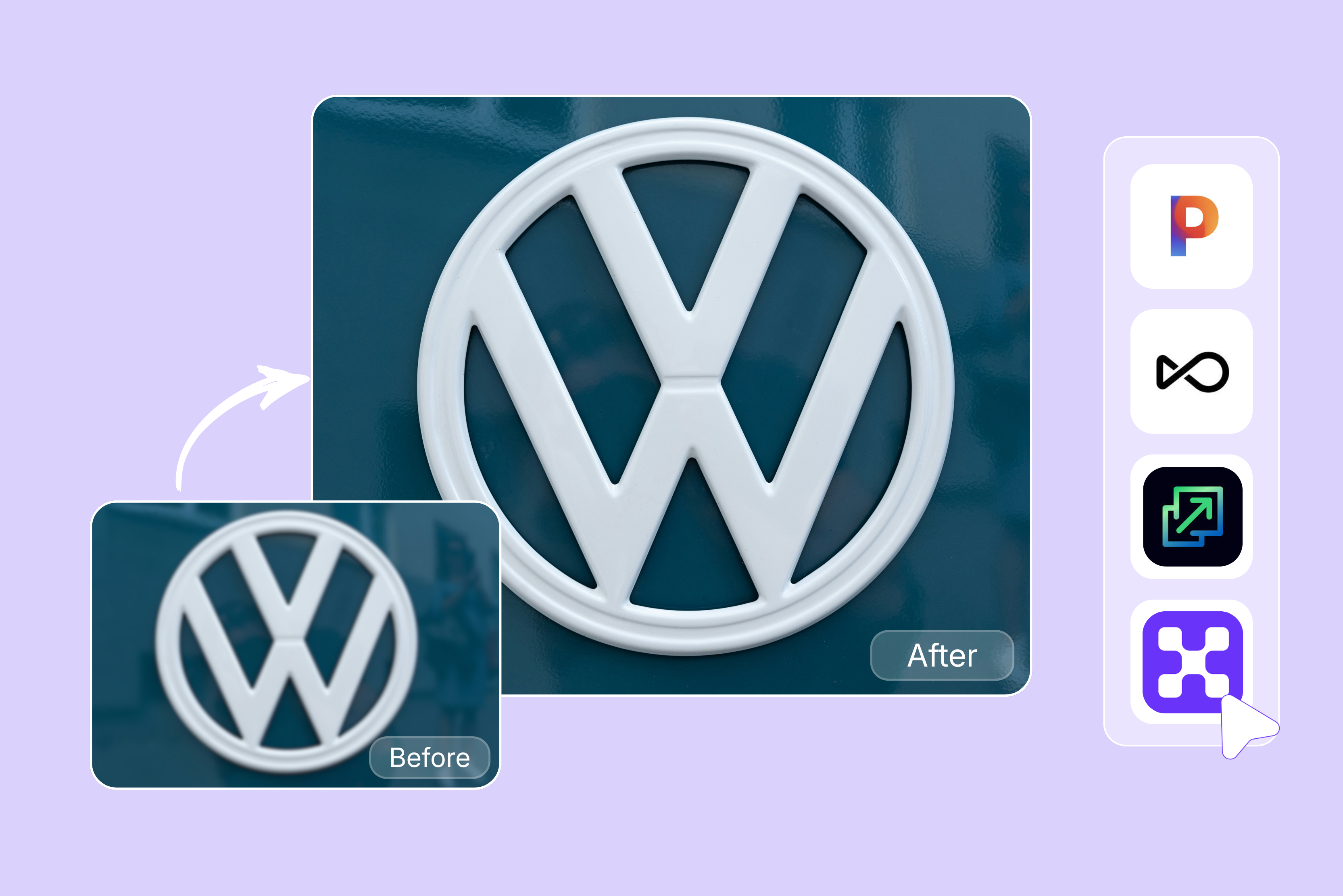


A logo might look small on your screen, but it plays a huge role in how people see your brand. Whether it’s on your website, social media profile, packaging, or a printed banner, a clear and sharp logo instantly makes your business look more trustworthy and professional.
The problem? Many of us are stuck with old logo files that are blurry, low-resolution, or painfully pixelated when resized. I’ve run into this more times than I’d like. Logos that look fine in a small icon suddenly fall apart when you upload them to a website header or try to print them.
If you have a blurry or pixelated logo, you don't need to start from scratch. Logo enhancers use AI to sharpen edges and fix image quality, making old logos look brand new in seconds. I tested the top tools on the market to find the ones that actually work.
In this blog, I’ll share the best options for every skill level, including where each tool shines and where it might fall short. My goal is to help you find a shortcut to a professional-looking logo, even if you aren’t a designer.
Some tools are incredibly simple, while others give you more control if you’re picky about detail. My goal here isn’t to hype every tool; it’s to help you quickly find the one that fits your workflow and actually improves your logo quality in real-world use.
What is a logo enhancer?
It is a tool specifically designed to take an existing, low-quality logo and make it look professional again without changing its design.
Think of it like a digital restoration project. If you have a grainy JPEG from 2012 or a logo that looks "Fuzzy" when you put it on a pitch deck, an enhancer uses AI upscaling to fill in the missing pixels.
How do AI logo enhancers work?
In the old days, if you tried to make a small image bigger, it just got blurrier. Modern AI enhancers use Generative Adversarial Networks (GANs), which is a fancy way of saying two AI models are playing a game of "Spot the difference."
- One model tries to guess what the high-resolution version of your logo should look like.
- The second model checks it against millions of real professional logos it’s already seen.
- They go back and forth until the edges are sharp, the colors are vibrant, and the "Noise" (those weird blocks around the shapes) is gone.
List of the best logo enhancers
I’ve tested 11 different tools to see which ones actually fix a blurry logo. After running dozens of tests, I’ve found that the "Best" choice really depends on your specific project. Some of these tools are specialists designed just for logos, while others are general image upscalers.
In my experience, the specialists are better at keeping lines sharp, whereas general upscalers can sometimes make a logo look a bit like a painting. Most of them offer a free trial using a "Credit" system, and several, like Pixelbin, let you download your work without a watermark.
If you have a lot of files, look for a tool with batch editing; it’s a total lifesaver for cleaning up a whole branding kit at once. It’s not about finding one perfect app but picking the right shortcut for your task.
1. Pixelbin

Pixelbin makes logo enhancement surprisingly simple. You upload a logo (JPG, JPEG, PNG, or WEBP under 10MB), and the AI automatically sharpens edges, improves clarity, and boosts resolution in seconds. I like that it offers watermark-free HD downloads, which aren't always common with free tools.
You get a few free edits each month, so you can test results before paying; a nice, low-risk way to experiment. The browser-based setup means no downloads or design skills are needed. That said, very low-quality logos still have limits, so starting with the best original file always helps.
2. Pixelcut
Pixelcut’s logo enhancer is one of those tools I keep coming back to when a logo looks blurry or too small for modern screens. You have to upload a JPG, PNG, or HEIC file, choose an upscale level (up to 4x), and the AI improves clarity in seconds.
You can download files in HD for free without a watermark, which makes testing easy before committing. There is no complicated setup, and the browser workflow feels fast and beginner-friendly. Advanced options like higher upscaling and enhanced details require a Pro plan. Free users may hit limits if they need maximum quality or frequent exports.
3. OpenArt
OpenArt’s logo enhancer feels like a practical AI helper when your logo looks blurry or low-resolution. You have to upload a PNG or JPG, then choose the upscale mode and AI version, which gives you extra control depending on how sharp or natural you want the result to look.
You can start with free trial credits to test before paying, and everything works directly in the browser without installs. Your designs stay private automatically, which is a big plus for brand security. You’ll use "credits" to process images for free, but if you have a lot of work to do or need the highest quality possible, you might need to upgrade to a paid plan.
4. Phot.AI
If you’ve ever tried resizing a tiny logo only to end up with a pixelated mess, you know the struggle. I’ve tested Phot.AI’s Logo Enhancer, and it’s a solid, practical fix for sharpening those blurry edges.
You can upload JPEG, PNG, or WEBP files (under 5MB) and upscale them by 2x or 4x. I love how it clarifies details without looking "Fake." While there is a free trial to test the waters, keep in mind that free downloads carry a watermark. It’s a transparent trade-off, but for crisp, professional branding, it’s a tool I’d definitely recommend.
5. YouCam online editor
If you’ve ever tried to resize a tiny, low-res logo only to end up with a pixelated mess, YouCam’s AI logo enhancer is a lifesaver. I’ve tested plenty of upscalers, and what stands out here is how it sharpens edges without that weird, artificial "Waxy" look.
You can upload JPG, PNG, TIFF, or GIF files (up to 50 at once!) and hit the "Best Quality" toggle to upscale by 4x. It’s free to try, but here’s the honest truth: the free version adds a watermark. To get those crisp, high-res downloads for your site, you’ll need a subscription. It’s practical, fast, and great for non-designers.
6. Upscale.media
If you’ve ever tried to scale up a tiny logo only to end up with a pixelated mess, you’ll appreciate Upscale.media. I’ve tested many AI enhancers, and this one stands out because it actually removes those annoying JPEG artifacts while sharpening edges.
You can upload PNG, JPG, JPEG, and WebP files up to 1500 x 1500 px. What do I love? It’s genuinely free to use with no hidden watermarks, a rare find. You can upscale by 2x or 4x, though the "Enhance Quality" toggle is where the real magic happens. It’s a practical, no-nonsense tool for quick, high-res branding.
7. Fotor
After testing a bunch of logo tools, I found Fotor surprisingly practical when you just need to clean up a blurry or low-resolution logo fast. You upload your logo (supports common formats like JPG, PNG, WebP, and more), hit enhance, and its AI automatically sharpens edges, improves clarity, and boosts resolution, no manual editing required.
The process feels beginner-friendly, and batch enhancement is useful if you manage multiple brand assets. There’s a free version to try, though advanced exports and premium tools sit behind a trial or paid plan. It’s not a full logo designer, but for quick logo enhancement, it’s genuinely useful.
8. Artedge AI
Artedge.ai stands out for its "No-nonsense" approach to logo enhancing. If you’ve ever tried to scale a tiny, pixelated PNG for a presentation only to have it look like a blurry mess, you'll appreciate how Artedge uses AI to rebuild those edges. It upscales images to 4K resolution by intelligently removing noise and fixing blur.
The process is a simple three-step "Upload and go" workflow, supporting JPG, PNG, and WebP formats up to 50MB. What I love? There’s no sign-up required for basic use, but the results come with a watermark.
9. Cutout.pro
After testing Cutout.pro, I noticed it doesn’t offer a dedicated logo enhancement tool. Instead, you use its general AI image enhancer, which still works surprisingly well for logos. You upload a file (JPG, PNG, WebP, and other common formats), and the AI automatically sharpens details, removes blur, and upscales resolution with almost no setup.
In my example, I used a really blurry logo, and the improvement was honestly impressive, with cleaner edges and better clarity. You can try it using free credits, but full-resolution downloads usually require paid credits, and free exports may include limitations.
10. X-Design
After testing X-Design, I found it helpful for logo enhancement even though it doesn’t offer a dedicated logo tool, you’ll use its AI image upscaler and enhancer instead. You upload files (JPG, JPEG, PNG, WEBP, or HEIC), choose an upscale level, and the AI sharpens edges, improves clarity, and boosts resolution automatically.
It offers batch processing, which saves time when enhancing multiple logos at once. There is a free option to try, and free exports don't have watermarks. Higher-quality downloads usually require a paid plan. It’s practical for quick logo cleanup, though it lacks the fine editing controls of professional design software.
11. Pokecut
After testing Pokecut, I found it actually does include dedicated logo tools, not just a general image enhancer. You upload your logo (JPEG, JPG, PNG, WebP, or BMP), and its AI logo cut-out/enhancer sharpens edges, removes backgrounds, and improves clarity automatically. I like that it supports batch processing (up to 50 files), which saves serious time if you handle multiple assets.
According to the official site, exports are HD and watermark-free, even in the free version, which is rare. There’s a free plan to try, while advanced features sit behind a Pro upgrade. Overall, it’s simple, fast, and genuinely logo-focused.
What makes a good logo enhancer?
If you’re hunting for a tool to save your brand’s assets, here is the checklist I use to separate the real deal from the marketing hype.
1. AI upscaling quality
This is the baseline. A mediocre enhancer just "Stretches" your pixels, leaving you with a larger, but still blurry, mess. A great one actually understands the shapes in your logo.
It uses deep learning to predict where a curve should be and fills in the gaps. If the AI is "Guessing" too much and adding textures that weren't there, I move on.
2. Edge sharpness and text clarity
Logos are mostly lines and letters. If the AI softens the edges of your font until it looks like a marshmallow, that's a dealbreaker. You want a tool that treats text with a "Hard edge" approach.
In my testing, the best tools have a specific "Graphic" or "Logo" mode that prioritizes sharp, clean borders over the soft blending you’d want for a portrait of your cat.
3. Background transparency support
There is nothing more frustrating than upscaling a logo only to find it’s been flattened onto a solid white background. If you’re planning to put your logo on a website or a dark-themed slide deck, you need PNG transparency support.
I personally don't have the patience to go back into Photoshop and manually remove backgrounds, so I look for enhancers that can detect the alpha channel and keep it intact.
4. Vector export (SVG/EPS) options
Always look for vector export. While upscaling a PNG is great for a quick fix, converting your logo to an SVG (Scalable Vector Graphics) is the ultimate win.
Any tool that can accurately "Trace" your low-res logo into a clean vector file is worth.
5. Batch processing
If you’re managing a brand, you likely don't just have one logo file. You have the icon, the wordmark, the horizontal version, and the "White-out" version for dark backgrounds.
Doing these one by one is a soul-crushing waste of time. I prioritize tools that let me drag and drop a whole folder of assets and walk away while the AI does the grunt work.
6. Watermark-free downloads
I’m a fan of transparent pricing. I’d prefer a tool to be upfront about a credit system or a subscription rather than trick me into a watermarked download.
In this blog, most of the tools offer watermark-free images and offer free credit to test the tool.
Tips to get better results when enhancing logos
After testing plenty of logo enhancer tools, and I’ve realized one thing: an AI enhancer is only as good as what you give it to work with. A few simple habits can make a big difference in how clean your logo looks after enhancement.
Always upload the highest-quality source file you have. AI can improve clarity, but it can’t fully fix a heavily compressed or tiny image. Along the same lines, try to avoid screenshots whenever possible, they usually add blur and compression artifacts that are hard to remove later.
If you have the option, choose transparent background files like PNGs. They give the AI cleaner edges to work with and make the final logo easier to use across websites and designs.
Finally, don’t rely on just one tool. I’ve seen the same logo look dramatically better depending on the enhancer. Testing multiple tools takes a few extra minutes, but it’s often the easiest way to find the cleanest, most professional result without extra editing.
Conclusion
After testing a ton of these tools, one thing is clear: the "Best" one depends on what you're trying to fix. Some are perfect for a 30-second cleanup before a meeting, while others are better if you need a high-quality, transparent file for a professional print job.
It really comes down to whether you need a quick win or total control over the final result. My advice is to start with free versions, test your logo across a few options, and pay attention to edge clarity, resolution, and watermarks before committing.
A logo enhancer won’t redesign a weak logo, but it can make a good logo look much more polished. Choose the tool that fits your workflow, not just the most popular name.
FAQs
The best logo enhancer depends on your needs, but tools like Pixelcut, Media.io, and Fotor are popular choices. They use AI to sharpen edges and improve clarity quickly. Most offer simple one-click enhancement for fast results.
Yes, many online logo enhancers offer free plans that improve image quality without major loss. The final result depends on how clear the original logo is. Free versions may have limits on resolution or downloads.
Most modern logo enhancers do both, they upscale the image and sharpen details. AI helps smooth pixelation and improve edges for cleaner results. However, they cannot fully recreate missing design elements.
Logo enhancers mainly improve raster images like PNG or JPG files. Converting a logo to vector format usually requires separate vector tools or design software. Some platforms offer SVG export, but it may not be true vector conversion.
This depends on the tool you use, as each platform has different rules. Some free plans allow watermark-free downloads, while others add branding or limit quality. Always check the tool’s pricing page before downloading.
Most well-known online tools are safe for general use and follow standard privacy practices. Still, it’s smart to review their privacy policies before uploading important brand assets. Avoid sharing confidential logos if security is a concern.