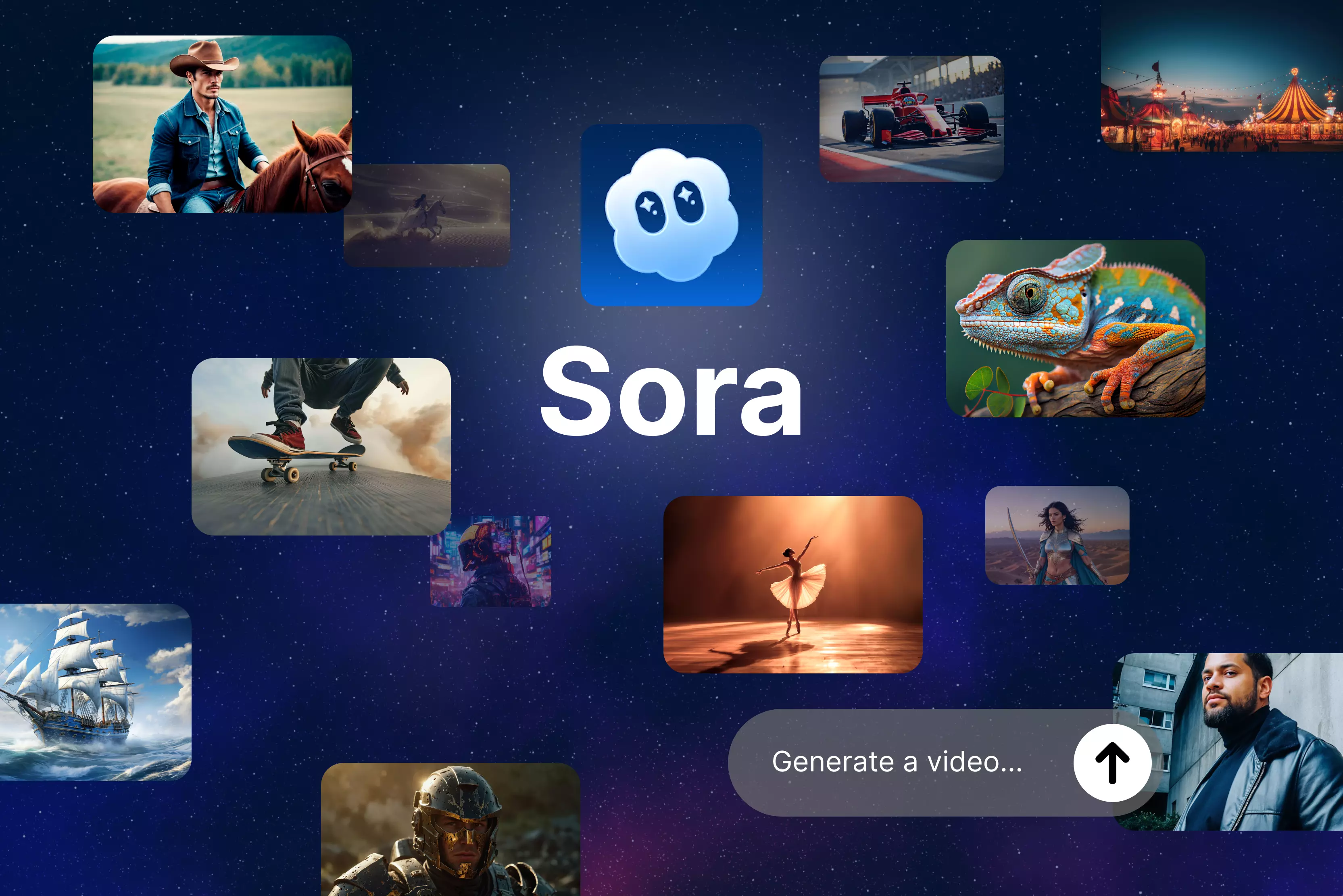


Ever feel like your best video ideas just sit there, trapped in your head, because creating them takes a lot of time and creativity? I've spent countless hours trying to make a video out of a simple text without working with keyframes, but I ended up with something half-baked that doesn't match the vision.
That's where Sora AI, a generative text-to-video, steps in like a game-changer. Sora 2 is available in the Pixelbin video generator that delivers a stunning, realistic clip complete with lifelike motion, lighting bounces, and even ambient sounds.
No fancy gear or editing skills needed; it just gets what you mean. With the Sora 2 AI model, you have to type a text prompt, and it generates a matching video exactly like your idea.
I played around with prompts like "barista pouring latte art in a bustling cafe," and the motion should be steam rising, milk swirling, and the result felt straight out of real life.
This isn't just a tool in Pixelbin; it's OpenAI's foundation model pushing toward AGI-level video smarts, making professional content out of a lifeless text. Sign up to Pixelbin and give it a try, but before that, have a look at what Sora is, how it works, and how to generate a Sora video through Pixelbin.
What is Sora?
When I talk about Sora, it's about OpenAI’s big swing at text‑to‑video. It’s the same team behind ChatGPT and DALL·E, but here the focus is on turning whatever you type into moving scenes that actually feel like a story, not just a looping animation.
You describe the world, the mood, the characters, and Sora does the heavy lifting in the background. What makes it more interesting for you as a creator is that Sora doesn’t stop at plain prompts.
You can feed it a single image and ask it to “come alive,” or drop in a short clip and extend the moment forward or backward in time, almost like stretching reality on a timeline.
Pixelbin’s AI video generator already taps into the Sora model under the hood, so you can access that power inside a practical workflow instead of juggling raw research tools.
On top of that, OpenAI has demonstrated editing-style controls such as remixing, storyboarding, and shot variations in its research previews. It feels less like a single button and more like a mini studio where you can rough out concepts, test variations, and polish an idea without leaving your browser.
How does Sora AI work?
Ever wonder how something like Sora actually pulls off turning your casual words into those mind-blowing videos? I used to scratch my head over that too, especially when I first saw clips where the lighting bounces just right, or a character’s expression shifts mid-scene naturally.
Turns out, OpenAI built Sora on the same backbone as ChatGPT and DALL·E, but cranked it up with video-specific tricks that make it feel like a world simulator. They fed it a massive pile of footage, like selfies, movies, gameplay, and real-life chaos, that are all captioned mostly by AI, so it learns how language matches the physical world.
The real magic kicks in with "spacetime patches." Instead of working through videos frame-by-frame like older models, Sora slices each frame into tiny patches and tracks how they evolve, and hence "spacetime” comes into existence.
This lets it handle wonky formats, from TikTok verticals to epic widescreen, without cropping anything. I love how Pixelbin’s video generator taps straight into the Sora model, so you’re not messing with raw OpenAI access; it’s baked into a cleaner workflow for us creators who just want results fast.
Here’s the generation process broken down below:
- Diffusion magic: Starts with pure noise, then iteratively sharpens it toward your prompt, like DALL·E but for full video clips at once, not frame-by-frame.
- Transformer power: GPT-style architecture predicts long, consistent sequences, keeping details like a waving flag or moving crowd coherent even when obscured.
- Foresight smarts: Models see key frames during creation, nailing 3D camera moves and physics without the usual glitches.
What are the features of Sora?
1. Remix: Simply take a video and swap stuff in it, but keep the main idea, like doors to a library become spaceship doors. Or change colors and background to match your style. Perfect to fix up old clips without starting again.
2. Re-cut: Snag the good frames and stretch forward or back. Turns any cool moment into a whole scene. Smooths everything out so the story flows right.
3. Loop: Makes a clip play over, no weird stops like a flower opening and closing forever for backgrounds or music stuff.
4. Storyboard: Pick exact seconds and frames for each shot.
- Frames 0-114: “A vast red landscape with a docked spaceship in the distance.”
- Frames 114-324: “Looking out from inside the spaceship, a space cowboy stands center frame.”
- Frames 324-440: “Detailed close-up view of an astronaut’s eyes framed by a knitted fabric mask.”
How to write effective prompts for Sora text‑to‑video?
Clear prompts generally lead to better videos. Vague inputs like “busy street” often produce generic results, while structured details help Sora interpret your idea more accurately.
A helpful approach is to include the subject, action, setting, visual style, camera behavior, and mood in your prompt. In OpenAI demos, prompts often include elements such as a detailed subject, action, location, lighting, style reference, camera behavior, and mood.
Steps for writing prompts
- Start simple, add adjectives ("Gritty" street vs plain).
- Test camera: "Rack focus," "Dolly zoom," "Overhead crane shot."
- Lighting/time: "golden hour" or "Volumetric fog."
- Specifics win: "Pedals three times" or "Moves fast"; exclude issues ("No text on signs").
Advantages of Sora
- Sora can generate a variety of visual styles, including realistic scenes, abstract visuals, and animated content, with an emphasis on temporal consistency.
- Handles complex scenes with multiple characters, motion, and persistent objects across frames.
- OpenAI has demonstrated image and video extension capabilities in research previews, with varying resolutions, durations, and formats depending on access and rollout.
- OpenAI has shown editing-style capabilities such as remixing, looping, and storyboard-like control in research demos.
- Improved handling of lighting and physical interactions, though visual and physical inaccuracies still occur.
- Sora is a foundation video model, and OpenAI continues to iterate on its performance. Access and capabilities depend on OpenAI’s rollout and usage limits.
Limitations of Sora
- Unrealistic physics in dynamic actions with objects warp/vanish, and movements are unnatural.
- Struggles with complex long-duration sequences or rapid motion.
- Subtle artifacts visible on close inspection (e.g., weird walks, inconsistent details).
- No native sound generation in base (add post-editor).
- Prompt sensitivity requires iteration for best results.
- Public access is currently limited, and generating higher-resolution or longer clips is computationally intensive, with availability controlled by OpenAI.
How to try Sora AI?
Sora AI lives inside ChatGPT Plus and Pro plans for now. Plus subscribers at $20/month snag a few watermarked videos that are max 720p resolution, capped at 5 seconds each.
Pro users drop $200/month for unlimited unwatermarked clips stretching to 1080p and 20 seconds, giving serious creators room to breathe.
But fair warning: right after launch, OpenAI hit pause on new Sora activations. Except for waitlists or credit caps as they roll it out wider. They're turning it into a real product, so limits stick around in the short term.
And if you don’t want to pay for ChatGPT, then jump on to Pixelbin as it sneaks Sora power into a cleaner dashboard, too, so you skip OpenAI login headaches.
How to generate an OpenAI Sora video through the Pixelbin video generator?
Pixelbin Video Generator highlights a free AI tool, no login or signup needed for turning text or images into videos instantly. Dropdown features many AI models, and over there, you will find OpenAI Sora 2, accessible after signing up. Upload images, describe motion, and generate watermark-free clips for marketing or social media use.
Steps to make a video from an image using Sora in the Pixelbin video generator
Step 1: Log in to your Pixelbin account and go to AI Video Generator. This page lists all supported video models over there; you will find OpenAI Sora.
Step 2: Upload the start image (JPG/PNG preferred), you can also generate an AI image.
Step 3: After that, in the prompt box, write about the subject and action (what moves, what happens). Camera moves (slow pan, zoom in, orbit, handheld, etc.). Environment, lighting, mood, and style (cinematic, anime, realistic, product demo, etc.).
Step 4: Set technical parameters like:
- Duration: choose clip length (Pixelbin image to video flows commonly target short social clips among 4, 8, or 12 seconds).
- Aspect ratio/resolution: pick 9:16, 16:9, or auto, depending on the specific platform you are making the video for.
- Generate the video: Click the generate button, and get a premium plan because you will technically need 32 credits at least to run the above-mentioned steps through the Sora model.
Is using Sora AI risky- Bonus Tip
I have highlighted the limitations of Sora earlier; nowadays, people are using it because it makes the editing job easier. But I have added some of the potential risks we must be alert to that may occur in the future:
- Fake news spreads wild: Sora clips look so real that it's hard to tell what's fake. We need better ways to spot AI videos, especially with elections where lies hit fast.
- Your images are not safe with AI: Upload a photo, and it ends up in someone else's video without asking. Fans remake movies, but personal stuff like your likeness gets misused big time.
- Privacy nightmare: No consent needed for training data or face swaps. Your image lives forever in clips you never approved.
- Jobs disappear overnight: Why pay filmmakers when anyone can pump pro videos for free? Editors, actors, and crews take hits across industries.
- Creativity dies slowly: Sora's a shortcut, not a helper. Folks lean on prompts instead of skills that are turning real artists into lazy button-pushers.
Final thoughts
Hence, Sora AI is leading the charge in revolutionizing creative storytelling, transforming raw ideas into breathtaking, lifelike videos in moments. Its straightforward text-to-video features highlight just how advanced generative AI has become a tool to bridge the gap between pure imagination and professional production with only a handful of well-crafted prompts.
As this tech keeps advancing, creators, marketers, and filmmakers everywhere will find endless opportunities to bring visions to life, skipping the grind of traditional editing suites. If you are looking for cutting-edge video generation, then Pixelbin’s video generator stands out as a strong Sora alternative (beyond ChatGPT integrations).
FAQs
Sora is OpenAI's text-to-video model generating realistic videos up to 60 seconds from prompts. It uses diffusion transformers to refine noise into coherent frames with physics and multi-character scenes.
No, Sora requires ChatGPT Plus/Pro/Team subscription (~$20+/month); no unlimited free tier, though limited invite access exists in select regions.
ChatGPT Plus/Pro/Team users access via chat.openai.com: log in, enable in settings, and generate videos from text prompts (rolling out progressively).
Struggles with physics (e.g., no cause-and-effect), spatial accuracy, small details (hands/text), long-clip consistency, and precise timing/camera control.
Yes, OpenAI allows commercial use, sale, and distribution of Sora videos, provided they follow policies against harmful content.
Sora leads in photorealism, 4K quality, 60s clips; Pixelbin suits stylized shorts, excels as an editing suite in one tool. Thus, Pixelbin wins for high-end production.









