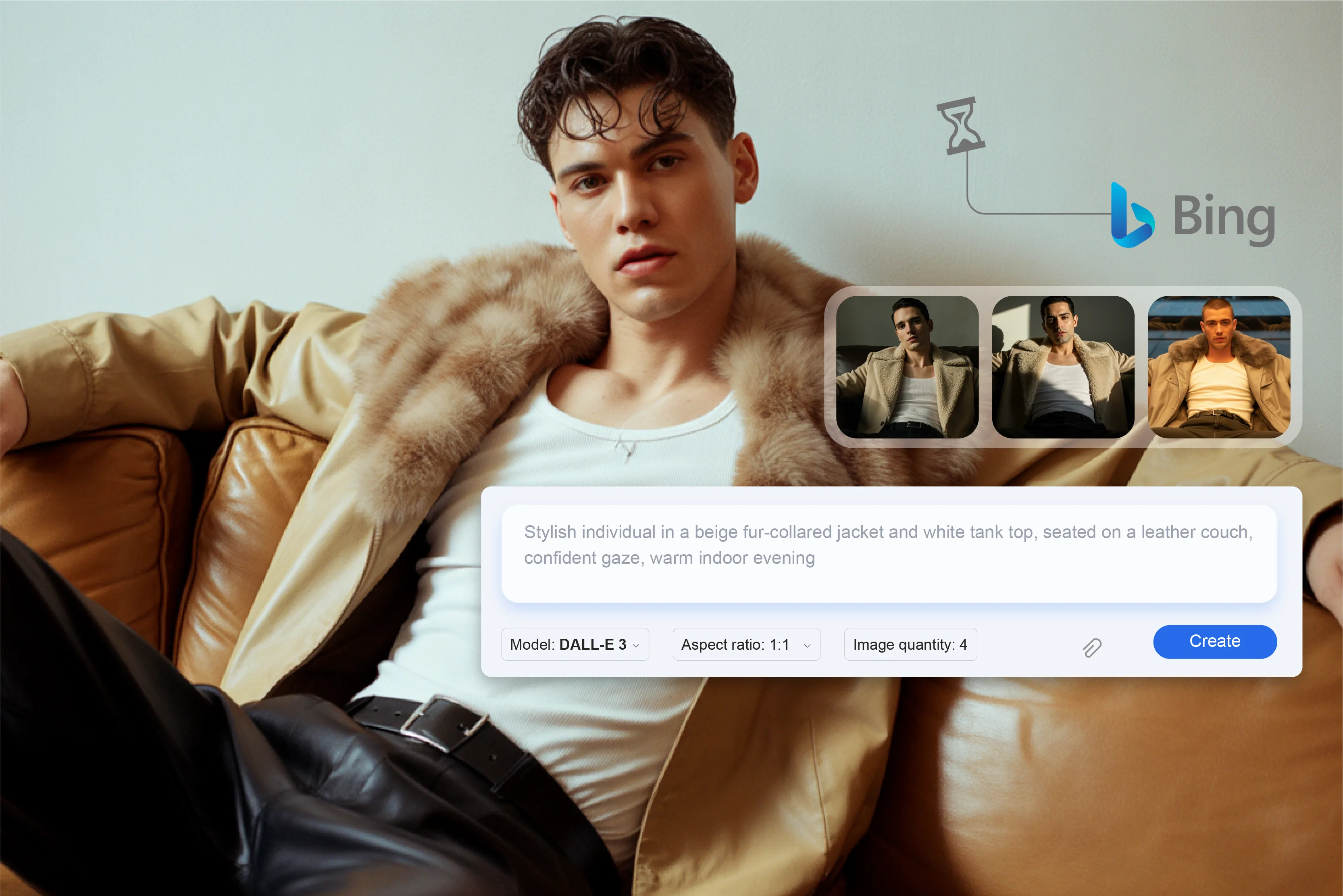


AI image generators are getting a lot of attention right now, as marketers and designers look for faster ways to create and improve visual content. The Image Creator feature in Microsoft Designer (formerly known as Bing Image Creator) is a popular starting point for generating images from text prompts.
In addition to Microsoft Designer, numerous other AI tools are available for generating images from text prompts. Many AI image generators can turn text descriptions into visuals—Microsoft’s Image Creator uses DALL·E 3, while other tools rely on different models. It is beneficial for designers, marketers, and many more who need to be creative and strategic.
Tools like Pixelbin are also entering the space with AI-driven image generators that transform text prompts into high-quality visuals using advanced machine learning models. Depending on your requirement, Pixelbin may offer a simpler, smoother experience compared to the Bing AI image generator, particularly for developers and teams.
Pixelbin is designed with creators, developers, and businesses in mind, allowing them to generate high-quality images from text prompts through a developer-friendly platform.
In this blog, I’ll explain what the Bing AI image generator is, cover its pros and cons, share a step-by-step guide to using it, and show how Pixelbin’s AI image generation features compare.
What is Bing AI image generator?
Microsoft Bing AI image generator, or often called the Bing image creator, is one of the most widely used browser-based AI generator tools. Using OpenAI’s DALL·E model and its integration into the Bing and Microsoft Designer environments, users can generate images, visualize concepts, and turn text prompts into visuals.
Bing AI Image Generator is an AI-powered tool that creates images from text prompts using advanced deep learning models, and it is commonly used for generating realistic and artistic visuals.
Advanced editing capabilities are available through Microsoft Designer, which includes integrated DALL-E 3 features. Whether you need images for website design, social media content, or ad campaigns, the image creator empowers you to translate ideas into captivating visuals.
Pros and cons of using Bing AI image generator
Pros of using Bing AI image generator
- Ease of use: No technical knowledge is needed thanks to the tool’s user-friendly interface; users just need to input a brief prompt, and the AI will produce images in a matter of seconds. Everyone can use it because of its ease, including educators, marketers, etc.
- Speed and efficiency: The Bing AI image generator enhances workflows for businesses and content creators by producing multiple high-quality images in seconds, whereas manual creation can take hours.
- Expanded creative possibilities: The AI can visualize abstract or imaginary ideas like “Hyper-realistic dragon in a dark cave,” which supports new ideas in storytelling, advertising, and concept art.
- Cost-effective solution: It offers a cost-effective alternative for businesses, bloggers, and educators, providing free access compared to hiring professional designers.
- High-quality output: The tool can generate detailed images suitable for digital campaigns and social media, depending on the prompt and use case.
- Ongoing improvements: Regular updates from Microsoft ensure evolving capabilities, address user feedback, and address technical limitations over time.
- Customization through prompts: Detailed prompts provide users with specific outcomes, and they can improve outputs by changing keywords.
Cons of using Bing AI image generator
- Inconsistent quality: When the prompts are unclear or complex, the outputs may include strange artifacts, twisted anatomy, or other irrelevant details.
- Prompt crafting: The results depend a lot on how well the user can write clear prompts. Incomplete descriptions can lead to disappointing outcomes.
- Reduced human creativity: Overuse of AI tools may reduce engagement with traditional creative skills and contribute to more uniform digital content.
- Repetitive outputs: When instructions aren’t innovative, the AI could use standard images that are too common.
How to use Pixelbin, an AI image generator
Use an AI image generator like Pixelbin to help creators and businesses at all levels create high-quality images for any work. Here’s a step-by-step overview of how to use Pixelbin’s AI tools for image generation or enhancement. Let’s check.
Step 1: Visit Pixelbin, go to AI Tools, click See All, and select the AI Text-to-Image Generator.

Step 2: Enter the text prompt in the text box that says “Describe the image you want: landscape, portrait, fantasy, abstract, etc.
Step 3: Click on the “Generate button.”
Step 5: Your AI-generated image is ready! Download the image.
How to use Bing's AI image generator
There are various steps to an AI image generator. Using the Bing image generator is straightforward.
Step 1: Open your browser and navigate to bing.com/images/create.
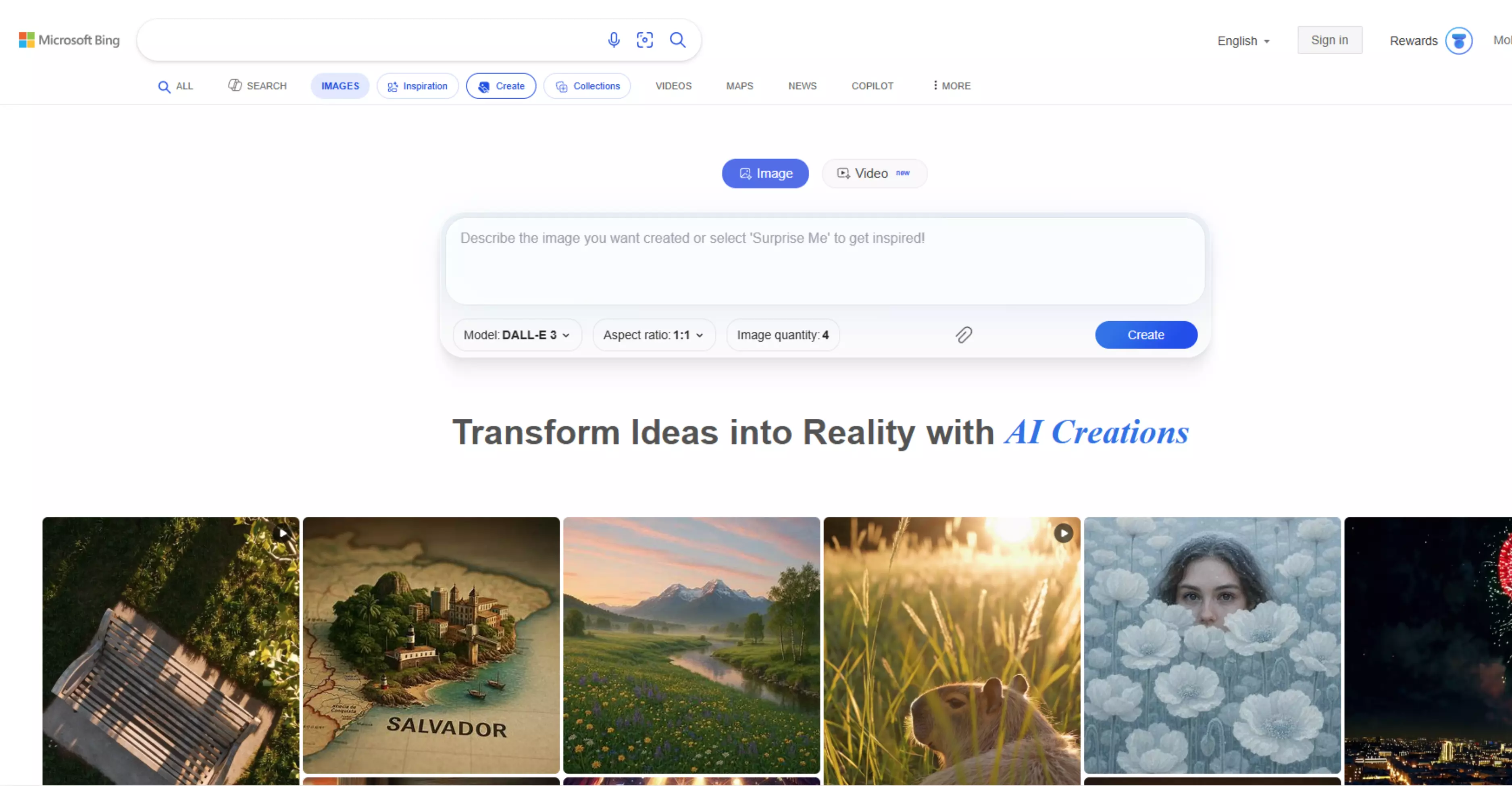
Step 2: Visit Bing Image Creator and sign in using your Microsoft account by clicking the Join & create button. Select the personal account login to complete the process. Once signed in, you’re ready to start creating AI-generated images.
Step 3: Once you sign in, you will see various options.
First, you can browse a catalog of AI-generated images in the explore ideas tab for inspiration or similar ideas.
On the right side, another option is the “Surprise Me” button. Bing produces a prompt for you: “a two-dimensional illustration of a high school boy holding a basketball in the style of a Japanese cartoon.”
From here, you can take the prompt and make it your own, modifying it as you like: “A two-dimensional illustration of two high school boys holding a basketball in the style of a Japanese cartoon.” Finally, the most important option is the ability to start generating images yourself with custom prompts.
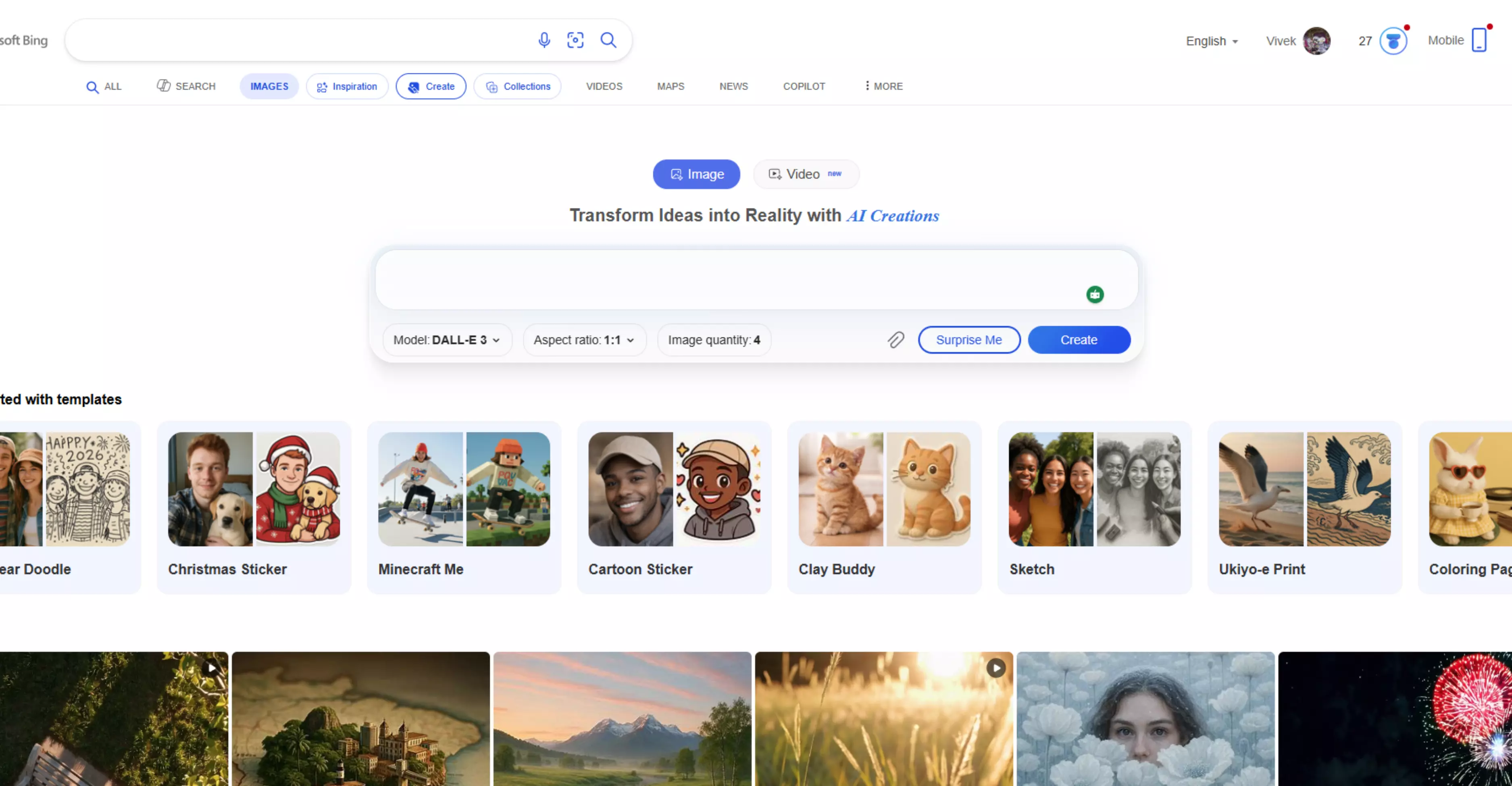
Step 4: Generate images with custom prompts. Using the top toolbar, describe the image you would like to create and click on the “create” button. For better results, Bing works best when prompts include multiple descriptive words. Bing does not specify the maximum number of words allowed, but I attempted to input 19 words (120 characters).
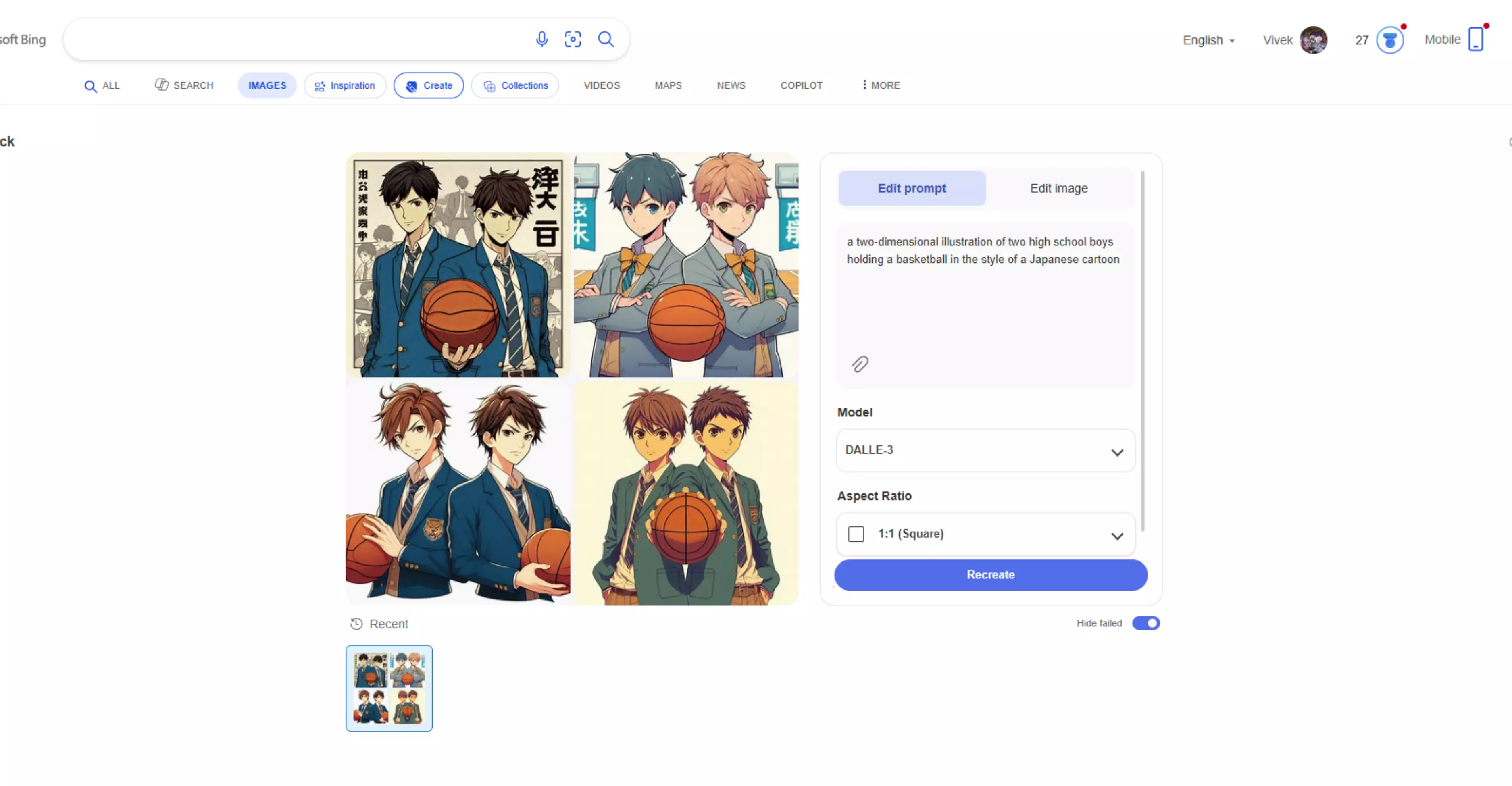
Step 5: When you create an image, Bing generates four versions for you to choose from. After you pick one, you can use the arrow buttons to look at the other AI-generated images and compare them.
One of the fifteen free images you can create every day is used when you click "Create." You can change your prompt by changing the style or adding a detail, such as saying “blue-colored lightbulb.”
The tool won’t make the identical image again; with a small change, it will create a similar one based on the updated description, and this will count as another use of your daily limit.
Text prompt: “Create an image of a cozy bookstore interior. Show tall wooden bookshelves lining the walls, filled with colorful books.”
Step 6: Model, Resize, Crop, and Edit your image.
Once you’ve selected an image from Bing AI image creator, you can adjust its size using the built-in Resize option. However, additional tools may be required for tasks such as editing and adjustments—like adding text, creating models, modifying the aspect ratio, and changing the image quantity.
Bing Image Creator automatically uses DALL·E 3; users can select aspect ratios and generate multiple images per prompt.
Step 7: Once your image is ready, save it, or edit the image or the prompt if you are not satisfied with the generated image.
Pixelbin vs. AI Bing image generator
Pixelbin has introduced an AI image generator that lets users create images from text prompts, similar to Bing’s AI tool. While Bing focuses on creative image generation with DALL-E, Pixelbin may offer additional capabilities, such as image transformation and editing, depending on the specific tools enabled on the platform.
Similarities
- Multiple Image option: Both Bing and Pixelbin allow users to generate multiple image variations, typically four from a single prompt, helping users choose the most suitable result.
- Cloud-based functionality: Both Pixelbin and Bing are cloud-based, meaning projects can be accessed online from any device, offering convenience and flexibility.
User-friendly interface
Both tools focus on simplicity and accessibility, allowing users without technical knowledge to create images easily.
Export options
Bing: Images can be downloaded primarily in JPG or PNG formats, depending on the interface and settings.
Pixelbin: Pixelbin is compatible with common file formats like JPG, JPEG, and PNG.
Free and premium options
Each platform offers some level of free access, but more advanced features or higher resolution outputs may require paid plans.
FAQs
In most cases, AI image generators take a few seconds to under a minute to create images from a text prompt. Generation time can vary depending on the complexity of the prompt, server load, and the tool being used.
Every day, you’ll get a total of 15 free fast image creations with Bing Image Creator’s fastest speed. If you use up all 15 of your quick, free image creations, they will come back the next day.
No, Bing AI Image Generator is not unlimited. Users have a daily limit on image generations, and each prompt typically generates multiple image variations. Usage limits and speed depend on available credits.
The best AI image generator depends on your needs. Pixelbin is a strong option for users who want fast generation and image enhancement tools, while Bing AI Image Generator is popular for creative text-to-image use.
Bing image generator is a fantastic tool that’s free for everyone with a Microsoft account. Sign up for a new Microsoft account or sign in to your existing Microsoft account, and you’re ready to start creating amazing images.
Bing Image Creator does not publicly specify a fixed prompt limit. Usage limits are based on daily credits and may vary depending on account type and activity.










