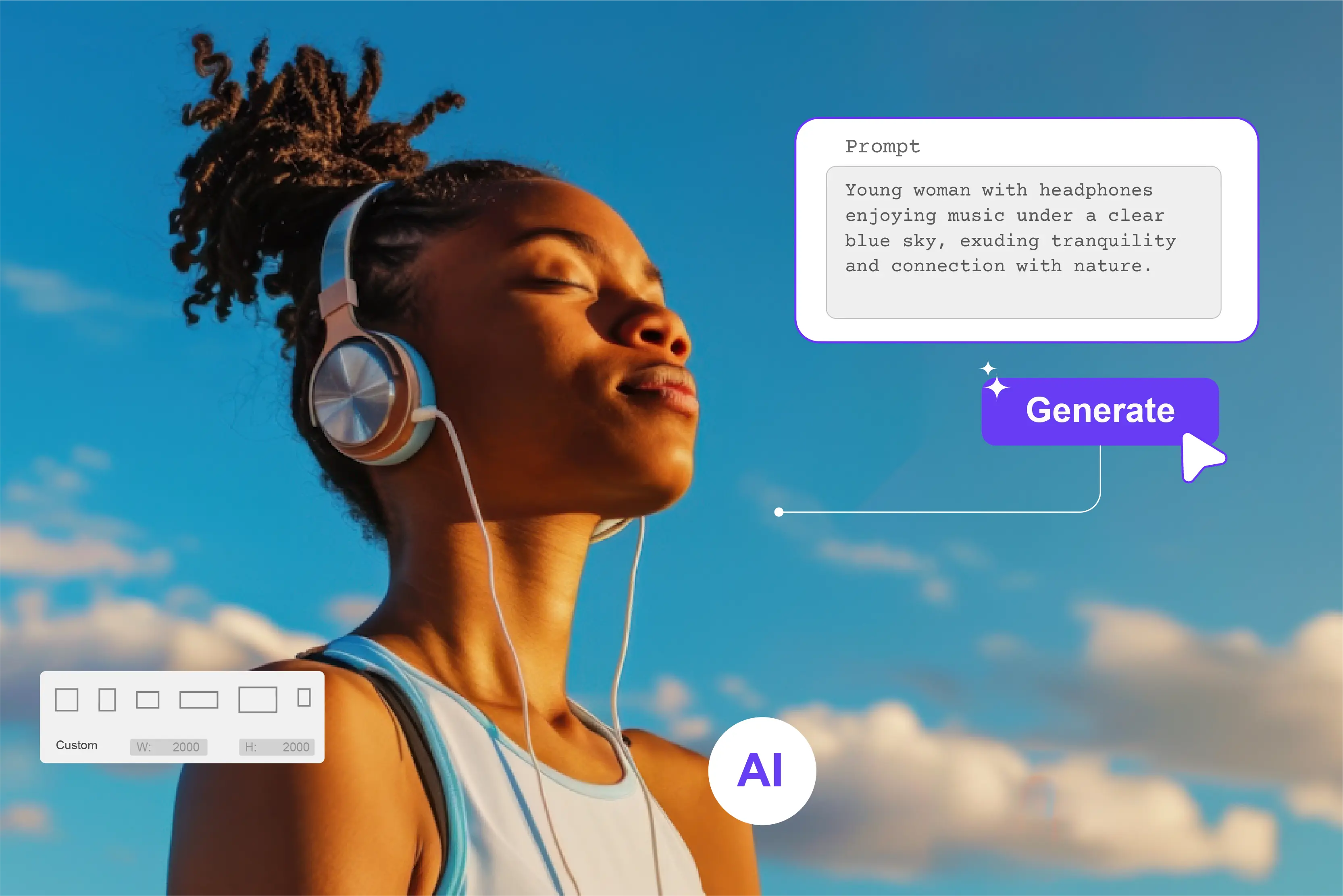


Traditionally, image generation required hours of effort, technical skill, and often expensive tools. Now that you have this incredible technology that can create amazing images from a few words, you are no longer limited by what you can draw or photograph. It's now quicker and simpler than ever to turn your thoughts into visually impressive pictures thanks to AI image generators.
Understanding how to use these AI image generators can take your creative projects to the next level,l especially for designers, marketers, and content creators. You’ve come to the right place on the internet if you’re eager to turn those concepts in your thoughts into beautiful images.
I've researched various AI image generators and found the experience to be smooth and user-friendly. Based on my experience, Pixelbin stands out as a great option for creating and managing AI-generated images.
Here, I’m going to give some tips and tricks for using an AI image generator to get the best results. There are many guides on how to write AI text prompts for generated images. While my favorite one is Pixelbin, which is very easy to use; you only have to write a proper text prompt and click on the generate button, and the whole work will be done by AI.
In this blog, I’ll explain what an AI image generator is, show you how to use it properly with a step-by-step guide, and show you how to create AI images using top tools like Pixelbin.
What is an AI image generator?
An AI image generator uses artificial intelligence to create images based on your text description or prompts. In basic terms, they are artificial intelligence (AI) tools for creating visual content from your ideas. To make the tool produce the images you desire, simply describe them, and the AI will bring them to life.
With these latest AI models and smart prompts, you can generate high-quality visuals for social media, blogs, marketing, or personal projects. Some tools offer free access without requiring sign-up, making them great for quickly turning ideas into images. However, many high-quality generators do require registration or a subscription.
Compared to traditional graphic tools, AI image generators can quickly create high-quality graphics by using advanced models and well-crafted prompts. AI image generators save time and effort by automating the creation of visuals. They’re useful for personal projects like social media, marketing, blogs, or personal projects—especially when using the right tool for your needs.
How to use an AI image generator: a step-by-step guide
With only a few simple steps, you can now generate beautiful personalized pictures thanks to AI image generators, which have opened up a world of possibilities. I'll walk you through every step of using an AI image generator from beginning to end.
1. Select the best AI image generator
Selecting a suitable AI image generator platform requires some research. Start by exploring the available options on the market. To find a platform that fits your unique needs and goals, carefully consider user reviews and industry comparisons.
To make sure the AI image generator gives you exactly what you want,t think about a few important details and settings before you start.
- Ease of use
- Cost
- Available features include API access
- Security and compliance
- Support and community
- Quality of the image generated
- Available trial periods
2. Navigate to the AI image generator
The second step is simple after selecting a platform for an AI image generator. Open the AI image generator, and most AI image generators have user-friendly interfaces, which make it easy to navigate and find whatever you want.
If you’re using Pixe,lbin you can explore their AI tools like smart image transformations. For text-to-image generation, consider these tools. Once you click on the AI text-to-image generator, the tool will open, and you can start using it.
3. Enter the text prompt for generating an image
Perfect text prompts are the heart of AI image generators. Most image generators operate with a text-to-image model like Pixelbin; the better your prompt, the better the result you get.
Well-written prompts should be descriptive, creative, and clear. Remember that AI relies on the text prompt to generate the image, so providing clear instructions is crucial. You can think about the desired outcome and input a prompt that accurately conveys your result.
Type a detailed description of what you want to generate in the prompt field. Start with five words or more, for example, “ An elephant in the forest with dark sunlight. “ Add specific keywords like 'Lighting, Angle, ' or 'Mood' to shape the result.
4. Adjust settings for the AI image generator
After entering your prompt, you’ll likely have the option to adjust various AI image generator settings that affect the final image. There are various tools that provide you with the option to change the style of the image,e like oil painting, watercolor, etc.
You can select the aspect ratio, number of images, size, and orientation (landscape, portrait, square, etc.) according to your choice.
5. Generate an AI image
Once you’ve finalized the settings, ings click the generate button to start the image creation process. Click the generate button. This button is labeled depending on the tool you’re using, and you wait for the AI to process your inputs.
Depending on the platform, generation time may vary from a few seconds to a minute. The generation process depends heavily on the complexity of your prompt and the capabilities of the AI tool that you use.
6. Refine the AI-generated image
Spend some time reviewing the AI-generated content when you’ve finished it. Does it fit your requirements? If not, the majority of AI picture generators allow users to edit or improve the images. This might involve going back to your AI image generator like Pixelbi and modifying the settings.
Sometimes a small change can make a big difference in the result. Don’t be afraid to iterate several times until you’re satisfied. If you’re not satisfied with the output, you can click the refresh button to generate a fresh set of images.
7. Download the result
After the whole process is completed, the last step is to download it to your device or directly insert it into your text if the platform you’re using allows this. On Pixelbin, you can click on the download button.
How to generate images with AI in Pixelbin
Pixelbin helps creators and businesses at all levels create high-quality images for any work needed. Here’s a step-by-step overview of how to use Pixelbin’s AI tools for image generation or enhancement. Let’s check.
Step 1: Visit Pixelbin -> AI tools -> click on the see all and the AI text-to-image generator.

Step 2: Enter the text prompt in the text box that reads “Describe the image you want: landscape, portrait, fantasy, abstract, etc.
Step 3: The “Generating your image” message will be displayed. Wait for a few seconds; let AI do magic.
Step 4: Your AI-generated image is ready! Download the image.
Tips for generating AI images
To get the most out of the AI image generator, follow the tips below to create high-quality images that are visually engaging and legally compliant.
1. Use a custom image prompt for specific results.
AI image generators only create images as good as the prompts they are given. Instead of depending on inaccurate or minimal descriptions,s create personalized and thorough prompts that define the context, objects, emotions, and color palette.
In this manner, you can turn words into an image that meets specific requirements, whether for social media content, a digital art project, a marketing campaign, etc. Ensure consistency and image quality.
2. Underlying copyright and usage rights.
When employing AI-generated images for web design or social media posts, it's important to be mindful of copyright issues. Examine the terms of service of the AI image generator you have selected. While some may demand a license or subscription, others may provide free use of images generated.
Read the service’s terms and conditions carefully if you plan to use AI-generated images for marketing campaigns. Some tools may only allow you to use AI-generated images for personal use,e not for business purposes. If you are considering using the images in ads or product listings, gs make sure the tool grants you commercial rights.
3. Combine AI-generated content with original content.
Although AI image generators help generate ima,ges it is best to combine them with original human-created content. By doing this, you may speed up several steps in the visual and online design processes without compromising or losing your brand identity.
Consider setting up various marketing materials that require original images and creating templates for regular marketing content that needs unique graphics.
4. Enhance user experience with AI images.
Keep your website looking fresh by regularly updating and refreshing its images. AI image generators simplify this process, improving user engagement and indirectly supporting SEO.
Outdated visuals can make a website appear unprofessional and neglected. Regularly updating your images helps maintain a professional appearance and keeps your websites visually engaging.
FAQs
You can generate AI images from a wide range of inputs, such as photos, sketches, or other visual assets. The original image you can upload to the image-to-image generator should be clear, well-lit, and, ideally, high resolution. Subjects and any main areas of focus should be easy to identify.
Using an image generator is simple. First, type a prompt describing your desired image and optionally select a style or AI model. Second, click generate to produce your image instantly. Finally, download or share your creation.
Use Pixelbin to generate customized content that fits your brand and creative style.
Upload selfies and let Pixelbin create an AI model that understands your face, angles, and style. Once trained, it can generate consistently realistic images of you in any look, lighting, and setting.
Pixelbin is widely regarded as one of the best AI image generators due to its ability to create high-quality images based on simple text inputs.
When using AI-generated images for commercial purposes, be aware of the limits of copyright protection for the art. Research your AI image generator of choice to avoid intellectual property rights issues related to AI image generation.










