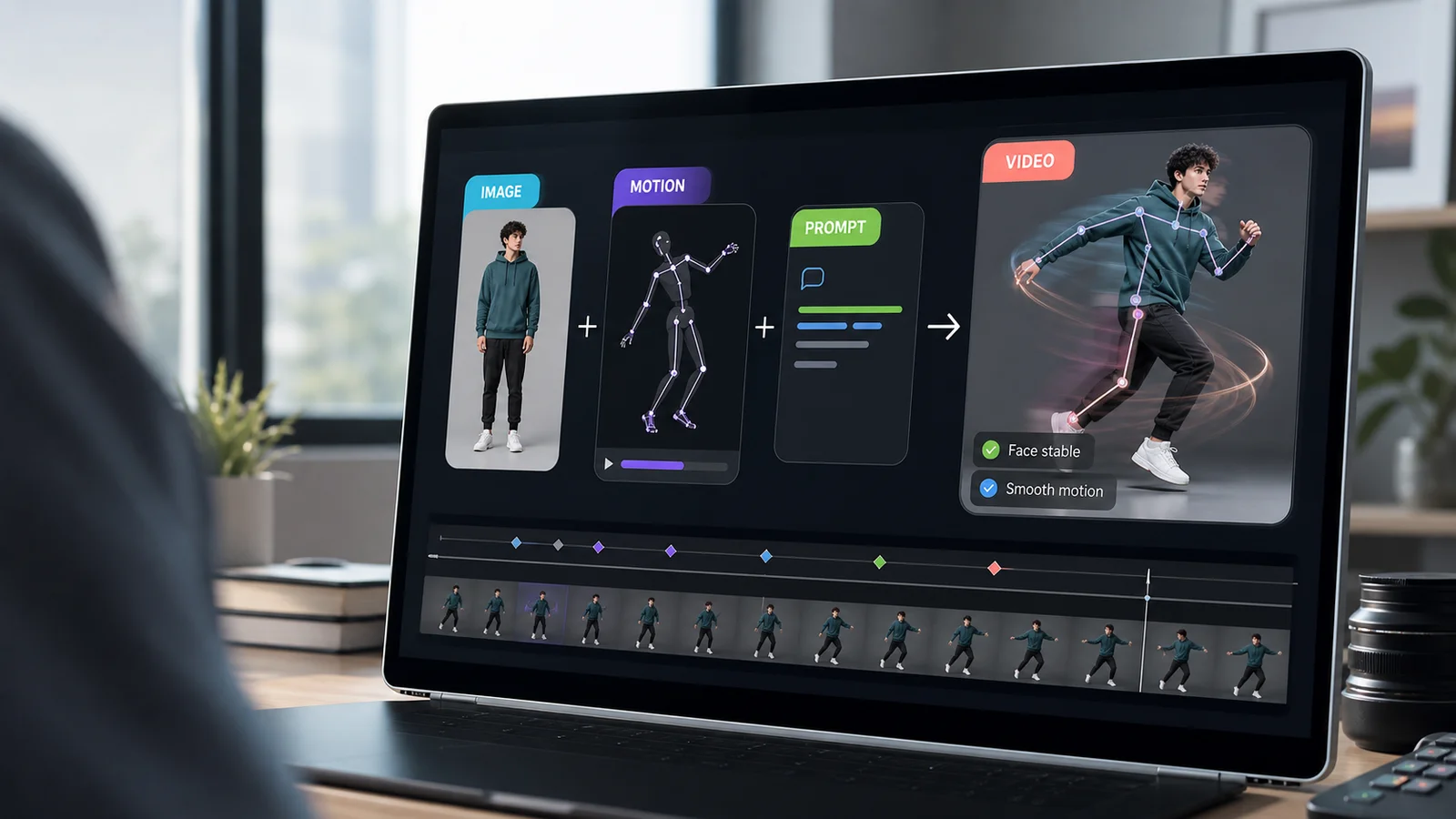


Summary
To create a motion control video, start with a clear character image and a short reference video that shows the movement you want. Upload both to a motion control video generator like Pixelbin, choose the right control mode, add a scene prompt, and generate. The reference video controls body movement, gestures, timing, and camera feel, while your prompt controls the setting and style. This guide covers the exact workflow, prompt examples, input checklists, and fixes for common issues like face drift, cropped limbs, and floating motion.
Introduction
If you have ever tried to make an AI video with only a text prompt, you already know the problem. The idea may be clear in your head, but the movement often comes out too random. A character may wave when you wanted a small hand gesture. A dance step may look stiff. A walking shot may feel like the person is sliding instead of stepping.Motion control fixes that problem by giving the AI an actual movement reference.
Instead of writing a long prompt like "make this person walk forward, turn slightly, raise one hand, and smile," you provide a short video that already contains that motion. The AI reads the movement from the reference video and applies it to your image or character. Your prompt then handles the look of the scene, such as lighting, background, color, and mood.
In traditional filmmaking, "motion control" can also mean repeatable camera movement using robotic rigs. In AI video creation, the phrase usually means something different: controlling a generated video with a reference video, image, or movement path so the final output follows a predictable action. This guide focuses on AI motion control videos, especially the kind you can create inside Pixelbin.
Quick answer: how to create motion control videos
You can create a motion control video in five basic steps:
1. Choose a clear reference video that shows the movement you want.
2. Choose or create a character image that matches the framing of the reference video.
3. Open Pixelbin's AI motion control video generator.
4. Upload the image and reference video, then add a short scene prompt.
5. Generate, review the movement, adjust one input if needed, and download the final video.
The most important rule is simple: let the video control the movement and let the prompt control the scene. If the reference video already shows a person walking, dancing, pointing, or speaking, you do not need to describe that action again in the prompt. Use the prompt for details like "studio lighting," "clean product demo background," or "cinematic street scene at night."
What is a motion control video?
An AI motion control video is an advanced generative workflow where structural movement is strictly dictated by a tracking source rather than left to algorithmic randomness. In traditional filmmaking, "motion control" refers to motorized robotic rigs that repeat exact camera paths. In the AI space, it refers to motion transfer AI.
Character Image (Identity)+Reference Video (Motion)+Text Prompt (Environment)=Flawless Motion Control Video
The hierarchy of AI video control
To understand why learning how to make AI motion control videos is a game-changer, look at how it compares to standard generation frameworks:
Use text-to-video when you do not have visual assets yet. Use image-to-video when you want to bring a still photo or design to life. Use motion control when the movement itself matters, such as a dance, a hand gesture, a presenter movement, a product interaction, or a repeatable brand character action.
The master setup: what you need before generating
Most broken outputs happen because of messy source files, not the AI generator itself. Before learning how to create motion control videos from an image, ensure your assets pass this baseline checklist.
1. The perfect reference video
Your tracking clip acts as a skeleton rig. If you want to know how to use a reference video for AI motion control effectively, ensure your video:
- Features exactly one primary subject under bright, even lighting.
- Avoids sudden cuts, rapid camera transitions, or extreme motion blur.
- Keeps all limbs, hands, and feet completely within the frame.
- Stays under 10 seconds (highly optimized for modern Kling motion control algorithms).
2. A proportionately matched character image
If you are figuring out how to animate a character with a reference video, you must match the spatial orientation.
- Full-Body Video? Use a full-body character image.
- Waist-Up Presenter Clip? Use a waist-up avatar.
- If the AI has to guess cropped-out shoulders or legs, the character model will warp violently during render transitions.
3. The structural scene prompt
Your prompt should never fight your reference video. Do not type action verbs like "man walking" if the video already shows a man walking. Let the reference control the skeleton, and let your prompt control the styling using this formula:
[Visual Asset Style] + [Environmental Background] + [Studio Lighting] + [Camera Grade Finish]
The core mechanics: how Motion Transfer AI extracts data
To understand why an AI motion control video generator works so well, it helps to look behind the curtain. The model does not simply copy and paste pixels from your reference video onto your image. Instead, it processes your files through a distinct two-layer tracking system:
1. Skeletal Estimation (Pose Extraction): The engine analyzes the reference video frame-by-frame, mapping out key tracking nodes across the human body (wrists, elbows, shoulders, hips, knees, ankles, and facial landmarks). This builds a dynamic digital skeleton that captures weight shifts, velocity, and timing.
2. Dense Appearance Mapping: The model takes your static character image and wraps its textures, clothing patterns, and facial structures neatly over that digital skeleton.
Because the underlying structural mechanics handle physics and bone positions, your text prompt is freed up to do what it does best: direct the environmental lighting, color grades, and artistic medium of the shot.
How to create motion control videos in Pixelbin
Here is the practical workflow.
Start with the motion tool
Open Pixelbin and go to the AI motion control video generator. From there, upload the visual input you want to animate, such as a character image or product image, and add a reference video if you want the motion to follow a specific action. The tool is built to work with motion transfer, so the reference clip helps guide how the final video moves.
Choose your inputs carefully
I recommend using a clear image with a clean subject and a reference video that has simple, readable movement. Pixelbin emphasizes consistent framing, natural movement, and high-quality source inputs, so the closer your references match your goal, the better your output will look.
Set the motion direction
Once your inputs are ready, choose the control mode or prompt input if the interface offers it. Pixelbin describes the workflow as a combination of image, video, and prompt-based control, which means you can guide both what appears in the frame and how it moves.
Use prompts like:
- "Clean studio background, soft daylight, realistic commercial video, natural skin texture, steady camera."
- "Modern office setting, glass wall background, warm professional lighting, shallow depth of field."
- "Vertical social media ad, casual creator style, natural room lighting, realistic handheld feel."
- "Cinematic night street, soft neon highlights, light rain on the road, realistic camera depth."
- "Minimal product demo set, neutral background, crisp lighting, high-end ecommerce look."
Avoid prompts like:
- "Make the person dance exactly like the video while raising both hands and turning left."
- "Walk, spin, jump, wave, smile, point, and move the camera all at once."
- "Fast camera zoom with complex dance and dramatic background changes."
Generate and review the result
After you generate the clip, check whether the motion feels smooth, whether the character stays stable, and whether the movement matches the reference video. If the output looks too aggressive or too loose, refine the source image or swap in a cleaner reference clip before trying again. Pixelbin positions this tool for polished motion control, so small input adjustments can make a big difference.
Refine for better output
If you want more accurate motion, keep the camera angle similar between the image and the reference video. I also recommend testing one simple movement first, like a turn, wave, or walk cycle, before moving to more complex choreography. Pixelbin’s motion control tool is built for controlled animation, so a simple starting point usually gives you the strongest result.
Save and reuse
When you get a clip you like, save it with the original image and reference video so you can reproduce the same style later. That makes it easier to build a repeatable workflow for ads, character content, and short-form social video. Pixelbin’s video generator is especially suited for this kind of consistent branded output.
The reference video already tells Pixelbin what movement to create. Your prompt should describe the final video environment.
Best prompt examples for motion control videos
Use these as starting points and edit them for your brand.
Common motion control problems and fixes
Best practices for better results
Start simple. The fastest way to learn motion control is to test a short, clean motion before trying complex choreography or multi-scene edits.
Match framing. If your reference video shows a full body, your character image should show a full body. If your image is a close-up, choose a reference video with close-up movement.
Use one subject. Multi-person clips can confuse motion extraction. For reliable results, use a reference video with one clear person or character.
Keep the first frame clean. Many motion control models use the early frames to understand pose, face, and orientation. A messy first frame can affect the whole output.
Write prompts like a director, not like a choreographer. The video handles choreography. The prompt handles the set, lighting, mood, and finish.
Change one input at a time. If a result fails, do not replace the image, video, and prompt together. Fix one variable, run again, and compare.
Save your winning combinations. If a certain image style, reference length, or prompt format works well for your brand, document it. That becomes your repeatable production recipe.
Use cases: creative ways to use Motion Transfer AI
Motion control technology is an incredible time-saver for fast-moving production teams, giving you repeatable, predictable results without the cost of a traditional film shoot.
1. Scaling social media campaigns
Instead of forcing a human creator or founder to record fifty different trending dances or lip-sync videos, you can film one clean reference performance. From there, use AI motion control videos to map that exact routine onto dozens of different branded characters, virtual influencers, or stylized avatars. This lets you generate high-volume variations tailored to different markets while keeping your production costs minimal.
2. High-impact e-commerce demonstrations
Static product photos can feel flat on a crowded social feed. By combining an image of a model with a clean reference video of a person holding, pointing at, or interacting with a product, you can create natural-looking video ads. This makes your products look dynamic and engaging without needing to organize a full studio shoot for every single catalog update.
3. Continuous brand spokespersons
Building long-term brand equity requires consistency. By keeping a library of approved, high-resolution character images for your brand mascots or virtual avatars, you can use motion transfer tools to transform them into permanent digital presenters. Whether you need internal training updates, corporate presentations, or explainer clips, your digital spokesperson can perform the exact gestures you need on command.
Quick checklist before you generate
Use this checklist before every motion control video:
- The reference video has one clear subject.
- The reference video has no sudden cuts.
- The subject is well-lit.
- The movement is visible from start to finish.
- The character image matches the framing.
- Hands, feet, and face are not cropped.
- The prompt describes scene and style, not the action.
- The first test is short.
- You review the motion before judging the final quality.
- You save the settings that work.
Conclusion
Motion control videos work best when you treat them like a small production, not just a prompt. The reference video is your performance. The character image is your subject. The prompt is your art direction.
If those three inputs are clean, AI motion control can turn a static image into a controlled video for social media, ads, training, product demos, and character animation. Start with a simple movement, test the output, and improve one input at a time.
FAQs
Upload a clear character image and a short reference video to a tool like Pixelbin's motion control video generator. Add a simple prompt for the background, lighting, and visual style. Generate the video, review the movement, and adjust the reference video or image if the output is not stable.
Text-to-video creates motion from a written prompt so that the result can vary. Motion control uses a real reference video, so the movement is more predictable. Use text-to-video for new ideas and motion control when the action needs to match a specific performance.
Yes. Motion control is useful for Reels, Shorts, TikTok clips, creator-style ads, dance videos, product demos, and virtual influencer content. For mobile platforms, use clear subjects, vertical framing, and simple movement that reads quickly on a small screen.
Face changes usually happen when the character image is unclear, the reference video has extreme angles, or the movement covers the face too often. Use a sharper character image, avoid heavy face occlusion, and start with slower movement.
You can use motion control videos commercially if your tool plan allows it and you have the rights to the images, reference videos, faces, voices, logos, and music used in the project. Always check the platform's terms and avoid using someone's likeness without permission.
Usually, no. The reference video already describes the movement. Your prompt should focus on the scene, lighting, background, visual style, and final look.









