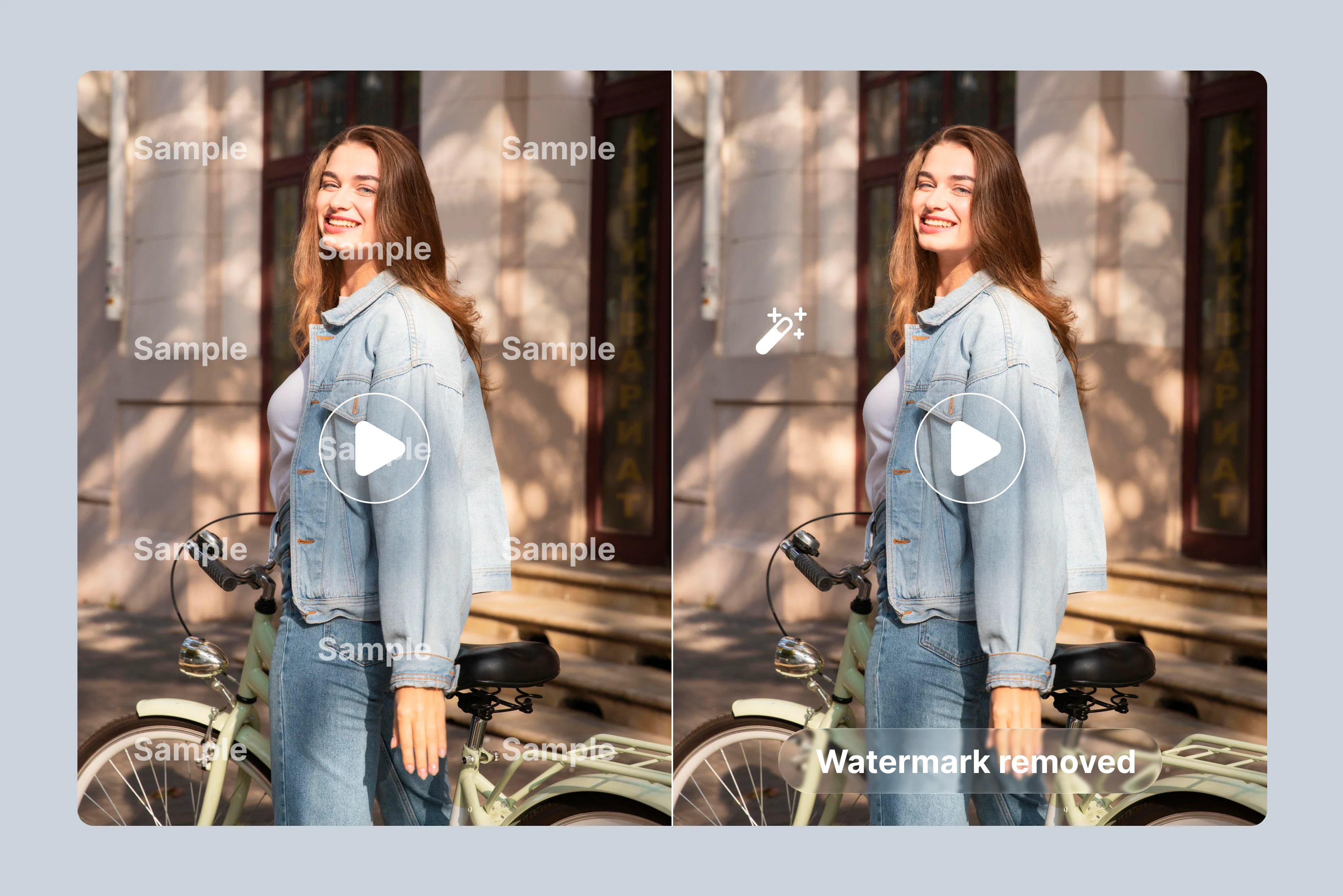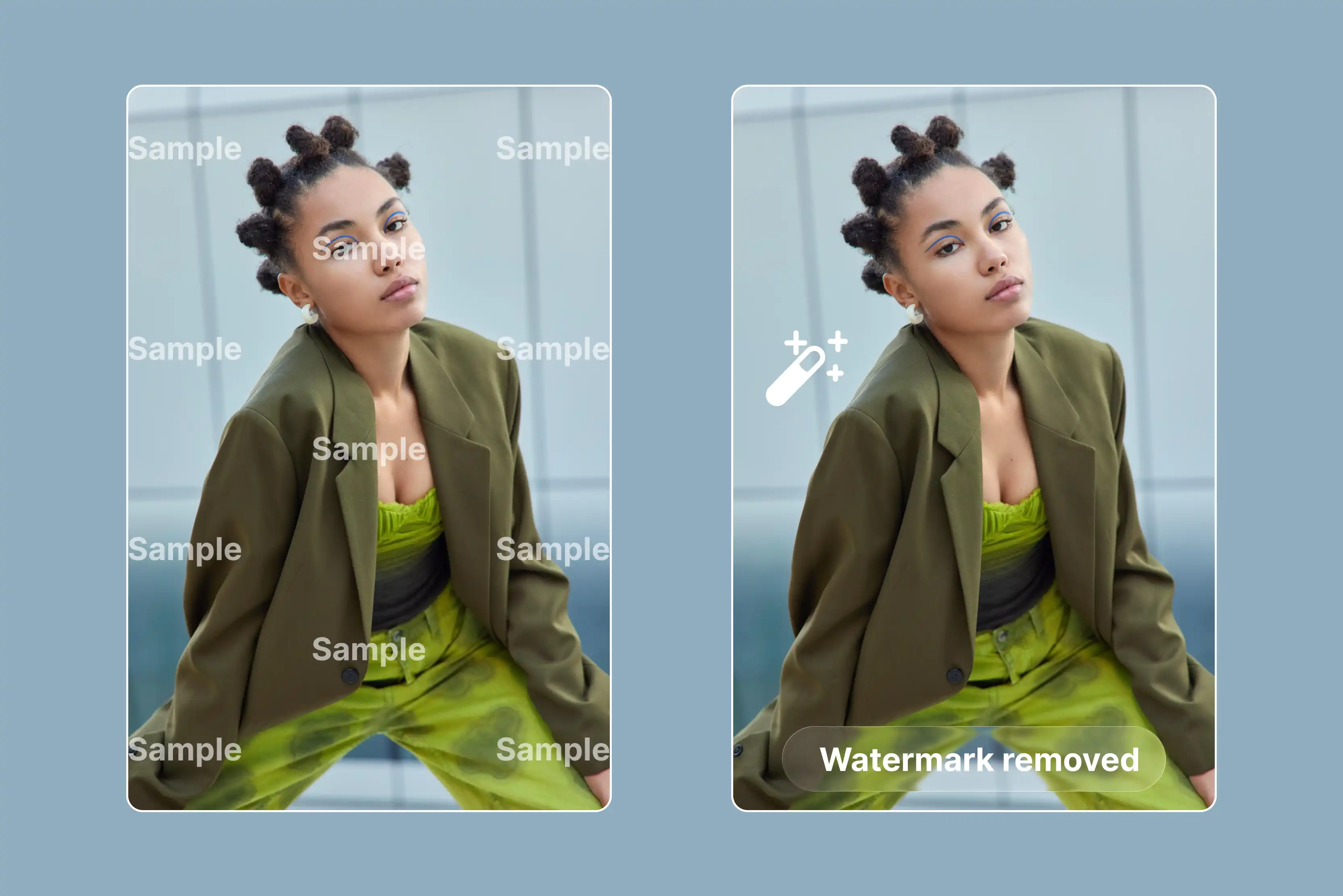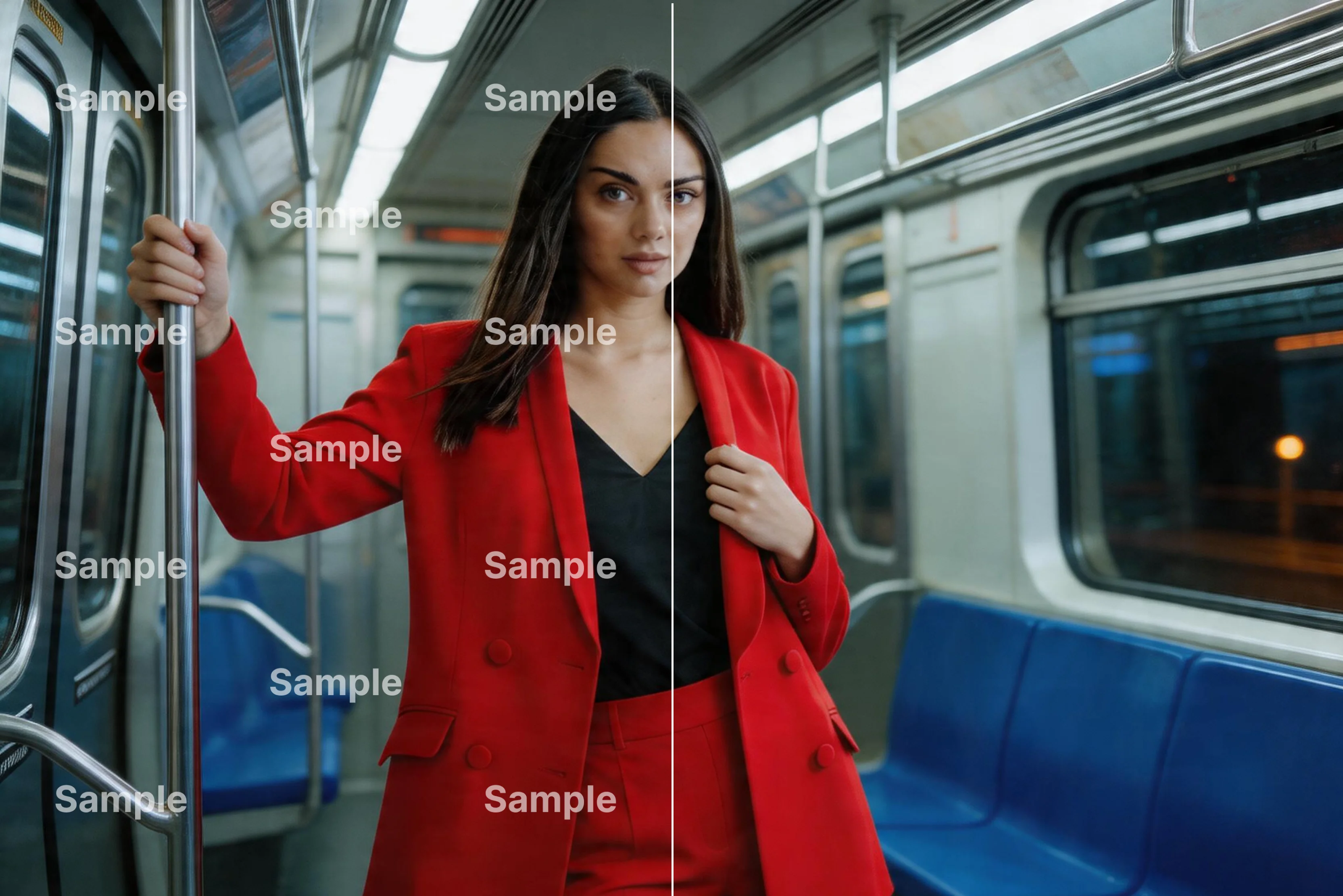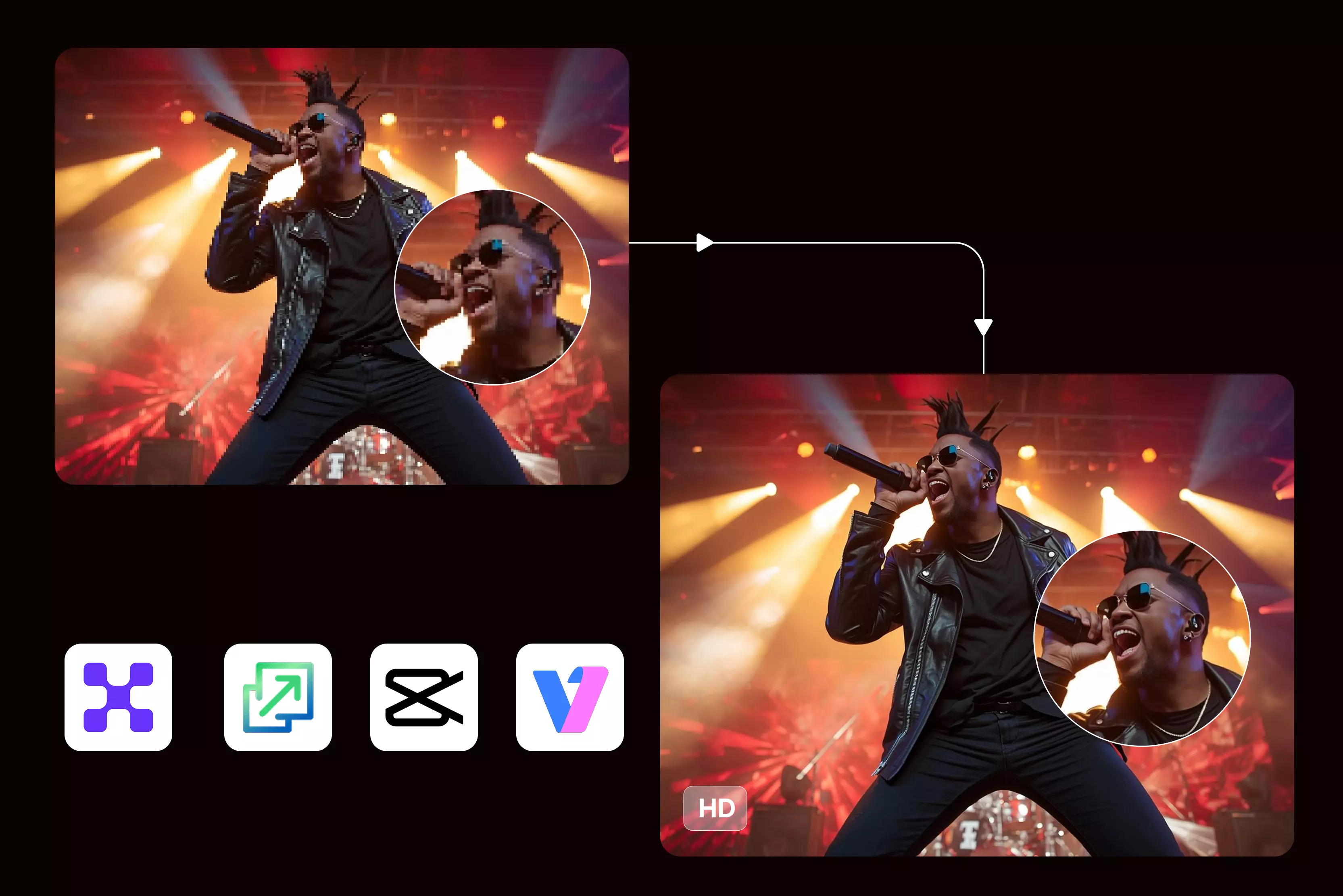


You know how it feels when you look through old videos on your phone and find those blurry 360p clips that look bad now because Reels and TikTok in 2026 need at least 1080p to get any attention. Viewers just scroll past the fuzzy mess right away without watching.
When I started making content, I spent a lot of time upset over shaky trip videos or family events ruined by poor quality, watching views drop fast because the platform rules favor clear, sharp uploads that stand out. In contrast, low-res ones get ignored completely by the system.
The best AI video upscalers solve this problem for people with old footage by using smart technology trained on tons of good videos to fix and improve what’s missing. They clean up rough spots, make faces clear again, and add frames so movement looks smooth instead of choppy, like it came from a better camera.
I tested all the tools and saw how they change bad 360p files into solid 4K ones that surprise people who ask if I filmed them new, all without needing special computers since the AI figures out details on its own.
This guide will talk about 12 AI upscalers ranging from Pixelbin AI Video Editor to Canva video upscaler, going from 360p to 4K/Full HD, with comparisons on faces, motion, and speed, plus easy tips for beginners and experienced users.
What do AI video upscalers do?
AI video upscalers grab those crummy low-resolution videos sitting forgotten on your phone, like the blurry 360p clips from years back, and pump them up to crisp 1080p, 4K, or beyond by using machine learning smarts that rebuild details pixel by pixel instead of just stretching things out like old basic tools, which always left everything looking soft and blocky around the edges.
These days, when I pull up family footage shot on ancient cameras or compressed to death for early social posts, the AI figures out patterns from tons of training data on real high-quality videos so it adds believable textures, sharpens faces that used to smear across the screen, and handles lighting shifts naturally without that overdone shiny fake effect cheaper methods spit out every time.
What takes it further comes from how they tackle all the extra junk ruining old clips beyond just size, digging into each frame to strip away noise from dim rooms or bad sensors, steady shaky handheld shots that wobbled all over, and even slip in new frames so playback hits silky 60 or 120 FPS from originals that stuttered like a bad connection.
Here's what they handle best:
- Boost resolution 2x to 16x from junk like 360p straight to 4K or 8K with real detail popping back in.
- Wipe grain, compression blocks, and blur while keeping edges clean and natural-looking.
- Fix faces so skin, eyes, and smiles come alive without plastic over-sharpening glitches.
- Add smooth frames, turning choppy action into slow-mo fluid gold from rough starts.
- Crunch batches of files quickly, often online, so your laptop doesn't melt down halfway.
- Eat any format from phone MP4s to dusty camcorder tapes, ready for social export fast.
How to pick the best video upscaler?
- Upscaling quality: Handles HD to 4K or 8K jumps while keeping real details sharp, avoiding stretched, blurry messes that ruin final output for social posts or pro work.
- Noise reduction: Cleans up grain from low-light shots or old cameras without wiping out textures like skin or fabrics, steering clear of that fake, smoothed-over plastic look.
- Color correction capabilities: Includes easy presets or sliders to fix faded, washed-out tones back to vibrant colors without jumping to separate editing apps.
- Motion smoothing: Adds smart frame interpolation for shaky handheld footage or fast action like kids playing or sports, turning jerky clips into fluid 60 FPS smoothness.
- Audio integration: Keeps background music, voiceovers, or sound effects perfectly synced after upscaling, so you skip time-consuming re-edits entirely.
- Speed and usability: Processes batches lightning-fast with drag-and-drop interfaces that work for quick social media clips or heavy daily workflows without confusing menus.
Top 12 AI video upscalers
Discover the top 12 AI video upscalers transforming blurry clips into stunning 4K masterpieces. From Pixelbin's pro-grade tools to CapCut social media magic, this guide breaks down the best picks for every creator's workflow, along with a glance table.
1. Pixelbin video editor

Tweak all you want, but sometimes videos still look wrong. That’s where Pixelbin AI video editor jumps in because it figures out exactly what your clip needs with smart AI that beats manual fixes every time, landing at the top of my list of best AI video upscalers for turning low-quality video into perfect 4K that looks freshly shot on expensive cameras.
Its models trained on real footage nail faces with natural skin, smooth shaky motion, kill noise without losing texture, and revive dull colors faster and cleaner than anything else I tested.
Plus, it handles photos too, sharpening blurry shots or upscaling old pics to print quality effortlessly. Just upload, pick a model like face or motion, hit go, and minutes later get pro results, no tech skills, no watermarks, ready for reels.
How to use the Pixelbin video editor for the best upscaling?
Step 1: Log into Pixelbin
Head straight to your Pixelbin account dashboard and hunt down the AI Video Generator section. This spot lists powerhouse models like Kling 2.1 Master, Seedance 1.0 Fast/Lite/Pro, Sora 2, Veo 3/3.1, plus Wan 2.2/2.5, ready for upscaling that turn junk footage pro fast.
Step 2: Switch to the video editor
Click the dropdown arrow right next to the generator button, pick Video Editor from the menu that pops up, and it drops you into a full editing workspace perfect for tweaks, upscales, and fixes without jumping apps.
Step 3: Choose a new project
Smash the New Project button to fire up a blank timeline where you control everything fresh, no leftover junk or presets slowing you down from past work.
Step 4: Upload low-resolution videos
Drag your blurry clips (handles two at once for quick compares or blends) straight from phone rolls, Google Drive, or Dropbox so processing kicks in without delays.
Step 5: Drag to the main canvas
Pull the uploaded video from the sidebar onto the center workspace; now it's primed for AI magic on sharpness, motion, and clarity.
Step 6: Pick upscale tools
Hit Crop for edge cleanups, Adjustments to crank resolution and sharpness, Filters for instant pop, Opacity/Blur fixes, Animated video to smooth shakes, or layer Text overlays, AI handles each pass for HD polish.
Step 7: Add prompt & generate
Type a detailed prompt covering subject/action, camera moves (pan/zoom/orbit), lighting/mood/style into the box, then generate, but grab a premium plan first since top models burn 30+ credits per run for full power.
2. Upscale.media AI Video Upscaler
Got fuzzy old videos sitting on your phone that look dull? Upscale.media's AI Video Upscaler fixes that fast by taking blurry 360p clips and turning them into sharp HD, Full HD, or 4K versions with real detail added frame by frame, keeping all the original colors and lighting natural so nobody guesses you upgraded it.
Just drag and drop your MP4, MOV, or WebM files right in the browser, no sign-up, no fees, no downloads needed, and it spits back pro-looking results ready to post anywhere.
Once you open the page, you get to see it's a free video upscaler, just upload your video, and AI will generate the upscaled version that makes it social media ready to make your content pop without headaches.
Why is it best for a video upscaler?
- Enhanced video quality: Turns blurry, low-resolution clips into sharp, detailed HD or 4K visuals by refining every frame for better focus and clarity without losing the original feel.
- Wide format support: Handles MP4, MOV, WebM files across any resolution so you upscale phone footage, old camcorder tapes, or social clips without format headaches.
- Streamlined workflow: One smooth drag-and-drop process enhances and exports fast, with no jumping between apps or complex steps eating your content creation time.
- Preserving original video: Keeps colors, tones, and style exactly as shot while boosting sharpness, so upgraded videos look naturally pro instead of AI-touched.
- Fast processing speed: Single upload delivers studio-quality results in seconds, perfect for quick Reels fixes or client deadlines when time's tight.
- Complete privacy: Processes securely on protected servers, deletes files immediately after, and never stores or shares your footage.
- Subscription-free use: Unlimited enhancements with zero sign-ups, fees, or subscriptions, ideal for testing tons of clips risk-free.
3. CapCut AI Video Upscaler
Tired of old videos looking grainy and outdated wherever you post them? CapCut's AI Video Upscaler grabs those blurry 360p clips from your phone and bumps them straight to sharp 4K or HD as CapCut’s algorithm analyzes each frame, but doesn’t literally create brand-new, real details.
The AI predicts plausible details based on learned patterns, while killing blur and noise. Hence, everything pops clear without messing up the original colors or feel, like your footage got shot fresh on better gear.
This tool walks through beginner-friendly steps to upload from desktop or cloud, pick HD/4K enhancement plus noise reduction, preview fast, then export ready for YouTube or Reels, all free in their editor that packs extra tools for quick polishes.
Why is it best for a video upscaler?
- 4K Upscaling: Pushes low-resolution videos to 4K, keeping quality crisp, adding smart details that beat basic stretching.
- Deblurring footage: Strips blur and grain from shaky clips or old recordings while sharpening faces and edges naturally.
- Best for Any Video Type: Handles all formats and projects from personal memories to pro edits without limitations.
- Quick desktop workflow: Free desktop app lets you upload, enhance to 4K, reduce noise, and export in minutes—no online hassles.
- Built-in editing: Combines upscaling with filters, effects, and captions right in one app for social-ready results fast.
4. Vmake AI Video Enhancer
Struggling with grainy old clips that flop on social feeds? Vmake.ai's AI Video Enhancer takes blurry low-res footage like 360p phone videos. It boosts them to crisp HD or 4K by auto-fixing brightness, contrast, saturation, and sharpness frame by frame, so details pop naturally without fake over-processing or color shifts.
This tool shows their one-click online flow, upload up to three MP4/MOV files, preview enhancements live, pick formats/lengths, and export fast on any device, all free with files auto-deleted after 7 days for total privacy, no sign-ups needed.
Why is it best for a video upscaler?
- Quick AI fixes: Auto-tunes brightness/contrast/saturation/sharpness on blurry clips for an instant pro look.
- 4K upscaling: Lifts low-res videos to 4K at 30 fps with smooth detail recovery and no heavy software.
- Batch processing: Handles three files at once with live previews before export, great for social workflows.
- Versatile for any device: Browser-based works anywhere without downloads, perfect for phone or laptop fixes.
- Privacy-first use: Secure servers delete uploads after 7 days. Never store or share your footage.
5. Media.io Upscale Video to 4K Online
Tired of crummy, low-resolution videos that look pixelated everywhere you share them? Media.io's AI Video Enhancer steps up by grabbing your blurry 360p clips and pumping them straight to clean 4K, where smart tech digs into every frame to rebuild lost details so faces sharpen up, motion flows smoothly, and nothing turns fake or washed out as lesser tools do.
Upload MP4, AVI, or MOV files right in your browser, pick 2X or 4X upscale with one tap, preview the pro results fast, then hit download, all done in minutes without downloads, logins, or tech know-how, since their simple three-step flow works for anyone fixing old footage or social clips quickly.
Why is it best for a video upscaler?
- 4K resolution boost: Scales videos 2x/4x to 4K, adding missing details for pro clarity on modern displays.
- Merging mixed footage: Matches low-res clips to high-quality ones for smooth, consistent final videos.
- Older clip revival: Turns grainy vintage recordings crisp and future-proof for family archives or posts.
- Zoom-ready detail: Upscales before zooming to keep images sharp, not blurry or blocky.
- Quick denoise: New AI removes grain alongside upscaling, no extra tools needed.
6. Picwand AI Video Upscaler
Are low-quality videos embarrassing you now? Picwand's free AI Video Upscaler transforms blurry 360p clips to 4K or HD by sharpening details, denoising grain, balancing colors, and interpolating frames for fluid motion.
No watermarks or artifacts marring the natural look. Upload your video online, let AI generate a preview like a TV Series or film or the like, tweak settings if needed, like noise or color correction, and download full results instantly. Intuitive browser interface handles anime, old footage, or social clips perfectly for creators who want pro upgrades without complex software or steep learning curves.
Why is it best for a video upscaler?
- One-click 4K upscale: Transforms low-res clips to 4K resolution instantly with AI sharpening every frame for crisp movie playback or cherished memories.
- Pixelation reduction: Cuts pixelation while boosting detail clarity so videos look naturally sharp without artifacts or quality loss.
- Free online processing: A browser-based tool requires no downloads or powerful hardware for instant video enhancement access.
- Sharpness enhancement: Boosts video sharpness, making every detail crisp and clear, perfect for big screen viewing.
- Memory preservation: Enhances cherished personal videos, maintaining quality for long-term digital storage.
7. Dzine AI Video Upscaler
Blurry content needs a quick lift? Dzine AI Video Upscaler boosts low-resolution videos to 8K resolutions with intelligent detail recovery and sharpening that keep textures and faces realistic, ideal for marketing clips or social posts demanding crisp visuals, along with video enhancement and restoration.
The tool also provides noise removal and color correction features. Simple browser workflow lets you upload footage, process with AI automatically, and export polished results fast.
No downloads needed, but you need to sign up for seamless enhancement tailored for designers and content teams, turning rough drafts into platform-ready video without extra editing hassle, especially for gaming and live stream video.
Why is it best for a video upscaler?
- Free 8K resolution: Instantly lifts videos to 8K with AI-powered detail sharpening that outperforms competitors.
- Audience captivating clarity: Improves resolution, delivering stunning, clear content that grabs the viewer's attention immediately.
- Competitor-beating quality: Boosts video quality significantly, helping content stand out against professional productions.
- Instant browser processing: Simple online upload and upscale eliminates software downloads for a rapid workflow.
- Marketing content optimized: Designed specifically for social media and promotional videos, demanding the highest visual standards.
8. Airbrush AI Video Enhancer
Grainy footage ruining your shares? Airbrush AI Video Enhancer sharpens and denoises videos online but includes download and login, recovering natural details from low-resolution originals.
Hence, motion stays smooth and clarity pops without unnatural over-sharpening or color distortion. Upload clips directly to their web tool, apply one-click AI enhancement, preview improvements live, and download ready-to-post versions. Works to be the best for social media creators, fixing quick phone videos or old recordings into eye-catching content that holds up on any screen size.
Why is it best for a video upscaler?
- Online AI sharpening: Sharpens low-quality videos, recovering natural details, and maintaining smooth motion flow.
- Noise reduction cleanup: Removes grain while preserving realistic textures, ensuring social-ready professional appearance.
- One-click enhancement: Browser-based processing delivers post-ready videos without complex editing requirements.
- Artifact-free results: Eliminates fake over-sharpening effects, maintaining natural video appearance throughout.
- Screen-size versatility: Enhanced videos maintain quality across mobile phones and large display screens.
9. Canva Video Upscaler
Rough video clips messing with designs? Canva's built-in AI Video Upscaler enhances low quality footage to HD or 4K right inside their editor, adding smart details while preserving your project's style for seamless integration with graphics and text.
Upload videos to your Canva canvas, select the upscale option, let AI process frames for sharpness, then edit/export alongside templates. Free for all users, ideal for presentations, Reels, or marketing materials where polished video elevates the entire visual story effortlessly.
Why is it best for a video upscaler?
- Editor-integrated upscaling: Enhances videos to HD/4K directly within the Canva design workspace seamlessly.
- Template compatibility boost: Upscaled footage integrates perfectly with Canva graphics, text overlays, and templates.
- Free universal access: Available to all Canva users regardless of subscription level for design enhancement.
- Presentation-ready output: Produces polished videos optimized specifically for presentations and social content.
- Single-workspace editing: Complete upscale and edit process contained within the familiar Canva environment.
10. Freepik AI Video Upscaler
Poor quality assets slowing creative work? Freepik AI Video Upscaler sharpens low-resolution videos to 4K levels, enhancing details for stock footage or custom clips that blend perfectly into design projects without pixelation on high-quality exports.
Access through their free tier online, upload video files, apply AI upscale, preview quality boost, and integrate directly into Photoshop or web designs. Tailored for designers reviving old footage or optimizing assets for professional presentations and social campaigns.
Why is it best for a video upscaler?
- Design asset 4K sharpening: Upscales stock and custom videos, preventing pixelation in professional Photoshop projects.
- High-resolution export perfection: Maintains pixel-perfect quality across print and digital formats and screen sizes.
- Creative workflow integration: Enhanced footage drops directly into design presentations and marketing campaigns.
- Free tier availability: Accessible optimization without subscription barriers for professional creatives.
- Pixelation elimination: Completely removes breakup issues, ensuring flawless high-resolution exports.
11. Fotor AI Video Upscaler
Fuzzy old clips are not shareable anymore? Fotor's AI Video Upscaler jumps 360p videos to 4K clarity, deblurring edges, enhancing colors, and smoothing motion with one-click processing plus bonus templates and effects for instant social-ready results.
Upload to their online editor, select AI upscale, preview the transformation, apply filters if desired, and export. Just log in, no download is needed, perfect for quick fixes on family videos, product demos, or Reels where pro polish comes without complicated editing timelines.
Why is it best for a video upscaler?
- One-click 4K transformation: Converts blurry footage to 4K, including edge deblurring, color enhancement, and motion smoothing.
- Built-in template effects: Includes professional effects templates creating instant social media-ready content.
- Online preview capability: Real-time transformation preview before final export decision-making.
- No-software simplicity: Complete browser-based process eliminates desktop application requirements.
- Social platform optimization: Produces content specifically formatted and optimized for major social media platforms.
12. Wink Video Upscaler
Low-resolution videos tanking your content? Wink AI Video Upscaler rapidly boosts resolution and detail on blurry clips, delivering sharp, natural-looking upgrades optimized for creators who need fast enhancements without quality loss.
Browser-based tool takes your upload, applies intelligent AI scaling, shows before/after previews, and exports high-resolution files instantly. Simple flow suits social media pros or hobbyists turning phone footage into scroll-stopping posts ready for Instagram or TikTok.
Why is it best for a video upscaler?
- Rapid AI resolution boost: Quickly enhances blurry clips, delivering sharp detail recovery for creators.
- Instant before/after previews: Immediate visual comparison shows the enhancement effectiveness clearly.
- High-res browser exports: Downloads professional-quality files directly through a simple web interface.
- Creator workflow optimized: Processing speed is designed specifically for content creators' daily needs.
- Social platform perfection: Produces Instagram TikTok-ready videos from standard phone footage quickly.
Final thoughts
In the crowded field of AI video upscalers, the right tool boils down to your specific needs: whether it's blazing speed for quick social clips, unmatched 8K clarity for pro edits, or budget-friendly options that punch above their weight.
Tools like Pixelbin lead for quality hounds, while CapCut shines for mobile creators on the go. That's why I have dissected 12 standouts here, from freebies to premium powerhouses, so you can skip the guesswork and jump straight to sharper, smoother footage that captivates viewers.
Ultimately, test a few against your workflow; results vary when you add materials with different file sizes. For seamless upscaling with intuitive controls, Pixelbin AI Video Editor stands out, blending top-tier enhancement and editing in one efficient platform.
FAQs
CapCut leads for beginners since their desktop app makes it dead simple: upload your clip, tap "Enhance quality" for instant 4K, then export ready to post. Pixelbin wins online with drag-and-drop files, no signup needed, and previews pop up right away, perfect when learning curves kill motivation. Vmake.ai handles multiple clips at once if fixing batches fast matters most.
Absolutely, they deliver: Pixelbin, Picwand, and Media.io take potato-quality 360p phone footage and rebuild it into solid 4K where faces look natural, motion flows smoothly,h and details pop convincingly on TVs or phones. Won't fool pros comparing side-by-side with native 4K cameras, but casual viewers swear you reshot everything fresh.
Expect 30 seconds to 5 minutes based on file size and tool: Pixelbin spits HD results in 45 seconds fla,t while Vmake.ai processes three clips with live previews under a minute total. Browser options like Upscale.media finish 150MB files instantly through cloud power, though Media.io needs closer to 3 minutes for full 5-minute videos.
Most bundle cleanup with upscale since modern AI hits both problems: CapCut auto-strips grain and blur under one "Enhance" button, Vmake.ai auto-fixes brightness while Picwand kills pixelation instantly. Media.io offers separate denoise alongside 4K scaling, so old shaky camcorder tapes come back crystal clear without manual tweaks.
Local apps like CapCut run everything through your computer's GPU for unlimited clips without internet dependency, but tax hardware on long videos. Cloud tools (Upscale.media, Vmake.ai, Pixelbin) shift processing to remote servers, so phones work fine with auto-privacy deletion after 7 days, though upload limits hit 150MB-1GB max during peak hours.
Log into the Pixelbin dashboard and click AI Video Generator listing models like Kling 2.1 or Veo 3.1, tap the dropdown arrow next to generator, then pick Video Editor mode for full controls. Smash New Project button, drag low-res clips onto canvas (handles two files), select Adjustments for 4K boost or Animation smoothing, add detailed prompt describing motion and style, hit generate using premium credits for final pro output.