Summary
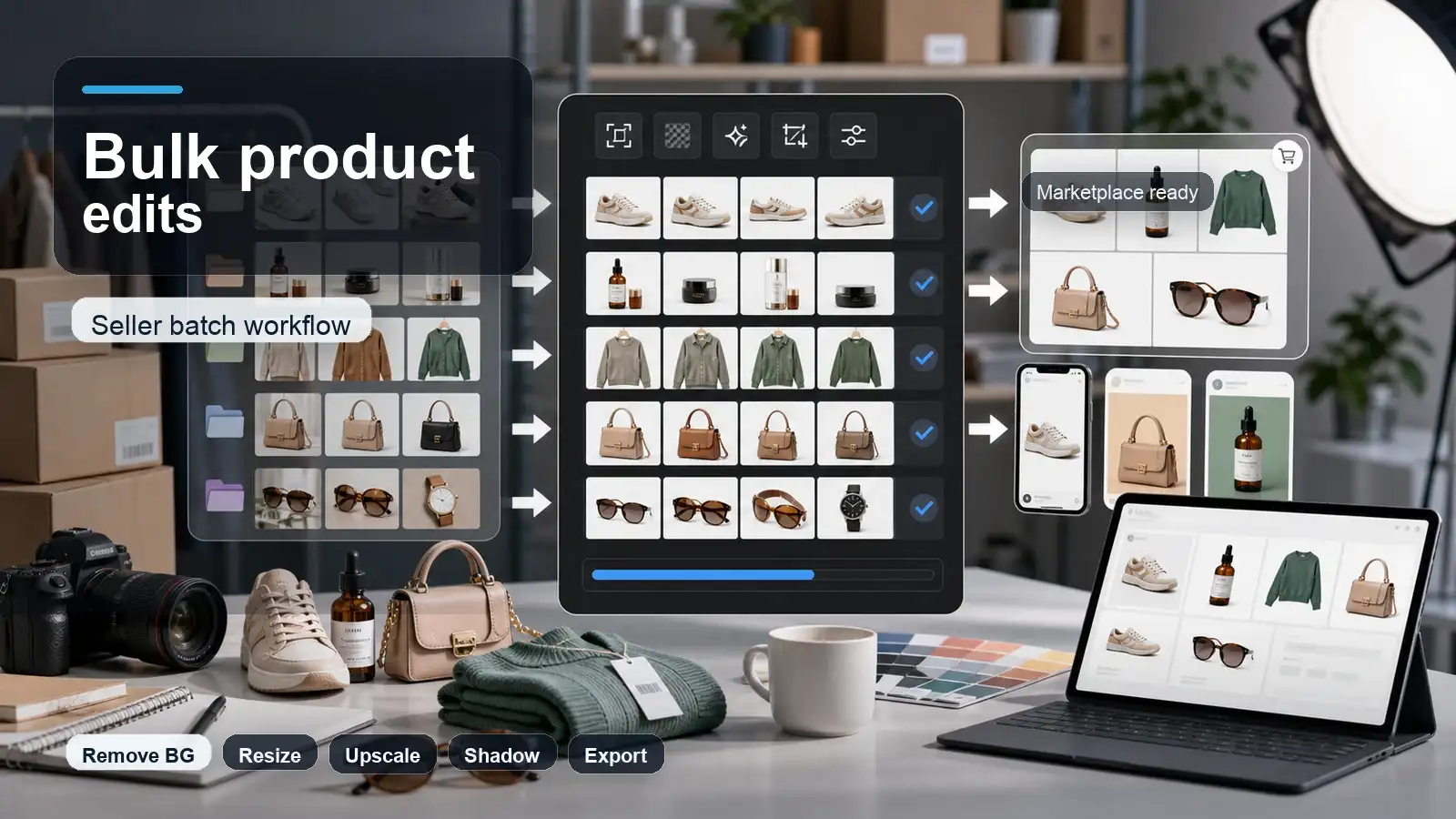
The best image batch editor is the one that can apply the same edit to many images without breaking consistency. For simple jobs, a browser tool can resize, crop, compress, rename, or watermark files quickly. For sellers, marketers, and content teams, a stronger batch editor should also support AI edits such as background removal, upscaling, shadows, prompt-based transformations, and reusable templates. Pixelbin's Batch Editor is useful for this workflow because users can log in to the console, upload up to 50 images in one batch, apply AI transformations together, review the output, undo changes if needed, and download the edited set.
Introduction
Editing one image is easy. Editing 20, 50, or 500 images with the same size, background, shadow, crop, watermark, and quality standard is where the real work starts. A manual workflow becomes slow fast: open file, edit, export, repeat, check, rename, upload again. Small mistakes multiply across the whole folder.
That is why image batch editors matter. They help creators, sellers, photographers, agencies, and ecommerce teams make consistent changes across many images at once. The right tool can resize catalog photos, remove backgrounds, add watermarks, sharpen images, create social-ready formats, or apply AI transformations without repeating the same steps image by image.
This guide compares the best image batch editor options by use case, explains the features that matter, and shows how to use Pixelbin's Batch Editor when you want to upload multiple images and apply edits together.
What is an image batch editor?
An image batch editor applies the same change to multiple images at once. Instead of manually editing every file, you select a group of photos, set your transformation, preview the results, and process the entire batch simultaneously.
Standard tools handle high-volume formatting tasks like resizing, cropping, rotating, and compressing. They also streamline workflow logistics by automating file renaming, format conversions (such as PNG to WebP), and cross-gallery watermarking to protect intellectual property.
For advanced automation, AI-driven batch editors leverage machine learning algorithms to execute complex modifications across large datasets. These systems automate background isolation for e-commerce cataloging, object removal, neural-network-based upscaling, and prompt-based stylistic transformations across entire directories.
Who needs a batch image editor?
- E-commerce sellers: Retailers who must quickly resize, crop, and remove backgrounds from hundreds of product photos to meet online marketplace guidelines.
- Professional photographers: Event, wedding, and portrait photographers who need to apply consistent color correction, presets, or watermarks across thousands of event shots.
- Social media managers: Creators handling multiple platforms who need to instantly resize graphics into square, vertical, or banner dimensions while maintaining brand uniformity.
- Graphic & web designers: Professionals converting massive asset libraries into web-optimized formats (like WebP) and compressing files to improve website loading speeds.
- Real estate agents: Professionals staging online listings who need to bulk-enhance property photos, fix lighting, and add agency branding before uploading to property portals.
- Content creators & bloggers: Online publishers who regularly batch-rename, compress, and format featured images to keep their digital archives organized and SEO-friendly.
- Marketing agencies: Teams running large digital campaigns that require localized text prompts, template variations, or logo overlays applied to a massive folder of promotional graphics.
Top 15 best image batch editor tools in 2026
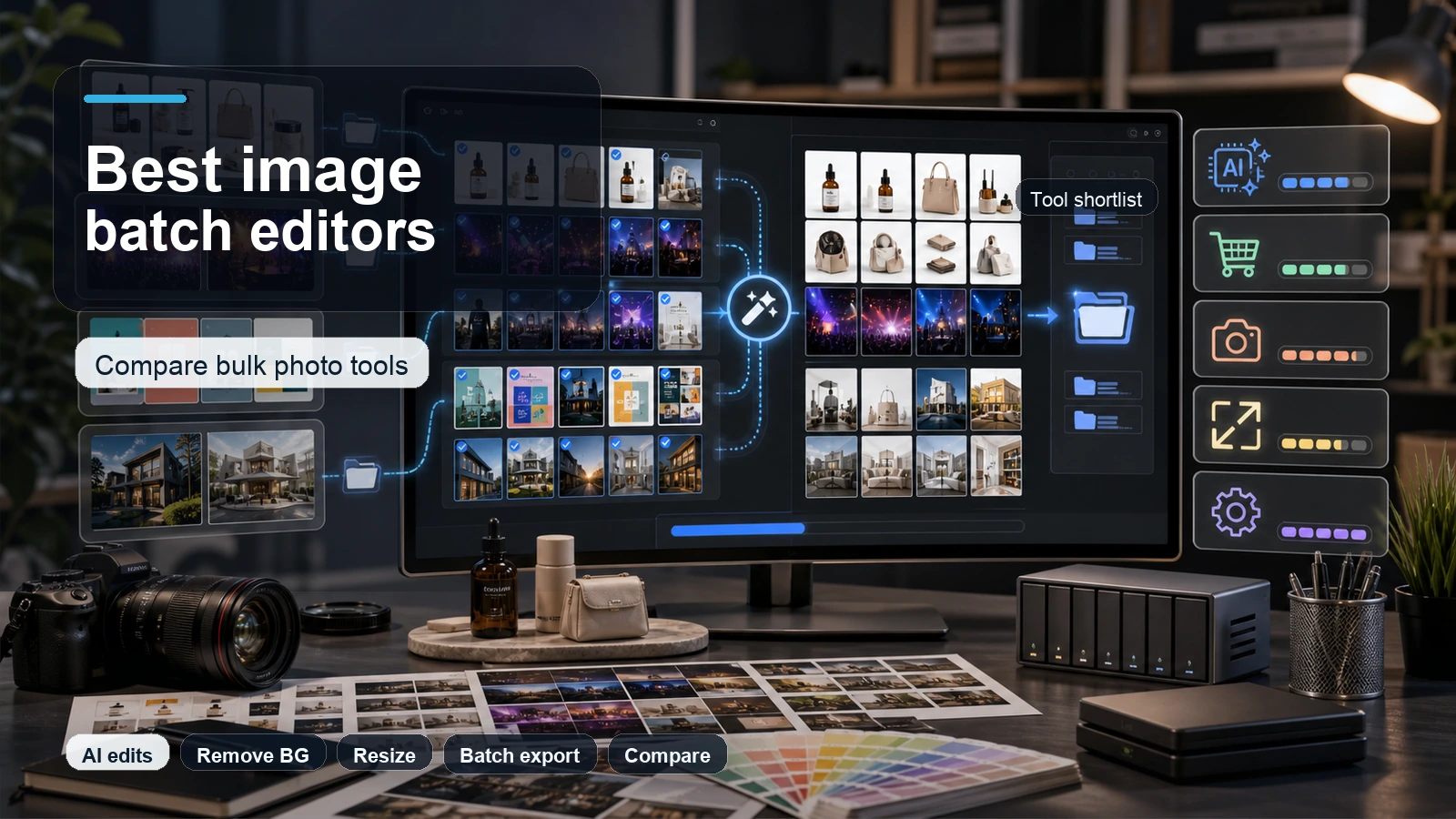
The best tool depends on the kind of batch edit you need. Some tools are built for ecommerce product photos, some are better for resizing and file conversion, and some are made for photographers who need color consistency across hundreds or thousands of images. Here are the strongest options to compare.
1. Pixelbin batch editor
Best for AI batch transformations, seller workflows, and product image consistency.
- Why it stands out: Pixelbin brings batch editing into the console workflow, so users can upload multiple images and apply AI transformations such as Prompt, Upscale, Watermark, Background, Remove BG, Shadow, AI Resize, Camera Angle, Adjust, and Templates.
- Comprehensive toolset: Features include text-based prompts, watermarking, camera angle adjustments, and AI resizing, eliminating the need for multiple separate editing tools.
- Target audience: It is purpose-built for e-commerce sellers, content marketers, marketplaces, and design teams looking to clean up and process product or campaign visuals simultaneously.
- Efficiency gains: The platform streamlines asset pipelines, ensuring visual consistency across large catalogs while significantly reducing manual production hours.
- Batch threshold: The current interface caps processing at 50 images per batch. Users handling massive archives must split their folders into smaller groups for optimal performance.
How to edit your images with Pixelbin?
Using Pixelbin's AI image editor is straightforward and can be broken down into seven simple steps:
- Sign in: Log in to your Pixelbin account and open your personal dashboard.
- Open the batch editor: Click on the Batch Editor tab on the dashboard menu.
- Upload your files: Drag and drop up to 50 photos (JPEG, PNG, or WebP) into the upload zone, or upload an entire folder.
- Choose your tools: Use the left-hand panel to select your editing actions, such as removing backgrounds, resizing, or adding watermarks.
- Adjust settings: Fine-tune each selected action (for example, choosing a white background or setting your watermark's opacity).
- Preview your results: Review your edited images in the central workspace to ensure they look perfect and consistent.
- Download your batch: Click the Download button to save all your finished, high-resolution images as a clean, organized ZIP file.
2. Imagen
Best for professional photographers who want AI batch editing that learns their style.
- Why it stands out: Imagen focuses on AI-powered post-production for photographers, with editing profiles, culling, cloud workflow, and Lightroom-oriented workflows.
- Deep ecosystem integration: Features include native Adobe Lightroom Classic synchronization, allowing creators to apply complex color corrections and styles across large RAW data sets externally.
- Target audience: It is purpose-built for high-volume wedding, portrait, event, school, sports, and real estate photographers who need to process massive shoots regularly.
- Efficiency gains: The platform streamlines the selection and editing pipeline, ensuring strict visual style consistency across thousands of event frames while reducing manual editing hours.
- Scope limitations: The platform is engineered strictly for professional photography workflows. It does not support e-commerce product background removal or browser-based catalog transformations.
3. Adobe Lightroom Classic
Best for photographers who want full manual control with presets and sync settings.
- Why it stands out: Adobe Lightroom Classic focuses on heavy-duty RAW image processing, offering non-destructive color grading, AI-powered subject masking, and catalog-based photo organization to streamline complex editing workflows.
- Catalog-based post-production: Deep Ecosystem Integration: Features include seamless sync with the full Adobe Creative Cloud suite, tethered shooting capability, and extensive third-party plugin support for high-end studio pipelines.
- Target audience: It is purpose-built for commercial, wedding, landscape, and portrait photographers managing large local photo libraries on desktop setups.
- Efficiency gains: The platform streamlines batch editing through cross-image preset syncing and smart collections, reducing repetitive grading work and maintaining consistent visual styles across full shoots.
- Scope limitations: The application is reliant on local storage management and hardware performance, lacking specialized, single-click e-commerce background removal or lightweight browser-based catalog automation tools.
4. Capture One Pro
Best for studio, commercial, fashion, and tethered-shooting workflows.
Why it stands out: Capture One Pro focuses on high-end RAW image processing and advanced color grading, offering custom camera profiles, granular hue/saturation controls, and specialized skin-tone editing tools for maximum image fidelity.
- Industry-leading tethered workflow: Features include high-speed wired and wireless tethered shooting, live view remote camera controls, and automatic "Next Capture Adjustments" that apply edits instantly as shots arrive on set.
- Target audience: It is purpose-built for commercial, fashion, studio, portrait, and editorial photographers as well as digital technicians who require absolute color accuracy and real-time client preview setups.
- Efficiency gains: The platform accelerates live shoots through immediate on-set rating, custom session management, and instant style application, significantly reducing post-production turnaround times.
- Scope limitations: The application carries a steeper learning curve and higher price tag, while lacking lightweight browser-based e-commerce background removal or automated catalog-wide asset manipulation tools.
5. DxO PhotoLab
Best for batch noise reduction, lens correction, and technical photo cleanup.
Why it stands out: DxO PhotoLab focuses on technical RAW processing, leveraging lab-tested camera-and-lens optical modules alongside DeepPRIME AI noise reduction to automatically resolve lens distortions and recover low-light details.
- Targeted control & local edits: Features include U Point control-point technology, intelligent AI masking, DxO ClearView Plus haze reduction, and non-destructive color wheel controls for precise, localized adjustments.
- Target audience: It is purpose-built for landscape, wildlife, night, travel, and fine-art photographers who demand maximum optical sharpness, high-ISO image clarity, and fine-tuned control over RAW files.
- Efficiency gains: The platform streamlines initial image processing by automatically applying custom gear-specific profile corrections upon opening files, eliminating manual lens and distortion tuning.
- Scope limitations: The application operates strictly as a local desktop workspace without native cloud synchronization, while lacking specialized browser-based e-commerce background removal or automated catalog asset manipulation tools.
6. Luminar Neo
Best for AI creative edits and quick visual enhancements.
Why it stands out: Luminar Neo focuses on rapid creative enhancements using modular, AI-powered tools like Sky AI, Atmosphere AI, Light Depth, and Generative Erase/Swap to transform image mood and lighting in a few clicks.
- Deep ecosystem integration: Features include cross-device syncing with the Luminar mobile app, plugin extensions for Lightroom Classic and Photoshop, and automatic AI depth-masking for targeted local adjustments.
- Target audience: It is purpose-built for enthusiastic hobbyists, landscape, portrait, and creative photographers looking for quick, high-impact edits without complex manual layer compositing.
- Efficiency gains: The platform streamlines complex retouching by replacing intricate Photoshop masking with one-click AI sliders for sky replacement, portrait retouching, and atmospheric depth.
- Scope limitations: The application is optimized for creative individual photo enhancements rather than high-speed batch culling for massive shoots or automated e-commerce catalog image transformations.
7. Photoroom
Best for product photo batch editing and marketplace-ready catalog images.
Why it stands out: Photoroom focuses on AI-driven product studio editing, enabling users to execute instant background removals, place items into generative AI scenes, and generate virtual fashion models.
- Deep ecosystem integration: Features include cross-platform availability across mobile and web, batch mode exports, an enterprise REST API, and direct marketplace integrations like Shopify publishing.
- Target audience: It is purpose-built for e-commerce sellers, solopreneurs, resellers, and digital marketing teams who need listing-ready visuals without hiring studio crews.
- Efficiency gains: The platform streamlines marketplace catalog creation by replacing manual Photoshop clipping paths with one-tap AI background swaps and automated staging.
- Scope limitations: The application is built specifically for commercial product staging and catalog generation, lacking advanced RAW image processing, catalog-wide color management, or deep layer-based photo editing workflows.
8. Pixelcut
Best for very large bulk product-image jobs.
Why it stands out: Pixelcut focuses on AI-driven mobile and browser product editing, offering instant background removals, generative AI scene placements, image upscaling, and studio shadow creation.
- Deep ecosystem integration: Features include cross-platform access across mobile apps and web browsers, bulk catalog processing, canvas-based graphic design templates, and marketplace export presets.
- Target audience: It is purpose-built for online resellers, small business owners, social media marketers, and e-commerce merchants needing quick, listing-ready visuals.
- Efficiency gains: The platform accelerates catalog turnarounds by letting sellers create clean product photos, lifestyle compositions, and promo graphics directly from their phones or desktop browsers.
- Scope limitations: The tool is tailored for commercial staging and social asset production, lacking professional RAW file processing, advanced color grading, or complex multi-layer desktop editing capabilities.
9. Pixlr
Best for free online AI batch edits and quick creative cleanup.
Why it stands out: Pixlr focuses on lightweight, browser-accessible photo editing and design, offering a dual-tier workspace (Pixlr X and E) alongside built-in AI generators, instant background removal, and quick template customization.
- Deep ecosystem integration: Features include cross-platform web and mobile access, multi-layered canvas editing, macro preset creation, and direct support for generative AI models like Flux and Recraft.
- Target audience: It is purpose-built for social media creators, small business owners, casual designers, and marketers who need rapid graphic assets without installing heavy desktop applications.
- Efficiency gains: The platform accelerates graphic creation through one-click AI tools, reusable layout templates, and a dedicated bulk editor that processes up to 100 images simultaneously.
- Scope limitations: The application is optimized for web-grade graphic design and quick asset adjustments, lacking deep RAW file tethering, advanced studio color management, or high-end desktop photo library cataloging.
10. Picsart
Best for social media batch edits and mobile-friendly creative workflows.
Why it stands out: Picsart focuses on dynamic, AI-assisted graphic and photo editing, offering quick background cutouts, text-to-image/video generation, generative element replacement, and social template customization.
- Deep ecosystem integration: Features include full cross-platform synchronization between mobile and web apps, a developer API (Picsart.io) for platform integrations, a massive stock library, and built-in export presets for major social platforms.
- Target audience: It is purpose-built for social media content creators, micro-influencers, digital marketers, and casual designers needing versatile visual content quickly.
- Efficiency gains: The platform speeds up asset production through one-tap AI enhancements, bulk background removal, customizable ad templates, and generative fill options.
- Scope limitations: The application is geared toward rapid social graphics and stylized edits, lacking advanced non-destructive RAW photo processing, deep catalog management, and precise studio-grade color calibration.
11. Fotor
Best for AI enhancement, filters, resize, crop, and bulk photo cleanup.
Why it stands out: Fotor focuses on accessible, web-first image editing and layout design, offering quick AI enhancements, one-click background and object removal, portrait retouching, and an AI-driven image generator.
- Deep ecosystem integration: Features include cross-platform accessibility across web browsers, desktop, and mobile apps, bulk batch processing, integrated cloud storage, and a massive template marketplace for graphic design layouts.
- Target audience: It is purpose-built for small business owners, non-designer marketers, social media managers, and casual creators seeking fast, web-based image polishing and promotional graphic creation.
- Efficiency gains: The platform consolidates basic photo editing, AI image generation, and graphic layout design into a single workspace, eliminating the need to switch between separate applications.
- Scope limitations: The application is designed for rapid web-grade content production, lacking dedicated camera tethering, advanced non-destructive RAW catalog management, or high-end localized color manipulation workflows.
12. BeFunky
Best for simple batch filters, crops, resize, and watermarking.
Why it stands out: BeFunky focuses on accessible, browser-based photo editing, digital graphic creation, and collage building, featuring intuitive AI-powered one-click enhancement tools, background removal, and creative art filters.
- Deep ecosystem integration: Features include cross-platform availability across web browsers and mobile apps, seamless cloud project saving, direct integration with stock photo libraries, and built-in publishing options for major web platforms.
- Target audience: It is purpose-built for educators, small business owners, bloggers, and casual creators who need clean graphic assets and basic photo touch-ups without a steep technical learning curve.
- Efficiency gains: The platform streamlines asset creation by pairing single-click AI adjustment sliders with ready-to-use template libraries for marketing collaterals, social posts, and quick photo collages.
- Scope limitations: The application is tailored for quick online graphic production, lacking advanced RAW image cataloging, multi-layer compositing control, or studio-grade print color management.
13. BatchPhoto
Best desktop batch editor for offline Windows file operations.
Why it stands out: BatchPhoto focuses on automated, multi-threaded bulk image operations, enabling users to resize, watermark, annotate, convert, and rename thousands of photos simultaneously in a single pass.
- Deep ecosystem integration: Features include cross-platform support (Windows/macOS), direct FTP/SFTP uploads, watched-folder automation, and native compatibility with over 170 image formats (including major RAW camera formats).
- Target audience: It is purpose-built for photographers, office administrators, e-commerce managers, and real estate professionals needing to standardize large volumes of images quickly without manual overhead.
- Efficiency gains: The software drastically reduces administrative turnaround by replacing tedious per-image steps with macro-like batch profiles, automatic date/time stamping, and hands-free folder monitoring.
- Scope limitations: The application is dedicated strictly to non-destructive batch workflow automation, completely lacking generative AI tools, selective brush masking, layer-based compositing, or individual portrait retouching capabilities.
14. Light Image Resizer
Best for batch resizing, compression, and profile-based Windows workflows.
Why it stands out: BatchPhoto focuses on automated, multi-threaded bulk image operations, enabling users to resize, watermark, annotate, convert, and rename thousands of photos simultaneously in a single pass.
- Deep ecosystem integration: Features include cross-platform support (Windows/macOS), direct FTP/SFTP uploads, watched-folder automation, and native compatibility with over 170 image formats (including major RAW camera formats).
- Target audience: It is purpose-built for photographers, office administrators, e-commerce managers, and real estate professionals needing to standardize large volumes of images quickly without manual overhead.
- Efficiency gains: The software drastically reduces administrative turnaround by replacing tedious per-image steps with macro-like batch profiles, automatic date/time stamping, and hands-free folder monitoring.
- Scope limitations: The application is dedicated strictly to non-destructive batch workflow automation, completely lacking generative AI tools, selective brush masking, layer-based compositing, or individual portrait retouching capabilities.
15. Fotosizer
Best for straightforward batch resizing and basic photo adjustments.
Why it stands out: Fotosizer focuses on streamlined desktop utility operations, enabling users to rapidly resize, compress, crop, rotate, and convert multi-format image folders using fixed dimensions, percentages, or aspect ratio presets.
- Deep ecosystem integration: Features include native Windows File Explorer context-menu integration, drag-and-drop folder importing, live side-by-side previewing, EXIF metadata retention, and customizable output directory rules.
- Target audience: It is purpose-built for web producers, site administrators, auction sellers, and office workers needing quick, straightforward bulk photo downsizing for email attachments, websites, or documentation.
- Efficiency gains: The software eliminates tedious manual photo scaling by letting users configure a reusable profile once and apply bulk watermarking, color adjustments, and renaming across hundreds of photos in a three-step workflow.
- Scope limitations: The application is dedicated strictly to utility batch processing, lacking generative AI scene tools, advanced layer compositing, selective RAW adjustment brushes, or automated web-hosted e-commerce catalog integrations.
What makes a good batch photo editor?
A good batch photo editor should save time without creating messy output. Speed matters, but consistency matters more. Before choosing a tool, check whether it supports the type of edits you actually need.
- High-volume processing speed: Uses multi-threaded rendering and hardware acceleration to process thousands of high-resolution images or RAW files simultaneously without crashing or lagging.
- Flexible scaling & conversion: Offers precise control over image resizing (by pixel, percentage, or aspect ratio), DPI settings, and format conversion across a wide range of file types (JPEG, PNG, WebP, TIFF, and RAW).
- Automated workflow controls: Saves customizable preset profiles, supports "watched folders" for hands-free auto-processing, and integrates with desktop file managers or FTP servers for seamless exports.
- Bulk watermarking & metadata handling: Applies consistent text or logo watermarks across varying image orientations while maintaining, stripping, or appending EXIF/IPTC metadata (such as copyright, geotags, or creation dates).
- Systematic file renaming: Features flexible batch-renaming rules (using sequential numbering, date stamps, or dynamic tags) to standardize asset management across large catalogs.
- Non-destructive batch editing: Allows bulk exposure, color, cropping, and sharpening adjustments while automatically preserving original source files in a dedicated output directory.
- Live preview & selective exclusions: Provides side-by-side previews before exporting, allowing users to fine-tune presets or exclude specific photos from a bulk run without breaking the automated queue.
When an AI batch editor is better?
Think of standard batch editors as factory line workers, they swap file sizes, format types, and watermarks at lightning speed. But what happens when the actual contents of your photos need an upgrade?
That’s where AI batch editing takes over.
It transforms repetitive design tasks into a single automated wave. An AI batch editor is your best move when:
- Catalog standardization is mandatory: Swap messy backgrounds across hundreds of product shots for crisp studio whites, clean drop shadows, or brand-aligned scenes in one click.
- Low-resolution assets need revival: Upscale and sharpen legacy files or low-resolution supplier images into crisp, modern web-ready visuals without losing detail.
- Generative edits drive the campaign: Apply uniform, prompt-based stylistic changes, like shifting seasonal lighting or background aesthetics across an entire ad set instantly.
- Omnichannel delivery demands speed: Generate cohesive product photos, banner ads, and social posts simultaneously so your entire campaign feels like a single, unified launch.
- Cloud collaboration wins over desktop setup: Run heavy background removals and scene generations right inside a browser or cloud pipeline without burning through local CPU memory.
For image sets that look too small or soft after editing, an image upscaler can help improve resolution before the final download or upload.
Common mistakes to avoid
Automating your workflow with AI batch editing saves incredible amounts of time, but running a bulk job on autopilot without a clear strategy can quickly backfire. To keep your catalog polished, compliant, and professional, avoid these common pitfalls:
- Batching unrelated visuals under one prompt: Grouping completely different objects, angles, or lighting setups into a single batch forces the AI to guess. Apply tailored prompts to distinct categories for consistent results.
- Overloading the pipeline in a single pass: Trying to isolate backgrounds, generate new shadows, upscale, color-grade, and resize all at once increases output errors. Layer your edits sequentially for maximum precision.
- Neglecting product accuracy verification: Generative AI can subtly alter key product details. Always audit AI-edited outputs to ensure brand colors, logo text, labels, and physical dimensions remain 100% true to life.
- Feeding the engine low-quality source files: AI tools rely on clear source data. Inputting blurry, heavily compressed, or pixelated photos leads to unnatural artifacts, strange edge cutouts, and distorted details.
- Ignoring platform & marketplace guidelines: Each platform (e.g., Amazon, Shopify, social channels) enforces specific canvas dimensions, background hex codes, and file sizes. Formatting incorrectly guarantees rejected listings.
- Applying prohibited watermarks: Over-branding assets with intrusive logos or text can violate marketplace seller policies or client mandates. Always verify branding rules before running a bulk export.
- Skipping the full-resolution sample check: Never bulk-download thousands of assets based on small thumbnail previews. Always inspect a random sample at 100% zoom to catch edge-bleed or haloing errors early.
- Overlooking image ownership & licensing rights: Editing or background-removing copyrighted assets without explicit commercial permission creates severe legal risks. Always confirm source image rights before processing.
Final thoughts
Batch editing is not only about speed. It is about making many images feel consistent enough to belong together. For a blog folder, that might mean lighter files and the same width. For a product catalog, it might mean clean backgrounds, accurate colors, realistic shadows, and marketplace-ready dimensions.
If your edits are simple, choose a simple tool. If your images need AI-powered changes, use a workflow that lets you upload multiple images, apply transformations, review the results, undo mistakes, and download the finished set. That is where a tool like Pixelbin's Batch Editor can fit naturally for sellers, marketers, and teams working with many visual assets at once.
FAQs
The best image batch editor depends on the workflow. For simple resizing and conversion, lightweight tools are enough. For product images, background removal, AI transformations, upscaling, and catalog consistency, an AI-powered batch editor is usually better.
Yes. A batch image editor lets you upload multiple images and apply the same edit, such as resize, crop, watermark, background removal, or AI transformation, across the set.
The current Pixelbin Batch Editor UI shown in the screenshot displays a 50-image batch limit. If you have more images, split them into smaller batches and keep each batch focused on one workflow.
Yes. Batch editing helps sellers keep product photos consistent across background, crop, shadow, size, and quality. Always check product accuracy before publishing.
Yes, AI batch editors can help remove backgrounds across multiple images. The best results usually come from clear product photos with good contrast and similar framing.
Yes, but prompts work best when the images are similar. Use clear instructions and include what should stay unchanged, especially for product photos.
Batch editing usually means uploading and processing a group of images manually. Automation uses rules, APIs, or image CDN transformations to process images whenever they are uploaded or requested.
Use an online tool for fast browser workflows, team access, and AI edits. Use desktop software when you need offline processing, RAW photo workflows, or heavy file management.