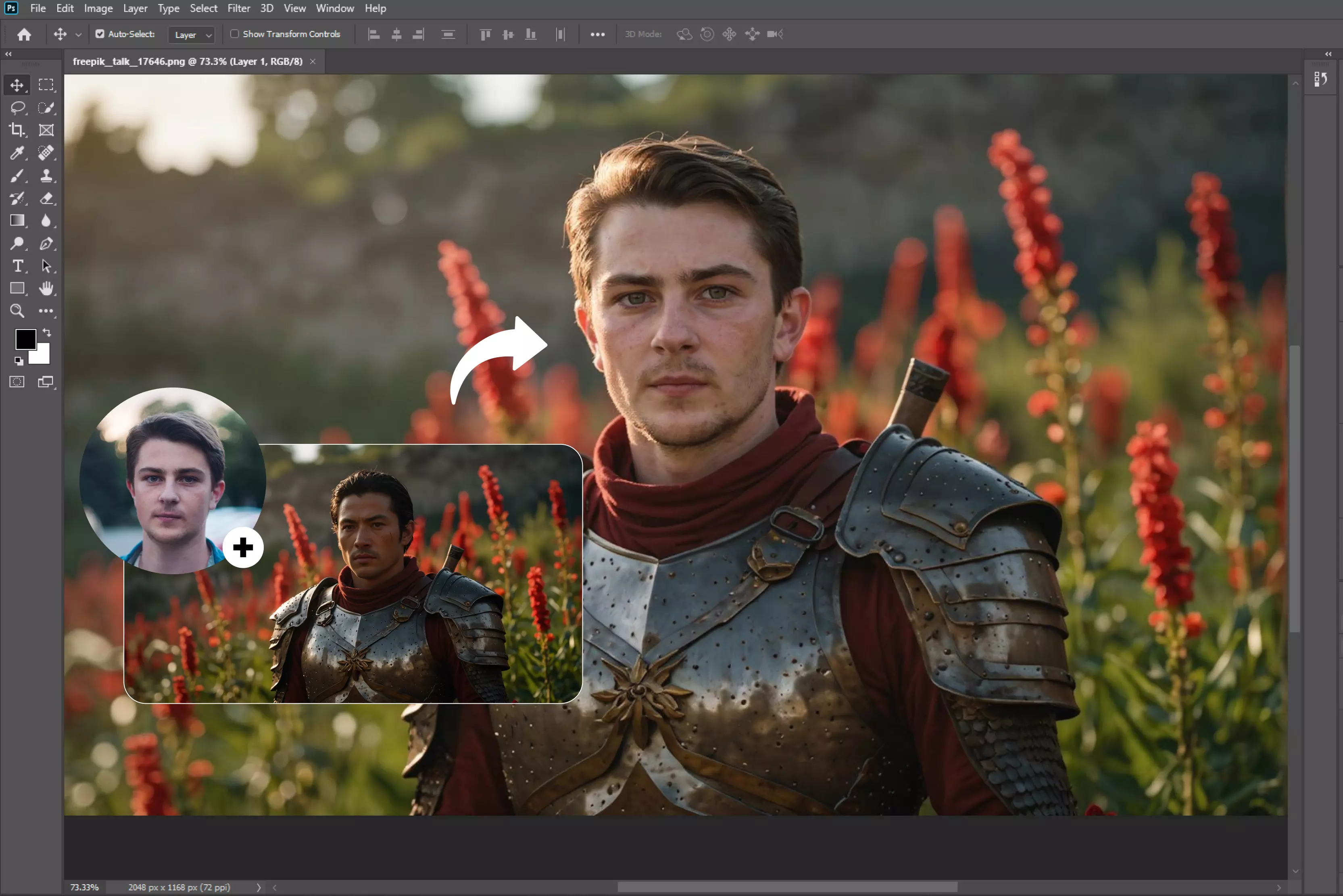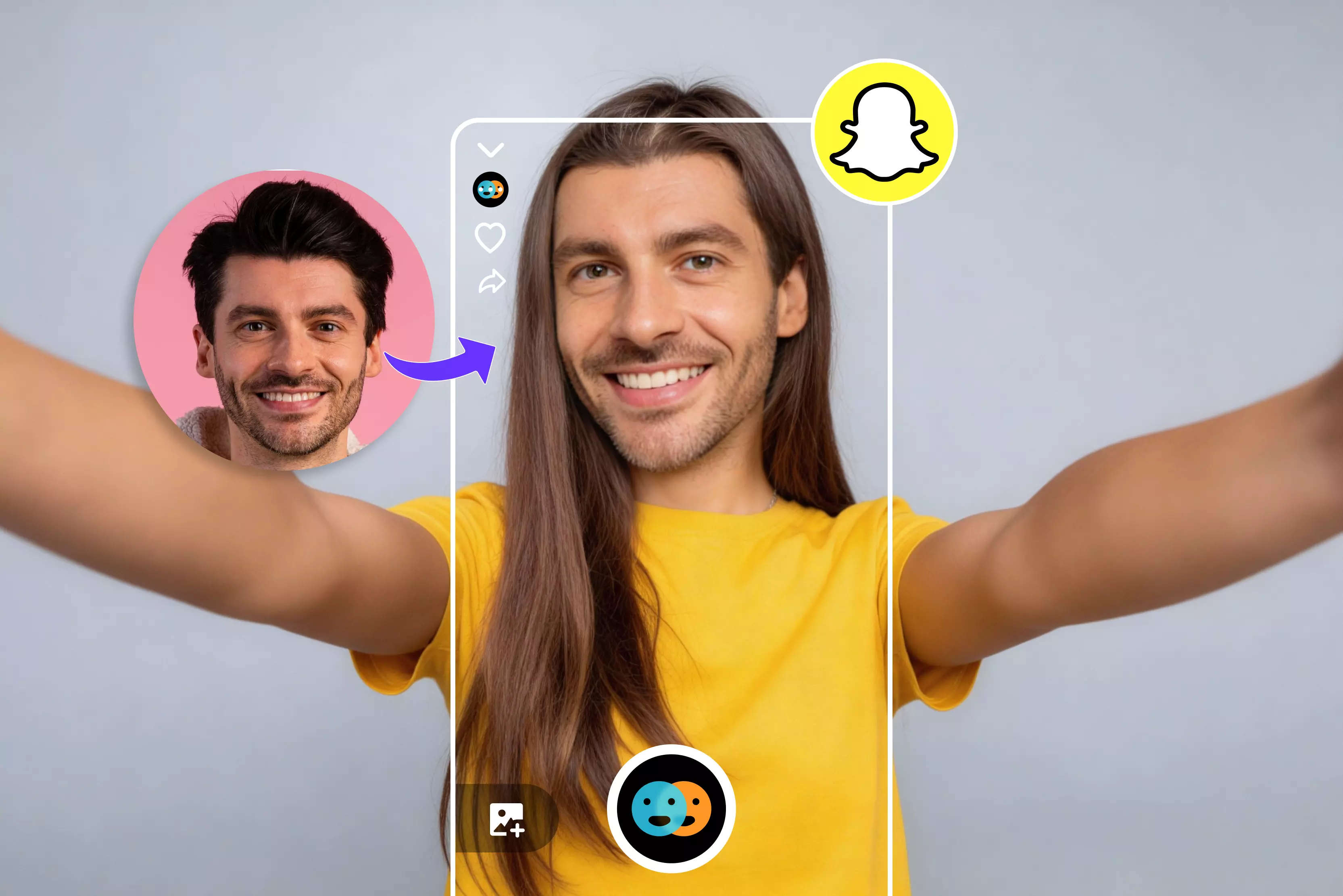


Face swapping on Snapchat sounds like a fun party trick, and honestly, it is, but there’s more to it than just tapping a random filter and hoping for the best. If you’ve ever tried swapping faces and ended up with a distorted, slightly creepy result, you’re not alone.
I’ve tested Snapchat face swap filters more times than I can count, and while the feature is easy to use, getting good results takes a bit of know-how. The good news? You don’t need editing skills, fancy apps, or hours of trial and error.
Snapchat already does most of the heavy lifting for you using AI and face detection. The trick is understanding where to find the right face swap lens, how different options work: live face swap vs photo-based, and what small things like lighting and angles can completely change the outcome.
In this blog, I’ll show you how to swap faces on Snapchat step by step, share practical tips I’ve learned from real use, including what Snapchat does well, where it struggles, and how to avoid those awkward fails. Whether you’re just having fun, creating content, or experimenting with filters, this guide will help you get face swaps that actually look good.
What is a face swap on Snapchat?
Snapchat uses AI to detect faces and exchange them with the person in the camera frame or with a photo in the gallery. You open the camera, choose a face swap lens, and Snapchat maps facial features such as eyes, nose, mouth, and face shape onto another face.
When it works well, it feels almost effortless. When it doesn’t, you get those awkward, meme-worthy results we’ve all seen (and probably saved).
Face swap with a friend vs face swap with photos
There are two main ways to use face swap on Snapchat, and they behave a little differently.
- Face swap with a friend works in real time. Both faces need to be clearly visible, well-lit, and roughly at the same distance from the camera. It’s great for quick laughs, but it can be unpredictable if one person moves too much.
- Face swap with photos lets you use an image from your camera roll. This option is more controlled and usually gives cleaner results, especially if the photo is front-facing and high quality.
I find photo-based face swaps more reliable, especially for content creation.
Fun vs creative uses
Most people use face swap just for fun, silly snaps, group chats, or quick laughs. But it’s also useful; I may need a bit more planning to look polished. You’ll see it used for memes, Instagram Reels, Snapchat Stories, and short-form videos.
Different types of face swap filters on Snapchat
Over time, Snapchat has added more than just one basic face swap option. If you’ve ever felt confused about why one face swap looks great while another looks messy, it usually comes down to which type of filter you’re using. Here’s a quick breakdown based on real use.
1. Classic face swap
This is the original, most familiar version. It swaps your face with the person sitting next to you in real time. It’s fast, fun, and perfect for quick laughs. That said, it can be a bit unreliable if one person moves too much or the lighting isn’t great. Fun? Yes. Precise? Not always.
2. Photo-based face swap
This one lets you swap your face with a photo from your camera roll. In my experience, this gives the cleanest and most controlled results, especially for content creation. As long as the photo is clear and front-facing, the swap usually looks more natural.
3. Real-time video face swap
Here, Snapchat swaps faces while you’re recording a video. It’s great for reactions, short clips, and stories, but it’s also the most demanding. Any sudden movement can break the illusion, so steady framing really matters.
4. AR-based creative lenses
These go beyond simple swapping. They mix face swap with augmented reality effects, animations, or themes. They look fun and interesting, but they don’t look very real. I recommend using these filters for entertainment rather than accuracy.
How to face swap on Snapchat (step-by-step guide)
Face swapping on Snapchat is simple once you know where to tap. The interface looks playful, but a few steps aren’t always obvious, especially if you’re using Face Swap for the first time. Here’s the exact process I follow.
Step 1: Open Snapchat and switch to the front camera
Open the app and make sure you’re using the front-facing camera. Face swap works best when Snapchat can clearly see your face, so this step matters more than it sounds.
Step 2: Access lenses and filters
Tap anywhere on the camera screen or press and hold on your face. This opens Snapchat’s lens carousel at the bottom. If you don’t see face swap immediately, don’t worry, it’s often buried among other lenses.
Step 3: Find the face swap lens
Scroll through the lenses or tap the search icon and type “Face swap.” You’ll usually see two main options:
1. Face swap with another person
This swaps your face with someone sitting next to you. Both faces should be visible and well-lit. Fun, but a bit unpredictable if anyone moves.
2. Face swap with a saved photo
This lets you choose a photo from your gallery. In my experience, this option gives more consistent and cleaner results.
Step 4: Capture or record your snap
Once the swap looks right, tap the shutter button to take a photo or hold it to record a video. If it looks off, adjust the lighting or framing and try again. Small tweaks make a big difference.
Top 10 AI tools for face swap
If you use Snapchat for face swap and want to try AI tools, I’ve already tested them for you. I personally tested 10 AI face-swap tools to see how they really work in daily use.
Some tools let you swap multiple faces in one photo, while others allow only one face at a time. The results were very different; some tools look realistic but are slow, and some are fast but don’t look natural. One tool worked in a totally different way: Pixelbin. It doesn’t actually swap your face with another face.
Instead, it changes facial expressions based on your prompt- think smile, surprise, or anger without replacing the identity. I’ll be upfront about what worked, what didn’t, and which tools I’d personally use depending on whether you want fun Snapchat-style swaps or more controlled AI edits.
1. Pixelbin

Pixelbin helps you change facial expressions without actually swapping faces, and that distinction matters. Instead of pasting someone else’s face onto your image, Pixelbin analyzes the original face and subtly adjusts muscles, eyes, and mouth to match a given expression like happy, serious, or surprised.
I’ve tested a lot of face-editing tools, and this feels more natural because the identity stays intact. You still look like you, just with a different mood. That said, it works best on clear, front-facing photos; extreme angles can limit accuracy. Overall, it’s practical, honest AI, not gimmicky face swapping.
2. Remaker AI
Remaker AI makes face swapping simple, whether you’re working with one face or many. You can do a single face swap for profile images, creatives, or quick experiments, and the tool handles facial mapping, skin tone matching, and lighting automatically. It also supports multiple face swaps in group photos, which is where it really saves time; you don’t have to edit each face manually.
From From my testing, results are best with clear, front-facing images; odd angles can still look off. It’s not aiming for deepfake-level realism, and that’s fine. For fast, practical edits, it’s reliable and easy to use.
3. Canva
Canva approaches face swapping in a very simple, visual, and beginner-friendly way. Using its AI-powered face swap apps and Magic Media features, you upload a source face and a target image, and Canva automatically detects facial landmarks, aligns faces, and blends skin tone and lighting. You can swap a single face or handle multiple faces in group photos, which is handy for team creatives or fun campaigns.
I like how everything stays inside Canva’s editor—resize, tweak, add text, done. That said, realism isn’t perfect for extreme angles. It’s practical, not cinematic, and that’s the point.
4. Pica AI
If you want a quick and fun AI face swap, Pica AI makes it ridiculously easy. On the swap page, you upload a source face (your selfie or someone else’s) and then upload a target image where you want that face to appear.
The AI automatically blends the features, matches tones, and adjusts lighting so the new face meshes with the scene. You can also choose from its built-in template faces if you don’t have your own source.
Pica supports single and multiple face swaps, including several faces in group photos, plus video swaps too. Just keep in mind that ease and speed sometimes trade off realism.
5. Imagine Art
Imagine Art’s AI face swap tool makes swapping faces easy if you’ve never touched an editor before. You start by uploading a target image (where you want the new face to appear) and then uploading the source face you want to swap in. The AI automatically detects facial features, aligns them, and blends tones and lighting so the result looks natural.
You can also choose the aspect ratio for the final image. Everything works online, takes only a few seconds, and does not require any software installation. It can even handle group photos, as long as the faces are clear.
6. YouCam online editor
YouCam online editor makes face swapping surprisingly accessible. You have to upload a target photo or video, then upload the source face you want to use, and the AI automatically detects faces and swaps them for you.
It supports single and multiple face swaps in both photos and videos, and even provides templates you can start with if you don’t have your own source ready.
There’s also a video face swap mode so you can put your face into clips or meme templates without complex editing. I’ve found it fast and fun, though very tricky angles or poor lighting can still look a bit off.
7. AIFaceswap
Using AIFaceswap.io feels almost too easy; it’s totally browser-based and gives a free trial to start swapping. You upload a target photo, GIF, or video, then upload the source face image you want to swap in, and the AI blends facial features, skin tones, and expressions, usually in a few seconds.
It supports single and multiple face swaps, video face swaps, and GIF swaps, so you can create fun clips or photos to share directly on social media, no editing apps needed.
There’s even a batch face swap for lots of images at once. For all its power, very complex angles can still be imperfect.
8. Magic Eraser
Magic Eraser’s free AI face swap tool helps you replace faces in photos right in your browser - no sign-up, no software, and no watermark. You upload your original photo (with the face you want to change) and then upload the target face image, hit “Swap Face,” and the AI aligns features, matches tones, and blends skin for a realistic result.
You can swap multiple faces in one image, too, and when the edit finishes, you download the image to use anywhere you like. It’s not instant magic; processing can take a moment depending on load, but it’s free and straightforward for fun or creative edits.
9. Facewow
Facewow makes face swapping quick and fun without forcing you into complicated editing software. You start by picking a face swap mode and then upload a source image (the face you want to use) plus a target photo (where that face should be placed), or switch to multiple faces mode for group shots.
Its AI automatically detects and replaces each face with realistic blending and lighting. You can even try built-in face templates if you don’t have your own. After the swap finishes, you download the new photo or video to share wherever you like.
There’s no built-in social button, but exported files are ready to upload. Facewow also supports face swap in videos and GIFs, letting you make playful content and memes at home.
10. FlexClip
If you’re curious about face swapping but don’t want to deal with complicated editing tools, FlexClip keeps things refreshingly simple. I’ve used it as a browser-based tool, and the AI face swap feature does exactly what most people need: no more, no less.
You upload an image, choose the target face by uploading or choosing from already available, and FlexClip’s AI automatically handles face detection, alignment, and blending.
In my experience, it works best for quick social content rather than hyper-realistic edits. What helps is that you can place these swapped faces directly into ready-made video templates, so you’re not starting from scratch.
Tips to get better face swap results
If your face swap on Snapchat looks a little off, it’s usually not the filter but the setup. After testing face swaps way more times than I’d like to admit, I’ve learned that small adjustments make a big difference.
1. Use good lighting
This is the biggest factor. Face swap works best when your face is evenly lit. Natural daylight is ideal. Poor lighting or strong shadows can confuse the app, resulting in an odd face swap look. If the swap looks weird, lighting is the first thing I fix.
2. Keep your face centered
Snapchat expects your face to be clearly visible and centered in the frame. If you’re half out of the screen or tilting too much, the swap struggles. A straight, front-facing angle almost always gives better results.
3. Choose clear, front-facing photos
When using a photo-based face swap, the quality of the image matters a lot. Blurry, angled, or side-profile photos rarely work well. I stick to clear, high-resolution images where the face is fully visible because it saves time and frustration.
4. Avoid busy backgrounds
Crowded or messy backgrounds can confuse the filter. A simple background helps Snapchat focus on the face instead of everything happening behind you.
Conclusion
Face swapping on Snapchat is one of those features that looks silly at first but becomes genuinely useful once you know how to use it well.
I’ve found that most “Bad” face swaps aren’t caused by the filter; they’re caused by rushed setups, poor lighting, or the wrong photo choice. When you slow down just a bit and pick the right face swap option, the results improve fast.
It’s not perfect, and it’s not meant to replace professional editing. But for quick content, memes, or stories, Snapchat’s face swap does its job surprisingly well. Use it with realistic expectations, and it can be a fun and reliable creative tool.
FAQs
Yes, face swap on Snapchat is completely free. You don’t need a paid subscription to use face swap filters or swap faces with photos.
Yes, Snapchat allows you to face swap with photos saved in your camera roll. Just select the face swap lens that supports photo uploads.
This usually happens due to poor lighting, an unclear face angle, or a busy background. Make sure your face is well-lit and directly facing the camera.
No, you need an active internet connection because Snapchat face swap filters rely on online processing and lens updates.
Yes, Snapchat supports face swapping with another person in real time, as long as both faces are clearly visible in the camera frame.
Snapchat processes facial data to apply filters, but snaps are temporary by default. Still, avoid using personal or sensitive photos for face swapping.