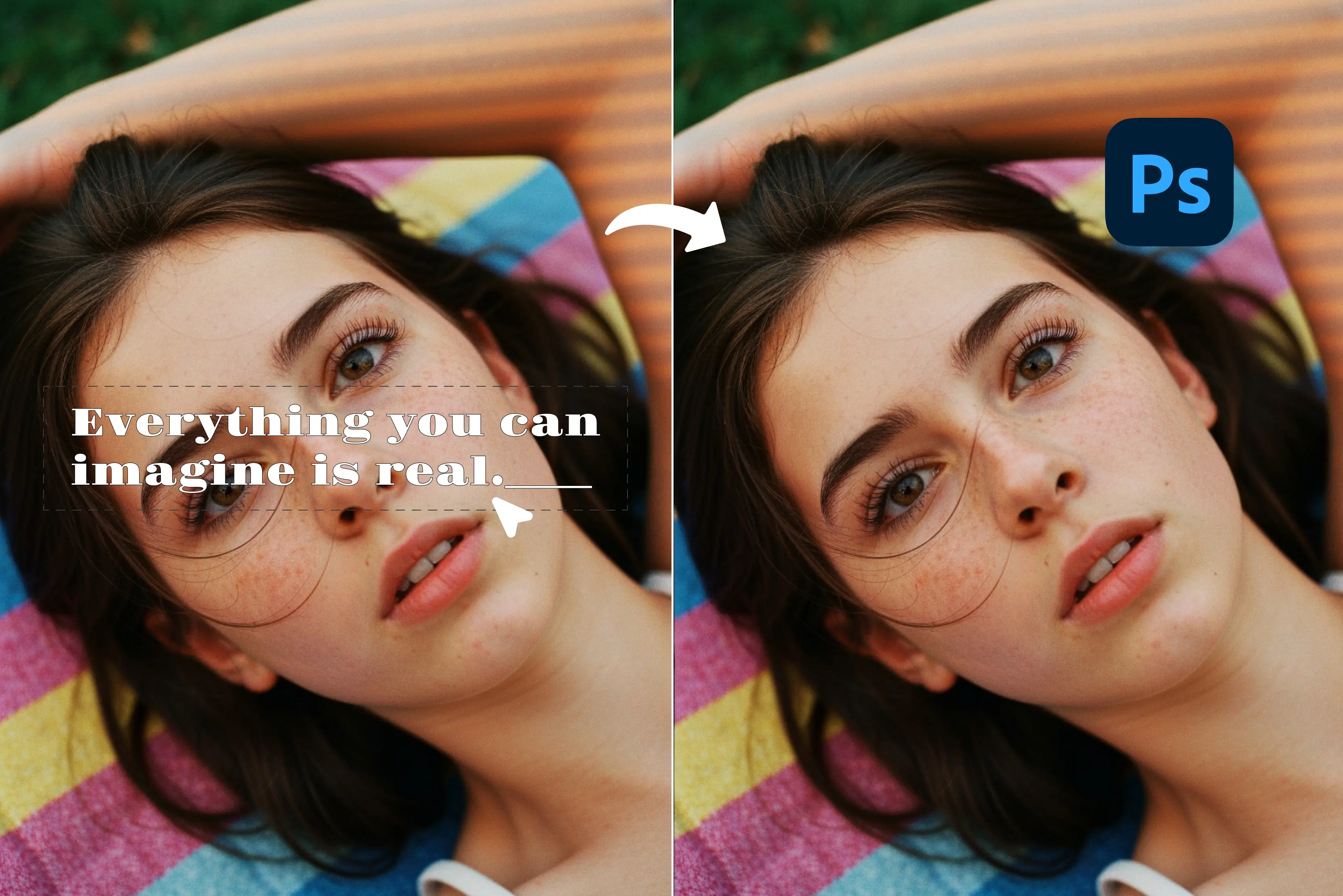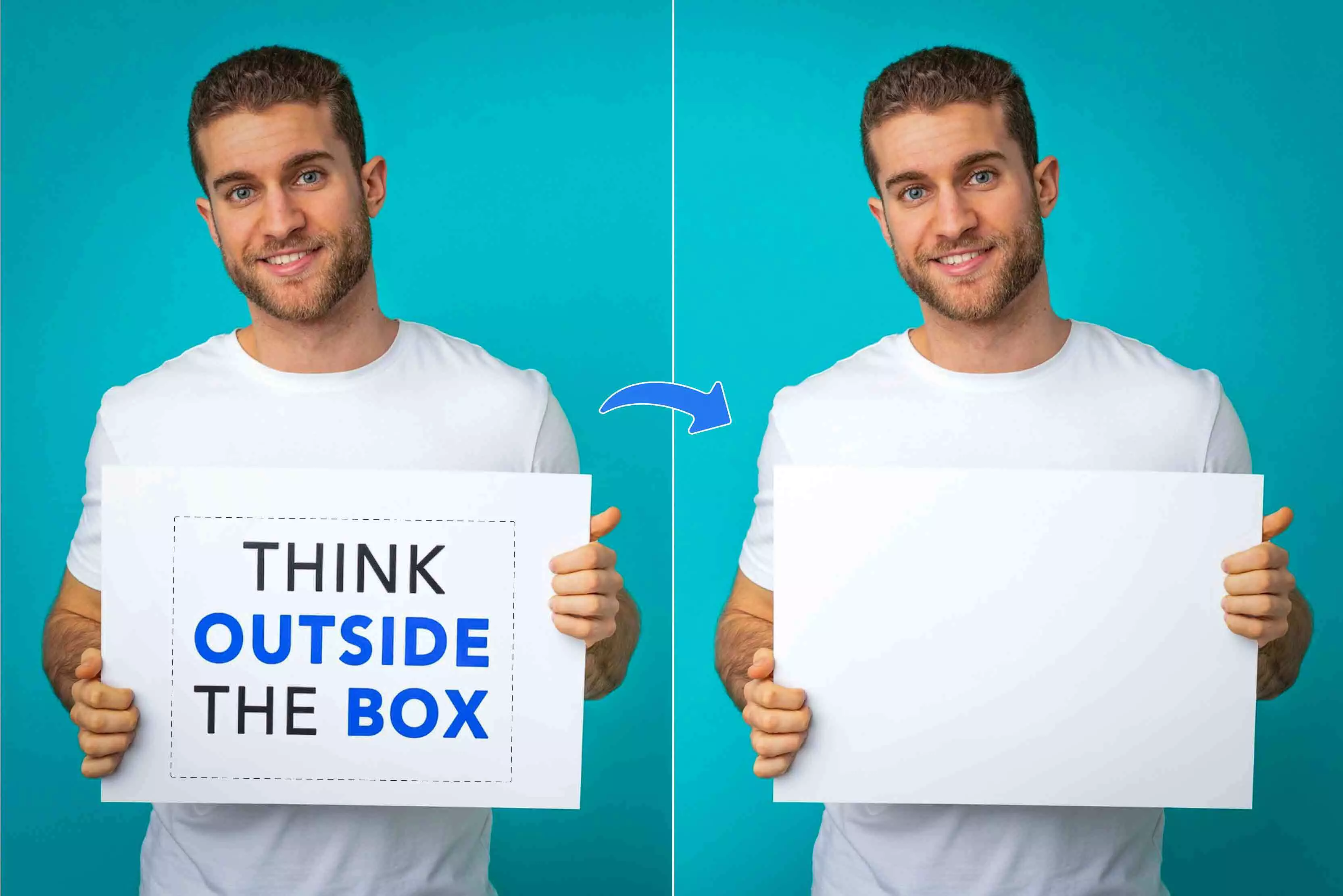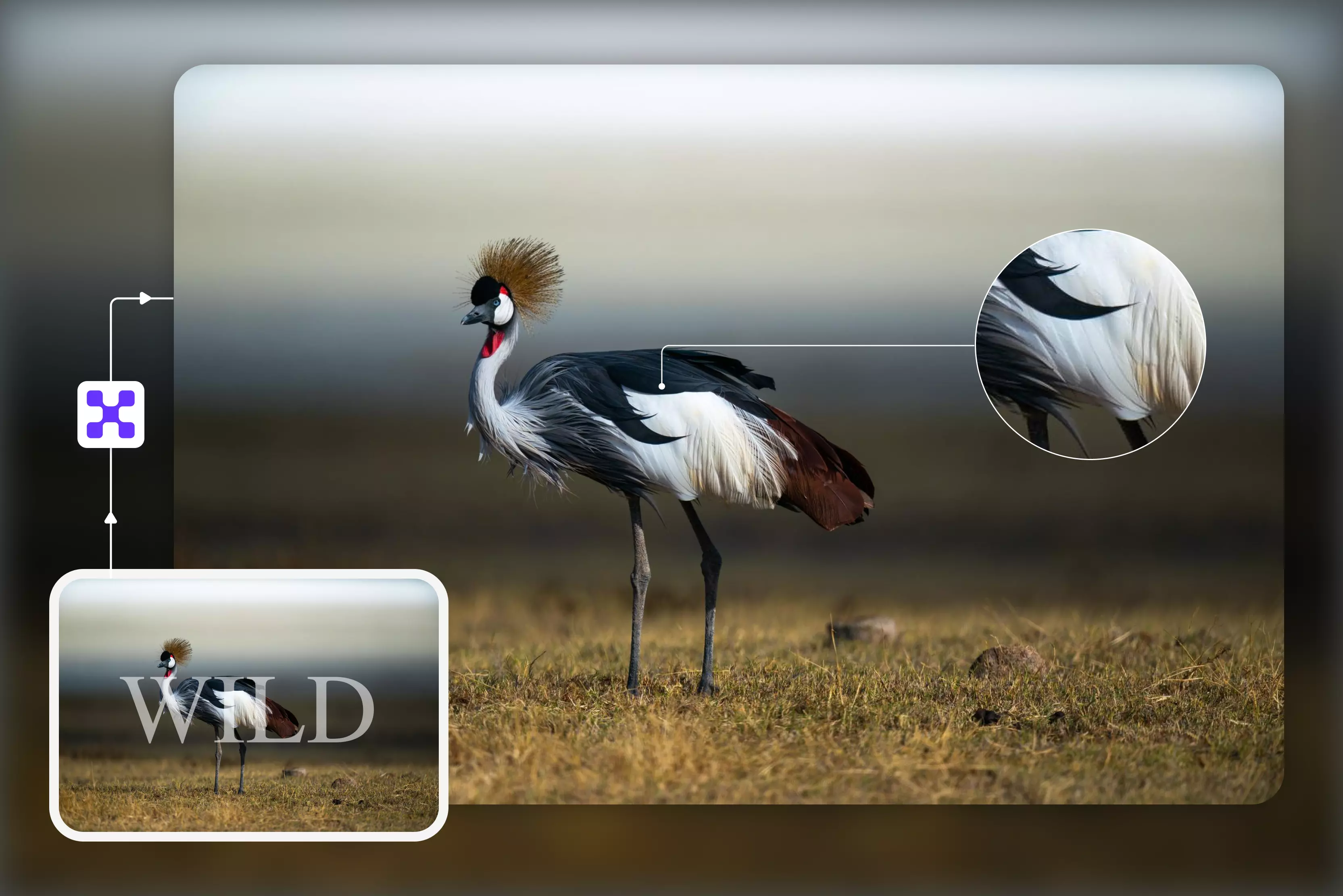


Not long ago, removing text from an image felt like a “Designer-only” job. Today, it is something almost everyone needs. You might want to clean up a meme before reposting it, remove a watermark from an old family photo, fix product images for your online store, or simply make your social media posts look less cluttered.
I personally ran into this while updating blog visuals and client creatives—tiny bits of unwanted text kept ruining otherwise perfect images. Suddenly, “Remove text from image” stopped being a niche task and became a daily, practical need.
That is exactly why free remove-text tools are getting so much attention right now. I have tested a wide range of these tools on real images to see which ones actually work, which ones are okay for quick fixes, and which ones you should avoid completely.
In this blog, you will find a carefully selected list of the best free tools to remove text from images, along with what each tool is good at, where it struggles, and who it is best for.
Whether you are a content creator, small business owner, student, or just someone fixing old photos, you will walk away knowing exactly which tool fits your needs without wasting your time.
What does “Remove text from image” mean?
Removing text from an image means cleaning up a photo by erasing unwanted words, captions, watermarks, or logos while keeping the rest of the picture looking natural.
You are not just deleting the text, but asking an AI tool to rebuild what was behind that text. Good tools study the colors, patterns, and lighting around the area and then fill in the blank so the photo does not look edited.
Wrong tools, on the other hand, leave blurry patches or weird smudges. After testing dozens of tools, I can tell you the difference is very noticeable.
You might be surprised how often this comes up in real life. Here are some of the most common situations where people actually use these tools:
- Cleaning up memes before reposting them without distracting captions.
- Fixing product photos for online stores when supplier images come with unwanted labels or prices.
- Restoring old family photos that have dates or camera stamps printed on them.
- Reusing social media creatives by removing outdated offers or text.
How do AI text remover tools actually work?
On the surface, these tools feel almost too simple. You upload a photo, swipe over the unwanted text, click “Remove,” and you're done. But what is happening behind the scenes is a lot smarter than it looks, and understanding this can help you pick better tools and avoid bad results.
Text detection vs. general object detection
Not all AI removers see your image the same way. Some basic tools treat text just like any other object, similar to how they would remove a person, a street sign, or a lamp post.
These tools can work for big, bold text, but they struggle with thin fonts, faded watermarks, shadows, and transparent logos. That is why they often leave behind blurry patches or strange edges. Better tools use text-specific detection models.
These are trained specially to recognize letters, words, and watermark patterns even when they are tilted, semi-transparent, or blended into the background. After testing many tools, I noticed that text-aware removers consistently give cleaner, more natural results, especially on product photos and social media images.
How does the background get “Rebuilt”?
Once the text is removed, the AI rebuilds what was behind it. The tool studies the colors, textures, lighting, and patterns around the deleted area and then recreates a matching background. This process is called AI inpainting.
When the tool is good, you cannot even tell anything was removed. When it is not, you will see smudges, repeated patterns, or blurry spots. This is why the quality of the AI matters much more than the number of “Free credits” a tool gives you.
Table at a glance
Best tools to remove text from images
Before recommending anything, I actually sat down and tested all 12 of these text-removal tools on two real images. Some tools surprised me with how cleanly they rebuilt the background, while a few looked fine at first but quietly limited downloads or added watermarks.
And yes, a couple were fast but a little too aggressive, removing parts of the image along with the text, for example, Krea.ai. But yes, it created the image in a good way behind the part that it removed, along with the text. Here, you will get three types of tools that remove text from an image:
- Manual selection of the text area with the brush tool
- AI will detect and automatically remove text
- Both the prompt option and the brush tool are given
I didn’t just check if it works, but I also looked at how natural the final image feels, how easy the tool is to use when you’re in a hurry, and whether the free version is actually usable or just a teaser.
What you’ll find in this blog is a practical, honest breakdown of which tools are great for quick fixes, which are better for more polished work, and which ones you might want to skip depending on how often you edit images.
1. Pixelbin

Pixelbin’s AI text removal tool is a simple helper where you just upload your image (JPG, PNG, WEBP), hit “Remove text,” and the AI gets to work erasing words, logos, captions, or watermarks while trying to preserve the background around them. It even gives you a side-by-side preview so you can compare before/after and decide if you like it before downloading.
The result usually looks natural, with no obvious smudges or ghosting. You don’t need an account, and Pixelbin lets you try it for free, though heavy use requires credits or a sign-in. It’s fast, beginner-friendly, and one of the more reliable one-click text removal tools out there, especially when you just want clean visuals and aren’t planning on manual touch-ups.
Key features
- One-click AI text removal (words, captions, watermarks)
- Supports common image formats (JPG/JPEG, PNG, WEBP)
- Side-by-side before/after preview
- Keep original image quality without extra watermarks
- No sign-up required for the first three free trials
2. Krea.ai
When I tested Krea.ai’s text removal tool, the first thing that stood out was how it doesn’t just erase letters but removes the pixels where the text sits and then fills that space by guessing what should naturally be behind it. That’s AI inpainting at work, the same tech you see in more advanced image editors.
You upload your JPG/PNG/WEBP/HEIC image, click generate, and the tool analyzes the surrounding pixels to rebuild the missing areas once the text is gone. It’s fast, works without signing up or paying, but with limited usage, and often gives surprisingly natural results, especially on simpler backgrounds like skies or solid colors.
Key features
- Simple one-click text removal (no learning curve).
- Supports common image formats including PNG, JPG, WEBP, HEIC/AVIF.
- No account or payment required—you can try it instantly.
- AI tries to preserve background details for natural results.
- Works fast—most edits are done in seconds.
3. EzRemove
EzRemove doesn’t just “Delete the letters”; it detects unwanted text/watermarks/captions, removes that entire region, and then rebuilds the background naturally so the image stays “Sharp and consistent.”
In practice, that means it’s doing an AI-style fill (inpainting) rather than leaving blank patches. You upload an image (PNG/JPG/JPEG/WEBP/BMP), let it process, and download the cleaned result.
If you’re cleaning screenshots, posters, or product images, it’s a quick, no-fuss option, just expect tougher, textured backgrounds to sometimes look slightly smoothed.
Key features
- AI auto-detects text/watermarks/captions.
- Reconstructs the background after removal.
- Supports PNG, JPG/JPEG, WEBP, BMP.
- Privacy note: claims encrypted uploads and deletion after use.
4. Photoroom
PhotoRoom doesn’t really market this as a “Text remover” first; it treats text like an object you remove with Retouch/Magic Retouch. So if you’re trying to delete a price tag, watermark, or caption, you’ll usually brush over the text, and PhotoRoom’s AI removes it and fills the area so it blends with the background. On simple backgrounds, it’s clean and fast.
On busy textures, you may need a second pass (because inpainting is still guesswork). If you need text removal at scale, PhotoRoom also supports AI text removal via its Image Editing API.
Key features
- Brush-based Retouch to remove text like an unwanted object.
- AI fills/rebuilds the removed area for a natural look.
- Download exports as PNG/JPEG/WEBP.
- Free to try; paid plans unlock more advanced usage/limits (esp. AI credits/batch).
5. NoteGPT
NoteGPT’s remove text from image tool is a great fit when you want quick, no-friction cleanup without opening a heavy editor. You upload your image, type a simple prompt to remove the watermark or delete the text, and the AI removes the text while rebuilding the background so the image still looks natural.
It also keeps the original resolution, which is rare for free tools and very useful for social media or product photos. It’s fast, browser-based, and free to use, though it’s not meant for pixel-perfect retouching on very busy textures.
Key Features
- Prompt-based AI text removal.
- Rebuilds the background after removing the text.
- Keeps original image resolution.
- Free, browser-based tool.
- Supports common image formats.
6. PicsArt
PicsArt is one of the more flexible tools I have tested for removing text, especially because it gives you two ways to work. You can either brush over the text manually or simply type what you want removed using its prompt-based AI erase option.
This makes it surprisingly handy for both quick cleanups and more controlled edits. In most posters, social media graphics, and product images, the AI eraser fills the background naturally and saves a lot of time. It still struggles with very busy patterns, but overall, it feels more reliable than many “One-click” erasers and gives you room to fix things when needed.
Key features
- Prompt-based AI erase for quick text removal.
- Manual brush selection for precise edits.
- Smart background reconstruction.
- Works on web and mobile apps.
- Good balance of automation and control.
7. AI Ease
AI Ease’s text removal feels like using a smart eraser. When you upload a photo and choose Text Removal, the tool doesn’t just guess where the text is: you actively mark the text area with a brush, then the AI removes those pixels and fills the space so the background looks consistent.
In my testing, this brush-first approach gives you more control, especially on busy backgrounds where auto removal can get fuzzy. That said, it’s not perfect; complex textures can still look a bit smoothed, but it’s very practical for everyday edits where you want clean results without a steep learning curve.
Key features
- Brush-based text selection—you mark exactly what you want gone.
- Works on common image types like JPG/PNG/WEBP.
- Simple, beginner-friendly interface.
- Free to use from the browser.
8. Fotor
Fotor doesn’t treat text as a separate “Text remover” tool. Instead, it includes text inside its Magic Eraser workflow, where you remove anything unwanted using one of its three cleanup modes: Watermark, People, and Object.
To remove text, you simply choose the object (or watermark if it’s a logo/text watermark), brush over the text, and Fotor’s AI removes those pixels and rebuilds the background so the image looks natural again.
This brush-first method gives you more control, especially on busy backgrounds, though it may need a second pass on detailed textures.
Key features
- Three cleanup modes: Watermark, People, Object.
- Brush-based marking for precise text removal.
- AI background reconstruction (inpainting).
- Works on JPG, PNG, WEBP.
- Browser-based and mobile-friendly.
9. Pixelcut
Pixelcut is one of those that keeps things refreshingly simple. Instead of confusing “Magic erasers,” it uses a clear brush-based removal tool that lets you manually paint over text you want gone.
You just upload your photo, brush over the unwanted words, and Pixelcut fills the space using surrounding pixels. In most regular photos—social media posts, product shots, posters, and screenshots, it does a surprisingly neat job. It is not perfect for extremely detailed backgrounds, but for quick cleanups, it saves a lot of editing time and frustration.
Key features
- Simple brush tool to manually select text
- AI-powered background reconstruction
- Works well for posters, ads, and product images
- Fast, browser-based editing
- No design skills required
10. SnapEdit
SnapEdit’s Remove Text tool is one of the more “Made-for-this” options I’ve used. Instead of treating text as a generic object, SnapEdit says its AI is specifically trained to recognize text, including things like handwritten, blurry text, and captions, and remove it without messing up the rest of the image.
You upload your photo, let it process, and it clears the text in seconds. The catch: SnapEdit’s free plan runs on credit, ts and free downloads can include a watermark (standard quality).
Key features
- AI trained specifically for text removal.
- Removes handwritten, blurry text, captions.
- Works on mobile + desktop (all devices).
- Extra tools available (object remover, background remover, enhancer).
11. Aragon.ai
Aragon.ai’s Text Remover works as a brush-based cleanup tool, not a one-click automatic remover. You upload your image, choose the Text Remover, and manually brush over the text area you want removed. Once the area is marked, Aragon’s AI deletes those pixels and rebuilds the background using surrounding image details, so the photo still looks natural.
Using this tool, you get better control, especially when text is close to faces, products, or edges. It can be used for removing text from screenshots, social media images, and product photos. On images with very detailed backgrounds, the filled area may look a little smooth, but the results are still clean and good enough for everyday use.
Key features
- Brush-based manual text selection.
- AI background reconstruction (inpainting).
- Supports JPG and PNG formats.
- Browser-based editor.
- Free to try, paid plans for higher usage.
12. MagicEraser
MagicEraser’s Remove Text from Image tool is for those “This screenshot would be perfect if that caption wasn’t there” moments. You upload your image, brush over the text, and the AI removes it and fills the area naturally so you’re not left with an obvious blank patch.
It’s pleasantly beginner-friendly, no heavy editor, no layers, no learning curve. The big plus is that MagicEraser positions itself as no-login and free via daily credits, so you can do quick cleanups without committing to a subscription.
Key features
- Brush/mark the text area you want to remove.
- Supported formats: PNG, JPG/JPEG, WEBP, BMP.
- Free plan uses daily free credits.
- Claims high-quality download with no watermark.
Things to consider before choosing a text remover tool
All text remover tools promise “Clean results,” but in real life, their performance varies a lot. After testing many of them on product photos, social media creatives, and old scanned images, these are the things that actually decide whether a tool is useful or just frustrating.
1. Accuracy
Accuracy means how cleanly the tool removes the exact text you select. Good tools erase every letter properly and keep nearby objects untouched. Poor tools leave behind half-cut letters, faded shadows, or accidentally damage parts of the image that were never meant to be edited.
2. Background reconstruction quality
This is where most tools fail. Once the text is removed, the AI has to rebuild what was behind it. Strong tools recreate textures, lines, and lighting so naturally that you cannot tell anything was changed. Weak ones leave blurry patches, repeated patterns, or obvious “Edited” marks.
3. Free vs paid limits
Free plans usually limit how many images you can edit, how large your files can be, or the resolution you can download. These limits are fine for occasional use, but they become annoying fast if you edit regularly.
4. Watermarks
Some tools quietly add their own watermark to your edited image on free plans. This can ruin otherwise perfect results, especially for business or client work.
5. Privacy and image safety
Always check how your photos are stored and whether they are deleted after processing. This matters a lot for personal, family, or client images.
6. Output resolution
A tool is not helpful if it downgrades your image quality. Your final photo should stay sharp and usable, not compressed and blurry.
Free vs paid: Is upgrading worth it?
Upgrading usually makes sense if you edit frequently, need higher resolution downloads, batch processing, or want watermark-free results. For light, personal use, free plans are often enough.
Conclusion
After testing a wide range of free text remover tools, one thing became very clear to me: the best tools are not the ones with the loudest marketing, they are the ones that quietly give you clean, natural-looking results. Free tools are more than enough for occasional use, quick fixes, and personal projects.
But if you find yourself editing images regularly, working with client photos, or needing higher resolution downloads, upgrading to a paid plan can actually make your workflow smoother and faster.
My honest advice? Start with the free versions, test them on your real image, and choose the one that gives you results you do not have to “Fix again.” The right tool should feel invisible, not like extra work.
FAQs
Yes, Pixelbin’s AI text remover lets you erase words, captions, or unwanted text from photos and preserves the original resolution and quality of the image. You get free HD downloads with no added watermarks after processing.
No. Pixelbin uses smart AI inpainting that analyzes surrounding pixels and reconstructs the background so the edited area blends naturally. Results depend on how complex the background is, but simple and moderately detailed backgrounds usually look seamless.
Yes, Pixelbin processes images securely on protected servers and respects your privacy. Uploaded photos are handled confidentially and are not shared publicly.
Absolutely. Pixelbin’s text remover can erase logos and word-based marks, and the broader watermark remover tool specifically targets watermarks in images (including semi-transparent and solid ones).
No installation required, everything runs in your web browser. You just upload an image and use the AI tools directly online.
Pixelbin’s AI text remover is one of the stronger free options because it leverages advanced inpainting and background reconstruction to handle even moderately complex patterns without obvious distortions.