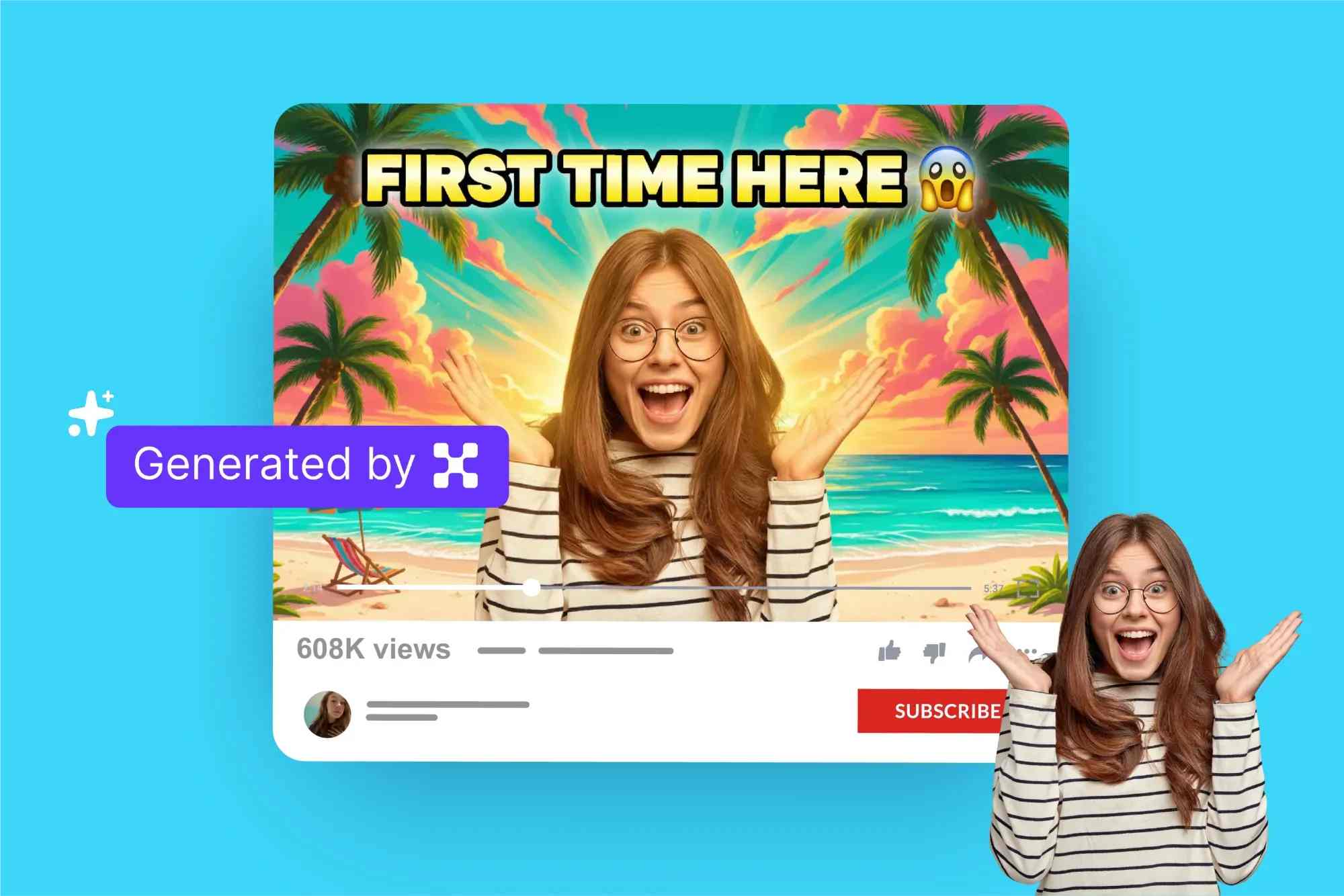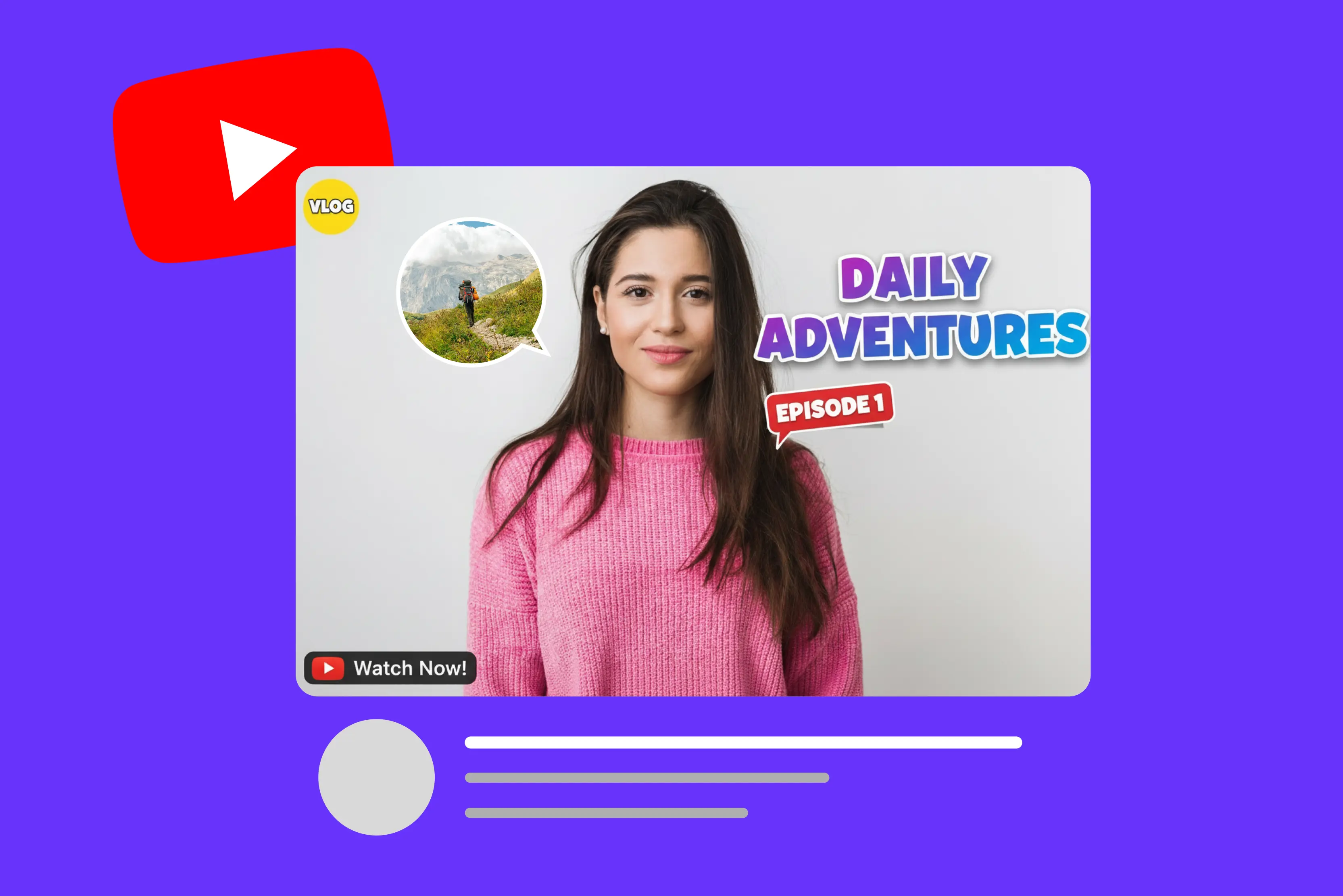


On YouTube, thumbnails are usually the first thing viewers notice. A strong, eye-catching thumbnail can decide whether someone clicks on your video or keeps scrolling. In many cases, it’s the thumbnail that grabs attention before anything else: good lighting, bold text, and clear visuals give a strong first impression and help your video stand out in a crowded feed.
Using the right thumbnail‑making app can dramatically boost your channel’s performance. Creators who use well-designed custom thumbnails routinely see higher click-through rates (CTR)—sometimes up to 154% more clicks than videos using default or weak thumbnails.
More clicks means more views, higher watch time, and stronger chances that the platform’s algorithm will recommend your video to more people—fueling growth. This blog will teach you how to pick the best YouTube thumbnail maker.
You'll find out what to look for in a thumbnail, how to make ones that match the style of your channel, and how to make thumbnails that look professional, even if you don't know how to design. By the end, you'll know how to make thumbnails that stand out and get more clicks, which will help your videos get more views.
What makes a YouTube thumbnail effective?
Making a thumbnail that stands out is an art in its own right. These are the most important things that make a YouTube thumbnail work:
1. Clear subject and readable text
Your thumbnail should make it clear right away what the video is about. Viewers can quickly understand your content if it has a clear main subject and short, easy-to-read text. Stay away from designs that are too busy and make things hard to understand.
2. Emotion, expressions, and storytelling
People's faces that show emotion or expression can grab people's attention and connect with them right away. A thumbnail that tells a story or hints at an interesting part of the video makes people want to watch it.
3. Strong contrast & vibrant colors
When people scroll through their feed, thumbnails with bright colors and high contrast stand out. Bright, colorful tones make your video stand out against the YouTube background, which makes it more likely that people will click on it.
4. Consistent branding for your channel
Using the same colors, fonts, and styles in all of your thumbnails makes it easier for people to find your content. Branding makes your channel look professional and organized, and it builds trust.
Tools to make Youtube thumbnails
Popular YouTube thumbnail maker apps to consider
In this section, you will explore the top ten AI online tools that can help you make a thumbnail for YouTube. Below, I have mostly listed those tools that generate images within a few clicks; you don’t require any designing skills. You have to just write the prompt and add a reference image in a few cases. So, let’s just begin.
1. Pixelbin

Pixelbin helps you make YouTube thumbnails quickly using AI: upload a photo or paste a video link, write a short prompt, and get ready-to-use 16:9 thumbnails to download. It offers a free plan with monthly credits so you can try thumbnails without paying.
Beyond thumbnails, Pixelbin gives one-click tools like background removal, AI upscaling, colorization, watermark removal, and batch processing—handy for fixing old photos and making crisp thumbnails. Developers can use its API, and there’s a web editor plus a mobile app for quick edits and exports.
Step 1: Visit the official website and click on AI tools > See all.
Step 2: In the search bar, search for YouTube thumbnail generator.
Step 3: Write a prompt and upload a reference image.
Step 4: The tool will process and generate the image accordingly.
2. Canva
Canva makes YouTube thumbnails fast and easy with hundreds of ready-made 16:9 templates you can edit in the browser. Its AI thumbnail maker (Magic Media) can auto-generate thumbnail ideas from a short prompt or image.
You can quickly remove backgrounds or erase objects with one click (some tools need Canva Pro). Canva saves your thumbnail in the right YouTube size (1280×720) and in JPG or PNG format, so you can upload it without any problems.
You can also use Canva’s mobile app to edit thumbnails on your phone. For teams or creators, Canva even has an export API that helps you download designs automatically.
Step 1: Visit the official website and sign up. Click on the three dots on the left-hand side and then “Apps.”
Step 2: Click on AI generation > AI Image > AI video thumbnail.
Step 3: Select “Use in new design.”
Step 4: Add a prompt for which you want to create a thumbnail.
Step 5: The tool will process the prompt and generate the image accordingly.
3. Picsart
Picsart makes YouTube thumbnails super easy. It gives you ready designs, and you can just drag and drop things. You can remove the background, add big text, put filters, or use the AI Image Generator to make a new picture just by typing a few words.
Picsart also gives access to free photos, stickers, and fonts to make thumbnails more eye-catching. The Resize tool quickly changes your photo to the YouTube size (1280×720).
Picsart works on both its website and mobile app, so you can make thumbnails on your phone or computer. Many tools are free, but some special features, like HD downloads and premium effects, are only available in Picsart Gold.
Step 1: Visit the official website and sign up. Click on the option “AI image generator” under the tool library section.
Step 2: Enter the prompt and choose the style.
Step 3: The tool will process the prompt and generate four images based on the prompt entered.
4. Photopea
Photopea is a free online editor that works almost like Photoshop, so making YouTube thumbnails is easy. You can start with a blank YouTube size (1280×720) or upload any picture. You can add text, change colors, cut things out, and use cool effects.
It also supports PSD, PNG, JPG, and Smart Objects, giving you full control over your design. Users can remove backgrounds, use filters, add shapes, and export thumbnails in the right YouTube format. Because it runs in the browser, you don’t need to install anything—just open the site and start editing.
Step 1: Visit the official website and click on “Generate with AI.”
Step 2: Enter the prompt and click on “Generate.”
Step 3: Below, you can see what the tool has generated based on the given prompt.
5. LightX editor
LightX Editor is very easy to use for making YouTube thumbnails. You can start with the YouTube size (1280×720) and use ready-made templates. You can add big text, stickers, or effects.
You can also remove the background and use AI tools to make pictures look better. You can change colors, mix photos, or add more effects to make thumbnails nice. LightX works on both web and mobile, so you can design anywhere. Many features are free, but certain advanced AI tools and HD downloads are available only with LightX Pro.
Step 1: Visit the official website and sign up. Click on Generate AI and then see all under generative AI tools.
Step 2: Scroll down and select AI thumbnail maker.
Step 3: Enter the prompt.
Step 4: Below, you can see what the tool has generated based on the given prompt.
6. Google Gemini
Google Gemini is a smart AI from Google that can make pictures for YouTube thumbnails very fast. You just type what your video is about, and it makes good images for you. You can also change colors, styles, or how things are arranged to make thumbnails look nice.
Gemini can also help with editing images, removing backgrounds, and making pictures for social media or presentations. Since it works with Google tools, you can use it in web apps, making it easier and faster for creators to make content.
Step 1: Visit the official website and enter the prompt.
Step 2: Based on the prompt, the tool will generate the image.
7. ChatGPT
ChatGPT helps YouTube creators by giving ideas for thumbnails, suggesting catchy titles, and creating text content that grabs attention. You can tell ChatGPT what your video is about, and it will give ideas for text, colors, and how to arrange things to make your thumbnail look good.
It cannot make pictures by itself, but you can use it with AI image tools like DALL·E, Canva, or Picsart to make the thumbnail. ChatGPT can also help write video scripts, descriptions, tags, and social media posts.
Step 1: Visit the official website and write the prompt.
Step 2: Based on the entered prompt, the platform will generate the image.
8. Media.io
Media.io makes YouTube thumbnails in a very easy way. You just upload your photo, pick a template, and the tool arranges everything for you. It also lets you change text, background, and size with simple clicks. You don’t need editing skills.
Media.io also has other tools like a photo background remover, an image upscaler, a video editor, and audio tools. All of these things help you quickly make better content. Anyone can use it at any time on their phone or computer.
Step 1: Visit the official website. Click on AI tools > Text to image.
Step 2: Enter the prompt.
Step 3: Based on the prompt, the tool will generate the image.
9. Ambience.ai
Ambience.ai helps you make YouTube thumbnails in a very simple way. You tell the AI what kind of picture you want, and it creates nice backgrounds, colors, and lighting for your thumbnail. It also lets you add text, brighten the picture, and make the main part stand out so more people click on your video.
Apart from thumbnails, Ambience.ai can also make social media images, posters, and other creative designs for your brand. It also offers fast image editing, background design, and AI-powered lighting tools. It works online, so anyone can use it easily without design skills.
Step 1: Visit the official website and enter the prompt for which you want to create a thumbnail.
Step 2: Based on the prompt, the tool will generate the thumbnail image.
10. Createimg
This AI tool helps you make YouTube thumbnails. You just write a short prompt about your video, and the AI creates sharp, colorful, and attractive images that fit your theme. You can change the style, make the lighting better, fix the colors, and add small details to make your thumbnail look more attractive.
It also gives tools like removing the background, making images bigger and clearer, and using ready-made styles. It allows different image sizes, so you can quickly choose the right one for your YouTube thumbnail. Many tools are free, but some special styles and high-quality downloads may need a paid plan.
Step 1: Visit the official website and enter the prompt. You can also upload an image for reference.
Step 2: Based on the prompt, it will generate a thumbnail image.
Key factors to consider when choosing a thumbnail maker app
Choosing the right thumbnail maker app is important because it decides how good your YouTube video will look at first glance. Below, I have mentioned a few points to consider before choosing any AI thumbnail maker app.
1. Ease of use
Choose an app that is very easy to use. You should be able to make thumbnails quickly with simple tools like drag-and-drop and clear buttons.
2. Good templates and customization
Also, pick an app that has many ready-made designs for gaming, beauty, tech, or vlog videos. You should be able to change things like colors, text, background, and pictures so it looks the way you want.
3. AI features for quick editing
Find apps that have AI-powered features like removing backgrounds, automatically improving photos, retouching faces, and suggesting smart layouts. These features help you make thumbnails that look good even if you aren't a designer. They also save you time and make things more accurate.
4. Free vs paid features and device support
Understand what you get for free and what you need to pay for. Many apps give basic tools for free but keep advanced features only for paid users. Also, make sure the app works well on the device you use—whether it is your phone, computer, or a web browser.
5. High-quality download options
You should be able to export thumbnails in HD resolution (1280×720px) without losing sharpness. It should also let you download without watermarks so that your thumbnails look neat and professional.
Common mistakes to avoid when creating thumbnails
Making a thumbnail seems easy, but even small mistakes can make it less clickable. Here are the mistakes you should avoid the most:
1. Too much text
You should be able to read thumbnails quickly. People won't get the point right away if you use too many words. Use only 2 to 5 words that are short, bold, and clear.
2. Using irrelevant images
Your thumbnail should show what your video is really about. If you use a random or confusing picture, people might click once, but they won’t trust your channel later. Always pick an image that clearly matches your video topic.
3. Low contrast
If your text and background look alike, people won’t be able to read your thumbnail. Always use strong contrast—like white text on a dark background or black text on a light background—so your words are easy to see.
4. Poor cropping or composition
Badly cropped faces, cluttered layouts, or awkward placements can make your thumbnail look unprofessional. Try to keep the main subject centered or placed using the rule of thirds to make it more visually appealing.
5. Not maintaining a consistent style.
If your thumbnails look different each time, your channel loses its identity. Using consistent colors, fonts, and layout styles helps people instantly recognize your videos and builds a stronger brand.
Conclusion
Choosing the right thumbnail app can really help your videos get more views. A good application should be easy to use, have nice templates, and let you change colors, text, and images the way you like. Helpful tools like AI and HD downloads make your work faster and better.
It is also important to know which features are free and which ones cost money. When you keep all these things in mind, you can pick the best app for you and make thumbnails that look nice and attract more people to your videos.
FAQs
Some top free apps are Pixelbin, Visme, Zoviz, PhotoADKing, Pixlr, and Fotor. They offer templates and easy editing for all skill levels.
Pick a tool with templates suited to your niche, customizable fonts/colors, correct YouTube size (1280×720 px), andan easy-to-use interface.
Yes, tools like Pixelbin, Zoviz, PhotoADKing, Fotor, and Pixlr let beginners make professional thumbnails using templates and drag-and-drop editors.
Yes. Most apps provide templates for gaming, tutorials, vlogs, travel, education, and more.
Yes. Pixelbin, Visme, Zoviz, PhotoADKing, Pixlr, and Fotor work online without installation.
Look for templates, drag-and-drop editing, correct YouTube size, custom uploads, watermark-free export, branding tools, and reusable templates.