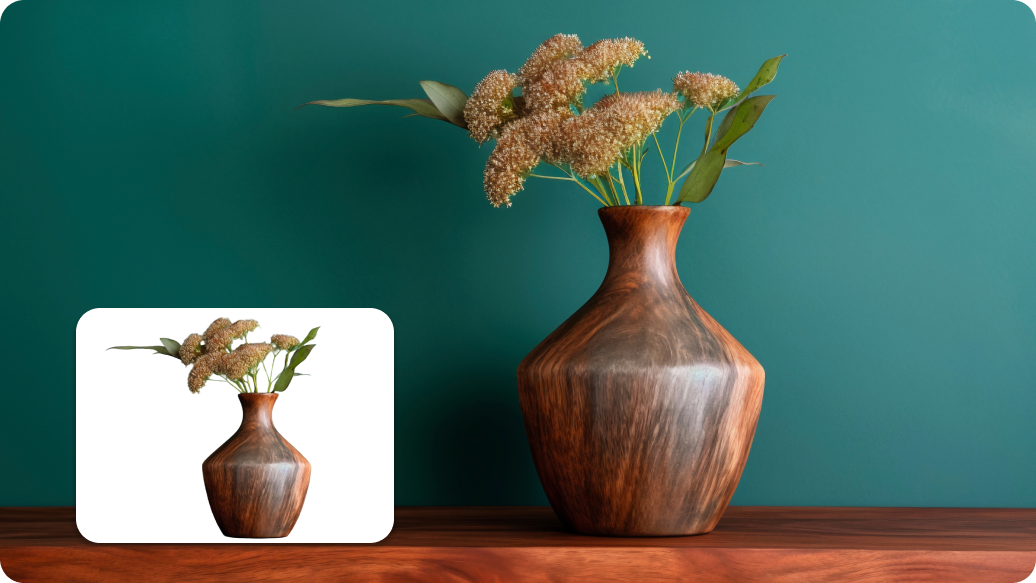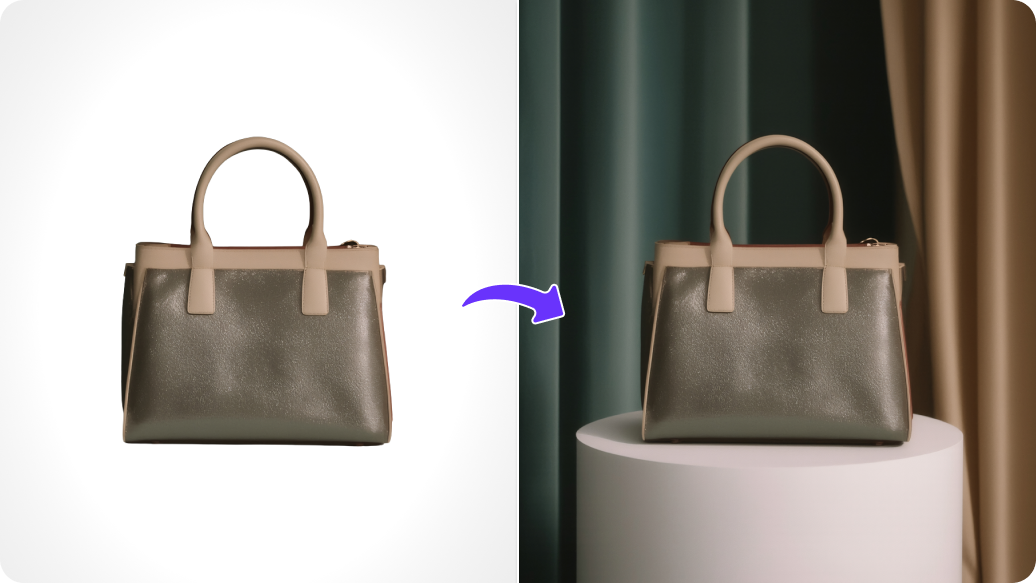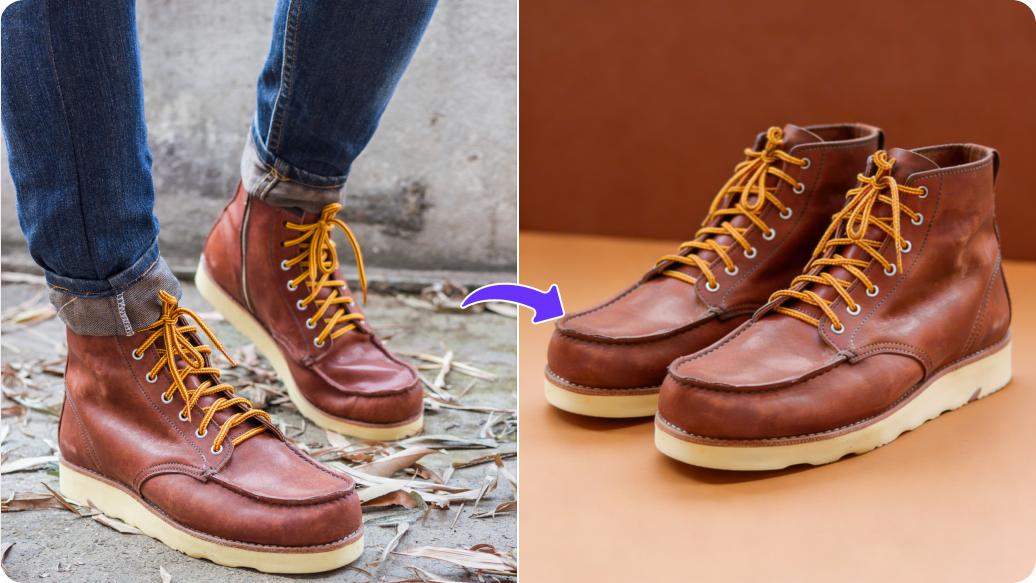




Access the AI image editor directly on the browser you use, be it Safari, Edge, Chrome, or Firefox; no heavy software or plugins needed.

AI image editor for WooCommerce
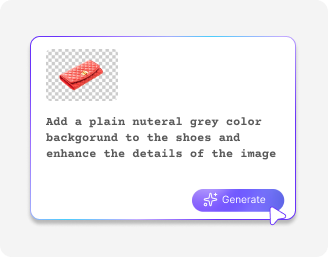
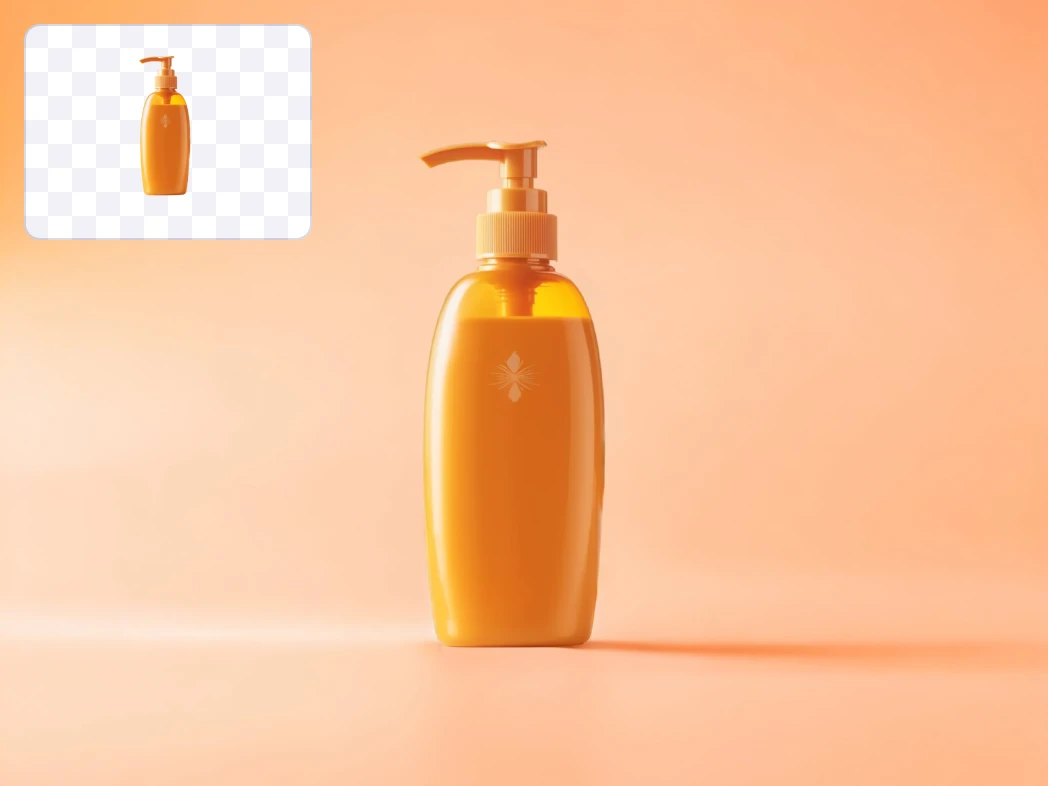
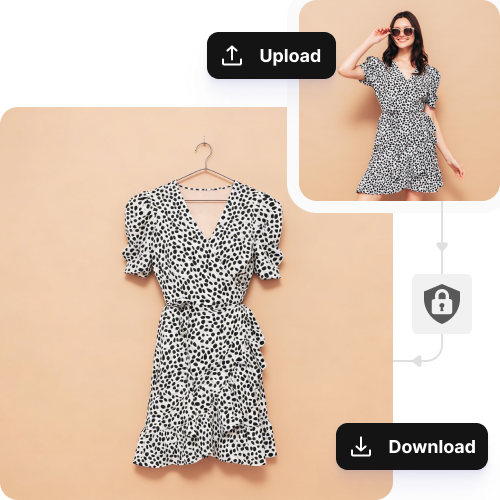
Describe your product scene and get clean backgrounds and studio-quality WooCommerce product visuals.

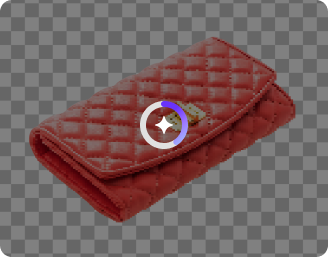
AI Magic in progress
Removing backgrounds, enhancing lighting, and optimizing your WooCommerce product image for perfect storefront display
Your WooCommerce product image is ready!
There was some issue on our end. Please try again.

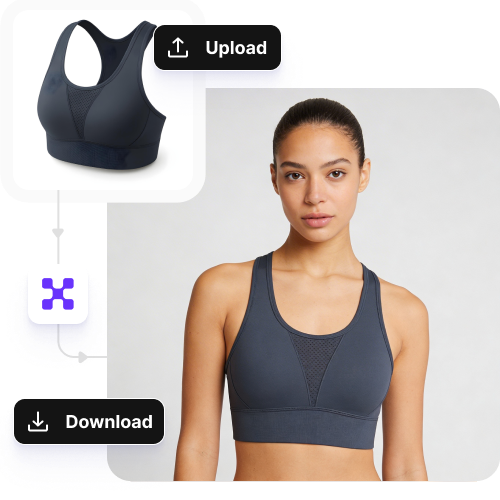
How to use Pixelbin’s WooCommerce AI image editor?
Why use Pixelbin’s AI content generator for WooCommerce?
Maintain a premium brand identity across thousands of SKUs
Create realistic settings that match your product colors and aesthetics across your inventory.
Create polished, store-ready WooCommerce AI images without learning any advanced editing skills.
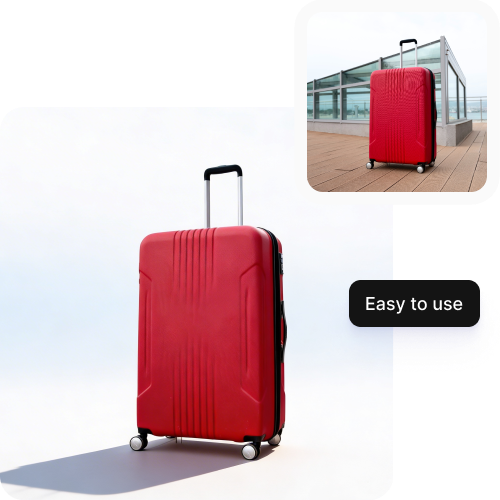
Your product data and original images remain fully protected and never shared or reused.
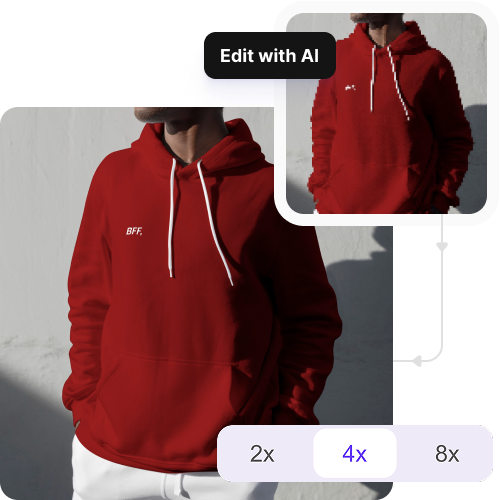
Enhance low-resolution photos by up to 2X, 4X, or 8X while preserving all the details true to their original.
AI tools by Pixelbin
Key highlights of Pixelbin’s AI image editor for WooCommerce
Benefits of the online WooCommerce AI content generator
- Scale your store without the stress: Stop losing your weekends to manual editing. Automatically polish thousands of product photos in minutes, and keep your shop professional while you finally focus on the parts of the business you love.
- Ditch the expensive studio shoots: You can achieve high-quality photographs without spending large amounts of money. Create premium lifestyle images from basic smartphone pictures, which will help you save money for your marketing efforts and inventory expansion.
- Turn visitors into buyers: Nothing kills a sale faster than a blurry photo. Our AI image editor enables you to enhance low-resolution pictures, resulting in improved visibility of all picture details that create immediate customer trust necessary for product purchasing.
- Keep your shop running fast: Make your customers happy with pages that load instantly. The tool can help adjust your images for mobile and desktop use by resizing and optimizing them so you can achieve both fast loading times and high-quality results.
- Looks like a global brand: Give your store that "big brand" feel without the big team. Apply a consistent style to your entire catalog with one click, so every product looks perfectly aligned and professional.
- Get your products live faster: Don't let a backlog of photos delay your next launch. Automate background removal and formatting so you can move from "new arrival" to "sold out" in record time.
Use cases of AI image editor for WooCommerce
Stop using the same blurry, watermarked photos as every other reseller. Use Pixelbin’s WooCommerce AI content generator to wipe away distracting logos, sharpen the resolution, and swap generic backgrounds for a look that's purely yours.
Give your entire store a festive makeover in minutes without a single new photoshoot. Swap your everyday backgrounds for cozy holiday or bright summer scenes across your whole product line.
Keep your mobile shoppers from bouncing by fixing slow load times. Serve lightweight, perfectly cropped versions of your high-res photos to smartphones while keeping your original files untouched and crisp.
Stop stressing over fresh content for your feed. Take one simple product shot and let AI place it in a dozen different settings, like a sun-drenched kitchen or a modern office, instantly.
If your vendors upload a messy mix of styles, you can finally fix it. You can center every product and apply a consistent background so your marketplace looks professionally curated instead of cluttered.
How to get the best results with the online AI image editor for WooCommerce?
To get the desired results using our WooCommerce AI tool, here are a few things you can try:
- Use clear photos that show the full product.
- Include multiple angles so the editor can generate realistic scenes.
- Make sure the product is fully visible and not cropped or blocked.
- Avoid blurry or dark photos with strong shadows or glare.
- Skip images with cluttered backgrounds that distract from the product.
- Avoid extreme angles that hide key product details.
- Describe the setting or background when writing the product descriptions.
- Use keywords like “realistic,” “high-resolution,” or “premium look” to guide the editor.
- Keep your prompts concise but detailed enough to convey your vision clearly.
- Test different prompts on the same photo to find the most natural results.
- Mention reflections, tags, or imperfections if you want the editor to remove or fix them.
FAQs
Here are some of the most common questions about our AI image editor for WooCommerce. If you can’t find the information you need, contact us at support@pixelbin.io or refer to our documentation for more details.