PixelBin AI Video Editor is a browser-based video editor for creators, marketers, ecommerce teams, agencies, and small businesses. Upload media to a timeline, add subtitles, clean audio, enhance footage, resize for social platforms, and export videos for product pages, ads, Reels, Shorts, YouTube, and campaigns.
People searching for a video editor usually need to finish a specific job, not read a feature list. PixelBin is organized around common production tasks for creator videos, ecommerce clips, paid social ads, product explainers, and campaign variations.
Trim and polish a product clip
Cut the clip to the useful moments, add a product headline, clean the frame, crop for a listing or ad, and export a sharper product video for storefronts, marketplaces, or launch pages.
Add subtitles to talking-head videos
Generate AI subtitles, adjust position and styling, review line breaks, and make tutorials, testimonials, explainers, and creator clips easier to watch without sound.
Resize one video for every channel
Prepare one source video for Reels, Shorts, TikTok, YouTube, stories, feed posts, website banners, storefronts, and paid social placements without rebuilding the edit from scratch.
Clean noisy UGC and demo clips
Use audio cleanup, upscaling, filters, and visual adjustments to make rough creator clips, founder videos, product demos, and customer testimonial footage more publishable.
Remove or replace a video background
Isolate the subject, keep the result transparent for compositing, or replace the background with a clean brand color when the original setting distracts from the message.
Generate a clip, then refine it
Create a draft clip with AI, then use timeline controls, subtitles, crop, motion, and export settings to turn it into a usable campaign asset.
From raw clips to ready-to-export videos
A practical video editing workflow should keep the source media, AI actions, timeline edits, review, and export in one place.
1
Add your media
Upload video, image, audio, or text assets. Place them on the timeline before you start editing.
2
Polish with AI and editor tools
Add subtitles, clean speech, upscale rough clips, adjust visuals, or remove distracting backgrounds where needed.
3
Preview and export
Check pacing, captions, audio, crop, and platform fit. Export versions for social, ads, product pages, or campaigns.
A browser-based video editor with practical AI tools built into a familiar timeline. It is designed for everyday production work: turning raw clips, product footage, creator videos, generated media, and campaign assets into publishable videos.
A simple timeline for real edits
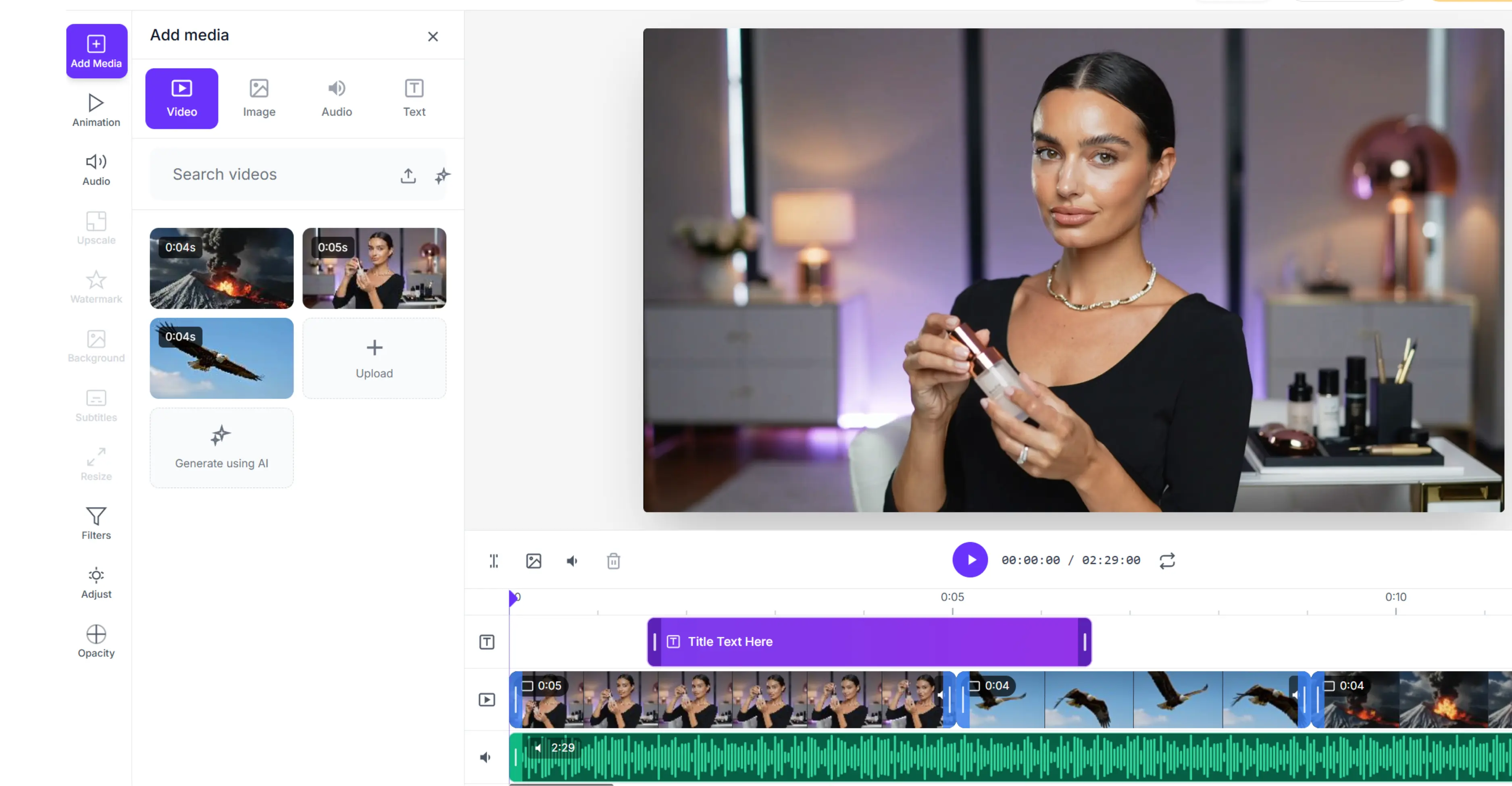
Add video, image, text, and audio layers to one project. Drag media into the timeline, preview the edit, and keep each asset on the right track so revisions are easier when a headline, clip order, caption, or crop needs to change.
AI tools where the clip already is
Select a clip and apply the right tool from the side panel. Use AI audio cleanup, video upscaling, background removal, AI subtitles, and generation tools where they support the edit, while keeping manual control over timing, layout, and export.
Motion, style, and cleanup controls
Add Fade, Slide, Zoom, Spin, Pulse, Bounce, Shake, and Float animations when motion improves clarity. Apply filters like Black and White, Vintage, Faded, Cool, and Warm. Fine-tune brightness, saturation, contrast, grayscale, and sepia so mixed clips feel consistent.
Exports made for every channel
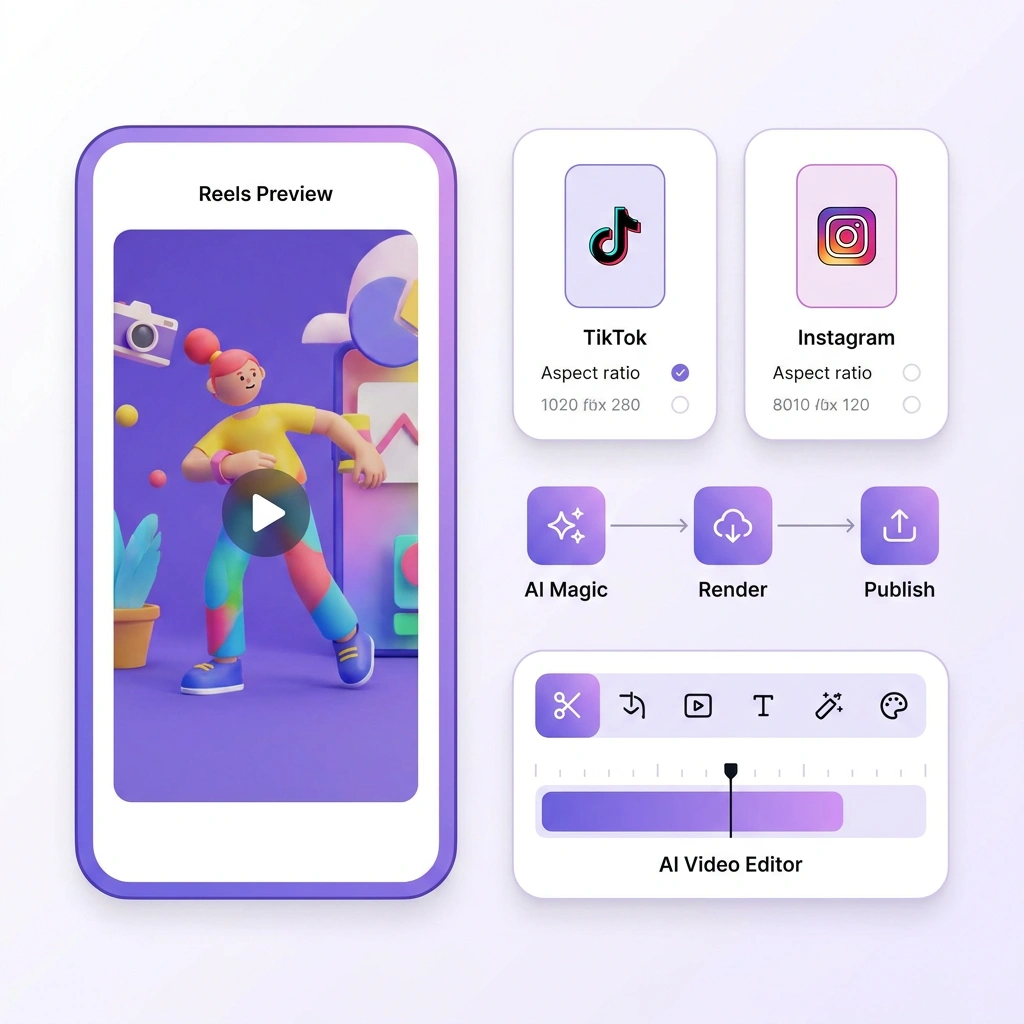
Crop videos into Freeform, Original, 1:1, 4:5, 16:9, 5:4, 9:16, 2:3, 21:9, 4:3, 3:2, and 3:4 formats. Build one core edit, then prepare channel-specific versions for ads, reels, shorts, stories, product pages, and website banners.
Every action you can take inside the AI Video Editor
Six editing groups cover the practical workflow: bring media in, shape the timeline, improve weak clips, format for the channel, and export a version your team can actually use.
Add video, image, audio, and text
Start from uploaded files or generate a video draft with AI. Search your videos, add images, place audio, and drop text onto the timeline. This helps when a product video needs voiceover, a creator clip needs a headline, or an ad needs an extra visual layer.
Animate clips and elements
Use Entrance animations like Fade, Slide, and Zoom. Add Loop animations like Spin, Pulse, Bounce, Shake, and Float. Finish with Exit animations so product shots, text overlays, pricing callouts, and social hooks feel intentional instead of pasted on.
Clean, upscale, and prepare clips
Use AI Background Noise Removal to reduce distracting audio in talking-head clips. Upscale selected footage when the source is useful but soft. Use cleanup and background tools on owned or permitted media before export.
Remove or replace video backgrounds
Detect the subject in your video and erase the background. Keep it transparent for compositing, or replace it with a solid color such as black, white, grey, red, green, blue, yellow, teal, pink, or orange when a clean product or creator layout is needed.
Add AI subtitles and visual polish
Generate subtitles, choose language, position, words per line, text color, highlight color, and subtitle animation. Review the transcript before publishing, then apply filters, effects, blur, brightness, saturation, contrast, grayscale, and sepia to match the creative.
Crop, flip, set opacity, and export
Resize the same edit for reels, shorts, stories, ads, product pages, YouTube, and web placements. Use crop presets, flip controls, opacity, timeline preview, and Export to turn one draft into channel-ready versions.
What the AI Video Editor is good for
Use PixelBin when the job needs practical online video editing, not a heavy post-production setup. These are the workflows where a browser-based video editor with AI assistance can save the most handoff time.
Product and marketplace videos
Upload product clips, clean the background, add text, crop to the right ratio, and export videos for listings, storefronts, launch pages, and ecommerce ads.
Paid social ads
Create ad-ready videos with hooks, subtitles, motion, clean audio, and platform-specific crops for Meta, TikTok, YouTube, Instagram, and remarketing campaigns.
UGC and creator edits
Clean voice audio, add AI subtitles, animate text, and export vertical clips for Reels, Shorts, TikTok, YouTube snippets, product demos, and testimonials.
Clip repurposing
Take one horizontal, square, or vertical video and crop it into multiple versions for reels, stories, shorts, ads, landing pages, sales emails, and web banners.
Video cleanup and enhancement
Improve rough clips with audio cleanup, upscaling, background removal, filters, color adjustments, flip, opacity, and export-ready polish before publishing.
PixelBin AI tools that pair with the AI Video Editor
Use these related PixelBin tools when your video workflow needs generated clips, edited source frames, product visuals, or campaign variations.
A practical reference for teams comparing online video editors, AI video editors, and browser-based video editing workflows.
What an AI video editor is
An AI video editor combines normal timeline editing with assisted actions such as subtitle generation, background noise removal, upscaling, background cleanup, and AI video generation. The goal is not to remove human editing judgment. It is to reduce repetitive production work while keeping control over timing, message, crop, pacing, captions, and final review.
Use AI where it solves a clear editing problem: make speech easier to hear, generate captions, improve weak footage, remove distracting backgrounds, create draft clips, or resize a finished edit for the right channel. The final hook, scene order, subtitle review, visual style, and export format should still be checked by the editor.
Video editor at a glance
Input: upload video clips, product footage, creator videos, images, audio, and text assets, or generate a draft clip with AI.
Timeline: place video, image, audio, and text on tracks, adjust order and pacing, preview the edit, and revise before export.
AI assistance: use AI for subtitles, background noise removal, upscaling, background removal or replacement, and video generation where those actions save production time.
Manual control: use crop, flip, opacity, filters, effects, animation, brightness, saturation, contrast, blur, grayscale, and sepia to shape the final look.
Output: prepare versions for Reels, Shorts, TikTok, YouTube, ads, storefronts, product pages, landing pages, sales decks, and web banners.
Common video editing workflows
YouTube creators: cut long footage into focused clips, add subtitles for highlights, improve audio, and export horizontal or vertical versions for the main channel and Shorts.
TikTok, Reels, and Shorts creators: keep the hook clear, use vertical-first framing, add readable subtitles, and export fast social versions without rebuilding the edit in another app.
Ecommerce brands: clean product clips, remove distracting backgrounds, add text overlays, crop for listings or ads, and keep product videos visually consistent across campaigns.
Paid social teams: turn one product, testimonial, or UGC clip into multiple ad variations with different hooks, subtitles, crops, and export ratios.
Agencies: produce client-ready drafts, social cutdowns, product edits, and campaign variations while keeping review changes in a single timeline.
Product marketers: make launch explainers, feature teasers, demo clips, sales enablement videos, and website media from existing product assets.
Small businesses: edit simple videos for products, services, announcements, events, testimonials, and local social channels without learning complex desktop software.
When the AI Video Editor earns its keep
When a raw clip needs subtitles, cleanup, crop, and export in the same workspace.
When product videos need cleaner backgrounds, sharper source quality, consistent framing, and platform-specific ratios.
When a voice clip has background noise and needs to sound clearer before publishing.
When one video has to become versions for reels, shorts, stories, ads, product pages, landing pages, and web banners.
When a team needs an online video editor for frequent production work, not a one-off novelty edit.
When AI should assist the workflow but the editor still needs control over message, timing, pacing, crop, captions, and final review.
What teams can ship from it
Product videos: polished clips with clean backgrounds, subtitles, product text, platform crops, and export-ready visual styling.
Ad creatives: short campaign videos with hooks, motion, captions, audio cleanup, and multiple aspect ratios for testing.
UGC edits: creator-style videos with speech cleanup, AI subtitles, text overlays, filters, and vertical crops.
Social repurposes: one long or horizontal clip converted into channel-ready versions for Reels, Shorts, TikTok, YouTube, and stories.
Brand content: launch videos, explainers, sales clips, internal updates, website media, and evergreen social assets.
Generated-to-edited videos: AI-generated draft clips refined with timeline edits, captions, crop, filters, and export settings.
Practical editing guidance
Start with a clear goal for each scene: hook, product benefit, proof point, demo step, offer, or call-to-action.
Keep the first seconds focused. For social ads and short-form video, the opening frame and subtitle line often decide whether people continue watching.
Use vertical-first framing when the main destination is Reels, Shorts, TikTok, or mobile-first paid social.
Keep subtitles readable on small screens. Avoid long lines, low contrast, and captions placed over important product details.
Select the correct clip on the timeline before applying AI tools like audio cleanup, upscale, background, or subtitles.
Crop early when the final placement is fixed, such as 9:16 for Reels and Shorts, 1:1 or 4:5 for feed, and 16:9 for YouTube or website embeds.
Preview AI-assisted changes before continuing, especially when an action may use credits.
Use filters and adjustments at the end to make mixed clips feel like one finished creative.
What to expect from the output
PixelBin is useful for practical production work: social edits, ecommerce product videos, UGC clips, YouTube cutdowns, paid social variations, launch clips, and quick campaign assets. Source quality still matters. Clear footage, stable framing, readable text, clean audio, and a defined export format usually produce better results than unclear or heavily compressed clips.
Quality and trust checks before export
Subtitle accuracy: review names, product terms, numbers, and line breaks before publishing.
Audio clarity: listen once with headphones and once at low volume to catch distracting background noise.
Platform fit: confirm the crop does not cut off faces, products, captions, app screens, or CTAs.
Rights and permissions: edit media you own, created, licensed, or have permission to modify, especially when using cleanup or background tools.
Source quality: AI can improve weak clips, but the best exports still start with clear footage, stable framing, readable text, and a focused message.
Expectation setting: use PixelBin for practical online editing, social production, ecommerce videos, campaign assets, and quick revisions. For advanced cinematic grading or complex multi-camera production, a dedicated professional editing suite may still be appropriate.
Yes. You can start using PixelBin AI Video Editor for free. Some AI actions, such as generation, upscaling, background processing, or audio cleanup, may use credits. Check the credit estimate before applying AI processing.
Watermark behavior can depend on the account, plan, export type, or current product settings. Before publishing a final video, check the export screen inside your PixelBin account.
PixelBin AI Video Editor is designed for common online video workflows such as social clips, product videos, ads, creator videos, and campaign assets. For final delivery, confirm the available upload, export, resolution, and format options inside the editor.
AI subtitles can save editing time, but you should review names, product terms, numbers, punctuation, and line breaks before exporting. This is especially important for ads, tutorials, product explainers, and branded videos.
Use PixelBin for media you own, created, licensed, or have permission to edit. For account-level privacy, storage, and processing details, review PixelBin’s documentation and current product settings before uploading sensitive business media.
Use a browser-based video editor for frequent production work such as social clips, ecommerce videos, UGC edits, subtitles, quick cleanup, resize tasks, and campaign variations. For complex cinematic grading, heavy multi-camera editing, or advanced post-production, a dedicated desktop editor may still be better.
Create polished videos with PixelBin AI Video Editor.
Trim, enhance, subtitle, crop, and export clips for ads, social, product pages, and campaigns.



 Contact Us














_(1).webp)