



PixelBin logo
Image generator is here -   Create Now   and Claim 30% off on Pro Plans. Use code SALE30 at checkout.   Claim Discount

AI color splash effect

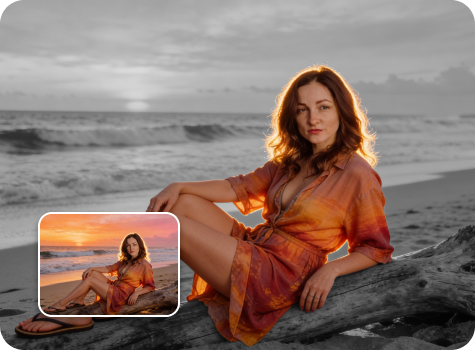
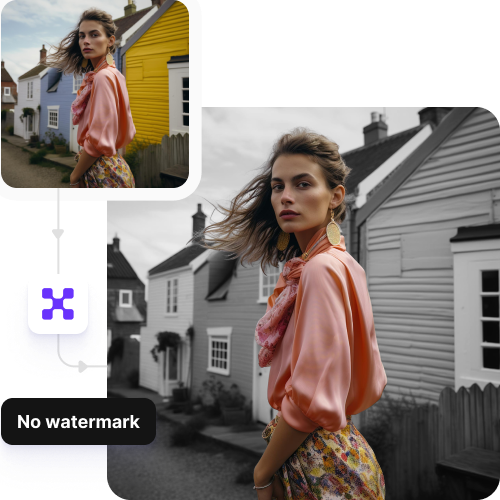
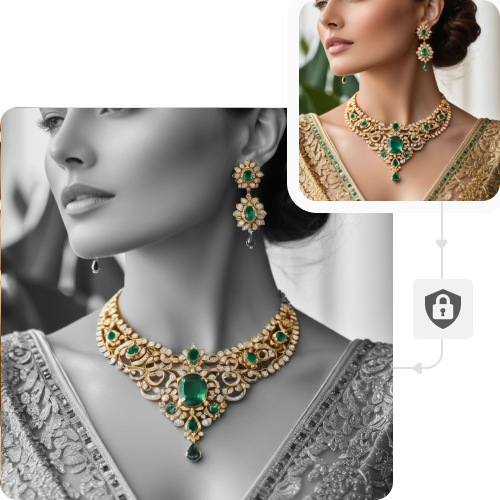
Create color splash photos by automatically highlighting your subject in color and converting the rest of the image to black and white.

Color splash preview

File should be less than 10MB

or paste URL

Before
Loading

AI Magic in progress
AI is isolating colors and converting the rest of your image to black and white

After

Your color splash image is ready!

Edit image with AI
Get 🔥 free credits for image editing, upscaling, generation and more
Create another color splash
Generation Failed

There was some issue on our end. Please try again.

Try Again
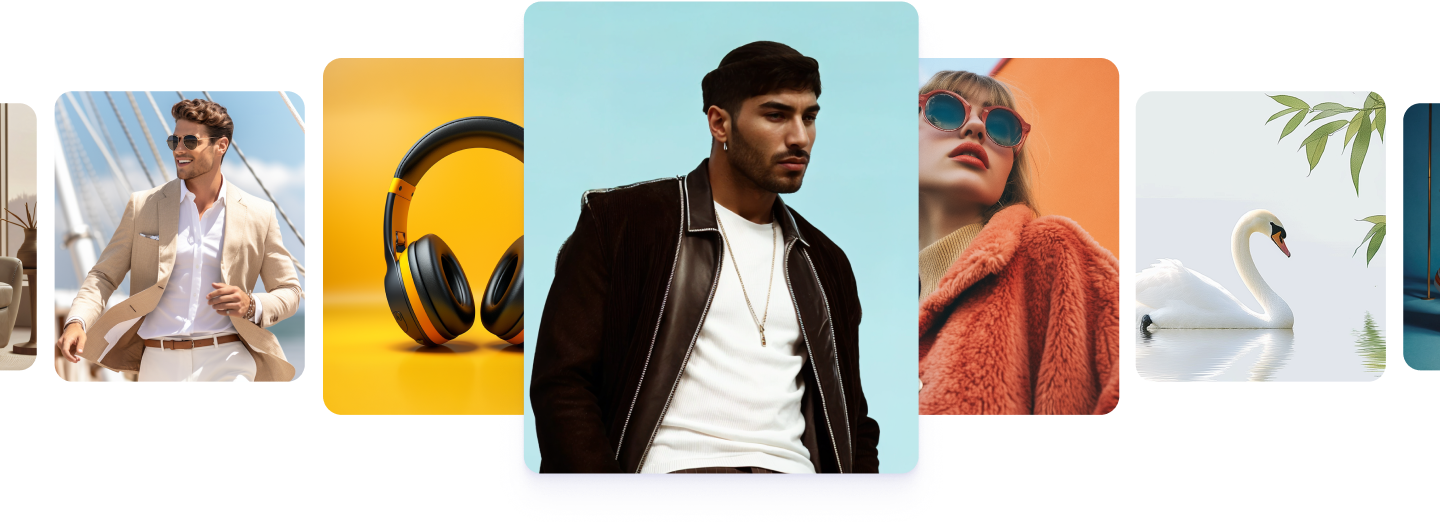
Show case

How to use Pixelbin’s AI color splash effect online?

1
Upload image
Paste the image URL or upload your photo in JPEG, JPG, PNG, or WEBP format.
2
Apply color splash effects
Pixelbin automatically adds vibrant color to the main subject of your photo while turning the background black and white.
3
Preview & save
Preview the edited image and download it in high definition, with no watermarks or extra costs.

Why use Pixelbin’s AI color splash online?

Mobile friendly
Apply the AI splash filter directly from your smartphone or tablet anywhere, anytime.
Image upscaling
Enhance your photo resolution by 2x, 4x, or 8x while preserving every original detail.
Asset management
Manage your edited visuals from a single dashboard for quick and easy access.
HD outputs
Download your photos in high-definition, ready for professional use or printing.
Smooth navigation
Edit your photos on an intuitive interface that requires zero learning curve or editing skills.
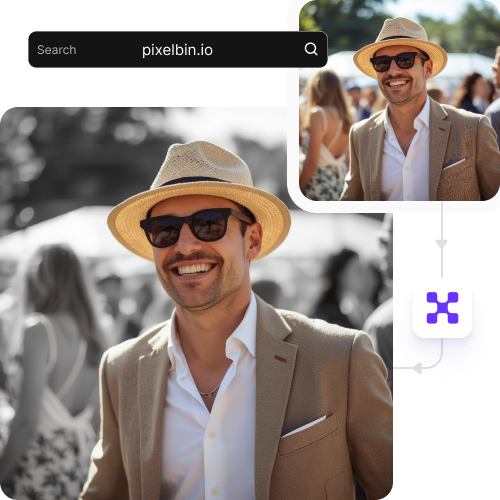
URL-based transformation
Update your visuals instantly across the web by editing the image link on the fly.

Color splash effect photo editor

Apply color splash effects to your photos directly in your browser.

Browser-based

Try the color splash effect instantly on any modern browser, including Edge, Safari, Chrome, and Firefox.

Sailling ship of sketche to image
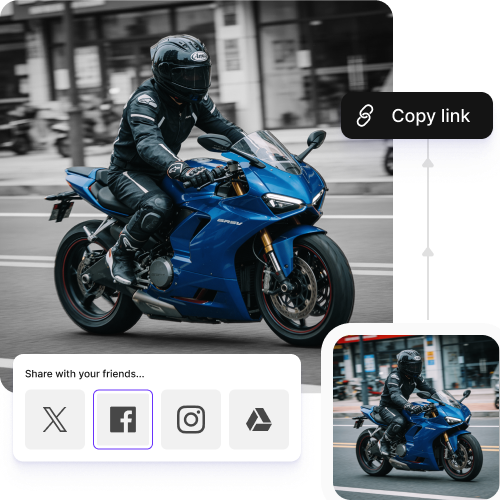
Instant sharing

Copy the image URL directly from your edited image or your folder to share with friends and groups.
Mountain sketch to image
Watermark-free exports

Export your high-quality photos without any distracting logos, labels, or text.
Sketch hot air baloon to image generator
Complete privacy

Your images are processed on encrypted servers and never shared without your consent.
sketch to image in HD-resolution pictures

AI tools by Pixelbin

Key highlights of Pixelbin’s color splash effect photo editor

Benefits of the AI color splash effect

  • Draw attention to your subject: Make your subject pop by contrasting it with a black and white background, ensuring it grabs viewers' attention right away.
  • Eliminate background clutter: Get rid of distracting background elements to give your product photos, fashion shots, and portraits a sleek, expert look.
  • Highlight the smallest details: Draw attention to key image parts, like logos, eyes, or accessories.
  • Create a dramatic mood: Add a mix of black and white and color to your images for a film-like, vintage, or moody vibe.
  • Simplify your complex images: Streamline busy images by removing distracting colors. This creates a simple, stylish look that stands out on social media.
  • Make your products stand out: Help your products stand out by using AI color splash to mark what’s special, like a lipstick color or brand mark, against a simple background.

Use cases of AI color splash effect

1. E-commerce: Make your products the only focus

When selling things online, you can quickly improve your product images with the AI color splash effect. By making a busy background black and white but keeping your product colorful, you guide the customer's focus directly to what you're selling. This works well for showing off a lipstick shade or the details of jewelry without a distracting background.

2. Social media: Build a signature look

If you are into social media content creation, use the color splash editor to brand your feed. Instead of trying to match every photo perfectly, choose a main color to repeat in your posts. Keep that color bright and tone down everything else for a simple, organized look that makes your profile seem professional.

3. Portraits & events: Capture the emotion

For wedding or family photos, use this color splash effect to draw attention to key moments. It gives a special feel that regular photos lack. Focus on important parts like a bride’s flowers or someone’s eyes to represent importance or strong feelings, which makes the memory stronger.

4. Storytelling: Get a filmy look

Use selective color to control the view like a movie director. By stripping away most colors, you create a high-contrast, cinematic world where the remaining color feels very powerful. This can tell a story, such as using a red umbrella in a gray city to show mystery or loneliness.

5. Real estate: Highlight luxury features

When presenting a home or building, use a color splash to showcase the best parts without extra markings. Calling attention to fancy features or designs like a special fireplace or a nice kitchen island in a property listing makes a clear point that quickly gets a buyer's attention.

How to get the best results using the color splash effect?

To get the desired results, here are a few tips you can try:

  • Use high-resolution images so the colors and black-and-white areas stay sharp.
  • Pick photos with a clear main subject that stands out from the background.
  • Choose images with bright, strong colors for the best effect against a black-and-white background.
  • Make sure the lighting is even on your subject to keep colors clean and crisp.
  • Keep the background simple so your chosen color really stands out.

FAQs

Here are some of the most common questions about our color splash Tool. If you can’t find the information you need, contact us at support@pixelbin.io or refer to our documentation for more details.

Yes, you can upload an image with a maximum size limit of 10MB, but it should be in supported formats.
Yes, you can apply the specific color you want through text instructions. The AI will immediately apply it to your chosen subject, while the rest of the picture stays in black and white.
No. The tool keeps the details sharp and the resolution high while making the edits. Your picture will stay crisp and professional-looking after the effect is added.
Yes, it can focus on more than one subject. However, it works best when the subjects are clearly separated from the background.
You get 3 free edits without needing to sign up. After that, you will have to create an account and buy more credits on a pay-as-you-go basis.
Edit images in seconds, not hours
Get pixel-perfect results just with your words
Start editing with AI