PixelBin logo
๐Ÿš€ Pixelbin Video Generator - Seedance 2.0, Kling 3.0 Motion Control and more live   Click for Free Trial
AI design studio · canvas + image + video

Brief once. Ship image and video. From the same canvas.

Open a session, pin your references, and write a one-line direction. The AI creative agent can draft the prompt, choose the model, and set parameters. Variants land side by side on the canvas, ready to compare, refine, and export for each channel.

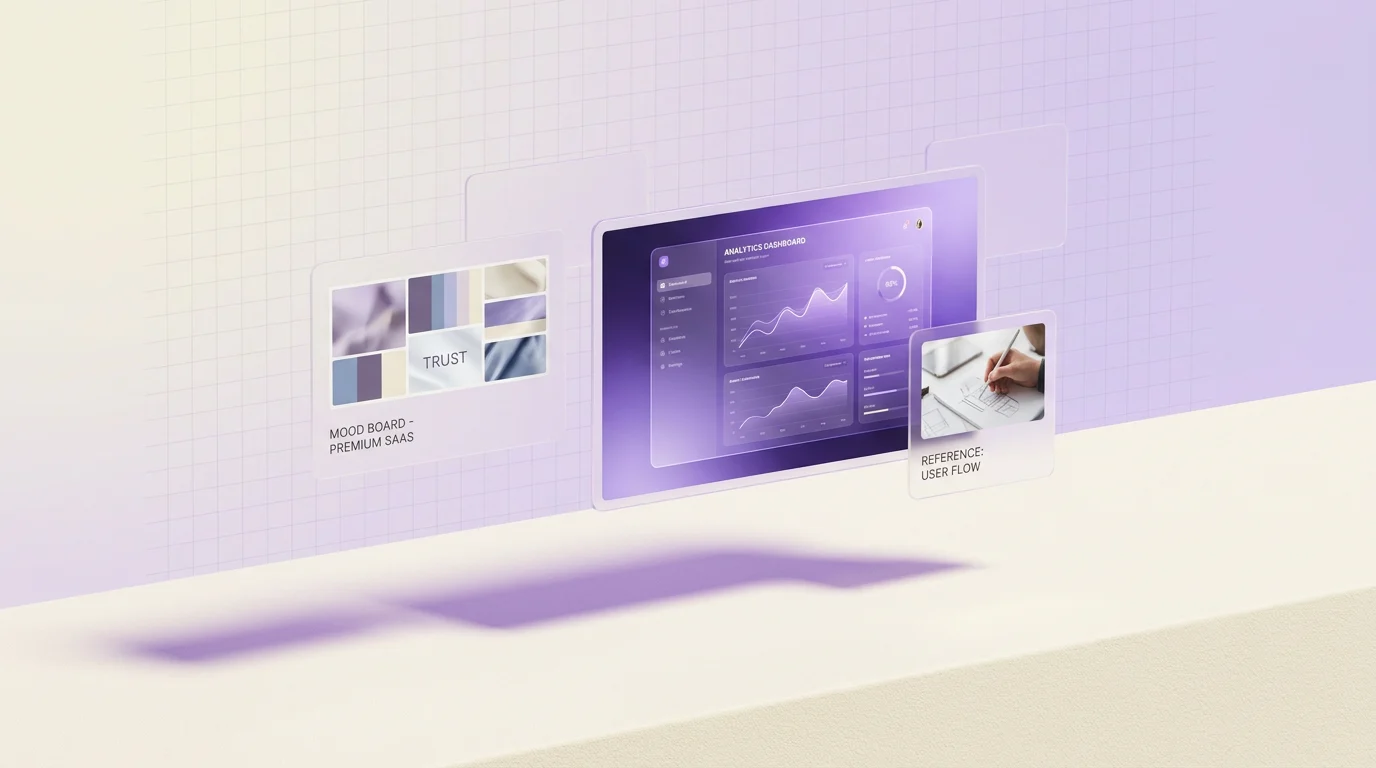
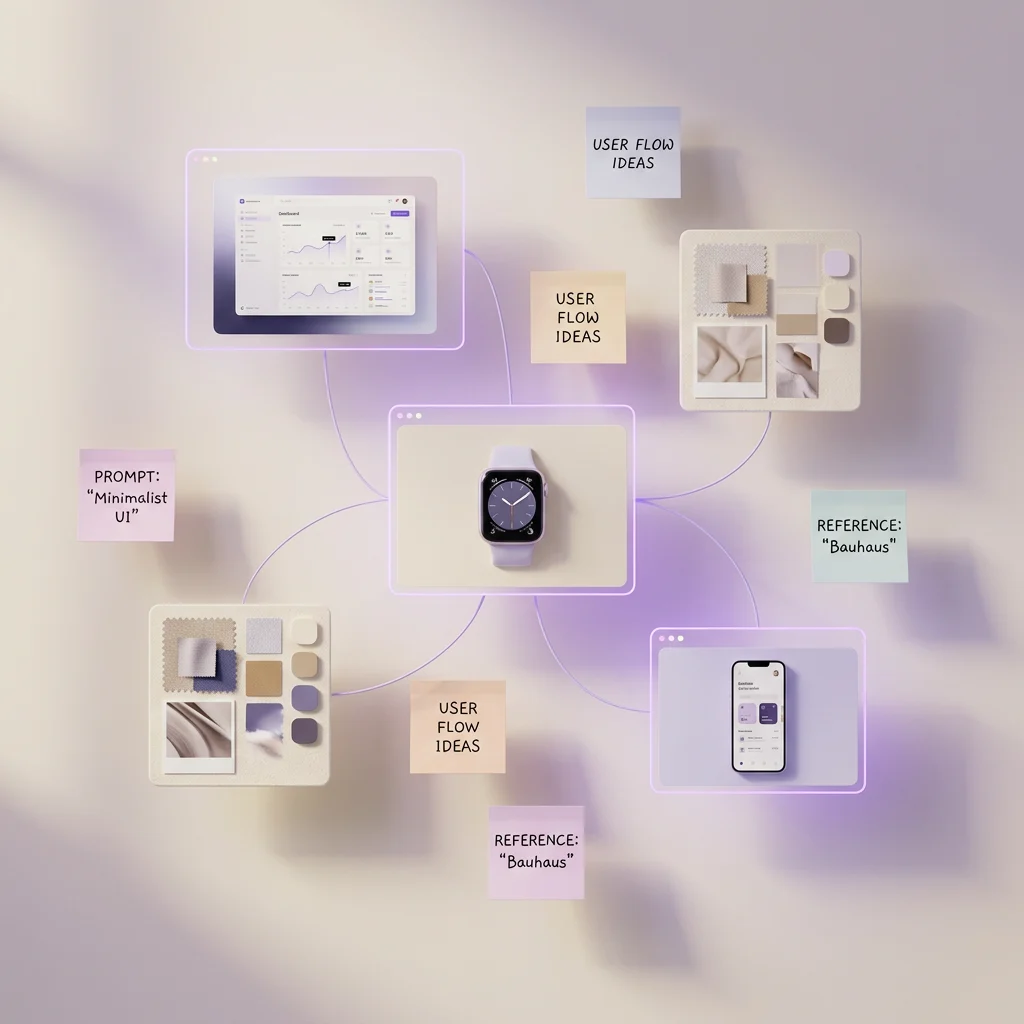
A canvas with pinned brand references and a one-line creative brief
Pin references
Image and video variants generating in parallel from the canvas
Run variants
Side-by-side comparison of variants with export ratios selected
Pick & export
Open the Design Studio

Start free · 3 credits · No card required

Visuals on this page are AI-generated and intended to demonstrate creative workflows and output styles.

Image and video in one canvas
Reference-driven prompts
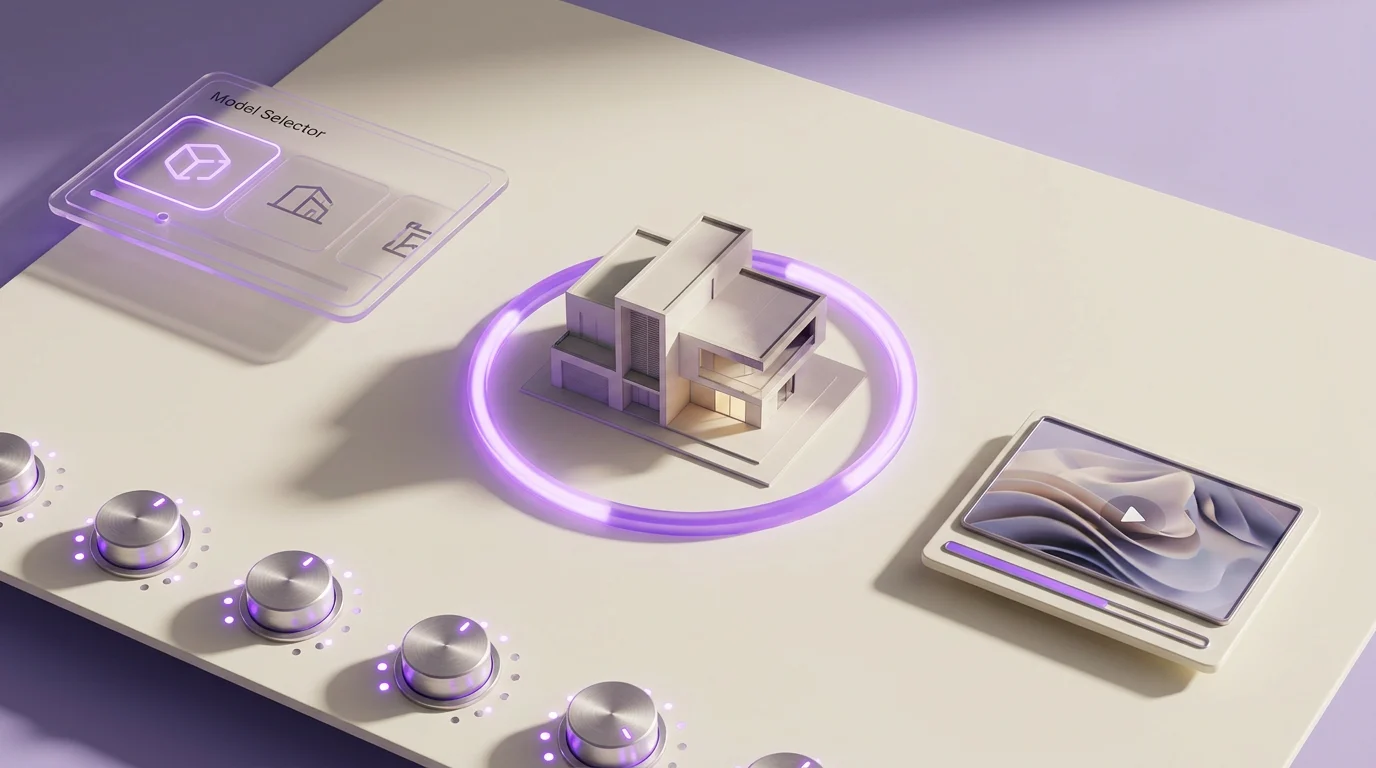
Per-run model controls

From a one-line direction to a finished asset set

Three stages to understand the studio. A worked campaign example follows below.

A canvas with reference frames pinned and grouped under a campaign brief
1
Drop in your brand world
Upload product photos, palette swatches, mood frames, and existing campaign work. Pin them as visual context and group them by SKU, channel, or campaign.
A prompt panel with model parameters open next to generated variants
2
Brief, generate, tune
Type a one-line direction or hand it to the AI creative agent. Choose available model settings such as aspect ratio, seed, guidance, style strength, reference weight, masking, and negative prompts.
Side-by-side variant comparison row with three winners selected
3
Compare and ship
Variants land side by side on the canvas. Pick winners by eye, refine them in the AI Image Editor, then export each asset in the ratio its channel needs. Common ratios include 1:1, 4:5, 9:16, and 16:9.

What the AI Design Studio gives you

Not another single-prompt generator. The studio keeps briefs, references, outputs, and edits together across a campaign.

A canvas, not a chat box

Drag references around. Group variants by SKU. Sketch a content calendar visually. The workspace is sized for an entire campaign, not a single prompt.

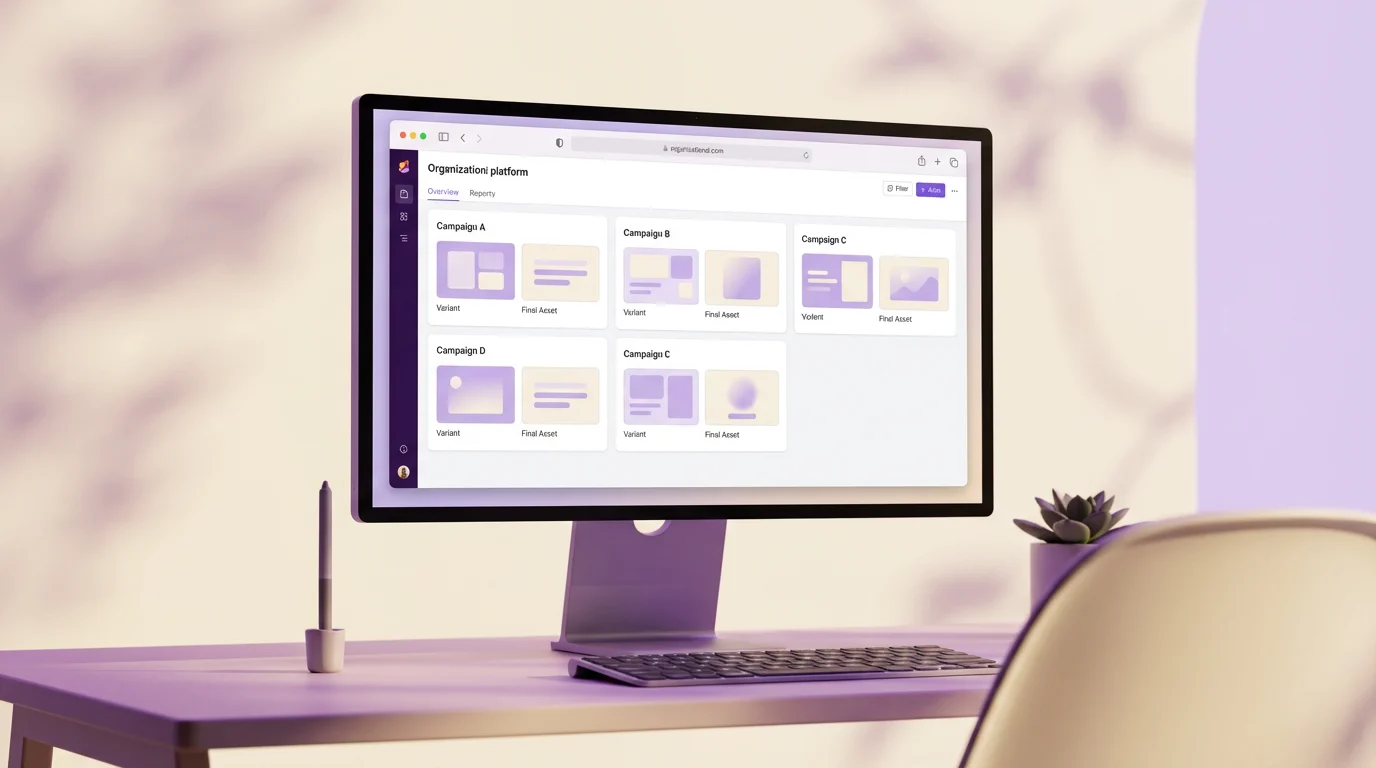
Canvas view with multiple variant rows grouped under campaign labels
Briefs that travel with assets

Each generation keeps its prompt, references, parameters, and edit history attached, so reviewers can understand why an asset looks the way it does.
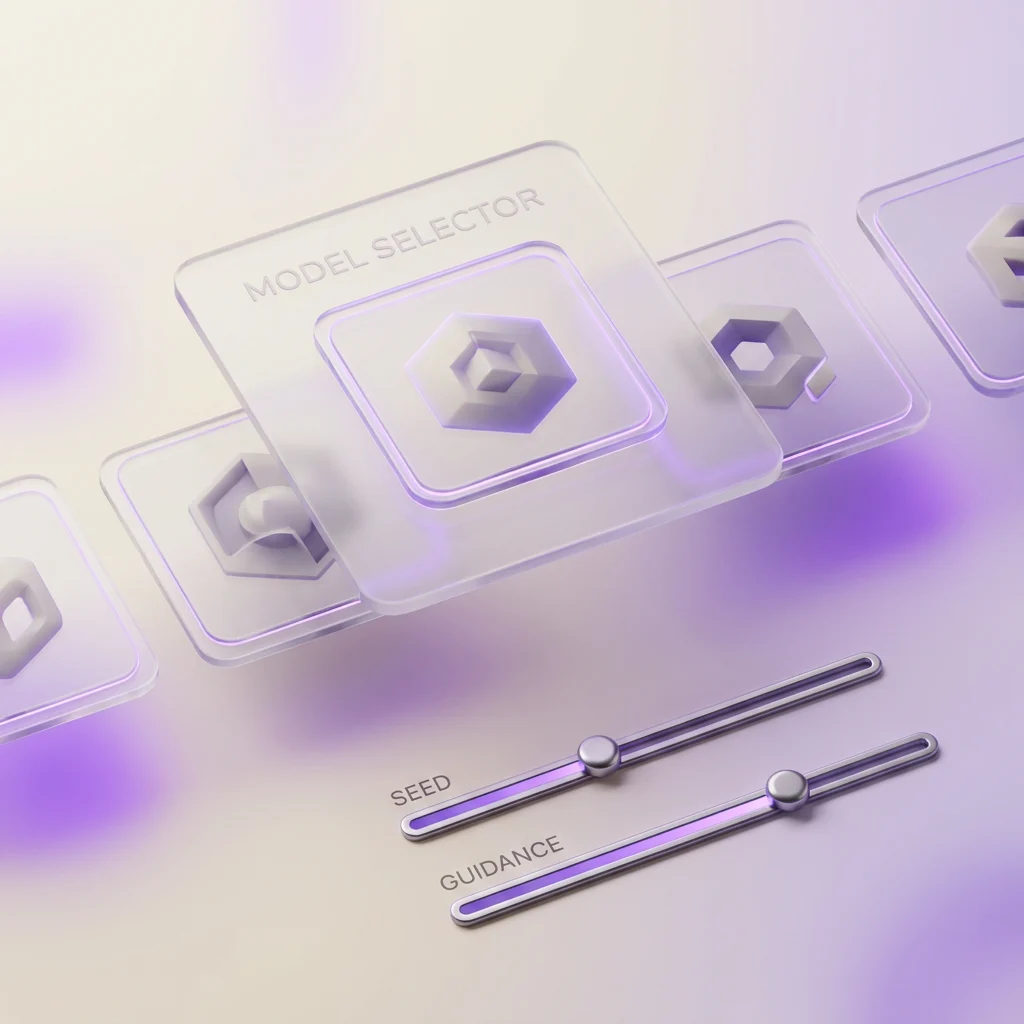
A generated frame with its prompt, references, and parameters annotated next to it
Image and video, no handoff

A still can become a keyframe. A keyframe can become a short clip. The same reference set can guide both image and video work, so the campaign stays visually consistent.
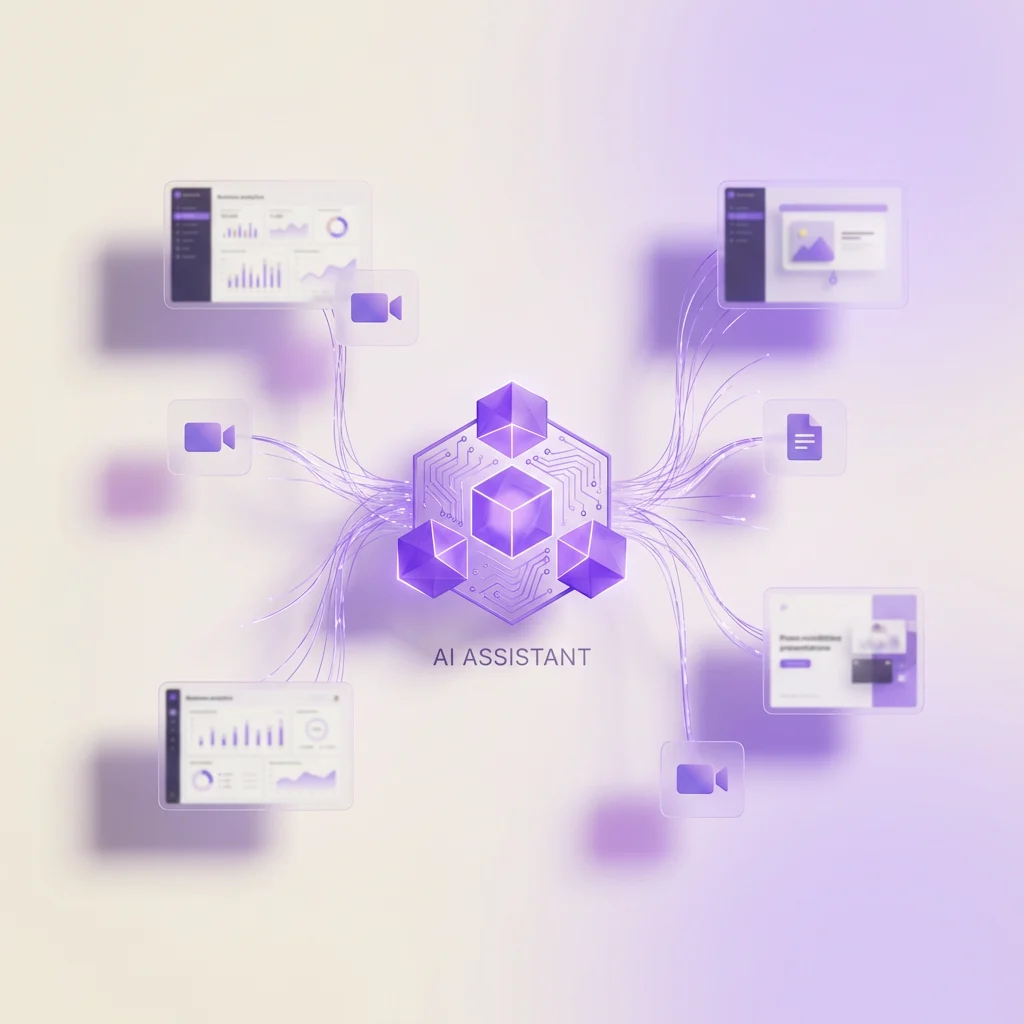
A still being used as a keyframe to brief a short video clip
Hands-on or hands-off

Adjust model parameters manually when the brief needs precision, or hand a one-liner to the AI creative agent and refine the results. Both routes stay on the same canvas.
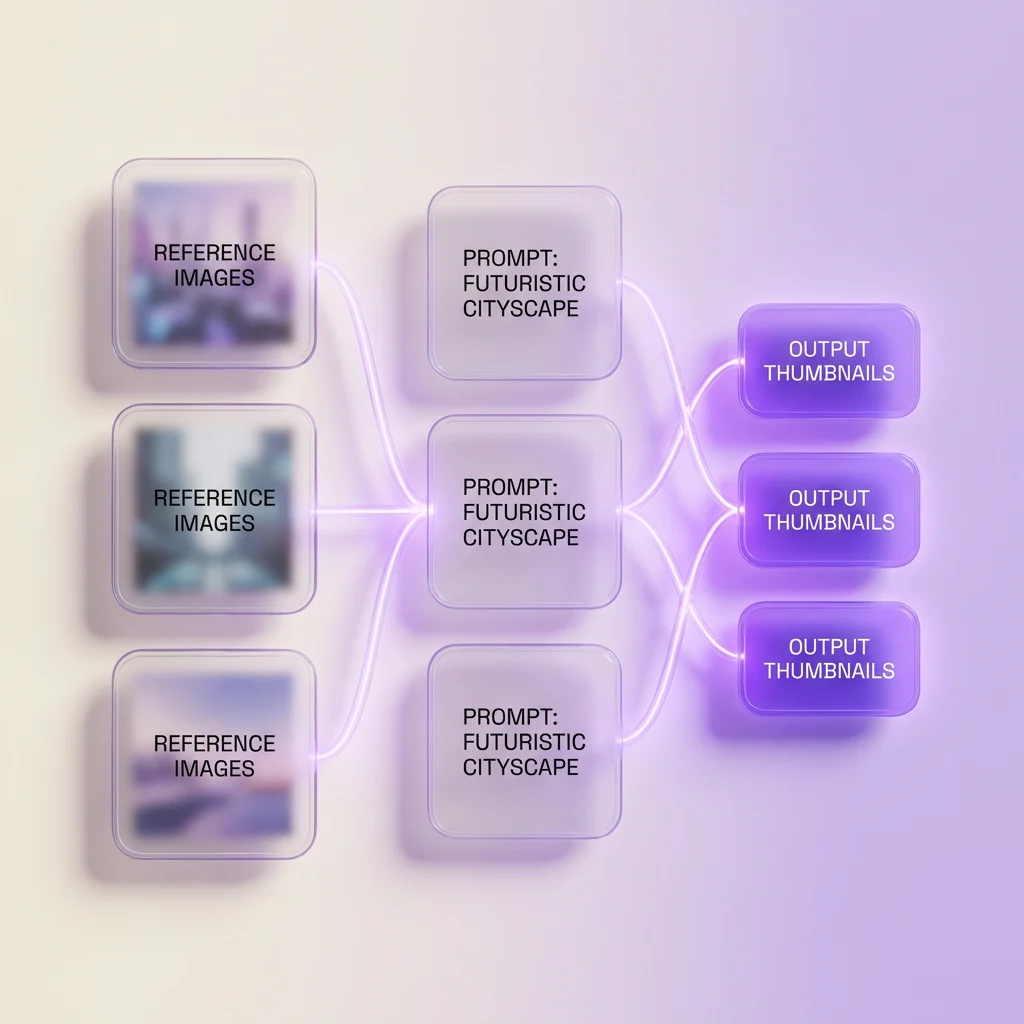
Manual parameter sliders alongside the AI creative agent prompt panel

Every action you take inside a session

Click, drag, tune, compare, refine, export. Six actions cover the core workflow.

Pin and group references
Upload product shots, palette swatches, and campaign references. Group them by SKU, campaign, or channel so the team can see the creative direction in one place.
Brief manually or via the agent
Write a prompt yourself, hand a one-liner to the AI creative agent, or start from a built-in template. Pinned references can be used as visual context before generation.
Tune model parameters
Use settings such as aspect ratio, seed, guidance scale, style strength, reference weight, masking, and negative prompts.
Run variants in parallel
Generate versions across seeds, prompts, or models. Variants arrive on the canvas with the settings that produced them.
Refine inside the AI Image Editor
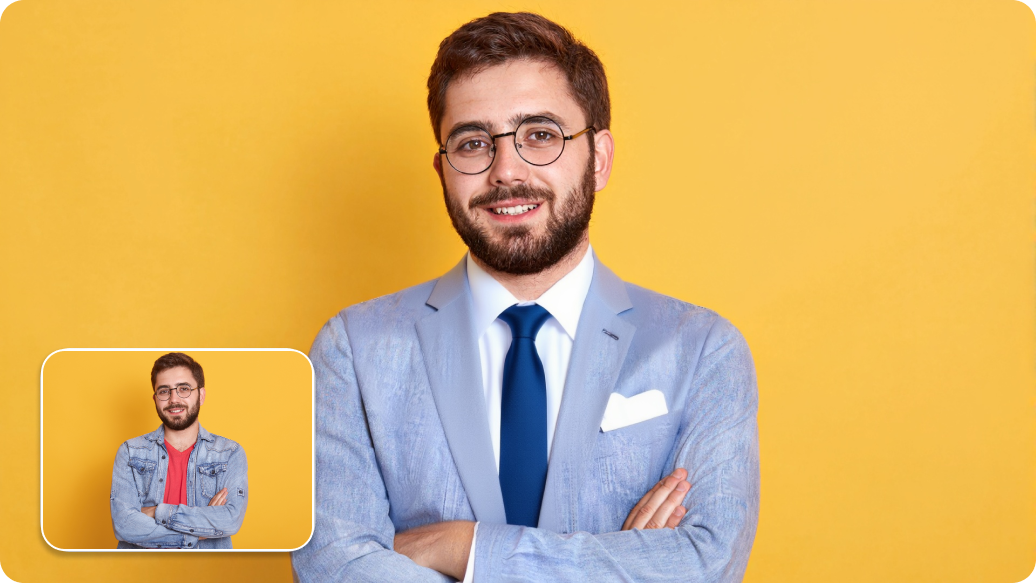
Send winners into the editor for masking, background swaps, object cleanup, or per-region edits. Edited frames return to the canvas linked to their source.
Export per channel
Export common cuts such as 1:1 for feed, 4:5 for paid social, 9:16 for stories and reels, and 16:9 for hero placements, plus other ratios in the export panel. Image and video exports include common formats such as PNG, JPG, and MP4. Outputs come without watermarks.

What the studio is good for

Use the canvas when one campaign needs multiple assets that still feel like one set.
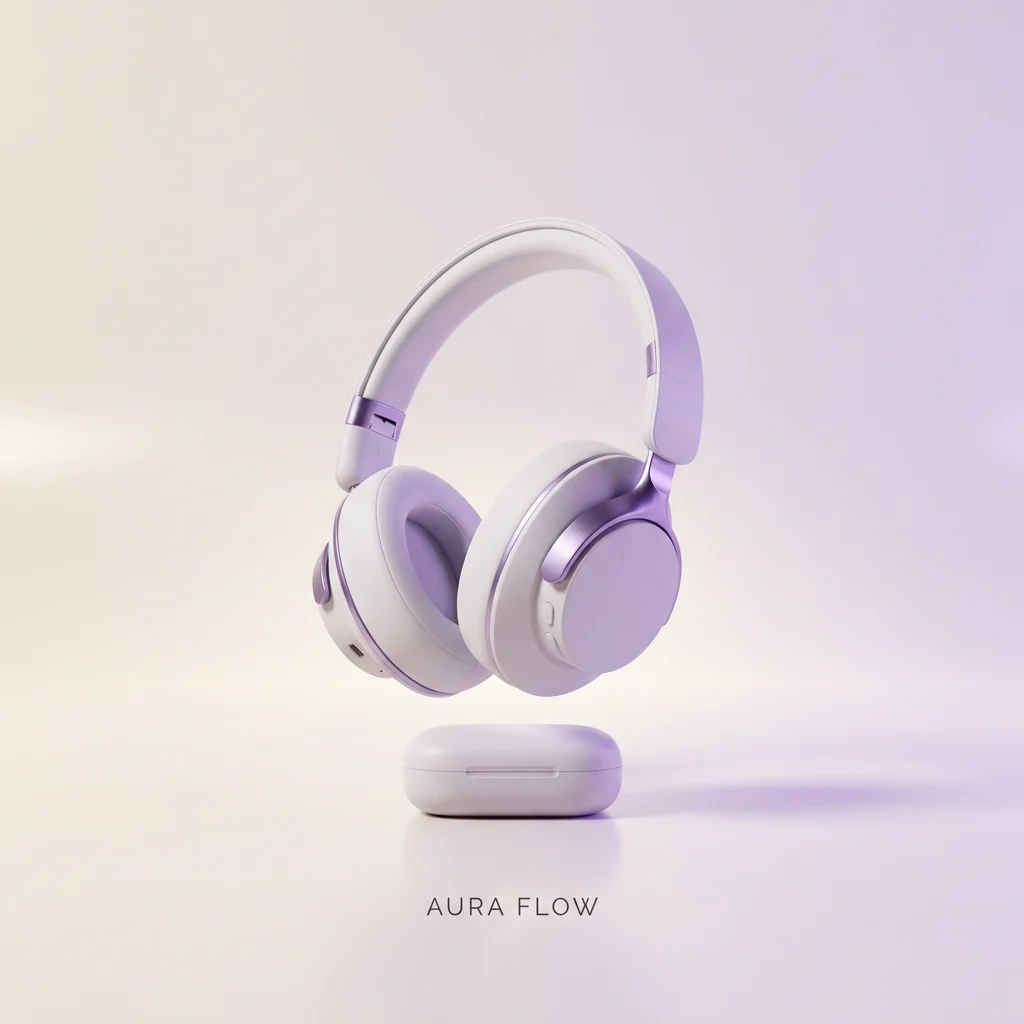
Coordinated product launch set with hero stills, short clips, social crops, and website visuals
Product launch sets

Create hero stills, short clips, social crops, and website visuals from the same reference set.
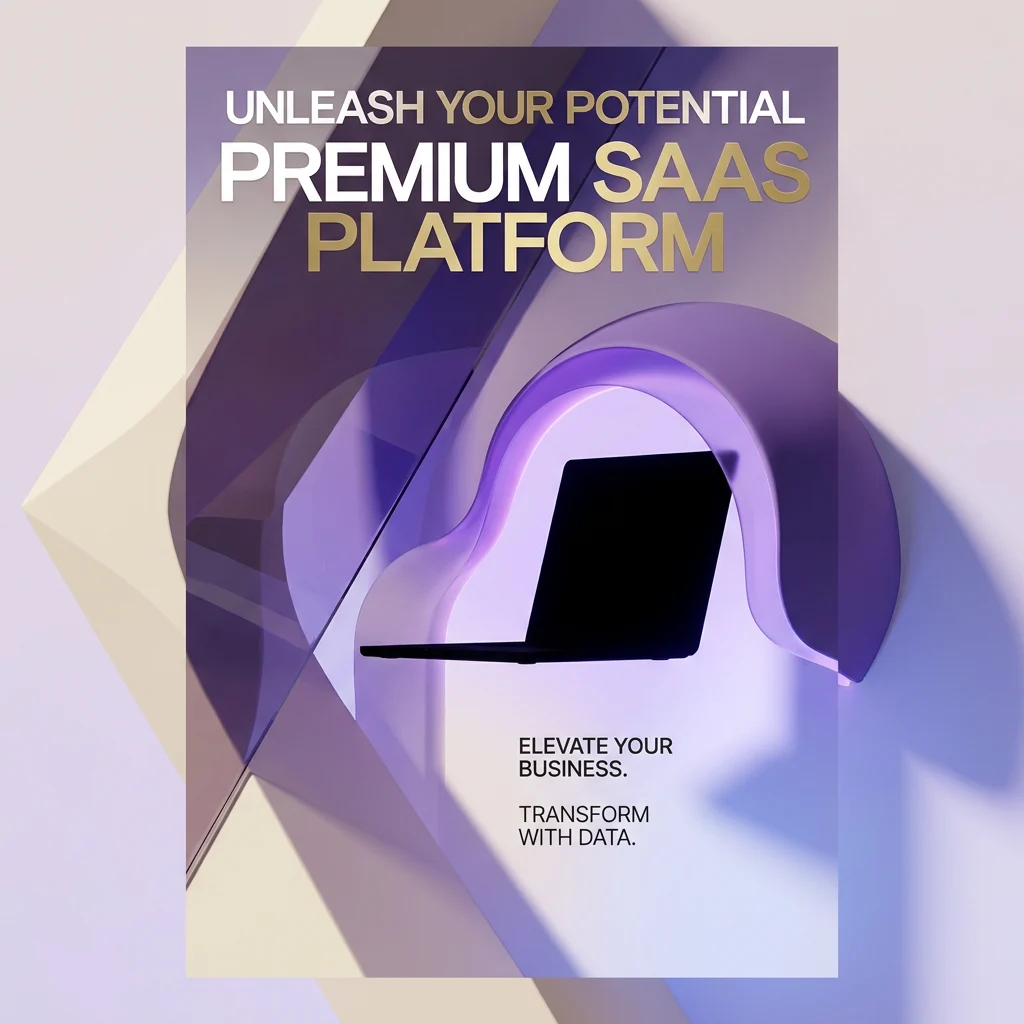
Performance ad creative variants generated around one campaign hypothesis
Performance ad creative

Generate image and video variants around one campaign hypothesis, then compare outputs before handoff.
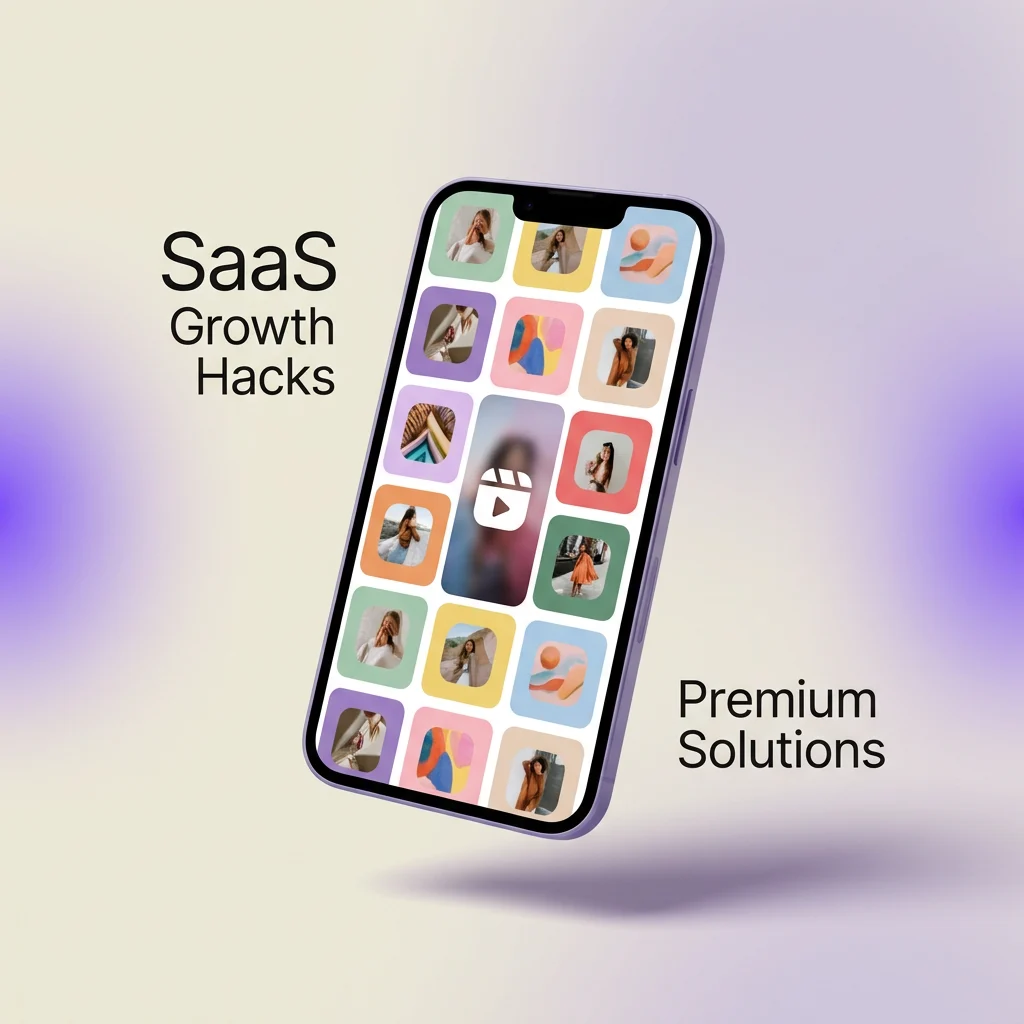
A weekly social calendar with matching stills and reels for each platform
Social content calendars

Plan a week of posts visually and create matching stills and reels for each platform.
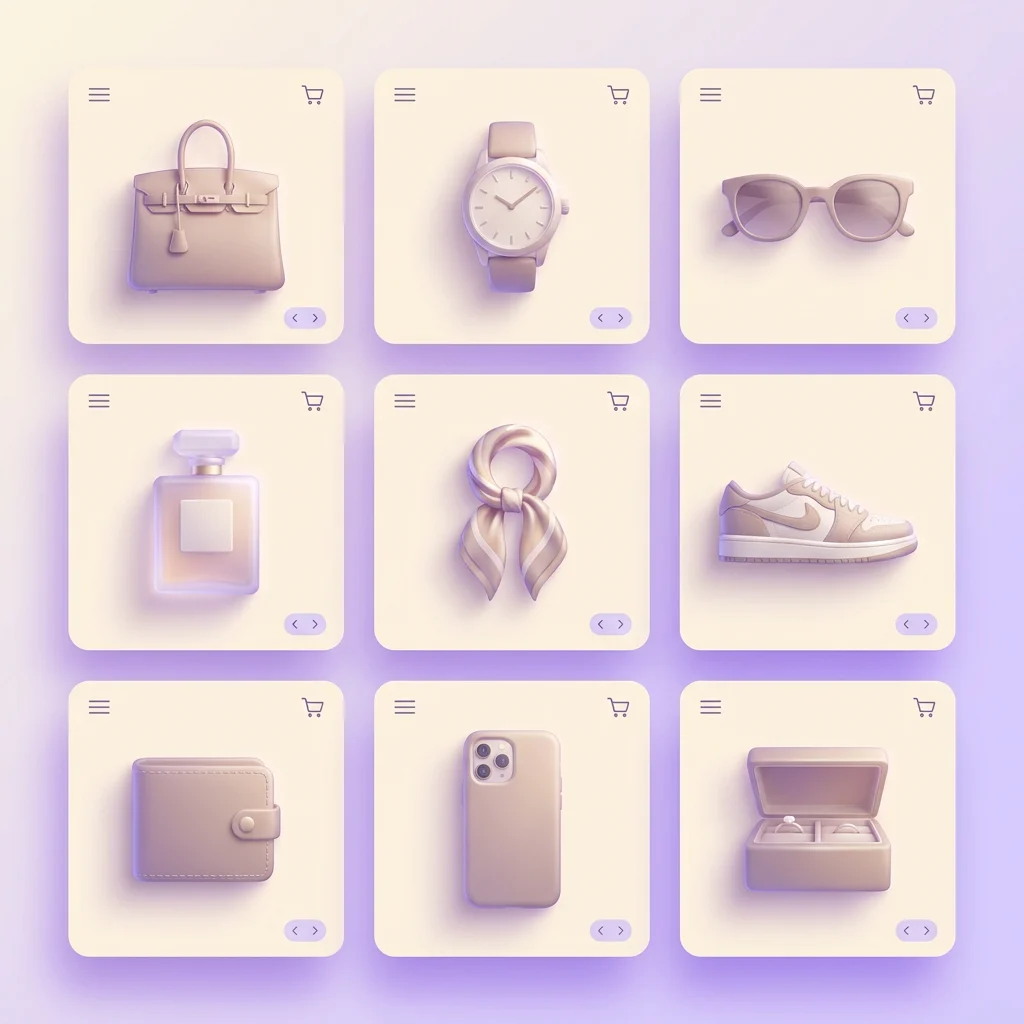
Catalogue refresh with one visual direction across SKU images, lifestyle scenes, and listing variants
Catalogue refreshes

Apply one visual direction across SKU images, lifestyle scenes, and listing variants.
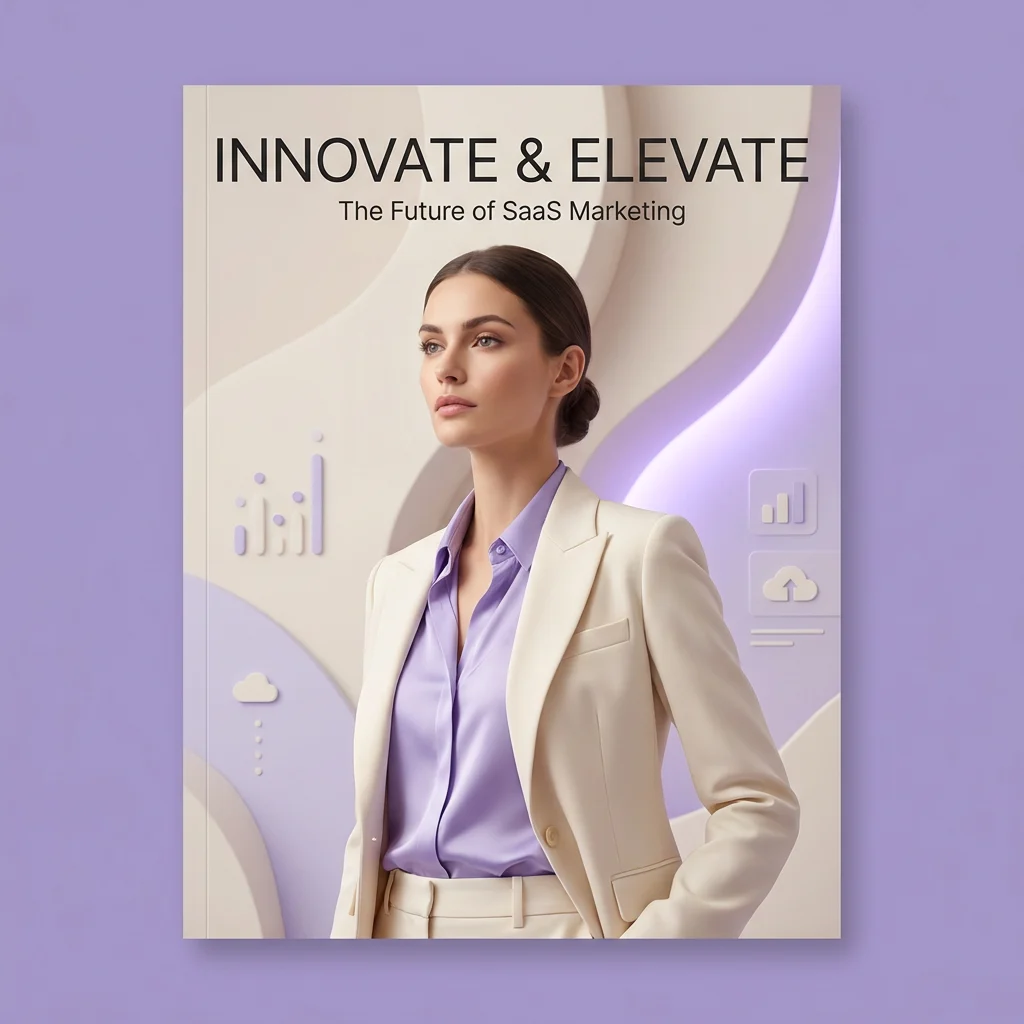
AI-assisted product and lifestyle photography directed from the canvas
AI-assisted brand photography

Create AI-assisted product and lifestyle visuals before or alongside traditional shoots.

A worked example: spring eyewear, image + video, one session

Six steps. One canvas. Multiple channel-ready assets from one campaign brief.

1. Brief
Open a session. Write the direction in a canvas note: warm light, minimal background, three variants per ratio, hero set for an April drop. That note becomes the campaign brief.
2. Add references
Pin three product photos, the brand palette, two competitor frames for contrast, and one tone reference. Use them as visual context for downstream generation.
3. Generate
Send the brief to the AI Image Generator. Pick an available model. Set 1:1 and 9:16 outputs, then run multiple variants for each ratio.
4. Compare
Variants land in rows on the canvas. Each one keeps its settings attached. Flag winners, keep alternates nearby, and archive the rest into a side group.
5. Refine
Send a winner into the AI Image Editor. Mask the eyewear, adjust the background, or clean up distracting objects. Use the selected frame as a keyframe for a short product clip.
6. Export
Export the set for feed, stories, reels, and website placements in the ratios each channel expects.

How four roles use the same canvas

Different briefs, different deliverables. Same workspace.

Performance marketers

Concept Meta, Google, and TikTok ad variants in one session. Generate image and video options from the same hypothesis, annotate rationale, and export channel-specific cuts for testing.
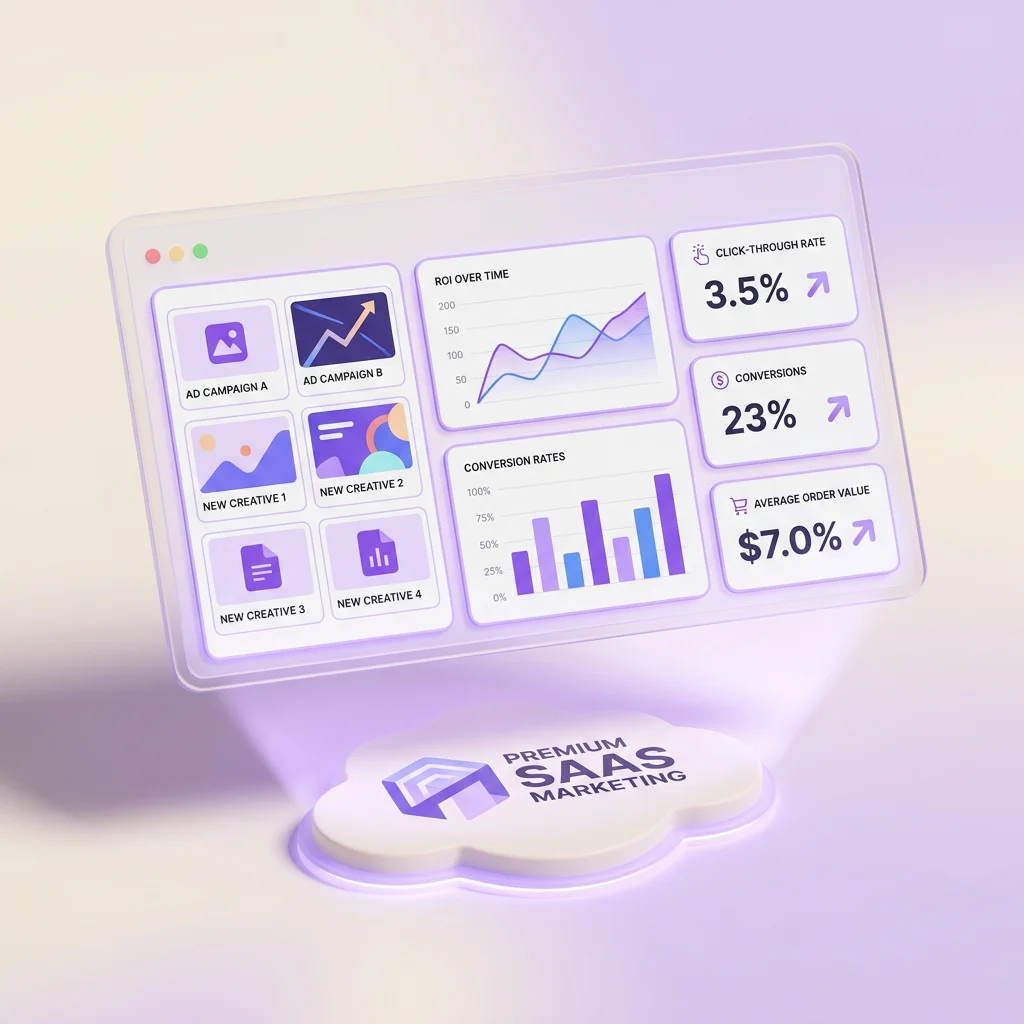
A performance marketer reviewing image and video ad variants annotated with hypotheses
Product and brand designers

Iterate on packaging concepts, hero stills, and lifestyle frames from one reference set. Lock palette and composition early, then refine selected outputs in the AI Image Editor.
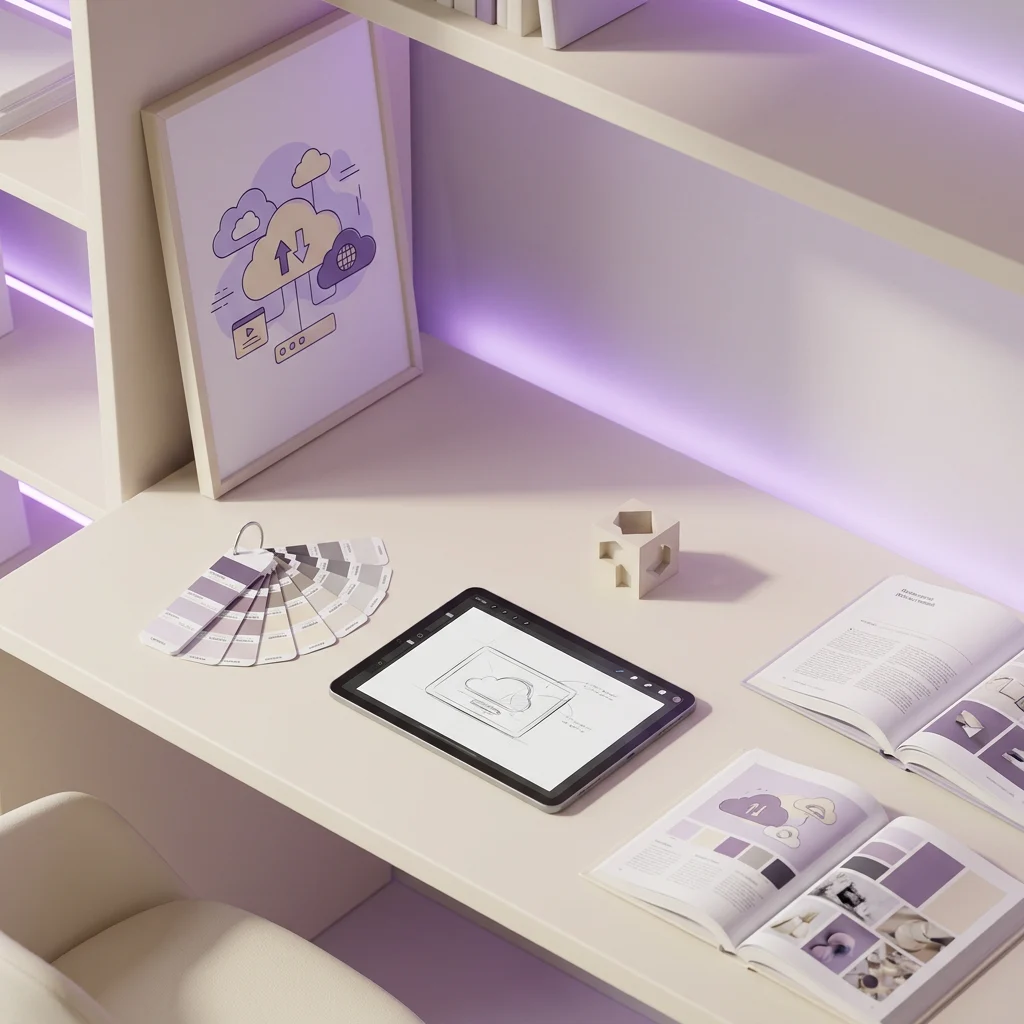
A brand designer iterating on packaging and hero stills from one locked reference set
E-commerce and catalogue teams

Refresh SKU sets from a shared style template — lighting, palette, and composition rules stay consistent across product stills and short clips, and matching motion clips for the same SKU.
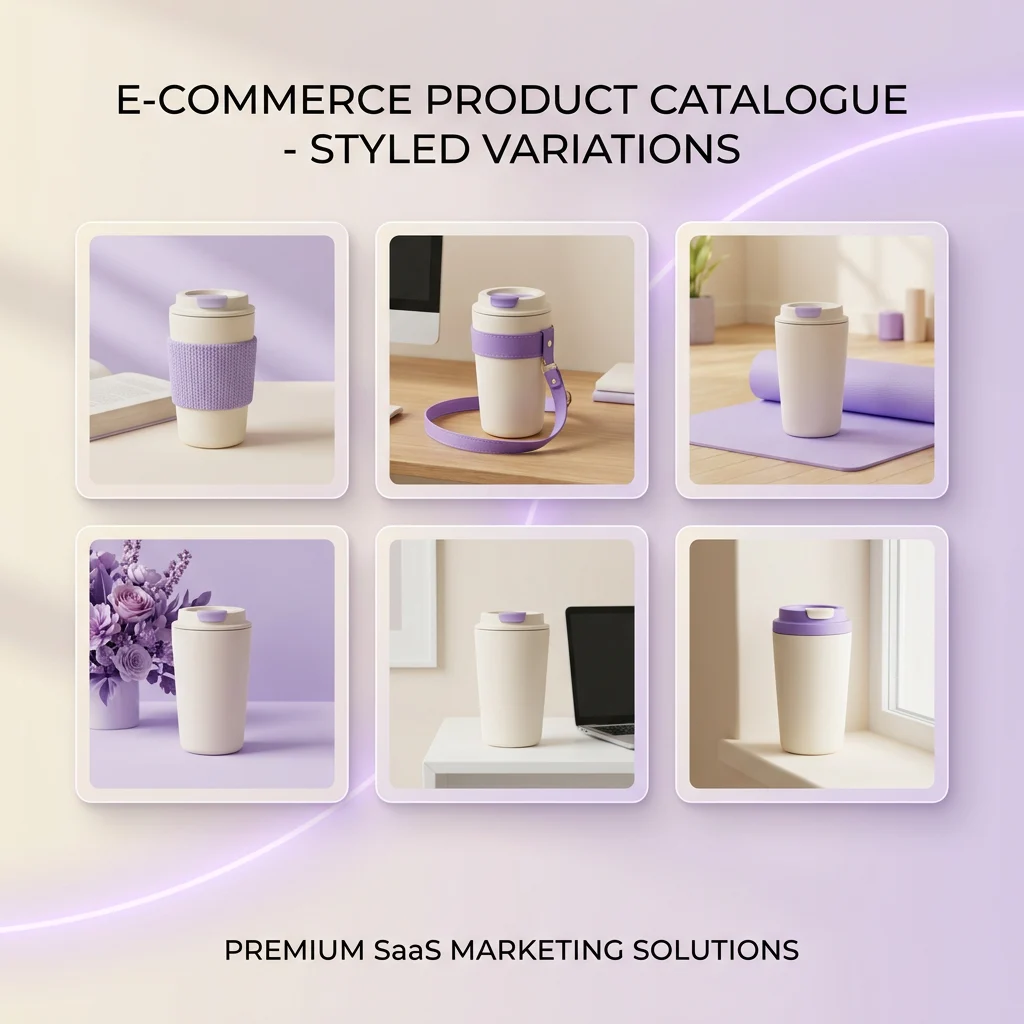
An e-commerce team refreshing a SKU catalogue with consistent lighting and palette
Social media and content teams

Plan a week of posts visually. Generate matching stills and reels in one pass, then export each asset in the ratio its platform expects.
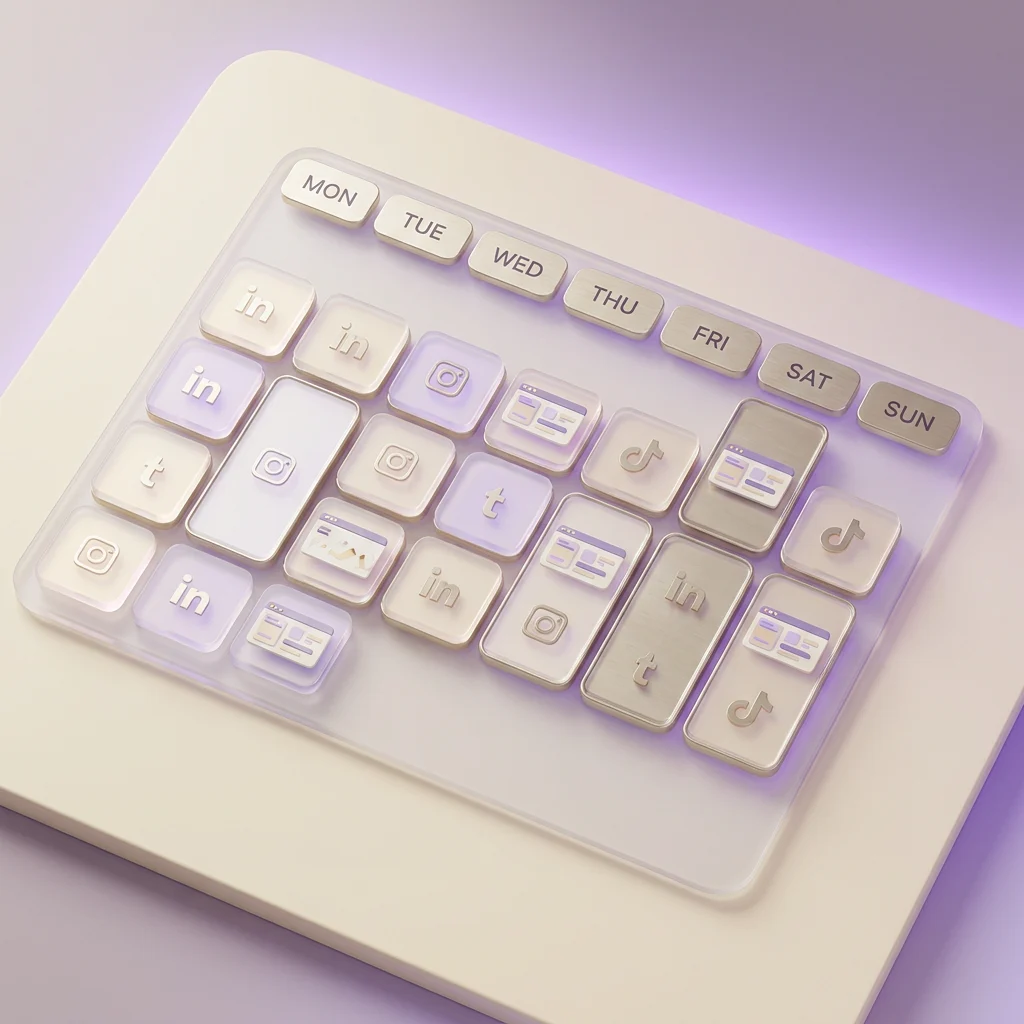
A content team running a multi-format social calendar with matching stills and reels

How it works with PixelBin's AI tools

The studio keeps the campaign together. PixelBin's specialised tools handle generation, editing, video, and upscaling from inside that workflow.

Routes briefs to specialised tools
Image briefs go to the AI Image Generator. Video briefs go to the AI Video Generator. Edits go to the AI Image Editor. The studio handles the handoff from the canvas.
Holds the campaign memory
References, prompts, settings, variants, and edits stay pinned across the session, so you can return to a project without rebuilding the brief.
Bridges still and motion
A still generated in the morning can become the keyframe for a clip later in the day, with the same reference set guiding both.

PixelBin AI tools available from the studio

Inside the studio

A practical look at where the AI Design Studio fits into a creative team's week.

When the studio earns its keep

  • When one campaign needs many assets that must match.
  • When stills and clips need to share the same visual direction.
  • When reviewers need the prompt, references, and settings behind a variant.
  • When a team reopens a project later and needs the brief and history intact.

What teams ship from it

  • Product launch sets: hero stills, packaging concepts, lifestyle frames, and motion clips.
  • Performance ad creative: image and video variants for Meta, Google, and TikTok.
  • Social content calendars: matching stills and reels for a week of posts.
  • Catalogue refreshes: SKU visuals, lifestyle scenes, and listing variants from one style direction.
  • AI-assisted brand photography: product and lifestyle visuals before or alongside traditional shoots.

Working tips

  • Pin references and notes before generating.
  • Use the agent for first drafts and manual settings for fine direction.
  • For video, sketch the shot list on the canvas first.
  • For catalogue work, lock style references early.

Frequently asked questions

Common questions about the AI Design Studio. For anything else, reach us at support@pixelbin.io or read the documentation.

Both. A single session can produce stills, motion clips, or a mix of the two for the same campaign. Image briefs route to the AI Image Generator, video briefs route to the AI Video Generator, and refinements route to the AI Image Editor. Outputs return to the same canvas for comparison and export.
Session context means your references, prompts, settings, generations, variants, and edits stay attached inside the workspace. You can return to a project later and understand what produced each asset without rebuilding the brief.
The studio runs the latest image and video generation models, including Google's image and video models, Veo, Kling, Seedance, and Wan. Available models depend on your plan, and the model picker in the studio shows the options enabled for your account.
No. The AI creative agent can turn a one-line direction into a structured prompt and generation setup. If you want more control, you can write the prompt yourself and adjust model parameters directly.
Yes. You can add product photos, palette swatches, mood references, and existing brand work to the canvas. They guide palette, lighting, composition, and tone for future generations. The studio supports common image upload formats and shows any account-specific storage details inside the workspace.
All common social and ad ratios are supported, including 1:1 for feed, 4:5 for paid social, 9:16 for stories and reels, and 16:9 for hero placements, with additional ratios available in the export panel. Image exports include common formats such as PNG and JPG; video exports include MP4. Outputs do not carry a watermark.
You can start without a card. The free tier includes 3 credits to try the canvas, the AI creative agent, and the connected AI Image Generator and AI Video Generator. Outputs do not carry a watermark on either tier. Paid plans add more capacity, batch processing, and API access.
Yes. The visuals on this page are AI-generated and intended to demonstrate creative workflows and output styles. They are not customer work and do not represent guaranteed output quality, ranking, or campaign performance.
Brief, generate, compare, export — on one canvas.
Open a session and start building image and video assets from the same campaign brief.
Open the AI Design Studio

Start free · 3 credits · No card required