AI UGC content studio · persona · edit · UGC video BETA
Build one AI influencer. Reuse it across UGC ads, reels, and shorts.
Create a reusable AI persona from preset traits or a custom character type. Refine it with prompt, localised visual anchors, camera controls, adjust, and upscale. Then use the same persona in the UGC Video Generator to create vertical-first content for ads, reels, and shorts from one consistent character workflow.
Start free · Starter credits included · No card required
Visuals on this page are AI-generated and intended to demonstrate creative workflows and output styles.
Reusable AI influencer
Motion Control video
Vertical-first for Reels & TikTok
One persona, edited freely, animated as UGC
The studio runs on three pillars. Build a reusable AI influencer, edit it with advanced controls, then animate it with motion-control UGC templates — all without leaving PixelBin.
Persona — design a reusable character
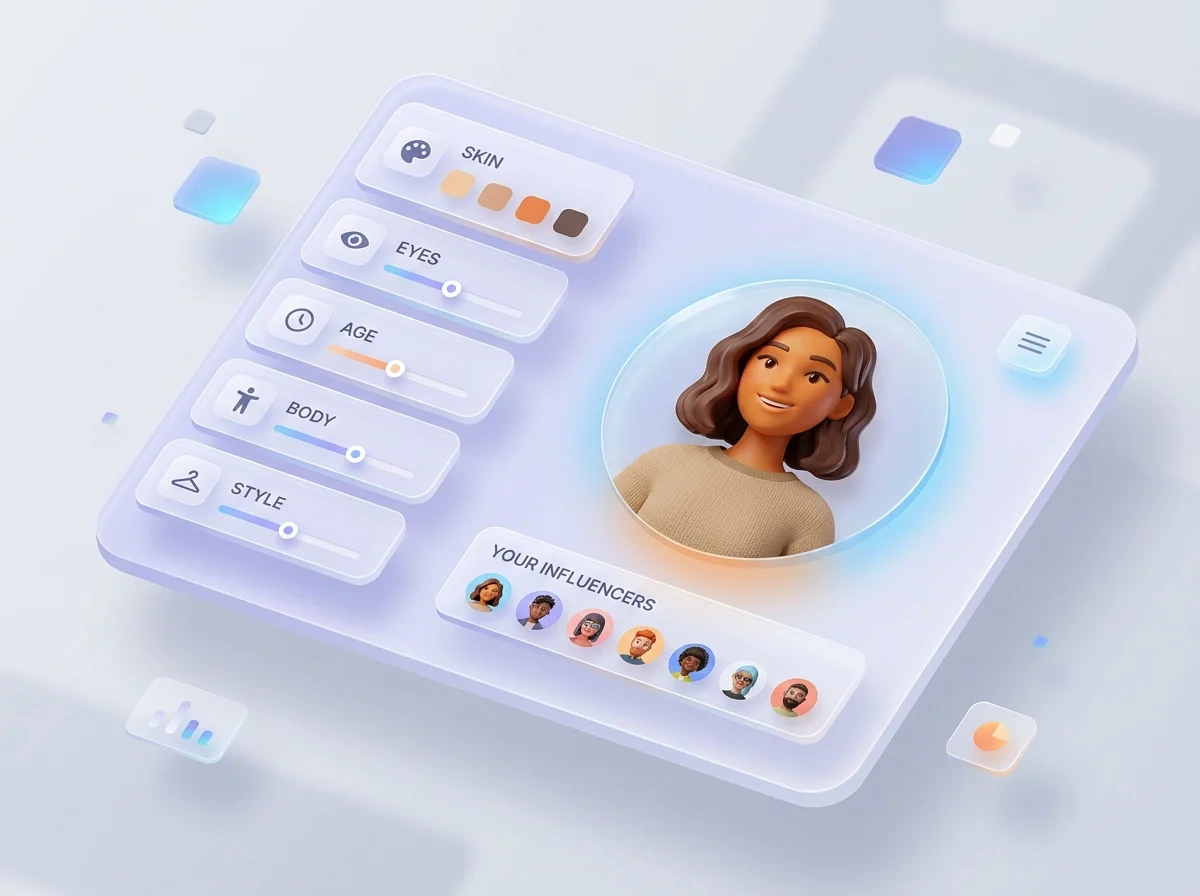
The AI Influencer is a first-class saved object. Build it from preset traits like Ethnicity, Skin, Eyes, and Age, or jump to Custom for non-human types like Alien, Elf, or Mantis. Anchor it with reference images. Save it once and reuse it across every future image and video generation.
Edit — refine with prompt and visual controls
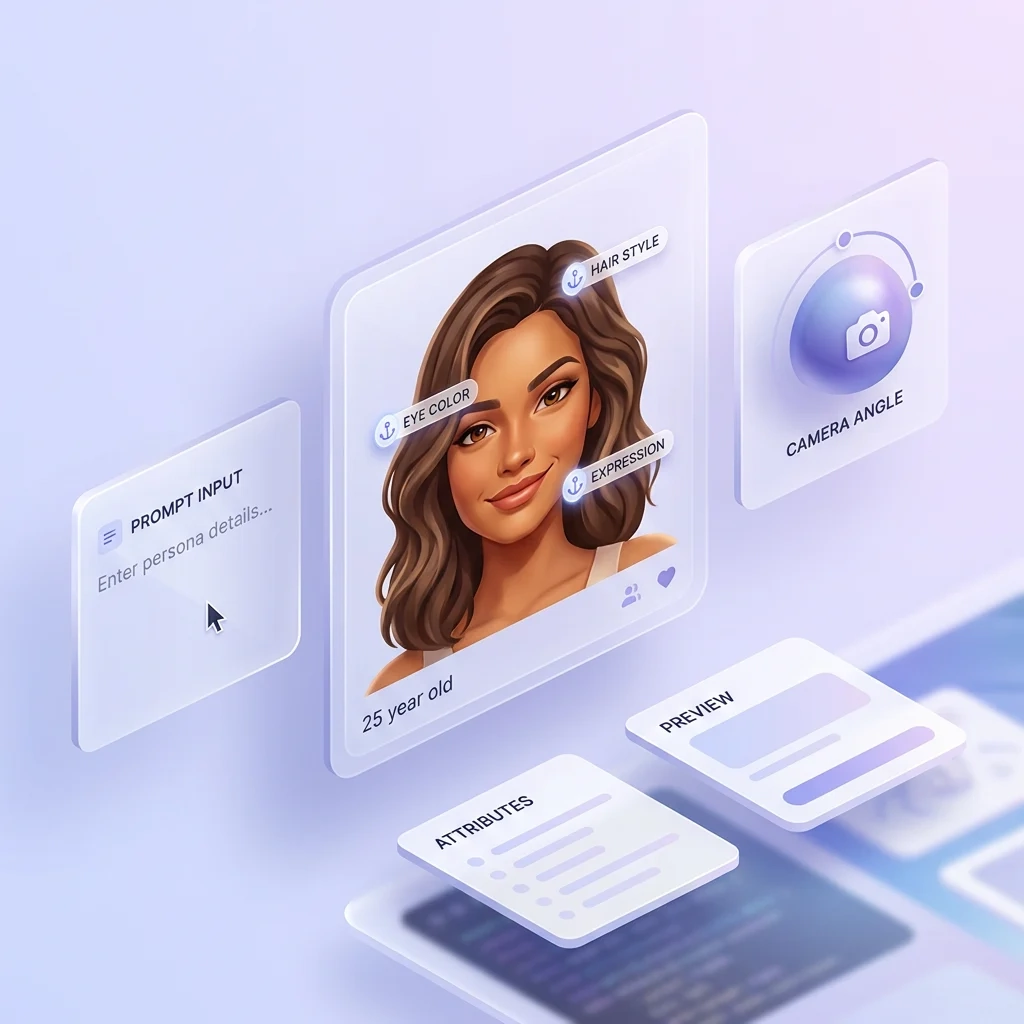
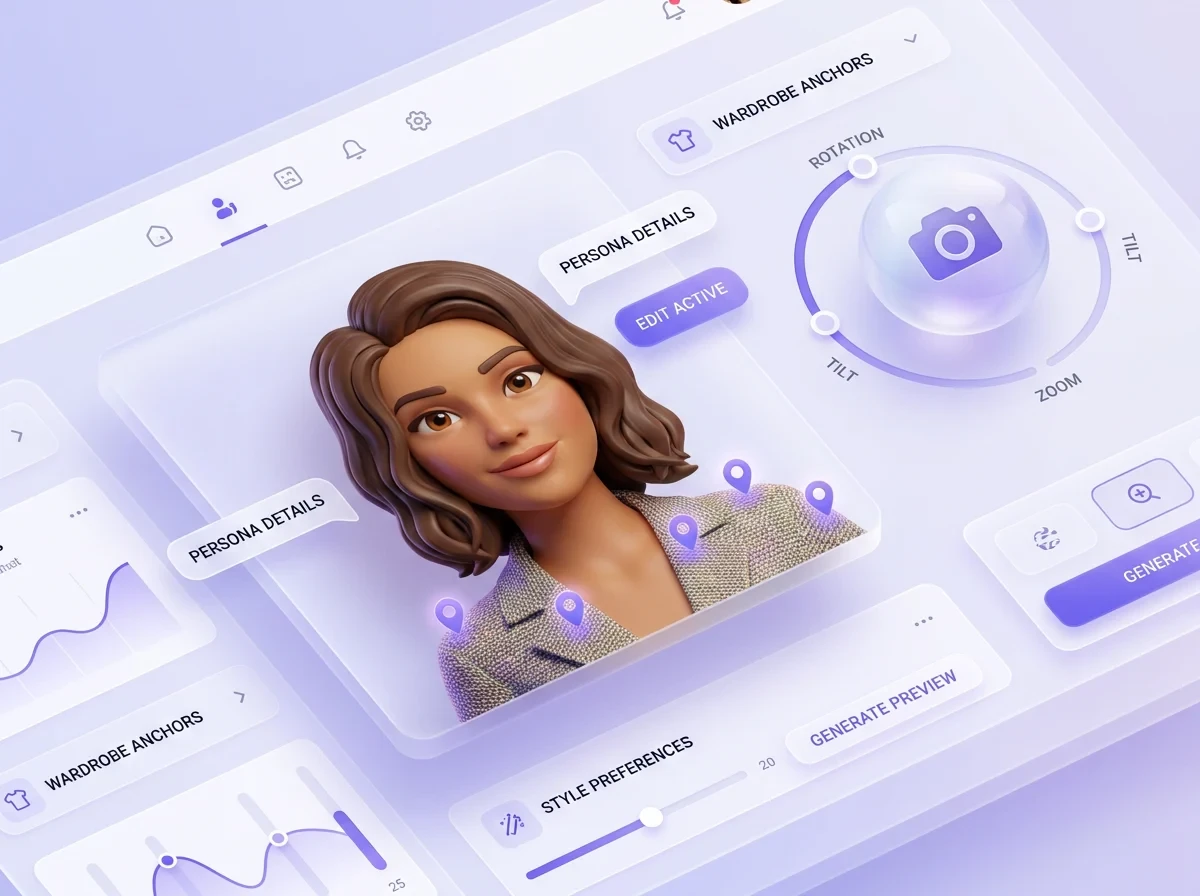
Open the persona in the Edit Image canvas. Use Prompt to describe a change in plain language. Use Visual edit to click anywhere on the image and drop a localised prompt anchor. Adjust Camera Angle on a 3D sphere with Rotation, Tilt, and Zoom. Tune brightness, saturation, contrast, and warmth in Adjust. Upscale before export. Pick Nano Banana or another model from the multi-model picker.
UGC — animate it with motion-control templates
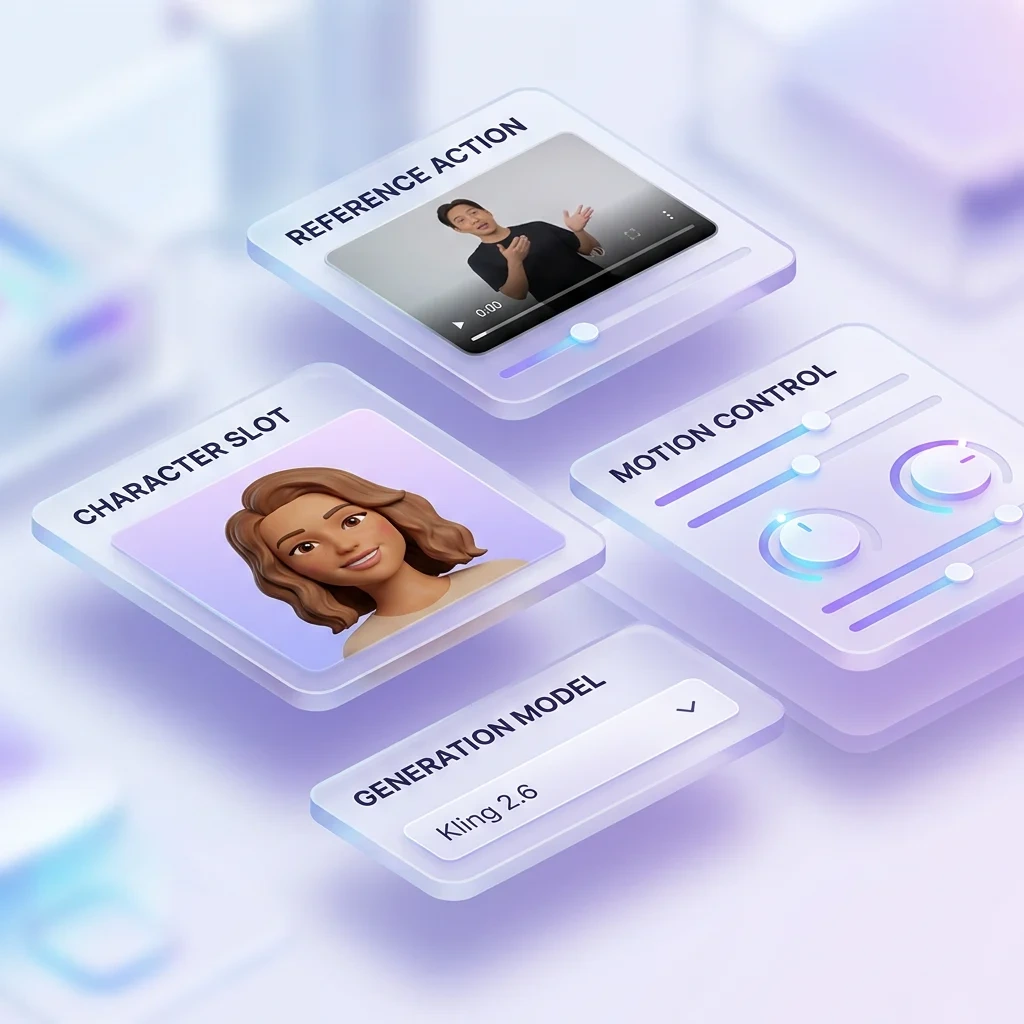
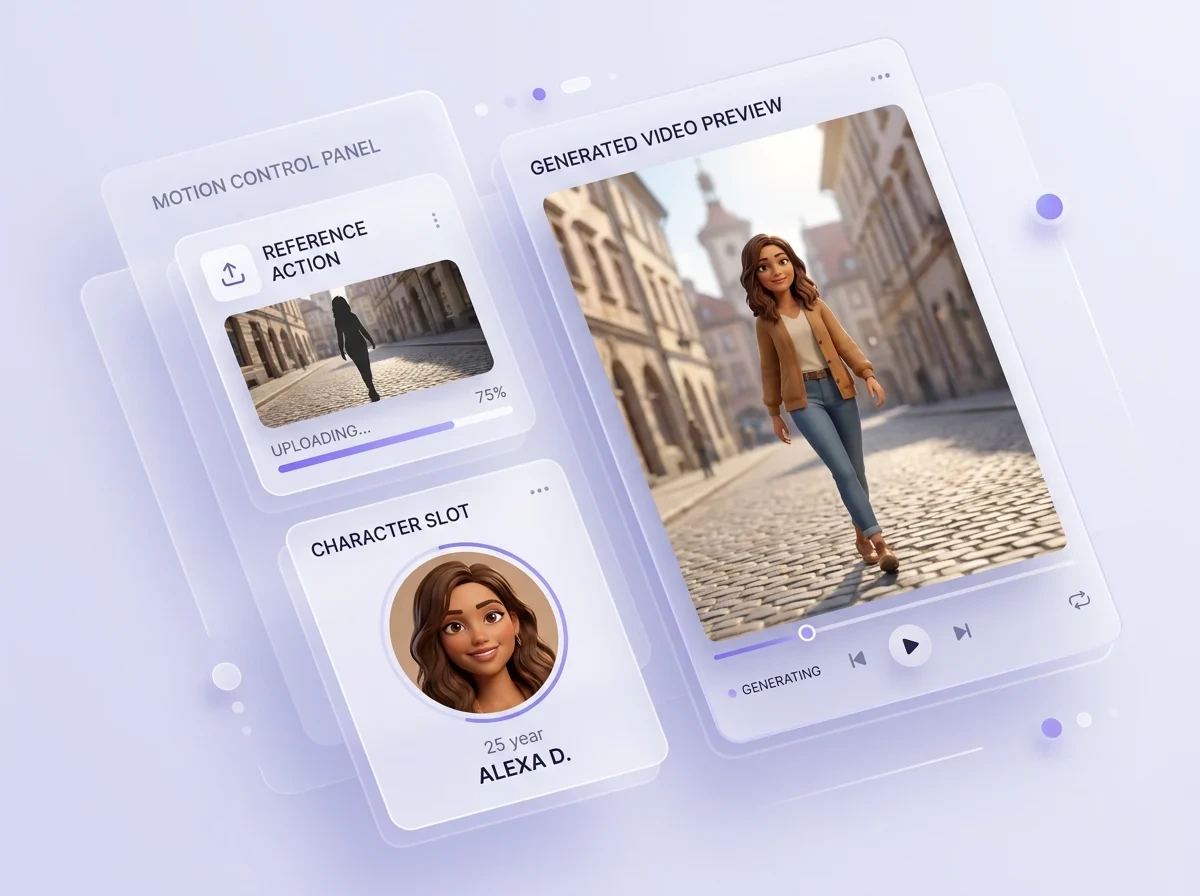
Drop the saved persona into the UGC Video Generator. Pick Image to Video, Motion Control, or Text-to-Video. Upload a reference action video and use Motion Control to closely follow the source movement with your saved persona. Pick a UGC Creator Template — walk-and-talk, ring-light studio, athleisure indoors, fashion editorial — and recreate the shot with your character through a template-based recreate.
From idea to vertical UGC clip in one studio
Three stages. A worked example follows below.
1
Build a reusable AI persona
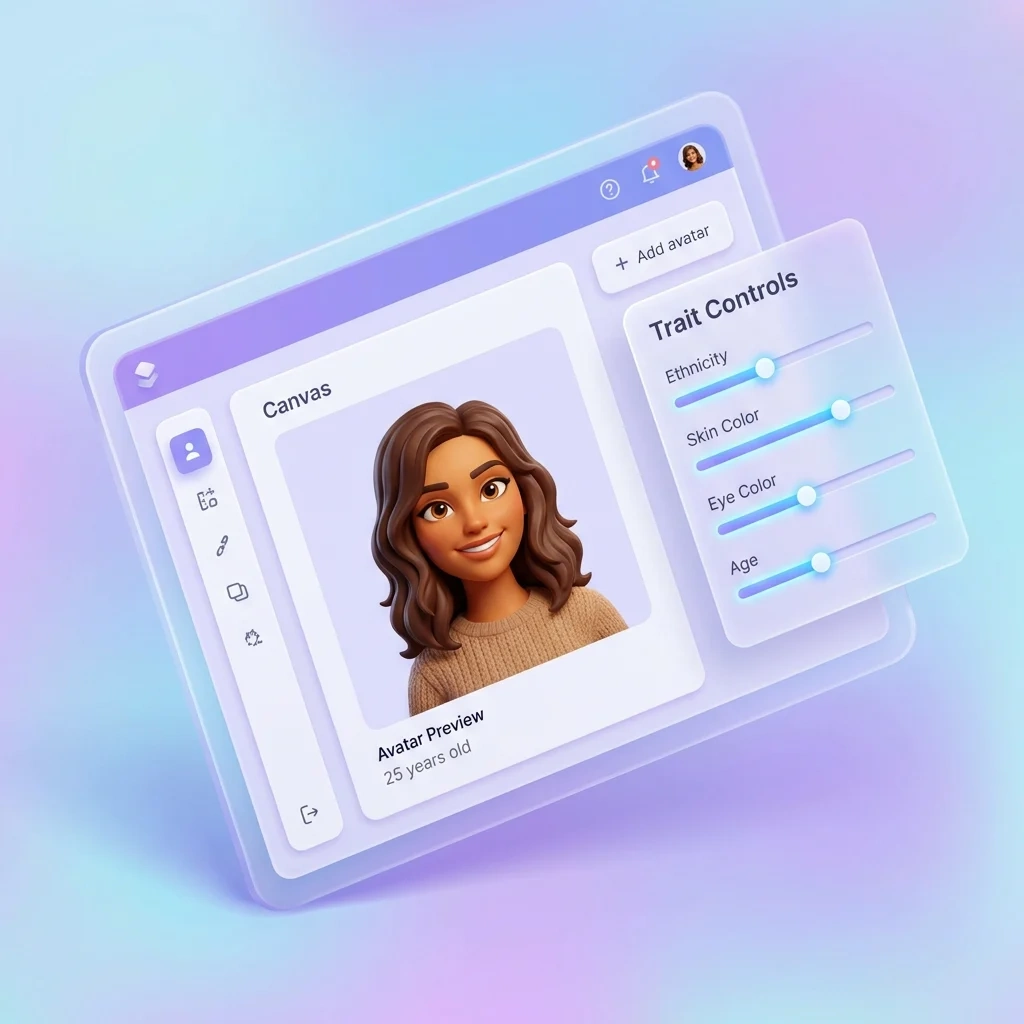
Open AI Influencer. Pick Builder for preset-driven traits or Custom for non-human character types. Set Ethnicity, Skin Color, Eye Color, Skin Conditions, Age, plus Advanced Settings for Face, Body, and Style. Drop in optional reference images. Generate and save. Your persona lands in the “Your influencers” library, ready to reuse.
2
Edit with prompt, visual, camera, adjust
Refine the persona in the editor. Prompt edit changes wardrobe, mood, or scene in plain language. Visual edit drops localised anchors anywhere on the canvas for region-specific prompts. Camera Angle exposes a 3D sphere with Rotation, Tilt, Zoom. Adjust handles brightness, saturation, contrast, warmth. Upscale finishes for export-grade output.
3
Animate with UGC templates
Open the UGC Video Generator. Pick Image to Video, Motion Control, or Text. Drop the saved persona in. Upload a reference action video for Motion Control or pick a UGC Creator Template — walk-and-talk, lifestyle, studio, sport, cooking, fashion. Choose your background source: Video, Image, or Prompt. Generate at vertical-first ratios for Reels, TikTok, and Shorts.
A reusable character is the unit of identity. Builder gives you preset-driven traits; Custom unlocks character types beyond human. Reference images anchor the look.
Builder mode — preset traits
Set Ethnicity / Origin Base, Skin Color, Eye Color, Skin Conditions, and Age. Open Advanced Settings for Face, Body, and Style as preset cards. Configure Eyes — Type and Eyes — Details, plus hair, expression, posture, wardrobe, accessory, and lighting downstream. Each trait is its own slot, not a free-form prompt.
Custom mode — character types
Override the human preset with a non-human character type. The grid covers Human, Ant, Bee, Octopus, Crocodile, Iguana, Lizard, Alien, Beetle, Reptile, Amphibian, Elf, and Mantis. Built for brand mascots, fantasy and game characters, IP-driven personas, and VTuber-style creators.
Reference images
Upload one or more reference photos to anchor identity, wardrobe, or aesthetic. The generator treats them as soft constraints, not direct copies. Pair references with preset traits to lock both face structure and styling in a single saved persona.
Reusable across every future generation
Once saved, the persona shows up in the “Your influencers” library with thumbnails dated by creation day. Open it directly in the Persona Editor for stills, or drop it into the UGC Video Generator for motion. The same character travels across every asset — the whole point of the studio.
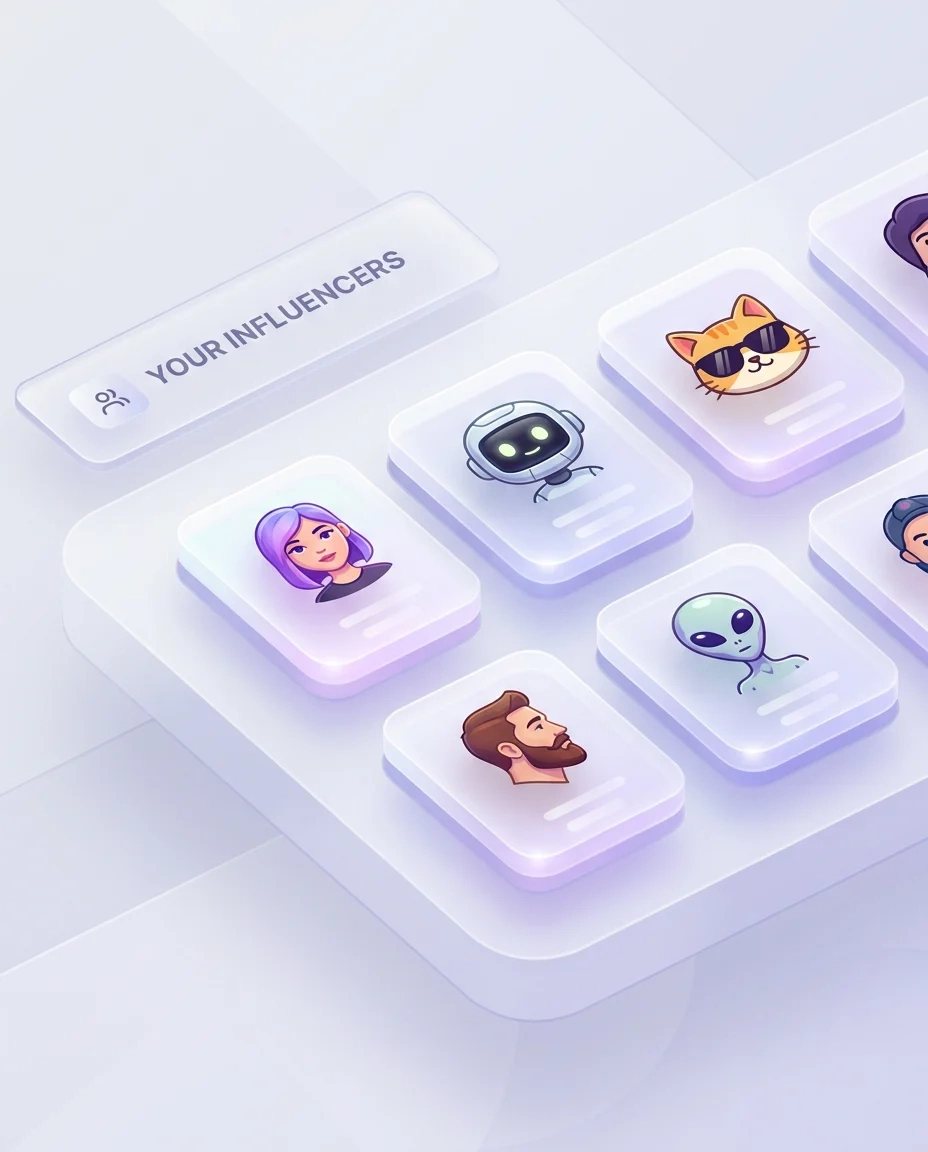
Saved library — “Your influencers”
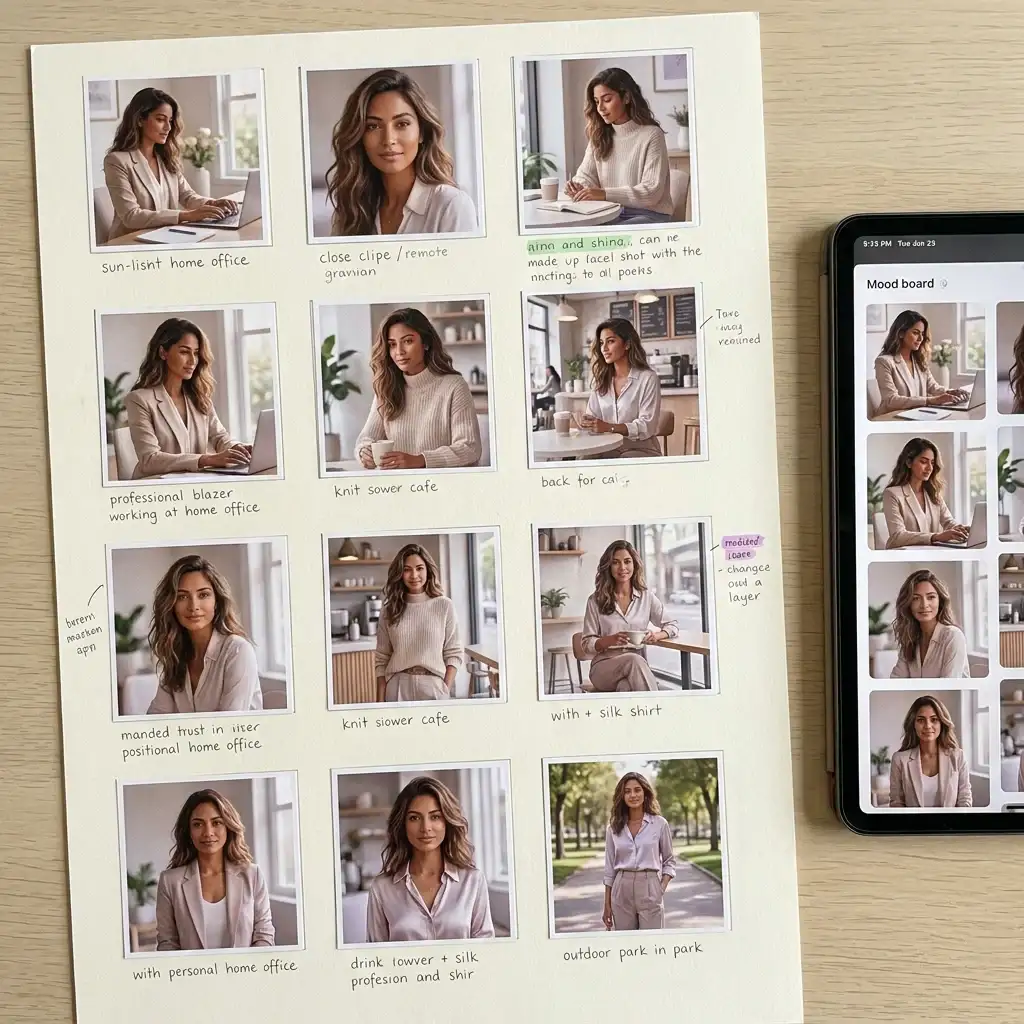
Every generated influencer lands in a saved gallery with thumbnails and labels — for example, “Human · Female” or “Human · Trans man”. Reuse, duplicate, branch, or rebuild from any saved persona. The library is dated by creation day for easy navigation.
Generate Influencer — one-click
Lock the trait stack, click Generate, and the preview lands centre-canvas. Credit-priced per generation with the cost surfaced before the run. Save promotes the result into the influencer library; regenerate keeps the trait stack intact for one more roll.
Inside the Persona Editor
Refine the persona without leaving the canvas. Five edit surfaces and a multi-model picker let you change one detail or recompose the whole shot.
Prompt edit and Visual edit
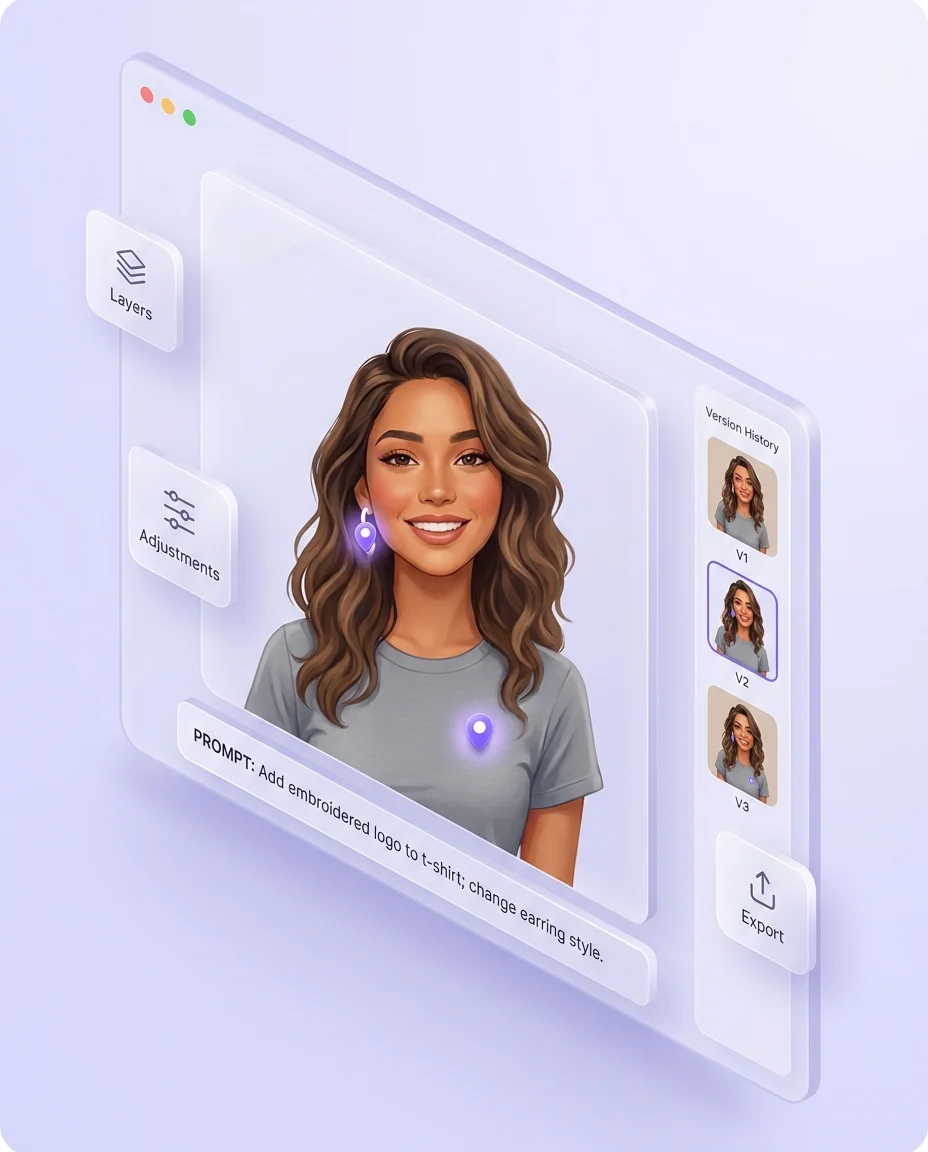
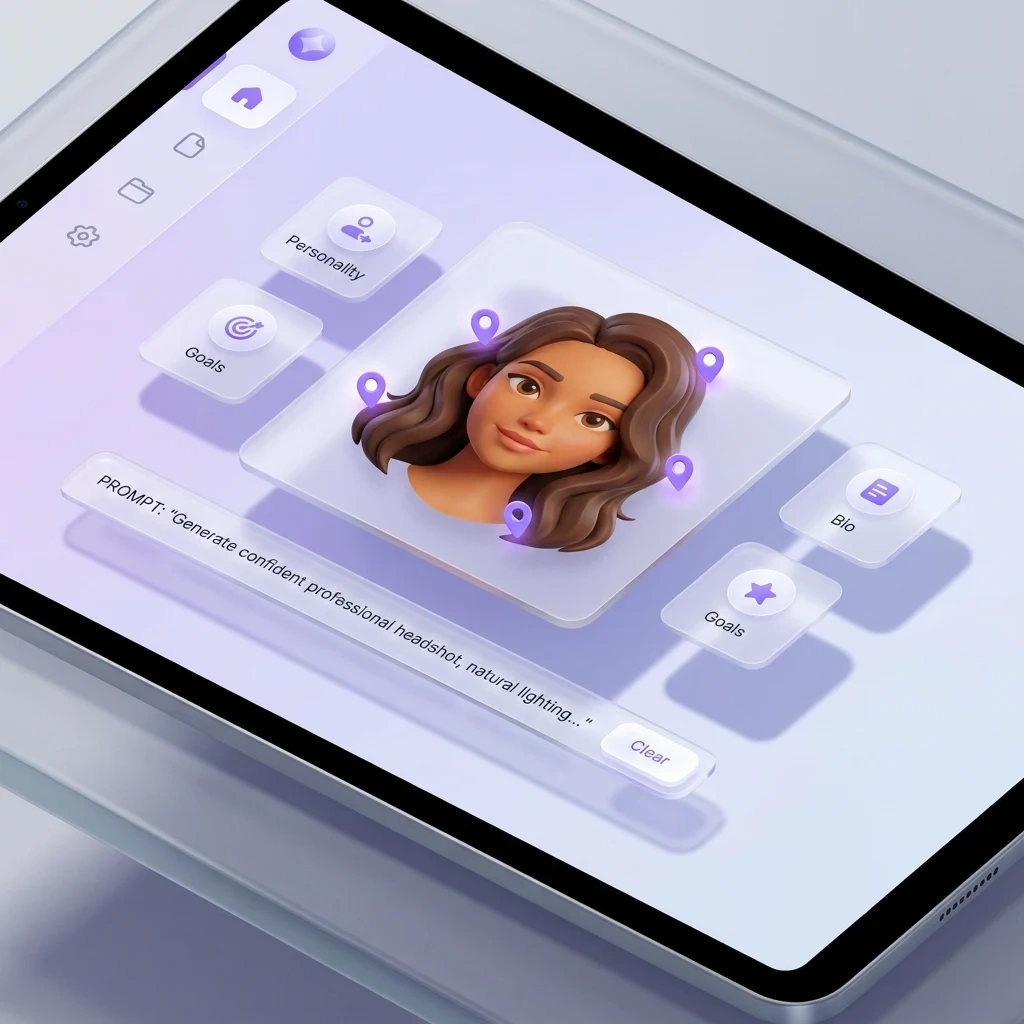
Prompt edit takes a natural-language description — “swap the wardrobe to a campaign palette”, “add a logo to the t-shirt”. Visual edit lets you click anywhere on the canvas to drop a localised prompt anchor; multiple anchors per image, with Clear (1) to reset. The model picker (Nano Banana visible) chooses the underlying generative model per edit.
Camera Angle and Adjust
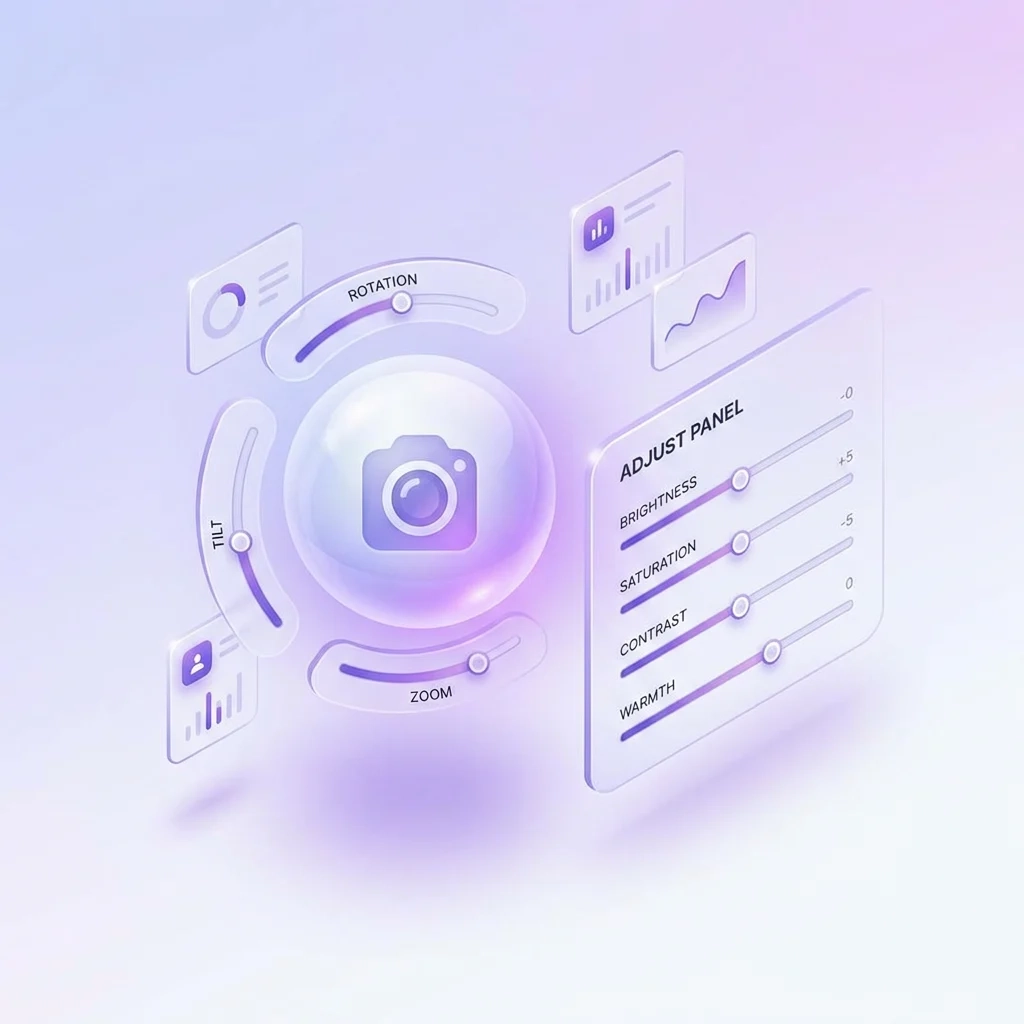
Camera Angle exposes a 3D sphere widget with sliders for Rotation, Tilt, and Zoom — tilt to a three-quarter view, rotate the perspective, zoom in for a close-up. Adjust handles Brightness, Saturation, Contrast, and Warmth as a finishing pass after generative steps. Apply for the credit cost shown.
Toolbar — insert, brush, recreate, swap
The bottom toolbar covers Add / Insert object, Magic wand / generative fill, Brush / inpaint, Paint / colour fill, Recreate (regenerate variant), and Character switch (swap in another saved persona). Use them as one-shot finishing actions on top of the prompt and visual edits.
Version history and Upscale
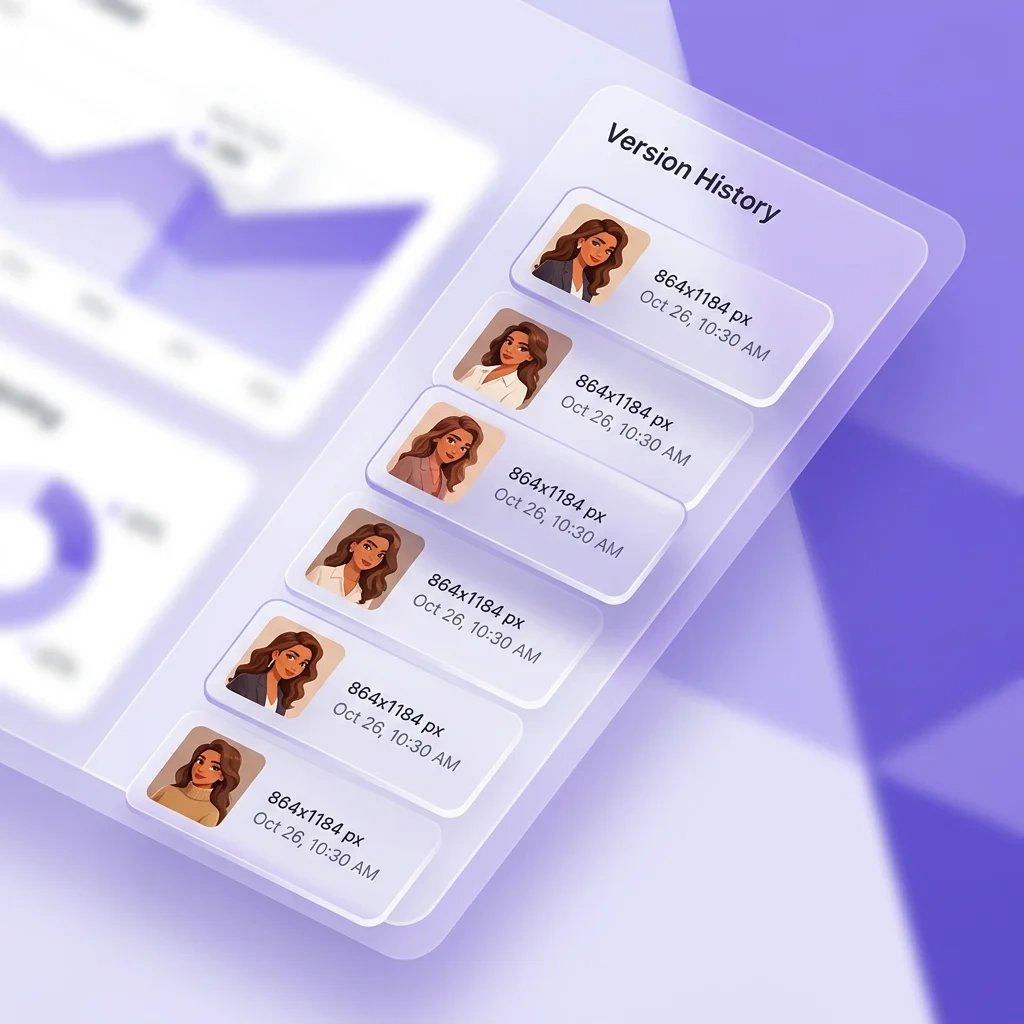
Every variant lands in the right-side version history rail as a thumbnail. Click any thumbnail to swap it onto the canvas. Resolution stamps surface vertical-first formats — for example, 864 by 1184 px — tuned for Reels, TikTok, and Shorts. Run Upscale as the final pass for export-grade output.
Inside the UGC Video Generator
Three generation modes. Reference action video for motion-faithful renders. Background source you can swap on the fly. Multi-model support including Kling 2.6.
Image to Video
Drop in a still — an edited persona shot, a campaign hero, a reference photo — and animate it. Use it for talking-head openers, product demos, or short performance moments where the still composition is already locked.
Motion Control NEW
Upload a reference action video to the Motion Control panel and drop your saved AI Influencer in as the character. The generator uses the reference clip to closely follow the source movement — walking pace, hand gestures, head turns — with your persona in place of the original subject.
Text-to-Video
Describe the motion in plain language and let the generator render it without a reference clip. Useful when you need a short, clean motion beat — a head turn, a product reveal, a smile — and you do not have an action video to mirror.
Background source — Video, Image, Prompt
Pick where the background comes from. Video pulls it from the uploaded action video. Image swaps in a still scene — a storefront photo, a campaign backdrop. Prompt generates a fresh background from text. Pair with Motion Control for a clip that mirrors the source motion against your chosen scene.
Generation Model picker
Kling 2.6 is the default video model, with multi-model support inside the dropdown. Image edits use a separate model picker that includes Nano Banana. The studio is designed to absorb new generative models as they ship without changing the workflow.
Per-clip credit cost
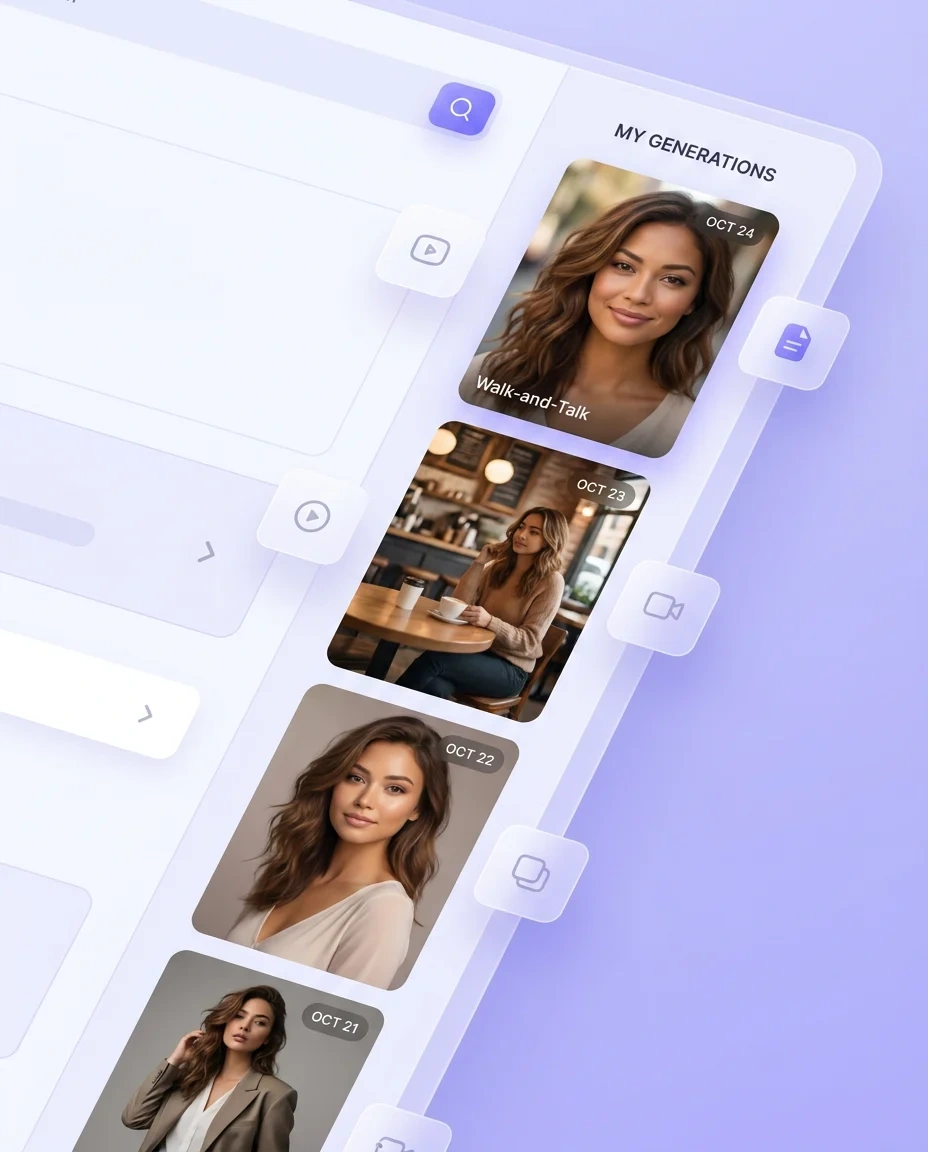
The credit cost shows up before each render. Generate runs the clip; outputs land in the personal library tab (“My Generations”) with date stamps and creator handles — for example, “02 May · @Anand” — alongside the source character and template that produced them.
The UGC Creator Templates library
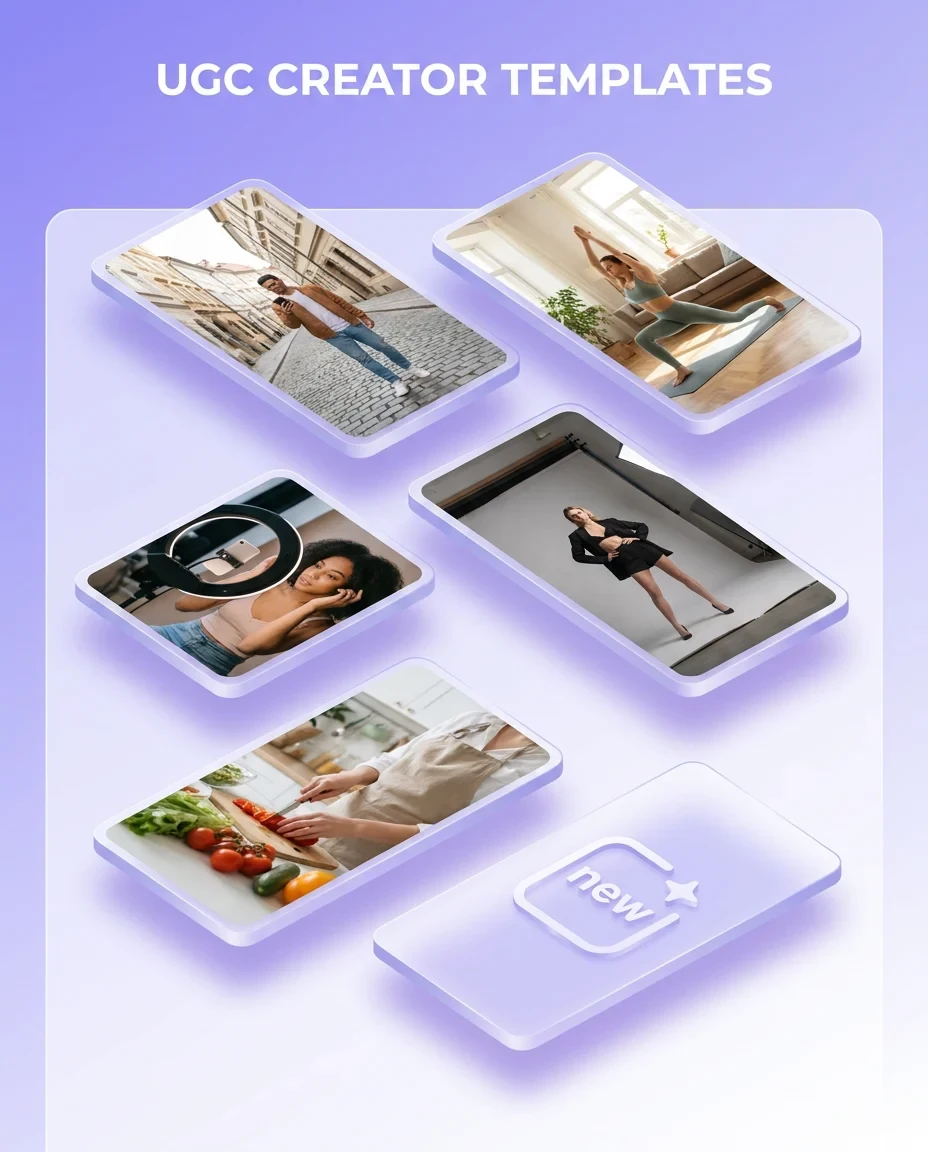
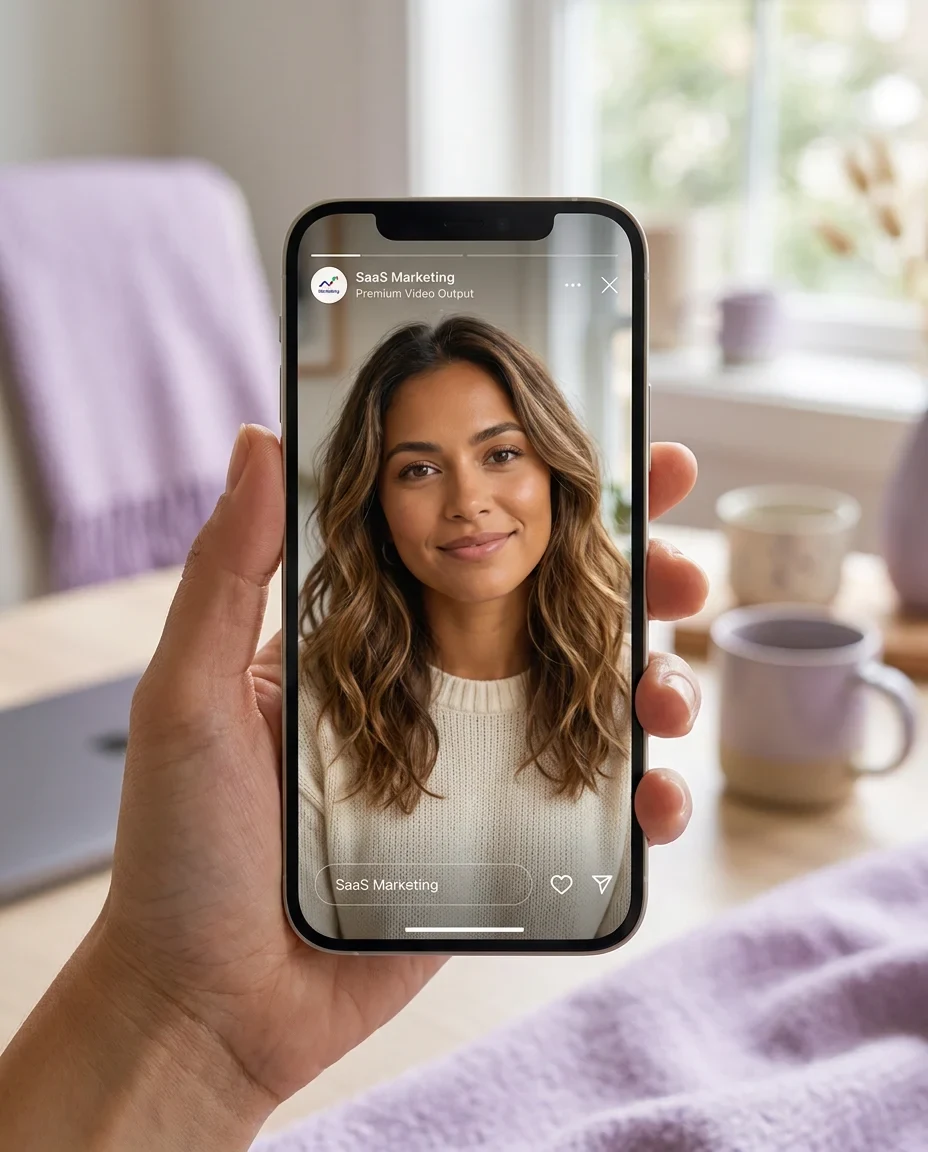
Vertical-first thumbnails covering creator-style scenarios. Drop your saved persona into any template and the studio re-renders the same shot type with your character through a template-based recreate.
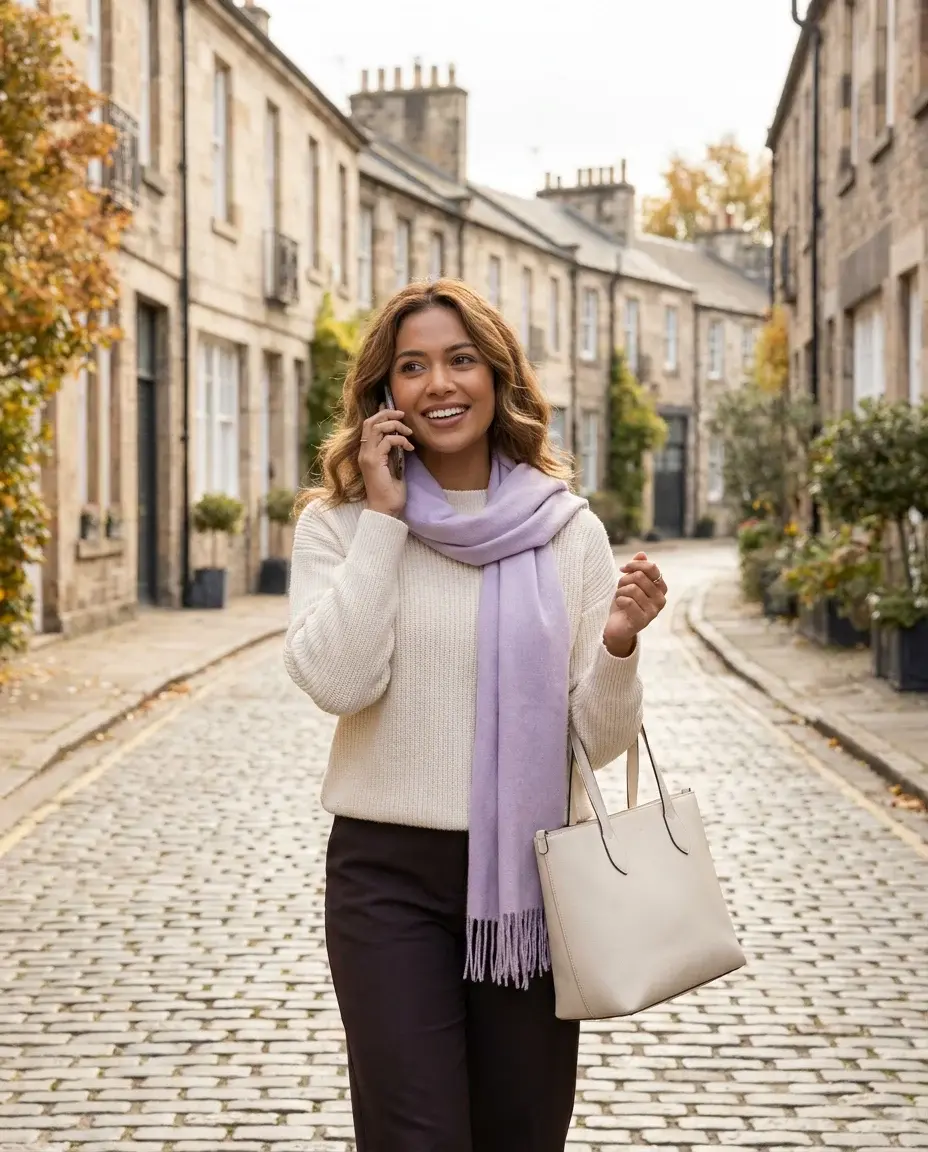
Walk-and-talk
Cobblestone street, autumn park, tunnel, urban alley, beach, wheat field. The classic creator opener for Reels and TikTok.
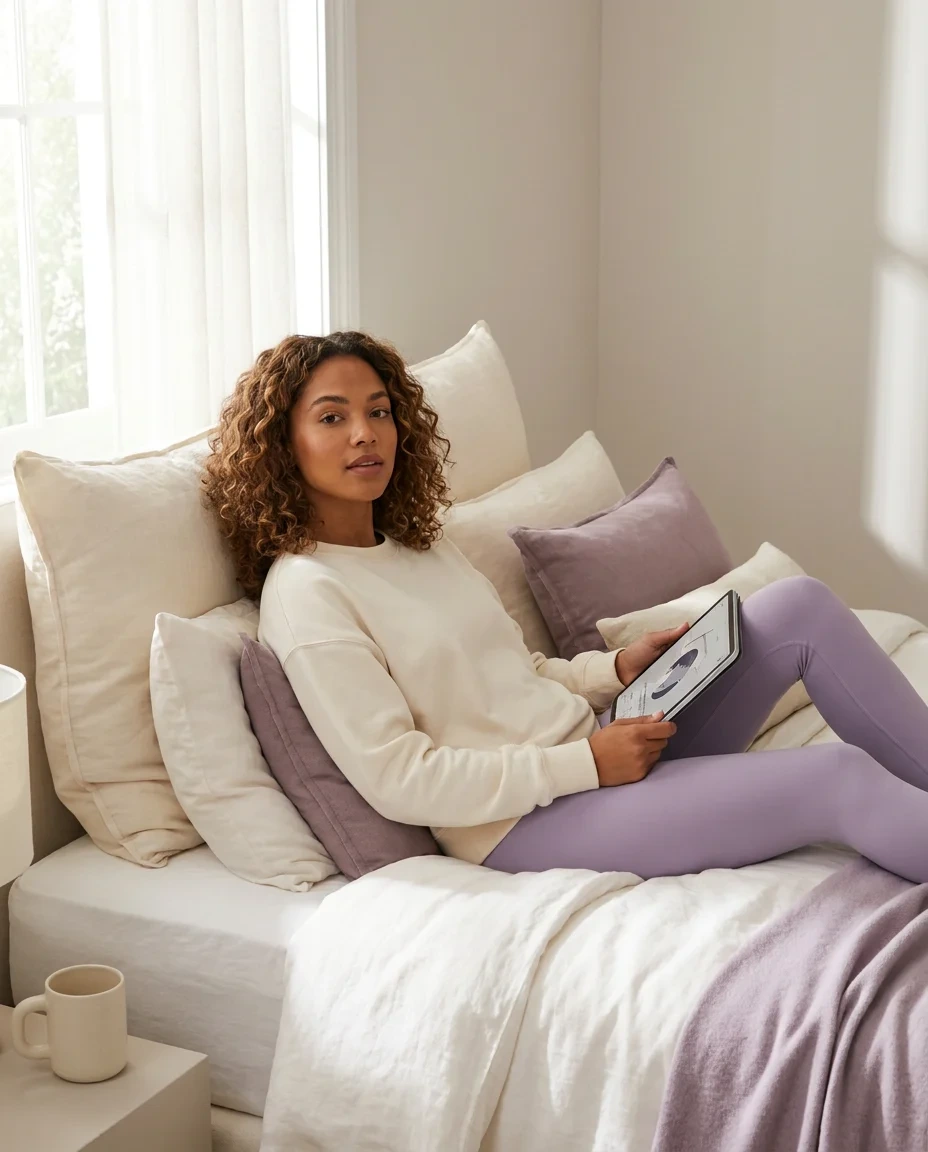
Indoor lifestyle
Athleisure on bed, woman in dress at home, casual loungewear. Soft natural light, intimate framing for at-home product moments.
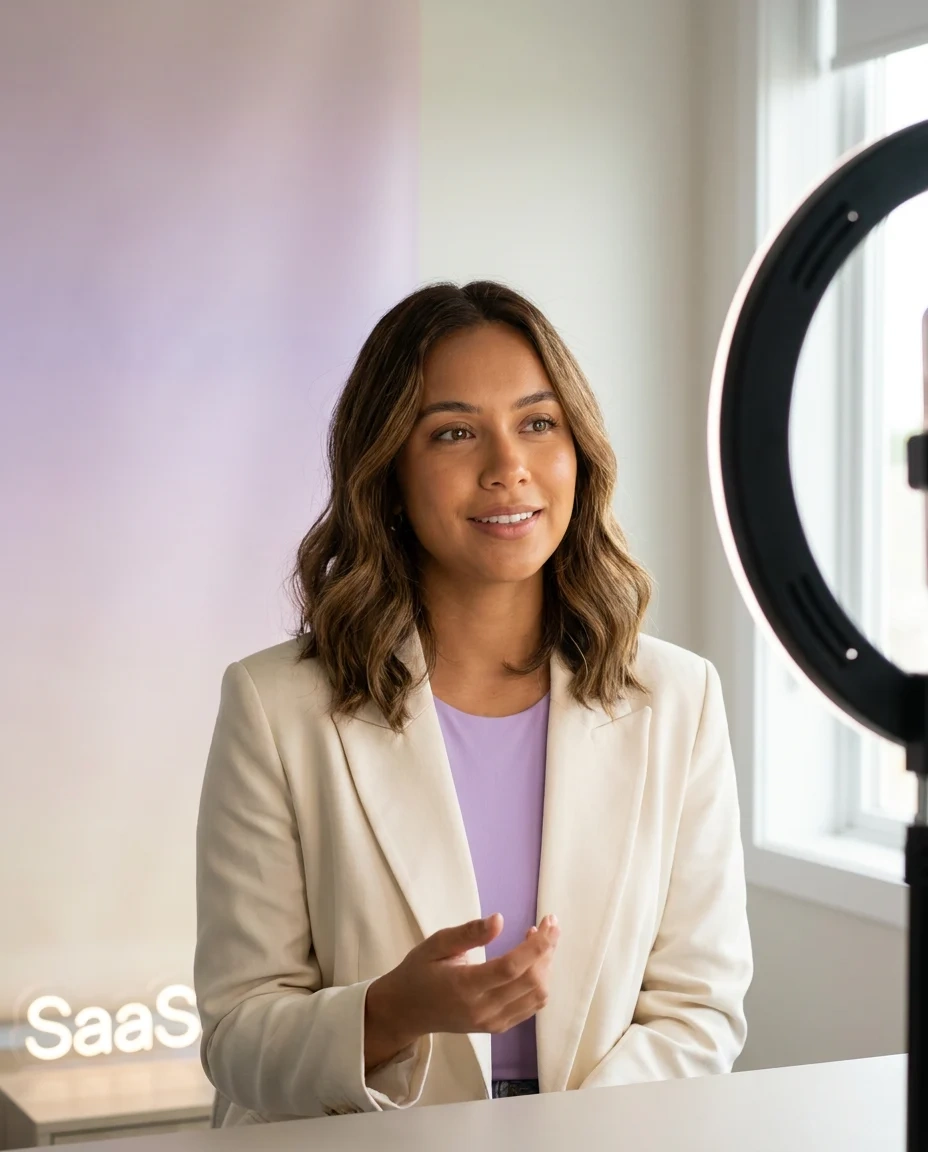
Studio & ring-light
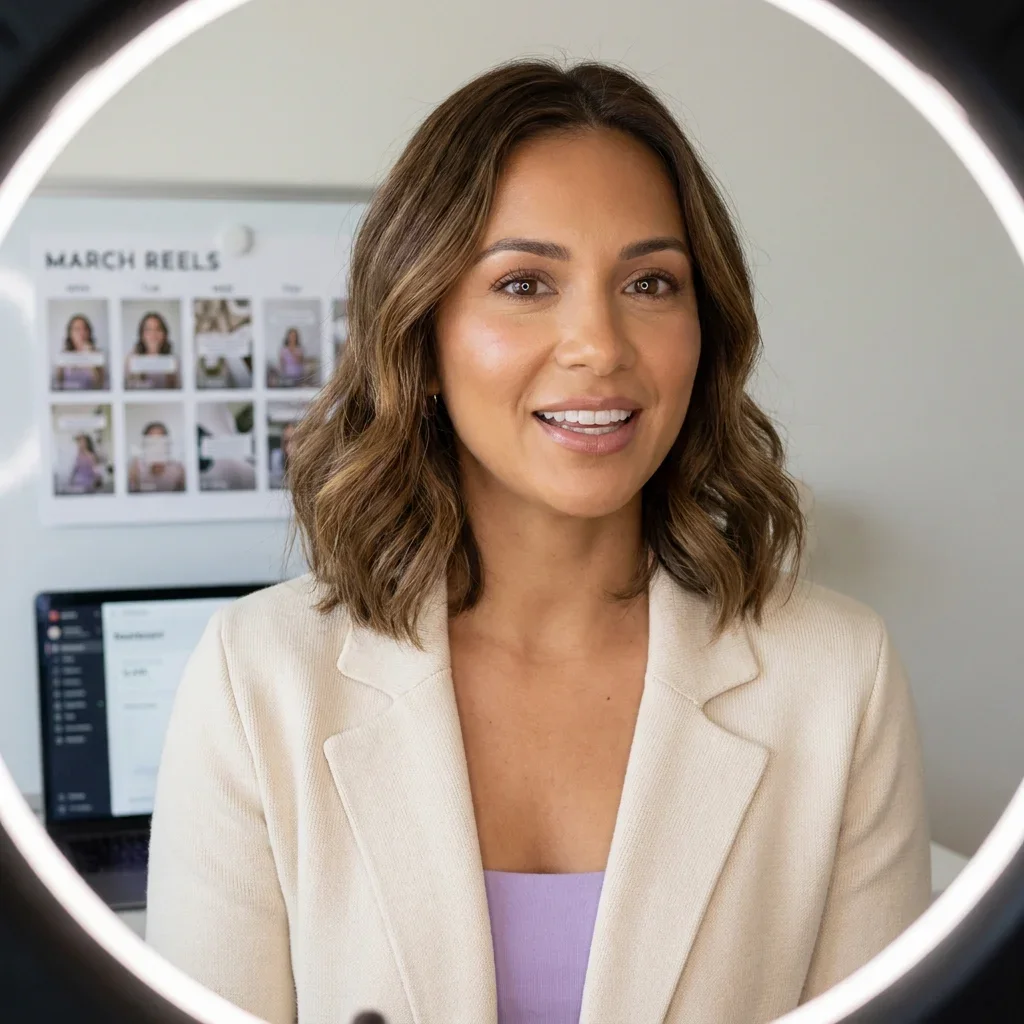
Studio singer, influencer ring-light shots. Clean talking-head framing, ideal for product reveals, founder stories, and explainer reels.
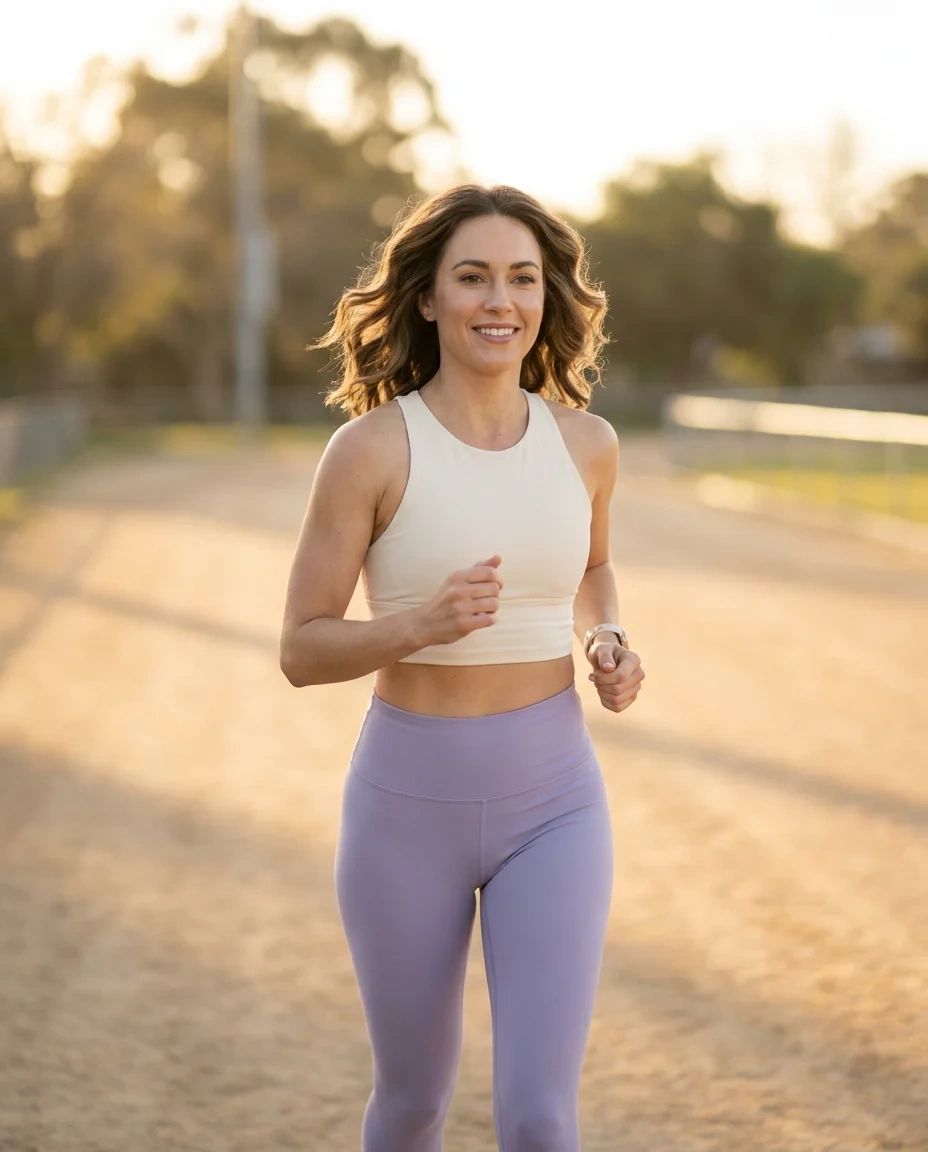
Sport & movement
Running back with football, athletic action clips, dance and movement scenes. High-energy moments for performance, athleisure, and lifestyle ads.
Cooking & music
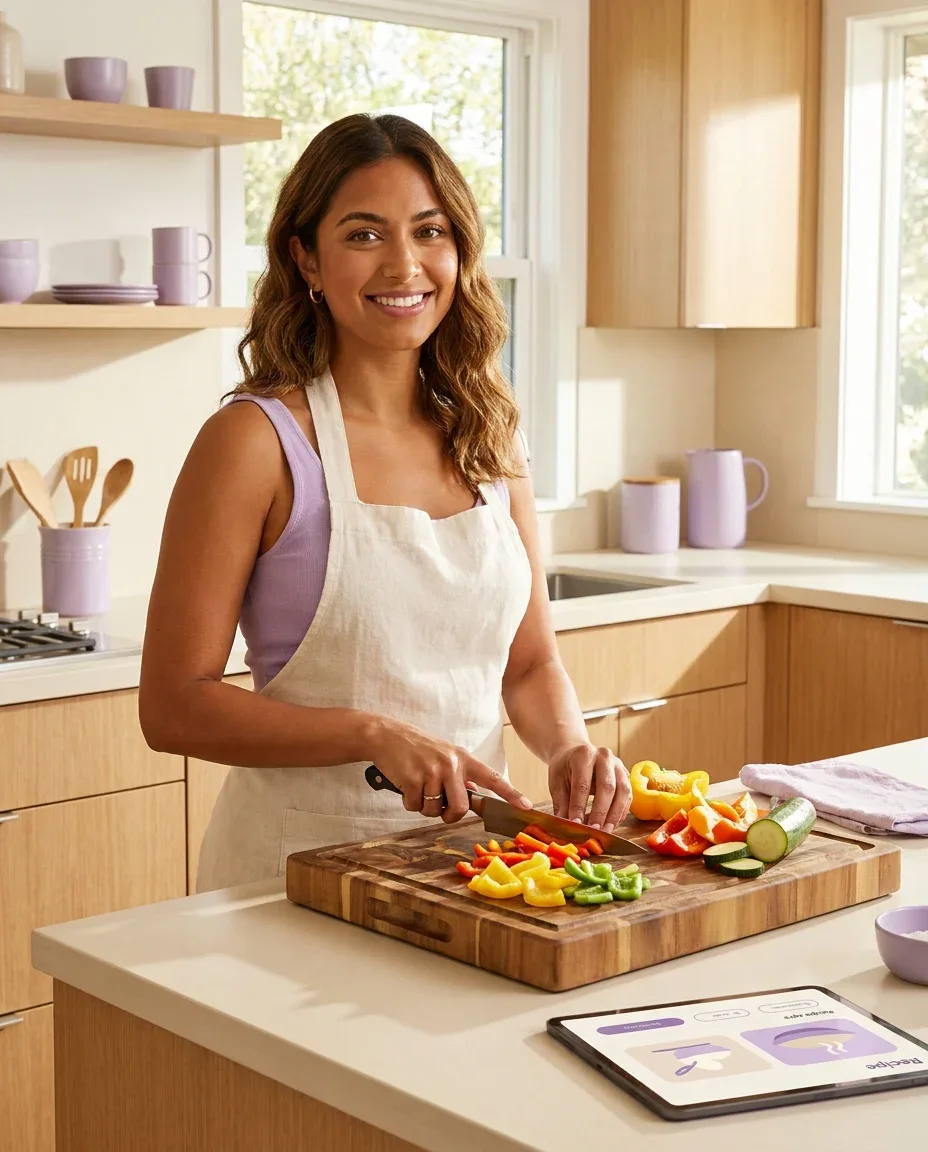
Cooking and kitchen scenes, music and keyboard clips. Built-in templates for food, instrument, and creator-musician brands.
Fashion editorial
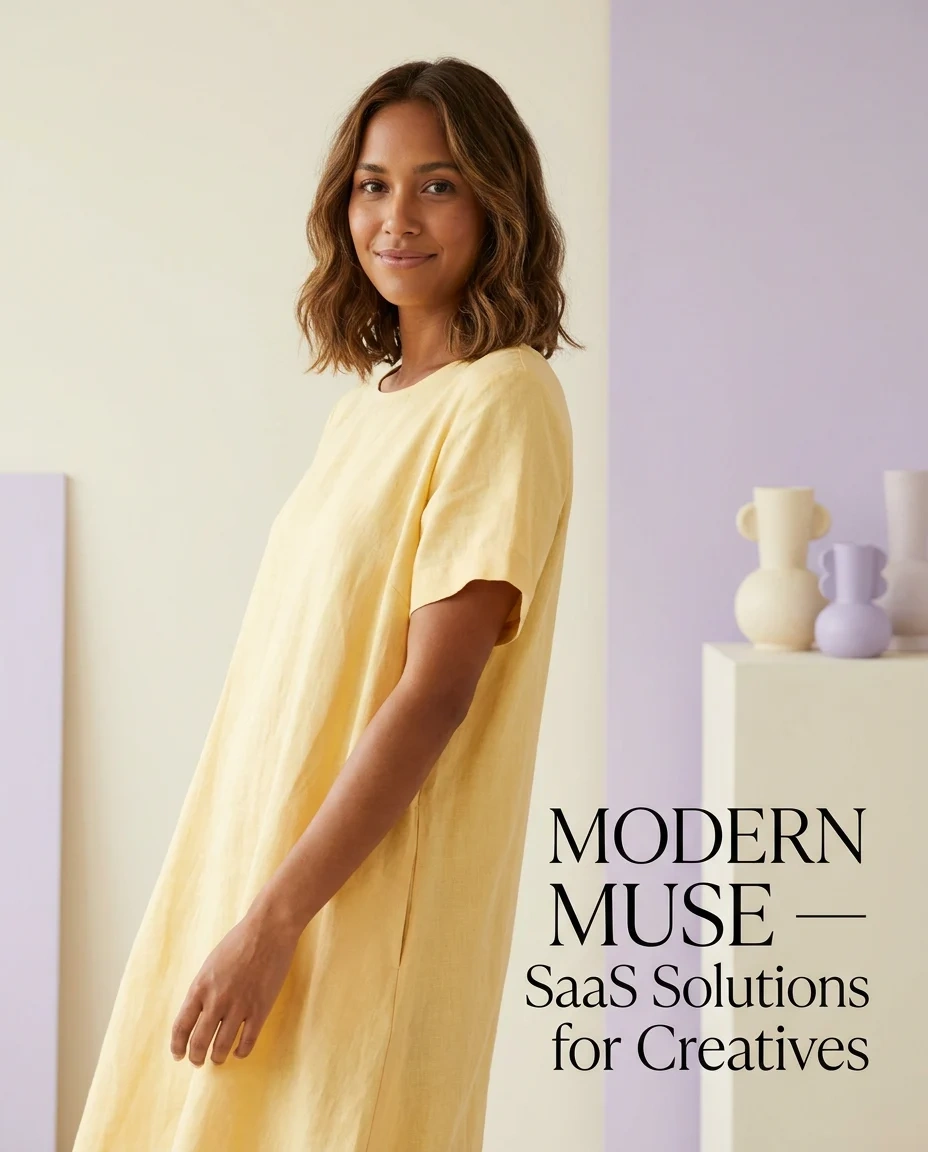
Yellow dress, blue casual, editorial poses. Vertical-first compositions tuned for fashion D2C reels and Pinterest pins.
Recreate — template-based
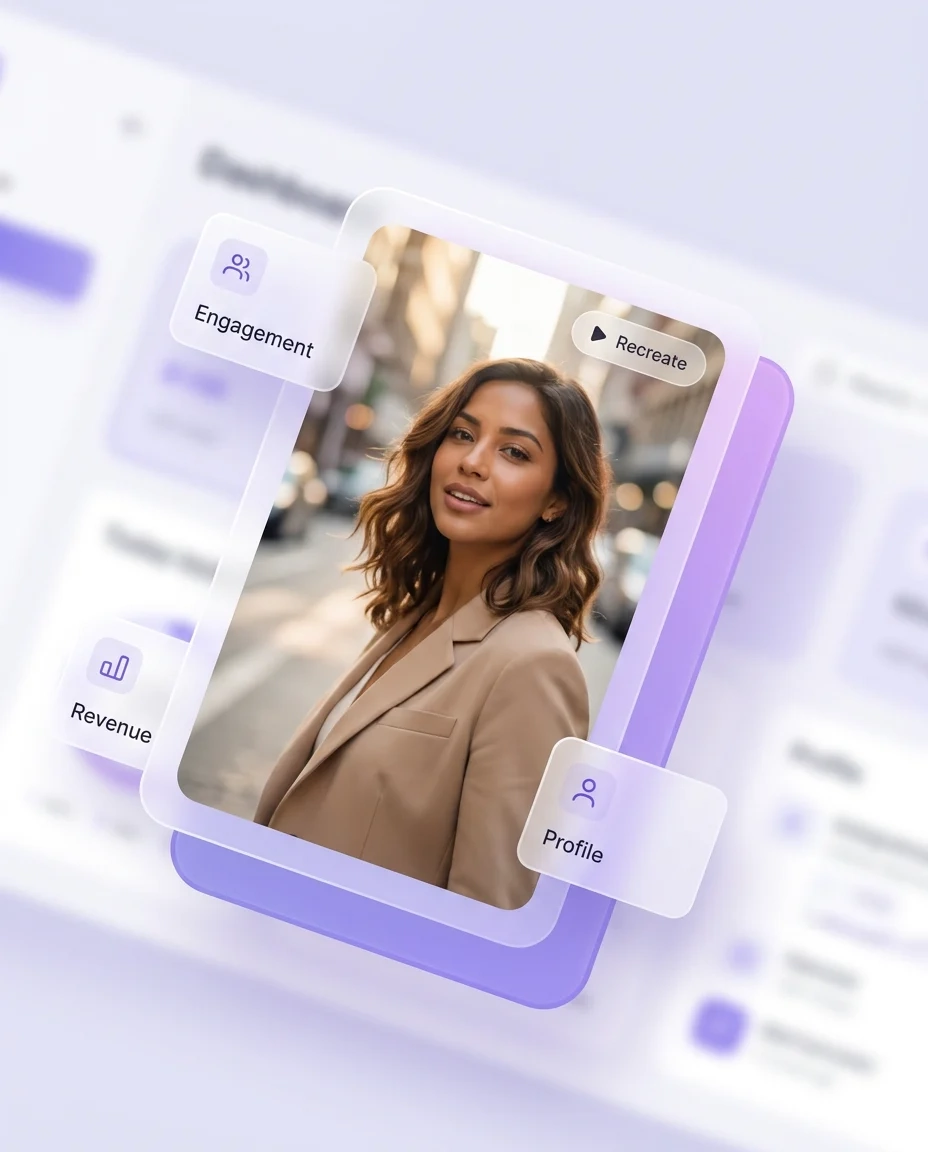
Every template carries a Recreate overlay. Pick the template, drop your saved AI Influencer in, and the studio re-renders the same shot type with your character.
My Generations
A personal output history with date stamps and creator handles. Each generation stores its source character, template or prompt, and resulting clip. Re-edit or regenerate inline.
Vertical-first formats
9:16 default for Reels, TikTok, and Shorts. Square 1:1 and 4:5 for paid social. 16:9 for hero placements. Outputs export in standard formats ready for downstream channels.
Tab strip
Switch between My Generations, Templates, and UGC Creator Templates from the top tab strip. Library, output history, and ready-made scenes in one workspace.
A worked example: one persona, four UGC clips, one afternoon
Six steps. One reusable AI influencer. Four ad-ready vertical clips out the other end. Show More to see steps four through six.
1. Build the persona
Open AI Influencer. Pick Human in the Custom panel. Set Ethnicity, Skin Color, Eye Color, and Age in the Builder. Drop in three reference images of your on-brand aesthetic. Click Generate. Save the result as “Brand Lead — Maya”.
2. Edit the persona
Open Maya in the editor. Use Prompt to swap the wardrobe to your campaign palette. Use Visual edit to anchor a logo onto the t-shirt. Use Camera Angle to shift to a three-quarter view. Run Upscale before export.
3. Pick the first template
Open the UGC Video Generator. Pick the Cobblestone walk-and-talk template from UGC Creator Templates. Drop Maya in as the character. Switch the background source to Image and use your store’s facade. Generate.
4. Recreate across templates
Repeat with the Athleisure-on-bed template, the Ring-light studio template, and the Wheat-field fashion template. Same persona, four different shot types, no character drift between clips.
5. Layer in Motion Control
For an extra clip, switch to Motion Control. Upload a reference action video of the gesture you want — a head turn, a product hand-off — drop Maya in, and Motion Control closely follows the source movement against your scene.
6. Export and ship
Outputs land in My Generations with date stamps. Export at 9:16 for Reels and TikTok, 4:5 for paid social, 16:9 for YouTube placements. Four UGC variants, one persona, one afternoon — ready for the ad calendar.
What the UGC Content Studio is good for
Six workflows where one reusable AI persona, animated as UGC, helps reduce repeated casting and production overhead and supports concepting, testing, and selected production workflows.
AI UGC ads at variant scale
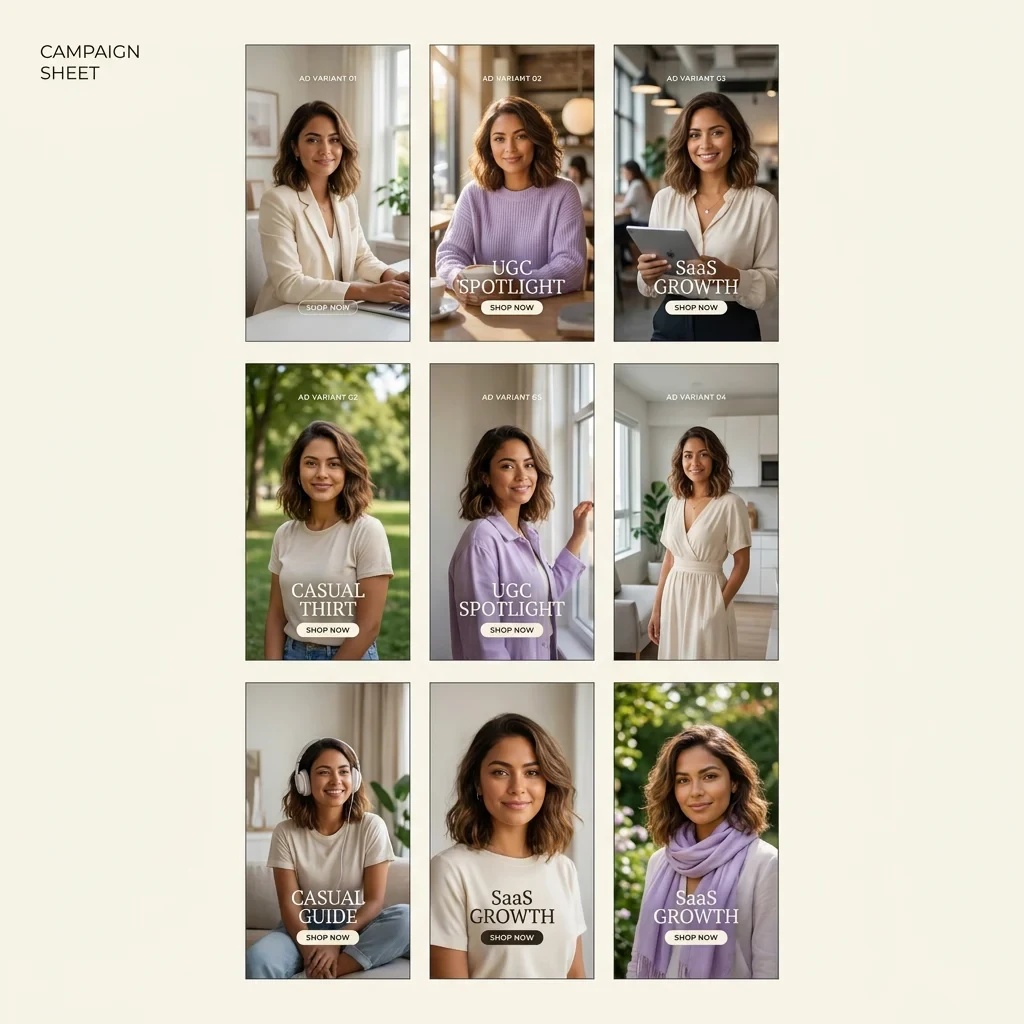
Ship multiple creative variants for paid Meta, TikTok, and YouTube and reuse across campaigns. Same persona, different scripts, different templates, different backgrounds — all from one saved AI Influencer. Pair the Studio with PixelBin’s Batch Editor when you need bulk variants on the still side.
Brand spokesperson and always-on social
Lock in one reusable AI persona as the “face of the brand” across the full marketing calendar. Daily reels and shorts, weekly story drops, and monthly campaign hero pieces all share the same character — reused across campaigns to reduce repeated casting overhead.
Localised creators per market
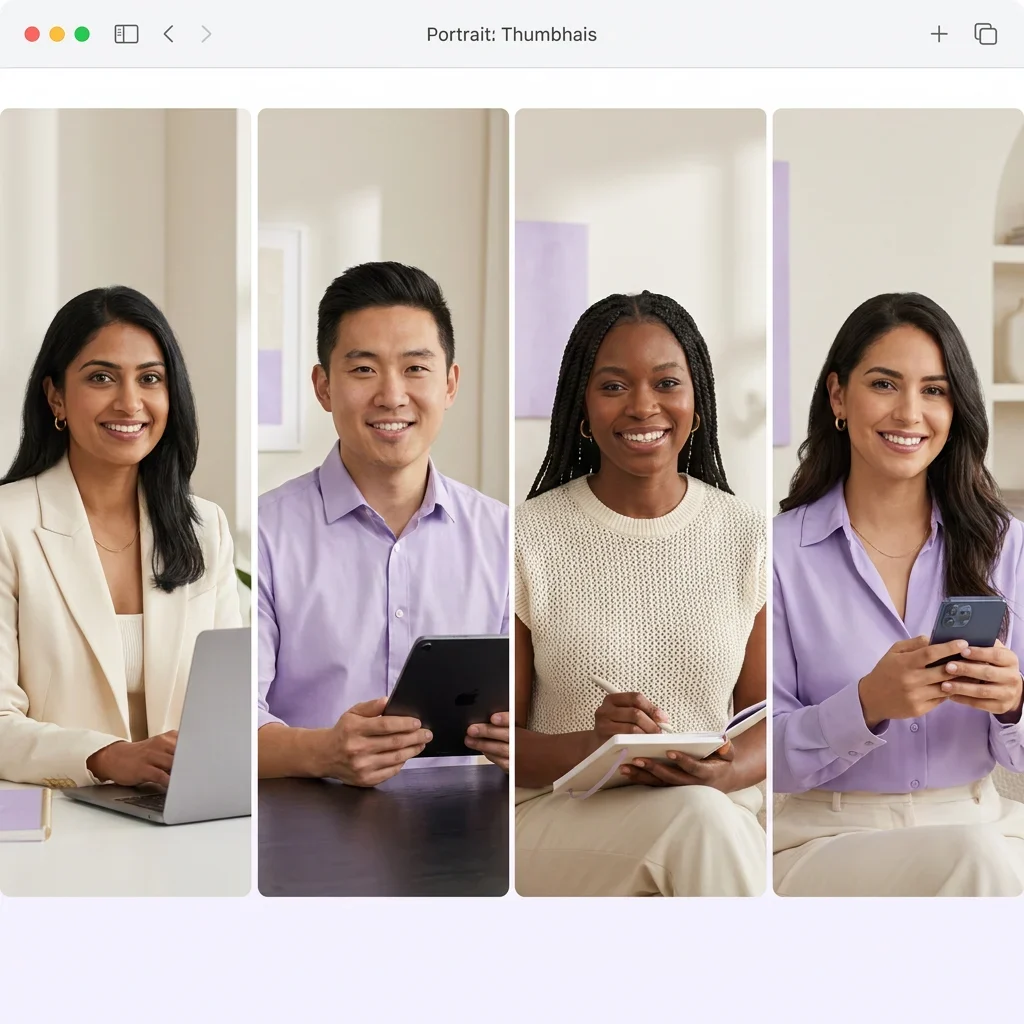
Adapt for different markets by generating region- or ethnicity-matched personas without a local talent search for every campaign. Same script, different persona, same campaign rhythm — helping reduce repeated casting and travel for the localisation step.
Mascot and IP-driven content
Use the Custom character types — Alien, Elf, Mantis, Reptile, plus the insect and aquatic set — to ship non-human personas for game studios, app brands, Web3 IPs, and D2C mascot characters. Animate them into UGC clips through the same Motion Control flow.
Product demos and how-to reels
Reuse one persona to demo every SKU consistently. Same delivery, same wardrobe direction, same camera language across the catalogue. Pair with the AI Image Editor for SKU-level image cleanup before the demo run.
Pre-shoot storyboarding
Block scenes with the AI persona before committing budget to a real shoot. Test wardrobe, camera angles, backgrounds, and motion direction with template-driven clips. Use it for concepting, testing, and selected production workflows — promote the winning recipe into the actual shoot brief, or use the AI output where the bar fits.
Who the UGC Content Studio is built for
Different teams, different deliverables. Same build-once, reuse-across-campaigns workflow.
D2C and e-commerce brands
Reduce repeated casting and production overhead with a reusable AI persona that fronts campaigns alongside your existing creator work. Ship product reveals, founder testimonials, and lifestyle B-roll from the same persona, reused across campaigns.
Performance marketing teams
Built for paid Meta, TikTok, and YouTube. Ship multiple UGC ad variants and reuse them across campaigns. Test creators head-to-head as multiple AI personas on the same script. Keep the calendar moving.
Social media managers
Maintain a consistent on-brand creator face across reels, shorts, and stories. New scripts daily, same persona, no casting friction. The library of saved influencers becomes your in-house talent roster.
Agencies and creative shops
Save one persona per client and reuse across the brand’s full ad calendar. Different recipe per client, different visual direction, same studio workflow. Edit the recipe once, scale the deliverables.
Solo founders and indie sellers
Get a “face of the brand” without hiring. Generate a stylised persona for thought-leadership reels, ship founder content monthly, and keep the audience hook consistent across every post.
Game studios, Web3, VTubers
Use Custom character types for non-human personas — alien, elf, creature, mascot. Build IP-driven content for game launches, Web3 communities, and character-driven creators without licensing live talent.
PixelBin’s AI UGC Content Studio combines a reusable AI influencer builder, an advanced persona editor, and a motion-control UGC video generator in one workflow. Build a character once, edit it with prompt and visual controls, then animate it with creator-style templates for ads, reels, and shorts.
Inside the studio they refer to the same object: a saved, reusable character. AI Influencer is the in-product label, AI Avatar and AI Persona are common synonyms. The character travels across both image edits and motion-control video, keeping consistency across every campaign asset.
A one-off AI image regenerates a new face every time. An AI Influencer is a first-class saved object — built from preset traits or a custom character type, optionally anchored with reference images — that you reuse across future generations. The same persona shows up in still edits and in motion-control video without drifting.
Yes. The Custom panel includes character types beyond Human — Alien, Elf, Mantis, Reptile, Amphibian, Beetle, Octopus, Iguana, Lizard, Crocodile, Bee, and Ant — plus the regular Human option. Use them for brand mascots, IP-driven personas, game characters, or VTuber-style creators.
Builder mode exposes Ethnicity / Origin Base, Skin Color, Eye Color, Skin Conditions, Age, plus Advanced Settings for Face, Body, and Style. The Eyes section adds Type and Details. Custom mode swaps the human preset for a non-human character type. Reference images can anchor identity, wardrobe, or aesthetic on top of any trait combination.
Open the persona in the Edit Image canvas and use Prompt edits, Visual edits, Camera Angle, Adjust, or Upscale. Prompt edits take a natural-language description. Visual edits let you click anywhere on the image to drop a localised prompt anchor, with multiple anchors per image. The model picker (Nano Banana visible) selects the underlying generative model for the edit.
Visual edit mode lets you click directly on the persona — on the wardrobe, the accessory, the background, the hair — to drop a region-specific prompt. Multiple anchors can run in one pass. Use Clear to reset all anchors at once. It is the fastest way to fix one element of an image without re-rolling the whole generation.
Motion Control is a generation mode where you upload a reference action video and use Motion Control to closely follow the source movement with your saved persona — walking pace, hand gestures, head turns — with your character in place of the original subject.
The Generation Model picker surfaces Kling 2.6 by default, with multi-model support inside the dropdown. Image edits use a separate model picker that includes Nano Banana. The studio is designed to absorb new models as they ship without changing the workflow.
The studio is vertical-first — default canvases at 864 by 1184 and similar — tuned for TikTok, Reels, and Shorts. Square 1:1, 4:5 for paid social, 9:16 for stories and reels, and 16:9 for hero placements are all supported. Outputs export in standard image and video formats ready for downstream channels.
Both work. The UGC Video Generator has three tabs: Image to Video (animate a still), Motion Control (mirror a reference action video), and Text (generate motion from a prompt alone). Pick the tab that matches the asset you have.
Yes. The AI Influencer is a persistent saved object, not a per-generation render. Drop the same persona into the Edit Image canvas for stills and into the UGC Video Generator for clips. The character stays consistent across every output, which is the whole point of the studio.
A reusable AI persona helps reduce repeated casting and production overhead, scheduling friction, and per-deliverable costs that can come with creator work. The same persona can ship multiple variants and adapt for different markets without a fresh search, and stays consistent across the campaign. Real creator partnerships still matter for trust signals and audience reach — the studio is built to use for concepting, testing, and selected production workflows alongside them.
Exports come out in standard image and video formats ready for downstream social, ad, and storefront channels. AI-generated visuals should be disclosed in line with each platform’s labelling rules for paid placements. For specifics on plan limits and export rules, see the pricing page or product documentation.
Each generation, edit, or render shows its credit cost before it runs — for example, Apply for 4 credits on Camera Angle. Free plans include starter credits with no card required. Paid plans top up the balance for high-volume work.
Yes, within each platform’s AI-content disclosure policy. Outputs export at vertical and feed ratios ready for downstream channels. Disclose AI-generated visuals in the caption, ad metadata, or label as required by the platform you are running on.
Both. D2C and e-commerce teams are the most active users today, but the same workflow ships founder avatars for thought-leadership reels, AI presenters for SaaS feature explainers, course instructor personas for info-product creators, and brand spokespeople for B2B social. The persona is the unit of identity; the deliverable is up to the team.
Build the persona. Ship the UGC.
Open the studio and ship your first AI UGC clip in minutes.





.webp)
.webp)
.webp)

_(1).webp)