






High-quality edits
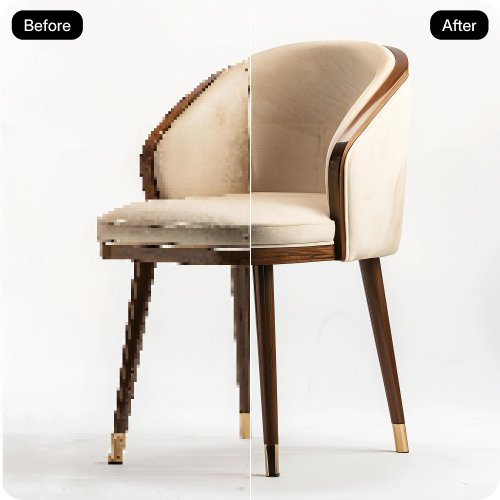
Pixelbin’s AI editor preserves the original resolution of your image while making edits, ensuring the final result looks professional and store-ready.

 Contact Us
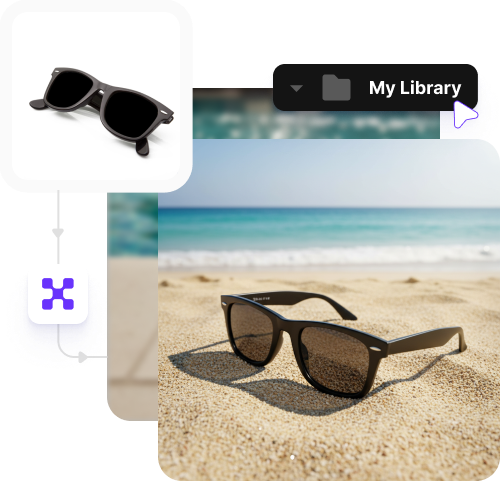
Modify backgrounds, update product image text, and produce test-ready image variations for Magento.

AI Magic in progress
Removing backgrounds, adjusting lighting, refining edges, and creating optimized Magento product images
Your Magento product image is ready!
There was some issue on our end. Please try again.




.png)
.png)

Create distraction-free product visuals with consistent layouts that inspire confidence in your buyers.
Pixelbin’s AI editor preserves the original resolution of your image while making edits, ensuring the final result looks professional and store-ready.
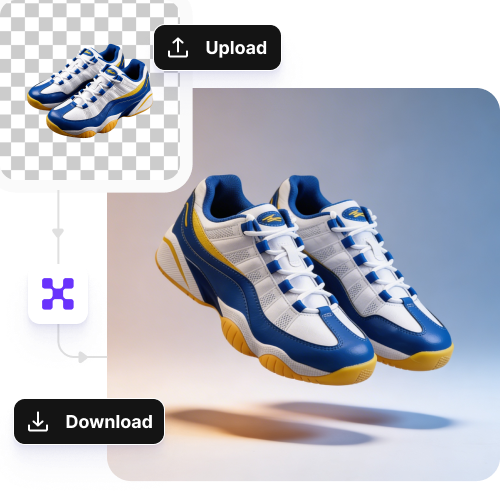
Access the tool from any device (smartphone, tablet, desktop, laptop, etc.) directly from your browser, such as Safari, Chrome, Edge, or Firefox.
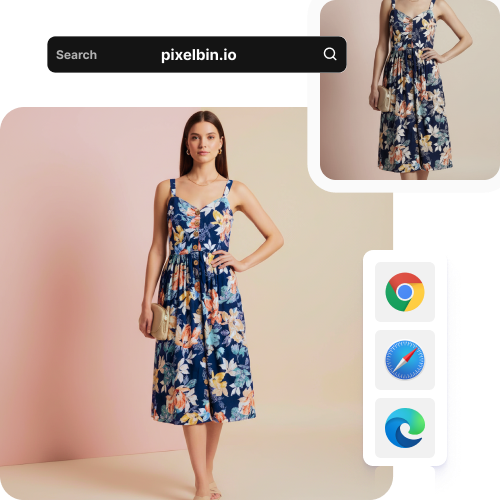
Keep all your images organized in one place so you can find, reuse, and manage them easily.
You can use Pixelbin’s AI Magento image editor for free up to three times a month. You can even download the generated images in HD, without paying anything.
44.jpeg)

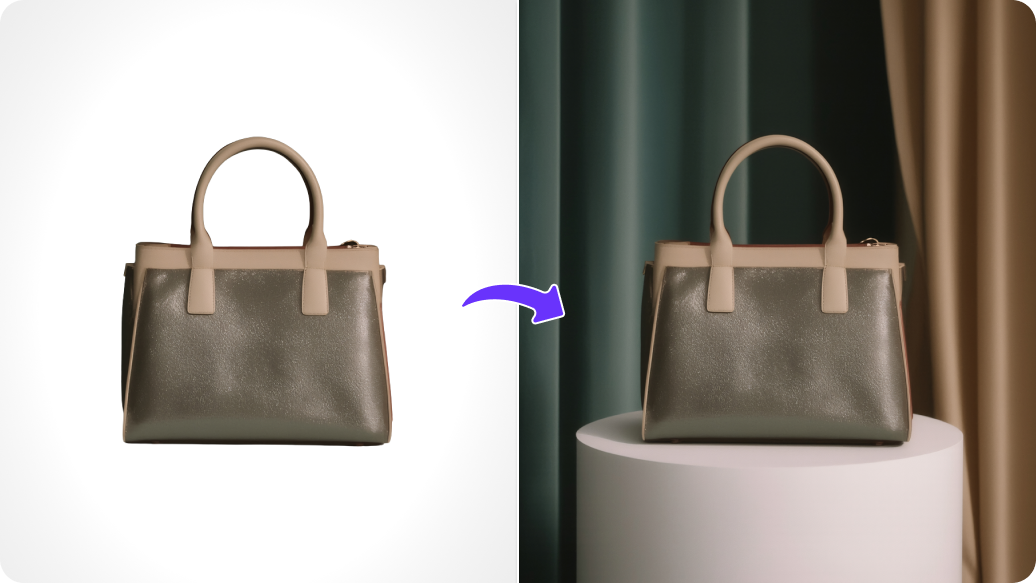
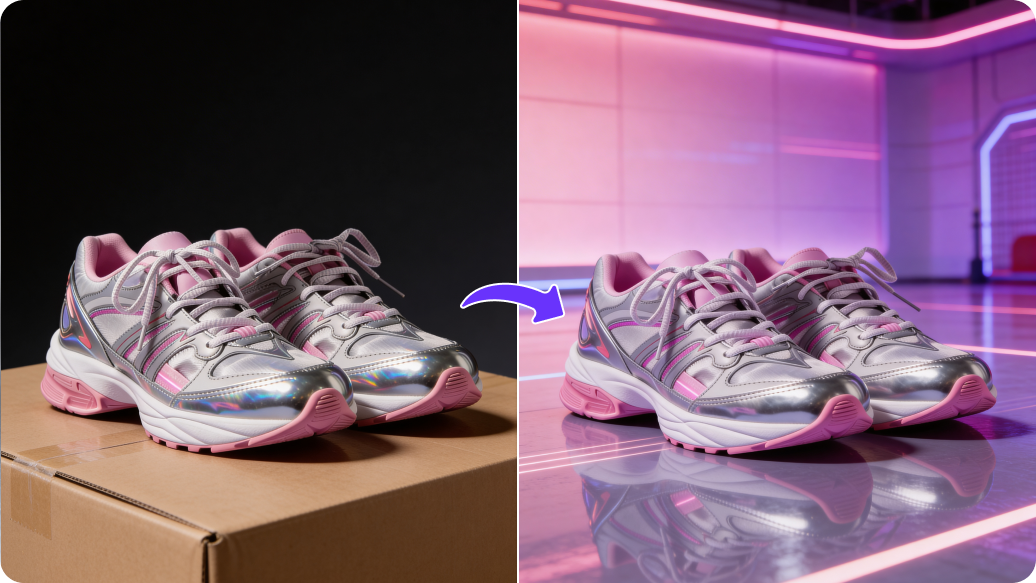
Make every new item appear on your "New Arrivals" page looking tidy, consistent, and ready to sell as soon as you upload it with our AI! Remove backgrounds and add realistic settings for your products so they are professional to your buyers.
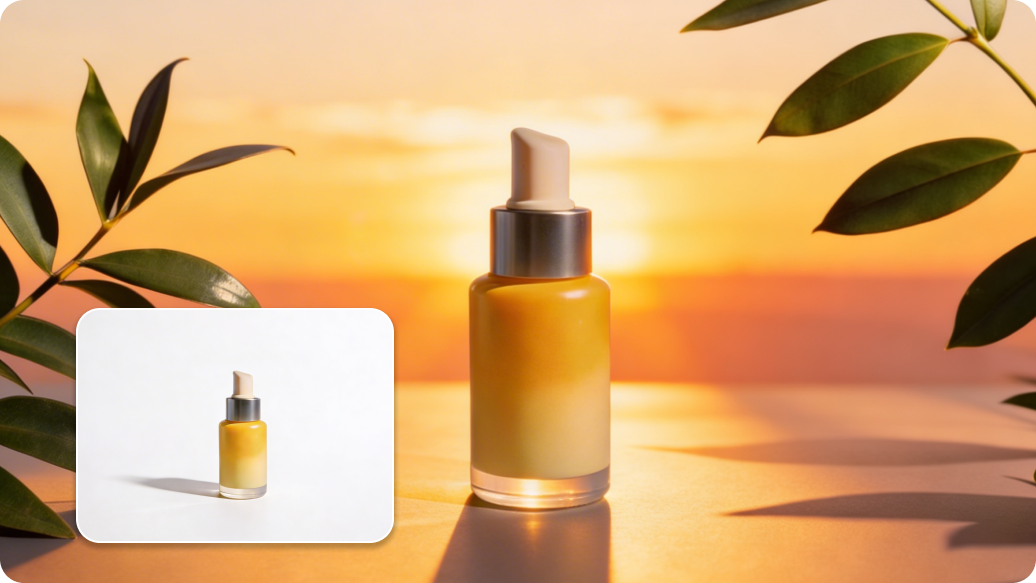
Your homepage needs a "Summer Sale" banner, but all you have is a dull picture of your item on a desk. You use the AI image editor to replace that desk with a "sunny poolside" backdrop rather than hiring a photographer.
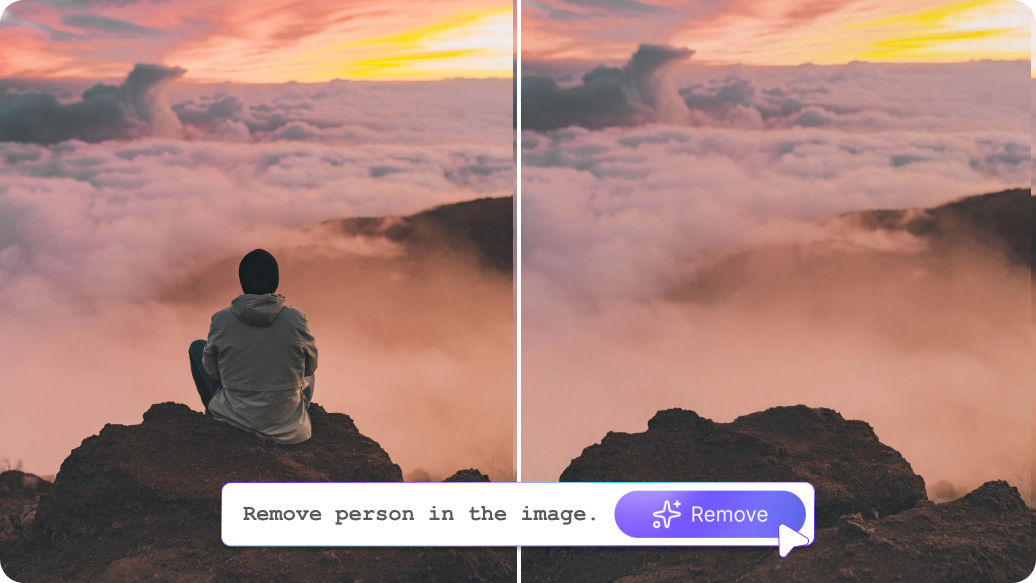
Even though you have a fantastic photo of a model wearing your clothes or jewelry, a big tattoo or a piece of jewelry that the model is wearing detracts from the image. You just brush the distraction away with our AI." It blends the skin or fabric flawlessly, keeping the customer's attention on the product you want to sell.
If you have luxury and value stores, you wouldn’t want to have the same images for both. Right? Take a picture of your base product and use AI to create a "premium marble and gold" background for the luxury store and a "plain white" background for the value store. It enables you to use the same original file to address two distinct audiences.
We've all seen those messy store pages where one product is high and the next is low, making the whole site look "crooked." With the Magento AI image editor, you can automatically snap every product to the dead center of the frame with the exact same amount of breathing room. It’s the easiest way to make your entire catalog look perfectly organized and high-end.
To make your Magento listing appear realistic across the board, here are a few tips you can try:
Here are some of the most common questions about our Magento AI image editor. If you can’t find the information you need, contact us at support@pixelbin.io or refer to our documentation for more details.