



PixelBin logo
🚀 Pixelbin Video Generator - Seedance 2.0, Kling 3.0 Motion Control and more live   Click for Free Trial

AI image for editor for eBay

Highlight textures, correct brightness, and make your products stand out in eBay search.

Uploaded image
2500 chars left
Max file size 10 MB.
Loading

AI Magic in progress
Removing backgrounds, adjusting lighting, refining colors, and creating eBay-optimized product images

Ready

Your eBay product image is ready!

Edit image with AI
Get 🔥 free credits for image editing, upscaling, generation and more
Edit another product
Generation Failed

There was some issue on our end. Please try again.

Try Again
Generation Failed

There was some issue on our end. Please try again.

Try Again
Show case

How to use Pixelbin’s eBay AI image editor?

1
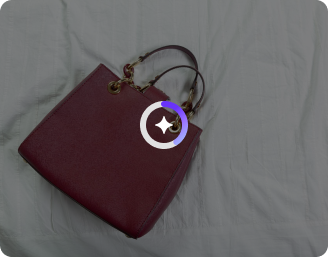
Upload your image
Add a clear product image in JPEG, JPG, PNG, or WebP format directly from your device.
2
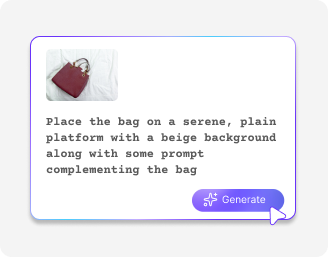
Add your prompt
Describe the background, lighting, or setting you want for your eBay listing.
3
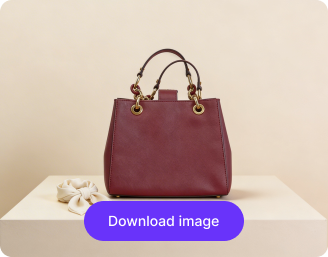
Download the image
Save the edited photo instantly in high resolution with no watermarks, labels, or added texts.

Why use Pixelbin’s AI eBay product image generator?

Browser-based
Use the tool directly in your browser, such as Safari, Edge, Chrome, or Firefox.
Multiple formats
Upload your product photos in popular formats, like JPEG, JPG, PNG, or WEBP.
Global CDN delivery
Load and download your images instantly from anywhere with our fast global delivery network.
Complete privacy
Your product details and images remain confidential and are never shared or reused.
Asset management
Organize and manage all your product photos in one place for easy access and editing.
No login required
Start creating and editing your images instantly without creating an account or sharing your personal information.

Sell more with studio-quality product photos

Highlight your items in the best light and angles to attract buyers and increase clicks, sales, and credibility.

No editing skills

Create professional, eBay-ready product images instantly, even if you have no prior editing experience.

Feature 1
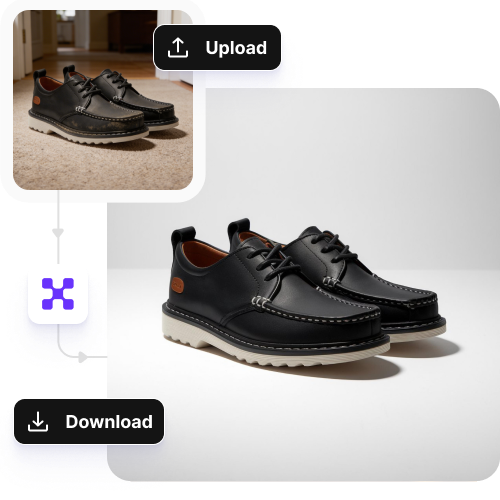
Image upscaling

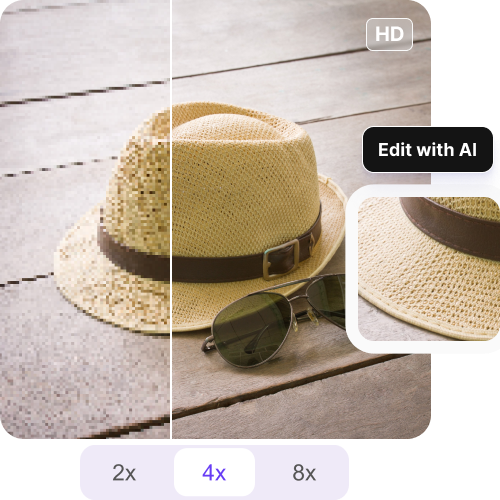
Enhance your photos by up to 2X, 4X or 8X so it appears sharp and clear on any screen.
Feature 2
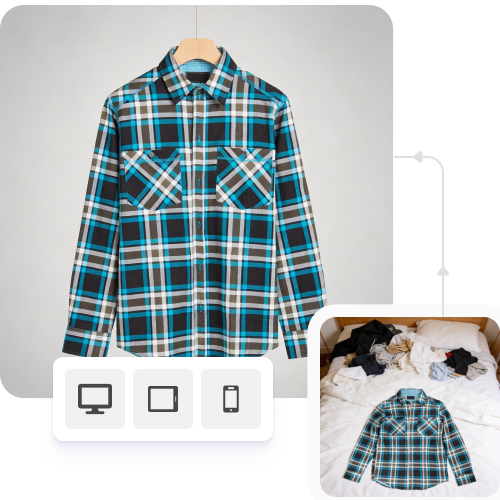
Mobile-friendly

Access the eBay image editor on your smartphones or tablets; no app installations needed.
Feature 3
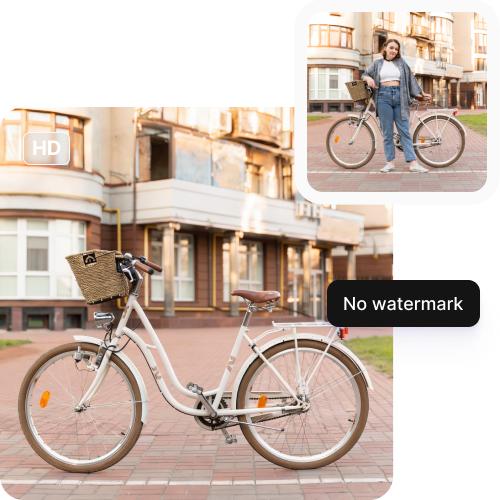
Watermark-free exports

Save your product images without any hidden marks, labels, or logos, ready to upload to your eBay store.
Feature 4

AI tools by Pixelbin

Key highlights of Pixelbin’s eBay AI image editor

Benefits of using the AI image editor for eBay

  • Studio results without the studio costs: Make your products appear premium without buying expensive softboxes, backdrops, or high-end cameras. The eBay image editor can create professional-grade images for your used and new inventory by fixing extreme lighting issues and removing noise from phone photos.
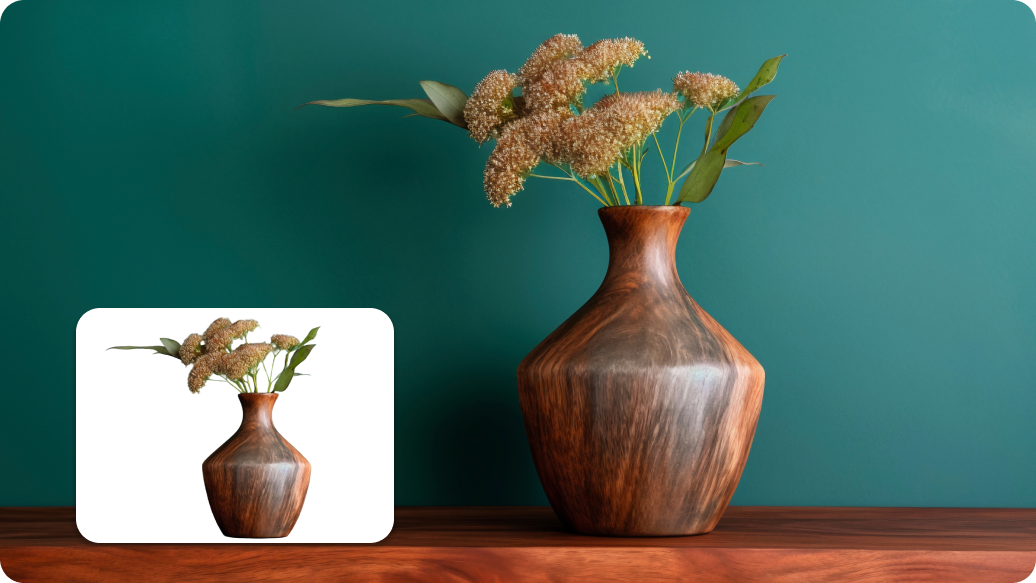
  • Background removal for a professional look: eBay shoppers prefer straightforward images without distractions. Remove cluttered kitchen tables and bedroom floors just by describing them in a few simple words. With white and neutral grey backgrounds, you create a consistent "brand" for your store that signals to buyers that you are a serious and trustworthy seller.
  • Rank better in search: Though AI alone does not help with better ranking, when your products look good, it definitely increases the visibility. Search algorithms do prefer clear HD quality images, leading to high click-through rates.
  • Resizing and centering for search visibility: eBay searches and their mobile application require item photos to follow a specific square format, which results in item images getting ignored when they display off-center or poorly cropped. With our product image editor, you can automatically center it and create ideal white space around it to optimize thumbnail appearance in search results.
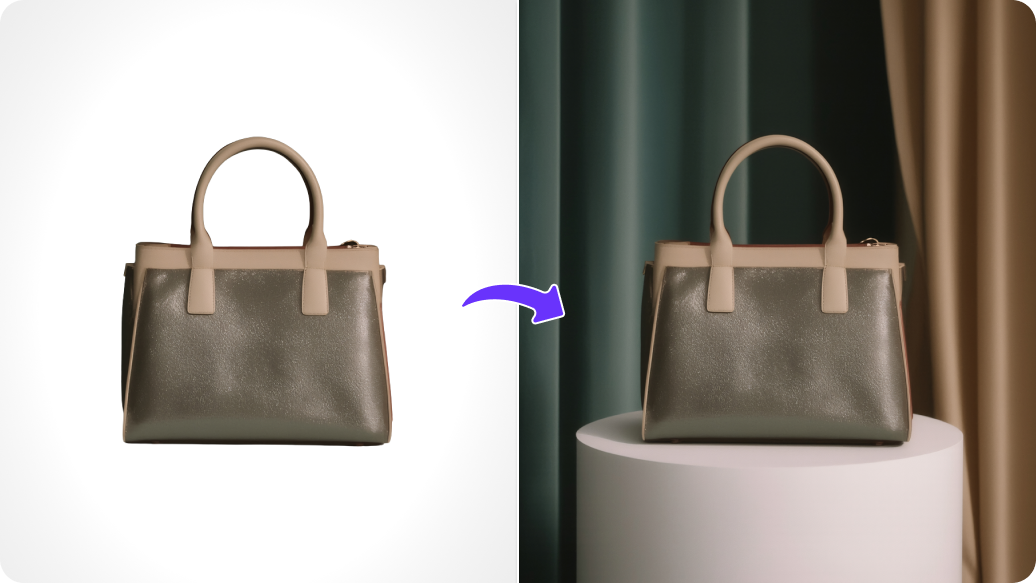
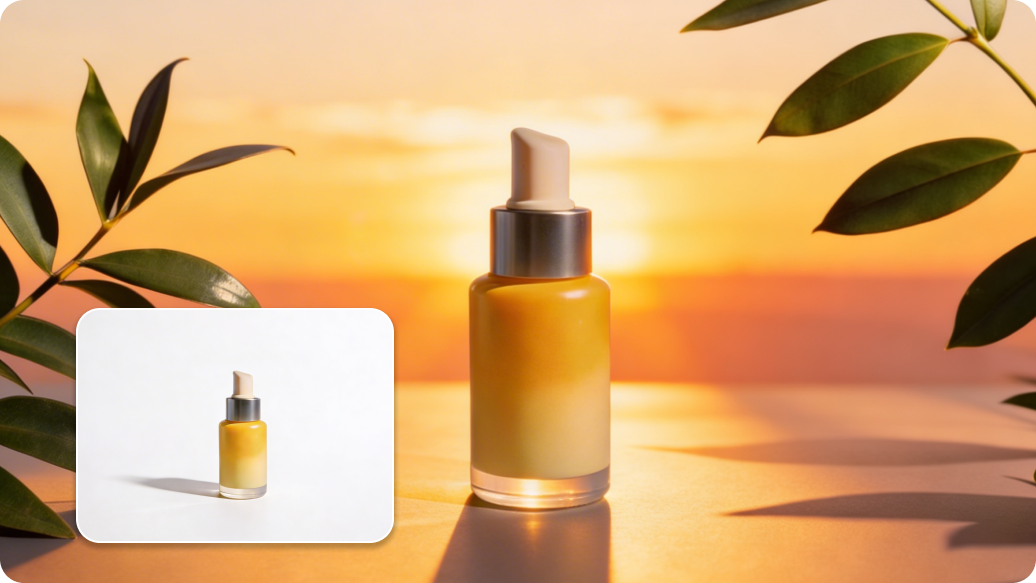
  • Create realistic lifestyle scenes: The AI generates a "staged" environment for home decor and fashion items, which displays your product in an attractive room or outdoor space that enables customers to imagine how the product would look in their own home.
  • Enhanced resolution for used items: Buyers who purchase your vintage and pre-owned items need to inspect the product through zooming because they want to see every detail of its current state. With our AI upscaling feature, you can improve blurry images until they display complete details of your items.

Use cases of best eBay AI image editor

1. Digitally "wiping" items clean

If you’re listing a collectible that has a bit of dust in the crevices or an old price sticker that won't peel off, you can brush over the imperfection with our AI image editor for eBay. The tool magically fills in the texture of the item without you ever touching a cleaning chemical.

2. Fixing a "bad lighting" day

If you finally have time to list but the sun has gone down, your photos will usually look yellow and grainy. Our AI can help you inject bright, natural daylight into the shot, so you can easily list your products 24/7 regardless of your actual room lighting.

3. Rescuing blurry serial numbers

For electronics or designer goods, the serial number or "made in" tag is the most important photo for proof of authenticity. If that shot comes out slightly out of focus, our "upscaler" can sharpen the tiny text on the label so it's perfectly readable for the buyer, preventing "is this real?" messages.

4. Removing reflections from shiny surfaces

If you're selling a watch, a phone, or jewelry, you usually end up with a reflection of yourself or your room in the item. With the image editor, you can easily fix those reflections and swap them for a clean, studio-grade metallic sheen.

5. Creating a themed shop environment

Instead of just a white background, you can generate a consistent "staging" area, like a rustic wooden table for vintage tools or a modern marble slab for beauty products, so your entire eBay store has a high-end, matching look that builds trust.

How to get the best results from the AI product image generator?

To make sure your eBay listings look realistic and professional, here are a few tips for you:

  • Use clear photos of your product with minimal blur so the AI has enough detail to work with.
  • Avoid images with strong shadows, reflections, or cluttered backgrounds.
  • Use images that show the product from multiple angles to generate realistic, three-dimensional results.
  • Make sure the product is fully visible and not cropped or obstructed in the photo.
  • Be specific in your prompts by including color, material, lighting, and angle to guide the AI effectively.
  • Include keywords like “realistic,” “studio lighting,” or “high-resolution” to make the image look professional.

FAQs

Here are some of the most common questions about our AI image editor for eBay. If you can’t find the information you need, contact us at support@pixelbin.io or refer to our documentation for more details.

Pixelbin offers three credits to test out the editor, so you can perform 3 actions only. Following that, you need to create an account and continue on a pay-as-you-go basis.
Provide specifics! Give the AI clear instructions on how to create your product by including information about color, material, lighting, angle, and background.
Yes, the AI is capable of editing transparent or multi-part objects; however, for optimal effects, ensure that your original image clearly displays each part.
You can’t “undo” like in Photoshop, but you can adjust your prompt or try a new edit to get a version you like.
The editor works best with images up to 10MB in size, as long as they are in the supported formats.
Edit images in seconds, not hours
Get pixel-perfect results just with your words
Start editing with AI