


Support webp/jpg/jpeg/png, up to 10MB
/pixelbin_blogs/PB_2.0/Apps_New_design_graphics/Piercings_filter/Sample_images/download_(46).webp)
/pixelbin_blogs/PB_2.0/Apps_New_design_graphics/Piercings_filter/Sample_images/download_(36).webp)
/pixelbin_blogs/PB_2.0/Apps_New_design_graphics/Piercings_filter/Sample_images/download_(26).webp)
/pixelbin_blogs/PB_2.0/Apps_New_design_graphics/Piercings_filter/Nose_Ring.webp)
/pixelbin_blogs/PB_2.0/Apps_New_design_graphics/Piercings_filter/Septum.webp)
/pixelbin_blogs/PB_2.0/Apps_New_design_graphics/Piercings_filter/Nose_Stud.webp)
/pixelbin_blogs/PB_2.0/Apps_New_design_graphics/Piercings_filter/Lip_Ring.webp)
/pixelbin_blogs/PB_2.0/Apps_New_design_graphics/Piercings_filter/Snake_Bite.webp)
/pixelbin_blogs/PB_2.0/Apps_New_design_graphics/Piercings_filter/Eyebrow.webp)
/pixelbin_blogs/PB_2.0/Apps_New_design_graphics/Piercings_filter/Bridge.webp)
Virtual piercing try-on made simple with AI
AI piercing try-on filter
Explore nose, ear, septum, and belly piercings on your photos with a quick virtual try-on.
/pixelbin_blogs/PB_2.0/Apps_New_design_graphics/Piercings_filter/showcase/image_(17).webp)
/pixelbin_blogs/PB_2.0/Apps_New_design_graphics/Piercings_filter/showcase/download_(45)_(1).webp)
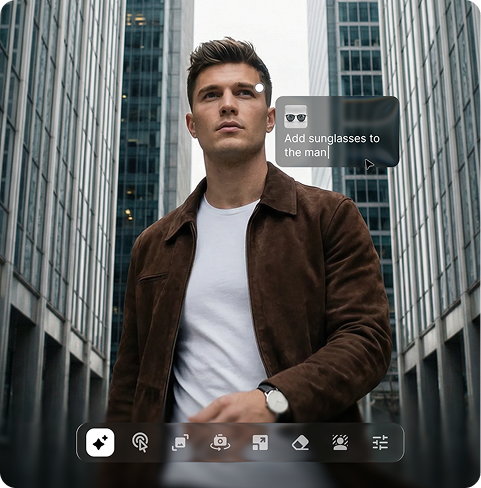

How to use Pixelbin’s AI piercing generator?
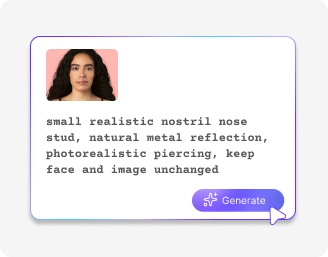
Upload your photo
Add your clear image in JPEG, JPG, PNG, or WEBP so the AI can detect your facial and body features accurately.
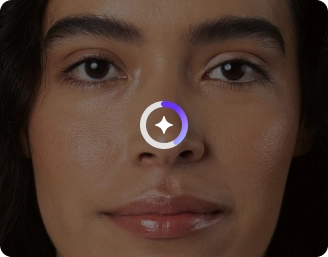
Enter your prompt
Describe the piercing you want to see, such as a silver nose ring, septum piercing, or belly bar.
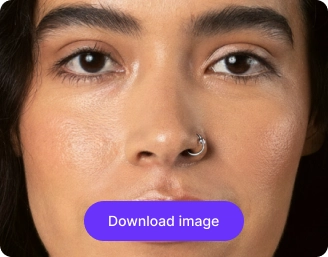
Generate & save
Click on Generate and download your image in HD quality, free from any watermarks, labels, or logos.
Why use Pixelbin’s AI piercing try-on filter?

Multiple formats
Upload your photos in popular formats like JPEG, JPG, PNG, or WebP.

Asset management
Keep your uploaded and generated images organized in one place so you can easily find, reuse, or edit them later.

No distractions
Generate clean images without clutter or watermarks, so your piercing preview looks clear and professional.

Image upscaling
Enhance your final image and upscale it to 8× while keeping your original details sharp and realistic.
.webp)
Direct sharing
Copy and paste your generated image into chats or share the generated image link across social media platforms.

Instant previews
View results quickly and compare different piercing styles side by side to choose the one you like best.
AI piercing that works on all skin tones & face shapes
Try different piercing looks that adapt to your face structure while matching your skin tone in the photo
Instant results
Get realistic piercings on your photo in seconds without any pain, appointments, or professional help
No AI piercing apps needed
Use the nose or ear piercing filter directly in your browser on Chrome, Edge, Safari, or Firefox without installing any app
Complete privacy
Your photos stay private and secure while you generate and preview piercing styles
HD outputs
Download sharp, high-quality images with realistic piercings that look clear and detailed on every device
/pixelbin_blogs/PB_2.0/Apps_New_design_graphics/Piercings_filter/Graphics/No_hairdresser_needed.webp)
AI tools by Pixelbin
/pixelbin_blogs/PB_2.0/Apps_Graphics/Add_Glasses_to_Photo/graphics/Thumbnail.png)
/pixelbin_blogs/PB_2.0/Apps_Graphics/hair_color_changer/Thumbnail.png)
/pixelbin_blogs/PB_2.0/Apps_Graphics/Beard_Filter/graphics/Thumbnail.png)
/pixelbin_blogs/PB_2.0/Apps_New_design_graphics/Face_Expression_changer/Face_Expression_changer/Untitled-4_Artboard_2.webp)
Key highlights of Pixelbin’s AI piercing filter
Benefits of the AI piercing generator
- Risk-free decision making: You can try multiple styles like nose rings, septum piercings, and intricate ear stacks to see which one suits your skin tone and face shape before making a real appointment.
- No pain or cost: Compared to usual piercings that require needles, aftercare, and jewelry, our piercing generator can create images instantly without pain.
- Realistic visualization: Apart from piercing, you can also try smart lighting, shadow matching, and facial detection, so the jewelry blends naturally into your photo.
- Endless style exploration: You can test diverse materials (gold, silver, titanium), types (hoops, studs, barbells), and locations (nostril, bridge, tragus, helix) that you might not have considered otherwise.
- Social media and branding: Create stylish piercing images for free to share your posts on Instagram or TikTok.
- Confidence boost: Seeing a realistic preview can help you feel more confident and reduce the fear of regret before getting a real piercing.
Piercing filter use cases
- Commitment-free test drive: We all have been there, staring at the mirror and wondering whether a septum ring would be cool or if it would just be out of place. With our AI piercing generator, you can try a look before you commit. You can upload a selfie and see exactly how a hoop or stud fits on your features. It saves you from the “what have I done?” feeling the day after a real appointment.
- Building your dream ear stack: Planning a complex ear stack can be hard when you try to imagine several piercings at once. With our piercing tool, you can experiment with various placements like a tragus, conch, or triple helix to see if the spacing looks balanced. It works like a digital mood board for your ears, so you can walk into the studio with a clear idea.
- Choosing the right metal for your skin tone: Sometimes silver can look washed out, while gold may feel too bold. AI previews let you switch materials quickly to see what suits you best. You may discover that rose gold or titanium matches your skin tone better. It is a quick and cost-free way to make better jewelry choices.
- Taking your social media to the next level: You do not even need a real piercing to change your style for photos. Creators and users can add realistic jewelry to selfies or profile pictures. This makes it easy to experiment with different looks and aesthetics for your social media feed.
- Removing stress from the consultation: Walking into a piercing studio without a clear idea can feel overwhelming for customers. An AI-generated piercing image can act as a reference. Showing the look to your client on their face with the digital piercing helps explain the style and placement.
- Coordinating for big events: Planning a wedding, party, or special photoshoot? You can preview whether a subtle nose stud or a bold industrial bar matches your outfit and makeup. This helps you decide if a piercing will enhance your overall look that will last for years.
How to get the best results from Pixelbin’s AI piercing filter?
To obtain the best results, here are a few things you need to try:
- Take a front, direct shot with the piercing area fully seen by the AI to be able to place the jewelry in the correct position.
- Select pictures that are well-lit and have fewer shadows to ensure that the piercing does not stand out from your skin.
- The photos should not be blurry, over-filtered, or low-resolution, as they can make the final result less realistic.
- In your prompts, make sure you add the type of piercing, the color of metal, and the size, e.g, a small silver nose ring or a gold septum hoop.
- Add the specific position in your prompt where you want the piercing, such as nostril, helix, tragus, or belly button
- Test various prompt descriptions and photo angles to determine which one produces the most natural preview.
FAQs
Here are some of the most commonly asked questions about our AI piercing filter. If you still can’t find what you’re looking for, contact us at support@pixelbin.io or read our documentation for more details.
Edit images in seconds, not hours
Get pixel-perfect results just with your words
Start editing with AI